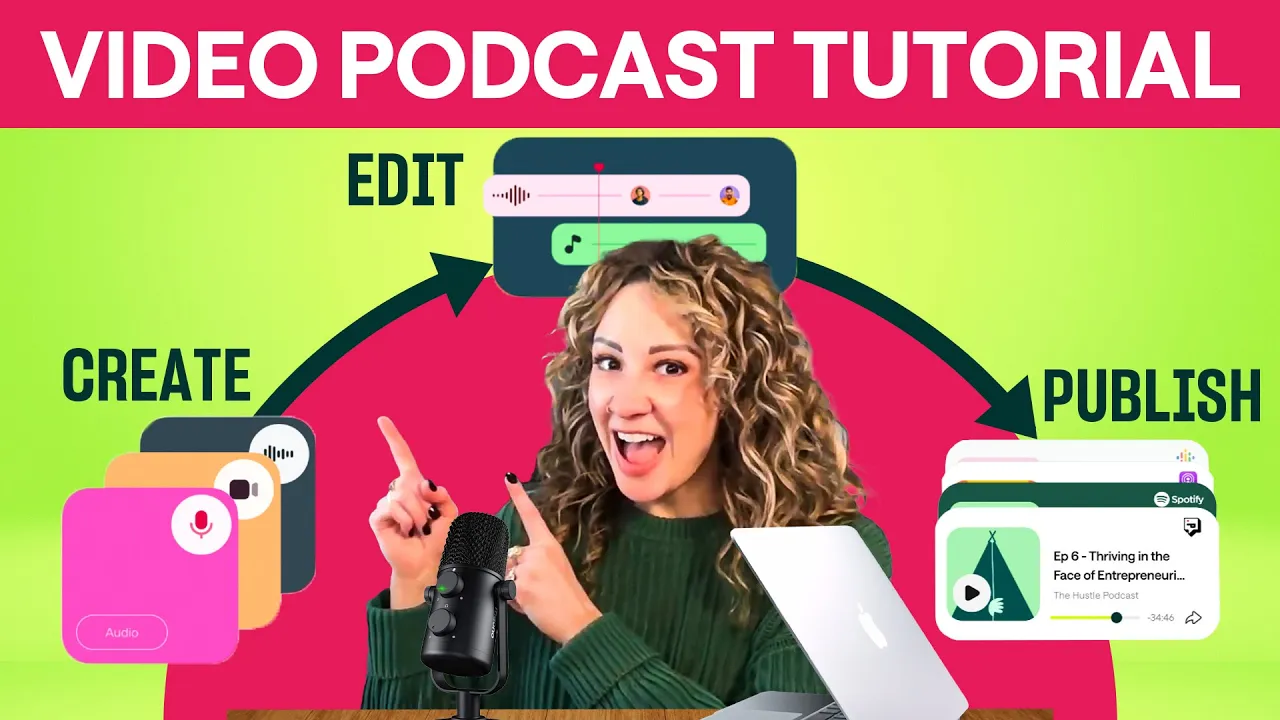
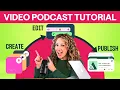
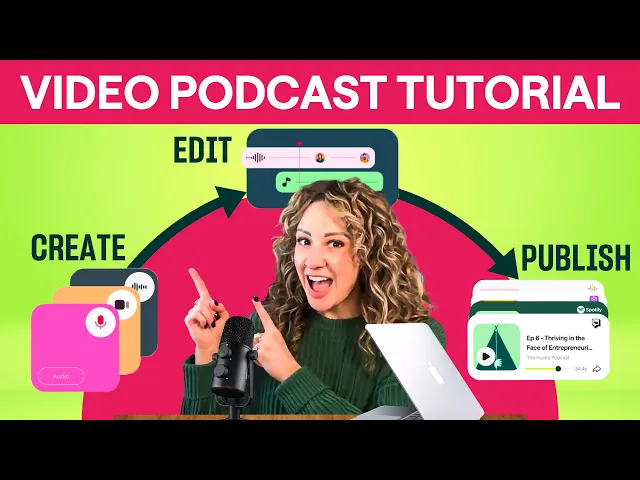
there's no better way for your audience to connect with you than through a video podcast that's why today you'll learn how to record edit and publish your video podcast all in one platform it's [Music] podcastle I'm Amy let's get started first log into your podcast account or sign up through Google Chrome once you're signed in and ready to share your story with the world select recording studio you can also enter the recording studio by selecting create recording from here title your recording we'll call this one the ultimate Wizards masterclass select video and click next update
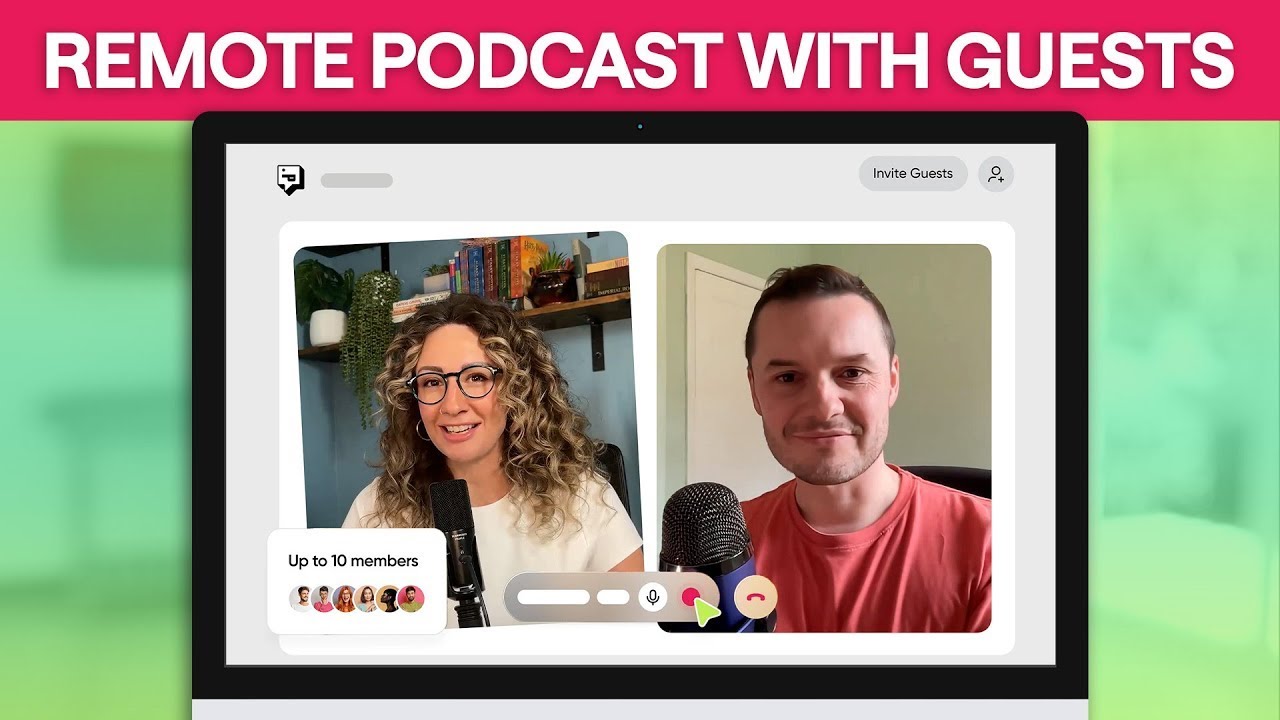
your display name add your title if you'd like double check your microphone and your camera you'll also want to select whether or not you're using headphones if you're recording with guests here's the first place that you can copy the studio link once you're ready to start click join studio in just a moment we'll go over how to edit whatever on your mind in into a cohesive package but first let's break down the rest of the recording system if you forgot to send the link to your guest on the previous page no worries you can copy
it here or feel free to send it to your guest via email once all guests are in the studio and you're ready to roll just click that red record button don't worry you'll get a 5-second countdown before the recording begins to take care of any last minute pring if you're recording an episode and need to stop for a bit whether it's to get food or make sure your dog hasn't destroyed your new rug just click stop at the bottom confirm your selection and start back up again whenever you're ready you can also invite a guest
from inside the project by clicking on the guest button in the bottom right hand corner here you can copy the studio link or send them an email the screen share feature is a great tool to show visuals and data or if you're like me maybe you just want to show off a really cute picture of your dog when you're ready to stop recording click the red stop button and confirm your selection make sure your recording upload reaches 100% before closing your browser or leaving the studio once you're done it's time for the exciting part editing
this is the part where you get to reinforce your brand and cut all the fat off your episode once you've left the recording studio and are ready to edit you'll be taken directly to your recording to jump right in Just click edit video or if you want to edit at a later time you can access your new recording under the recordings tab to begin editing select edit video if you've made it this far in the video and you've only just realized that none of this applies to you because your podcast is Audio Only check out
our tutorial on audio podcast editing here for video editing the first thing that you'll see is the sizing options this will allow you to match the size of your video to whichever format suits you best if you're focused on Instagram reals and YouTube shorts select 9x6 however most creators will probably be served by the traditional 16x9 ratio before we get to those other tabs let's trim the recording to cut out any unneeded segments or some of those awkward pauses you might have take this recording for example there's a part in here where I take a
sip of water that I want to get rid of to do this I'm first going to split the [Music] segment here we can slide the clip to make it shorter or longer or sad it entirely and if you make a mistake don't worry just click the undo button located in the top leftand corner moving back to the sidebar underneath the sizing options you'll find the layout selector feature which is perfect for if you had guests on your podcast here you can choose between four different screen layouts that will position you and your guest in different
ways alternatively you can select the dynamic speaker feature this allows podcastle to automatically show the current speaker and is a great way of boosting the production value of your podcast below the size and layout tab you'll find the sub title menu select your language and your font and podcastle will automatically generate subtitles to display throughout your video you can also choose to add your logo and any custom text you'd like and finally we have the lower thirds this is another fantastic tool for when you have guests on your show remember the name and title that
was entered when you joined the recording studio this is where you can update information to be as silly or as serious as you want it's also great if someone had a typo when entering their name or they just want to adjust their title if you want to change the speed of their recording click the playback speed button underneath the video viewer you can speed it up or slow it down feel like you're in The Matrix and everything but it has a very specific use case that I'll get into in another video the remainder of the
tricks I'm going to show you can be found under the Wonder button yes that is right my friends the sparkly star in the bottom right corner that holds the key to all of our AI video tools let's go through and show how to use them cinematic blur is the first option and it does exactly what you think providing that depth and focus that you find in Hollywood movies select which guest you'd like to add the blur to and click apply thanks to podcastle AI cinematic blur doesn't require any finicky sliders or any messing around see
the difference the next AI tool is our AI video enhancer which was sounding not quite as cool is a fantastic way to upgrade your camera quality without having a shell out a couple thousand for a new camera Now podcast will also has both a video to text and a video to audio feature with the former allowing you to automatically transcribe your podcast and add subtitles which is perfect for promotion on Instagram reals or on Tik Tok and if you're feeling unhappy with your camera setup or maybe you're having a bad hair day you can convert
your video podcast to audio while you're on your way to the hairdresser the final option is magic dust AI but to be honest that has more to do with audio editing we have a full video on audio editing here so check it out if you want to enhance your audio quality once you're done editing click export to download and save the file to your computer if you plan on posting your content on YouTube or other video sharing platforms you'll use this downloaded file to upload back to the platform of your choice now that you've edited
your video podcast it's time to publish the audio right to podcastle thankfully podcastle makes this super easy for you to do this you'll need to exit out of the editor and back to your homepage here you'll find the my shows tab click on it and select create a show first name your show and add a description for it keep in mind that this will be shown to any listener who accesses your show on podcastle so make sure it grabs their attention next categorize your show by selecting a few tags from the list indicate whether or
not your podcast is explicit and click next time for cover art for now I'm going to use that super super cute photo of my dog from earlier select finish and boom you have a podcast my friend to add an episode right away click create an episode name your episode and include your episode description here is where you'll upload the edited podcast that you exported earlier for your episode cover art feel free to use something unique for the specific episode or stick to your overall braining image categorize The Show by adding in your tags indicate the
episode type confirm that content type and click finish and there you have it you've now recorded edited and published your very first video podcast for the rest of the world to enjoy and if you feel like you're ready for a wider audience you can copy the RSS code from the top right corner of your show and follow the steps from Spotify or apple to upload to their hosting platforms I promise it's super easy if you want access to those fancy AI features that I mentioned earlier use the promo code in the description below for 50
% off your first month of the podcastle Pro Plan and if you have any questions comment down below or email support at podcastle doai thanks for watching and see you next time
![I Replaced ALL my ADOBE APPS with these [free or cheaper] Alternatives!](https://img.youtube.com/vi/5EfqHg49kMk/maxresdefault.jpg)