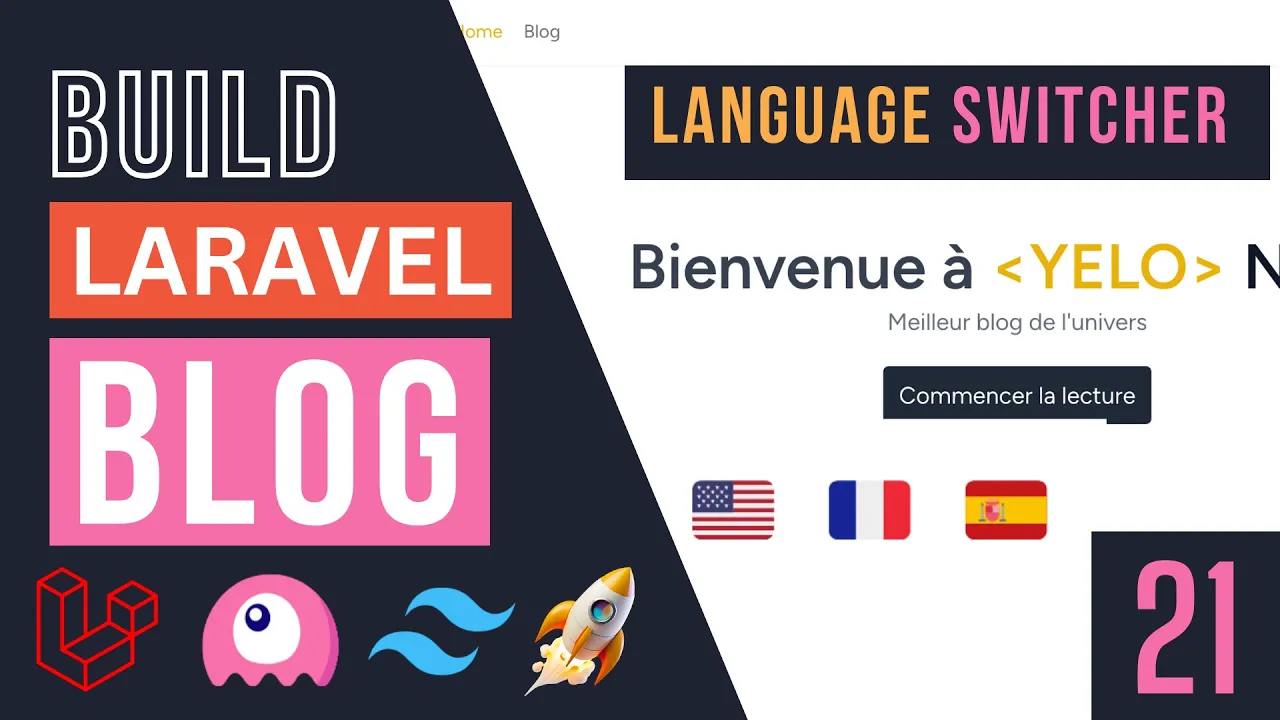
hey guys welcome back to another episode today we are going to add a language suture to our block so on the previous episode we added support for multiple languages to our application however there was a limitation and the limitation was if we wanted to change the language we had to manually go ahead open up our app. php config file and then change local let's say if it was English by default we had to manually go ahead and support you know change it to French right or any other language you support and that's okay if you want to support one language at the same time but if you want to support multiple languages at the same time obviously that's not going to work so for today's video we're going to go ahead and add a simple language switcher that allows our users to kind of go back and forth between any you know any of the supported languages so let's get right into it I'm going to kind of start off by first adding the language switcher so we're going to do the UI first now you have we have two options I suppose one is we can put it inside our header at the top or the top navig ation bar or inside the footer and uh I think I'm going to put it inside the footer because we do have a lot of empty space currently so I think it's better we put it inside the footer but if you guys like it you can also put it in the header doesn't really matter we're mainly focus on kind of the PHP code not necessarily the UI okay the UI I leave it to you guys to go ahead and make it however you like so let's get right into it I'm going to go ahead and open up our footer we still have it open now by default our footer uses is justify Center over here so basically the way justify Center Works guys is it will basically align everything or Justify everything to the center of that element right now for our case I want our language suture to be on the left and then these links to be on the right right so the way we can do that is we can go ahead and switch from justify Center to justify between so just go ahead and make that change and if we do a Reload now it obviously looks a bit weird so what we can do is we can go ahead and add an extra div basically wrap it around our links so these are kind of our navigation links and then I'll add another div this is going to be forever language Searcher I'll just put test here for now and if we reload now it automatically reloaded for me this is basically the way Justified between works right so it pulls everything the first div to the left and then the second div all the way to the right now the spacing got bro is kind of broken now all links are kind of cramped together and I believe it's because of this space X4 that I had previously so I'll just cut this and I'll add it to the div containing our links and so let's do a Reload and we also have a padding issue so for the padding I'll just add it to the footer itself so in we have py4 I'll also do PX4 for padding on the xaxis okay so let's do a Reload and I think now it looks pretty good so again on the bottom bottom left is where we want to put the language switcher so I was thinking maybe we can have the country flag or the language kind of flag and then we would click on the flag or I guess the icon and it would then switch the language now to make life a little bit easier guys I did some digging and there was actually a kind of lot ofel package that makes this easy for us it's called the blade Flags the reason another one I'm forgot the name I think it's called like country flags or blade country something but this one uh is pretty good package it's very easy to use basically it gives us an easy way to load these country icons right we could also manually load them ourselves but this just saves us you know a lot of time from kind of having to kind of uh add these images ourselves and it's also very convenient and easy to use so I will leave the link in the description guys you can also just kind of Google lot of Blade flags and you should be able to find this package I will also again as I mentioned leave the link in the description so once you open up the GitHub just scroll down there is an installation command here it just uses composer so I'll just copy this open up the terminal uh paste that in and while that is installing let's take a look at how we are actually supposed to use it so this package provides us with a bunch of Blade components and then there are basically a different components for every flag so we're supposed to do X flag country and Then followed by that country's code right so BR for Brazil CN for China Great Britain Russia like United States and then there is another one for language so instead of using the country code we are going to use the language code so we can use either of these uh kind of up to you which one you want to do use I think I'm going to go ahead and use this one because I'm not sure how they decide like for English I guess British English or like American English I'm not sure how they decide or if it's customizable so I'll probably go ahead and use the country flags so I have a little bit more control but either of these should be okay and then if you want to pass in any classes you can also do it very easily like this okay I think the installation is done it is so let's go ahead and test it out I'll just copy one of these let's try the US one for English I'll just paste it here and let's do reload I'm not seeing it it could be because there's classes I'll just copy the classes as well it might be too small so I'll just paste that in as well and guys again make sure you have your npm server running so you're able you're compiling your assets so again because we're using Telvin CS uh if you haven't previously kind of compiled let's say W6 or H6 you these classes will not apply so make sure you either have npm run div or you do npn run build to compile it okay so I have npm run div Dev all the time throughout all the episodes so again I believe I mentioned this on episode two or three so again if you are not able to see any of your CSS taking effect make sure you actually compile the assets okay so just a quick reminder all right so let's do reload now and yeah it seems to be working so now we are able to see the flag it looks pretty nice let's zoom out yeah I really like how it looks so let's also add one for France I'll do FR FR let's close the terminal as well and it looks pretty good now the the flags are stacked on top of each other so I'll go ahead and I'll add a class of flex over here okay and we can also do space X4 here we also can add Flix as well so so let's do reload let's go all the way down and as you can see now these are kind of after each other now what I would also like to do is because later on I want to have an active state to indicate which language is currently selected I'll probably add a border for these as well so let's add that as well so I'll do border two and then border gray 500 let's add that down as well for the French later on guys we will will'll go ahead and dynamic load these right now we have hardcoded them so we'll update that throughout the video this looks really ugly actually so let's for now scratch the Border one I'll figure something out later something that looks a bit nicer okay so now that we have this guys what I want to do is we are going to basically have a link the user clicks on that country flag or that flag here the icon and then on that link we are going to set a session that stores the users desired local or language so let's go ahead and do that so I'll open up our web. php route and we are going to basically Define a simple route I'm going to use a git route and for the route URL you can use whatever you like I think I'm going to go ahead and use kind of like language and then have it be local over here so we're going to take an argument and for now I'm not going to create a controller for it if you guys like you can maybe have a language controller controller or a local controller so for now just add it here as an anonymous function so we can easily see all the code in the same place so the process is very simple and we can either store the local in cookies or we can do it in our sessions in this case I'm going to go ahead and use sessions so the way it would work guys is we can go ahead and use any of the methods that L provides for accessing the sis either the session helper the session uh facade maybe you can inject it here uh it's up to you and then put that in our session so uh for the key I'm going to use local and then we're going to store that in local right and later on I'll come back and I add a check so maybe we can only change it to the supported locals right now the user can obviously change it to whatever they like even if you don't support it I'll add that check uh later on once we get everything working and then once that is done I think I just redirect the user back to wherever they clicked the link okay so we can do redirect back and this will send the user back to where they came from so let's do reload we got a 500 ER over here I'm not sure why that is let's open up our DOT EnV file I might have made a mistake somewhere I'm not sure missing a local oh yeah so I forgot to change the name so our route name is still home let's make rename these to local as well so that's why it was happening I'll do a quick reload okay so now everything is working so now that we have this let's go ahead and actually add these links over here and yeah the reason I actually disabled this guys was because of the debug mode so let's disable it for now I didn't want this to show up here okay so now that we have this we can come over here and wrap an a tag around our country flag so let's go ahead and do that and I'll I'll do the exact same thing here so we can go ahead and use the new local or we can name this whatever you like guys so we're now just do your local route we created so I'm going to go route local and then we can pass in N for English and let's do the same thing for uh French as well f r so let's do reload let's see if it works or not I'll click on French it seems to be working okay so right now we don't have a way to actually test it out but it should be setting the local inside our session so now that we have this stored in the session the next step for us guys is to read that from the session and then update our applications entire local the easiest easiest way to do that is using a middle and I like the middle option because it's very easy and customizable so let's go ahead and use that here uh we can go ahead and type in PHP arent make middleware and this is also the method I cover on my lar course guys so if you're interested for more explanation on that I do have a separate video just covering this but uh for this one you can name this whatever you like maybe we can name it translation or localization midle I think I just name it set local okay because I'm using the local name here throughout the entire application it's also what's used inside the Lal app config so I'll just use set local and we'll go ahead and and create the middleware for us so let's open it up now in this middleware the logic is very simple guys we are going to check if this session exists if it exists we are going to update our application local to the value inside the session like very simple logic so uh let's go ahead and quickly do that so I'll just do a super if statement and we can use the session helper again and I can say has so it comes up with a method of has to check if a session key exists so in this case I'm going to say has local if it does then we can go ahead and update our applications local now for this one again guys there are a few different ways you can do it you can use the app helper you can use the app facade you can even inject the application if you want in this case I'll just go ahead and use the app Helper and we can go ahead and use something called set local very easy function obviously and we can set it to the value of local inside our session okay and you can use this session to also load uh something from the sis so as you can see it accepts a key and the default is null so in this case it should be enough for us so I'll just save this super super simple midle and let's do a Reload and see if it actually works so right now I believe we are in French let me zoom in a little bit more so I'm going to try to switch to English and let's see if it works or not so I click on en it did not work I think let's double check oh yeah so the reason it's not working guys is we still haven't registered the middle so let's go ahead and register it so the middle are registered under app HTTP kernel so I'll open it up now we can manually add it here as an LS and add it to every single route obviously it's going to be too much work or we can just add it to the web Med Group so it automatically gets applied to all our routes inside web.
php so that's what I'm going to do guys I'll just copy this one and I'll add it all the way to the end now make sure you put it after the start session middle so the ordering here is important so I'll just put it over here and I'll add uh set local okay that's it let's do a Reload see how it looks and as you can see now we are down we are basically using English I'm going to click on French again and as you can see we are using French again English back to English so it is indeed working and it looks pretty good so the next update or Improvement I want to make guys is I actually want it to be a little bit more robust so right now if you want to add a new local we will have to kind of open up the footer and then manually add the flag and everything here I don't like that it is hardcoded I want to make this a little bit more Dynamic maybe Define all the supported languages inside AOC config I also right now the user could technically set the language to some let's say they could set it to Spanish even though we don't support Spanish but manually kind of you know if they're smart enough they realize oh we are using the Lang language SL let's say language code so they could set it to Spanish and as you can see obviously nothing else got translated but the dates did right so this is supposed to be Spanish so obviously I also don't want that to be possible so let's go ahead and fix that real quick right now now there are a couple of different ways we could store the supported languages I think I'm going to go ahead and put it inside our app. php now generally I don't like adding new configs to app PHP I prefer to create a new config for it so you have two options again you can put it either inside app or you can create your own kind of custom config right and it's very easy to create a new custom config you just create a new file in this case I'll just put it inside our app later on if we have more localization related stuff I might refactor it and then move it outside config right but just be aware of that guys you can create your own configs as well so I'll just put it on fallback URL sorry fallback local so everything is kind of close together and it's also a bit easier to follow on the videos we don't have to switch too many files so I'll name this be supported uh locals something like that and then inside here uh we are going to actually use an array right so instead of this being like FR FR we're going to set this to be an array I'm going to use an associative array and then we're going to add all the supported Loc C so we have English and I'll add an array for the value and then we also have French right so every time we want to add a new language we can come over here and add it to the supported locals right and then if you are storing it in the database again you can kind of do the same thing on the database as well and then inside here I'm going to go ahead and store the country flag code right you can also store the name here so I'll just add it as name uh we'll do English and then I'll also do an icon as well okay so for the icon it is supposed to be I forgot uh us right the US flag so I'll do us and then we can copy the exact same thing for French as well so this is supposed to be French and we are using F now I think the the package also has a language specific uh components as well so so you could also use that so instead of us you would use en but I'm going to go ahead and use the country flags instead so it's up to you guys how you want to do it uh you know in this case so I'll just go ahead and use uh FR FR and us as well okay I think that's all we have to do so now that we have and I think for this one I can say supported local I'm not sure if locals is okay it's up to you guys how you want to do it so let's see let's do locals here all right okay so now that we have this we can go ahead and kind of loop through this inside our footer and then display all these countries let's add another one for Spanish just temporarily so I'll do es and then uh I'm not sure what the country C for Spain is is it es I'm not sure I'll just put es here if it doesn't load I'll Google it okay so over here guys in order to actually load our config it it's kind of similar to what we did inside our header so if I open up our app layout as you can see here we use config we can do the exact same thing that we did inside our layout file so I can do a for each Loop and we can say app sorry config app do supported locals as now we also need both the key as well as the icon okay in this case so the key is used inside for the local and then icon is for obviously the image so we need both of these so what I'll do over here I'll do local and then I'll do maybe data I guess that's pretty much it so in this case I'll just copy this and I'll move it inside the loop so this en is going to be changed to local and then for the country code now we can't do something like data let's say icon this isn't actually supported so in this case we need to go ahead and dynamically load this plade component so if we go ahead and we just uh Search lotel Blade components lotel does have support for dynamic components so as you can see it's under components Dynamic components and it's very easy to use they basically need to do X Dynamic component and then pass in the component name here right so that's basically what we have to do so I'll go ahead and I'll type it in over here so we have to X Dynamic component just like this and then we can pass it in the component I'll just copy this from here so I don't have to type it now for the component name for us it is going to be basically this one right so it has to be flag country followed by the icon I'll paste that in now in this case we because we are adding this double colon this is interpreted as PHP code so I'll have to wrap flag country with h single quotes and then I will have to concatenate them together and we also need the closing tag as well last but not least let's also copy the class and add the classes as well so I think that's all and I'll remove this one as well okay so this should work if there are any issues obviously we'll come back and we're fix we're going to fix it I believe I also deleted the closing a tag for some reason so let's add that back as well so let's do reload make sure everything works yeah as you guys can see now it is working and if you want to add and yeah the Spanish uh flag is also shown so if you want to add a new language we just come over here and we add a new one over here right so very easy to do okay pretty good stuff obviously L again I can change it to Spanish uh French or English it's very easy to switch okay so now that we have added the supported locals we can also go ahead and do a check for it inside our both the route as well as inside our middle world so let's go ahead and do that check as well because I don't want the user to you know select some uh random local or some local that we do not support okay that might potentially break the application's UI or you know just not make sense so we can do a simple check here I'll just do a simple if statement guys and because right now we have an associative array we can go ahead I believe there is a method in PHP called array key exists if I'm not mistaken let just see array key exists yeah this one so we can use this method to check if an associative array has a specific key so if it has en n f FR e s which are basically our locals so I'll do the exact same thing I believe the first one is the key so in this case I'll pass it in local and then the next one is is actually our array right which we need to go ahead and load our supported local config so I'll just do uh config app do supported locals very simple if statement and I will also go ahead and move our kind of session put inside the if statement okay so if the array key exists then go ahead and update decision if it does not exist we'll kind of ignore it okay the default lot will always default back to what we have defined as local over here okay so we don't need to worry about it if it's an invalid local we just ignore it and we redirect the user back it should still be either it should still use the previous local that they have set okay so that's all we have to do I'll save this I actually copy this as well I'm going to copy it I'll do the exact same check inside our set local midle as well in case somehow the user figures out a way to change the local to some invalid local so here uh I obviously want to check if the session exists and then after it exists I'll do an and and instead of uh using this local which can just copy it from here okay so just like this and I believe this should also work now the way if statements work guys in PHP and I believe most languages it will check the first statement and if you are using an and if the first one returns false it won't check the second one okay so it's kind of like an optimization so uh we are guaranteed to know that this session exists if you are basically executing the code because we have the session has before it so in this case we don't need to worry about any null values but even if it is null again the default is null so just return null and null is not a key inside our config so we don't need to worry about any unexpected errors that's all we have to do let's do a Reload let's test it out I'll click on Spanish as you can see the updates French as well as uh English so the switching works just fine I will try to manually also change it to some unsupported language so let's pick a r I believe is for Arabic if I'm not mistaken so I'll add although yeah let's put a r and let's see if it works or not and as you can see guys it did not work right so if you want to support it again we will have to come over here and add an Arabic support so I'll do a I'm not sure which country to use for Arabic so this case I'll still use Spanish so let's do a Reload so this last one is supposed to be Arabic if I'll try to manually set it to Arabic again now that we support it it should indeed work and as you can see it is indeed using Arabic now so a very basic thing to do guys very simple to implement quite easy and robust to add more languages we the process is basically we go to our app.