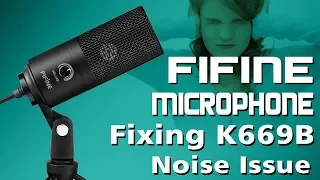
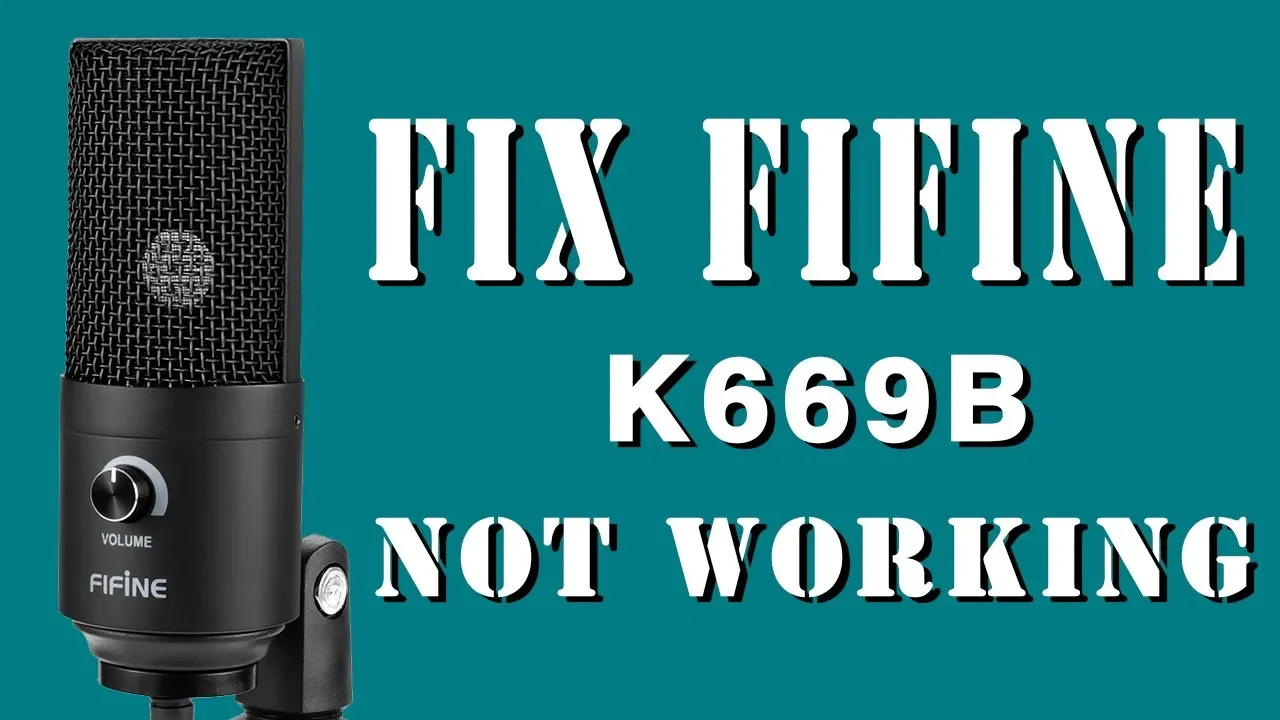
hey guys today I'm going to show you a quick video on how to fix the fine-fine k66 9/6 6 9 B microphone when it's not working and how to set it up on your computer let's get started windows part for windows you may encounter two abnormal situations one is when the PC tells you straightforward USB device not recognized or you find no USB PNP audio device appears in the sound settings the other one is USB PNP audio device does appear but no sound comes out how should I know if the USB PNP audio device appears
or not just right-click the speaker icon on the lower right corner of your computer's taskbar go to sound recording device you can see all the available input devices listed if the mic is recognized the USB PNP audio device will show up make sure it's enabled as default if there is no USB PNP audio device appearing or a USB device not recognized notification shows on the lower right corner of the screen please follow the part one step of this guide part one USB device not recognized / no USB PNP audio device appears in the sound settings
one test this mic on another computer and check if the USB PNP audio device appears that's the fastest way to find if the mic malfunctions - if no other PC is available go to Device Manager to see if the USB device or unknown device shows up go to the Start menu and search control panel open up device manager and double click sound video and game controllers and Universal Serial bus controllers check if USB PNP audio device or unknown USB device is in the list 3 if USB PNP audio device or unknown USB device appears right-click
it and choose update driver software though to browse my computer for driver software then go to let me pick from a list of device drivers on my computer select USB audio device or unknown USB device then next wait for a while now Windows has successfully updated your driver software then go back to sound video and game controllers right-click USB PNP audio device and choose uninstall if it's unknown USB device you should go back to universal serial bus controllers right-click unknown USB device and choose uninstall then your microphone driver will be removed finally restart your computer
and plug the mic into another USB port without using a USB hub if it still doesn't work please email us with the result of the above tests part 2 USB PNP audio device does appear but no sound comes out one go to recording devices to check if the level meter moves when speaking into the mic if nothing changed confirm that the input output volume is not mute and set them to around 50 to 70 percent by double clicking on default input output to open their properties and adjusting the levels finally adjust the on body volume
knob to get the volume level you want to if the level meter remains the same test the mic on another PC or restart your PC and plug the mic into another USB port without using a USB hub please note that if you have updated your Windows 10 system follow steps for below to allow the mic access to private settings if this last step doesn't help please email us 3 you can see the level meter here the mic is picking up audio when I am speaking turn to playback devices make sure the headphones / speakers that
you're using are default finally click on the speaker icon on the lower right corner of the computer to confirm the system is not muted besides the fine fine k66 9 / 6 6 9 b is a cardioid pickup pattern and most of the cardioid mics have a bit shorter suite range to capture sound that means within 5 inches so if you're not recording within its sweet spot the volume could be a bit low if you want to listen to yourself via headphones a live audio monitoring test will help out under recording devices double-click the USB
PNP audio device to open properties choose listen and click the Box listen to this device click apply after finishing an audio monitoring test you can disable the listen to this device function if you want to use this mic with other software just enable the mic USB PNP audio device as input device under software settings different apps vary a bit but the option basically appears in the similar place preferences audio input we will make a tutorial on how to setup the microphone on different apps later for feedback from some customers state that the mic no longer
picks up any audio after the latest Windows 10 update the USB PNP audio device appears but the level meter doesn't move when speaking into the mic I am going to show you some of the steps to solve this problem let's move on to start click on the Settings tab privacy and microphone click on this and you can see there's another area called microphone access for this device click on change to confirm the device is on but another important thing you need to look at here is below allow apps to access your microphone set it to
allow apps to access the microphone as well as the other apps you will need to use with this mic below finally restart your computer Mac part for Mac there are two situations for if the mic is not working one is no USB PNP audio device appears in the sound settings the other is USB PNP audio device does appear but no sound comes out the first thing we are going to do is to check if the USB PNP audio device appears in the sound settings go to the top left of the screen there is a little
Apple click on that go down to System Preferences click on sound and select input if there is no USB PNP audio device please go to part 1 to find the solutions part 1 no USB PNP audio device appears in the sound settings 1 test this mic on another computer and check if the USB device appears that's the fastest way to find out if the mic malfunctions - if no other PC is available please unplug all the USB devices from your Mac and replug the mic into another USB port without using a USB hub if it
still doesn't work please email us with the test result part 2 USB PNP audio device does appear but no sound comes out one go to input output make sure the input output volume has been turned up also adjust the on body volume knob to a decent level to go to input to check if the level meter moves when speaking into the mic if nothing changed restart your computer and replug the mic into another USB port without using a USB hub if the result is the same and you have another PC available please test this mic
on another computer 3 if the level meter moves the mic is good to go but to make sure the headphones / speakers that you're using our default please turn to output to check finally click on the speaker icon on the top of the screen and confirm the system is not needed besides the fine find k66 9 / 6 6 9 B is a cardioid pickup pattern and most of the cardioid mics have a bit shorter sweet range to capture sound that means within 5 inches so if you're not recording within its sweet spot the volume
could be a bit low for but at the time I still can't hear any feedback you can click open the included app on your Mac QuickTime Player 4.1 open QuickTime Player 4.2 go to file new audio recording 4.3 click the arrow next to the record button then choose USB PNP audio device 4.4 to monitor audio while recording adjust the volume slider if you want to get more tutorials about audio monitoring on other apps feel free to contact us and we will make it happen soon finally fine fine provides a two-year warranty service plus lifetime tech
support for our customers who register on our company website PS artificial damage is not within the scope of warranty if you found our solutions not as useful as they should be just contact us we are always here to help thanks for watching find find technology