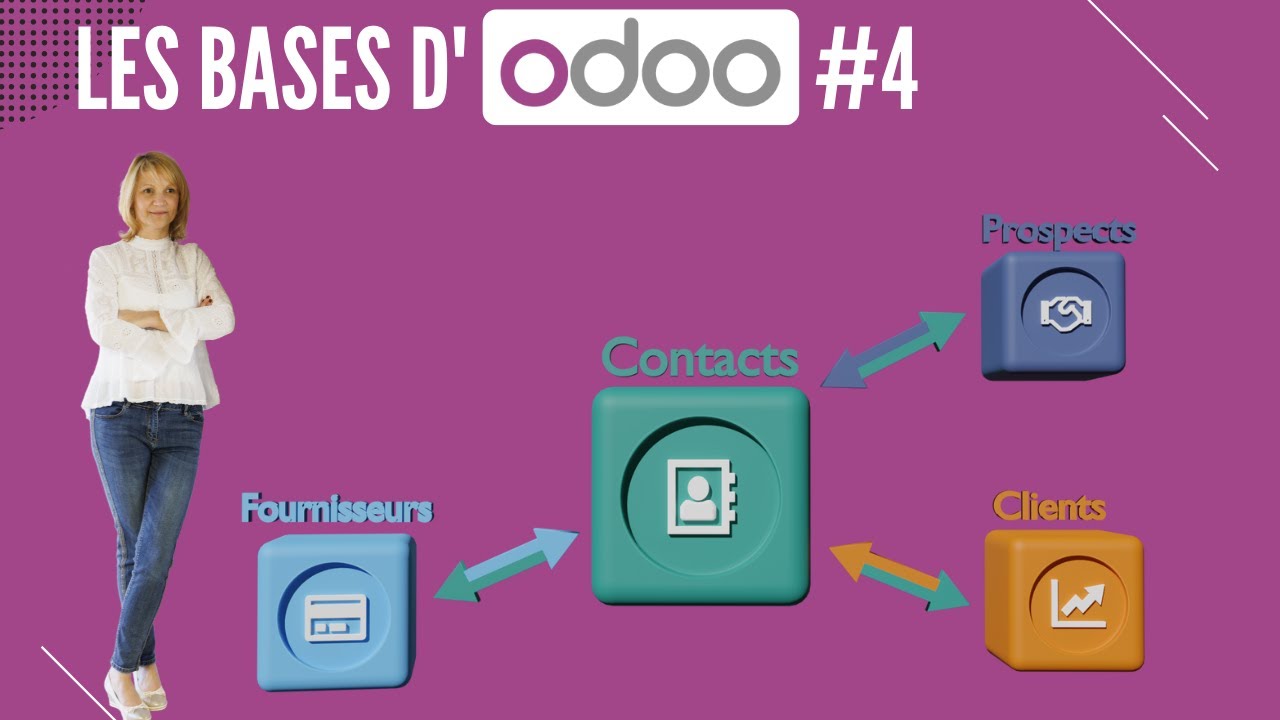
loell doers with Odo contacts you can encode and manage your contacts information quickly and efficiently contact records hold a vast amount of data ranging from basic contact information to more complex info like accounting or Bank information contact information for both customers and vendors is integrated throughout all of odu's applications with ODU you can keep all of your contact information in one central location and you can even eliminate any nightmares of disorganization so enough chitchat let's see how this all works inside of ODU so here we are on the main dashboard we're going to go into
our contacts application over here wow I've got a lot of them now from here I could choose any contact and edit their information let's jump into the one my mouse cursor is on azer interior so above the name we have the option to choose if this contact is a company or an individual in this case azer interior is a very company name it's a company I can also add some other information such as address we got tax identification phone mobile email website and tags down there as well and if we go to the bottom here
I have a few tabs so let's start on the contacts and addresses tab right there so inside of here I can actually add contacts that are associated with this company and related addresses for example if I have a specific contact person I can add that information here so when I click add over here we're going to create a contact in this point which is what it says at the top now here I can specify whether it's a contact an invoice address a delivery address follow-up address or other address I can also add the contact name
as well as the address email phone and mobile numbers as well so I'm going to select in my case a contact and you'll notice some stuff disappears and it's got to have a name well they have to have a name in our case we're going to pick Frank Miller we got to select the title I'm going to select from the drop down we're going to call him doct Dr Frank Miller Dr Miller we're going to give him a position as well in our case we're going to put owner Dr Frank Miller owns Azor interior now
for over here we have an email which is Frank azure.com very very precise in our case you'll notice down here we also have the option to add an internal note down here as well so to do that we just click inside of this text field and start typing anything that we'd like perhaps I would like to leave a nice note about the customer in my case great customer very rich money spam now that we're done we're just going to select save and close perfect Frank exists now and only we know that he's wealthy now up
next I'm going to click on the sales and purchase tab over here which I want to make a quick note it will only appear when the sales purchase or point of sale applications are installed so inside of here I can actually do a couple of actually pretty cool things like assign a specific salesperson maybe AC helps this person company out a lot so to do that we're going to select them because I just said that but actually she is not the greatest so we're going to select Mark demo instead AC is cool though and a
wonderful person so let's click the drop down next to payment terms as well when do they pay us we could change it to immediate payment if we would like instead of the end of the month we have a lot of options but I'm also going to set just leave it as is which was end of the following month I can even assign them to a preferred delivery method or apply a barcode to the contact as well and the barcode option I think is actually pretty neat and I also have some miscellaneous Fields I can configure
on this form such as we have a company ID and a few other bottom Fields I realized I should scroll further if you need these this is where you will find them if I purchase products from this company I can also design one of our users as the buyer for this company as well as you could tell over here from the purchase section I can even specify further payment terms as well $199 and other things such as a receipt reminder which is a toggleable option that has further customization as well and next let's go into
accounting right there great now this as you guessed it is going to appear when the accounting application is installed here I can add any related Bank information all of that stuff like journals account number etc etc the there's even a field where I can configure how to format electronic invoicing as well for this actual contact now following the accounting tab we have internal notes where internal notes can be left on this contact just like we did with Frank Miller contact earlier like wonderful company money money money as well then we're going to click into the
partner assignment tab over here which by default includes geolocation and other partner options including partner activation that we have right there and partner review as well these are only present when the Enterprise resellers module is installed finally let's go over to membership over here and this can help you manage any memberships that are being offered to this specific contact it should be noted that this tab is associated with the members application so keep that in mind and that is one of these contacts now if you direct your eyes over to the top of the page
up here we have a lot of these smart buttons over here and that's what we call them here we see some records related to this contact that were created on other apps as you can imagine ODU integrates information from every single application for example if I click into the opportuni smart button over here we get taken immediately over to all opportunities related to this customer using ODU CRM over here but let's return to our contact via the breadcrumbs which in ODU today are Wonderbread cuz you're all wonderful now just so that you know if the
corresponding applications are installed they're related smart buttons will appear up here at the top so for example we can also see any meetings sales po order subscriptions tasks and tickets as well and even more with an option over here like purchases and that's because we have all of these applications installed and these are all connected to this one contact including the website partner Ledger and other options so deliveries documents Loyalty cards and direct debits will also link to Smart buns like this should there be any outstanding standing on file for this contact as well you'll
also notice that go to website option that I was talking about earlier so if the contact is a partner you'll be able to actually visit their partner page on your Odo built website now if I decide that I no longer want to have this contact active I could simply archive their record so to do that all I actually have to do is go to the Gear menu over here in the top left and select archive right there again resulting in a confirmation popup over here with this cont now successfully archived as indicated by this banner
up here and it's a very nice indication they won't show up in the main context page but I can still search for them with the archive filter I can also unarchive them if we decide to work with them again so to do that if you did it on accident unarchive boom as soon as I do that banners removed and everything is back to normal let's go back to the main contacts page over here and we're going to select an individual contact Brandon Freeman right there first off on his contact page I can actually see that
this is an individual and not a company due to that you'll notice that we have a few additional fields on this page that aren't visible if company is selected for example I can add an Associated company beneath his name right there selected from the drop down but I can see that Brandon is already associated with Azure interior so I'm going to leave that as is and moving on there's also an additional option to select what kind of address that Brandon has over here by selecting from our menu button over here as a drop- down we
can even do a follow-up address other address contact address which is just a normal one now once that's done we're going to move on from that because other than that I still have the same fields that we saw before where I can actually add Brandon's phone number or see it in case it changed over here and then we also see things like his job position website and more additionally I can actually add what his drop position is over at AER interior if I know that along with his specific tax ID if I also have that
information now let's say I just heard ring ring Brandon got a promotion now senior creative director just like doctors seniors need to know that they are senior in their role so to make that adjustment all I did was type in Sr before the existing creative director data inside of the job position field and that's it we're updated it should also be noted that forms like this autosave but you also have the option to manually save this by selecting on your little Cloud icon up at the top and now we have saved manually and before we
part ways you'll see Brandon's Associated company AER interior has an arrow to the right of it when we have over it right there this is called an internal link inside of ODU when I click this ODU takes me to the contact page of azer interior now inside of here as you notice under the contacts and addresses we see Brandon Freeman and would you look at that the recognition he deserves senior creative director talk about staying connected with everyone that's all for this tutorial folks go grab a snack have a good one





![Visual Calculations in Power BI - DAX Made Easy! [Full Course]](https://img.youtube.com/vi/JITM2iW2uLQ/maxresdefault.jpg)