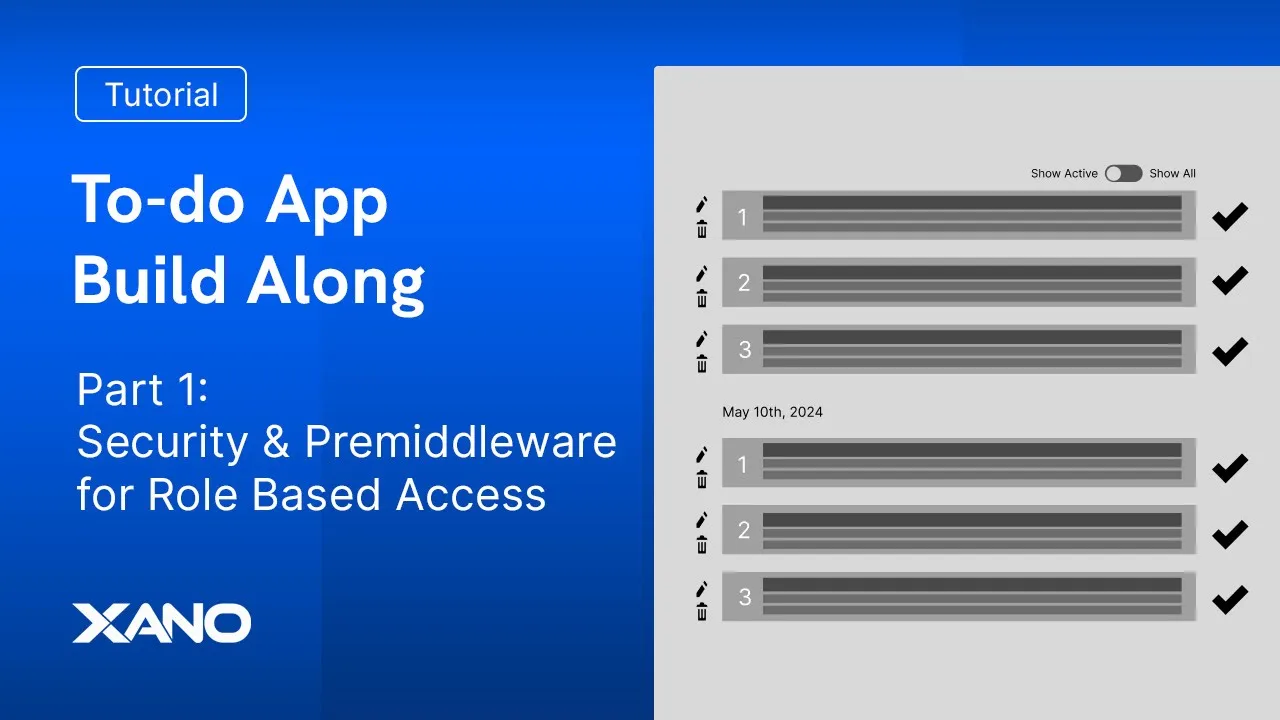
came here from zenos support and today we're get started with a really cool Journey what we're doing is we're going to be building an app together we're going to be taking a look at a low Fidelity wireframe and then we're going to be taking those ideas and putting them into use on the back end the how do I do this is going to be answered in this video series so let's go ahead and get started at the very top of our application let's think about the users that are going to be using our app and
what rules and permissions we want to give them let's go ahead and jump in so hopping into this project where we're going to go ahead and build out all of this cool stuff we have to think at the highest level who are the users and what are they going to be accessing what is the actual application so whether your idea is on a napkin or it's on figma through a flowchart or a wireframe we have to think what is the application actually doing who is it actually helping and handling well in this case what we're
going to be thinking about are the users for our app are admin our user owner and our guest our admin is going to be able to create and edit and delete and modify all kinds of resources our user owner only their resource and the guest can only view resources so what are resources in this case well it's a to-do app so we're going to be creating tasks the way that we think about how many tasks can be created and how we structure our data is another thing that we're going to take a look at in
just a second but the very least we can think about the user types the admin the the user owner and the guest thinking about these types as we start to build helps alleviate any pressure from anything else that arises in the future rooll access to start is definitely helpful the way that we'll accomplish this rooll access is by leveraging Prem middleware an awesome feature that Zano supports Prem middleware is essentially a layer before your business logic of your endpoint it's business logic before your business logic or the way to handle your data before the endpoint
does what it does does we pass in inputs it goes to our Prem middleware and our pre middleware then crunches all of that information or whatever we tell it to and then it returns a response to our endpoint function stack then that endpoint of course returns a response itself so pror allows you to use your inputs just simply before your business logic in the endpoint now we have an understanding of what we want and why we're starting where we're starting we're starting with roles at the highest level and then we're accomplishing that with Prem middleware
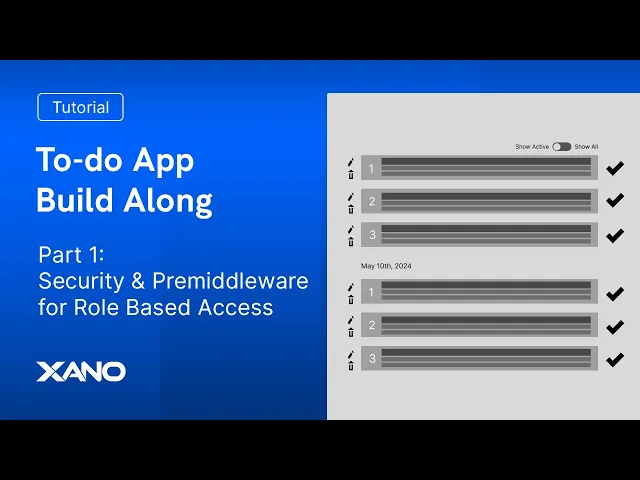
now while we're on this page though we should also just take a look at the actual application now it's a low Fidelity wireframe there's not a whole lot of detail in here but in our application there will be a signup page with the name a username an email and a password we'll have a to-do or add a to-do page where you'll pass in a title A due date a task and then also you'll be able to query these to-dos or actually see these to-dos and the idea here is that you'll be able to subscribe to
these to-dos and well get notified via email when they've been completed we should be able to show all of them or show only the ones that are active and you can see that they are grouped here by the date and they have an order this is your to-do list so a signed in user on your user page you should be able to see this edit button this delete button and you will hopefully be able to complete your tasks now with that said each wire frame is a little bit different but you can tell that this
task has a title and then has some content associated with it and of course then we also have our edit a Todo page it's very similar to our created to-do but you can see here that we're dealing with well my ideas we need to take these ideas and solidify them and turn them into Data so we know that we're creating a user so our user here will be where we focus and we also know that we want roles so we're going to be thinking about a user data table and a roll data table sort of
separ in our data we know that a user is going to be adding a to-do so we're going to have tasks and we need a way to associate tasks with a user and in this case what we'll do is we'll leverage an additional table that will reference a user and we'll reference a task with that we're basically thinking about all of the data points inside our application so let's go ahead inside xano and take a look at our database that we have structured and set up now inside Zano on our dashboard we have well I
have I've created these tables already I have a rolles table a tasks a to-do list and a users table as I was going through the onboarding process all of these were generated uh or all of the crud in points were generated for me automatically in my user table it is authenticated with an email and password now we're focusing primarily on our user and roles but of course we will take a look at our task and to-do list let's start with our user first we can see here that for our users we have a name an
email a password a rules ID and a username that we're collecting well that rules ID this column here this is a table reference was essentially is going to link a record in this table or a record in another table with a record in this table we also have the ability to set rules on our database so if we go ahead and right click on a column and click settings we can see that they have certain things that we can do for them in this case the password we can set filters that say the minimum length
of our password should be eight the minimum Alpha count should be one so on and so forth for our rules ID we can also set a default value now we will take a look at our rules data table in just a second so that this makes sense but I'm referencing record one here as a default value in addition to that as the user is going to be signing up we also want to ensure that usernames and emails are unique now we can assign some conditional logic in that endpoint when a user does register but we
also have the ability to set these rules here using our indexes we can go ahead and right click on our index and you'll see that I've added a username index here that's a unique one I've selected create index I've changed the index type to unique and then just selected username with that before we even add a user though let's go take a look at those roles so that the default values make sense you can see in my rolles data table I have a enum list column which just is essentially a list of options and then
I have a description for what rule each record is so a user a guest and an admin a user is a regular user and guest is somebody that can view to-dos and an admin is somebody that can do anything essentially their IDs here are going to increment but uh that's important to note here that id1 represents a regular user because if we go back into our user table and with that default value set of one that means anytime I create a new record it's automatically going to default to that user role let's go ahead and
add some users I've added Chris's record here and I've set him as an admin so we have two users and we have an admin I'm going to go ahead and create one more here um and we'll go ahead and add Louie so we have three users that I've added to our data table all of these rules here adding default I did though select into Chris's record and set him as an admin you should also note that if we add a record here where our table column is not null so it's empty and we have it
unique if we try to add another one we'll get an error you may see this message from time to time and that's simply well it's because you have a duplicate record and the best way to solve this is typically to set this column to null we're going to go ahead and right click on it change the type and then the nullable to yes and click save and then now we can go ahead and create additional records so I just wanted to go ahead and let you know that that is an error that you will encounter
from time to time and there's definitely ways to solve it now we have our users here created and we have rules also associated with them let's go ahead and head to our database tab real quick in the database tab we can actually see a representation of this information in Json format we have our tasks table and we can see here that it has a table reference with that to-do list idea and our to-do list has a table reference with our user ID now it doesn't outright say table reference but the way I know this is
cu I can click on show table relationships and it creates this very Nifty diagram for us and we can see how these items are communicating where ultimately all of this information is going to come back to our user so we can leverage our user information in our Prem middleware to well check the role and then check if that role technically gives them access access to the resource that they are using how do we go ahead and do that let's head to our middleware page where in the top right we'll click add middleware and we'll give
it the name of Access Control the description it checks if the user requesting this resource is the resource owner so we just need a way or a system that checks if the resource that is being requested is the resource owners we'll change the response type to replace and the exception to critical so that we can go ahead and disrupt or stop any of the endpoint logic from running if we detect that this user isn't the right user so what we want to do inside our function stack here is first query our user that user is
going to have a lot of information and so we'll go ahead and select the database requests and we'll get the record from our user we'll go ahead and make sure that we're selecting the field name of ID and that the field value is going to be coming from the oth ID that is that this is going to be present on authenticated endpoints so we'll leverage that o ID now what we want to do is we want to check for the resource owner and we have to understand that with Prem middleware here as this information shows
up top well we're actually selecting all of our inputs through this variable object so it's going to be vars do than whatever our input would be and on some in points it'll be a task that we're loading and on some other end points it might be some other resource such as potentially the list so we want to factor in the variability of this and so let's go ahead and after we add our git record we're going to add a conditional a conditional is up top it's our if then statement here and essentially we're just checking
if this person is the resource owner so how do we go ahead and do that we have this blue pencil here and what we're going to do is Select our vs input again it's an object we want to go ahead and add a filter that's going to get a particular path now in order to determine the right path we need to know what our end points are going to be so let's go ahead and very quickly head over to our endpoints I'll just I won't save anything I'll just leave this conditional here and I'll head
to my API my default group and what I want to focus on are the end points where we can either create or delete or edit these items for these endpoints we want to ensure that well we click on that lock up top and use user authentication and so we'll just make sure that we do that for all of the endpoints that we're either going ahead and creating that we're either going ahead and deleting or that we're going ahead and editing and so for all these endpoints just make sure that authentication is enabled and don't forget
to publish so after ensuring all of my endpoints that need to be authenticated are authenticated what I want to do is I want to focus on what information is needed for them and so if we look at our post or look at our delete or patch we can see that we're passing in our Todo list ID and then for our users our user ID our tasks our task ID our roles our role ID so we have like the ability to look at our endpoints here and say oh okay this information is going to be required
for this endpoint and this information is going to be required for this point and so on and so forth so knowing now that we're looking for certain information such as our task ID that's passed into these endpoints we can go ahead and segment or logic or add a conditional that says okay well is it either a task or is it a to-do list that we're looking to process so back in our middleware we'll head to our middleware tab what we're going to do is we're first just going to check hey uh in this blue pencil
our vs we're going to use the git filter which is going to crawl this object's path and we're going to say that at the path of tasks ID well what we want to check is hey is it empty is there a value here so we'll add another filter and say is empty and this returns a true or false so we want to check is this empty yes or no and if it's not empty in this case so we access all of our inputs using the var's object we then select the path of our tasks ID
we check if it's empty and if it's not then we do something with it so if it is not empty that is our task ID then what we can do is we can head to our database requests and we can go ahead and get this record we can get our tasks record we can go ahead and find the ID using our vars and we don't need to use a get filter necessarily here anymore we can use do notation because that get filter it prevents errors if we use do notation and there isn't a value at
that path we'll get an error but in this case we have it so we'll just write out vs. tasks ID however you can 100% use the git filter as well we'll select our output here and we'll change this variable name to Resource owner and we'll go ahead and click save now if it's not going to be a task it's going to be a to-do list so let's just do the same for our else logic so what we're saying is okay well let's go to database requests and we'll get a record and it'll be our to-do
list because it's not a task ID that means that it'll be R to-door listor ID input that we need so we'll do vs and do R too listor ID amazing let's go to the output and change this to Resource owner as well perfect so we have two different outcomes they both have the same name in this case now we need to do one additional thing what we can do is we can take a look at our tasks because the next question is is okay well how do we get the resource owner in our output of
our tasks we can see that there is no resource owner Associated but we can see that in our to-do list at the very least we do have a user ID Associated so what we can do is we can update this resource owner variable so instead of returning an entire object we can return a particular path let's go ahead and click that blue plus sign type out update and select the update variable we'll be updating resource owner in the way that be updating it we'll be selecting resource owner we'll use the get and we'll select the
user ID PAAD so the way I determine that is by going to the output taking a look at all the Json and saying well I need that user ID path I'm going to make sure that resource owner equals only that user ID path here and so I update my resource owner variable to be simply that user ID value let's go ahead and do the same thing for resource owner I'll go ahead and clown that update variable and drag it under then now if we select the task output again that problem is that that user ID
doesn't exist now we know that the to-do list has a user ID and we know that we have a to-do list response within this record we can select this add-on here and actually enrich this data make a connection here without needing to query any additional data we'll just click uh that create a new add-on and what we want to return is our to-do list that is going to have the user information it's going to ask us if we want a list of items or a single item or more I'll select a single item and it's
asking us how we're making this relationship between these two different tables well our to-do list ID and it's going to be basically the value that we're using here to look at a to-do list table and to select its ID let's go ahead and select yes so saying that we're mapping our to-do list ID to our ID column and we're going to return as Todo underscore list I've just removed that underscore and now what we have the ability to do is to take this output and update resource owner so that we have the user ID so
that'll be resource owner get or Tod doore list get user ID so let's go ahead and change our first to to-do list and let's go ahead and clone this git filter and change it to user undor ID so we're just using these get filters to find that path and to assign a value to our resource owner variable now from here what we need to do is well raise any alarm Bells if the resource owner isn't the resource center what that means is we now need to introduce another conditional now before we do that though let's
go ahead and highlight or hover over the three dots over this main conditional and edit the description this is just best practice for if you need to come back you'll understand what you're doing and so we'll say checking the resource owner now what we need to do is well we can collapse this and we can click this blue plus sign in our function stack header and we are going to be adding a new conditional so in this conditional what are we doing now well we are going to be referencing our user variable at the very
top we're going to be able to look at this user variable under output and take a look at the rule so when we get the user we'll check the role what we want to start with is probably the admin so if this user is admin they're free to go and we don't need to do any other processing of the logic so we'll start there selecting the conditional we'll go ahead and then select our user one and we'll use that git filter we're we're selecting the path of rolles ID and in our data table that admin
is the value of three so we can hardcode a value here of three and this checks the admin let's go ahead and edit our description to checks admin awesome so after it checks the admin what's next well now it needs to check if this is the actual resource owner or the user who owns this resource now because the condition is checking if this person is an admin that would mean the then statement would trigger if this user is an admin we could actually leave this blank because all that means is that then the logic will
proceed to our response and we don't have to worry a whole lot about that so we're going to perform the rest of our logic in this else statement now what we can do is we can add a function and we're actually believe it or not adding another conditional so let's add another conditional here and inside this conditional if they're not admin then we need to check the resource owner and make sure that they're the right resource owner the way that we can do that is by clicking on this blue pencil and selecting our resource owner
variable which will just represent the user ID value and so we say resource owner it will need to equal our user one. ID and now we can of course always I want to actually get into a best practice of using our get filter uh so we'll just type in get ID now we need one other check here we need to make sure that they are the user role that they're not a guest and so we'll go ahead and select our user one and we'll go ahead and get our rules ID we'll make sure that this
is going to equal that value of user which we can again hardcode as the value of one we'll go ahead and click save and so the question is okay if they're admin they're going to go ahead and pass now if they are the resource owner which is what we're checking here then they can pass otherwise we need to throw an air but before we do that let's go ahead and edit our description of that conditional which checks if this user is the resource owner and and click save the next step would simply be if this
user isn't the resource user or is a guest what we would do is we would throw an air and the way that we can throw an air is by heading to our utility functions where we have a bunch of cool functions that we can use what we want is not to throw air but we want this precondition this precondition is going to just stop all of the logic from proceeding and throw a uniform message back to the user on the front end a needs to be true in this case for it to not trigger which
means we need to introduce an argument that will always be false this is the very end of the argument chain and so using this precondition we can set a conditional what I like to go ahead and do like 1 equal 2 or a equals B just a thing that just is always going to be false so that this message always triggers you can use the same logic that you used in this condition up here otherwise I like to just keep it simple so I will go ahead and set that one equals 2 so that a
message is always thrown and the airor message will be um this resource doesn't belong to you the payload if you feel like this was an erir please contact this site admin sure why not and then the air type will be unauthorized so we'll go ahead and click save and we did it now we can update this though the user we don't need the response here because all we really need is it to work that is we just need it to trigger and to check because what we have here is a check that will automatically stop
this resource from being loaded or created uh in the event that this is assigned to an endpoint now that's the next part about this we need to go ahead and publish our middleware so I'll go ahead and publish that and now what we need to do is actually assign it to our endpoints to test I want to head do our database real quick where what we'll do is we'll go ahead and just ensure that we have tasks and a task ID associated with a user we'll focus here on user one so user one we'll create
them a list and we'll call this Cameron's list and we'll go ahead and add a task to it we'll assign that list that we created we'll assign a task and the order will be zero the due date can be today and it hasn't been completed let's add just another one real quick just to make sure that this is going to work the way that we want it to so after I add my tasks what I'm going to want to do is remember these IDs because I'm now going to want to assume the role of a
different user that isn't Cameron and I want to see if I'm able to trigger an error message I'll head to my API Group where specifically I'm going to be deleting a task and so notice that here it's been authenticated we're going to go ahead and head to this delet delete endpoint I'm going to go ahead and delete a task and so I open up my endpoint and the first thing I need to do is add the pre middleware there's two ways to do this but I'm going to choose the way where I'm individually adding it
I've clicked on my settings here and I want to navigate to middleware where I'll customize my response and I'll add a pre- middleware it's the access control the one that we had just made so I'll go ahead and click save and publish and what I want to do is I want to run this and I want to go ahead and run this as Louie because he doesn't have access to my resources hopefully uh and we'll go ahead and just run task ID of one so perfect Louie can't delete this but can Cameron who owns this
delete it and so far it doesn't look like Cameron can so if we just go ahead and troubleshoot this real quick we're getting the record from our user using this oth ID so this would be Cameron's record of user one that would return this information we're then going to check those resources so we're checking our task and we're saying in this case our conditional is well we're checking our vs and tasks ID equals false let's go ahead and make sure tasks ID okay so that's the right variable name then what we'll do is we'll get
the record from the task it doesn't look like I saved that add-on that we had created so I'll just go ahead and save that real quick and publish my change I'll head back to my endpoint and I'll try one more time with Cameron and it looks like that n response is working let's just double check with Lou one more time with that other task that we had created perfect it isn't letting him deleted now I do want to check with our friend Chris Chris is an admin and it doesn't really matter if it's his or
not so if we run this again it looks like Chris can also delete this so what we've been able to craft so far is from our app here that we're taking a look at we've been able to craft a Prem middleware that acts as a check for the roles and the resource owners again starting at this High overview or this higher level of thinking when we're going into our app development just ensures that as we're continuously developing we can well mitigate errors and navigate those kinds of challenges with a little more ease heading back into
xano I do want to just go ahead and show you one additional way to add middleware that's at your group level you can go ahead and select middleware and apply this middleware to every single endpoint so going ahead and selecting this would automatically apply to every endpoint I'm going to stick on that caseby casee basis here for our middleware just to demonstrate its functionality but I did want to introduce that additional option with that in mind we now have a fully functioning role-based access system that's going to check the user and the resource owner if
you have any questions go ahead and leave those in the comment section below and in the next video we're going to be going over the registration process and of course creating aask so until next time have a good one

![Model Driven Power Apps FULL COURSE for Beginners [UPDATED 2024 Edition]](https://img.youtube.com/vi/HrILchHvMUA/maxresdefault.jpg)