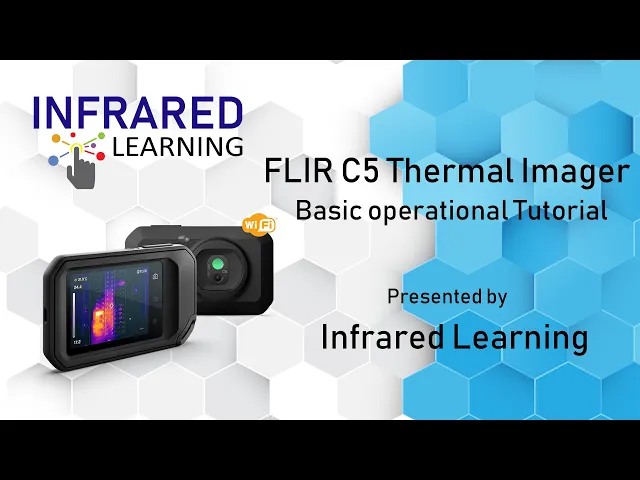
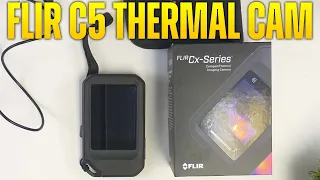
[Music] hi welcome to infrared learning your quickest way to learn thermography for this video we will show you the basic operational tutorial of flir c-series compact thermal cameras the c-series can be used for different applications such as inspecting electrical panels mechanical equipment building envelope roof systems and more for this video we will be using the latest flear c5 the flir c5 offers a new feature of integration with the cloud and fliers new system ignite web which allows users to upload thermal images directly to the internet and share simultaneously with your colleagues to get more details on this specification you may check the website at support. flair. com then click download and select datasheets and fov calculators look for the c series camera icon selecting the link of the c5 will open a corresponding datasheet scroll down to view the camera specs to access your flir ignite account go to ignite.
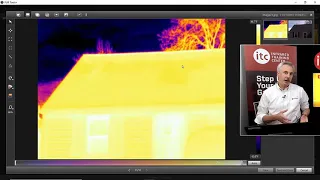
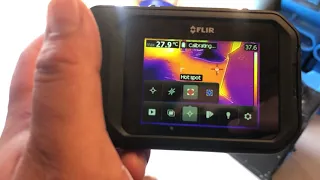
flir. com use a computer or other device with internet access and follow the instructions on the camera screen [Music] to enable automatic upload of images select the settings menu then save options and storage then select auto upload then switch on if the automatic upload is enabled new images will automatically be uploaded to your flare ignite account when the camera is connected to the internet you can also upload images manually or move images from the camera using the usb cable push the on or off button to switch on the camera [Music] follow the instructions on the camera select the language units date and time formats etc swipe down the screen to open up a concealed menu turn the wi-fi on or off by merely tapping the symbol if supported by your phone you can share the phone's web connection with the cam using bluetooth touching the upload symbol enables or disables the automatic uploading of images to the cloud touch the light icon to trigger the built-in light to assist bright and dark targets this permits you to record a much better visible light control picture when saving an image and the slide bar manages the display illumination slide left to lower the lcd as well as save battery life or slide it to the right to lighten up the screen if you are working outdoors as well as having difficulty seeing the screen swipe back up from the bottom to go back to the live photo now let's talk about the wi-fi and bluetooth connectivity of the flir c5 while the wi-fi can be made use of to download and install firmware updates these attributes are here to support flir's brand new cloud service called to steer up to set up the connections options for both wi-fi and bluetooth touch the setups icon on the display screen then choose a link linking to a wi-fi network is rather simple from the wi-fi link's food selection select the preferred wi-fi network put the password if needed and you're good to go [Music] to link with your bluetooth you have to initially guarantee that bluetooth as well as net connection sharing or hotspot mode are allowed on your mobile device from the connections menu make it possible for bluetooth to search for readily available devices if bluetooth is allowed on your mobile phone it will show up in the list on the thermal imager select the gadget to set and afterward allow the connection from your smartphone when attached to either wifi or through bluetooth you can pair the video camera to fire up an account then go to the website shown on the electronic camera screen as well as go into the code either visit or check into your account or create a new one to complete the procedure once paired you can submit images from your gallery straight from the video camera you can pick to buy hand upload directories or certain pictures to steer up to the library if you prefer you can have the cam upload a freshly conserved picture immediately to enable this choose the settings after the save alternatives and also storage space select the auto upload and switch this on this feature will ensure that your images are backup automatically as you save as long as you have an internet connection when you log into spark you can see all the previous submitted pictures and directories you can choose to download an entire directory site or you can choose for a certain pictures once download right click on the zip file and extract all to a new folder because this is a radiometric you can make use of the flir software program like a thermal workshop to watch the pictures assess them and create an evaluation report now let's move on the settings of your thermal imager having a correct date and time is important for proper documentation and record keeping to set the date and time tap the settings icon to the right of the screen and select device settings then choose language time and units you can adjust the date and time by sliding the bar up and down and press the check icon once you are done to set the temperature unit and the distance unit go back out to device settings by pressing the back arrow located in the upper left corner of the screen then select the distance unit you can change it into meters or feet same as the temperature unit go to temperature unit menu then change the desired unit into celsius or fahrenheit once you are done you can go back to live image mode by tapping the camera icon on the right side of the display the c5 series thermal photos featured two different ranges a1 from negative 4 to 302 as well as variety 2 from 32 to 752 degrees to change the range most likely to the setups menu and pick the camera temperature level array pick the most ideal array for your target and then work within that variety to get the most effective thermal contrast the flir c5 collection thermal imager is a set emphasis video camera so adjusting the emphasis is not essential however there is a minimum emphasis range of around 4 inches but also for your regular pdm or building examination it's a distance you're probably never going to be operating at with this video camera it's likewise when within the secure approach distance if you're utilizing to inspect electrical tools so it's a word that's not a concern yet it's something you must understand to bring up the primary menu simply tap the three dots icon on the display this where you can alter the photo set select a dimension device alter the color scheme or adjust the temperature level scale tap the photo mode to switch in between four different watching choices thermal msx or multi-spectral dynamic imaging combines both thermal and digital thermal electronic cameras to produce a mixed image that shows physical details of a thing while displaying things such as equipment tags or breaker numbers something that a thermal imager is unable to see next is thermal it only reveals the infrared camera feed digital electronic camera which shows simply the noticeable light feed [Music] the image in the picture focus very carefully for the very best visual to thermal image alignment it's a beneficial device for highlighting the trouble areas while offering aesthetic info measurement options provide three different temperature level dimensions devices consisting of a center area device to recognize the temperature of a certain area hotspot box which supplies the maximum temperature level inside the shown box cold place temperature level box numerous tools can be used at once and the sizes of both hot and cold area boxes can additionally be adjusted you can see the measurement value for that place displayed in the upper left corner of the display you can likewise readjust the color combination bring up the primary food selection then choose the color combination icon you will have various choices such as the following [Music] the iron skin is one of the most used as a result of a great balance of thermal sensitivity as well as spatial resolution [Music] a rainbow combination is useful when dramatically taking into consideration the distinctions amongst particular temperatures drag your finger up and down to toggle via your shade palette regardless of which shade palette you pick this can always be altered later with the save image either in the camera or the hunting software program the temperature level range setting is where you can either auto or manual adjust your period or contrast as well as level for illumination the temperature level ranged setting is where you can either auto or manually adjust your period or contrast as well as level or illumination of the thermal photo touch the temperature level range symbol on the primary food selection this will raise your two choices such as the auto and handbook by default the camera is set to an automatic modification setting this will automatically establish the scale based on the best as well as the coldest things in the frame selecting handbook will allow you to by hand adjust the scale touching the numbers will certainly either lock or open that word a white highlight suggests when the number is open you can relocate the words up or down by merely dragging your finger across the virtual slider select either the leading or lower numbers to change the size of the span or unlock both to move them with each other which is adjusting level to find out more regarding just how to set your range and exactly how to utilize it correctly you can see our website at infraredlearning. com you also need to adjust the measurement parameters such as the following the emissivity reflected temperature relative humidity atmospheric temperature and distance all five influence the accuracy of your dimensions particularly the emissivity as well as showed temperature level as such these values should be set appropriately with our collected unique training courses you will certainly recognize what is the significance of each parameter and exactly how to establish them properly be sure to check them out to conserve a thermal picture merely push the save switch found on the top of the camera see to it to continue to be still while doing so any abrupt or excessive motion throughout conserving might obscure the digital or thermal image as they are captured at the same time press the playback button situated right here to the right of the screen to see your thermal images touch the gallery folder to open up a thumbnail view where you can browse through all your saved images the c5 likewise offers the capability to see modify and manage save photos first you can broaden both the thermal and also aesthetic images by clicking the arrow head icon in the lower edge of each photo the menu switch located at the top right corner of the display supplies numerous extra alternatives you can upload your save image to the cloud edit the image and you can adjust things such as span and level change the measurement tools or pick a different color palette move it to another destination folder to better organize your data add notes which can be used for reference later in the reporting software and delete if you want to remove the image entirely from the camera and that brings us to the end of this video i hope you've learned something today if you want to learn more about our upcoming events please check our website at www.
infraredlearning.