In this overview, we’ll show how to get started with Financial Consolidation and Close. Before you create your business process, decide what information you need to include and how you want it organized. How will your chart of accounts be organized?
What is the entity structure for your organization? Do you need to eliminate intercompany transactions? Decide what members you require in the Movement dimension.
The movement dimension supports cash flow reporting. For each line item on a cash flow report, there should be at least one movement member. What data forms and reports will users need?
What data will need to be entered manually into the system? Will your require journals? To create your business process, you run the setup wizard.
Define your start year and your period hierarchy, and select your default currency. Choose multiple currencies if you need currency translation. Select your preferred balance sheet hierarchy, traditional approach, net asset approach, or basic.
Choose the features you want to include in your application. Add custom dimensions if needed, for example for cost centers or products. After the business process is created, you can use the dimension editor to add accounts, entities, and movement members, or you can import them from a file.
To implement security, you provision users and user groups with security roles. There are four predefined roles: Viewer, User, Power User, and Administrator. After you have provisioned users, you can assign them access to data.
You can assign write, read, or no access. Now you are ready to add data to your system. Use Data Integration to map data from your ERP source systems to your Financial Consolidation and Close accounts, …and to run data loads.
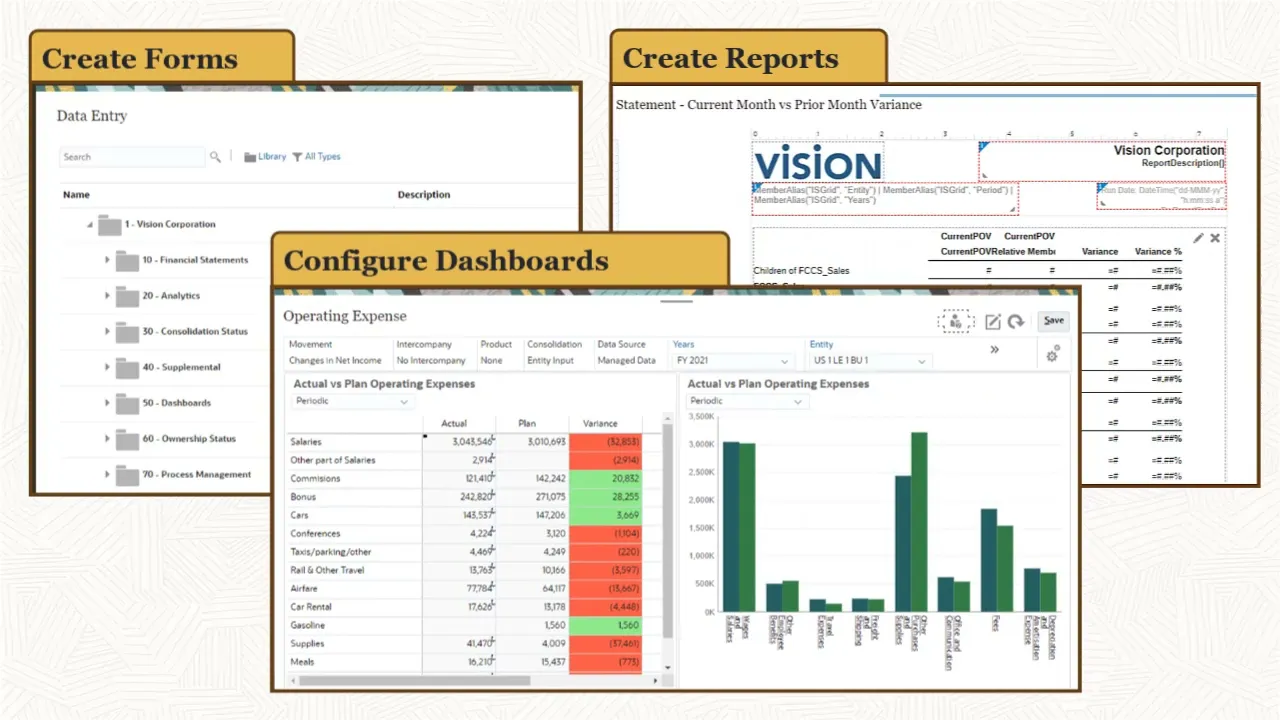
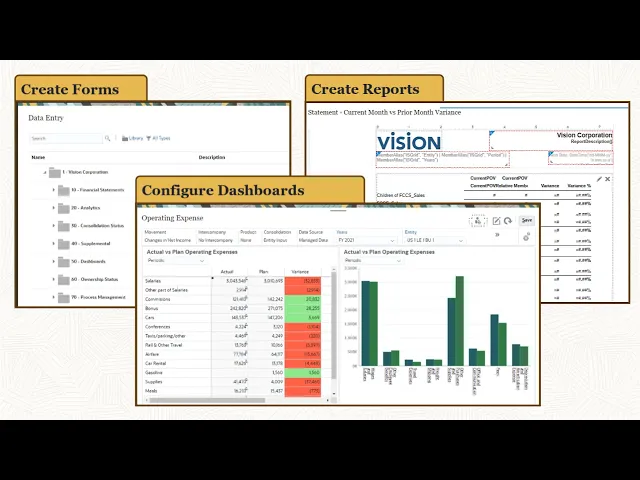
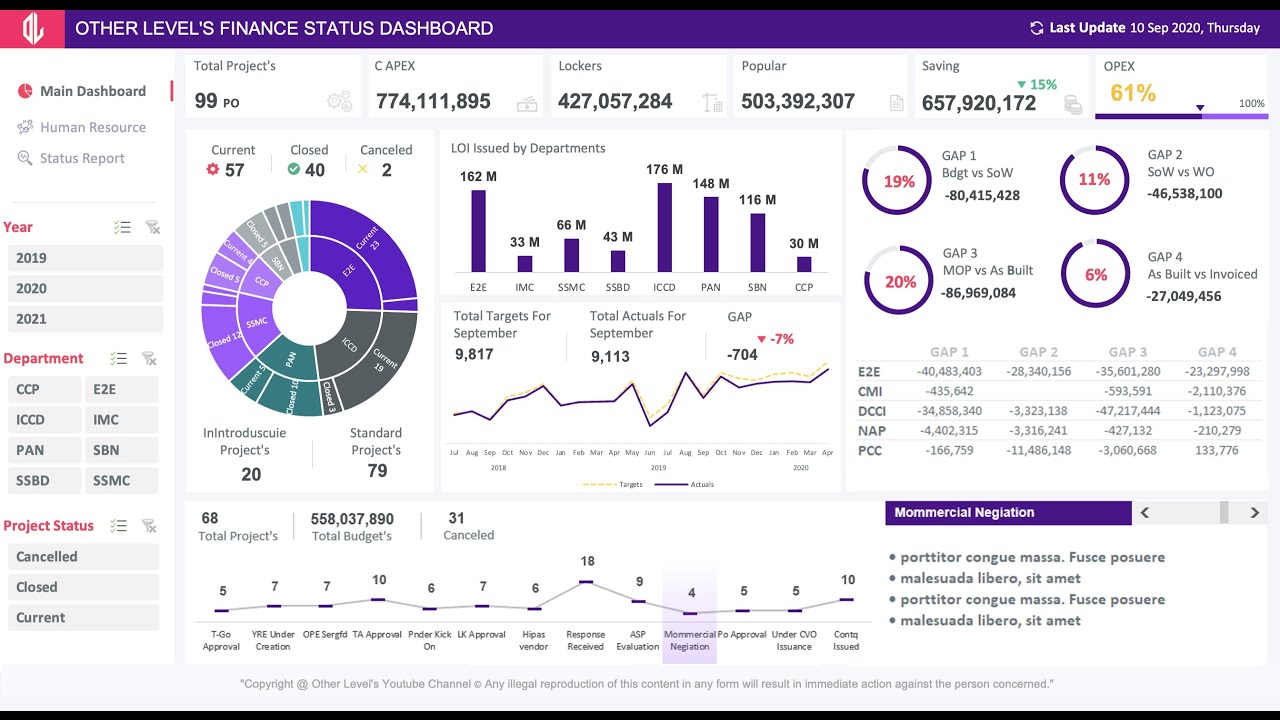
To facilitate entering and analyzing data, you create forms. create reports and configure financial dashboards. You can customize the provided dashboards or create your own dashboards.
You define your close process by creating close tasks using Task Manager. Task Manager lets you define schedules of sequential, logically- grouped tasks for all close-related activities and assign tasks to preparers and reviewers. Once you have loaded data and currency exchange rates for a period, you can start the close process.
Deploy a schedule of close tasks to the current period, and change the schedule status to open. If you are business process uses journals, open the period for journal posting. If you are using process management, you start approval units for the period.
User can use forms to review and manually enter data. You can create journals to adjust account data using a debit/credit format, with an approval workflow prior to posting. After data is entered and adjusted, perform a consolidation using the Data Status form.
Consolidation rolls up data from child entities to their parents, and eliminates intercompany data. You can now review dashboards, and run your financial reports and intercompany matching reports. When the close process for the period is complete, you can lock the data.
To learn more, visit docs. oracle. com.




![Upbeat Lofi - Deep Focus & Energy for Work [R&B, Neo Soul, Lofi Hiphop]](https://img.youtube.com/vi/THh4fT0O7IY/maxresdefault.jpg)







![Upbeat Lofi - Power and Energize Your Workday - [R&B, Neo Soul, Lofi Hiphop]](https://img.youtube.com/vi/ONcY0BM5EAg/maxresdefault.jpg)