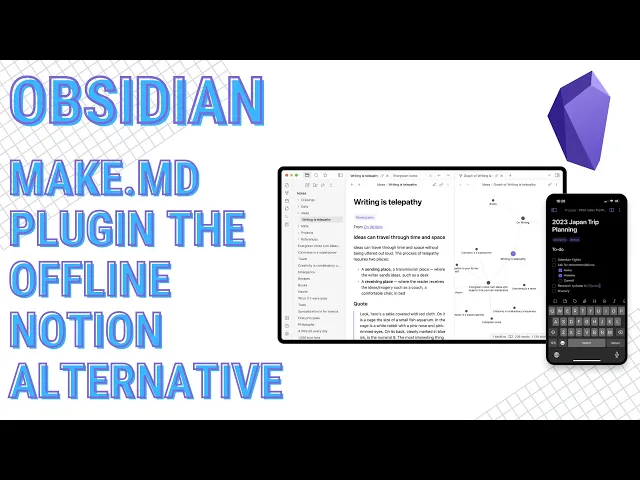
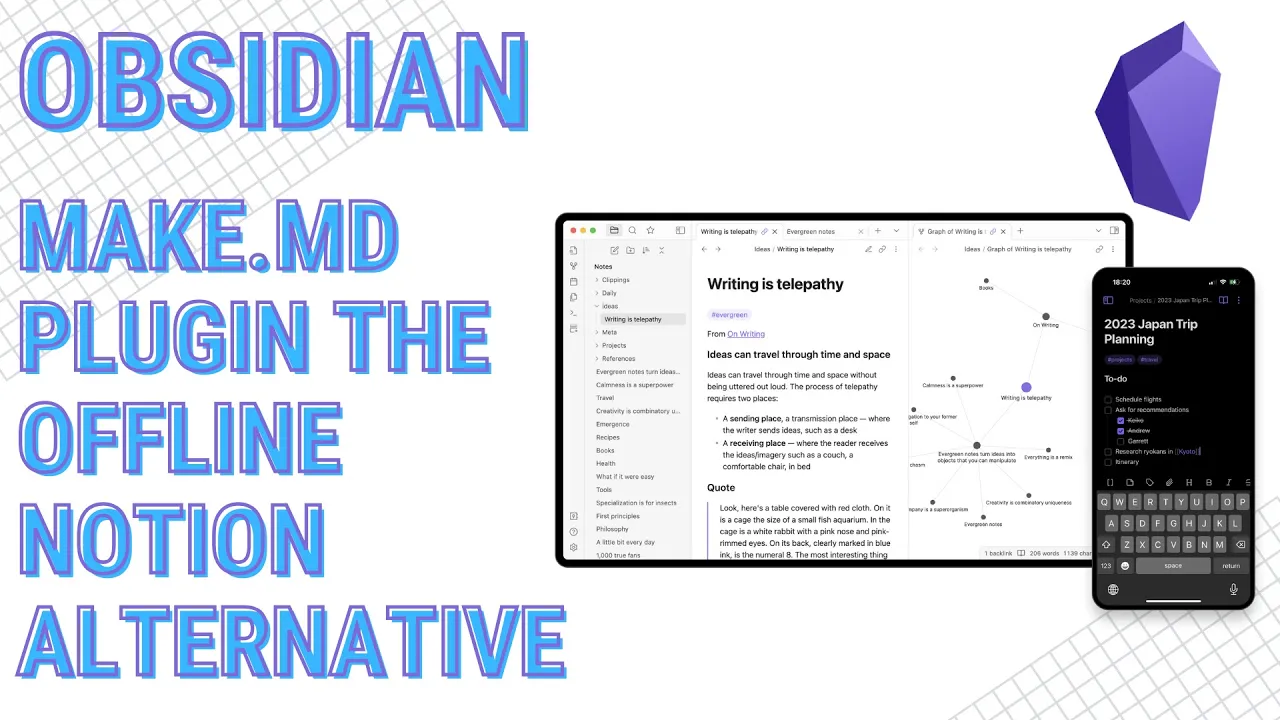
Hello everyone. In this video, I want to show you an offline notion alternative that you might not have looked at. And if you have looked at it, this solution is going to be based on Obsidian.
If you have looked at Obsidian and you thought that maybe this is not anything like Notion, there's a plugin that that I think will kind of change your mind. So, let's go ahead and dig into this plugin. The plugin is called MakeMd.
First, let's go ahead and install it. This is pretty simple. Just go into the settings, community plugins, and when you browse, just go ahead and type make in there.
And you'll see this make. md plugin there. Going to install it.
Enable it. And then you can go into the options. In the options, there are a lot of different options that you can leverage here.
And most of them I leave on by default. Some of the ones I actually turn off is is the open the folder option uh automatically. So I do turn that one off.
And also I turn off some of the ones where uh the flow menu and the flow styler because I do not leverage those. Now, one thing in here, too. If you're going to be using Obsidian Sync, you may need to come in here and change this um this default space folder name where it typically has a dot in front of it, which on a Mac and um different file systems, this denotes that this file or folder is going to be hidden to the to the viewer unless you unhide it.
Obsidian sync does not sync the hidden files and folders. So, in order to get that to work, if you're using Obsidian Sync, make sure that you remove that little dot in front of the space, and then Obsidian will sync the the space folders, giving you the ability to uh sync the the the kind of the the navigation uh uh options here that you have. When you set this up and you customize these spaces, if you do not sync the particular folders that you know has this information in it, what you'll end up with is multiple different devices and you'll have to manually recreate all of this stuff here on these other devices.
So, it's pretty good and convenient to actually have this information sync over to your other devices so that when you make the change on one, it goes to the other ones and you don't have to manually do that. Now, while we're talking about the navigation pane, compared to the native file explorer is that it's much more flexible as in how you can organize this. And it creates you these kind of virtual um spaces here where you can customize the look and feel of how folders look on this navigation pane without actually affecting the underlining vault folders and files and where they're actually stored.
So like I have here these folders that are shown here at the top level of what you would think would be my vault. These are actually subfolders underneath my notes and then under library. Those are these folders are deep kind of into my folder hierarchy structure.
But I can bring these up top here as if they I was pinning them as like favorites. Another key piece here of the navigator is that tags are also kind of a first class citizen to folders. So, if I want to pin a tag or have a tag organized here as a space, I can go in here and I can add those as well.
This particular navigation here is just the one that I have, but you can set these up and you can create multiple views so that if you want to have say maybe a navigation pane that shows everything for your personal uh use cases and information, that can be there. And then you can create another one maybe for work, one for study and so on and so forth. Whatever you want to, however you want to create those, you can.
So pretty flexible. A lot of things you can do on this navigation pane and you have the freedom to customize this the way you want to. Now if you want to add another folder to this space or space to this navigation, you can just come in here.
You can open up uh the do open and it'll open up this particular search pane. And from here, if you want to do a folder, you can simply just type the folder name. It will search through everything that you have in there.
You'll see there's different icons for the different types of objects that are out there that you can add here. And you have folders, you have files, and you also have tags that you can do in here. So, if I was to come in here and let's say I wanted to do a tag, I can just do book book here, and it will find everything with book in it.
I can come and make sure I pick one that is a tag, and I can add that in there. We can see it added very easily to the navigation pane here. Now typically when you click on these here by default what will happen is uh it usually expands the actual folder and you can get everything here in this list type of view similar to what you can get from the native file explorer.
I turn that off so that when I click on it everything simply shows up here in the the main pane here. and it shows up by default as a either a table view or a list view depending on how you set this up. But we're looking at a table view of everything that's associated with this particular space here.
If I click on say another space there, I get different information. And this here is a folder. So this folder, every every file that's in the folder shows up here.
The difference here between the tag and the folder is that the tag space is not really dependent on where the file is within your vault. As long as it's in your vault and it has this tag, it will show up and everything will show up as if they're in a single folder. One other thing to note here between differences between the folder and the tag is that when you hit the plus button and you want to add a new note and you're in this tag space, what will happen is you can create that new note, but the actual file itself doesn't go into a particular folder like it would if you did the the uh the new file on a space.
So, this one here is it did actually go into the default place that I have set up in my in my Obsidian settings. And this is somewhat of a recent change. Before, this used to just go into the root folder.
So, this is pretty nice that this is working as expected. Now, where it goes into the the folder the way you've configured Obsidian to have as a default. If I come into the folder here, let's see if the same thing happens.
It goes right here into the actual folder that um I'm hitting the plus button on. So while one adhered to to the default uh this particular tag one since this is not a folder it goes into my default folder setting. The other one here you can see that that went into the actual folder um that I am clicking the plus button on.
So that file was just added here. So we're in this tag space here. And while we're in this tag space, all the other spaces act the same.
So if it's a whether it's a folder or a tag, you get the same functionality from both. So I'm just going to show right now this tag on here. And we can see all the different stuff that you can do over in here.
The default view here shows a table view. It also shows all where everything that's associated with this particular tag or that's in a folder will show up. You can set up multiple different views here.
So if I want to show this view and just I'll just put second view here and that view is here. Both of these are showing all right now. If I want to come in here and maybe filter certain things out, I can.
But this is just to show that you can change or have multiple views uh within this one space here. Now the different views that you can use, we have this second view currently on the table view. You can have a list view, you can have details, you can have it show a board view, you can have it show cards, you can have it show a catalog.
You have gallery and you have a flow view here where everything basically just runs together. And you also have these uh more calendar views. These are views that were recently added, you have a day, you have a week, and you have a month view.
So you have an extensive list of views that you can leverage in here if to customize the look and feel of how you want to view your your data and your information. So this is very flexible. You can also come in here and you can add properties.
You can group group things. So this group by is something that you may not see in some of the other applications where they allow you to sort and filter, but they don't give you this group by option. So I think this is a really nice addition.
You can come in here and you can do the sorting and you can also come in here and you can do filtering as well. So if I come in here and let's change this back to the table view. And what I want to show here is that we can also add in different properties.
So the properties we can add in here are plentiful as well. We can do text, we can do numbers, we can do bordon, we can do date, we can do uh options where just a menu of different things to select from. You can do tags.
We have formulas in here. You can do have a link type. We have relations, flex, aggregate, you have object, images, and then you have this special one here where you have uh repeat.
So there's plenty of different property types that you can use in here that you can set it up so that your properties aren't just text or number based. So this is pretty flexible. If we come in here as well, if we want to add in a property, if the if you have any file in here that already has uh properties assigned to it, you could hit this icon here where it says existing property and you can see what's already on uh one or more of the files that are out there and you can have those shown as well.
So, I have a status one here. Let's go ahead and bring that in. We can see on this status column now that uh it shows the statuses for any that I've set up with a status and we can see those here.
If we come in here, we can also look at the the options here. So this status property is an optionbased and it also allows me to select multiple of these options. If I only want it to show me one, I can change that.
So, it only shows me one. This one here shows to uh by default or the way I've set it up previously where I could select multiple. You can come in here and you can add in different options.
And if you have any existing options, you can also bring those in into this particular property as well. So, if we was come in here and I was to set uh a couple of them where they're maybe reading red and not red yet, I can use these properties here to start doing some sorting, filtering, and grouping type of options. So, if I come into the into the area here, let's do group and let's group these by status.
And we can see the grouping works fairly well. Also, if I want to come in here and let's undo this here. One thing I didn't show on these properties is that I can go into these options and say like for reading red and not red.
For reading, I can change the color. So, they're green. For uh red or actually, let's do this a little bit uh differently.
Let's see the reading. Let's do orange. Red.
Let's do green. And not red. Let's do We'll go ahead and put red on there.
All right. So, we have these all set up appropriately. Let me Looks like the red options are not showing the right color.
Let me come back in here again. Let's do edit red. And let's do Oh, okay.
So, I had green. Actually, I'm surprised it wouldn't let you do two with the same color. Not letting me select a color for this red option here, which is kind of weird.
All right, so that one actually stuck. We can see it shows the color there for just that one. but some of the other ones did not show.
So that's another thing with this particular plugin and basically every plugin here is it there will be some bugs that you will find. This stuff is still in somewhat early development. Make this make plugin has been around for a while but it has gone through some major changes.
Let's change the actual view and let's see if this will kick back in. It did not. But you can see here that the options are there where you can add colors.
We can see how we can add in properties. We can do sorting. If I want to just come in here and I want to filter out the from a status standpoint where equals um not red, we'll put those.
And let me come in here and let's do this one here. It says not red. Let's change it to this one here.
You can see some of the properties that I had in there previously and why they did not work is because I may have set those up outside of uh leveraging the maked plugin and they might have just been formatted um incorrectly or in a way that the make plugin does not support it. So you may have to maybe redo some things here if you already had properties on these particular files. Now, another big one here that I think if you're a notion user that you're going to love is that you do have a formula property.
And let's go ahead in here and let's set up say a num one. We'll show a simple a simple use case for the properties. We'll make this a number.
We'll save it. Make this one a num two. type number and we will save that one and then we'll make this one an F1 for formula one here and we will make this a formula.
We'll edit the formula and you get a list of the properties that you have and you also get a list of the functions and there are a lot of functions that are in this list and it looks very familiar to what you would get over in notion even the formatting. So if I was to click on say prop property one there and I was to say let's do an addition here and then property two. This formatting looks just like it does over in notion.
We'll go ahead and hit done. We'll hit save. And then if I come over here and I put two and then I put three, we'll see that it automatically shows that count.
I have to come over here four and eight. We'll see that the functions work very well here. Now you can also come in here and you can format these numbers.
So if I want this number property to be a different format you can change these to uh percentages. You have temperature in here. You have currency.
You see what we have in here. We have the currency, currency, currency, and I'm assuming all these are currency here. But let's go ahead and change these to [Music] dollars.
And we have $2 there. Let's go ahead and change this format here to dollars. And now you can actually come in here and you can work with the the numbers.
Let's change this. we got type formula. Let me see if we can change this to a number and that number format we will make those dollars as well.
So if you wanted to come in here and do some calculations you can and leverage uh currency or any other number formatting you can see that you can do that here as well. Now if I wanted to come down to the bottom here you also have a calculate. Let's come in here and let's do a sum.
We do sum at the bottom and sum over here. So, you also get this summing feature that you would you can get over in notion also. Um, one thing you do not get that I've noticed uh from the make.
md plugin and their datab database option here is you you don't get any automation, which is kind of understandable, but I think that is something that could potentially come to this uh plugin. And if it does, that would be even more amazing uh of a of a feature than what they have here already. I really think that when the developers over there for this mate.
md plugin, they probably looked at notion, saw what it can do, and set that as a bar. And I would say that they're pretty close to hitting the bar of what you can do within reasonable limits um for a a offline local first type solution with Obsidian. they pretty much have nailed most of the features that um you could get over in notion.
Um outside of again some of the ones like automation, collaboration, sharing, those things are not built in at least not at this this point in time. But overall with Obsidian, some of those options are things that are challenges uh just by being um you know a local first application that's based off of markdown files. Now one other option you also get here is you can customize the the actual space the way it kind of looks here.
If I was to come to my lab, you can see that in this particular folder here using the make. plugin, you typically would have that table view that I showed you before. Like over here, this shows the list.
And from there, I can change that list to a table. I can change this to a board and so forth. What you can also do in here is that I can I can remove the table.
Then I can put anything else that I want in here and customize it to look just like this. And this is pretty easy, too. It's not not complicated at all.
So, let's go ahead and let's put this back the way it was before. What we'll do is we'll come in and let's hit that plus button there. We'll put this table view back.
So this gets me back to where I was before where I can see the actual files and folders that are in a table view. And from here I can easily kind of take these. Let's put this in a list view so that this works.
I can take this folder that we have here and I can move this around. I can move it either up top or bottom. If I move it up top there, I can put one folder uh there.
I can come in here and I can put the folder underneath. And let's grab that. And let's move it to the side here.
And then from here, if I want to put a label, put a label on here. Let's put maybe personal. And then over here, I can do another label.
And we'll put uh type in there. put business. Let's move this so it's right up there up top.
And let's make sure it's aligned appropriately there. Here. And we can see how those are set up.
So, this works fairly well. You can come in here and you can add just about every anything that you can add in from your vault. You can see here I have an image.
I have these uh basically like a rating here. So if you click on this here, you can code through this list and you can see the different things that you can add from this list onto this onto this what essentially becomes a dashboard. You can also change and add in a sticker to this here.
Let's put a sticker there. You can add a cover. So if we come down, let's see if we can find an image somewhere.
Uh, let's just put that as an image. You can put those up top at the top here. You can even reposition and you can change.
So, if I hit the reposition, I can kind of move this around and put put it where I want to put it and then go ahead and save that. If I want to change it, I can hit the change option there. And then if I want to remove or change, I can hit the three dots here on the side as well.
It might be a little bit hard to see this here in the light view. So, let's go ahead and I'm going to change this to dark mode. Let's see if it actually looks any any better here.
I usually use dark mode all the time, but when I'm doing a video, sometime dark mode is too dark and the light view works better. But here, you can see where you have reposition, you have change, and then you have your three dots. If I was to, let's say I did a today note, I can come into the today note and I also have the same options here where I can change the cover.
I can put a cover in there. I can put a sticker. Put in another sticker there.
You also get over here you get to see the space that I'm in or any spaces that I'm in. And then also if I was to add, let me add a tag in here. And then let's just put the family there.
The tag will also show up here at the top. So you can collapse this information where if you add in any properties, you can have properties set up here. You can kind of um collapse and see those.
Let's go into my other vault, which might make this a little bit easier to see. So, right here. And let's change over to dark mode again.
All right. So, we can see here where we have the um at the top here, we have these properties that'll show up. You can kind of collapse and expand those.
And then you see spaces right there. if there are any spaces. And we have at the top here our cover and we have our sticker here.
So, all this stuff is customizable. You can even change the the actual stickers that you have here on the side if you Let me see if we come in here. Let's change this sticker to see what we got there.
We got a clown. We can put that there. And now you have your different stickers for the different folders can show up here on the side as well.
So a lot of custo customization options with this particular plugin. So it's very flexible and as far as what you can do with this particular plugin. It gives you a lot of the same and uh familiar features and functionality as what you would get in notion.
So I really challenge anyone that is coming from notion but they really want to have an offline solution where they're privacy first and they don't really need to have the the sharing and collaboration type features or the automation that if you use this make. md plugin I think you you could pretty much get the same type of stuff that you would use in notion over in Obsidian and have the benefit of being um or at least having the ability to be fully offline and uh be able to leverage and access your information. All right, so that is going to be it for this video.
If you have any comments or feedback, maybe some additional things you might want to want to know about this maked plugin, uh leave them down in the comments. And if you like the information on this channel, don't forget to like and subscribe.