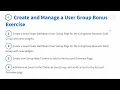
[Music] welcome to the last section of module 2 create organized users today we're going to talk about user groups it's the second way to organize users apart from organizations which use a hierarchy you can also create user groups for teams that cut across different departments or hierarchical structures so to demonstrate that we're going to be using livingston rewards we'll create three groups for gold silver and platinum rewards we'll assign one user to the platinum's reward group we'll test out user group sites what is a user group site well it's the pages that are going to
display either on the user's profile or the user's dashboard now profile is the user's public pages and any private pages that are part of the user group site will become the dashboard so we'll be implementing the dashboard pages on this exercise and where do you find those pages well you need to navigate via the personal menu to either the profile or dashboard pages let's go through the steps in order we're going to log in as josiah copeland create these three user groups silver gold and platinum and then assign jason murray well sorry i just realized
that it's actually supposed to be jason murray doesn't really matter okay my user is called james murray yours can be called jason murray it's all fine and good so let's go ahead and assign that user to the platinum user group and then we'll create that user group site the way we create the site is going to be a little different than the way we created the organization site so follow with me on those steps won't be that hard we'll sort of set up some default content for the livingston platinum user group site and we'll log
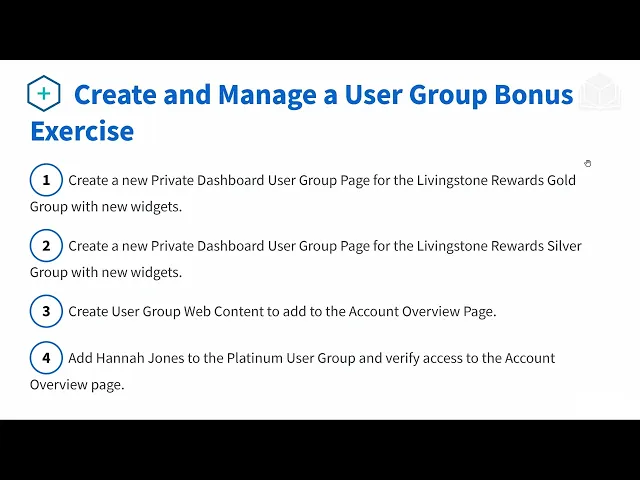
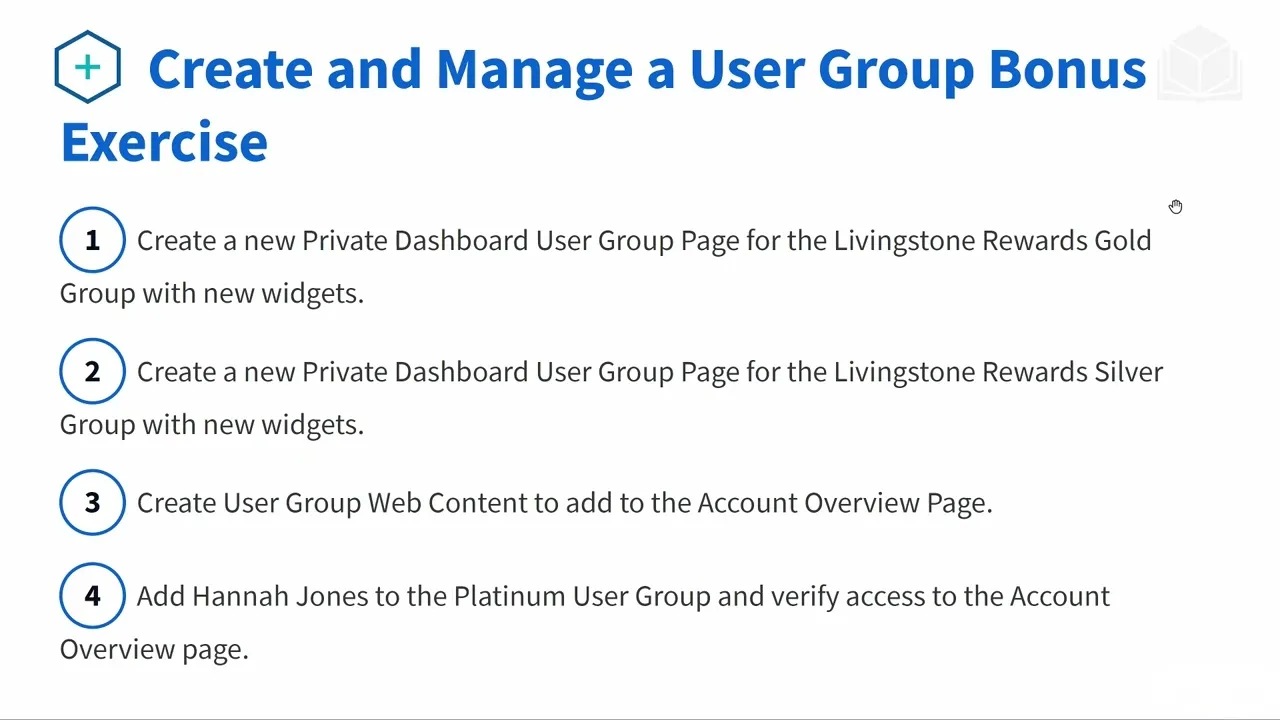
in as your jason murray to check it out or whatever you named your user here are some bonus exercises you can use to further expand your knowledge so you could try creating a dashboard for both of the other rewards groups for so for gold and silver i haven't told you this yet but we're going to put a web content display widget on the page that we're going to create as a part of our user group site so what you could do is you could go ahead and try to create some web content to actually display
in that widget and then finally try also adding hannah jones to the platinum user group and verify that she also can access the account overview page so it's a little bit of more of the same here but there are some additional steps you can take and some new things that we're not gonna go over here let's get started so gonna log in as the system admin once more so we've been solely using this control panel here and specifically only the users section throughout these exercises but this time we're going to use the user groups section
like usual i already have the content here so i'll go ahead and delete it since there aren't any users assigned to any of these groups should be no problem your page is going to look like this like usual we're going to click add let's go ahead and create our three groups nothing to specify here we could specify default pages for the profile and dashboard profile equates to public pages and dashboard is equates to private pages pages that only the user will be able to view but we're not going to do that for now let's go
ahead and create all three user groups gold silver and platinum since i've already created these before the names showing up by default okay so we've done the first step so how do we create a user group site well we're going to go to here and click manage pages okay from here we're going to press new we're now interacting with user group site so that's the only way that you can do that to create the site for a user group and which one do we select well since we are creating a dashboard that's going to be
a private page public page would equate to the profile so we'll press private page we'll use a widget page which is a little bit simpler than a content page we'll talk more about page types in later sections and modules let's call this page account overview so the next thing we need to do is add some basic content to this page so it's not a bare bones page over here you'll see that we are in this site livingston rewards platinum and how did you get here again will you go to your user group and then you
go to manage pages and then the site administration panel will update to this site so when we go to the control panel and when we click on user groups and when we click on manage pages it's going to update that site administration panel to our new user group site from here we can see the page we've created by clicking on pages private pages so we can either now press go to site or we could view this specific page that we created when i click go to site i can see the navigation menu which has the
only page on our site what do we want to do next now let's go ahead and make this account overview page which is the only page on our user group site a little bit more snazzy we're gonna go ahead and add a web content display widget on the left side or sorry the right side here there's no web content that we're displaying so it's not going to show anything let's also add an alerts widget okay i've actually already created an alert as the admin that's why it's showing up here but yours probably will show nothing
the last thing i want to do is add a navigation menu on the left hand side perfect so our page is still bare bones but we can tell that this is the account overview page where you can get alerts from admins show display web content and then you can also navigate through your dashboard so pretty basic let's test it out we will log out and sign in as james murray or jason murray at livingston.com so we are on the livingston hotels and resorts site how do we get to the dashboard simply by going to your
personal menu it didn't work what step were we missing well duh we forgot to actually add him to the user group but that's useful just to show that this is what a dashboard would look like it comes with one page by default we don't see our account overview page which should be displaying right around here so let's go back and complete that missing step logging back in as the administrator heading over to user groups and then assigning a member to the platinum group click add james will suffice that's it log out log back in as
james we'll expect a different experience this time perfect account overview page with the navigation menu web content display which is not going to display if it doesn't have web content and the alerts widget that wraps it up for module two that's the last exercise see you in module three