Hello everyone my name is matthias i've been fairly interested in nix and nixos for a while now now i don't claim to be an expert in the topic but i believe i have enough knowledge to help some of you out so this video is mainly targeted to the people who already have some experience with linux and are interested in getting started with nixos so it's not really targeted to enterprise level users or advanced users now what i noticed is that people who are new to nixos have a lot of issues with documentation or the initial
setup of their system configuration now there is a lot of documentation like wikis, just the normal nixos website and that's plenty enough information but it's very hard for new people to know what to do with these code snippets or how to enable these things within their setup so in this mini course i would like to help demystify the whole process of building a configuration for your own home personal computer so there are a few topics i want to discuss in this course first of all nixos In general so how to set it up the configuration
file um how to install and declare packages then afterwards i also want to see home manager this is an extra way to configure your system on a user level and it gives you a lot more powerful tools to actually declare the whole system and then lastly i also would like to see flakes and in flakes we're going to set up our whole system and we can even set up multiple systems and we can then work with nixos the default configuration file and home manager as well within a single flake and in the end i might
even show my own personal configuration for a while so you all have a baseline or a good idea of what you can add to your personal configuration there are also a few sources that i will be using or referring to now all these sources will be added in the description below and i might open them on video here as well okay let's get started with nixos itself so what is nixos well it is a linux distribution based on the nix package manager and it supports declarative reproducible system configurations What does that mean because i think
some of you might not even know what that means well to explain it very easily nixos when we build a system will generate a configuration file and within the configuration file it states every aspect of your system so if we need bluetooth it is written down in that document if we use a specific window manager or desktop environment these things are all declared within the document so every time we rebuild our system with nixos it will have the same packages installed always in the same way so that's something very useful with nixos another point well
that is fairly popular with nixos is that they say it's unbreakable now of course every system can be breakable if you really try but why do we tell it it's breakable well every time we rebuild our system so every time we for example install an extra package it generates a new configuration generation so every single time we get a new file where everything is declared and from the boot menu so for example crop we can select different generations so if we make a mistake in one of our latest edits in the System and the system
won't boot correctly what we can do is we can say okay we want to boot into a specific generation of the system and then we can afterwards go tweak the file again and rebuild the system so it works and even if these older generations are also having issues we can always just go in the tty and then edit the files from there and try to rebuild so you don't have to tinker with 50 million different documents everywhere spread around the system that's not something we really do everything can be configured within configuration.nix file now nixos
is a bit different than other linux distributions and that's because nixos uses the nix store and in the nix store pretty much everything about the system is stored actually so we don't really have a lib or usr lib file we have like a bin and usr bin file so i'll quickly show you so there isn't really a lib file here in our root directory but as a bin file and within bin there's only one file and in this case it's only sh and it's a sim link probably to next store So that's just so i
believe scripts can work actually and then on the user we also have a bin file but also there there's not not really a lot there everything is stored within the nix store so here is nick's store and this is going to take a while to load because there are a lot of files here so i'll just leave it open for now and let it load then lastly also something i use not too often but it's pretty useful is nix-env so i presume it stands for next environment and what that does it's a command that we
can use to install packages so we can install packages using all configuration file but we can also use nix environment in this case to install packages not on a system level but as their own separate thing so that's something very useful to do because you won't have to change anything on the system itself a good example for example is g parted that's something i use like once a year maybe once every few months so that's not a package i need constantly on my computer so what i do is i just install it with nix environment
Nothing really changes these files are stored in the nix store file and it doesn't really change my system i can always boot into that package without any issues and after i'm done with it i can remove it and that's the neat thing about nix os and in general if i have two different packages so let's say here in next store if i have two different packages they will get their own bin file and then if needed their own lib file so if two packages have the same dependencies they will get their own version of it
because let's say we have these two packages in another distribution and they say okay i have that that dependency already i will use it for both packages that's fine until one of these packages get updated and the dependencies also get updated but the other package we have so that second package doesn't need a newer version and everything breaks within that package because it uses another version well that's kind of an issue so within next we have or i'll just open a random one here hopefully yeah so in this case i'm not sure what it is
but it has its own lib file with the the needed files inside But that's kind of how nixos and nix the nix store works in this case so i'll just close that for now okay let's get started then i think most of you have already seen the nixos website i'll just bring it over here you'll probably have visited it already before my video now we are going to go to downloads because we want to actually download the iso file in this case now under downloads there are two options there's nix and nixos so nix is
the package manager we don't really need to install it because it comes with nixos so let's go here we are currently on version 21.1 and here we can find the iso files so for this course i am going to use the plasma desktop just to make it easier for everyone to have an actual graphical environment so this is the live cd we are going to use if you want to test out nixos on a virtual machine you can use virtualbox the iso for that but personally i always use any of these they work fine without
any issues now something that may be useful if you don't want to follow my video is the manual that can be found under more so this is the manual it explains a lot of things But we are mostly going to look at the first four points here and then there's also another option on Linux os website and that's these older releases so when i click on also available here i can go for unstable so that's something very useful because i personally prefer a rolling release distribution so with the unstable version that's kind of what we
get in this case so if we scrolled all the way down here i have like one of the latest unstable versions already downloaded so i don't really have to download that in this case okay so let's install it in full on virtual manager so let's move this out of the way so if you're already going to install it for on your usb stick of course i'm not really going to go in detail for that but just use something like balena etcher to get it on a n usb stick and you can just boot into it
with like escape or delete or f9 through f10 on your computer to boot into the live cd now i'm going to use my manager And i've already set it up pretty much so i'm going to begin the installation there we go so this is the boot menu we're just going to choose the first option and let me move this over to my other workspace there we go now this is going to take a while something useful to know is that these isos they come without a password so this will automatically log into kde if you're
inactive for too long it will log you out but you can just press enter and you will automatically be logged in again it's the same for getting root privileges you can just open the terminal and with sudo su in this case you can easily get root privileges without having the need of a password so let's do that now and i'll show you so sudo su there we go and it's always good to be as root in what we're going to do now afterwards so you should always be in root okay let's minimize this oh yeah
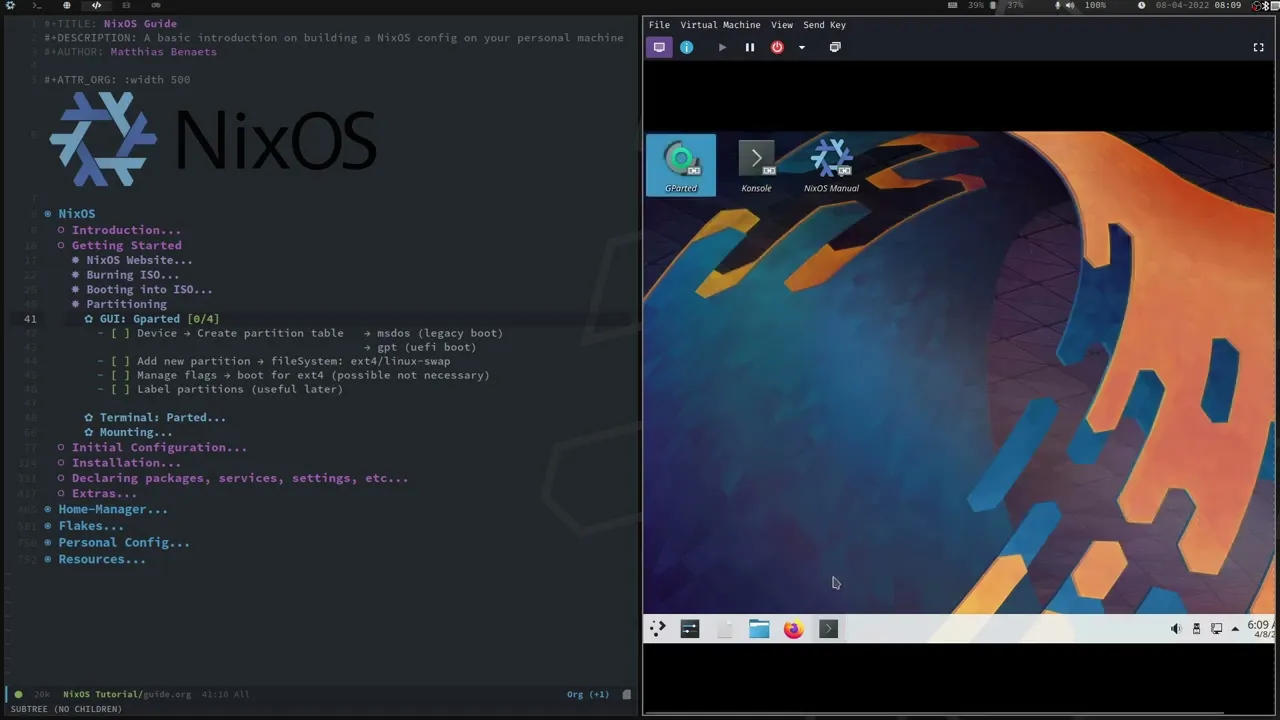
something maybe i forgot if you want to change your keyboard layout i think most of you will already know but for the minimal Iso it's loadkeys and then your keyboard layout i'm going to use setxkbmap and change it to my keyboard layout because otherwise i'm going to have some issues there we go okay then to partitioning partitioning can be done in two ways so a graphical environment and just via the terminal personally i don't really use gparted you can if you want to i'm going to skim over it very quickly so first we need to
create a partition table from here you can choose what type it needs to be the partition table if you're going to use legacy boot use ms-dos if you're going to be using uefi boot use gpt if you're not sure what either of these are just quickly explained ms-dos it's pretty much if you have like an older computer it's only one partition you don't you're not going to dual boot just use ms-dos if you have like a computer that boots into like an hard drive that's like bigger than two terabytes or something you better choose gpt
and also if you're going to dual boot with windows also choose gpt since this is a virtual machine i'm just going to use ms-dos in this case i think you can also just use legacy boot if you have like If you dual boot with other linux distributions so that won't be an issue so apply and then from here we can add the partitioning you can choose whatever you want if you need a swap file you can add that as well i'm not going to do this because this virtual machine only has like 30 gigabytes but
yeah so the file system i'm going to use ext4 and it something you don't need to forget is add a label to these partitions and this is going to be very useful in a minute to use these labels because otherwise we will have to use the uuid and that's a bit harder to actually type into terminal so let's give this label nixus at turn apply and we're done with that so that's our partitioning done in this case of course have a look at your own system what you prefer what you like and then you can
set it up your way of course this is pretty much standard and the same for any this linux distribution now if you want to do it via the console let's do that again here we go so parted def i've written down sda but since i'm using virt manager i need to say vda And then here again we choose ms-dos or gpt so that's what you have to choose on your own then it will format yes okay then again parted def vda mk part primary and then here we are going to say okay what is our
primary partition going to be for me it will be just one maybe byte to 100 but of course in this example here so you can see i've selected one megabyte to minus eight gigabytes so that means that the partition will be from the beginning to the end and not get not using the last eight gigabytes so that will be reserved for the swap partition now you can choose whatever you want here um if you want a bigger swap file or a smaller swap file you can change that here i might recommend that you use percentages
instead of actually like gigabytes or gibby bytes and the reason is once you're going to actually set up the the swap file here as a as a third command it might scream at you and say okay this eight gigabytes and this one are not the same so they don't start at the same location so then it's more useful if you use percentages because it will Always be correct so you'll have to then say like okay my hard drive is like one terabyte subtract like the eight gigabytes that's like one point two percent or whatever and
we can just say minus one point two percent and then it won't give these problems now if you're using uefi we don't start with one maybe byte we start with 512 that's because that's what's needed for the boot partition for uefi so that's something you need to change if you're using uefi so let's do this i don't have the swap so i'm not going to use this command but if you do don't forget to do this for people who have uefi we also need to state okay one of the partitions is fat32 for the put
partition and that's from one megabyte to 512 megabytes um also this command and for me something i do need to do and anyone else too is mkfs.x104 so that's the file system type let's give it a label and the label will be nixos you can give it whatever label you like and that will be vda one in my case yes there we go i might enlarge this a bit because i think it's maybe better visible done there we go And then for the swap if you have swap you also need to say mk swap give
it a label again and then def sda or vda2 for uefi also you also need to say okay um as the a3 will be our boot and it's type fat32 and in this case the label is not with like flag l but flag n so yeah and i'll give it boot we don't really need to do that because we have ms-dos then for mounting we say mount dev disk and this is why i mentioned that you well it's recommended that you use labels because now we can say okay def disk by label and my label
was nix os and i can mount it to mnt if you haven't added a label what you will need to do is say okay def by uuid and i will have to give the uuid and if you don't know the uuid you can find this on gparted and i think if you do like um lsblk f i think yes so here we have like the uuid and that's the same let me just unlock this a bit um there that's the same with cheap audit over here with the information so here we have the uuid so
if you forgot this is where you can find it Let's go back if you're using uefi the boot partition also needs to be mounted and we're going to do that by saying okay mkd so make a directory p and say mnt and then wherever you want to mount this in this case it's maybe a good practice to say okay boot to add or mount the boot partition and you can you can just say okay mount def disk by label boot and then mnt slash boot so yeah if you have also swap and your computer is
quite slow it's maybe useful to also enable the swap already just for the installation itself so if you don't have a lot of ram that's maybe recommended if you also have other drives let's say you have a second ssd that you want to mount that's also possible you can do the same as what we did with your uefi in this case so we can make a directory mkdir for example p slash mnt slash ssd for example if you want to mount your ssd there just do the same and again mount by Label or uuid and
why would you want to do that in advance well what we're going to do now is generate our default configuration so if i say nixos generate config root mnt so we're going to generate a configuration file from for mnt in location mnt um as you can see here cd mnt that's not really anything in here only the loss plus found but if we run this command it now writes two documents in mnt so as you can see now we have etsy and within at c another directory cd nixos and here we can find our two
files so we have a file and a hardware configuration.nix file so within config configuration.nix we're going to set up and declare the whole system and hardware configuration.nix you don't really have to change this i will have a look at it and change a few things in in this initial setup but you don't really have to look at it actually most of the things that are being changed or for enabling the system and setting it all up are done within configuration.nix so let's open that file and there we go And we'll go over the whole file
quickly because it's a lot of a lot of points so first of all everything well behind a hashtag i think is a comment so you can safely ignore this this is all documentation um everything without the hashtag is actual code for the system so first thing here is this config config and packages so these are all arguments that are used to evaluate the config for example packages is a reference to next packages so throughout the system it will look for packages that we need to install in this case for example grub is in here in
this document so it will know okay we need to install grub within the system and configure it this way so that's why it is used here these are the arguments that are used if you if we're like in in a few minutes when we're going to home manager if we need to use home energy to evaluate the document you can for example add that here so home manager and whatever if you have like your own variables that need to be used within the file you can also add these variables here in this case we don't
have any so i'm not going to add anything and then the three dots these Are everything else that is needed you can see it as everything else that is needed to fully configure the system this is not like a wild card or anything but this is just so nix knows okay how to configure everything else so you can also ignore it a bit you don't really need to change any of this if you're going very advanced in your configuration then next up imports in this case we are going to import of course hardware configuration so
the start of our system building is within configuration.nix and we can import other files so another file is in this case hardware configuration so everything within this file will also get evaluated to build the system itself there we go next up boot so there are a few boot options and i want to go over all of them because some of you will use legacy boots and some of you will use uefi now for legacy you will have these two options already enabled or well uncommented so boot.load.grub.enable equals true and boot.loader.group.version2 equals 2. so that's how
we set up our grub so we enable it and we say Which version it is now how where are these things coming from these settings well let's have a look back at our website here so the nixos website and if we go to the search option here at the top here we can find all the packages that are within the next package manager so if i search for grub here we have grub so we know that's something that we can install onto the system now as i have shown like boot.loader.grub enable where where is this
this coming from well there are not only packages but there are also options and if we go to options we get a lot of options for group itself so we can change a lot of things so what is it here so boot load or grub version so as you can see we have a lot of information here of what it actually is so by default it's two but if we want one we can change this to one and here's a bit of information about what the specific versions are you can also just look that up
on the internet of course grip enable whether we need it or not so by default it's always true and as you can see we can also change other things like the crop font if you want to add a team that Exists for example apparently within nix packages there's a team called nixos corrupt to theme and that's what we can for example state if we add it to the configuration file so let's move back to our configuration file let's make this again a bit bigger there we go and some things you will see when you find
other people's configuration is that they won't use it like this or write it down like this but what they will do is remove one of these whoops there we go and they will say okay we have grub we use an equal sign and squarely brackets and then from here we can change everything that is within grub so we had enable equals to and then also version equals two so in this case what this tells us is boot boot.loader.grub dot enable equals true but it also tells me boot.loader.grub dot version equals two so that's how we
can make it a bit easier so you don't have to write these things multiple times you can like put them between squarely brackets and it will know that it's part of boot.loader.grub Okay some other things so one thing for the legacy boot users uncomment boot.loader.grub.device and i have to change this because i am using verb manager so it's not def slash sda it's def slash vda if you are dual booting like other linux distributions also don't forget to maybe use boot.loader.crop dot use os pro or equals to through so what this does it will search
throughout the system and find any bootable partitions and it will add it to grub itself if you can if it doesn't find any entries you can also just use boot.load.group.exe or extra entries in this case i've added like a windows entry this will not work with legacy boots so that's a kind of a mistake by me but have a look at how you can add manually extra entries because i'm not going to explain this this is just general documentation not something specific to nixos people use uefi you will get two these two options so i
maybe make this a bit bigger let's see what was it again No yeah whoops there we go so you will get these two lines of code so boot.loader.systemd boot.enable and boot.load.efi can touch efi variables true that's the default you won't don't really need to change anything here if you're just going to boot into nixos all the time if you are going to use a dual boot or multiple bootable drives you can say okay bootloader equals efi we have bootloader dot efi and bootloader dot crop so in this case we're going to use grub again so
that means if you're going to use grub with dual boot you can delete this line of code so we are not then going to use system d boot so you can remove that and then of course some other things you need to add so you can just copy actually the all of this it will just perfectly work fine kento gfi variables yes so that's needed where's the mount point for boot that's here and something useful to know is we're not going to use like here with boot.loader.group.device sda That's not something you do if you're going
to use uefi and dual boot then we are going to state devices equals no def and you can also again use you use os probe equals true keep in mind with windows this will not work the first time you rebuild the system so os pro will not find your windows partition but don't like go crazy about it the second time you use it so when we rebuild the system afterwards it will find the the windows partition okay lastly some extras you can maybe add to your boot options so first of all is kernel packages in
this case we state okay from packages so that's from here so how we evaluate the whole configuration from packages so next packages there's a package that exists that's called linux packages underscore latest so in this case we will always get the latest kernel if you want a specific kernel i believe you can just change this to the latest kernel number but you you'll have to look that up yourself on nexos on the specific packages that exist what i also do is add a kernel module for my graphics card For nvidia you will have to look
it up on your own there is a wiki so on nixos.wiki that's probably a page for nvidia on how to set all these things up and then fold the boot loader so i can maybe change that here as well what we can do is we can limit our configuration files so as i said before you can well nixos will work with generations on specific every time you build a system and if you don't want to store all the different generations because it will probably always store every generation and you don't want it you can limit
it to like a specific amount of generations afterwards they get removed from from grub itself so that's something useful to have and the last thing is boot dot loader dot timeout and this will work for crop and for systemd boot we can set up a timeout so you can set this to whatever you want i think by default it's 10 but you can change this to like five or zero one and then it will boot automatically quicker into your system of course you can press enter and will immediately boot but if you don't want to
do that you can set a timeout That's for boots then for networking so let's go down a little bit all these things can be ignored for now at least for me if you want to enable these things for boot have a look on nexos itself i've shown you now where you can find all these things and where to find information so that's there so for networking we're going to give it a host name in this case xos people who use a laptop or wireless you can enable this here so you can say okay wpa supplicant
or if you prefer network manager you can enable network manager nothing really else to say about it i believe before we also had some information here about the network guard but i think it has now moved to my hardware dot nix hardware configuration.nix file so let's quickly go back there yeah here we go so whoops that's not what i meant to do so here we can see a few other options for networking so by default this networking.use dhcp is false so you might think why don't we want like dhcp if you're not going too much
in advance into it yes but it is set up in The line below so with your specific network card so this will automatically be detected by nixos itself by live cd and it will add it here um so yeah it will enable it here i think you need to keep this in the system it's a deprecated thing but you need to keep it to correctly build the system so don't really touch any of these if you're not sure what you're doing let's not change anything here okay and some extras so what you can do is
you can move these network settings always over to the normal configuration.nix file document it doesn't really matter where it is located actually but if you want to like do something specific um yeah this is something i need to comment out so if you want to like set up a static ip address you can do that as well via your network cards and ipv4 addresses and i give it a specific ip address you can also say like my default gateway and my name server you can choose these or pick whatever you want but these are all
extras you can set up and i think there are a lot more things you can actually set Up but you can have a look at on nick's os on the package packages that exist for that and options internationalization there are a few things so one thing to do is uncomment a time zone you can change that to whatever you want and then here the locales so i'm not really going to touch any proxy networking proxy things i18n the default locale i'll keep it on english us and for the console let's enable that as well i
don't really need this there we go and let me change the key map quickly there we go and one other thing is here under the x server you can change your keyboard as well so in my case there and there are also another some extra options that you can enable under xkb options but i won't do that for now there we go and one other thing as you can see here if you prefer like your system to be in english but you want other locales Used for example date time monetary things you can do that
by using i18 and extra local settings and that will be over written or it will overwrite the default locale with these changes here then display managers desktop environments and window managers so that's something we can find over here so by default it enables the x server if you want to use wayland personally i haven't used it yet there is a great wiki on it i have looked at that but i haven't tried it out myself so you'll have to look at it yourself so just go to nixos.wiki and then search for wayland or sway or
whatever you want to use let's have a look here so by default it has sddm and plasma 5 that's fine but i don't really want to use these just because i want to change them in this video uh quickly so you all know how to do this so let's delete these oops and let's say okay services now before i do this let me quickly show you again how you can find these if you have forgotten already There we go so let's say i want a specific display manager what i can do is i can go
back to next os i can go to the search at the top and then instead of looking for packages i'm going straight to options because it's my preferred way and i can search for a display manager i press enter and here i get a list of specific display managers so i can use just normal start x i can use sddm i can use lightdm i can use gdm so there are a lot of options here as you can see and then also they have their own specific options that you can set up so my case
i maybe want to use like light em and then if i want to use a desktop manager i can look for that as well what exists xfce mate lxqt kde gnome cinnamon so there are a lot of them that i can actually pick so let's do that let's move this over again make it a bit bigger and let's set this up so i'm going to again work with like squarely brackets and nesting everything in so services don't forget the semicolon x server There and the first thing we'll do is actually delete enable the x server
so i can also delete that over here then what we want we want a display manager and in this case i want to use lightdm i'll just keep the example that i have over here so it's clear for you all what i'm doing so i say light dm dot enable equals true how do i know this is how i need to enable it well let's say we search for lightdm and here we have all options for lightdm so enable whether to enable lightdm as a display manager so that's fairly normal that's most of the time
the default thing to do with these options is to just enable it and set it to true how do we know that we need to set it to through because here it says it it's a boolean and by default it's false but if we want like the m we can put this to True then what else do we want not only a display manager but a desktop manager maybe and in this case i might want to go for xfce and this is also the same so just say enable so desktop manager and i'm not going
to use scrolly brackets in this case so just say desktop manager xfce enable equals true so i'm not really going to configure it for now and then for those who also want a window manager there are a lot of options as well so now we have everything that exists um whoops so with xmo net inspector window manager small window manager qtile left window manager ice so there are a lot of window managers as you can see but i think i'm going to go with bsp window manager because that's also what i use on my main
machine so what we need to type is this bsp windowmanager.enable equals true okay that's about everything we need to do there's one more thing i would like to show you which can be very useful and that is with light dm and we are going to search for Where is the option default sessions so this is something that you can set up with just a normal not with light dm but with any display manager and that is this option here so we can set a default session and in this case for example they give a string
so a session name that's a string in this case and it's with these double quotes and we can for example choose no but we don't have gnome we have xfce and bsp window manager so let's go over here and under display manager i can say default session equals and here i can choose what the default session will be so i have xfce so i can say xfce i also have bsp window manager unfortunately i cannot say bsp like this so that doesn't work um we can use for example window the window manager bsp window manager
with a xfce backend so we can use everything that exists within xfc and the window manager will be in this case bsp window manager so what we then can say is xfce plus Bsp window manager so that will work fine and if we don't want an actual desktop manager backend we have to state none plus bsp window manager so that needs to be always set if you want to use a window manager on its own but just for the simplicity i think most people are well have some experience with xfc i will put the default
here to xfce you can always change this manually when we are in the display manager itself so once we boot in a few minutes i will show that as well okay next up let's just move these items this back over hardware so there is a lot of documentation about plus audio and how to get bluetooth working with your bluetooth headphones for example i have an example here of what you can for example set up in this tutorial i'm just going to enable sound and enable pulse audio i'm not going to change anything else but for
example this is something from my code so you can change a few other things here like media keys if you want to use the media keys on your keyboard um this hsphd fpd i think this is for like making actual calls with your bluetooth headphone so these are all things that you can set up extra And then other hardware is lip input so if you have like a laptop and you want to use a touchpad that's how you do it so you enable that here as well so i don't really need to do that for
users here we have a default user called chain it is a normal user and it is part of the wheel group so the real group to use sudo my name is not jane so let's change that and i can keep it as a normal user equals true and the group wheel is fine for me now of course maybe add yourself to the video group audio group if you use network manager that as well and if you're going to use printer or scanner lp and scanner it's recommended to also be also that you add something you
also maybe want to do is add a initial password so let's do that now so let's say password just to make it easy now what is an initial password well once we are done here with this document we're going to build system and when we restart the system we have our user or default user that is set and we can log in but we don't have a password so what we then have to do is go into the tty log into root and then change the password from there That's fine but if you don't want
to bother with that you can just set initial password here and you can log in and after what's changed as well don't put your real password here because let's say someone is able to access your account your password is here in plain text also if you forget this in the future and you get more knowledgeable about nics and you think okay i'm going to use flakes i'm going to put this in my git repo that's fine but then your password is available through to the whole internet so that's also something not recommended so you can
do this but you can also remove it and i will show you in a minute how you can change it via the tty so that's personal preference i'm going to keep it just for simplicity's sake here now but personally i don't recommend that you do this or at least change your password afterwards then for packages so as you can see here we have the options to add packages and it is called in this case environment.system packages equals with packages and then these packages so these are the packages that will be installed so these are not
all the Packages these are the individual packages that you actually want extra packages such as grub um what else like pulse audio anything with sound so that will probably elsa will will be evaluated and will already be installed so you don't have to bother with these things so for me i would like to have vim already installed and wget that's fine we'll keep firefox uh for now and not add it um these things you can well i'll let you look at it on your own these are not really things relevant now this is more advanced
so i'm not going to go into it further the same with ssh and firewall i'm not going to go in that na into that now most of the things with firewall will probably have their own option within a package that you need to install so i'm not going to change any of these things at the moment lastly state version so state state version is not really you don't really need to touch this you might think oh i need to change this if i need to update my my system but that's not the case so there
are other ways to update your system i will show them as well in this mini course But this is just the thing that tells nix and xos okay this is the state of my configuration so all these things things that i've written down these are all written down with the arguments that were available in this state so if in the future something changes for example with uh with grub or anything with sound if this changes in the future it doesn't really matter because we have this version here if we're going to change this manually and
you don't change anything that has changed here so any of these options correctly it might not build your system afterwards so only change this if you are sure and if in the release notes it's actually stated okay you can update this you can always do this on your own at your own risk but you will probably have to tinker afterwards if anything has changed within your system and if your configuration file is fairly long this will probably happen so you don't really have to change this at the moment that's a lot of a lot more
information here there's even a link apparently so yeah you can can have a look at it yourself So that's for the configuration.nix file and lastly so let's quickly save that let's go to hardware configuration so this is generated automatically with nixos generate config as you can see here how do we that we do that again with next os generate config root mnt it will automatically detect kernel modules that are needed for your system so in this case it detected that i was on a virtual machine and it added kernel modules vote io and some other
things as well so you don't really have to change anything here as you can remember maybe here with init rd kernel modules you can here for example give your video drivers so it states you don't really need to change anything yet but you can if you really know what you're doing i prefer to do these things in just my normal configuration.nix file system file so this is my root directory and it tells me here well it automatically added the uuid if you want to use this configuration on multiple devices what i can tell you that
you should do is change this by label and if you can remember i called my home partition i called it Nixos so if on any other system you call that partition the same name on any other device then what you did on your initial configuration it will always work because otherwise you had to manually move over these hardware configuration files or copy the the uuid over to get it working on other systems so this is how you make it future proof if you want to move to another device and you partition it the same way
um i think the rest you don't really need to to know or we've already covered it so yep that should be all that's right quit then for the installation how are we going to install we just say nixos install and if i haven't made any typos this should build without any issues so let's have a look if i made any mistakes so apparently it is building yes okay that's fine now after the installation is done so i've written down here nick's os install once we are done here it will prompt me to set a root
password and that's fine but once we boot in our actual installation what we need to do is we can't really install let's let's say we make a Change to the configuration.nix file afterwards we add a new package or anything we can't really use nixos install anymore what we then are going to use is nixos rebuild switch so you'll see that in a minute once i change a few things i will i'll give an example and i will have to use this to rebuild the system but at the moment we still have to wait a bit
before we can go on so let's cover some other points then yeah so as you can remember i've set a initial password so that can be done with users.users dot the name of the user of course and then your initial password in this case let me just here give my root password because that's the last thing we need to do with the installer there we go installation finished so now i can probably reboot but i'm just going to use power off i think it will automatically boot on its own yes and there we go let's
login There we go so let's make this a bit bigger for now so as i have set up before here we have our options so it defaults to xfce but i can also just go to bsp window manager or bsp window manager with the backend of xfce for this well tutorial i'll just stick with xfce to not make it too difficult for everyone and my initial password that i have set up was just password so let's have a look if i can log in and i can so that works fine what i now recommend that
you do is do sudo password and um well for your user and then change it why because it's not good to store your password well in plain text now if you haven't done this let's log out if you haven't added the initial password you won't be able to log in and it's also not recommended that you log in here via root so you don't really need to do that what i recommend that you do is just press ctrl alt f1 uh f yeah f1 and that will bring you to the tty so i can't do
that i'll have to do it like this invert manager so that's the tty and then log in with root And give the passport that i've set up at the end of the installation and if i enable my num lock why am i not able to log in oh there we go okay so from here i can say okay pass what my user and let's change this now and now we can go back to my login screen so that's ctrl alt f7 now i need to log in with my new login password there we go and
that also still works so that's how you do that next up to install packages so we've installed packages now via let's say sort of etc nixos configuration so that is still the same location why is it not allowing me there we go let's make this a bit bigger if i can no i can't Let's zoom in here then okay so at the moment we install our packages here so environment dot system packages equals pick with packages now we have vim and wget let's say i now want like something like firefox or htop or whatever i
can add that here as well so let's remove this command there all right quit and now we're not going to say nixos install that's not really going to work what we are going to do is say sudo nixos we're going to rebuild the system and we're going to automatically switch to the new configuration so you don't have to do this you can also just say build and afterwards switch just just to check that everything works everything builds but i am going to automatically switch because i know i haven't changed this change too much so i
can do that here so let's switch and now we should have firefox enabled in the system so it's downloading at the moment i don't have an option for internet or firefox Maybe now no so i will have to relock to get this option here in this menu but i think if we just run it from here yeah it already finds firefox so i can launch it from here so that's how easy it is to install firefox on the system itself so let's close this now if you don't want to add something to the configuration file
as i mentioned at the very beginning of the video let's say you have a program that you don't use very often or that you don't want in this in this configuration file we can use the next package manager with nix environment so nix and and then install a specific package so we use dash i capital a and then the package name so how do we know what that is again we go to nixos search packages and let's say i want h top is that an option yes we have h top let's click on it and
it tells me here how to install it so in this case it's next and ia nixos.h top let's do that so nix and a nixuo.h top so that's what we're going to do and just so you know h stop we don't have it so next and f i a h stop oh of course nixos that There we go that's installed now i can say h and we have that on the system as well so that's how quick it is now it might be possible that you forget that this exists on your computer so it might
be able you might not remember it anymore so since it's not not stated anywhere in a document we need to know what is installed on the system this way so what we can do for that is say nix and f dash q and then we get a list of the packages that are installed this way so in this case it's h-top if i don't need h-top anymore i can say next and two dashes uninstall h-top and that gets removed from the system so now i can't use htop anymore so i've already shown you how to
do it via the configuration.nix file yeah that all exists now if you want to look up any of these packages or the options you can have a look at the website as i shown you just now there's also a man page for this and it's just man configuration.nix and this is pretty much the same as what you can find online with with options so these are all the different options with packages that exist So it's pretty long personally i prefer just using the website in my opinion it's a bit clear there we go declaring the
packages so i've done this already but maybe something else good to know so let's go back to my configuration.nix file so i have like vim wget and firefox installed let's say i want also plex that's a non-free package in this case or an unfree package so if i want to install this now so again sudo nixos rebuilds switch it is not going to build and the reason is because it's a package that is on free so what we have to do in this case is we have to set an environment variable nix package underscore allow
on three equals one so that's one way to do it personally i don't like to do is because every time you need to install something you have to add this to the system if you restart so that's not something i prefer what i do is i go again to my configuration file and i add an extra Option to the file itself and that option is next packages dot config dot allow unfree equals true and this will allow me to install plex so let's rebuild and as you can see it's building now now one thing to
know is i've installed plex and it is on a system now but i won't be able to use plex so let's open firefox here and once it's done building i can navigate to i think it's local host slash web i think this is the address for the the plex server this will not work so let's enter no it's it doesn't exist in this case so i can't go to the plex media server and the reason is because i've installed as a package so at the moment it's just here as a package it doesn't really work
so it's something to keep in mind every time you have a look on the nexos website for packages so plex for example it is here but it's not how we want to use it or how we want to set it up so i think you can start a service from here if you have it installed but if you want to set these services up already from the beginning from the config file itself Have a look at the options tab and from here as you can see plex is a service so we can enable it by
default and i recommend that you do that here so let's do that instead so i can delete plex from my environment.system packages because it will always be evaluated the whole system so it will know that i need to that we need blacks in this case and let's say here services.blacks dot enable equals true let's save this rebuild and in this case it will actually install blacks as a service and if i go back to firefox and reload now the same address does work and as you can see the plex server is running so the service
is running in the background so that's something to keep in mind always have a look at the options um if there is any options you can enable it makes its quality of life it's much easier to do this than having to enable it manually every time okay so that's with options here yeah then variables that's something interesting i think most of you won't really use variables or overlays that i will discuss now but i want to show them to you Just because they can be very powerful tools personally i don't really use them very often
but they can be pretty useful so i'm going to see a very basic variable and a very basic overlay and if you're really interested in these things you can always look up documentation because there's plenty of documentation and videos about them so let's go over here and to set up a variable let's say in configuration.nix here i go all the way to the top and between these squarely brackets i say let's and in that's all i need to do in this case so in between let and in i put my variable and then that variable
can be used within this file and it will be correctly used so let's say i want a variable user and my user is myself so what i've set up now is that the variable user so where why would we want to use variables well variables are well if you're not if you don't really know anything about coding or anything variables are things that can change pretty often these are things that are used multiple times in the configuration and for example if i use my name my user which you Will use often in configuration files if
you use them often or if they are very advanced if you don't want to type them multiple times you can set it up as a variable and why is this useful well then we can use the variable everywhere within the document so let's say we have to i have to write down my own name multiple times within this document and i share my configuration with someone else who wants to use the exact same configuration well they will have to go over the whole document and they will have to um well they have to change every
time my name is added to their own name so in this case i can just say user is mateos and then i can go down here where is it like here and from here i can delete my name here and to set the variable here i use the dollar sign and then between curly bracket squarely brackets i say user i think it was user right yes and then it will be used within the file correctly and everything will build fine now for one time usage here it's not really useful but if you write it down
multiple times in a file it's a lot use more useful because then i can just change my name here And it will have effect on the whole document also these variables are often used for next channels i will go in that into that in a moment but if like urls change you can change that here and it's much easier because if any of these items here within my configuration file use a specific channel um everything will be updated so that's very useful but this is just a very basic use case of a variable so let's
rebuild and i'll show you that this works and normally nothing should change yes there you go so everything builds fine with this variable even after changing so another example here that i've given this is from home manager but it should work fine with anything else so within home manager there is a option to um edit rofi so this is doesn't really doesn't really exist within the next os options but we're not within home manager it does and it has an option team and my team is rofi theme and rofi team is set up over here
and it is all this code so if i don't want to add all this code here or i want to use it multiple times let's say i have a color scheme That i want to use not only for roofie but for anything else i can set up the color screen here scheme here and i use it multiple times within the same configuration file overlays this is something i have to admit is something i don't really use it i know it's a very powerful tool but in my opinion the documentation isn't the best so i don't
really bother too much one thing that i do in my configuration so i do want to show that i think this is applicable to a lot of you is actually update discord so within the next package next to a next package manager discord gets updated fairly quickly but in my opinion not quick enough so what you can do then is say okay within configuration.nix i can say nix packages dot overlays equals square brackets in this case it's self and super now what are these let's just quickly open this website the wiki so this is a
good example here so let's we have the main package so that's self that's discord What we do is we add a overlay so we have or or again our main package we add an overlay to it and that becomes a new package so that's why we use self and super and then we can use that new package afterwards so the overlay is something these are attributes that get changed so let's say the newest version has some things that are different these things gets changed but we still use the package the main package from the next
package manager in this case so that's still needed so self super and then we do these whoops no we don't need that we need this one so the parenthesis there we go and now we state what we want to actually put an overlay on so in this case it's discord and we're going to change some attributes so we're going to say overwrite at us parentheses and i'm not quite sure what this does honestly but yeah it's it's kind of different for vegetable and fetch from get up so yeah i've put two examples here so if
you want To try this out these are two examples here um and from source we say built-ins and we are going to fetch a tall ball so in this case uh discord provide this could provide a double of their latest version so that's what we are going to go and get and this one needs to be closed i believe yes i forgot this one doesn't there we go and then from here we say what to url so in this case it's url https discord.com api slash downloads question mark platform equals linux and format equals stop.j
there we go that's all we need to do actually something else to note in this case so i forgot to close these there we go something note is i only added the url here if we're going to use flakes with this overlay we do need to add a sha so why do we need to need to add that sharp because otherwise it will state it's impure and it won't accept the overlay so you will see that in a minute when we do flakes or in a few minutes and when we do flakes it will throw
an error but then we have to correct it In here but this should work fine um let's right quit and let's rebuild this and if i haven't made any typos that should this should do it oh i forgot something i think so yeah so i've set up the overlay but the thing is the overlay won't do anything so i don't have discord at the moment so let's try to open this code it does not exist and why is that well the overlay as i mentioned is it just changes a package so if the package is
not present the overlay won't do anything so what will i have to do i will go back to here to my system packages and i will add discord right quit and let's rebuild and now it will install discord from the next packages and then it will apply the overlay so we'll have to wait for a minute and then here's another example this is from github so if you have like a github where you want to update it so an overlay from github you can just state okay overwrite add us fetch from github and then just
state so you cannot give the url i think but you can also just say the owner the repo and then if you want to fix it in time You can also just give a commit id like what is it i'm not sure revision i think it stands for so if you have a commit id you can say that there as well and then the show of course also needed so let's see if we have discord now and we do and we don't get any messages of it needing to be updated so that's good news yeah
and that works so that's good to see so let's close all these things out because we do not need that at the moment whoops there we go but i recommend that you look at overlays on your own it's much more advanced so maybe not something for beginner and then here applying of course i think everyone will know now sudo nixos rebuild switch some x-rays is updating so to update your system with this configuration what we are going to do is first add a channel so in this case we i think this channel is added already
from the start of The installation but if you don't have it you can add a channel like this so next channel add and then url so in this case for example i have https nexus.org channels and then the stable version if you are using the unstable version you will have to use like nexus unstable i believe it is but normally this should already be added as a channel so this update channel as you can call it already should be present so i can just say nick's channel update so once you do this one time you
can always just do this and all the channels that exist will be updated so if you have any other channels such as home manager which we will see will then also be updated so these are updated and then afterwards what we can do is just say nix sudo nixos rebuild switch upgrades and then we'll go over the system again and if there are any existing packages that can be updated it will do that so let's have a look if there are any packages that can be updated so there are a few hopefully not too much
And something else to note is you don't really have to run this command if you don't want to what you can do is set up in your system so your configuration.nix file an option called system.auto upgrades you can enable it and then add the channel so then it will automatically search within that channel for updates and every so often after you run rebuild it will also auto upgrade i think you'll have to look this up i'm not going to do this now there is an option how often does this i think you can set it
like weekly or daily um or every time you rebuild that it checks i'm not sure about it i think by default every time you rebuild but this is how you can do it without having the hassle of always having to update it so every time you rebuild it will then update so apparently it is a big update um garbage collection also something very important i will show that in a minute because everything that is now being updated gets its own location in the next door and since we have multiple generations now in the system that
means that Also the assets from my older generation are still in the next store why is this well as i said before next tries to be unbreakable so that means that it needs to store these older versions as well so if we don't want that if we want to delete a generation or if we want to get rid of all the unused the files we don't need we can use a garbage collect collector in this case if you don't use this and you forget it and you rebuild your system often with new things or update
very often this will take up a lot of space in your hard drive disk so i do recommend that you run these commands once in a while so what are these commands well it is just nyx collect garbage so that's how we can collect all the unused stuff you can also give this a specific flags like delete alt so everything that is old gets removed if you want to remove a specific generation we can first have a look here so next environment list generations so we have at the moment two generations and that's because we've
rebuilt The system one time very majorly and updated it so what we now can do is delete one of these if we don't need it of course in your configuration.nix file if you have followed my steps until now you might have already set a max limit of generations if that's like a few it will automatically delete these if not we need to delete we can delete one of these by saying okay nix environment delete generations and here we can state which generation so we can say okay i want to delete one you can't really delete
two because that's the current generation but you can here at multiple generations if you want to delete generations older than a specific date you can also say okay after that are older than seven days that's also something you can do but if we choose uh the normal garbage collection collector it will also get rid of these so let's do a collect garbage and this will remove all the things that are not needed so in this case it cleaned 730 megabytes so that's a lot actually that is freed now something i can recommend is Try to
run this sometimes as pseudonyx collect garbage and then with flag d because then it will sometimes find some other things that can be deleted yeah so as you can see it still finds a bit more let's see how much this will be yeah another 360 megabytes for it so that's like my go to command to collect garbage if you don't want to run these commands again there's an option to set it up in your configuration.nix file and that's with nix.settings no nix.gc and then we can set it up here as automatic so it will automatically
garbage collect when do we do it let's say weekly and then an option to delete older than seven days i have set up here you can also optimize the store i don't see a lot of usage but i think it can't hurt too much so why not optimize the store and set it up here i would recommend that you run this not too often so and only set it as an option to delete older than a specific day why is that let's say we say garbage collection automatically and we say daily for example for the
dates that's fine but let's say we rebuilt the system with an error and it also afterwards run the garbage collect collector we don't have any generations to go Back on so that's something to keep in mind so maybe add an option to delete older than a specific date because otherwise you will have to go in your tty and then edit everything there so that's not really recommended so maybe set it up something like like this is maybe recommended okay well that's pretty much it for nexus so everything you want to configure can be done here
on the etc nixos configuration.nix there's plenty of space to add extra things everything you can find everything you want to install can be found of course here uh in nix on nixos.org and then just search for packages and options so that's all here so you can set up whatever you want and install whatever you want so that's how we do it here if you want to use home manager that's another option we can do that as well now what is home manager let's quickly go over here and clear this home manager is a a bit
like configuration.nix but we can see it as A configuration that makes for your user environment so let's say i install firefox so we've installed firefox in this case on my system firefox will be available on the whole system by every user that wants to use it and that's fine but if you want to only make firefox available for you for your you only as the user you can sort of set it up within home manager and only you will be able to use it so if you have another user they won't be able to access
it so that's something very useful about home manager um another thing that is very useful in my opinion is it as its own options that can be declared so for example rofi as we saw a few minutes ago with the variables rophi is something that can be downloaded from nixos the package nix the package manager but we can't really set at set up any options so there aren't any options available within nexos if we look at home manager we can download the package from nexo from nix and we can actually set up specific settings so
we can declare these settings within our home manager file And then we can change everything so that's it gives a lot more options that we can can use so that's also the perfect way to manage dot files because within nixos that well there are options to manage dot files but for specific programs there aren't any options so that's why i would recommend that you then use home manager i'll give an example in a minute about this now to get started with home manager first of all let's have a look at the github so this is
the home manager github let's zoom in a bit and there's a lot of information here but the most important things in my opinion is the manual and options so let's open the manual and the mini manual is also pretty long a bit like the manual from nixos and how to install and set everything up and then there are the options and tthis is appendix a i think there are like four different appendixes but this is the main one and this is a bit like as you can see here from nick's on the next website from
options here we have a lot of options And it's kind of the same with appendix a so we have options like accounts.email this is a very long document as you can see with different programs that we can set up and all these options don't exist here on the website so that's something well some of them do but it gives a lot more extra options within home managers to set up your packages actually so let's set this up shall we so as i did before to update your channels um well just a normal next channel we
are now going to add an extra channel so we can make use of these packages as well and in this case we are going to add home manager so how do we do that we say nix dash channel and then two dashes add and then we're going to add the url so in my case let's just make this a little bit bigger https slash github.com slash nix community slash home dash manager slash archive slash and then the end of the url depends so if you're using the unstable version as me you can say master. dot
g zat if you're using a Stable version of nexos you can say okay release dash 21.1 so that's our current release that's how you then add it in my case i use unstable so it's master and then we also need to give it the channel a name so in this case i say home manager so i recommend that you do this as well to give it a name otherwise it will just take the last part of the url so master set so that's not really recommended so this is how you add the channel um now
to set up your home manager there are two options so we can install home manager as a module but we can also install a standalone so what does that mean if you want to configure home manager within or existing configuration.nix file we use a module and if you want to use home manager separately with a separate document which we pretty much also can do with nixos module because we can import these documents but whatever if you want to have it separately altogether we can use the standalone version personally i prefer the modules but you can
do whatever you want if you want to use the module do not forget to add sudo in front of your next channel command This is because we are going to use home manager but since configuration.nix is located within etc slash nixos which is a root directory we need to add the sudo before the command otherwise it won't work but in in just for the sake of it i will do both so in this case i will say sudo and if i now do sudo nick's channel list as you can see we have our existing unstable
channel and our home manager channel so they are added if i just say channel list without sudo there isn't any so that doesn't exist so i can now remove sudo and also edit on a user level and now it is on a user level as well and to update channel now so we can make use of it we say nix channel update and this will add the channel and just to be sure maybe also a sudo channel update yeah there we go so it doesn't really change anything so i don't think you need to add
sudo in this case okay now i added here just to be sure log out and log back in that is because sometimes it won't work i will try without but it's maybe recommend to log out and log back in just To not have any issues so let's first set up home manager within our configuration.next file so what we do is we go to the file itself there we go and at the top with imports we are going to import home manager and since it is a existing channel now we can say okay we want to
add home manager slash nixos that's pretty much everything we need to do to add home manager to our configuration something to check is do we have a user that's very important and we are pretty sure we are have one here there we go and it needs to be a normal user of course because that's the whole point of home energy that everything is installed as a normal on the normal user environment so that's fine and then to add extra home manager packages let's go all the way to the bottom make some space i can say
home manager and it will now know this the document can evaluate this because of course um this channel exists and we have added at import so we can use that and add users and here's already a great place to use my variable because again i need to add My own name but in this case since we have variable i can add that equals and then again how are we going to evaluate this part of document well we are going to use nix packages to install these there another curly bracket let's make some space there we
go and in here so from here i can write whatever i want so as i explained before with the normal packages like uh next packages like if we want to add blacks you can just say services.plex services.legs.enable equals true well these options from the appendix can also be used in here so only in here of course in between these these curly brackets so let's go back to home manager and let me show you this here we go so in the appendix so things like programs dot mercurial for example i'm not sure what it is but
i can enable it in in there in this code so that's something i can do if i just want to install some random packages but then on a user level i can say home Dot packages equals and then the packages so packages stopped let's say page top again so i don't think i think i um uninstalled it but let's check quickly yeah i don't have it perfect so from here i can do it like this and it will be installed also maybe something to note again maybe if you can remember we can also just say
with packages semicolon and then we can remove packages here and list other things like btop or whatever but for now i will not do that just to make it a bit simpler for everyone there we go and this should work without any problems so let's write quit and to now use home manager in this case as a next module i can just rebuild with one command and say nexo sudo nexus rebuild switch and if i haven't made any typos it should build i do see some things that have to do with home managers so that's
good to see Yes it builds and the service is also started so that's also good news so let's now say h stop now it should work and there is h stop so that's great perfect but as i mentioned before you have again a lot more options you can add here and you can do whatever you want of course now let's set home manager up as a normal standalone version so let me get rid of this actually because otherwise it will cause some issues with the flake so if you're not planning to use it this way
inside a flake so if you're also interested in flakes you don't really need to do this i will remove this because in a flake it will need to be done in another way so let's delete these things at the top there we go let's rebuild just for the sake of it there we go now Normally these channels that we added also don't really you don't really need them if you're going to use flakes so you can also remove them as well so if you don't need them like we can say sudo nix channel remove home
manager so that's now removed the channel as well so i don't really need it actually if we're going to go in a minute and use flakes so for the standalone version what we do is well i still have the channel as my normal for my normal user here as you can see so i just removed it for for the the root user so list yeah so here it still exists so what i can do is i can say nyx shell and then home manager between single quotes a install and this will install home manager separately
from the next configuration um and it tells me the path does not exist so that means that i will have to relock as well so as i mentioned before there is a possibility that you will need to relock after adding the channels so that's what i'm going to do now let's log out And back in oh yeah so that's kind of a book i need to restart because i'm not sure why this happens but it's i think only a bug within the virtual machine so let me quickly restart here it shouldn't take too long yeah
there we are already okay so let's try again maybe it's still isn't it yeah and now it shouldn't complain anymore yeah it will install home manager there we go and it tells me okay it is stored in dot config next packages slash home so let's go there as you can see here we have the file so home.nix so let's go in there and everything here that is already in here you don't need to touch it actually you can of course remove the the comments but everything in here you don't need to change all this is
actually needed to correctly run home manager i can of course add some extra in here so let's see do i now still have h stop otherwise i can again show you it's just the same as Yeah so it doesn't exist so it's pretty much the same here as we did in the next module i can again let's open this i can just say home.packages equals and let's in this case use with packages h top right quit and to then build this it's a bit different so if we want now apply this to the system from
home manager since it's our standard it's a standalone version what we need to do is not sudo nexus rebuild switch we can't use that we didn't need to do something else and since it's for user environment we don't need sudo so we can already delete that in this case it's also not home it's also not nixos rebuild but it is home manager so that means what we're going to do here is we are going to start home manager and switch to the new version that we have set so in this case the only thing that
changed is that we want h top so let's do that there we go and now since i've i set we need h stop i can run h-stop so yeah that all works perfect And again the same here you can add whatever you want between the big squarely brackets whatever you want you want to apply to the system that can be added here as code so yeah have a look at the appendix what is available and you can customize to your content so i already mentioned the different options so this is just a link to the
appendix but if you don't want to look at the appendix online there is a man home configuration dot nix and again this is also a huge document with a lot of options so here you can find everything as well what is available within home manager itself um what else yeah so this is all fine i have something else maybe to note if you're going to add like a service within home manager as a stand-alone version you will have to i think manually enable them so if i want to use dunst for example so if you
add home manager as a module in nixos it will automatically also start these services as a as a service system-wide but since if we start a service as a user we need to actually start it As you on user level so if i add for example dunst here and i say again home manager switch it will install dunst but it will prompt me here okay suggested command systemctl user start done so in this case i'll have to manually enable these things so that's something to keep in mind and maybe also something negative about the standalone
version in this case as i mentioned before i prefer the the version within nyx os as a module actually and of course home manager switch to just rebuild perfect oh yes something else maybe very useful to know what i like home manager for is the ease whoops the ease of setting up your dot files so that's something very useful in my opinion so if you have existing dot files let's say you are using now ubuntu or arch or whatever and you already have spent a lot of time customizing your your setup your desktop environment your
window manager whatever it is your key bindings um we can always use them a lot of people are scared that they will have to again set these things up and i understand why you would be scared because it takes a lot of time to Set everything up if you're using it for multiple multiple years now already so what i do in this case for the dot files let's say you have an existing dot file from in my example allegri let's say you have customized alecrity you have a file electric.yml file that you want to use
but you don't want to do it manually you want it in your next configuration well you can do that so how do we do it in home managers so this can be done in the standalone version and also so all these things can be done on the standalone version and in the next module so keep that in mind but since i know if the standalone i'm going to do it in here what you can do is say let's just move this out of the way because this is actually just something here i'm not going to
do this the plus plus so i can say okay home dot file equals and then the location where i want to save a specific file so this home manager will in this case create a file within.config i like ready like read.yaml and what does it need to need to say well we use these double single quotes that's used for multi-lines ss comments actually as well as the input here and In this case this is what needs to be put in the document itself so if i go to my own config here where is it yeah
i like reading and if i open this whoops yeah so this is my just the basic yaml file but if for me it gets created um with it is declared so this is all auto generated that's why it's also a sim link as you can see but if you have this document and you just copy the code within your alacritty.yaml file you can just place it within home manager and this will always create that file for you so you won't have to mess with it on your own after rebuilding the system every time the only
thing that is a negative point in my opinion if you're going to use like this and not declare these things if there's an option of course is that if for example let's say alacrity gets a big update and the way they set up their yaml file is different or they use another way of configuring this will of course break alacritty and if if we do it declaratively and no manager and nixos know these changes are happening they will of course change these options so it will build a correct version of the document So that's something
future proof that is not available with this of course but the chances are that these these things updating that massively these chances of course slim um another way of storing or actually copying or sim linking these things and saving it actually in your home manager file is these two options so again let me open my file manager here so i use doom emacs and doom emacs uses a directory called.doom.d where everything is set up for my emacs now what i do in my setup so let's go to my setup here i have a module for
my editors the emacs and i have copied over my dot doom dot d directory here so i have a copy of it and it's always within my files that i have available and it knows okay i need to build a directory called doom dot d and where can i find this directory so what do i need to copy in this case i'm not going to say a specific text string but i will say source dot doom dot d so it will take that file and it will copy it over to the correct location and in
this case it's just in my home directory on The dot doom dot d since it is a directory i need to use the option recursive because i want to of course link all the files within the directory as well and another option that i use but probably most of you won't is the on change option so this means that it will also evaluate any changes within this directory so within my doom.d directory and if it sees any changes it will run a script that i'm f made and that's also in the same location and this
will then update my my do me mix actually but if this is more advanced if it's just a simple document and a simple dot file for config this is not really needed you can just use something like this so if you just store the file somewhere you know it always is present or you can say okay at dot config poly bar so this is for me a script i use copy that script and where do we where can i find it well source in the same location as this file and then it is called mic.sh
and since spoilerball needs to be needs the script to be executed executable i also added as well so that's how you can easily if you have a location where all your dot files are You can save them there and then you can say okay in this location on my computer i want the file that is here so this file needs to be copied over to here and that's how you can easily then set up your config files actually in the system personally if there's an option to declare it i would recommend that you just declare
it so this is an example for bsp window manager i enable of course bsp window manager and then there are specific rules and these rules they tell like my computer okay where do i need to open these things or what is the state of my of these windows within my system and this will be then converted to a dot file inside my.config so if there are any have a look at of course the appendix if there are any options okay let's make it a bit smaller whoops there that's pretty much everything for home manager in
this case um it just gives more options that are not available within Nix os and their options actually now let's move everything over to a flick now why would you want to use a flick in this case so let's first unlock here right quit clear so what are flakes flakes are a upcoming feature of the next package manager um i have quoted them the upcoming feature because it has been an upcoming feature for quite a long time now but whatever now personally i really like flakes it's very easy to set up specific things so what
you can do is specify codependency the clarity declaratively this means that when we set up the flake and we generate or build the flake it will create a flake.lock file now what is a flaked log file well i will show you in a minute what it is but it will save all the states of the core dependencies now which are the core dependencies to build the system well it's nix the package manager and if you're going to use home manager that's also one that we need to know what the state is off to build the
system so with a flake we can actually freeze everything within time so with just normal nics and home manager we can always rebuild the system but it will always take The latest package version there is now if you don't want that if you want to have everything in time we can use the flake.log file and every time we rebuild the system we will get the same version of all the packages and everything so it will take like the the commit the the commit in in github orchid level whatever it is and it will store this
in the flag.log file and it will always build the packages depending on the last commit that was stored in this flag log file so this will also make it very easy to update the whole system because well we just need to run one piece of code to run to update nixos and whole manager so yeah um so that's this also something else with flakes what i really like is that i can build multiple host configs in one flake so with one flake one git repository where i can save the flake i can have multiple hosts
i can build so i have for example my desktop i have my laptop i have virtual machines so all these can be built within one flake actually and it's it's the perfect way to actually store your dot files within github so it's pretty hard To actually store nexos and home manager inside a github repository just because these are located sometimes in a very awkward place like etsy.nexus that's a root location so it's not really ideal to create a git repo there and if you don't move these files if you want to assembling them to your
home directory that's also very um well not ideal to then work with it with a git with a github repository um do keep in mind if you are planning to save these things in a git repository flakes do work with um wit and know that you use git so if you add a new file to your repository on your desktop you will have to use like git git add and add actually the document to the to the repository well before actually merging it but otherwise your flake won't correctly build so this will need to run
if you're not planning on using github you don't really need to listen to what i'm saying now but if you do keep that in mind every time you add a new file to your flake do the git add and then whatever fl document or all the documents so let's get started there is a wiki for flakes i'm not going to show it but there's A lot of information here you can find a link in the description in this case um i will just set it up for now so the first thing we want to do
is let's get out of here and let's edit our configuration.nix file so sudo then let's see nexus configuration.nix let's go to the bottom just to make it easier for myself and one thing we need to do is to say okay nix normally you sh you don't really need this especially if you're going to build from a flake um but just for now for the initial setup of the flake we do need to add this actually to our configuration.nix file so next equals package is package.nix and then something just for ease of use what i do
is add experimental features equals nix command and flicks so why do i add this well if i don't add these things as i mentioned it's still a feature that is being developed that is experimental so every time we want to use a flake initialize them or run them we need to add like an extra argument like experiment Features flakes for example and if we add this to our configuration.nix file we won't have to add this every time we do something with a flake so let's do that and we're going to rebuild ah i made a
typo so this will let us use flakes in the system for now and then to generate the flake what we can do is first maybe make a directory where we're going to store the flake and or whole system configuration so you can call this whatever you want in my case i'm just going to call it flick let's go into flake and now i can run nix flake in it and this will generate my flake.nix file so let's have a look so as you can see there's only one file flag.ni if we have a look inside
this document it's not really much let's make this a bit bigger these two packages so packages and default packages this is not really needed at the moment these are just some placeholders actually for some packages we don't really need them so We're going to delete these there we go and as you can see there's an option for outputs but we are also going to add some inputs why is that well the inputs are a bit like the next channels that are going to be used to build the system so let's add a normal channel so
in this case for example next packages so to use the next package manager we're going to add that link here in this case it's a github link next packages.nixos unstable if you're again using a stable version you will have to change unstable to the stable link so 21.11 i presume there we go and then within the inputs we can actually add well how can i explain so the inputs here these are attribute sets of all the dependencies that are used within the flake so what does that mean as i mentioned is a bit like the
next channels these are the things that are used to build what is in outs in outputs so if we don't add next packages.url and we want to actually install let's say grub or whatever htop firefox whatever we can't do it because we don't know where to find this and otherwise We can find from this input so that's why we need the inputs and the outputs itself these are the functions of an argument that is used as as the as the input for the reference so what do i mean by that these are all the packages
that are going to be installed within the system you can put in here whatever you want so packages configurations modules etc so all these things can be added in here i will just show you a basic setup of how you can do this for a normal nix configuration so let's say we don't want to we want to use flakes but we don't want to use um the the nick only use the nix configuration file and not home manager for example so what we do in this case let's go over here nixos flake so this is
what is being added so again what we do is we say let so we are going to use a few variables in this case and you'll see why in a minute so one of these variables is system equals x 86 64 dash linux of course if you have like a 32-bit system or anything else you'll have to look this up on your own i don't know these on the top of my head i don't know which exist but i think most Of you will have a 64-bit system so that can be added here why do
we add this as a variable well otherwise we have to mention it every time we want to install a package that it is for the 64-bit version for a 64-bit version system so that's why we add it as a variable and it will be taken in account when we build the system then we make a variable packages and this is used because of course the variable packages as we used in configuration.nix how we so we can use the same name in this case because otherwise we have to use next packages instead of packages so we
import whoops in this case next packages and where can we find nix packages well that's this input so yeah we inherit the system which we set up here so 64-bit and just to make life a bit easier for us if you don't mind using proprietary software allow free equals true or any software that needs that has options to purchase something Then also lib equals nix packages.live okay that's a basic setup that you can use to make yourself everything a bit easier for yourself so then what are we going to use these variables for well for
a nixos configuration of course there we go whoops now we can give or make yourself a user so this is going to be the host name of the system so since i'm now using nix os i can say nixos if i want to give it another hostname i can do that as well so i can give it my own name for example and then we use lip.nex os system squarely brackets we inherit the system again and then we can tell them the file what we want to use or which modules we want to use in
this case let's use our configuration dot next file now i'm not going to point in here to at c dot nexus c slash nixos configuration.nix i'm just going to point to the Same configuration file within this flake so something i now need to remember is i need to copy over etc and exhaust and then configuration.nix and i want to copy over it to here but since in configuration.nix i also import hardware configuration.nix i need to actually import both so let's put an asterisk there we go and now both files are here and they are also
now managed by me and not by root so i can now easily edit them and actually everything now before i actually switch over to this flake now because this is actually everything we need to do so if you have already set up your configuration and your hardware configuration we are actually pretty much done from here i can just push this to github and everything is done we can store this as as a github repository in this case one thing i do need to do before i do that is since we now are using these variables
i do need to remove these squarely brackets because they are not really needed anymore so these are here by default but since we're using like variables and everything Um that's actually so the scroller brackets we delete are actually these two so yeah let's write quit and let's build this flake shall we so to build a flake um in this case so whatever mentioned here yeah so we do sudo nexus rebuild switch so that's that's kind of the same as how we should normally do it but since we are now using a flake we put the
flag flake and if i name my system well my host inside flake flake.nix nixos like here i can just add like a dot and it will go a dot and a hashtag for example uh it will go and look for my profile called nixos and it will be built but i think if i do this now it will say there isn't a host named nixos let's try this actually oh and i've made a typo apparently oh yes before we do that let's fix that typo so i forgot a one of these so let's rebuild let's
see what it does i think now it is just updating the inputs so yeah and here it complains so it says something okay it can't find this the nixos host so we'll need to change this To what i set up before in this case it is my own name so let's add that to the end of the command and it still gives me a problem what is it in this case let's see ah another typo configuration that should be it so let's now rebuild yeah perfect so it is building but it gives me an error
and there is a reason why it gives me an error because uh the flakes within a flake we can't really use um any of the overlays that we have refused at the moment so if we are using anything from fetchtarball or github we do need to add a sha256 as you can see here and if you are following along now for almost two pretty much two hours if you can remember correctly we added a discord overlay to our configuration.nix file so let's have a look here in configuration.nix there we go so we added the url
but it it will state that it's impure and the reason is because it doesn't have a sharp so in this case what we need to do to actually be able to build i can just uncomment this and delete and get rid of it but i want to build it now let's say with this With this option what we will have to do let's go back here to nixos my overlays here we go so as you can see i need to add a shaw and this shot is 52 zeros so i will have to add these
2 52 zeros at the moment and why do i add the 52 zeros well that's because uh if i i don't know what the show is so i just add 52 characters you can do whatever we can write whatever you you want but i just write 52 of these and afterwards it will spit out the correct char and i can change it afterwards and it will work fine so let's do this quickly there we go so that's the shop let's right quit let's try to rebuild the flake and in this case it gives me an
error let's see why it gives me an error i think it is just because i don't need this anymore so let's delete this actually not sure i think it's just not needed anymore now so let's uncomment this quickly it just still gave me an error syntax error ah yeah i see that's a bit the movie i'm sorry let's just get this back in here i've just forgot something here so i forgot the Double quotes that should work now i'm very sorry yeah so here we have the correct shaw now so that's automatically spread out by
the console so let's quickly copy this there let's see if i have it whoops yes i do so let's go back to my configuration there we go whoops delete these and paste whoa that's a bit wrong let's try it again is that not working there it is and now we can rebuild and now it shouldn't complain about the sha and as you can see it is going to rebuild a few of these packages again but not too much because everything that we have built already within configuration.nix already exists so it doesn't really need to change
anything but now we've built from the flake itself so that's something pretty useful now if you want to use like multiple Multiple hosts what you can do is within nix configuration so now i have one which is my name we can here say okay check equals and then the same code for example and then we can point to another configuration.nix file somewhere in the directory so that's how we can set up multiple hosts actually okay right that's pretty much for how to use the configuration.nix file next up we have homemanager now for home manager we
can do two different things so we can set up home manager separately or actually inside this next os configuration module here so to do this separately we'll do that first what we need to do is on the inputs so let's make this a bit smaller now because i feel like this is not really readable anymore yes there so under inputs we are going to add home energy as a channel so in this case we do need to add this again because we're not using the same channels as we did before actually so all these channels
that we added beforehand you don't really have To add them if you are automatically going to build from a flake so that's that's not really needed so we add them here so home equals and for home manager i'm going to actually use curly brackets because i'm going to add something more than just a url so url is get up nix community home manager and also something i'm just going to state is that the inputs dot next packages dot follows equals next packages so what does this tell home manager well if i'm not mistaken home manager
has its own packages that can be used but if we tell home manager to use next packages it will actually build and set everything up with the packages that are within the next package manager so that's maybe a bit more useful because i believe next the next package manager gets updated more frequently to a newer verger version so yeah that's why we add this here now to add this module well you can call this module whatever you want so personally i do hm config but you can name it whatever you want And this is of
course in the in in the outputs um here we go are going to set up our home manager now before we do that before we set it up here uh something we do need to remember is that we need to import it for our output so we have it in inputs but we still need to actually import it so for next packages this is automatically done because it's over here so it is evaluating using next packages but we also need to evaluate the code using home manager so that's what we get over here so it
now we'll use from the outputs home manager from the inputs and we use this url and we'll follow these packages okay let's set this up quickly so we'll give it a name so in this case my user of course you can of course again give this whatever name you want it doesn't really matter it's just the host name and we say home manager dot lib dot home manager com figuration some more squarely brackets let's close these already we're again going to inherit the system and in this case also packages because we want to use next
the next package manager don't forget To close these the username is of course your user on the system now i'm going to write down here but if you want to again set it up as a variable you can just as easily set up let's add a user the username and then you can of course use it in here as well and then a home directory also needed these are also the default lines that are within your home manager files so yeah so that's equals home slash my name and the configuration is and for that we're
going to import something and this can again be multiple files that's why i am using these square brackets let's close this configuration as well before i forget and here i can select again whatever i want so i can say okay home my name config slash and i think it's now stored in nix packages home.nix But again if you want to store this within a next in a git repository maybe it's better to just reference a file within the directory so like this like home.nix so that's right quit let's copy in this case from uh dot
config next packages home.nix we copy it over to here and now we can rebuild this now for this we're not going to rebuild it like uh pseudonyx oscar built switch flake and then the host name that's not what we're going to do especially not with home manager being set up separately if we're going to use it separately whoops have i not set it up written down here no i hear so to build it in this case is just to say nick's build and then we use that dot and hashtag again and now we give it
the name of what we that we chose so in this case it was hm config then i select my host in this case my name and then activation package and this will build a new directory with all the files for home manager personally i'm not a fan actually of this and there is also apparently something wrong here unexpected follow oh yes i can i think i know what is wrong so it is not follow but it is Follows so do correct this yourself i'm very sorry didn't see this before okay and there's another issue let's
see here okay so in this case it doesn't allow me to build the flag.log file and the reason is because permission is denied so apparently it built it as root i'm not sure why maybe that i accidentally ran a comment as sudo where i didn't need to but i'm going to change this to myself i'm actually not sure why this happened i think i somewhere ran a command with sudo but i didn't need to oh yes so now i should be able to do it yeah let's try again is and then this error so we're
just debugging this a little bit because there are a few things that can cause issues so in this case it gives another error and it tells me okay your home dot state version is conflicting and it tells me okay mine is 22.05 and in an unknown file so we don't even know which file It is it states 20.09 so that's an older version so we need to force in this case our well or flake to use the correct version so 22.05 in this case so let's go to flick and let's actually add that here and
what i can say is state version equals 22.05 and i'm not mistaken i think this is just how we do it right quit build and now we don't get any issues so yeah now it's built we don't get any output here in the terminal but that's because we now have a file or directory called results so let's go in results and here we have actually an activation script so this is where everything from your home manager is now located and to actually activate it we can do dot slash activate and that activates the again the
home manager document so yeah that should all work fine now personally i'm not really a fan of building it separately just because then you get another directory you will have to run two commands so you'll have to first say okay um what is it here so sudo nix rebuild switch flake and then host name and then afterwards you'll also have to Run um this nix build configuration your host that command then you'll have to go into results and then within results you'll have to again start that script from activation so that's a lot of steps
so personally i do not prefer this but if you want to use it like this that's your own personal preference i do not use it like this what i do is i go into flake.next and i use homemanager as a module within configuration next configuration so how do i do that well there's already the dot here so what we can do is move that down a bit and we are going to add another module and this module will be home manager so how do we do that well let's go inside nixos configuration so again for
the inputs at the input don't forget for the outputs to reference home manager and then within the next os configuration we are going to add this block of code yeah so let's do that so home manager nixos modules.home manager let's add this before i forget and then home manager dot use global packages so this tells Again that it needs to use these global packages not it's not the packages from home manager and i can say home manager dot use user packages of course why would you not and then lastly homemanager.users and then i can give
my user that is used for home manager so my user is in this case my name and this should be the user that you actually have in your configuration.nix file of course and then we can import this document so what i can say now is okay import my home.nix file and this is my preferred way because well now i can just say well i'll just type it again say sudo nixos rebuild switch flake dot hashtag and then my name there we go and it does give me a error and that is because i again forgot
an s so it's not import but imports But since it's already giving this error it this means that home manager is detecting it will work yeah so it's building now here as well perfect so that's how you do it as a module and this will with one command update the system and update home manager as well and rebuild everything so that's that's the best way in my opinion great next up updating i guess maybe something i forgot because i thought of it a minute ago so we had a problem just a minute ago with the
flake.lock file being root and i can i do think i know what the issue was in this case um i think i ran like the the um what is it here there is a command to actually generate your flag.log file i'm not sure if i put it in here no but there is a command to actually generate your log file and that's something that you don't really need to run root for and that's why i actually got the root version because if you just rebuilt it will automatically generate the flake.lock file and if you run
run that as root it will of course give it the the Root ownership but yeah that aside let's go further if you want to update your flake so i've shown you how to update like your configuration files home manager and everything but if you want to update your whole system with a flake it's much easier because if you work with nixos and with home manager separately and you need to update on both you again need to run two commands if you want to update your flake so in this case if you use home manager and
conf and just a normal configuration.nix file in home manager and in a flake you can just say okay next flake update and this will update the whole flake so it will look here for some updates this could take some while it could take a while but i don't think so because we already checked for updates before yeah so it doesn't really do anything in this case but this is how you can update your flake it will update channels everything within it inputs pretty much and it will then update here let's go and have a look
in flake.lock so this is what is getting updated in this case so your root so for home manager next packages um what else home manager so yeah These things these are the core dependencies that i mentioned before so these are updated to the latest version so what is that well it's the location um the commit revision so all these things get updated and if you don't update this as i said before and you build the system it will build the system depending on the last commit id here that is stated so that's how you always
will get the same version actually now after you've updated it you can rebuild the system so now with this new updated flake.lock file you can say okay sudo rebuilds sudo nyx os rebuilds switch flake and my host and of course there aren't any updates so it doesn't do anything actually now once you're done with your flake and you've set it up within github you don't really have to do any of these steps anymore when you get a new um installed on a new version with with the live cd so that's pretty useful so let's say
we create a new virtual machine or when we start on a new computer we can just boot into the iso we can then go to terminal sudo su to get roots in this case you can always work with nix environment so we can then install Git and afterwards just get clone the url to your repository and then save it to a specific location in inside mnt of course personally i do it always in m t slash at c slash nixos where normally the configuration files should be and again just like rebuilding you can also say
nixos install and then flake and your host name so that's pretty neat in my opinion so from the live cd you can always then install with a flake so you don't have to add anything special again or build it after you've set up a basic configuration file so that's something pretty useful in my opinion something to note and that's a personal book i'm not sure if anyone else is experiencing this but on my main desktop for example if you build your system using your flake and you have also generated the default configuration.next file do not
forget to delete it after you're done with building or installing your system because i've noticed that if you leave your computer on for a while it will randomly rebuild the defaults next configuration.nix file so that's really weird so i always delete that and after you've Rebuilt and you're in your system with the flag then installed you can always just move that file to your desired location so if that's in config for example or just your home directory don't forget to of course and change your the ownership or you can just again clone the repository again
that's a personal choice of course so yeah that's pretty much it for flakes it's pretty much everything you need to know to set up and get started with your own personal setup actually maybe something i can show you now is my personal config i'll just skim over it a bit let's make this a bit larger not sure why it's so small so mine is for example located on the setup and well this is my get document config isn't really needed so i've set it up with two directories and then my flake.nix and myflake.log file so
i store my configuration.nix file and everything else inside these directories and what i can do with flake.nix let's go over this very quickly just so yeah let's just see if you know what everything now is because most of these things We've seen in the last two hours so yeah or three hours almost so first there's an input these are of course like my channels i use just a normal next package manager and home manager i again use these for my outputs a few variables that i have set is of course my system is 64-bit my
user i use a user variable is this if i want to change it i can quickly change it and it will apply for my whole system and for all my different configs so that's useful here again for my packages i want them to use 64-bit and of course allow unfree packages and then from here i only add one thing and that's my nexus configuration and i point to a host file so i don't add my host here so as we did before here you can say okay your host name and then the rest of your
code and just add a module i do not do that i say import and then a specific file and when i am going to this specific file well it's a directory actually i also want to inherit a few things so from next packages lib and then also my inputs user system and home manager so that means if i inherit these i can have towards use them within this directory with the file And evalu evaluate my documents that way so let's go to hosts because this is a directory so how can i point to a specific
document then well within hosts there is a default.nix file so if you don't state a specific file it will always go to the default.nix file and in here i again these are the specific things my arguments to evaluate the document so also user so i can actually use the user variable home manager so i can actually use home manager and then of course these for my system itself and here are my hosts so this is actually what we did before and what we write in our flake.nix file but i've made it in a separate document
so there are three hosts here so desktop laptop and vm and they are pretty much the same all three they only just point to different locations so in this case my i inherit the system again i use specific arguments so it will know of course how manager to use and system to use in insight well my next os system um but things like i've set myself like inputs or user i will need to import these special arguments And the modules that i use are my dot my desktop directory and my configuration.nix file so configuration next
file in my setup is for all three hosts the same so this is my configuration.nix file for all three systems and these are all the same so these are the things i will put in that i need for all the different systems and if i need anything else so specific things that i add to configuration.next that are not applicable to for example laptop i place inside desktop in a desktop directory actually i use so i don't really use like uh nexos home manager separately i use it as an xos module so as you can see
here this is my module we've seen this before and since i also want to use my user variable i added this line so we haven't seen this line yet but this means i can inherit like the user variable again throughout my system and for home manager i import a few files so i import the general home.nix file so again the file that is shared between all hosts and then my specific home.next file that is just specific to my Desktop so i won't go into the laptop and the vm but i'll just go deeper into the
desktop actually so you know what it all is so let's go to desktop in this case and then configuration.nix first so configuration.nix is in the same location this is the file that is shared between all my different hosts and these are like things that of course you need in every setup so the time zone so my internationalization so time zone my locale extra local settings the console what keyboard layout i need if i need lip input or not also i enable flat back here fonts of course for the system so have a look at these
if you if you're not sure how to set these things up just pause the video here and you can copy them over if you want to because there's not really a lot to explain it's just fonts specific fonts that exist within next os and then i also use not fonts to override a specific font so this point has specific icons my user this is pretty may be pretty useful so security i really don't like to use sudo so i disable The sudo password so i don't really need to use it as a normal user allow
on free packages then here for nix itself i enable optimize store we've seen this before my garbage collection also and then here again for the next next flakes what i do is i keep all these things these are some settings for next flags itself on the system maybe something useful that i haven't touched on but yeah this is these are things that pretty much everyone uses in the system so system environment variables my terminal is alacrity edit this new of him visual also near them and it's maybe useful to use a variable in this case
so if you often change these you can maybe change these for to specific variables and then some packages that i have on every system get get all kill all usb utils pci utils so yeah that's the default things and i also allow auto update this might not be too useful for flake and maybe it's a bit against the ethos of a flake but yeah so this update will update my channels i don't really use these so it's not really needed inside a flake because well the whole Point of a flake is that you can always
rebuild to the same state and the same version because you s explicitly spin down the specific git version or git commit so yeah so this is not really needed i can pretty much delete this i think um damn from here i point to my window manager i'll go to there in a minute but before i go there i want to show my home.nix file so this is again the general home.nix file for my for all the different hosts i have i import specific files so these are other nex files and i keep them separate but
you don't have to so you can pretty much add everything you want in here but since i like to keep my code separate i create separate files and that means i will have to import them as well there's nothing special to these the only thing you then need to do is again like modules create a directory make a file with dot nics and then of course don't forget if you need to need any arguments to evaluate the document to add them at the top but pretty much otherwise you just need these squarely brackets and then
put the extract code In there and it should work fine i'll show an example of this in in a minute actually so in here of course my username home directory specific packages i want for all my hosts and yeah that's pretty much all the same if you want to change your gtka team that's something you can do as well change your mouse all these settings all these settings can also be found just within the appendix for home manager and of course the website on nixos and one thing i do here as well is this so
this is as i mentioned for not only dot files but also just general files like my wallpaper i use home.file and i say okay save my wallpaper to config wall and why is that because well nixos uses this location for a default wallpaper so i source a document and this document is always saved within my flake at this location it will then be sim linked to dot config slash wall let's go to desktop and this is my specific no i'm wrong yeah so this is my it it goes to default because i didn't really state
a configuration.nix file But this is pretty much the part of my host so the host is in this case my desktop this is the part um for configuration.nix so these are some extra things i import again a few things i set my kernel to the atest package my video drivers kernel module for the video cards i set my boot to system d boot because i don't double boot my configuration limits to five and i've also set up set a timeout for one second so i don't have to wait too long or have to press enter
actually on my group menu i set up a static ip address so if you don't know how to do that that's here and if you can remember it's for me it's here in configuration.nix but for you it may be is now in uh hardware.com hardware configuration.nix so yeah that's how you do that i have my default gateway names names name server some specific packages that i set up here and the reason why i set up some packages system-wide here is because home manager doesn't have an option for these so these are only things that i
can configure using the nixos options so that's why they are here Here's my overlay for discord we've seen that uh something else may be useful for your configuration is sane so sane is used for scanning maybe something useful you can do is have a look at uh the wiki so let's just quickly go here so if you search for nixos.wiki and a wiki main page you can for example search for scanning and there is a wiki page for scanners and here it will explain okay what do you need for scanning so it tells you okay
you need to add hardware saying enable um it tells me i need to add these two extra to my user so these groups and then there's a lot more information for the specific printers you have so in this case if you have hp printer you can add this package since i have a canon printer i there aren't really any specific drivers so i just use sane air scan so this works for a lot of scanners for a lot of printers actually um bluetooth blueman of course for printing just the same there are some wiki pages
um for me the drivers for my printer are these so don't forget to change these to yours and then i also use avayi a vice used To just detect your printer and your scanner and it will often even set it up automatically if you if they are there are the correct drivers but yeah um if not you just have to use cups but yeah samba for file sharing locally i share my home folder this is how you can do that as well there you go so just copy this if you if you want to have
these things uh plex yes my oh yes my video drivers in this case i also on the x server i had my video drivers so in this case amd gpu uh of course for nvidia i think this will be just nuveau or whatever but have a look at the at the nexus wiki again it will probably be in there for my display manager i've set up a quick script this is for my desktop so if i have only one display connected it will use this if you use two it runs this command every time on
boot so yeah that's pretty useful and one thing to maybe know if you are going to use like commands in this case i'm using a is just sh so bash script um it will probably work if you just say x render output and whatever but this will sometimes not work actually and then you will have to point to the correct location inside the next store so As i mentioned there isn't a real bin directory so it's pretty hard to find x render in this case luckily you don't really need to know where it is located
within the next store and the next door as i mentioned is huge so how to find it well it is built in to this config file so you can use these random variables and in this case it will search for the package xorg dot x render within the next store and this will be added to this command actually so x render will probably work but in this case it will actually give the full address to bin dot x render in the next store and then here this is just so my screen doesn't automatically goes to
sleep and then the default resolutions um for x server so yeah and maybe one more thing i want to show you oh yes before i do let me quickly go over here so imports so in this case it's a module but if you are going to import things and it's a specific next file so maybe this is not a good example for example here so imports within configuration.next and also home manager if you're going to import this all works fine so let's say where's my cursor There let's say i want to add something else so
i have here now a document called bspwm.nix if i want to import something else so modules desktop let's say i made an xfce.nix file so this all works fine the problem is as i mentioned just a few minutes ago if you're going to mention a specific directory with a default next document this can cause some issues so probably this won't but if you're going to use nested imports or whatever this can cause some issues so what you will do have to do dan and i'm not really going to explain in detail but i will show
you and you will pretty much know when this occurs this error because it will tell you so if so in this case i could use like squared brackets and just say import this so hopper configuration media.nix and x11vnc and then close my squared brackets and that works fine but if i then also add just virtualization which then points to a directory and it will then use default.nix it will give an Error so to fix that we are going to manually import everything separately so in this case import this configuration.nix and we use them parentheses or
rounded brackets with the squared brackets around it plus and then the next one and the square brackets are not needed for um these because we are pointing to a directory so that's not needed here so if you get an error with imports try to set something up like this if you use multiple files it's just a tip but in this case so i import also from modules so here are all my modules so everything that i don't want to save in my configuration.nix or my home.nix file i store here just to make everything a bit
cleaner and to find things much easier so one of the things for example that gets imported is a directory in this case if we point to services it will point to default. default nics and here i tell it okay import these specific files within the directory so i haven't mentioned media because that's imported somewhere else but it is also present here but it's not added to default so It won't be used from where this is coming so this is coming from services modules so this is coming from home.nix so since media is probably coming from
my configuration.nix and not from home.nix i can't really use that one but then in here it's pretty much the same with any of these so you just follow uh the same syntax so from nixos or from the appendix from home manager you can set all these things up and store them as separate files so i will just quickly skim over these that's it's not really anything special of note actually here but if you want to have a look at this setup i will also link this in the description so my my configuration files so yeah
that's pretty much everything i had to tell hopefully you're a bit wiser now and you know what to do um if you have any questions um you can leave them in the comments below i will try to help maybe some other people are maybe more advanced than me can also help you in the comments um i wish you at least the best of luck with your next os journey um and again There are a lot of resources i haven't visited all of these in the video now but i will also again put these in the
description so thanks for following this mini-course and best of luck
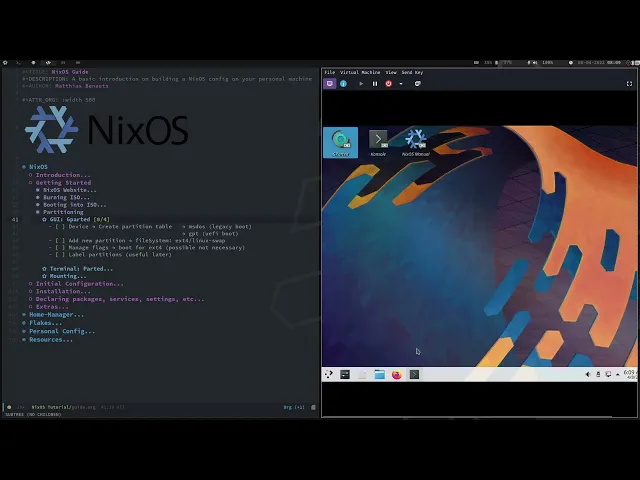


![Power Automate Tutorial ⚡ Beginner To Pro [Full Course]](https://img.youtube.com/vi/KsgxDz-nY_I/maxresdefault.jpg)