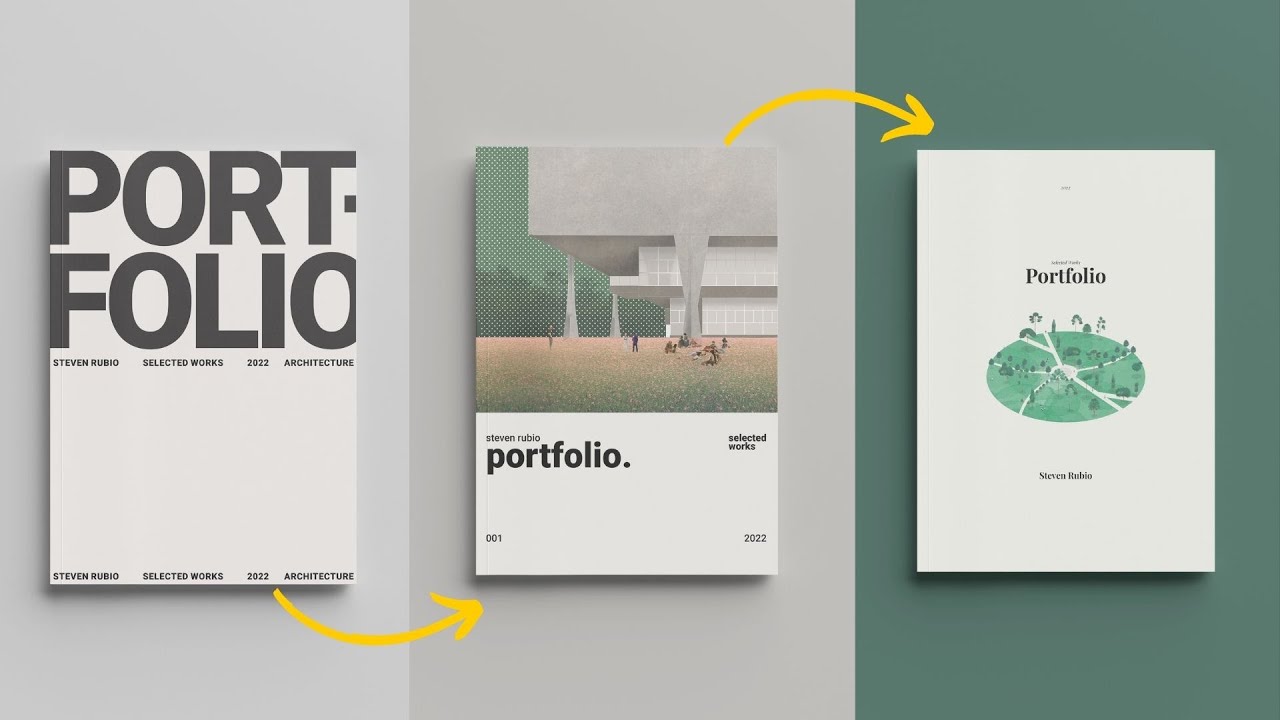
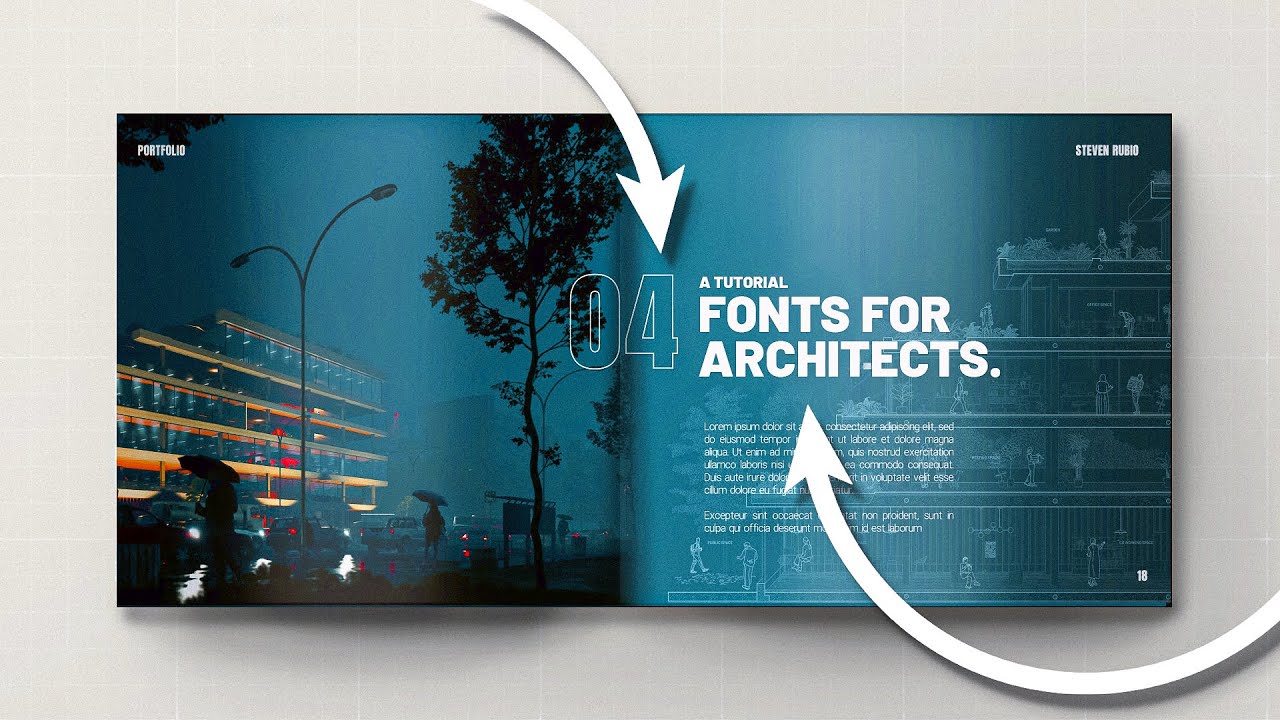
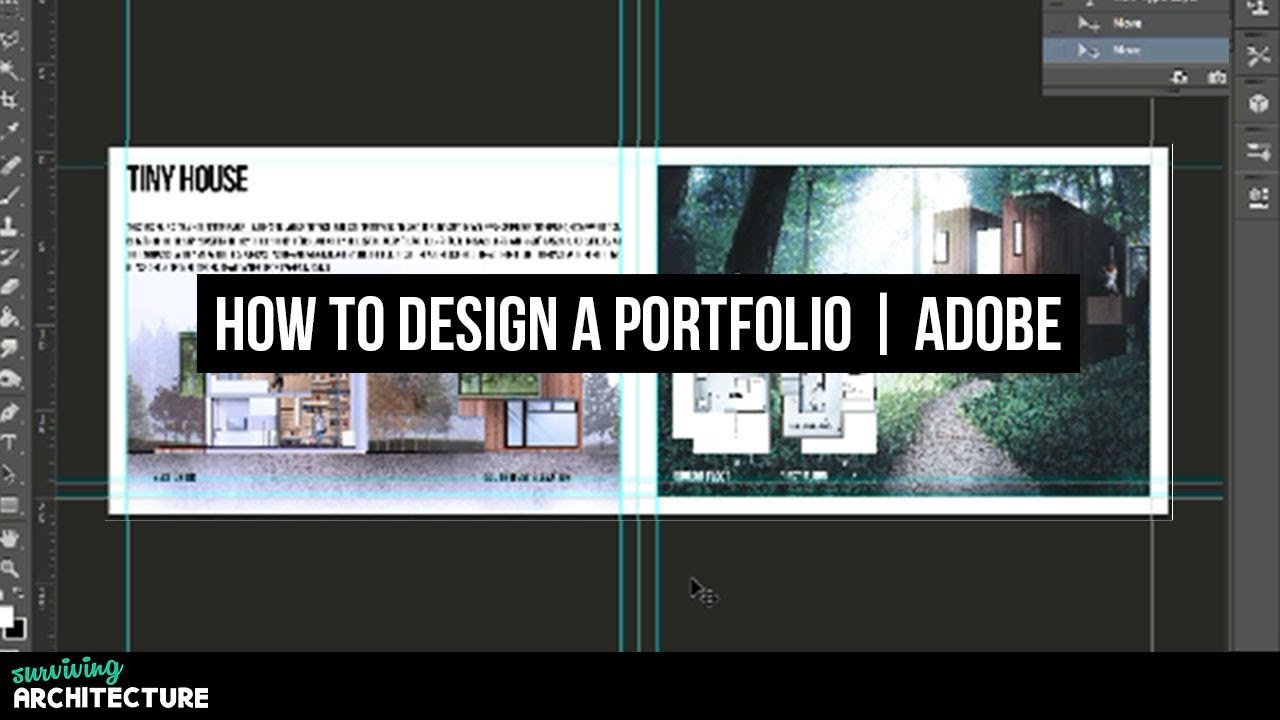
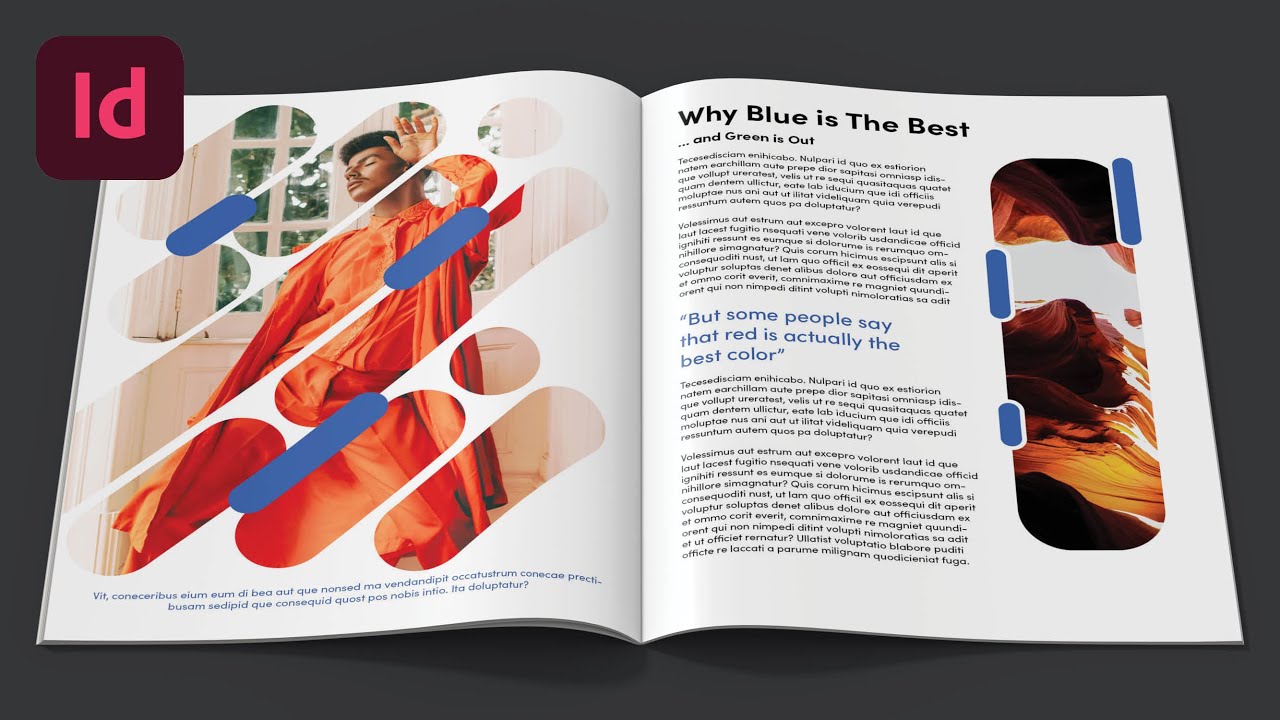
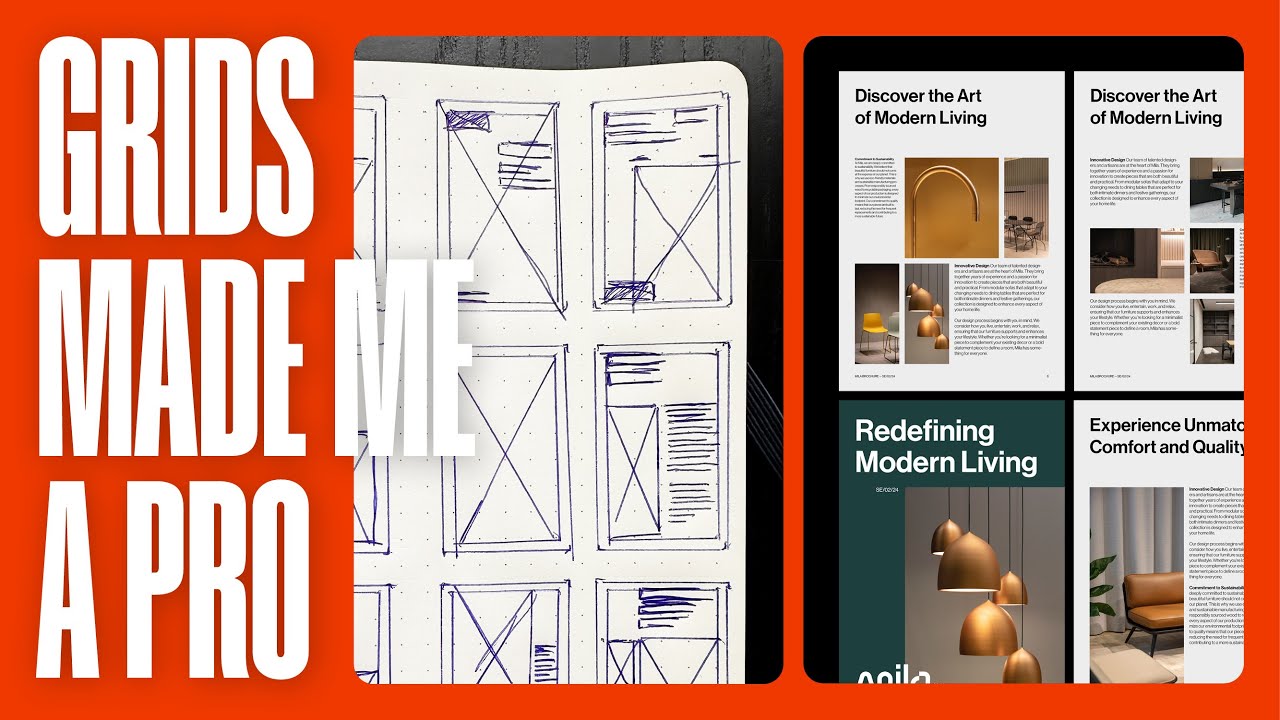
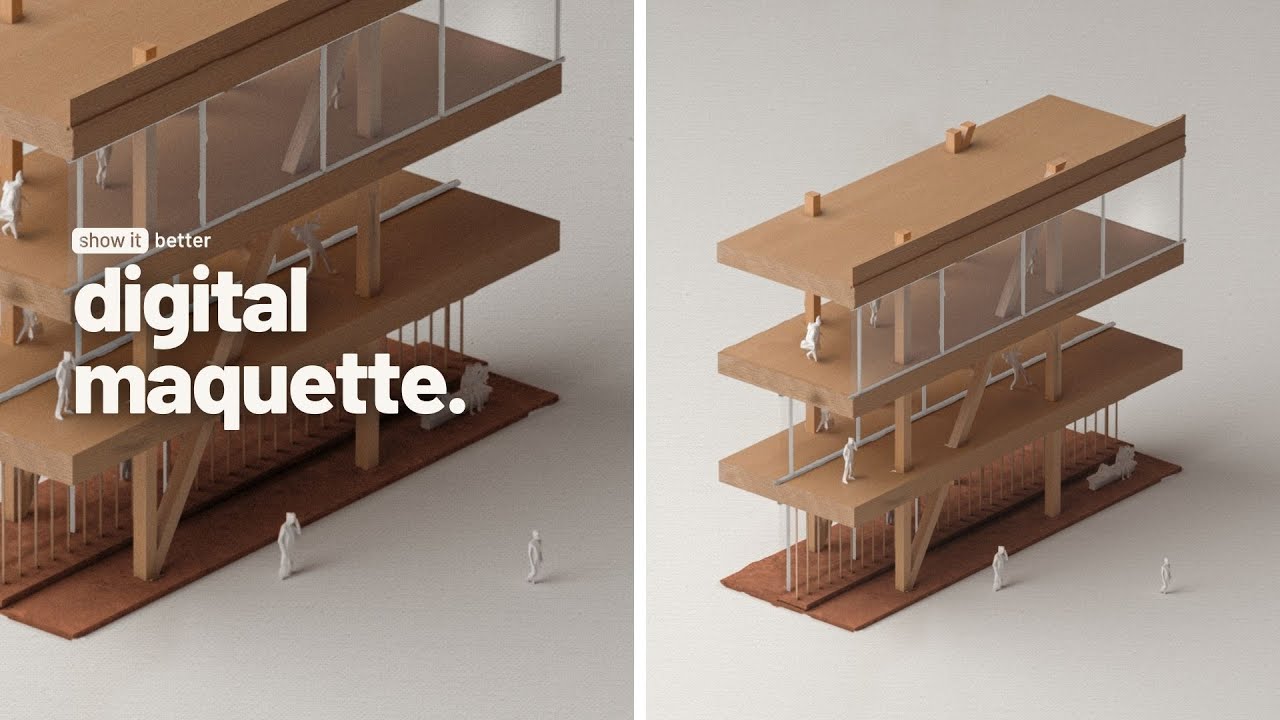
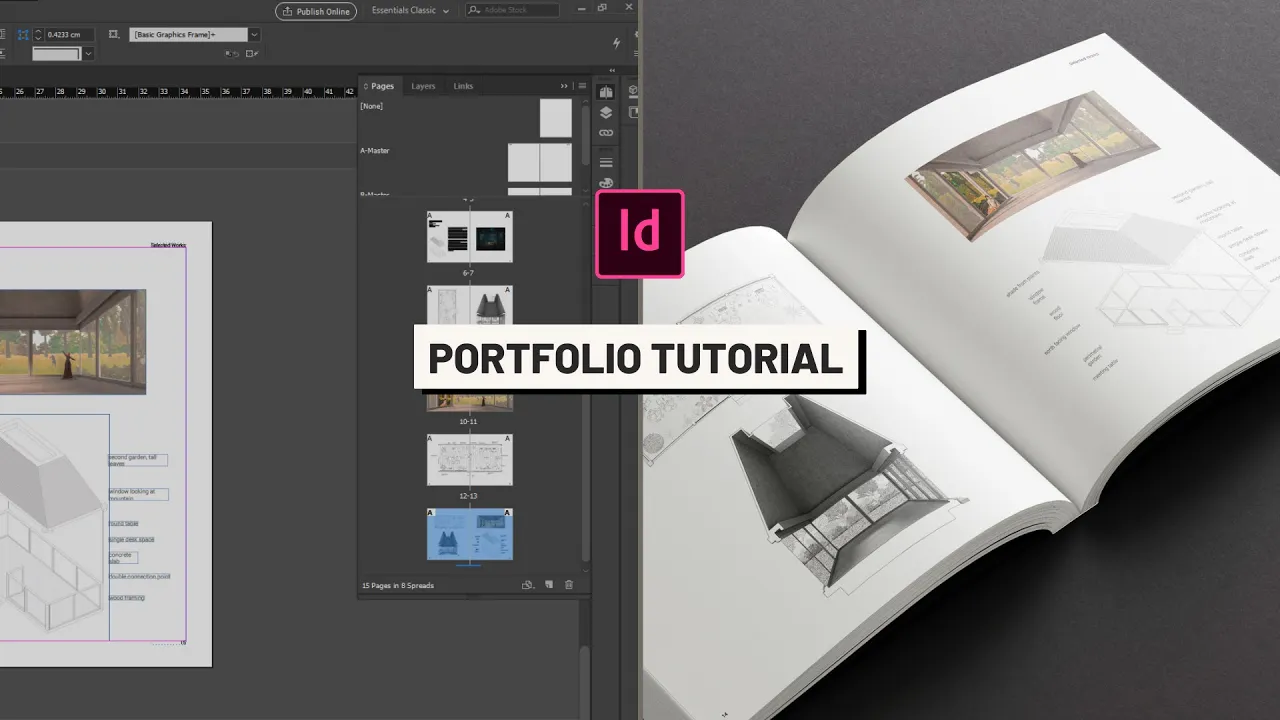
in a portfolio we have to design the cover the table of contents the cv and the project spreads and inside of our project spreads where we explain each project we have to cover some basic things like the title of each project a brief description one or two main images and complementary images to understand the project so no matter how you show it that has to be included in each set of spreads and inside of your project spreads i like to divide them in two categories the introduction spread and the regular spread the introductory spread usually
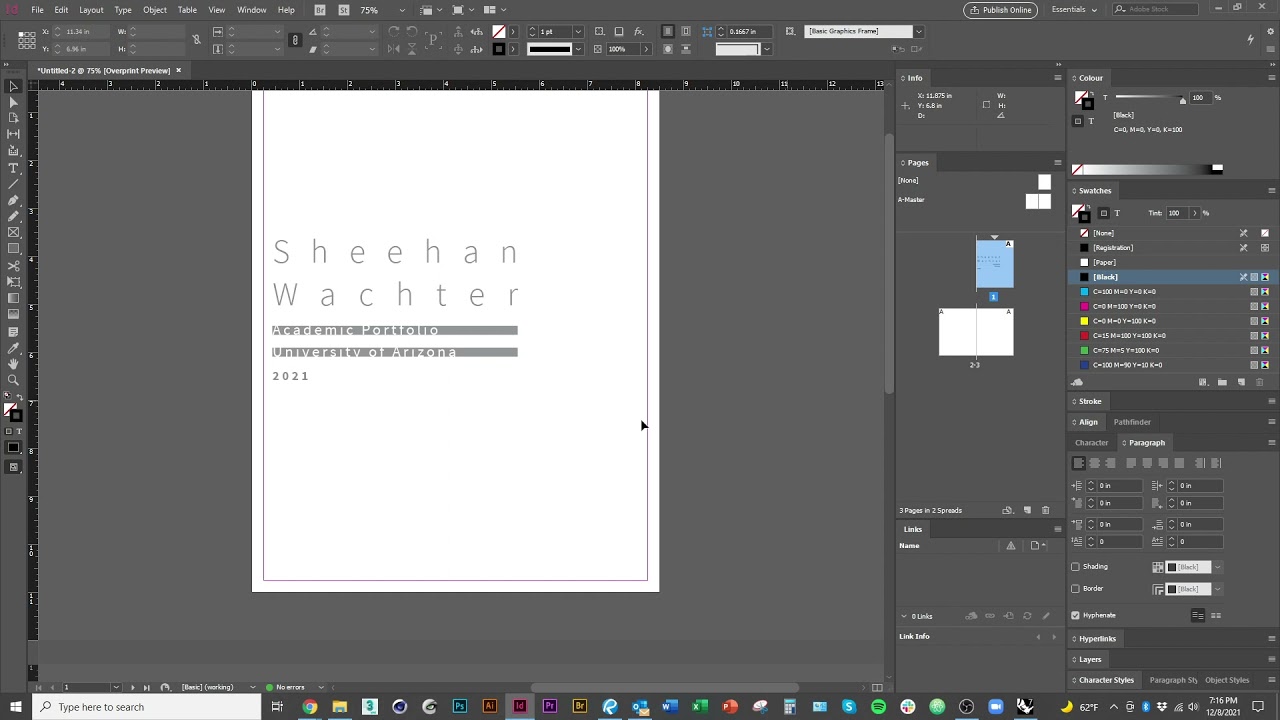
consists of a spread with the project's main title a brief description and a defining image this can be a render illustration plan diagram section etc and for the regular spreads we usually put the rest of the information on the project let's set up our document and master pages i will ensure the facing pages option is on for the document setup i have a minimum of 20 pages so let's go for a legal half on page size and now let's configure our master pages i want to configure the page number and have two types of master
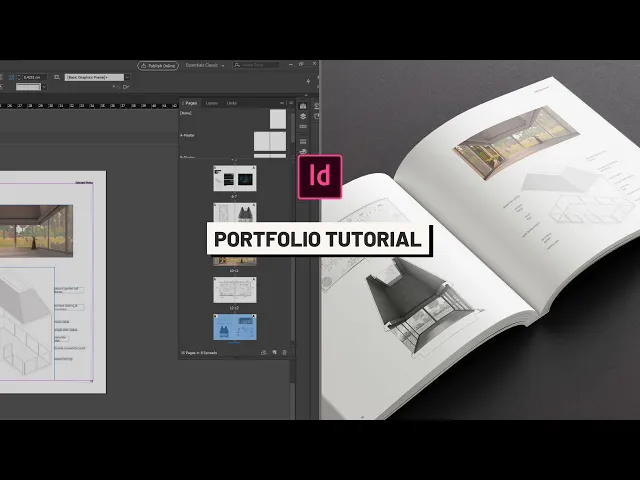
pages one that works on a white spread and another on a dark or photograph spread so i will go to the a master and double click on the pages i will add my name in the top left corner and selected works in the opposite corner now to number each page automatically i'm going to copy the text go to type insert special character markers and the current page number and now i'll copy this onto the other side and now that our a master is ready let's select both of these pages and right click and select duplicate
now we will choose the text to change the color to white and we are done with our b master so let's start with our first introductory spread the full bleed image you want to ensure you have an excellent high quality image that describes your project and if this is not the case then this is not your image or you must create one from scratch my main render is this night render so i will search for the high quality png and drag it into my indesign file i'll drag it from corner to corner without leaving any
margins and now for the title and project description i'm going to add placeholder text because at the moment i don't have the actual description you want a short substantial description and a title that is not too big but that you can read it from a first glance i will align my text to the left page and that's it also since we can't see our page numbers we will right click on top of the spread and select override all master page items now we can just click on our large render and click on set to back
pretty easy right this type of spread works excellent if you have a perfect image but what if you don't our second option is a split page design on one side we have our main image also in full bleed and on the other we have the title and project description this can be on either side the key is to keep it nice and clean and to design the white space here we have some beautiful white space that wraps around the project description in these cases i prefer to align the text to the left but the general
paragraph is organized towards the pages center sometimes you have to see these blocks of text from afar to see if it works here you can notice the block is visually appealing not too long not too dense etc on this option you can also split the text page horizontally and place a complimentary plan or diagram i would recommend placing something that isn't that visually dense if we put another render it won't work as well if we put a section or a highly detailed plan maybe it won't work as well either in this case i placed a
floor plan again you have to think of the white space and the third option for the introductory spread is a variation of the split page only that it's deconstructed here the main image will not be a full bleed but just much smaller and placed towards the center of the page also we are going to separate the title from the project description so we are dividing the first page in two and the white space is again the beautiful string that will tie all these elements together here is how the white space looks in its design of
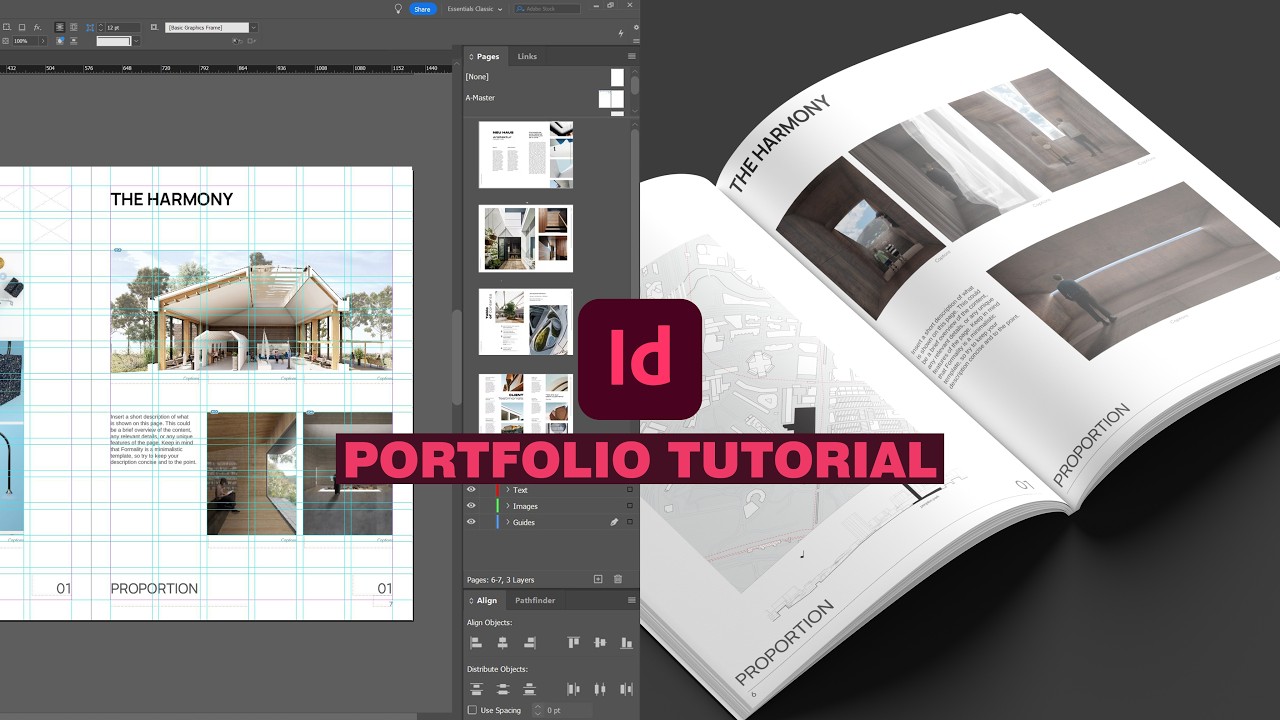
course of these options there are also variations but you understand the gist we go from a central image to a balance between an image and text to a deconstruction of the three now let's go on to the regular spread types in theory these are pretty simple and straightforward what varies is the density of each spread and how we balance information the first is a two image split where we have in a big size two drawings in this case a section in the floor plan again for this to look good the drawings have to be of
good quality and tell an exciting story so if you have to adjust your drawings go ahead and do so the second one is one main image or one main plan if it's the main render i suggest going full bleed but if it's a technical drawing i suggest being careful and leaving a lot of white space around for example for this floor plan what i can do to justify its size is add some text annotations that can make it more exciting maybe give us uh give it a sort of alley or bow wow kind of vibe
but what if you don't want to take too much space because you have too many drawings well let's divide the spread into four and in each part we are going to place an image or a drawing you can make these divisions in equal size but depending on the format of the image it's not always going to work well in this case i had a very vertical section versus a horizontal floor plan so what it did was pair the floor plan with a horizontal image in the vertical section with exploded that's on a metric so if
we look at it from afar there's just a nice balance to the page we have a lot of information but it doesn't look dense and gives you a visual cue of what to read first now let me tell you how you can download these projects files to using your projects but first i want to remind you that if you don't know anything about indesign there is an excellent course by daniel scott on indesign and it is hosted on skillshare who today is sponsoring this video and is helping us continue creating free content for you and
skillshare is an online learning community with thousands of inspiring classes for anyone who loves learning and wants to explore their creativity and learn new skills or you may be trying to perfect your skills and indesign for your portfolio well skillshare is the perfect place to start from photography and illustration to graphic design entrepreneurship and more you can find classes that will match your goals and interests one class i recommend you look into is the adobe indesign essentials training course by daniel scott it is a seven hour course that teaches every little detail you didn't even
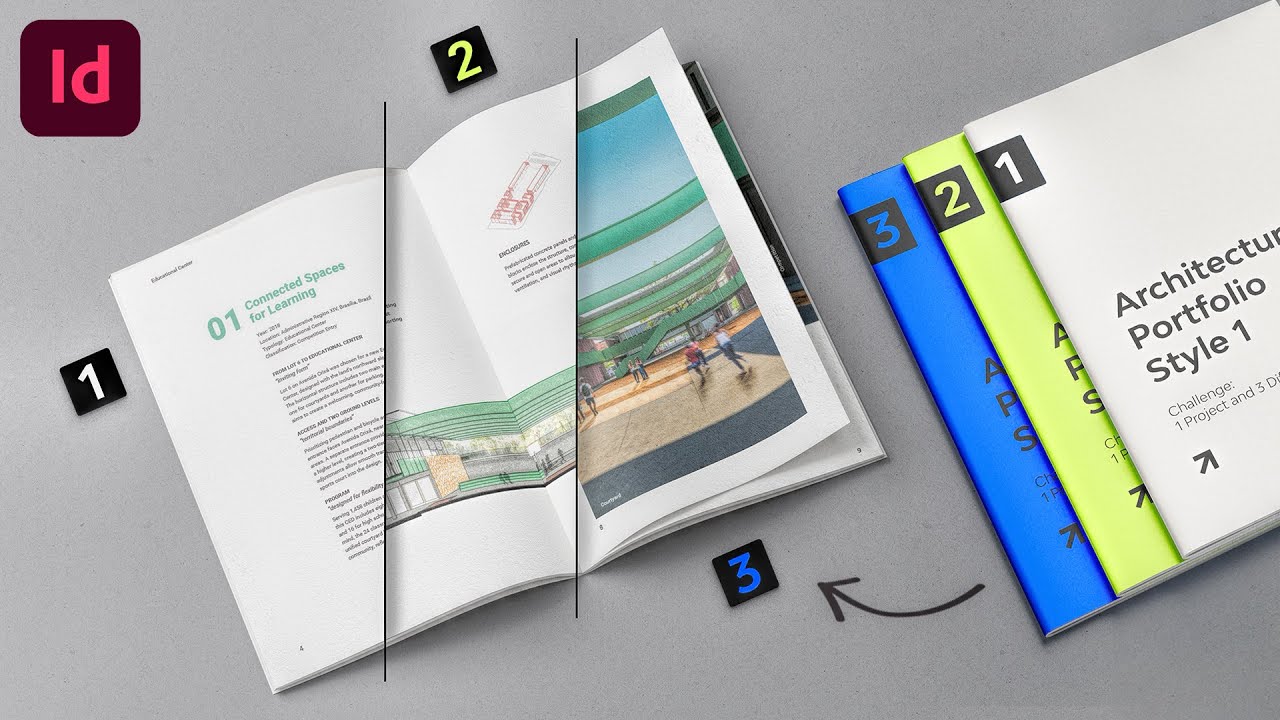
need to know but now you do of indesign some of the many benefits that skillshare has are that it's entirely ad free so you can stay in the zone while exploring new skills new premium classes are launched each week so there is always something new to discover and all the classes have subtitles in spanish french portuguese and german the first 1000 people to use the link on my description or my code will get one month free trial of skillshare so we have three different variations of an introductory spread and three other options of a regular
spread now just pick one from each category and create your project for example i have decided to use this main image spread as an introductory spread followed by a four image division now let's say i want to follow the same structure for the rest of my projects i would right click and duplicate my project spreads search for other images and drag them on top each portfolio has a specific personality and has to go according to you and your style nonetheless this can be a good starting point to create your project spreads i will have a
link to download these templates down below again i recommend you modify them and give them your own style if you really want to check out some sick portfolios that i have reviewed click on this playlist right here also comment down below on which spread style you like best and that's it see you guys in the next video bye