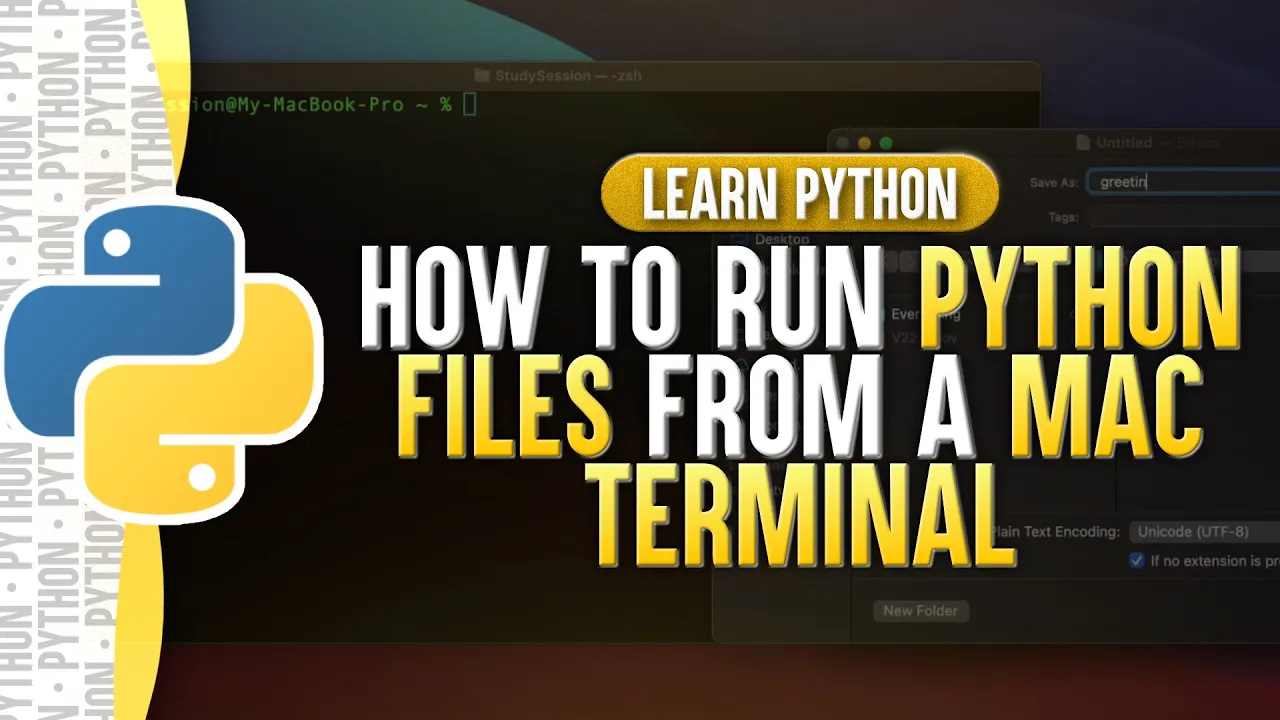
hey everyone in this video we're going to walk through how you can create a simple python file and then run that python code within the terminal on your mac the first thing we need to do is ensure that we actually have python installed so to check that let's first open up our max terminal by hitting command in spacebar we can open our max spotlight search then we could type in python and hit tab this will show us all our files that are called python as you can see here i have python 3.9 installed on my
mac which is the latest version of python if you do not have python 3.9 in the list check out the link in the description down below and it will guide you through how to download the latest version of python now that we know that we have the latest version of python installed what is the next step well we need to create a python file that we can actually open within our terminal to do this let's just open up our max default text editor this is simply called text edit so let's again open up our spotlight
search and look up textedit now this step is very important we need to make sure that our text file is plain text and not rich text to ensure this you can hit command shift t altogether and when this top bar disappears you are now in the correct mode or you can come up to this top bar and format and change it here so let's just create a simple python file that prints hello to our user let's just go ahead now and save this file to our desktop as a python file let's call it greeting.py dot
py indicates that we are loading a python file now back at our terminal let's change our directory to the desktop we do this by typing cd desktop if this doesn't work just type cd hit enter and then type ls for list and this will list all of our available directories now we again type ls since we saved our text file to the desktop you should see the file here then to run this file we need to tell our terminal that we want to open a python file therefore we type python 3.9 and then our file's
name after a space after hitting enter you can see that we are returned hello which is the output from our file's print statement there you go we have now just learned how to begin and edit a python file in our max based text editor and run that file inside of the mac terminal thank you for checking out this video on running python files from your max terminal if you enjoyed please like subscribe and consider checking out our youtube memberships by clicking the join button down below however if you have any comments questions or concerns about
the information i provided in this video please leave a comment down below and i will do my best to address your concerns you