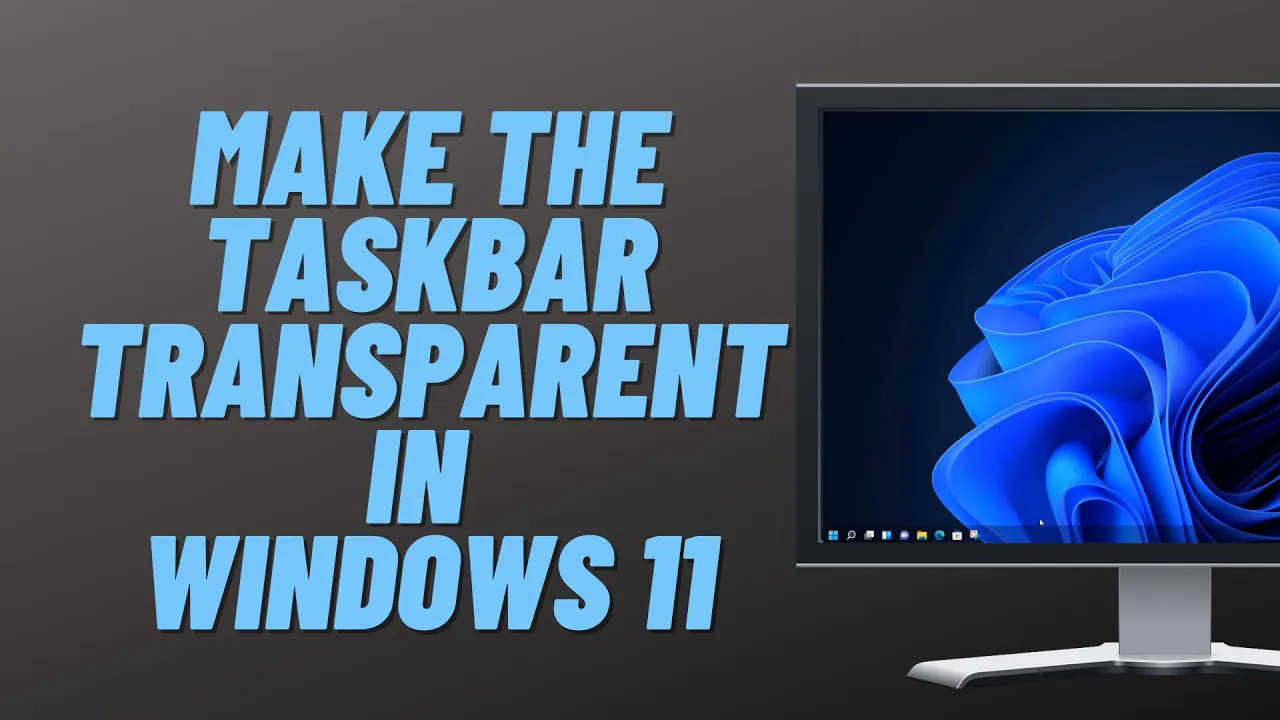
what you guys got another video here if we are on how to make the taskbar uh fully transparent inside windows 11 and windows 10 so you can see here we have a solid color and it doesn't really matter if you go into the settings here and mess around inside here you're not going to be able to get the taskbar completely transparent the way you would think if you went into say for instance the personalization and then turned on say for instance transparency if you go to accessibility here as well we've got visual effects and if
you go in here this transparency effects already turned on so there's no real way of getting this looking nice and transparent the way some people like to have their taskbar so how do we get around it well it's pretty straightforward there is a program you can use which will make your taskbar completely transparent and you can even change it up to the color sort of background that you want or scheme that you want with this software so the best place to get this is inside the microsoft store here so hit the microsoft store and inside
here we can type in the program name which is a translucent uh tb so you can type that in here so just put translucent just like so and then put tb on the end of it here and you should see it pop up here just like that once you get this you can click on get it's free to use you can see the creator's name is there and just push get and it would install this onto your system it does have a menu system which allows you to make customizations to the taskbar where you're very
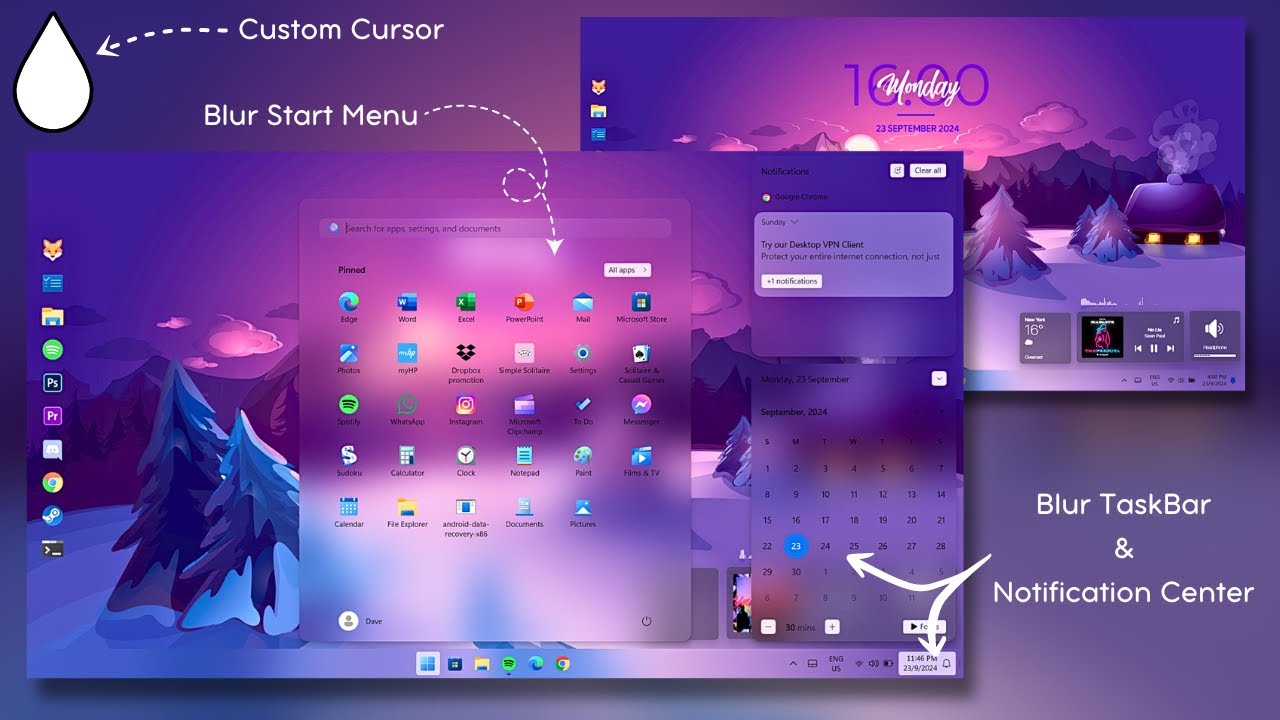
limited inside windows 11 to make customizations to the taskbar because they've limited that capability in windows 11 so i'm just going to open this up and as you can see here we'll be able to get some access to this software so click continue and you can see already it's completely translucent and there is a faint line there as you can see now if that's a little bit extreme for you you can actually make changes to it and tone it down just a little bit just so you can see a little teeny bit of it but
if you want it completely translucent that's basically how you would do it but down here on the bottom right hand side you will see a menu system which allows you to make changes you can see start open enabled advanced and you've got a bunch of advanced settings here you can go into the notepad here and make changes here if you wish uh change all sorts of colors and things like that in there but you don't really need to because there is access to this in the color palette and stuff like that inside this software let's
take a look at some of the options that have available here so desktop gives you the opaque normal and clear and acrylic depending on what you want to set yours to so if you change this it will change the type of color scheme here so let me go back in and change this to clear or acrylic and there that's a little bit more nicer i think for me it's just not quite as extreme but if you do want to tweak it yourself and find your own sweet spot you can do inside here with this software
let me just quickly show you here down the bottom here again go back into here and you can make changes and go into the accent color and make changes here so depending on how severe you want it also you can change the color of it here by clicking on here on the color palette as well if you want more solid color you can do then go back into the actual transparent part and tweak it to the way you like it so very nice indeed if you want plenty of transparency and color on yours so you
can change the tone of it here and on the right it will change the transparency so you can see you got two sliders one is for the actual color tone and also the one on the right is the one for the transparency there and you've got the color palette in the center so find your color that suits you and then pull down the transparent part here and this will make it transparent now there is other programs that will do this as well start 11 will change the start menu and also allow you to change the
taskbar as well for transparency and things like that so if you want to go and use something like that for your start menu you can also do the task of bar with the start 11 but it's not free it is 499 for that software there is other software out there that allow you to make transparent uh taskbars as well but some of those aren't free they're not much a couple of bucks to buy but again these are not free this one is completely free here so let's take a look at what it looks like with
another background so you can get an idea so i've made it a little bit more darker and you can see here it looks pretty nice when you've got the right background and i like that sort of look there not too dark not too light and uh it's just perfect that's the way i'd like mine and again you can change the color scheme on your system anyway my name has been brian from brighttech computers dot co dot ek hope this video helps you out just a real quick video big shout out to all my youtube members
who join my youtube members group your names are rolling up on the screen have a lovely weekend thanks again for watching bye for now [Music] [Applause] [Music] [Applause] you