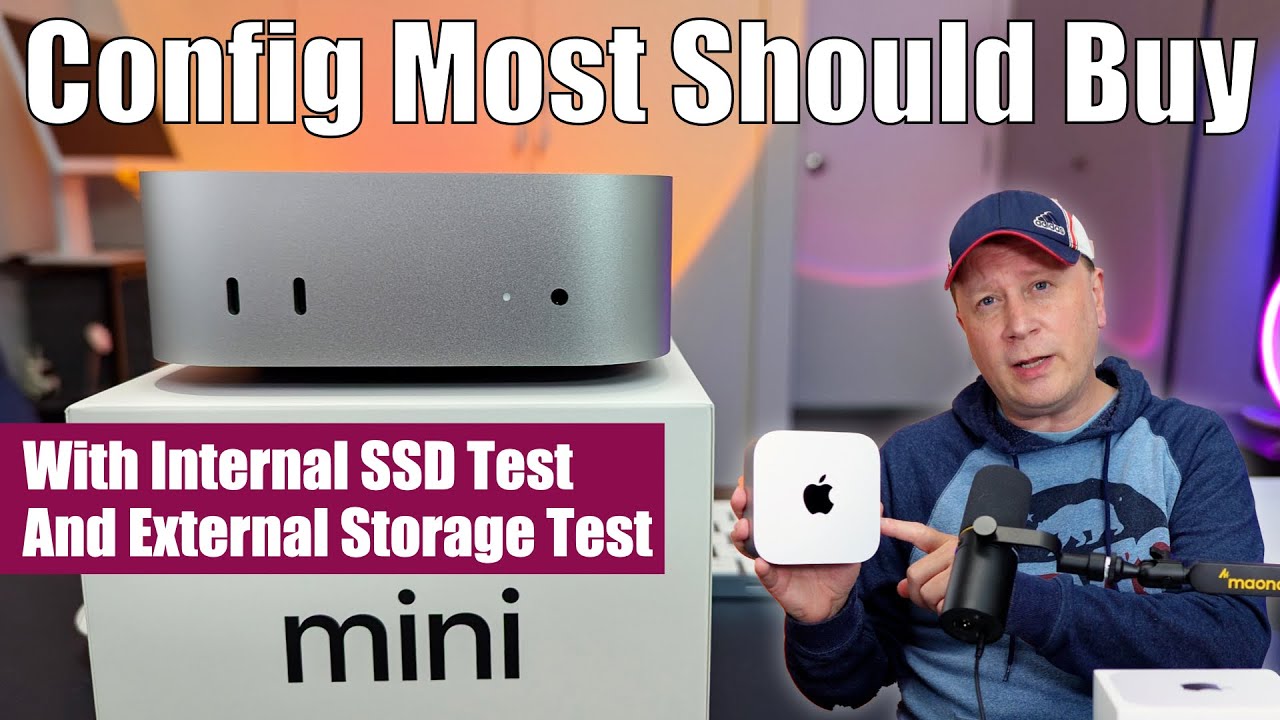
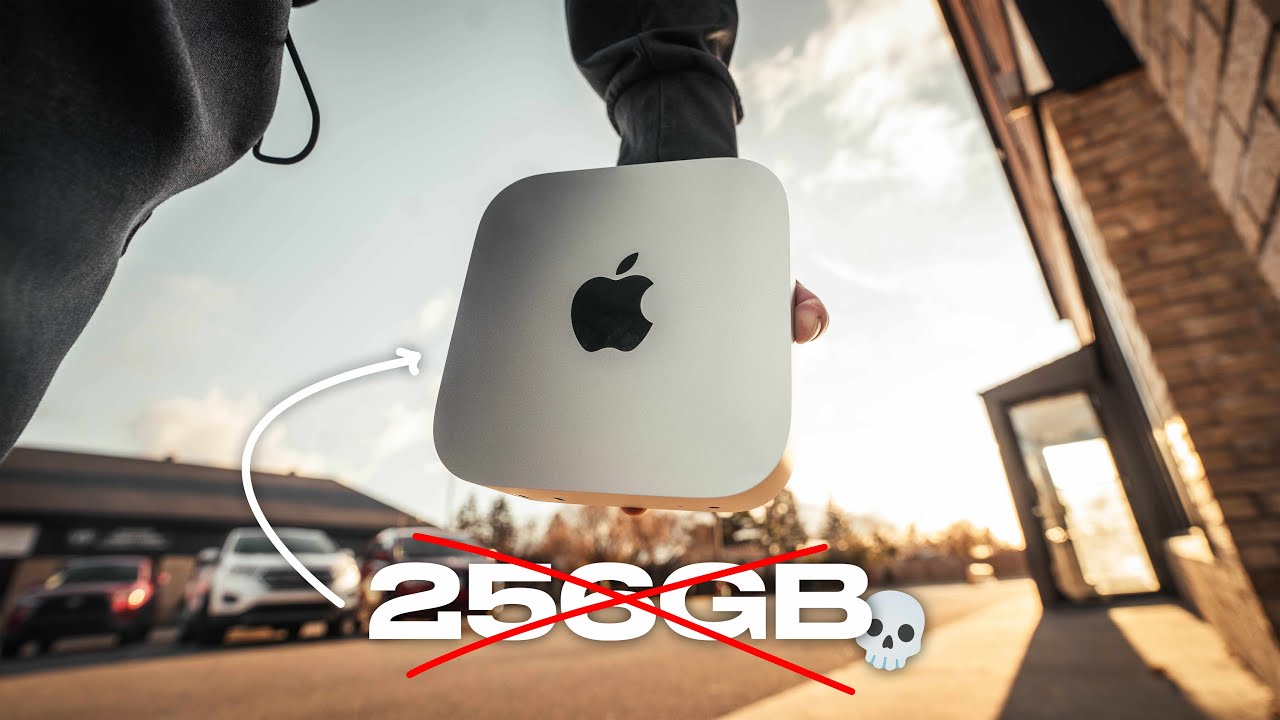
hey guys it's Lance of Mac Sound Solutions I'm on my way to pick up a Mac Mini at the Apple Store here I am at the Apple Store there it is the little guy only took me about 10 minutes to get it out of the store and here it is back in the studio we're going to do a quick unbox and then set her up and then move our home folder to our external drive going to plug it in and on a side note Amazon's having a crazy Mac Mini sale for Black Friday $559 plus
you can apply a $59 coupon bringing the whole price down to 541 with tax what I paid full price Link in the description let's re round back and turn it on okay so I'm going to speed through the initial Mac OS setup there are two things you want to skip during the initial setup don't migrate your data from your other Mac if you plan on doing that because all of that will get written to the internal drive we're going to do that later and I'm probably doing that in a second video and the other thing
you don't want to do when you're doing the initial setup do not sign in to your Apple account set up later otherwise all your iCloud data is going to download to the internal drive yes I want to skip that they really try and get you to log in so now we just put in our full name our account name and that's the name of your home folder so I'm actually going to change this because on my other Max it's the same exact thing Lance McVicker and I don't want to have a conflict so I'm going
to change this account name to Lance mini and that's going to be the name of my home folder and then we put in our user password that we want to use going forward the little car as in the mini continue go Lance mini go I'm going to have to go get a coffee in a minute I've been drinking so much coffee lately I haven't been able to sleep at night making these videos it's crazy I'm feeling kind of dark so we're going to go with dark mode easier on the eyes for you guys and it's
raining out so and we're in pretty simple first thing we're going to do is Mount our hard drive onto the desktop I mean it's already there but we're not seeing it on the desktop you have to go to finder settings and then click that so you see your internal hard drive and there she is let's see how much storage the base system is taking up out of my 2 56 gigs quite a bit so as you can see I am already down to 2114 gigs and I'm going to do something I always like to do
which is go to view show path bar and show status bar so there's all our usual stuff this is our home folder which I've discussed in my other videos and the whole point is we are now going to move this to an external drive there's 443 megabytes of stuff in there we're going to come up up to here again View and go to show view options and very importantly your hidden Library folder we want to visually see the library folder all the time um and you can turn this off later if you don't want it
to be visual but I just like to have it on so show Library folder it's now there it's visible and it's going to stay that way and you can only do that when you are in the view of your home folder for instance if I just go out of it you see it just disappeared there is no View library right so you have to be in your home folder to turn on show Library folder all right so that's our entire computer right there our applications is taking up 8.29 gigs our library 2.86 system is 17
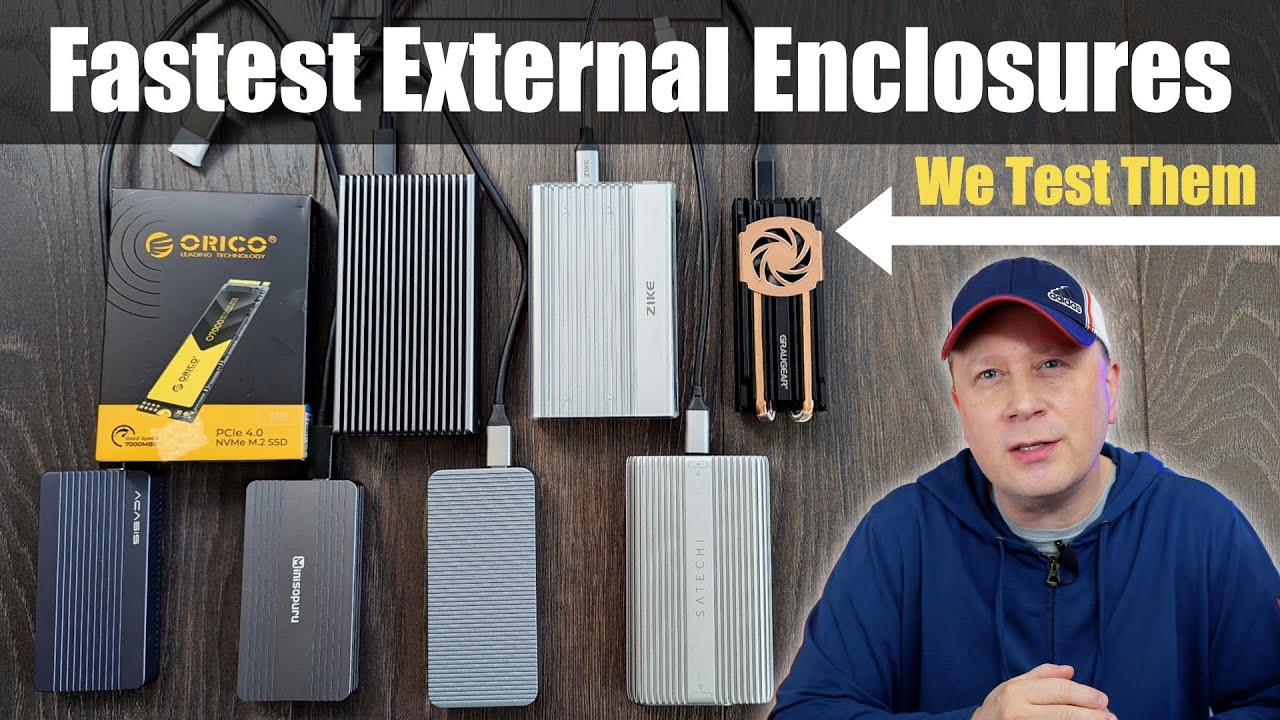
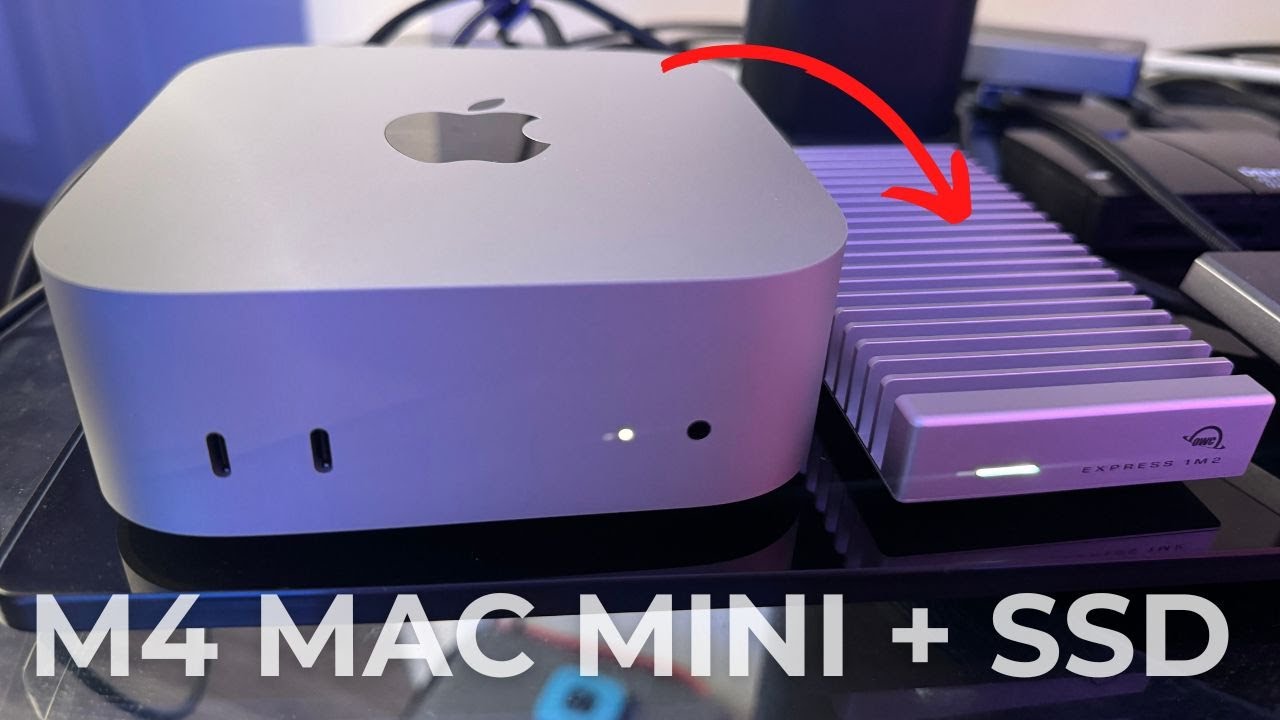
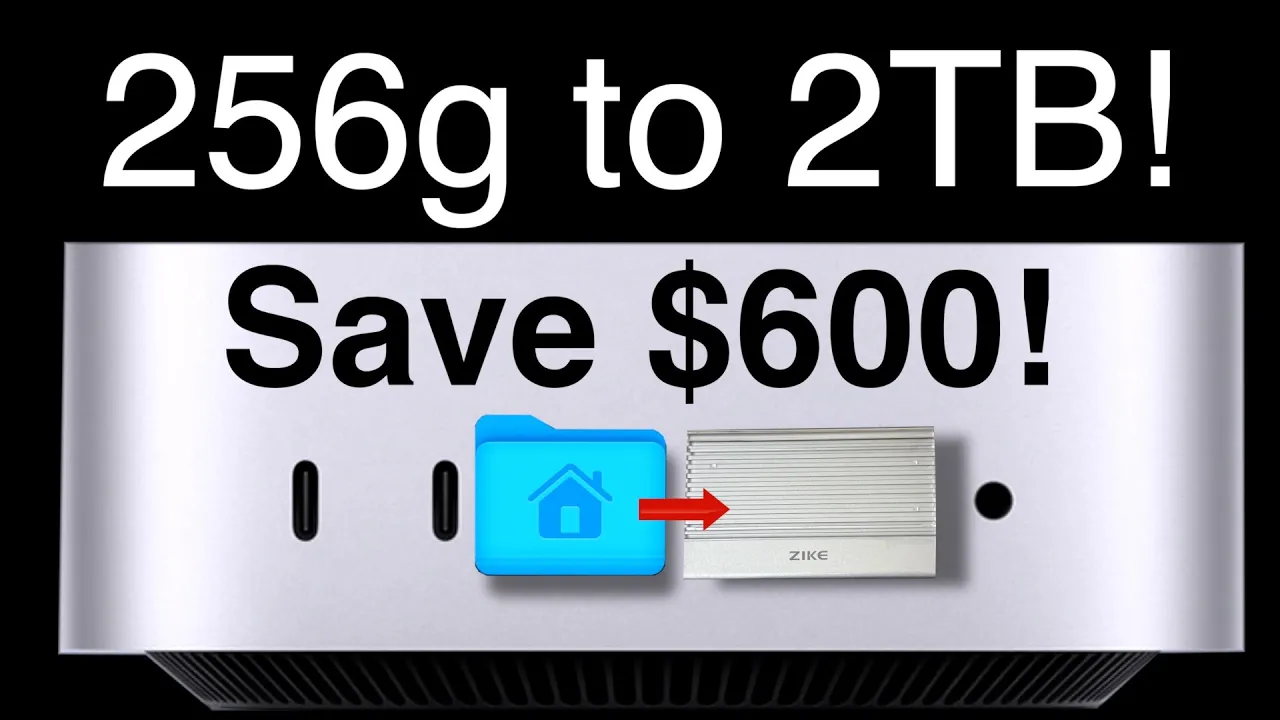
almost 18 and the user folder is only 637 Megs so it's going to take 2 seconds to copy our data over first we got to set up our hard drive that we're going to use to be our external home folder location I'm going to take a quick break grab a coffee and I'll be right back okay I'm going to plug in my external Thunderbolt SL us4 enclosure the zeik drive which has a 2 tbte nvme in IT team group nvme launch dis utility go find our drive there it is okay so we are going to
call call this home X as in home external and guid partition map apfs erase so here is the container we made home X okay so we're formatted and we're ready to copy over our user account and you don't want to use this drive for your time machine so just close that out I'm going to talk about time machine and data migration in the next video and once again you want to log into your Apple account once your external user home folder is set up we're just going to come over here we're going to go to
users and we're going to take Lance mini our internal home folder and copy it over to our external drive it's going to ask for your password so we can go look at that now on the left we got our internal drive users and my user home folder and externally we have the same but the difference is the internal one is the active home folder the the external one is not active we're still using this one so now we have to go to system preferences and change that setting so that our external home folder becomes active
and then once we do change that setting we'll have to reboot and then it will be the active home folder from then on out now the question remains should you go delete the internal home folder I'm not sure about that yet but we're going to try it and see what happens but only after we activate the external home folder first next thing we're going to do is copy our applications over so it's copying 7 gigs my guess is it's copying Pages iMovie Garage Band okay there we go let's see what wound up getting copied the
only things that got copied are the non-apple system apps so just to be clear all those system apps that come with your Mac like contacts FaceTime they can't be moved and they can't be deleted only the apps you download from the app Store can be moved to an external drive and removed from the internal drive and the ones that we did move Garage Band iMovie those are apps on the app store they are not system apps they're app store apps and now as of Sequoia 15.1 Apple has put in the App Store settings the ability
to download apps that are over 1 gig to an external drive so you can turn that on and point it to your external home folder drive and because we have our applications folder on the same drive so we got our home folder and we got our applications folder Final Cut Pro went right to the applications folder when I hit download which is just what we wanted it to do when you set it up in the App Store and the preferences it just has you select the drive so I wasn't sure where it was going to
go and what I learned is you don't want to put your application folder inside your home folder you want to leave leave it outside like I have it here and then Final Cut or any apps over 1 gig that you download from the App Store will automatically download to that applications folder if you were to have moved that applications folder into your home folder then Apple would create a new applications folder on your external drive and download the app to it so there's no reason to put your applications folder inside your home folder you want
to have it outside like we have it here and after I downloaded Final Cut I also saw that now I've got a new library folder on my external drive and it's got some Apple Store receipts in there so I guess you're going to have that going forward on your external drive as well and now we're going to delete some of the apps we don't need on the internal drive because we mve them and this is before I downloaded Final Cut just in case you're wondering where did Final Cut go now we're going to free up
some space here Garage Band IM movie if you hold down the command key and click on them keynote Pages numbers we're going to delete those off our internal drive cuz they're in our external they will be deleted immediately delete we're going to save up a little bit of space boom somebody said you can just drag the app into Launchpad oh look at that you don't have to make Sim links so you can just drag your app to the Launchpad from from the external applications folder and bingo there it is ready to go uh thank you
for that tip whoever left that comment okay and now we're going to activate the external home folder so we're going to go to our system settings and we're going to go to users and groups so we hold down the control key on our keyboard and we click on our administrative Lance McVicker name and advanced options click on that put in your password and now we go to where our home home directory is located currently the path is user Lance mini internal we click choose so now we're going to change that to the external drive you
can click on it here or you can go to the main computer icon and click home X that's our external drive so we're on our Ze Drive we're going to select on the folder okay and there's all the folders ready to go to become our new home folder you don't want to click inside here you just want to click on the name so they're highlighted this is your path here home X your folder that you copied over and just hit open and check your path volumes home X Lance mini and we hit okay and then
it's going to tell us we need to reboot okay allow rebooting and activating our external home folder too much coffee folks too much we go put in our our password and there we are we're in and now you can see this guy is my external drive and my home folder now has the Little House on it it didn't used to have the little house and now the old home folder no longer has the little house and that verifies that the external home folder is our current active home folder so I'm going to be wild and
crazy here and I'm going to go delete our original home folder and we're going to see what happens we're going to say byby home folder but then there's no users on the internal drive you know what before I do that I'm going to do something that we could have done before but we're going to go up here and we're going to create a new internal backup user account that is an administrator so if we have a problem with Lance mini out here our home X Drive doesn't want to mount or something gets corrupted it doesn't
take up any space whatsoever on your internal drive so we're going to do that next we're going to add a user and make sure to make it an administrator new user click on administrator cuz otherwise it's on standard and you won't be able to move stuff and delete stuff and all of that so we're going to put a totally different name and we're going to say Lance backup user and the account name is also Lance backup user this will be used as the name of your home folder okay we're going to put in our password
okay you can use the same user password it doesn't have to be different just in case you are absent minded we got to verify our password and we put in our password hints and we hit create user boom and there it is uh let's change our Emoji to something more backup looking I'm going to go with the this guy means we're in trouble okay so this is our main user and it is still tied to to our external this is strictly a backup we have not logged into this guy we only log into him if
we get into trouble for some reason but it's there now and I will show you that it's there there it is Lance backup user and it's got all the usual folders you see how you can't get into them because you're not logged in as that person okay you have to log in to be able to get access to backup user home folder so now we are going to roll the dice and we're going to delete delete our internal original home folder are you sure you want to delete Lance this item will delete immediately and you
cannot undo this delete boom password okay it's gone and just make sure everything's honky Dory with this deleted user account scenario we're going to reboot to test it but so far I think we're okay I think we're going to be all right deleting that user but if you have a computer with a lot of data on it and you're doing this after like it's not a brand new computer you might have some issues and you might have some hidden installed files on the original user account and I just don't know if it's a good idea
to delete it that is what you're doing like you taking a computer you've been using and you're moving your home folder externally okay so no problems reported deleting our original home folder that we set up when we first set up the computer so now we're just running off our external home folder I still got 221 Gigs available on my 256 gig drive that's not bad now we're going to log into our Apple account and turn on all our iCloud apps and sometimes logging into your Apple account is a little wonky I had to reboot and
try again and then it logged me in through this whole process I have not been logged in and you don't want to be until you get everything set up properly okay so we're going to sign in sometimes you got to reboot like I said it gets a little wonky don't ask me why it does that photos is on iCloud Drive is off and turn that on we're going to turn notes on messages mail find my Mac and not turn that on calendars reminders Safari news wallet form FaceTime done now let's open our photos Library cuz
that's weird this should be filling up already get started use iCloud photos turn on iCloud photos in settings it is on so it seems like let me see oh see iCloud Drive is doing stuff right now there we go some stuff is coming into the iCloud drive you can see iCloud Drive is downloading it just calls it iCloud drive with no path I find that very strange but obviously you can see that path is in our home folder right Lance mini Library iCloud drive we still got the same amount available on our internal let's go
look at our photo library photo library is not sinking very strange Ah that's something I missed folks I missed it in the last video this is important when I did this with the Mac Studio I didn't have this issue but if you're having this issue this is what you need to do click on show and find ER and direct the path to your photo library in your external home folder in the pictures folder then click on use as system photo library and then all your iCloud photos will be syncing in the correct location on the
external drive and click okay go to your photo settings click on iCloud and make sure iCloud photos is checked and that should do it so we told it to use it as the system photo library and you can see that option is now grayed out and you also want to make sure iCloud photos is checked so you click on iCloud iCloud photos automatically upload and store all your photos and videos in the cloud but only if you want to do that you don't need to use iCloud at all with the photos app if you don't
want to ah there we go now we're syncing you can see let's go into our external home folder photo library our pictures are still downloading uh see now our library is 15 gigs worth of stuff and our photos is 1.65 that's still downloading stuff okay so that's basically it we did it folks we created our home folder on our external drive we deleted the internal one that we initially set up and it seems to be working just fine uh the other thing I want to say is you should go to system preferences energy saver they
move these preferences around it makes me crazy prevent automatic sleep when display is off yes basically every time your monitor goes off if you have that not turned on your hard drives are going to go to sleep it doesn't really seem to matter with the external SSD the Ze Drive always wakes up I have not had one disconnect with this drive so far which is impressive because some USBC drives like this um Samsung here t7 this does not play nice with my MacBook Air at all it doesn't even Mount half the time with a more
powerful computer that has more power going on through it it mounts but um something about the MacBook Air is isn't giv enough juice you want to be careful with the drive you select to do this with so far the Ze drive with the team group nvme has been really good now just for fun let's go get black Magic's disc test and test out the external and the internal and see what kind of speeds we're getting so first we're going toest test our internal drive with a 5 gig file yes that's our internal drive yeah you
know it's not that fast I'm thinking our external is going to be faster okay so we're getting like 2,000 on the right and we're getting close to three on the read it's running cool I don't feel any heat I don't hear any fan yeah I don't hear any fan noise coming out of this thing let's go TIY the our external drive now bam we're getting faster speeds on our external drive folks that's what I'm talking about and you could make a raid zero with two drives connected to the Thunderbolt ports and you're going to get
the same exact speeds that the M4 Pro get and a Mac Studio you're going to get like 6,000 reading right so that's pretty good we're getting faster speeds externally than we are on the internal thumbs up to that and we've got two terabytes of storage to play with now you could make it four terabytes I think that's the maximum for the Ze enclosure I am going to be showing another box soon in the next video but uh stay tuned for that nice we're getting faster speeds externally than internal how about them apples Apple that's going
to be it for this video but the next video I'm going to migrate my data from my MacBook Air onto the mini so that the applications I use on that get copied over some of my other data it'll be interesting not sure how that's going to work out but we're going to do that next okay thanks for watching please subscribe to my channel give me that thumbs up and I'll see you in the next Max Sound Solutions video
![Mac Mini M4 - 1 MONTH REVIEW! [& Setup Tips]](https://img.youtube.com/vi/aNn4BlhF7zo/maxresdefault.jpg)