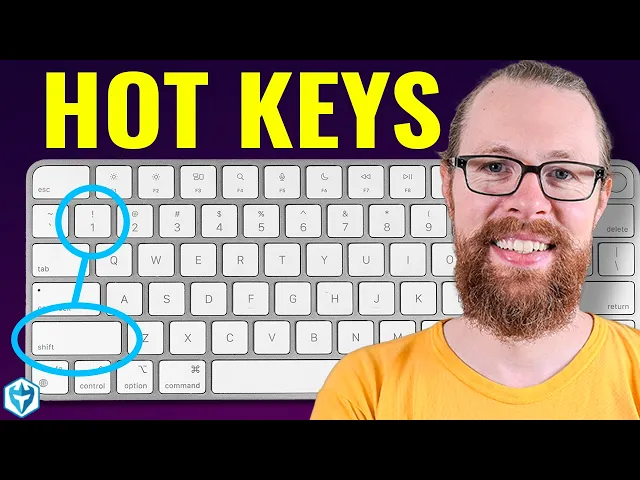
[Music] welcome to today's Deep dive into everything you need to know about how to use hot keys in your trading we're going to go ahead and jump onto the slide deck we've got a lot to cover and we should probably jump onto the Whiteboard and make sure we've got the keyboard laid out now this an old keyboard it's not connected as you can see but we're going to use this to demonstrate how to set up your hot keys in your trading now the purpose of using hot Keys it's all about speed it's about being able
to get in and get out quickly now I'm actually going to demonstrate using hot keys in a real money account and it's going to cost me a little bit probably in commissions and maybe a couple losses so you can see what how fast trading can be when you've got hotkeys set up all right so this right here is our real money account we're looking at nmi this is the ticker so what I'm going to do is I'm going to press a hotkey and you're going to see me press it I'm going to do this right
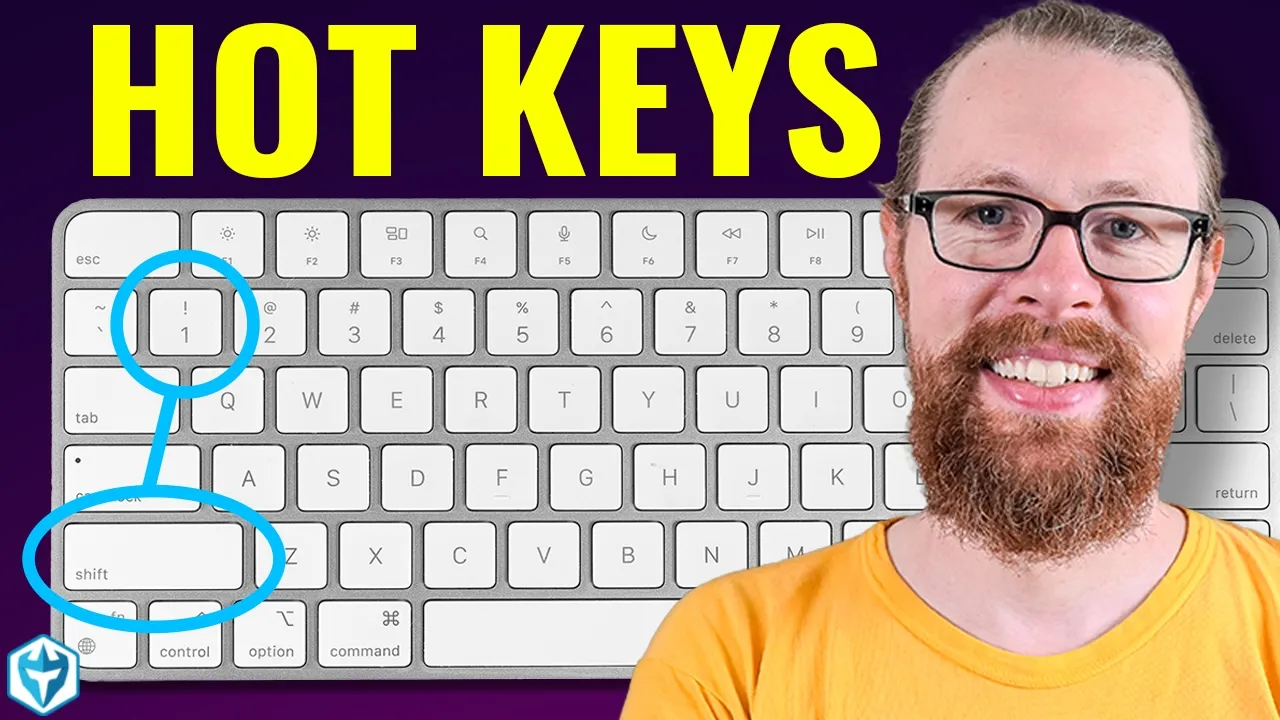
on this keyboard so this is going to be real money so I'm going to press shift and then one those are the keys I'm going to press so watch what happens when I press that keyy all right so shift one instantly I'm in 250 shares now I want to get out of this position what do I press contrl Z and instantly I'm going to press contrl Z and I'm going to be out do you see how quickly that position appeared and disappeared almost instantaneously shift one contrl Z boom just like that in out in out
so those are the two keys that are going to be the most essential the buying key and the selling key those are the most essential now typically what I would do is I would encourage you to set up just the basic hot Keys first and then once you get really comfortable with those you've built the muscle memory of oh yeah I pressed this I press that this is what happens then add additional hotkeys so as of right now on my keyboard let's see I've got hotkeys from shift one all the way across depending on the
number of shares I want to buy so you can set it up from however you want 1,000 2,000 100 200 I just set up for 250 so I could demonstrate for you but you can set it up all the way across that's for buying and then my control button is for selling so contrl Z is to sell the full position contrl X is half contrl C is quarter these Keys over here are for selling on the ask these keys are for selling at the midpoint this key is for selling at a profit Target this combination
and this combination are for selling with an offset below the ask which I'll do on a higher price stock like you know GameStop or something like that because those have bigger spreads and you may not want to hit the bid but you do want to be able to get out so I'm going to show you how to create these basic hotkeys on three different platforms so I'm going to go with three because I think these are probably three of the most common types of platforms that most Traders are going to be using and I'm going
to begin with uh this platform that I've got right in front of me here light speed Trader and then we'll do uh Charles Schwab thinker swim so we'll do create a hotkey on think or Swim and then we'll do Weeble all right so those are our three platforms that we're going to set up hotkeys for so I'm going to go here first um and when I'm inside this platform light speeed Trader I can go to my settings widget I click on my settings widget and then I can go to custom orders right here and these
are all the different custom orders that I have set up now one of things I really like about light speed is that they allow you to create customized hotkeys and they have certain features that they allow which are really specific to this broker for example the super smart order a super smart order what does that do well it's kind of interesting and not to go on a big tangent but what it does is it takes your order to buy let's say 4,000 shares and what it does is it breaks your order and sends it to
four different venues at the same time and it sees which one can get you back the most shares at the best price so it's sort of like rapid fires these different markets and then will get you back your average price so let's say you're trying to buy at like 405 and this this place has uh this venue has shares for 403 you're going to get them back at 403 so you're going to get a slightly better price that's price Improvement now the standard hot key that we're going to set up here is just going to
be a custom order so we're going to say buy uh 100 shares we'll just do buy 100 shares create new command and what you want to do is you want to start with the buy order make sure it's a buy order you want to choose your market now I like to use nsdq for my market over at thinker swim and Weeble you won't have the option to choose your market so you just have to skip that uh it's a limit order I'm going to do a limit order I'm going to make it a visible order
I'm going to make it a hidden order you could choose either way and I just would say well I'll make it hidden from the market and then I'm going to say I'm buying at the ask price so if the current ask is 293 I want to buy at the ask but even if I'm only buying a small position and we're going to change the quantity over here to 100 shares even if I'm only buying a small position of 100 shares it's possible that in the moment that I press the buy button the market jumps up
just a smidge so if I buy at the ask you know right just a second ago and it my order went through at 293 and the current ask is now 294 then my order won't fill yes my order would be sitting on the bid but I have to wait to get filled so I'll just give you an example let's say we set this up to be bid and we're going to map the key now and we're just going to set it at um I'm going to do one I'll do control one I I wouldn't use
this key typically but I'll do it just for this the sake of this video so buy 100 shares we're going to set to control one all right so if I put this order right here control one my order is going to be sitting on the bid see how it's sitting at 88 so I have to sit and wait my order is not filling I'm just sitting and waiting so I just sit and wait and wait and wait and I would fin finally get filled when the price drops to 87 so my order sitting on the
bid again control one so my order is now sitting at 288 and I'm sitting and I'm waiting now unfortunately you put your hotkey the wrong way and some people are going to be like I don't get it they'll press the hotkey again now they've got two orders out there and they're not filling right so we're going to cancel these orders so we don't want to put the order to buy on the bid we want to do the order instead to buy at the ask and because these stocks can move quickly I'm going to give it
an offset um of I'll do 10 cents 10 cents above the ask so now we're 10 cents above the ask which means I will get filled but my order will be no higher than 10 cents Above This current price so if I press control one now the order will go through instantly and even though I got filled at 89 that order was for 99 99 was the most I was willing to pay now we're going to do contrl Z to bail out so let's go create that same hotkey uh the the one for selling so
now we've got one hotkey set up for buying that's easy that was an easy hotkey to create so shares type it in this is how you set it up order size and without position to close set the quantity to the sh the share size that you want okay so now let's go to and then when you map the key you may have sort of seen how I do this I select the command which was right here and then I choose the key that I want it to be on right there and I click map all
right so now we're going to go back to custom orders we're going to go sell bid full create a new command this is a cell order we're going to do NASDAQ again I'm going to do a limit order it's going to be hidden I'm going to do the bid uh but I'm going to have to offset this uh and I'm going to go 10 cents below the bid so we're going to go 10 cents below the bid like that and what we're going to do is we're going to do uh we're not going to do
tiers we're not going to do quantity we're going to do close out full position full position that's it easy all right and this way um quantity will be zero if I don't have a position to close all right so that's fine all right so now we're going to map this key and we'll just put it on the two the two button so control 2 these will be the test keys so let's see so we got to find that key that we just made we did sell bid full one oh so it's the same as that's
okay all right so now watch this um we press control control1 is going to buy 100 shares and control 2 is going to sell oh see we got to go check that out so it's selling at 86 uhoh that's 10 cents above the current price I went the wrong way so let's go in here and just double check how I set that up so this is why you always want to test these out before you're trading with real money or at least test them with small size so don't go minus just go 10 cents through
okay now let's try it again all right contr 2 and I'm out of position and just just like that I've got I've now got a hotkey set up one for buying one for selling and then the third hotkey that I'd recommend you script is a hotkey to cancel all your open orders that way you could just quickly cancel an order if you had one that went through and oops that's it's not filling or you just decide you want to cancel it sometimes you'll get a partial fill so if I put an order down here at
you know 280 maybe finally I would fill some shares but I might fill only a handful of shares now the thing I really like about the um the order to sell full position is that it automatically calculates the number of shares for me so let's just say for instance that I did place an order down here to buy you know 27 shares or let's just say it was 100 shares but I filled uh I filled 27 so now rather than having to go in here and and quickly type the number of shares you want to
sell you just press control 2 and they're gone Bo boom easy just like that all right so that's how you set up those three basic hot keys for light speed now the more complex hot Keys you could set up if you wanted to would be basically just a A variation of the two hot Keys you just created so for selling you could say I want to sell at the ask to get the best price I don't want to use an offset I just want to sell at the ask to get the best price oh I
just want to sell half at the ask and so you create these variations and what a lot of people will do is they'll create these Vari ations on their uh you know in their software and then create just a little sticky pad so little not so this one is um let's say quarter size so now you've got a little order here for quarter size you get a little Scotch tape and boom that's going to go on there you get another one for selling half right so all right when I want to sell half I press
this key and now you remember because they're right there on your keyboard these are the buttons I press now when you're a beginner getting used to hot Keys it does take a second to get that hand ey coordination kind of that muscle memory that in the moment this is the button I want to press which is why I encourage you to start with just a couple of hot Keys one for buying one for selling one for cancel orders three hot keys and then add additional ones once you're really comfortable with these so memorize these first
and then go on to the more advanced ones and one of the things I kind of think of this in a way as like learning to play the guitar learn a couple of cords and then just practice them a ton just practice practice practice switching chords remember how to you know how to position your hands and then once you've got those down Okay add two more chords All right so now you know how to set up these hotkeys in light speed let's go ahead and switch to thinker swim thinker swim is um a little bit
simpler on the one hand uh and a little bit more complicated on the other hand so setting up your hot keys for thinker swim if you go to uh setup here and application settings you can go into hot keys and then when you scroll down you've got hot keys for active Trader and they need to be enabled now I have hotkeys as you can see here to buy at ask to buy at Market to sell at Market to sell ask to sell bid and to cancel all orders so right now I've got six hot Keys
scripted the challenge with thinker swim is that they Cur currently and this is subject to change but as of right now they don't allow you to create a customized offset and you can't type in the number of shares you want as a sort of predefined hotkey so if you want to trade let's say you know 100 shares you've got to manually type in 100 shares and now that I've typed in 100 shares I can press and I don't want to do the stock it's a little too volatile I'm going to do um I'll just do
Bank of America so Bank of America that's more expensive but I'll just do 10 shares it's fine so 10 shares now I press uh shift one so I press shift one and the order is going to go through right there I own 10 shares of Bank of America boom I'm in all right now the one thing that I find a little Annoying is that shift one also types an exclamation point right there so it's uh it's not really ideal and see how now with the exclamation point it added a zero to that order take that
exclamation point away and now I'm in 120 so I only did three orders with the exclamation point kind of screwed it up all right so maybe word of the wise don't use uh shift one for your hotkey maybe let's change it let's change it to uh shift see one is just so so right it feels so right but we'll just change I was going to say shift B for by but that feels a little odd anyways doesn't really matter choose choose a number or a letter that feels a little bit better for you so now
I'm going to press uh contrl z contrl z and I'm going to sell oh 10 shares right I want to get out of the whole thing some of a gun this is taking a moment I I got slowly piece out of it or I could press the flatten button and I'll be out of the whole position but as awesome as that button is you know what this button right here only works during regular trading hours it doesn't work pre-market and that's because it's sending a market order so if you're trading pre-market you end up having
to click this button to buy ask and then sell bid now buy ask why did that order not go through for1 shares um it's a mystery in fact uh I'm going to cancel the order let's just check oh we're on extended hours we're going to switch today and we're going to click buy ask all right so we're in 10 shares and then we're going to click sell bid so when you're trading premarket you basically are doing Buy Ask sell bid and that's the easiest way to move in and out and you could do it with
the hotkey so the hotkey is shift one to buy ask and sell bid is control Z so you can still do it with a hotkey you just that you can't do Market orders pre-market or after hours so your challenge here with thinker swim is that you have to manually type in the number of shares that you want to buy or sell and let's say you do 10 shares and you click shift one and then you click shift one again and again you've you've changed it so it doesn't add the exclamation point and then you're thinking
all right well now I want to sell the whole thing well again pre-market you're not going to be able sell the whole thing unless you type 20 shares here you could press sell bid twice sell once and sell twice and that's going to be probably the fastest thing especially in a fast moving market so you could tell that think or Swim is a little it's a little clumsier right it's a little slower in fact it shouldn't type in an exclamation point when you're pressing a hotkey it should know that you're pressing a hotkey the way
most other platforms do but alas it does not so we'll switch this by ask to let's see so shift [Music] um so and you're actually somewhat limited uh we we could do well it doesn't matter just choose choose a different one um I'm not going to change it for for the sake of it and then I have my cancel all button which is a control Q so that'll cancel all orders so sometimes so let's say I do press it for extended hours and I click bu ask and I click at a couple times and I'm
like what the heck's going on oh see now that's very interesting it was the think thinker swims glitching on us a little bit so before when we were on extended hours it didn't fill the order just sat there this time it accepted it is it because I did buy Market no it would have given me the rejection all right doesn't matter nonetheless let's just say you put out an order to buy 10 shares and it's just sitting down here so the order sitting there you want to be able to quickly cancel it so contrl Q
will cancel that open order so see how I have the order down here and it shows right here that you've got an order contrl Q we'll cancel the open order and now we got to go contrl z contrl z contrl z contrl z and now we're out of the position all right so we've traded 200 shares we lost $158 okay no big deal so that is basically the simple way to use hotkeys at thinker swim is it streamlined not really obviously you can't use shift one you got to switch that one around because the exclamation
point issue but uh but it can work it's you know you just kind of use a combination of the buttons and this window and clicking and hotkeys so you got to kind of combine them now we're going to open up Weeble and I'll do a quick walk through Weeble now comparatively you're probably going to be impressed because Weeble is a heck of a lot easier to set up than thicker swim so in fact it's a lot more similar to the way we have um light speed setup so we're going to go from uh the top
menu bar down to hot keys and over to settings go to settings and here under hotkeys we're going to go to trade Now by default they offer you a number of hotkeys that are already pre-built so you could just go buy ask buy bid d d da now in these hotkeys that they've already pre-built uh you could go ahead I'll do that later you go ahead and script it to a key so the way you would script it to a key is you just type in the key you want it to be right here and
then it's done all right so um you can either customize the ones that are already existing or you could create brand new ones so I'm can just create brand new ones to walk you through how to do it so we're going to go create a customized button we're going to say buy 100 shares we're going to it's a buy button it's for stock buy hotkey so we're going to do a limit order you could choose Market or stop or trailing stop but this is could to be a limit order we're going to do quantity of
100 shares we go up we go down we're going to do 100 shares price is going to be the ask we're going to make it that a 10cent offset same as the other one it's going to be a um day order that's fine and we're going to include extended hours that's it that's the whole thing so now we're going to put this on um we already have shift one so I'm going to put it on shift 8 so that's a buy order for 100 shares boom we're done now we're going to go and create another
hotkey for selling so sell full position sell order create and we're going to click this instead of share size we're going to change quantity to 100% so see it's a percentage limit price we're going to go uh bid limit order and we're going to go bid and we're going to do um 10 cents so plus or minus 10 cents now this is more logical that it's 10 cents below the bid extended hours yes time and force day is fine and we're going to set this one to um oops what was that buy shift [Music] um
so what did I have it on shift eight I'm going to put on shift n all right so we're put it on shift n and we'll say done so now we've got um hot key to buy and a hotkey to sell now I don't have uh this account isn't currently funded anymore so um I'm I'm not going to be able to do the test orders but but you get the idea um you would just simply press shift 8 and shift n to buy and then to sell and just as quick as that you could be
jumping in and out of a position so I would say probably Weeble is the most intuitive to set up the hotkeys however thinker swim um is the worst and light speed is uh a little bit complicated to set up but has more features there are different types of customized hot keys that you can create and light speed connects you to ultra fast routing so your orders will fill faster so sometimes people are like you know would I make more money if I just had hot keys and on the one hand you should definitely use hot
keys if you're trading they will absolutely allow you to move in and out of the market faster even if you are using Weeble or think or Swim which are arguably factually slower to fill orders than light speed however hotkeys by themselves won't make you as fast as if you're using light speed because the problem is the hot keys don't change the routing that occurs behind the scenes now of course at light speed you can change routing destinations through the use of hot keys so some hot Keys actually could be faster because you choose a specific
route but that's not the case with Weeble because when we went into Weeble or I think or Swim you probably noticed we didn't have the ability to choose the destination so we didn't have the ability to go in oh that's so small hold on let me back that up and move it here so when we were on Weeble we didn't have the ability to go and change um which order which route it's going to go through so these are some of the different routes that are available at light speed and you can always ask them
to unlock a specific one they have more that you can ask them to to offer you you have to pay for them but you can have them if you want so you've got these different routes that you can use and some of these are going to be faster some are going to be more expensive some are going to be slower some are going to be cheaper and you have all these that you can choose from so you know as a professional Trader someone who's doing this full-time for a living you want to have those choices
I I mean I think you do I I certainly appreciate having them so you don't have that at Weeble you don't have it at um thinker swim and so that is going to make it a little bit slower now there's some people that use a third-party add-on at we at thinker swim uh so instead of executing their orders through thinker swim they're using basically another platform that they're paying $150 or $175 a month for the platform kind of looks more like Weeble and that's fine it'll give you hotkeys the same type of hotkeys you can
use at Weeble but you're still connecting to thinker swims order routing technology so you're never going to fill as fast as a Trader who's connecting directly to the market and that's sort of that comes really to the decision of what's the right platform for you because platforms like light speed are not free they charge you a commission and you pay routing fees so you get what you pay for it's expensive but you get that fast execution so if that's important for your strategy then you want to use it if it's not important and you're buying
and holding and you're you know it's just not as big of a deal for your strategy then you might want to use commission free Brokers and that's just fine so anyways regardless of which platform you use you now have a good understanding of how to set up hotkeys we always want to offset above the ask when buying and below the bid when selling to accommodate a little bit of slippage I'm not using Market orders and that's because I'm trading pre-market and during regular trading hours if you want to trade pre-market you cannot use use Market
orders on any of your orders and you have to make sure you change your time and force you could change your time and force on think or Swim but you can't change it through the hotkey you've got to change it right here from the drop down over on Weeble once you enable that it works extended hours you're good premarket and extended it's it's fine for both and same with that light speed so test these out and always practice with really small size just to make sure they work before you know trading it and testing it
with uh with big money or real money and I also encourage you to you know sit with your keyboard on your lap a little bit and just practice these hot keys and see you know how fast you can get control one uh or shift one to get in shift one shift two shift three contrl z contrl x control quarter you know for C selling up on the ask uh profit targets Etc so you got to practice you got to get that muscle memory going and you'll find after a good day of trading you're going to
need to soak your hands in ice water cuz these things are going to be they're going to be hot so if you enjoyed this episode on how to set up your hot keys I hope you hit the thumbs up and I hope you subscribe to the channel for more episodes about trading and trading strategies just like this thanks as always for tuning in