hello friends welcome to tutorial spoiler ness a PMA material master so in this session we'll learn definition of material master characteristics of material master followed by material type material group and number range then how to create edit and display material and what are material master tables let's start for definition of material master material master contain all the material that a company can procure produce or sell suppose a company contain I have to prick your hundred materials so those hundred materials can be grouped together and they are called as material master material master is a central
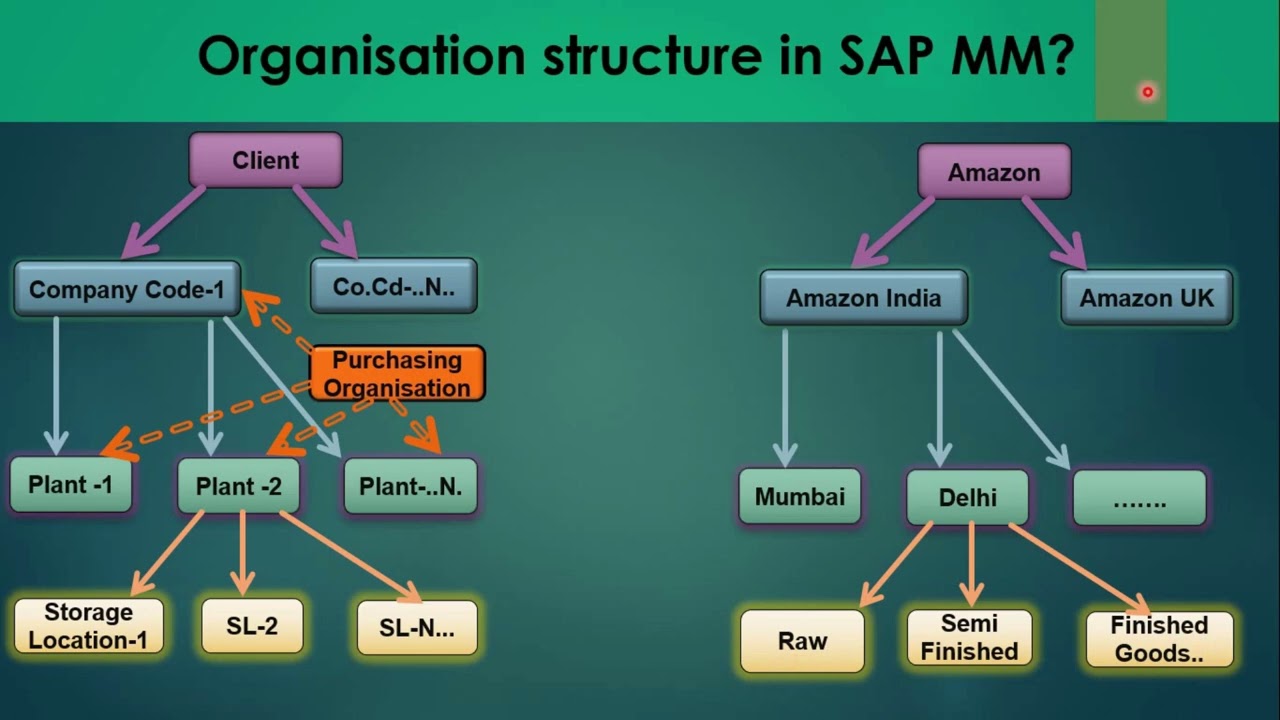
data that is available at all the levels starting with client then company code then plant and storage location now next is the characteristics of material master first characteristics is material type suppose you have wool and a woolen cloth wool can be termed as raw material and woolen cloth is a finished product so these attributes are termed as material type and the standard material types that are available are raw material and finished product next characteristics is material group material with some common attributes are grouped together suppose a material require packaging so that can be defined under
one group then next is the number range material is identified by a number that comes from a number range so two types of number range are possible first as external number range if you want to define a material according to your wish you can give your material number or a material name then next one is internal number assignment suppose if you are defining a material and you want a system-generated number so you can define in internal number assignment then next is how to create edit and display material this will be doing in hands-on so to
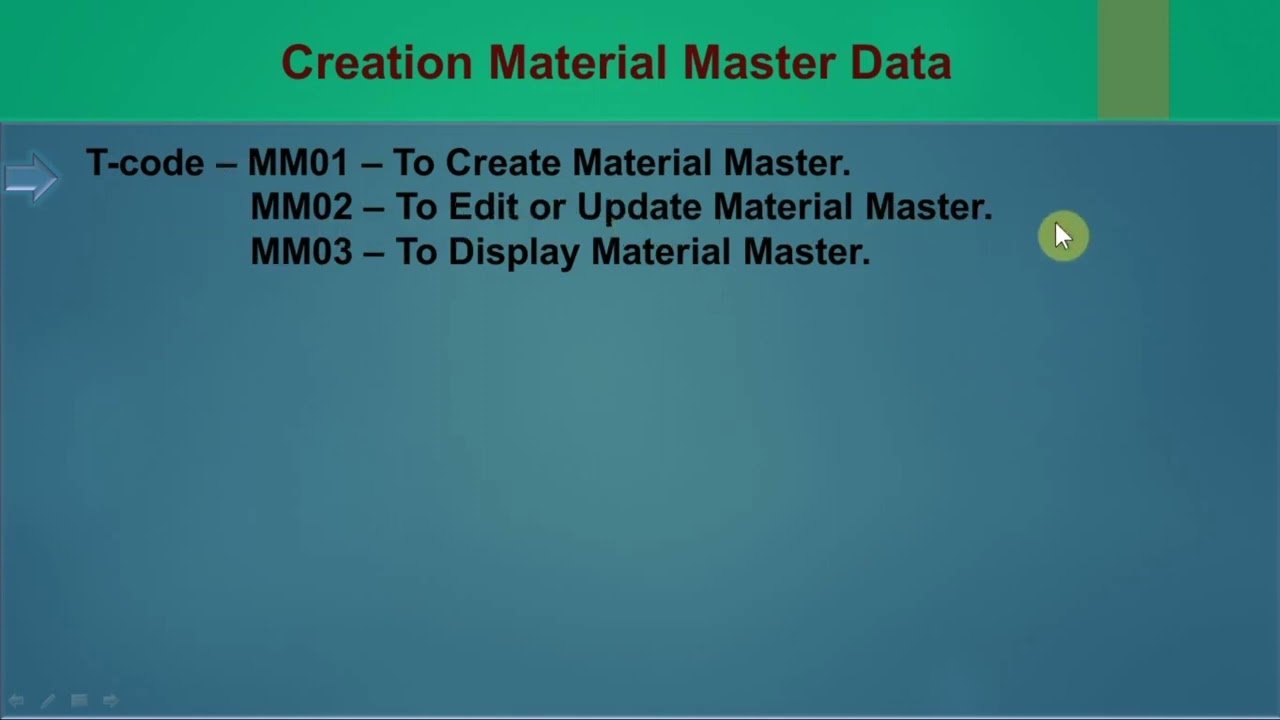
create material transaction code is mm0 one in SA P if you want to create suffixes 0 1 if you want to edit suffixes 0 2 and if you want to display suffix is 0 3 then next is material master table suppose your company can procure procure produce or sell hundred materials then those can be displayed in a table by going to tea code se 16 so the tables are and they are that will display general material data and next table is ma rd that will display storage location data so let's do all these functions practically
to define characteristics of material like material type material group you need to go to display I am rescreen so enter SP ro in command field now select SP reference IMG this will navigate you to the display IMG screen first important characteristic is material type to create a material type go to logistics general select material master now select basic settings now select material types now select define attributes of material types to create a new entry of material type click on new entries icon or else we can copy attributes of existing material type and create a new
one so I am copying a material type just select material type and click on copy icon it will open a new page here you can change the name of material type so I am entering text data first important field on this pages reference material type so our material type will be created in reference to this material type r which next important field is internal external purchase orders so you can do the settings whether this material type is to be used for external or internal purchase orders for example in case of external purchase orders you can
select zero one or two zero stands for no external purchase orders allowed one is for external purchase orders allowed but warning issued so I'm selecting as two only similarly you can select for internal purchase orders next field is valuation first one is price control this will tell whether the material type is to be evaluated at standard price or moving price next important field is account category reference it will tell the account into which the material type is to be evaluated after filling all the fields of material type just press Enter now a new material type
will be created now click on save click Okay on customizing request pop up a new material type will be created next important characteristic is material group to create a material group go to logistics general then select material master then select settings for key field now select define material group to make a new entry of my material group select new entries icon here you need to enter your material group name short description of your material group secondary group number but this is the optional field and here the complete description of your material group so I am
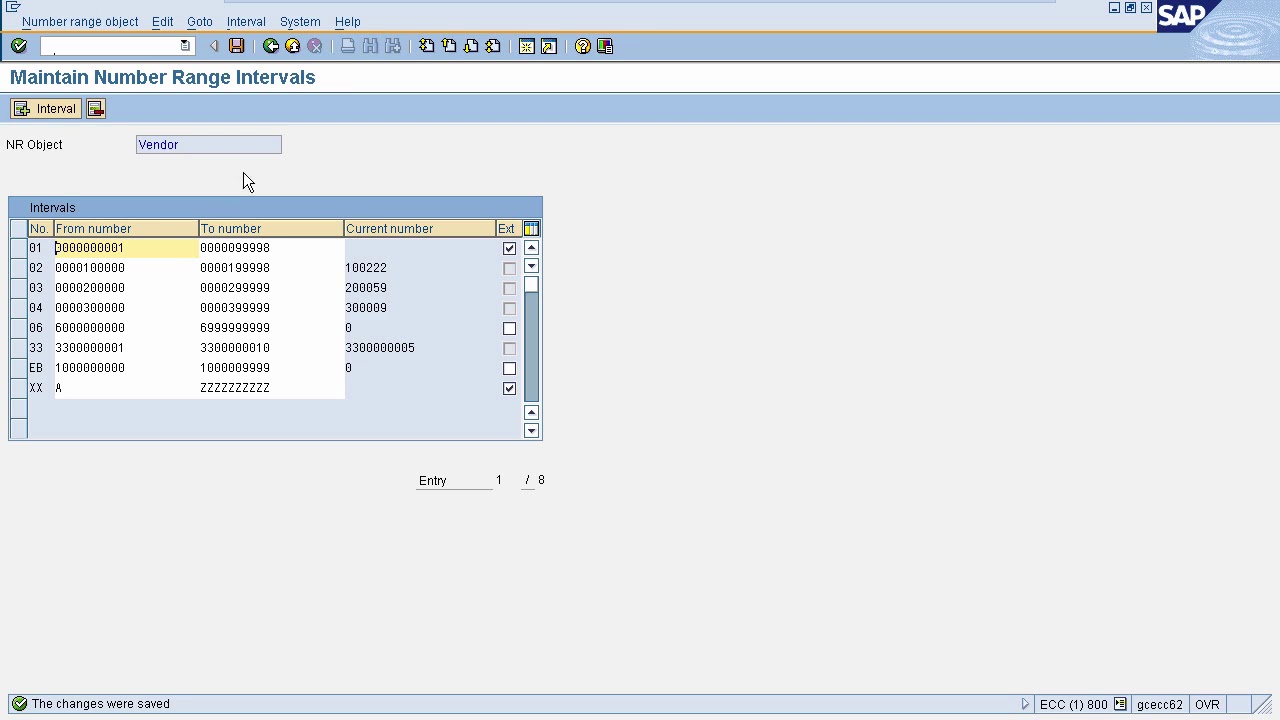
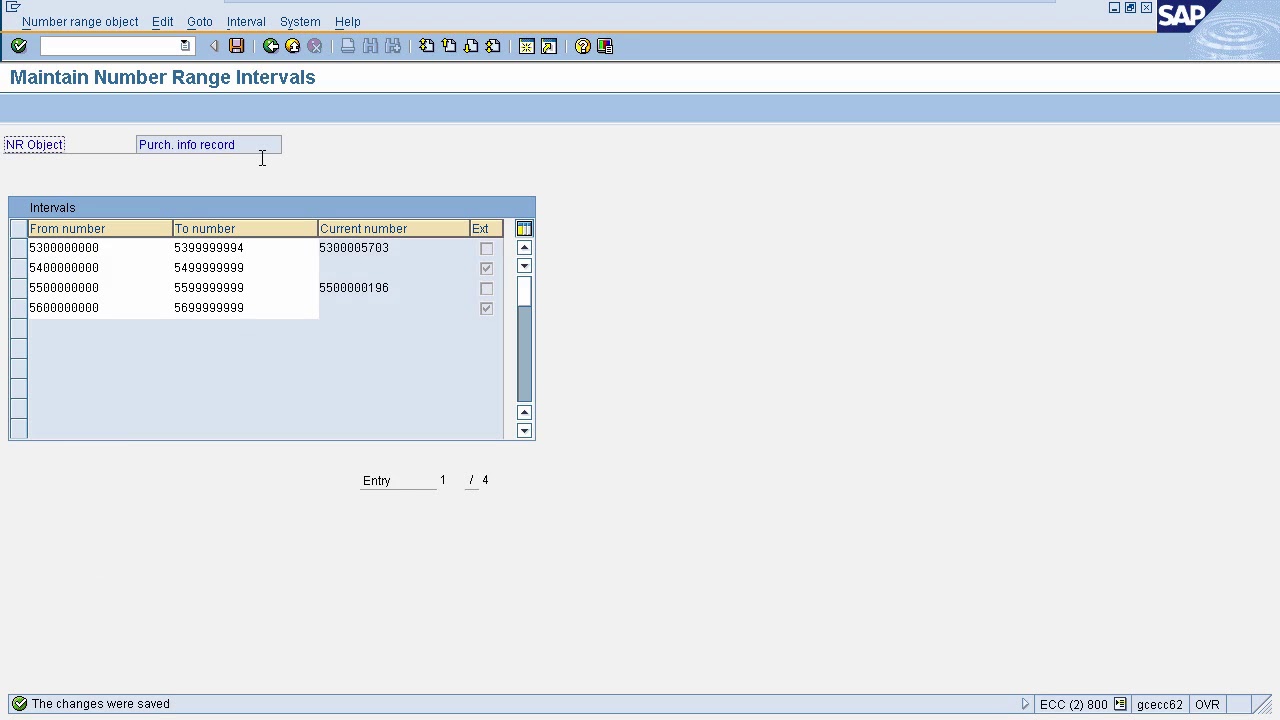
entering this data here now press enter now click on save click OK on customizing request pop up a new material group will be created next important characteristics is number range to define ram number range go to logistic general select material master then select basic settings now select material types select define number range for each material type there are three tabs on this page first one is to display the number range intervals this is the start number range this is the end number range this is the current number this is the check for external or internal
number range if this is checked then you can use external number or else it will pick from define number range also you can modify the status of the current number so go back on the page click on modify status on this page you can modify the current number so for demo I am changing the current number now click on save click OK on this pop-up the current number is modified you can also modify the start and end number range so go back to the page click on change intervals for demo I am changing the end
number range click on save so the number range will be changed now we will create a material so to create a material enter the transaction code in command field so enter /n mm 0 1 to open in a new page this is the page for creation of material you can also navigate via a CP menu so we'll go back to the home page of a CP enter slash n now in SP menu click logistics now select materials management now select material master now select create general now select mm 0 1 you can also view the
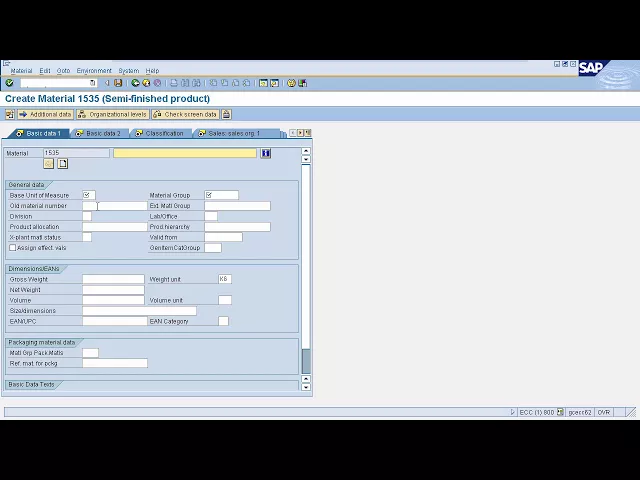
transaction code of creation of material at the bottom of the page by clicking on this icon this is mm 0 1 to create a new material you need to enter the material number if you want the external number range for material then you have to enter the industry section like it's a retail aerospace service provider then you have to enter your material type that you have defined you can also copy from a material so you need to enter you the material from you which you want to copy so I'm entering a test data here now
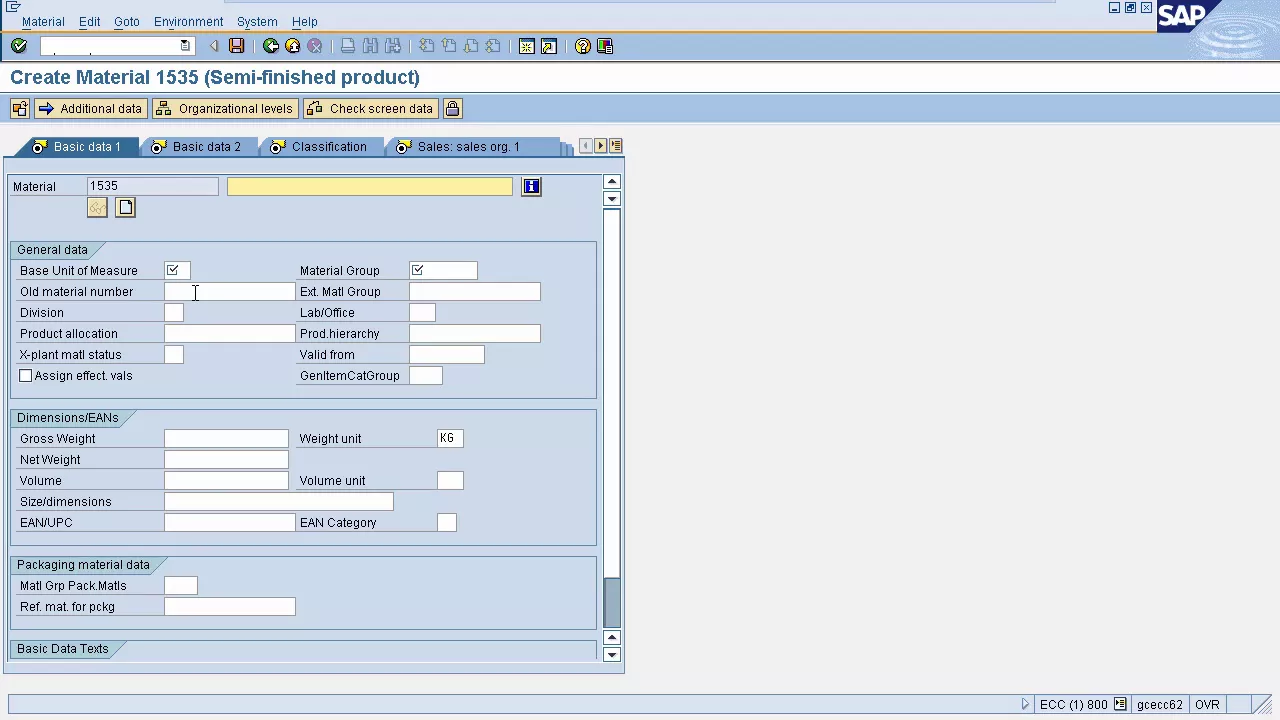
press ENTER now select all the views of the material by clicking on this icon of select now click on OK here you need to enter the plant storage location for which you are creating a material you can also enter the sales org and distribution channel so I am entering test data here now click on ok this will navigate to a new page here the material number is generated automatically because of internal number range assignment enter the material description in the view basic data 1 also you need to enter the base unit of measure enter the
material material group to which it belongs enter the gross weight gross weight is the weight of container plus weight of material that is the total weight net weight is only the weight of material next important view is sales sales or gone here you need to enter the text jurisdiction code you can exempt text on this material or you can make it as flexible so I am entering a 0 that is tax exempt next in but important view is sales general planned here you need to enter the transportation group suppose if you want to sell it
the material in form of pellets or you want to sell it in form of liquid so you need to enter the transportation group so I am entering as on pellets this is the loading group field this will tell how you can load the material so I am selecting a screen next important view is purchasing here you can enter the enter Tickford batch management whether you want this material to be batch managed or not so I am making it as batch managed next important field is plant data storage one here you need to enter shelf-life data
shelf-life is nothing but the length of time for which item remains in use so I am entering its maximum storage period hundred time unit has days and minimum shelf-life remaining as 90 after entering all details about material of the required views click on save you need to enter item category group as well now press Enter now click on save item category group that we entered in the last is the group that will tell whether the material is available for sale or only purchase or only procurement so a new material is created if you want to
edit this material or you want to display this material in sa P for edit you have the transaction ending as 0 to and for display you have 0 3 so if you want to display of material just enter /n mm 0 2 so this material one five three five we can change the details now press ENTER now if you want to display the material now press /n mm 0-3 now press ENTER to display the material details so I'm entering his test data to display a material you can select all the views and view the details
accordingly next important thing is material master table to view material master table enter slash n is e 16 n SC 16 n is for table view you can view any tables in SC 16 in there are two important tables for material master one is ma Rd and one is ma RA so in the table field name just enter m AR d this ma rd table will display the storage location data for material now click on execute icon so here you can see the material number land storage location status date of creation and the stock quantity
another important table is ma array so enter ma RA in table name field click on execute this table will displays general material data like creation date what is the material type so this is the material number this is the creation date this is created by so in this session we learned characteristics of material like material type material group number range and how to create change and display our material another important thing that we learned is the material master tables in next session we'll learn characteristics of vendor and how to create a vendor master