Hi, I'm Adobe Stock Artist Evangelist, photographer, and Stock Contributor, Mat Hayward. In this quick class, we are going to talk about the Adobe Stock Contributor Portal. What the heck is it and how do you find your way around it?
Well, the first thing that you see by default is the Dashboard section. If not, seek out the Menu at the top of the portal and you will find the link. From the Dashboard, you can get to most, if not all, places that you need to be.
Let's start with the Contributor Account section. Go ahead and click here. You'll see a handy dandy menu on the left if you want to jump ahead to a specific section or if you're old school like me, simply scroll through the page You'll see a link in the upper-right corner of the top section to view your Public Profile.
This is one way that you can find your public-facing portfolio page. You'll see your name as it's listed in your account settings. You can edit that if necessary.
This is not visible to the public. You can edit your public-facing profile name here. I prefer to use my real name so that people can find me if they so desire, but you may prefer to use an alias.
That's okay, too, as long as it's appropriate for Adobe Stock customers to see. Scroll down to update your address if you want. Here is where you set your Email Preferences, Daily moderation updates, and Daily earnings summary.
Keep on scrolling because we have saved the best for last. Well, second last. The Tax Information section.
Before you can submit a payment request, you must submit a valid tax form. If you don't do this right away, all royalties that you earn will be subject to the maximum withholding rate, so pause this video and do that right now, if you haven't done so already. I'm going to wait right here.
Scroll down just a smidge more, you'll see your Member ID number. Some people see this as a real badge of honor, so be sure to write it down memorize it. Back to the Dashboard.
Look near the top on the right side and you're going to see a little link that says Artist Hub. I highly recommend you click that link. It's going to open up a whole new world for you.
We've got loads of educational content on there, calls for content, so many useful pieces of information and videos to watch, all kinds of great things to learn for new Stock Contributors and veterans alike, so be sure to check that out. So if you don't want to go into the Contributor Account section to navigate over to your public-facing portfolio page, you can simply click the My Portfolio link found here in the Dashboard. Near the top of the Dashboard page, you're going to see your current balance for Available Earnings.
If you meet the requirements for a payment request, you can click the balance from here to start that process. On the left side, you'll see your current number of downloads and the total earnings for the year. If you want to view your week to date, month to date, or lifetime statistics, you can change the Time Frame settings here.
When looking at your Lifetime settings, you will see Position in addition to Downloads and Earnings. Notice in my position, I'm trying to improve that every day. Scroll down the Dashboard and you'll see thumbnail versions of the files that you have online in your portfolio.
Under each thumbnail, you'll see the total number of times it has been downloaded since it has been online at Adobe Stock. You can click the thumbnail here to edit your keywords, titles, or remove the content from Adobe Stock. I've got another quick class which describes that specific functionality in the Adobe Stock Contributor Portal.
So be sure to check that out if you're interested. By default, you're going to see all of your approved assets including all asset types in the order of the most downloaded to the least. You can filter by asset type here.
You can change the sort method from downloads to recency by clicking Date in the dropdown menu here. If you want to find a specific asset and you have the file number, you can enter it in this box. There is one section of the Contributor Portal that I check obsessively every day, 7 days a week, 365 days a year, without fail, you will find me in the Statistics section.
You can get there two ways. One, is the easiest way from the Dashboard section, simply click the link that says View My Statistics. I'll show you the long way now.
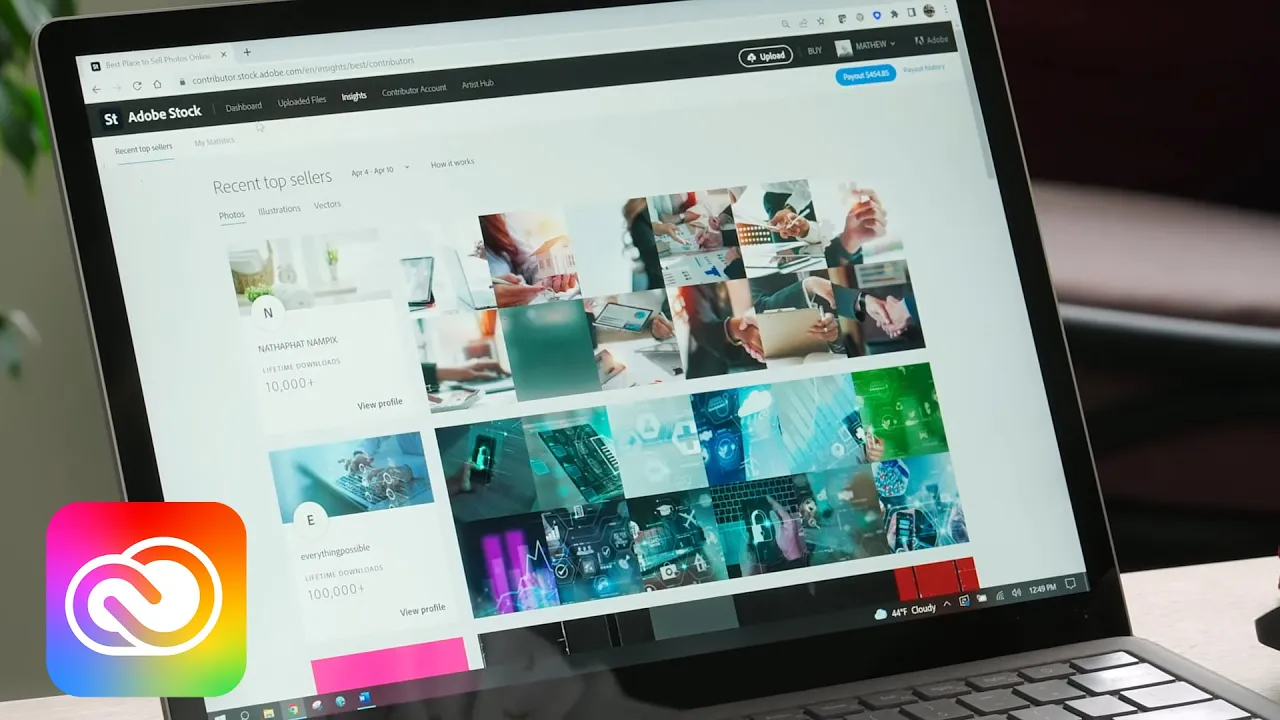
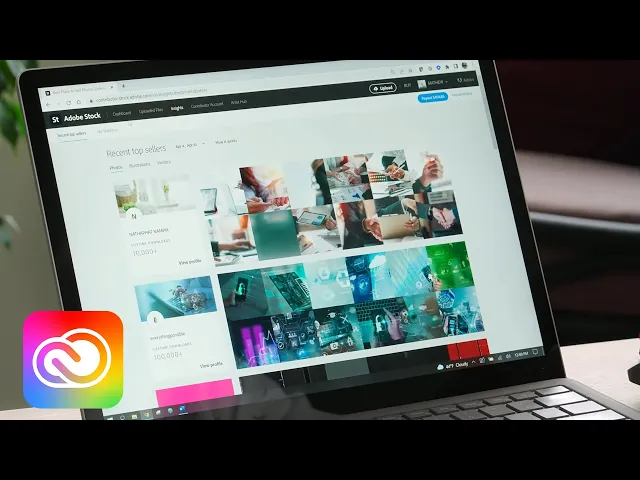
Click the Insights tab in the top menu. By default, that first thing you're going to see is the top ten Contributor accounts from the week before. For each asset type, we generate a list of 400 Contributors who made the most sales in the previous week, only considering their uploads from the past six months.
Then we order the list based on each Contributor's upload to sales ratio, and the top 10 Contributors on this list are featured as Recent Top Sellers. Look here to get a sense of what's selling a lot. And take that into consideration along with everything else when you're planning your next shoot.
Don't rely 100% on this but don't ignore it either. Combine it with what you know about seasonality, quality, and what works for you. Now to get to your own statistics, click the My Statistics link here.
By default, you're going to see your top earning assets, also known as Top Sellers, from the date range selected, which is the previous four months. You can adjust the date range, but you have to keep it to no more than a 13-month period. Click this menu button to change the statistic type.
You can view any tax withholdings, if relevant to your account. Or you can use my favorite statistic and really the one that I check the most, the Activity stats. Select the Activity menu option followed by another click of Display Statistics.
Here, you're going to see thumbnail versions of the file that sold, the image ID, the type of license, and the royalty amount. This is the amount you were paid. And this is what I find really to inspire and motivate what I'm going to shoot next, this is where you're going to see what's really working for you.
So when you do figure that out, do more of that. But don't forget to broaden your horizons and find new content to shoot as well because you may end up having a whole bunch of different best-selling topics. For details on the royalty structure, see my other quick class on that very topic.
It's riveting. If you are a more organized person than I am, and let's be honest, you are, you can download a CSV file of your stats here. This allows you to modify the spreadsheet, for example, to group your earnings from a specific shoot.
The next and final section that I am going to show you is the Uploaded Files section. You can access it from the Dashboard section, too, if you want, but I'm going to save us a second or three and I'm going to go ahead and click the link at the top menu right here. I've got a quick class online showing you how to upload your content.
Let me just point out one thing real quick. To upload through the Contributor Portal, click this Upload button right here. You can drag and drop your images into the blue upload circle.
After you've uploaded some content, the new section will display them in the Uploaded Files section. Select the asset or assets to index and submit from here. You guessed it.
There is a helpful quick class for that, too. If you submitted content already and it's pending review, you can click the In review tab. If there was something missing from your upload and it's been put in the remind to complete section, you're going to find that here.
In most cases, this is due to a missing or an invalid release. If for some reason your file was not approved, don't fret. It happens to the best of us.
There's a quick class on rejection reasons and rejections are always a learning opportunity. Perhaps you'll take comfort in seeing that I have had nearly 3,000 files rejected. We're often asked if this rejected archive can be deleted.
The short answer is no. It's there forever. Just don't open this tab if you don't want to see them.
Last but not least, is the Release tab, click it. Go on click it, I dare you. You can see all the releases you've uploaded in the past right here.
You can download copies of the releases here. Go ahead and click the Create a release button to either create and send an Adobe Sign release, download a copy of the Adobe Stock release to be signed by hand, or to upload multiple releases that you've already created in one fell swoop. That is our quick walkthrough of the Adobe Stock Contributor Portal navigation.
The best way to learn it is to dive in and explore. Fill it with a ton of best-selling Stock content right away. I'm going to watch for you in the Insights page for when you have a top seller account of the week.
Well, that's it for now. I hope this tutorial has helped. Be sure to check out the rest of our quick classes in the Adobe Stock Artist Hub for more Stock how-tos, plus articles, master classes, and calls for content.
Click the link on your screen or find the link in your Contributor Portal. Be sure to sign up for emails to get our latest tips straight to your inbox. I will see you next time and stay creative.


![I Replaced ALL my ADOBE APPS with these [free or cheaper] Alternatives!](https://i.ytimg.com/vi_webp/5EfqHg49kMk/mqdefault.webp)