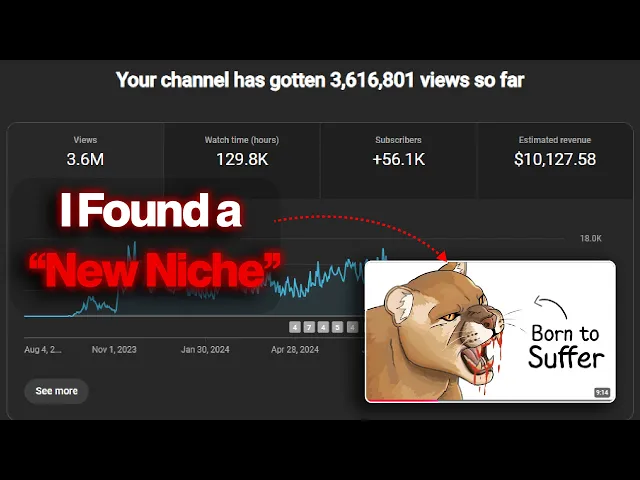
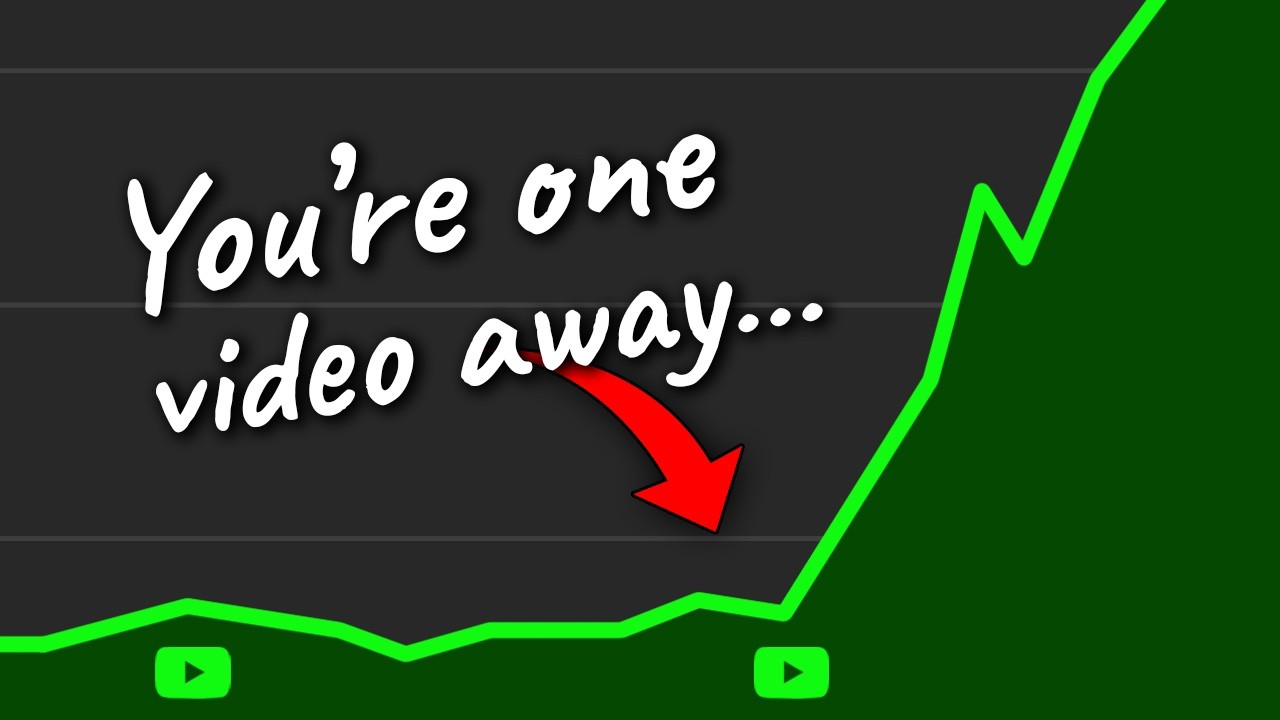
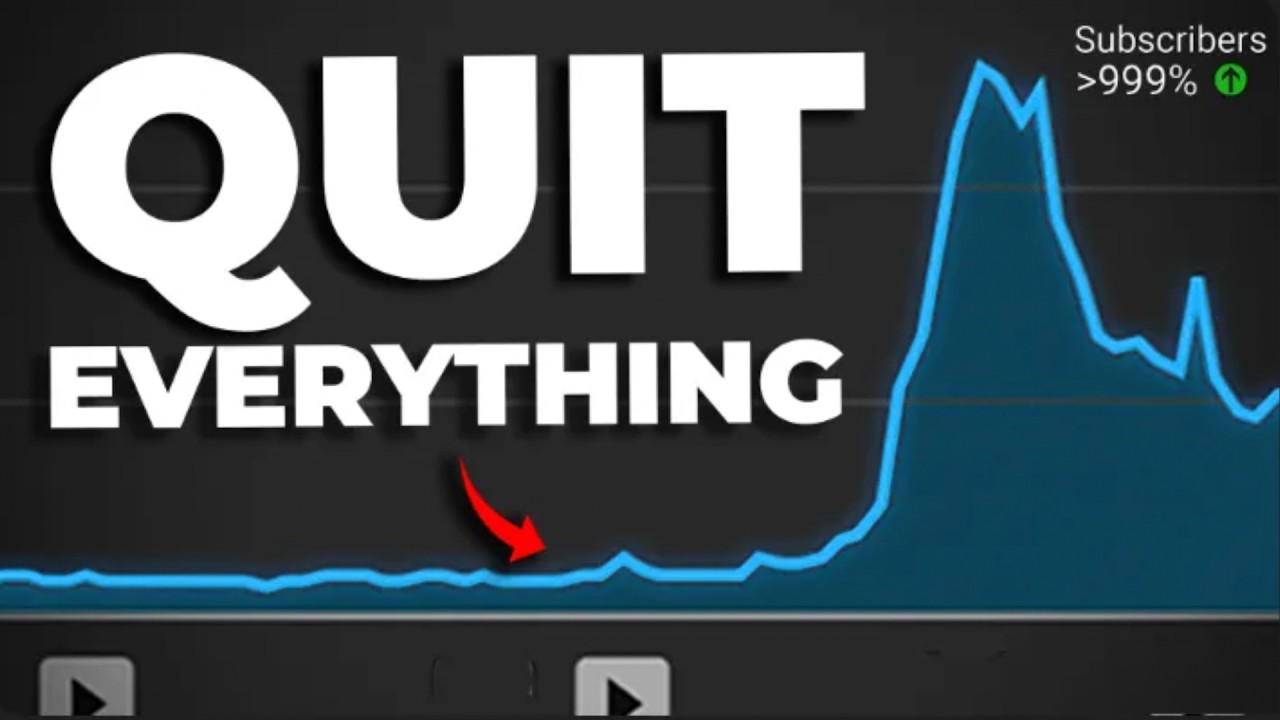
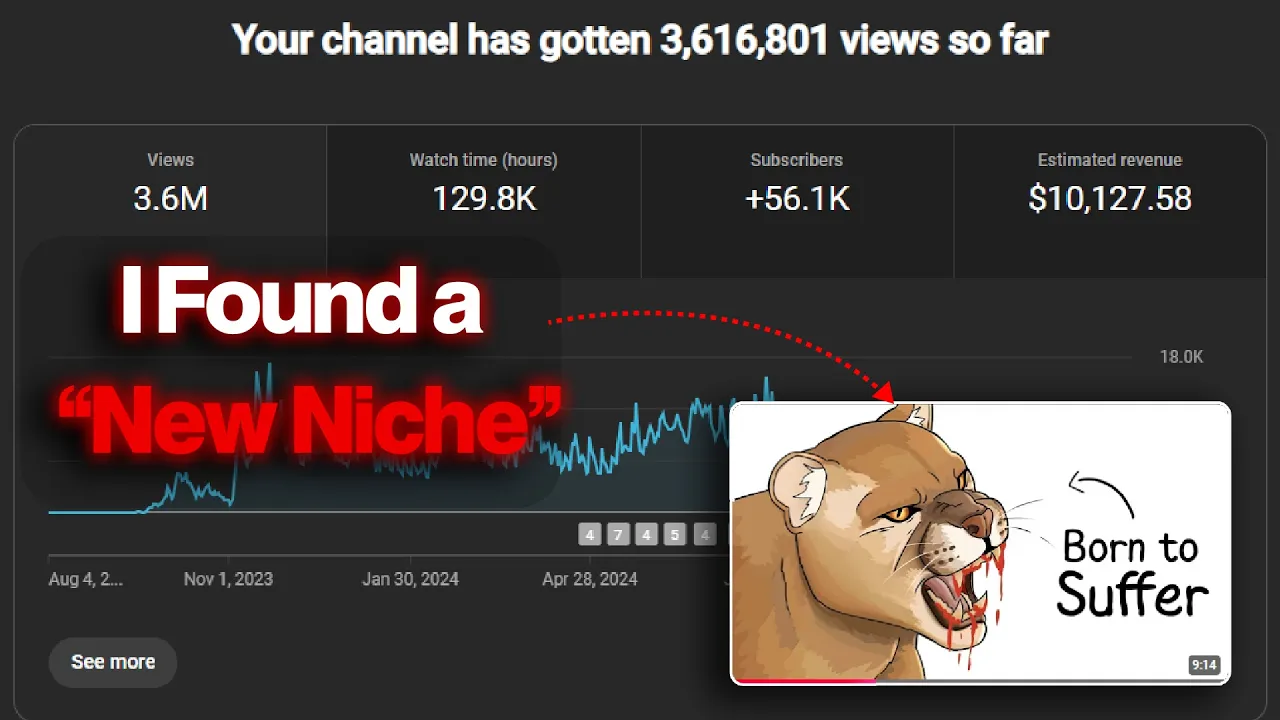
okay just imagine this if I showed you a method that can earn you more than $2,000 a month and all you need to do is lock in and do some tasks for 20 days a month would you accept this challenge if the answer is yes you just click the correct video I'm going to show you a method to make more than $2,000 a month with YouTube If you think this is take a look at this channel it's called bound they have achieved 73,000 subscribers with just 10 videos the crazy thing is they have uploaded their
first video just two months ago and now they are probably making more than $2,000 a month only with ad revenue and if you combine that with sponsorships you will have a pretty good idea about how much they are making and this is another channel that started last month with this new Niche and they only have three videos which has gotten them around 8,000 subscribers here is another channel that has gained 21,000 subscribers with just two videos so now you know that this is not a if you watch this video till the end and apply everything
I'm going to teach you you you will be able to make at least one video a day for this Niche let's start the process I'm going to call this Niche why is it normally these videos are about animals but if we think more creatively we can apply this same method to a variety of things such as why is it sucked to be born as a tiger why is it sucked to be born in Medieval Age why is it sucked get captured by Amazon tribes why is it sucked be alive in the Prehistoric Age these are
just some of the examples actually you can apply this concept to anything as long as it is interesting to the viewer and if you check these videos they all have simple 2D drawing animation don't worry I will show you how to do that as well first let's start by creating the script for your video the topic I'm going to select is why is it suck to be alive in the Stone Age first we need to understand the presenting style of these viral videos for that I'm going to use an AI tool called dup duub AI
this tool has a lot of features but for this case I'm going to use this AI transcription option first let's go to one of these viral videos and copy its link and let's go back to dup dub Ai and select this AI transcription feature now you need to select this YouTube option and paste the link then select the English as the language and click this transcribe option now you will get the script of that video within seconds and don't worry I'm not going to copy this video script just follow these steps now you need to
go to chat GPT and use this prompt which is read and analyze the following video script and understand the presenting style of that video script and now you need to act as a script writer who can write a video script similar to the following example after using this prompt you can paste the script of that video we just got from dubdub AI after that you have successfully trained the chat GPT to generate scripts like these now all you need to do is copy the topic of your video and use this prompt to generate a unique
script for your video and let's generate this okay now our script has been generated and it sounds amazing exactly as I expected so if you follow this exact method you will be able to generate a script for any Topic in this Niche now we need to generate voiceovers for this script using dup duub AI we can easily find a good AI voice and generate voiceovers for this video so let's go to this AI voice over option and check several AI voices if you click this more voice option you can check more than 700 AI voices
and you can filter The Voice by language and accent gender age and quality not only that you can filter The Voice based on the niche such as motivation entertainment and news and I want you to check these voices and select a good voice I'm going to go with this one now you can just copy the script you generated to here and as you can see here we can edit the furthermore by adding pauses and emphasizing or speeding up the tone so it's up to you you can edit these any way you want then click this
button to generate the voiceovers for this script once it is completed you can download the voiceover by clicking this export op option I would like to thank dub dup AI for sponsoring this video not only this feature but dubdub AI has a lot of valuable features such as AI voice cloning AI script writing AI images and more my favorite feature is their AI Avatar feature with this feature you can make any type of AI Avatar within seconds a lot of you guys asked me how I created this talking AI Avatar this is the tool I'm
using to create this talking Avatar you just need to upload the Avatar image and voiceover file this tool will create the talking Avatar within seconds now let's move on to the hardest part which is creating the animations before you start this process you need to read the video script and understand it clearly because we need to make animation for each scene for example for this first scene I'm going to make something like a stone age couple with a newborn baby in the background we can see Stone Age house and some trees first we need to
create some images I'm going to use Leonardo AI for that when you are creating images for these animation make sure all the images looks the same and it should look like children's drawing so make sure to use this prompt before you enter the other details with this prompt you can make images like they are created by kids using paint and these are the best for this niche as you can see here I'm going to change this prompt to create a stone age baby and let's see the results this looks perfect and let's make a stone
age house with some trees surrounding it let's change the prompt according this scene and see the result okay great so just like this you can generate images easily for your video script using this method now I'm going to use Photoshop to remove the background and separate these characters from these pictures first open Photoshop and create a project with these aspect ratios then drag and drop the image we downloaded like this first you need to rightclick on this layer and select the rasterize layer option then select this magic wand tool from this side menu and select
this background area and press the delete button to remove it if you have Parts like this you can use the Eraser tool and erase these unnecessary parts then you can disable this white background layer and go to files and click this export button and Export this file as a PNG file just like these remove the background of all the other images and separate each character as PNG files now I'm going to use Adobe After Effects to animate this video Let's create a new project then you need to rightclick here and select a new composition and
you can change its duration Time by changing this value first you need to drag and drop the background image for this timeline you can adjust its size using this scale option in the side menu after that I'm going to add this first character to the timeline like this make sure to adjust its size as well and let's position him here then let's add the other character and place it here now I'm animating these two characters to look like they are going inside the house first select this layer and press the letter P to open the
position key frames and click this button to make a key frame here and the Press S button to open the scale key frames and make a key frame here finally click this opacity key frame now if you press the U button you will be able to see all the active key frames now you need to go 1 second forward into the timeline and change its position and scale like this make it go near the door and reduce the scale a little bit but don't change the opacity now go a few frames forward and reduce the
opacity to zero now you will have this cool animation now you need to select all of these key frames and press the F9 button it will make these moments clean and smooth then you need to do the same thing for this other character as well so the final result of this first animation would be like this go to the end of this animation and select these layers then go to file and click this split layer option and then delete this part do the same for the other three layers now we have only the part we
animated in our timeline then I'm going to add this background image to the timeline this is an image of the inside of a stone age house and I will add this pregnant woman and a baby to the timeline and you need to place these after the first scene ends and I'm going to animate these two characters let's add some head movements for that I'm going to select the layer and select this puppet tool option now you can place this puppet icon on this character I'm going to place it in these places and now you need
to press the U on the keyboard to it will show you the key frames of these puppets now go a few frames forward and you can move these puppet icons to make some moment in this character so do this for several frames forward like this and then you will get a head moment of this baby you can do the same with this other character and add some head movements and it will look like this just like this you can animate scenes for these videos I know this is not simple but once you try this several
times it will become easier let me show you the final output after animating several scenes you're born into the Stone Age congratulations or maybe condolences you arrive screaming squishy and completely unaware that you've just entered the hardest era to be alive you don't get a name because language is more Grunts and gestures Than Words your first few years are spent strapped to your mom's back like a prehistoric backpack she's busy dodging Predators foraging for berries and hoping you don't get snatched by an eagle the size of a dining table and guys with that today's video
has come to an end I hope you learned some valuable information from this video and I will see you guys in the next video