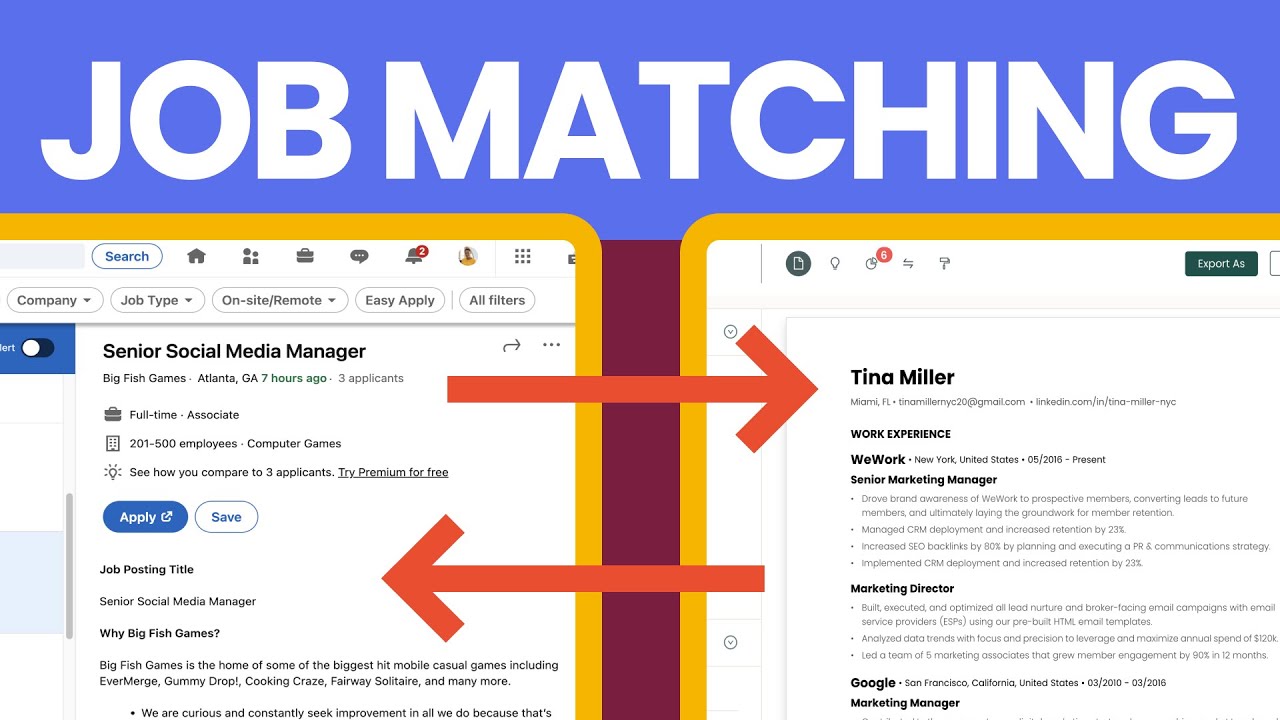
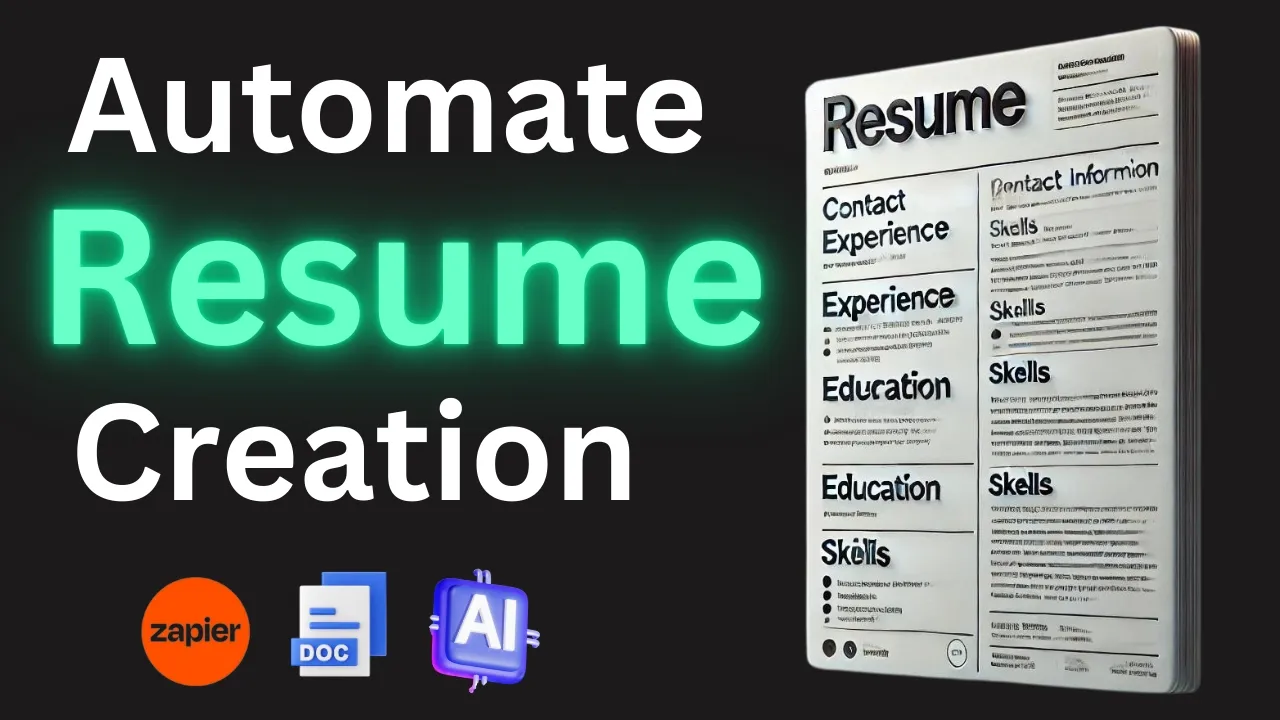
we all know job hunting is often a stressful and exhausting experience especially nowadays where companies are relying on AI tools to sift through the flood of applications that you're getting for each job opening these systems can automatically filter resumes and cover letters meaning if you don't tailor your resume and cover letter specifically to that job application there's no way you're going to get in front of the recruiters or a human being who can review your application to see even if you're qualified in this video I'll show show you how to automate this process by creating your own free AI assistant this AI assistant will generate tailored resumes and cover letters for each job application in just a matter of seconds you simply copy and paste the job description into our AI job assistant and then it will craft a customized resume and a cover letter that highlights your skill that will be relevant for that specific job you're applying this will significantly reduce the amount of time that you'll be spending for each application and therefore you won't get frustrated and you can apply to hundreds of job openings in matter of hours all right so let's get started all right so we're going to use zapier for this uh zapier you can sign up for a free account um you have up to 14 days to try to do a trial again you don't have to pay for anything like that you don't need credit card or anything like that uh we're going to use zapier Central which is zapier's AI tool for those of you who are not familiar zapier is basically an automation tool that you can connect several apps that can talk to each other and you could utilize things like chat GPT um Google Docs Google Sheets and all sorts of other apps uh to kind of connect them to together to automate your process but for this particular AI assistant we're going to use central. zapier. com so you can go to central.
zapier. com and again if you don't have um an account you can quickly sign up for it and you will basically come back and land right here okay so once you create your free account you're going to come back right here and click on create my first assistant we're going to name this assistant my job search or actually just job search assistant job search assistant all right uh we don't have to I mean you can put a description and instruction we don't have to worry about instructions at this point you don't have to put description if you don't want to this actions and data sources we're going to take a look at it in a little bit but let's just go ahead and create this assistant so I'm going to create click on create assistant all right so now it's going to take me right here on top don't worry about these things we don't have to worry about that right now we can always come back to it but you basically land on this page where now you can actually chat with your uh Java assistant bot or J Java assistant AI tool all right so first thing we need to do is actually add data sources so in order to add data sources we can actually have several formats but I like to use Google Docs so that way I can easily put that in here here and connected and um have access to it as I'm chatting for uh future resumes that I'm building or cover letters that I'm building it will be the data source that I'll be inputting using Google Docs so let's go over to Google Docs so I've already um have my Google Docs we're going to create three different Google documents first one is going to be your resume so again this is going to be a sample resume whatever your professional experiences a professional summary obviously everybody has a resume so go ahead and add add um the resume that you have created before into this um this Google doc so that way you can we can use this um as our sample resume and again in the future I'm going to show you how to utilize the sample resume to create a new design because as we're creating new resumees for different jobs it's we're going to rely on the formatting of this sample resume that we're going to upload as a data source to our zp Central so again you're going to create a sample resume as a Google doc and name it sample resume the second file we're going to create is your cover letter samples so what I did is I put a bunch of cover letters I put three cover letters here so if you have written cover letters before maybe put two or three cover letters that you really really like uh in this document as well so that way we can utilize this as a resource for future cover letters that that our assistant is going to create for each specific job that we're applying for so that's our second document and then our third document so this is is the most important one so it's called My I've named it my skills and accomplishments so basically again up front you're going to need a little bit of work but believe me this is going to save you a ton of time when you're applying for your jobs again regardless of whether you are in the job hun or not or even if you're just trying to stay ahead and trying to apply for other jobs or be ready whenever the time comes that you need to apply this is a really good thing to do so what I'm what I did was I created a sample my skills and accomplishments this example is for someone who's a customer success manager in the tech space uh but again this could be done for anybody right if you're an engineer if you're a developer whatever you are you can use this formatting use this assistant and these documents to create uh this process so that way you can automate your future applications all right so this my skills in accomplished document is extremely important so what I've done is basically for this sample I've put together bullet points of like about 30 bullet points of the skills that I have let's say as a developer or whatever you are right so you have to make sure you do the work there and again you can copy this from your previous resumes or previous applications that you have done or even if you're currently working for a company you can utilize your existing responsibilities that you have or your weekly accomplishments that you have it's always good to do that uh so you can put that all into this one document so things like for example as a customer success manager for this particular example I've put things like developed and maintain strong relationships with key clients leading to a 15% increase in a customer attention and satisfaction score over one year right so these are all the accomplishments that I have these are all my skills that I have and I'm putting that all together as a resource uh for my job assistant AI tool so that way you can utilize this source and therefore tailor each application based on these skills that I personally have so it's not just going to make up skills that I don't have that's why this doent is so so important uh because it's going to rely on this document to uh customize each resume and cover letter for different job applications that we're going to ask it to do all right so that's the third document again these are only the three documents that we need again I know it's going to be a little work in the beginning but believe me it's going to save you a lot of time all right so once you create these three documents on your Google Docs again make sure you're uh saving this as a Google document uh what you're going to do is then you're going to come back here and the first thing we're going to do is add now add these data sources to our job search assistant uh AI tool so I'm going to click on data sources here and I'm going to click on add data source and again select Google Docs from here so because zapier needs to connect to my Google account um if it's not already connected all you have to do is click on connect new connection and this is going to open up um a popup where zapier zapier is going to ask you to access the Google documents in your account you're going to click on continue to Google Docs and then you're going to choose the account so I'm going to choose my account from here and you're just going to click on allow all right so now there you go so now your connection has been developed so now uh zapier has access to your Google Docs or your Google Drve and therefore uh when you click on google doc and you can see right now it says personals which means that the connection has been successful and then in order to select the document I'm going to click on select the data source and again all of these three documents that I've created shows up as here and again if for some reason doesn't show up all you have to do is click on the refresh button and usually it loads out all the documents that uh are in your Google Docs all right so I'm going to click on sample resume let's just add this one by one add data source all right so that one is added and you can see right now it says syncing I'm going to add another one so same process click on Google Docs this time I'm going to select cover letters samples and as you can see on as you can see on top here that's been grade out which means that it's already been added so I'm going to click on cover samples next add data source same thing again with the other one click on my skills and accomplishments add data source all right that's it so now all three files have been added into our data source we'll come back to actions in a in a second here but basically at this point we're pretty much done with what we with what we need as far as ADD adding the resources to create tailored uh resumes and cover letters for our job applications so now the next step is to actually have our assistant create us a resume um for a new job application so let's go ahead and actually take a look at a job opening uh I'm going to go ahead and open up LinkedIn all right so let's say I'm looking for customer success manager and again this could be anything so if you come whether you're using LinkedIn or using indeed.