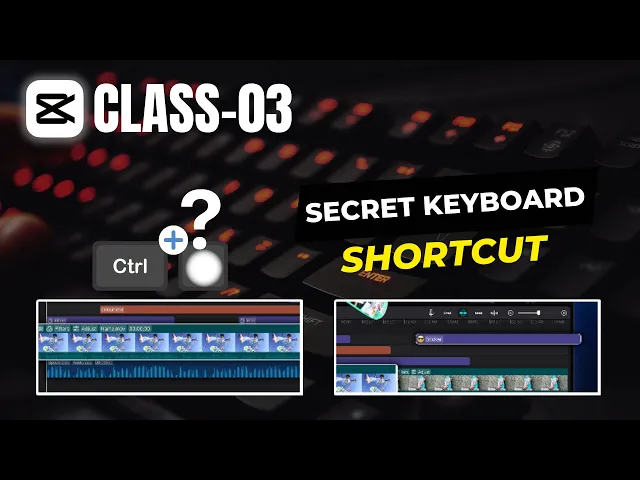
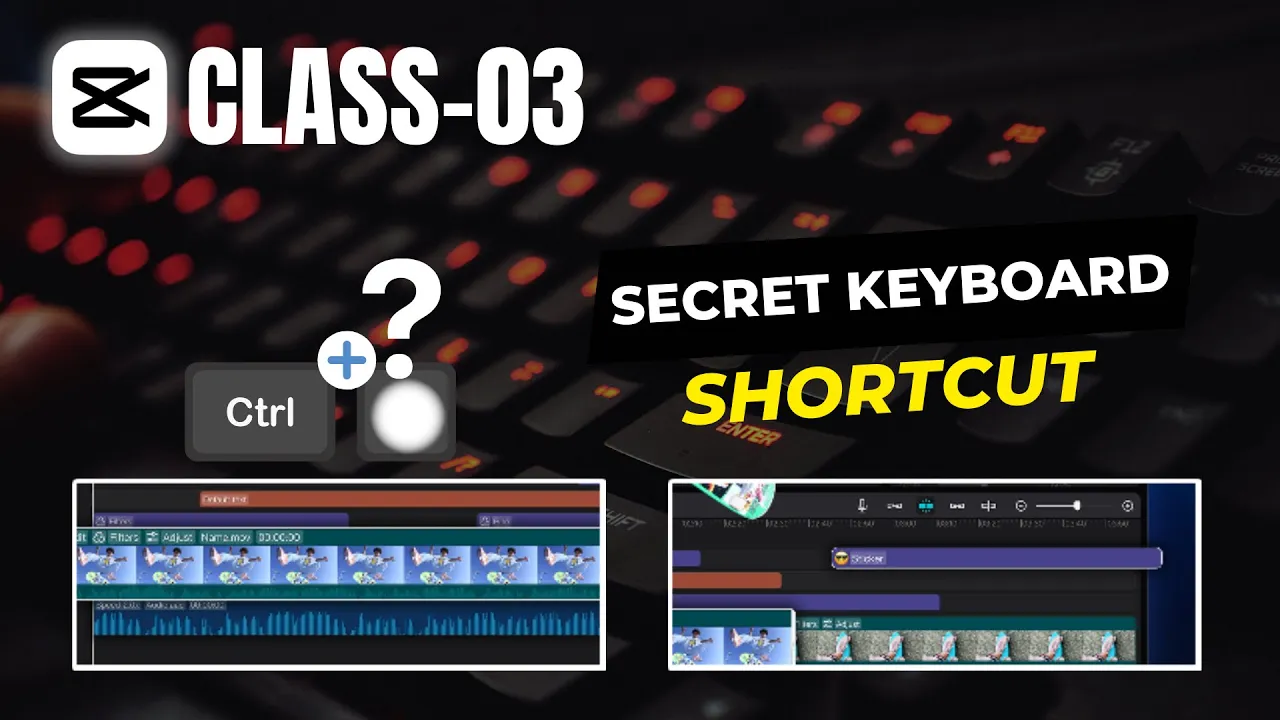
[Music] foreign today we are going to start our third class in this class we will learn how to cut extra parts from video footages to make them ready for editing so we will open the cap cut and click on the same project we are working on as you can see our project is open from the position where we left this is because cap cut autosaves the projects let's expand our timeline to get better view for this we can use shortcut key control and mouse wheel up or down we can also use this slider to adjust
the view of our timeline now let's work on this first clip [Music] we want to start out video from here here we can use this split function directly or select split tool from here foreign [Music] automatically snaps our pointer location in the timeline this makes it easy for us to split from any point let's use this function here [Music] now we can delete this extra part as we don't want it in our video [Music] now here we can take a preview and look for more extra parts in this footage [Music] let's say I want to
split it from here and begin new scene with an effect this time we will use control plus b to split these short Keys increase our workflow [Music] sometimes we can split the video at one point and trim it to our desired location foreign [Music] [Music] we want this footage to end here for this purpose we can again use the shortcut key and delete the extra part now we have got something like this [Music] let's follow the same steps and trim these footages also to get rid of extra parts [Music] we can also trim the audio
files by same steps [Music] we will select the audio track and bring the pointer to final point here we can again use the shortcut key of split this will split the audio track and we can delete the extra part now these are the final footages which we will use for further editing remember one thing here that we are only using these stock footages to demonstrate the use of different Tools in Capcom in the next video we will explore more options thank you for watching if you enjoyed this content don't forget to hit the Subscribe button
for more stay tuned for our next video and until then take care