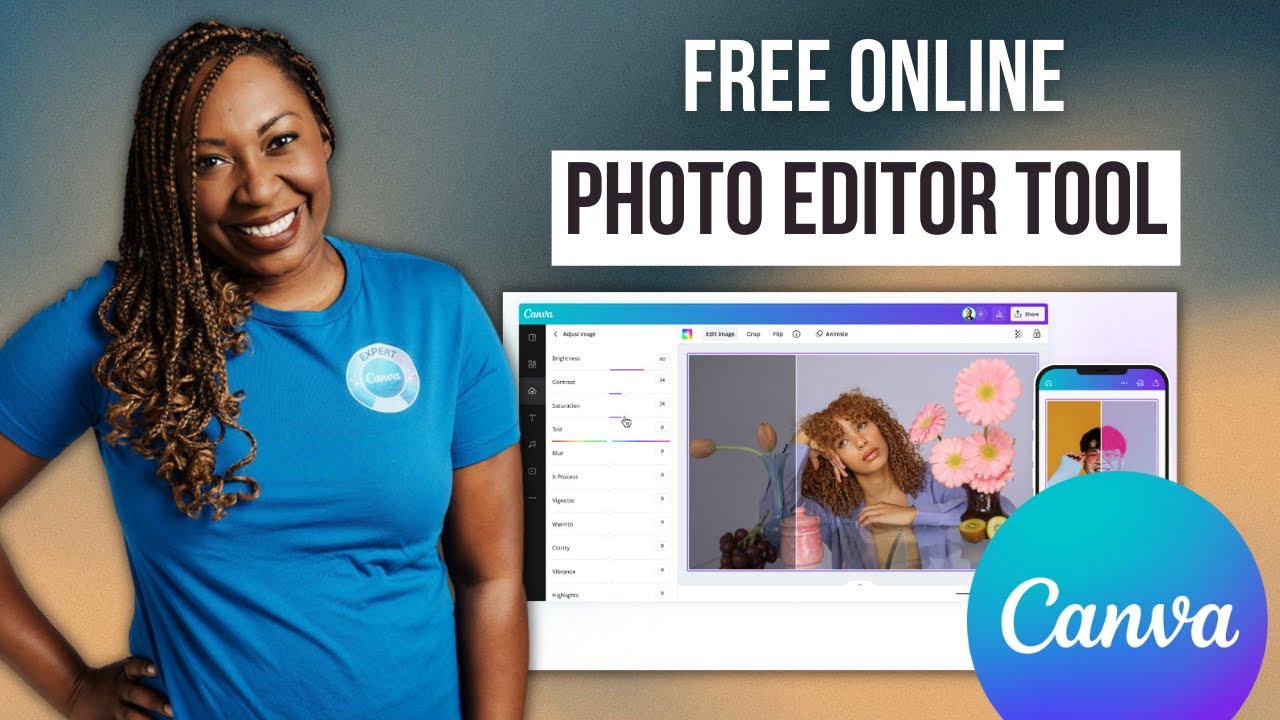
transform a simple photo like this into something like this this or even this let me start with a pretty cool trick and it is that you can upload and edit your photos directly from the canva homepage without having to create a new document on the upper right corner you will see a button that says upload you're going to click here and then you can either drop the files here or you can choose the files from your computer by clicking this button I'm going to drag my photo here Cana is going to open the photo in
this popup window and we have a kind of hidden button that says edit photo the button is here so let me click on it the window you see here allows you to quickly edit your photos though you may not have access to all of the features you can find in the editor it is still quite complete so let me give you a quick example and then we'll dive deeper into the features that you will find in the editor here you've got three different sections that will help you in editing your images we have effects adjust
and crop in this section you'll be able to crop your image so you have the free form option like this you'll be able to crop a little section of your photo if that's what you want let me go to reset and then you also have some aspect ratios so let's say that you want want your photo to be square you can click on this option and then you can adjust the photo so you can crop out the sections that you don't want to see you have some other aspect ratios in here and finally you also
have the option to rotate your photo so you can use this slider or you can enter a value in here and hit enter I'm going to leave my photo as it was so I'm going to click reset and then let's go to adjust in here we have this button to AO adjust the image so let me click so you can see what's going to happen canva has automatically adjusted the colors on this image and you can give more intensity to this edit or reduce the intensity by moving the slider to the left I'm going to
leave the intensity to zero and then you can continue editing your photo with the sliders and the options that you have in here so I want to reduce a little bit the brightness in here here maybe bring more contrast and increase the saturation just that tiny bit all of these settings that you're seeing here are pretty standard and you will see them in most of the photo editing platforms now let's go to the effects section we see in here three different magic tools which are pretty pretty useful I use them a lot you then have
filters and you can see more filters by clicking here there are different categories and you can discover more filters by clicking on these arrows if you want to see one of these filters on your image you can click on the filter and then you also have this lighter so you can adjust the intensity of the filter on your image if you're not happy with the filter that you have applied to your image you can go up and select none I think I'm going to stay with the Nordic filter so I'm going to apply it and
reduce the intensity and then go back now here here you have effects so you can add Shadows you can play around with the focus on your image you can add the blur effect doal tone and then you also have a face retouch let me go back I'm going to play with this option here I really like this one because it adds this portrait effect to the photos so I'm going to reduce the blur intensity just a tiny bit go back and then let's add a face retouch okay I think that's good you can always compare
your previous image with the edited one with this button here so let's hold down this button to see the previous image and when you release the button you see the edited photo so let me go back and I'm going back to adjust add some contrast to the photo let's see what happens if I add more saturation to the photo reduce a tiny bit the Vibrance maybe add some blacks go again to compare so I'm holding down the button releasing I think I'm liking this edited version I'm just going to increase the whites a tiny bit
and then let's go back to effects from here you have two options that are available for canva pro users with this one you can remove sections or details from your photo and with this one you can change or replace things on your image so I have a canva pro account and I'm going to show you how this magic eraser works you will see that you can adjust the size of the brush of this magic eraser so I'm going to leave it very small because I want to remove these white dots from my beanie these are
just tiny details but this is going to help my photo look more polished and more professional I'm also going to remove this little cord in here so let's see the before and after before after I am happy with the result so I'm going to save this image you can click on this button that says save and then you will have two different options you can save it to Cana to use it later in any kind of design or let's say that you don't want to work with this photo in a design but you want to
upload it on your profile picture on Instagram or you want to publish it as a post on Instagram so you're going to download it and save it to your computer I'm going to save this pH photo to canva as well to show you that the edited photo is then saved in the uploads folder on your canva account now let me show you how to edit a photo in an existing design or in a template I'm going to use a template so I'm going to search for coffee Instagram post hit enter from here you can select
any template it will depend if you have a cana pro account or free account you would see the little crown on the pro templates I'm going for this one this one is free so I'm clicking on the image and then customize this template now what are your options to add an image to your design you can either go to elements and from here you can go to the photos section click here where it says SE all and then you can search for anything that you need so let's say that you need a coffee photo so
going to search for coffee and use any of the photos available in here of course it will depend if you have a CA Pro account or free account if you want to replace the photo that you see on your template you simply need to drag your image over the existing one so I'm dragging this photo over the one on the template and that's it if you want to upload your own images you can go to uploads click upload files you're going to select your photo click open and then your photo will be ready to be
used you can simp simply again drag your image over the one in the template and then you'll be working with your own image now I can see that the text that we have in here it's a little bit difficult to read so let's edit this F I'm going to close this window here so we can focus on the design now I'm going to select the photo so we can access more tools on this white toolbar from here you can flip your image so you can flip it horizontally or vertically going back I think I'm going
to leave the image like this we can add transparency to this design so let's move this slider to the left and when you move the slider to the left you will have access to the background color in this case we have a black color and it works really well in this design because we have a yellow and white text on top but you can change this color if you want so let me click here and show you that you can choose any color and like this you can have different looks on your photo I think
I'm going to leave this dark brown in the background now let me show you a pretty cool feature that it is available only inside the editor let me go to elements and this time I'm going to use this photo right here now having the photo selected we're going to open the edit photo section this is going to open this edit window and we have the same sections that we saw before in the homepage so we have effects adjust and crop we have more features in here like for example the magic expand feature which is the
same one we see in crop we have here crop and expand so let's go to effects and let me show it to you this one is a cana pro feature so let me click on this option and now from here you can expand the image with the help of the artificial intelligence in canva and now we can select different sizes we can fill the page with the image so whole page or we can make this photo a square format by clicking here and then we have some other different formats I'm going to select the option
that says hold page and then click magic expand canva is going to generate four different options and you can preview them here on your design by clicking on them so we have already the four Images we are seeing the first option which actually looks pretty good let me see the second one third one four one and let me go with the second one if you don't like any of the four options you can click generate new results I'm going to stay with this one so click done now let's try some other editing tools so let's
go back to edit photo and from here let's play around with do this one it's a pretty cool effect and very easy to use you have a lot of different options in here so you can select any of them and automat atically change the look of the image I think I'm going for this one and if you want to be very detailed and use maybe your branded colors you can change them from here and you also have access to the intensity slider I think I'm going to leave this image like this and if I go
back to this design I can simply take this text contrl C go to page two and contrl V if you don't want to use any of these dual tone effects you can come back up and click none now let me go back and add one of my photos because I want to show you another tool that is so so useful in Campa so let me increase the size of the photo here and now let's go to edit photo from here we are going to use magic edit this one is free to use so let's click
on it and now let's brush over an area of my photo in this case I want to ask canva to add a w W so after selecting the area where I want the wolf to appear I'm going to click continue and then I'm going to type add a wol then click generate and we will see four different options if you don't like these four options you know that you can always click generate your results until you find something that looks good and now look at this result this one I believe it looks decent now let
me go and add another page to try something different so let's use this photo go to edit photo and Magic edit again this time I want to change the color of my beanie so let's brush over this area and because I'm wearing a blue jacket and a blue backpack why not change color to Blue click generate and now as you can see I have four different versions of of this beanie in a blue color so I think I'm going to go with this one click done and to me if you look at this photo quickly
it looks very realistic and now I want to show you something else before I show you how to download this images I'm going to click on the image go to edit photo and because I have a canva pro account I can use the background remover so let me click here and canva will automatically remove the background on my photo so this is just going to take a couple of seconds it is done as I was talking so I already have a transparent background behind me you can change the color here if you want so I'm
clicking on the background of this page just to show you that I have a transparent background behind my photo or basically I removed the background and let me just remove the color from here and now how do we download the these images we're going to go to share we're going to click download and from here you can select the file type we have all of these options to choose from I'm going to leave it as PNG if you are using a canva free account you then have the option to select the page that you want
to download if you have multiple pages and then you are going to click download if you have a cana pro account you will have access to these three different options here you can increase the qu quality of the file that you are going to download let's say that you are going to download a photo like this one in which we don't have a background so I'm going to select page four and then I'm going to click transparent background to show you later how this is going to look and then if you want you can also
compress the file I'm going to download this image I'm going to add a page and I'm going to upload the file that I just downloaded as you can see my photo is here and I don't have any background so let me go to elements I'm going to select a random photo in here put it in the background and then position my photo without the background in here and lastly I just wanted to remind you that yes you can play around with your own images but there are plenty of images in the library so you go
to elements remember to go to photos see all and then you can search for anything from here so let's say that I want to see a winter landscape and position it behind me so I'm going to drag this photo behind my photo and create pretty cool compositions mixing your photos and the photos in the library if you're interested in learning more we have exclusive educational content and some other perks in our membership I'm going to leave here a link so you can join the membership and also I'm leaving here a video so you can learn
more about it I think that's it for this tutorial and I hope to see you in the next one bye
![15 EXCITING Canva UPDATES | AI, Video, Whiteboards, Canva Apps | What's HOT in Canva 🔥 [Ep. 42]](https://img.youtube.com/vi/QZVK94BNF8E/maxresdefault.jpg)
![Learn Canva in 25 Minutes! How to Use Canva for Beginners [Full Canva Tutorial 2022]](https://img.youtube.com/vi/J0jE0OsF1zo/maxresdefault.jpg)