in this video I'm going to show you my brand new Google Maps webscraper that allows me and now you to extract unlimited amounts of information from Google Maps with just a click of a button if you want to see the full build of how I put this web scraper together you can check out the two live streams on my channel but today I'm going to show you how it works how you can install it and a quick little rundown of how I put it together before I get into it if you want to work with
me on any kind of AI or automations project make sure to book a free time with me down in the description below but anyway let me show you my brand new Google Maps scraper so I'm over on Google Maps and what we can do is just type in a search result for whatever kind of industry we're looking to scrape in I'm going to start off with HVAC and I'm specifically going to search the Dallas Fort Worth area for this example but obviously you can pick any area you want and we have all this good information
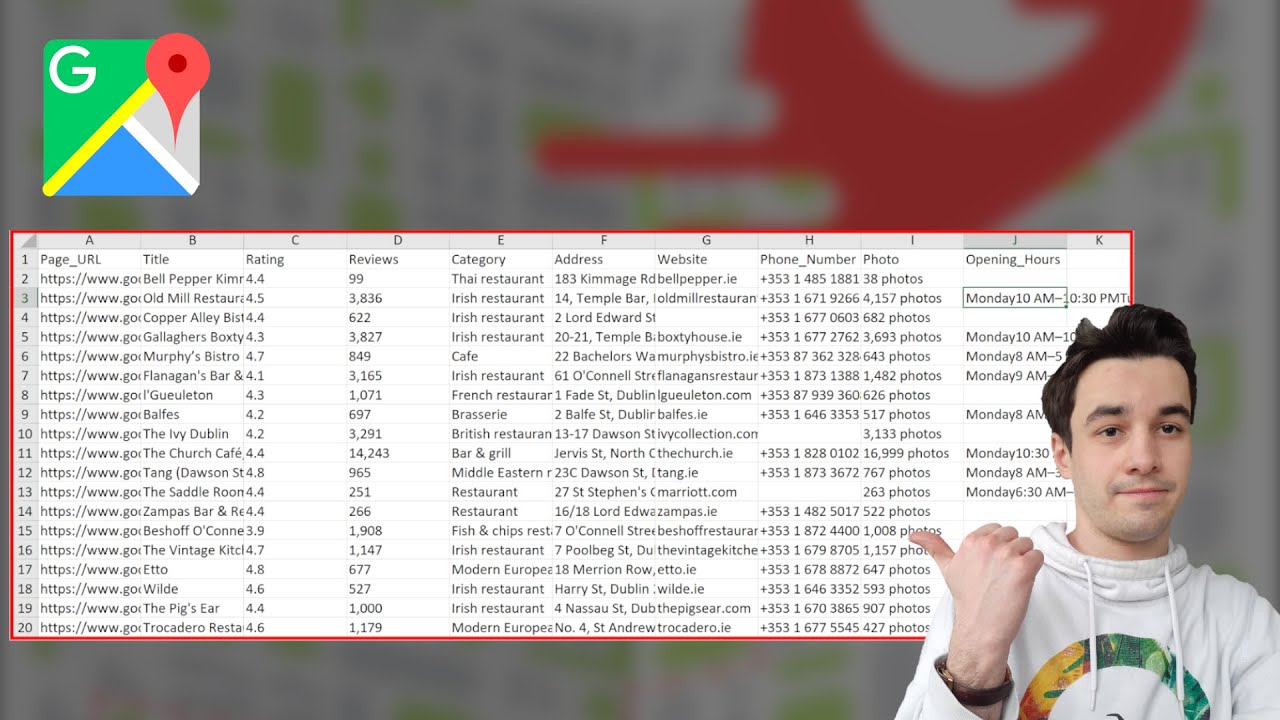
here for all of these contacts and all we have to do once we have our Google Maps scraper installed it's just come up here and then click on scrape Google Maps and look at that we have all the data right here literally in a table we have everything like the title of the business or the name of the business the rating of the reviews the amount of reviews phone number the industry that they're in the address the website link and then lastly the Google Maps URL if you want to check out the listing from here
and I think we have only like 20 or so businesses but how we get the rest of them is if we just scroll all the way down to the bottom here we'll unlock all of the information for all of these businesses and once we get to the end you'll see we've hit this you've reached the end of the list here and then we can just come back up here scrape Google Maps and there we go we have even more data about all the businesses that are on this page so it only works when you scroll
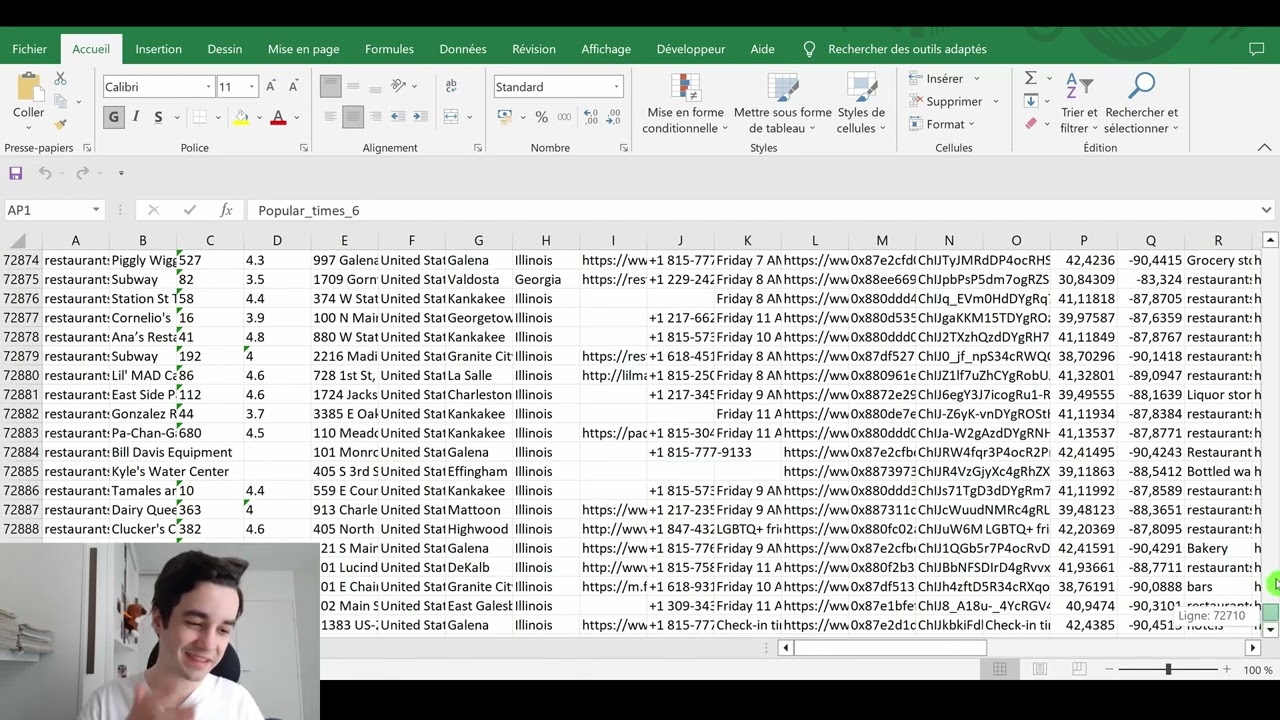
down all the way to the bottom of the Google Maps search but from here you basically just get the raw data of like 120ish contacts or so of everyone in this list and then from here we can just name the title I'll call it Texas HVAC and then we can download the CSV and if I open this up quickly on my broken version of of excel you'll see we have all the information like our titles ratings reviews phone numbers Industries addresses websites and Google Maps links right here and we have what looks like to be
123 contacts um I think that's actually 120 Contacts Plus the additional two contacts up here that were advertisements we have all our good information here that you can use to do whatever you want with for cold calling automating all that good stuff literally with just a click of a button so to continue on here let's try some more I'm going to type in real estate in this area as well we got some more businesses if I just scroll all the way to the bottom once we hit the end of the list once again I'll just
come back over here scrape Google Maps and look at that we have another massive list of everything that we found on this Google Maps search and we can just type in Texas real estate download CSV and once again we have more good data on all of these businesses and if the information doesn't exist it'll leave it blank but yeah you can come in here and make personalized emails campaigns phone calls or whatever and you have your phone number here the website lots of good stuff here let's do a couple more if I want to do
like Lawn Care maybe I want to hit up some people in landscaping space we can just go all the way down to the bottom here and get all of these companies and then once we're at the bottom again come up to the scraper and scrape Google Maps look at that we've got all the good stuff here literally just a click of a button there is not much you have to do and this works for almost every industry that has information in this list here so if we type in stuff like website design if you want
to contact Local website design agencies in the Texas area let's get all these Goods we've reached the end of the list boom boom here we go all of the juicy information scraped in seconds we can name this design Texas 121 120 contacts already right here from Google Maps isn't that exciting you get the idea also if you aren't on a Google Maps Tab and you do try to scrape something it'll tell you go to Google maps to which it'll bring you to Google Maps so if you like that demo of my Google Maps scraper make
sure to drop a like on this video cuz now I'm going to show you how to install it step by step so you can get this working on your machine let's go so I'm going to have a link down below to where you can get all the information for the extension but it will basically include these four files here which you'll need to extract from the folder that include all the necessary information in order to get this extension to work it's real simple all we have to do is just hop on over to our browser
of choice here I'm on Brave but this also works for Chrome come to the little hamburger style menu right here and then click on extensions or go to your extensions tab once again I'm on Brave so it might look a little bit different if you're on Chrome but we can just come up here to the load unpacked button in the top left corner but we just got to find where we extracted the folder with our Google Maps easy scrape here and then go inside of it select the folder and you're ready to go this works
on both Mac and PC this is browser based so it's pretty much going to work for any browser that runs on chromium and we're all ready to go now you just head back on over to Google Maps let's just type in something like I don't know law and we get all these attorney offices in the Columbus area here I'll just scroll all the way down once again and then come to our extension window here make sure we have the Google Maps easy scrape pinned and just click on this grape Google Maps and we've got all
the information once again look at that all nice neatly organized in a row for you to download and use for whatever you want look at that and yeah this project is pretty much free and open source I'll have links down below to where you can get all the project files and if you did like this plugin make sure to leave a like on the video but now I just want to do a quick little run through of how this scraper works so you can put together something similar for yourself I coded this all with AI
and chat GPT I did very little coding at all like I said before I have a full live stream of me putting this together and I basically just keep asking chat GPT to print out the information until I get what I want but let's dive into vs code a little bit more so I can show you what I mean so this Google Maps extension consists of four different files here and these four files when loaded into our browser basically tell our browser what kind of extension this is and how to use it the map.png pretty
self-explanatory just the icon of the app I didn't really know what to pick so I just use the map Emoji the manifest.json this is basically the informational structure of how we want to display and load the app inside of Google Chrome you can see it has things like the name the description the icons here and then also the popup that we want to run and then also some permissions here which are pretty key this is a pretty standard looking manifest file for Google Chrome you can just type in chat GPT like can you build me
a manifest file for Google Chrome extension and it will pop out something very similar to this but then if you notice this runs the pop up. HTML script which if we head over to here we have all of the styling options of how this scraper looks so you can see here we just have a very simple HTML breakdown with some super simple Styles and also a font installed for our Google Maps easy scrape just some body styles button Styles input styles some table styles to get it looking nice and pretty similar to how you see
it here and then we just have some simple HTML to add in the H1 some extra links and then some content to check the URL and then also the buttons here the input if you want to change the name of the download button and then as well as this section here to display the table and all this gets populated by this popup JS down here now this pop-up JS script is loaded in when we run the plugin every time we click on it so if we head into the popup JS also the last file of
this scraper we have a couple things here that I want to points out on how this came together we have this listener script right here which basically allows us to interact with the buttons and the pages when we're on a tab and when we want to scrape the content that's on the page so we can see things like it detects the buttons here and also detects if we're on a Google search URL and then if we're not it tells us to go to the maps search URL here and then it gets rid of all the
buttons and inputs and then if we do click on the action button it then runs this section here which basically scrapes the data and then puts it into that table as I shown you right here and then lastly if we click on the download button it then takes the data that we got from the table in this function and then downloads it to this name unless we choose to put one inside of the download input and then kind of the Crux of this scraper is this function scrape here what this does is it looks for
every single ah rep that has this Google Maps dopl URL and then inside of that query selector that has this URL it finds the container which is equal to this section here and that is basically these boxes right here it's basically this box right here so it finds all of these boxes and then it goes through each one and then picks apart the information to get the rating reviews the phone industry address and Company URL I have some clever functionality here to pick the image tag here to then display the rating and the review count
then I also have a clever function here to get the address and then display the industry which actually happens before the address so it kind of uses a little bit of logic here to determine that and put it in the table it looks through the entire container for a company you URL that isn't this URL which would be the website URL and then it uses this regular expression here to find the phone number inside the container and then it takes all that information puts it in a return function and that will be displayed inside of
the table when we click on this button here then lastly we just have a couple cleanup functions for downloading the table so this convert table to CSV string allows us to actually take the table information and put it into a downloadable file and then this function here to actually download the file and send it to our downloads on our browser really simple extension it's kind of a high level overview breakdown of how this all works so yeah I hope you at least learned something a little bit on how this extension Works once again I'll have
links down description below to where you can get all the project files for the scraper and also while you're down there make sure to leave a like on this video spend a lot of time putting this scraper together and I know you guys are going to love it especially if you want to get leads from Google Maps also once again if you want to work with me in any kind of scraping your automations Project Feel free to book a free 15-minute call with me down in the description below but if you like this video and
you want to learn more about web scraping specifically on a website like LinkedIn make sure to check out this video here where I show you how to scrape LinkedIn and make personalized AI generated emails with that scraped data it's a really cool video and I'm sure you're going to want to check it out if you want to step up your personalized Outreach game with some AI generated emails so I'll see you guys over in that video