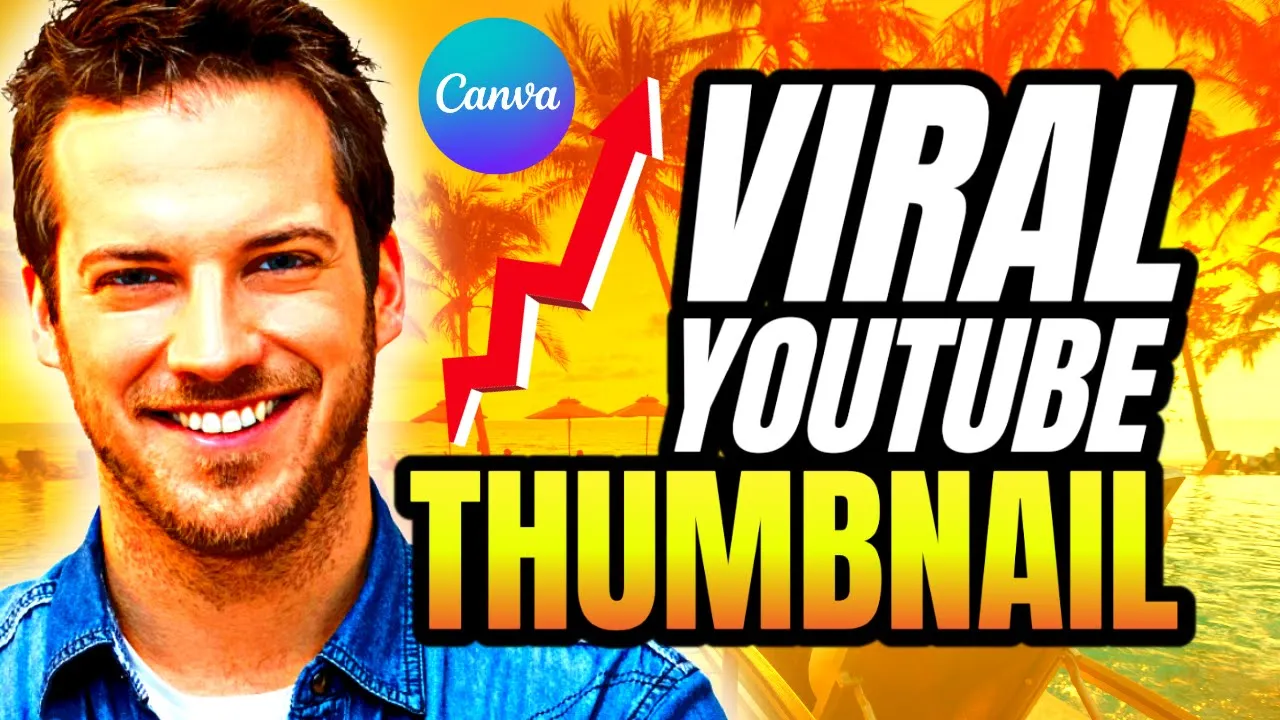
today I'm going to show you how to make a great YouTube thumbnail in canva go to canva create design YouTube thumbnail we are going to use this two photos we are going to start with background go to elements and type [Music] gradient let's use this one transparency 50% [Music] download upload it [Music] again [Music] edit image adjust increase the saturation and increase a little bit of the [Music] contrast and remove the B ground for this [Music] image Shadows glow choose white [Music] color [Music] edit image again adjust increase the saturation and the contrast and the
maximum of the clarity and the final step is the text create new page make any [Music] color choose Anon [Music] p and make the italics [Music] style change the color to white duplicate [Music] type your [Music] title and uh the third word we are going to use a gradient Style with this app type gradient change this to [Music] orange [Music] yellow [Music] add the [Music] design change the color of the background to White download as PNG with transparent [Music] background [Music] upload [Music] go the shadow [Music] glow make the maximum of transparency and make the
blur zero and increase the size go to elements and type light graphics and put [Music] this decrease a little bit of [Music] transparency and make another layer of the text I hope you like this tutorial subscribe to the channel to learn more about Kaa
![How to Make YouTube Thumbnails in Canva [2024]](https://img.youtube.com/vi/b_UJZ00-pX4/maxresdefault.jpg)
![Ultimate Canva Tutorial for YouTube Thumbnails | [Canva for Streamers]](https://img.youtube.com/vi/0v_ZY_QohW0/maxresdefault.jpg)