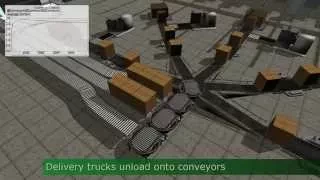
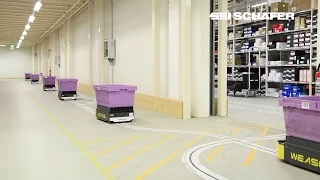
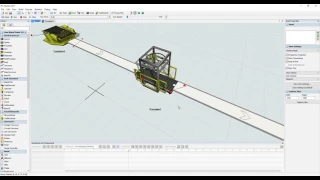
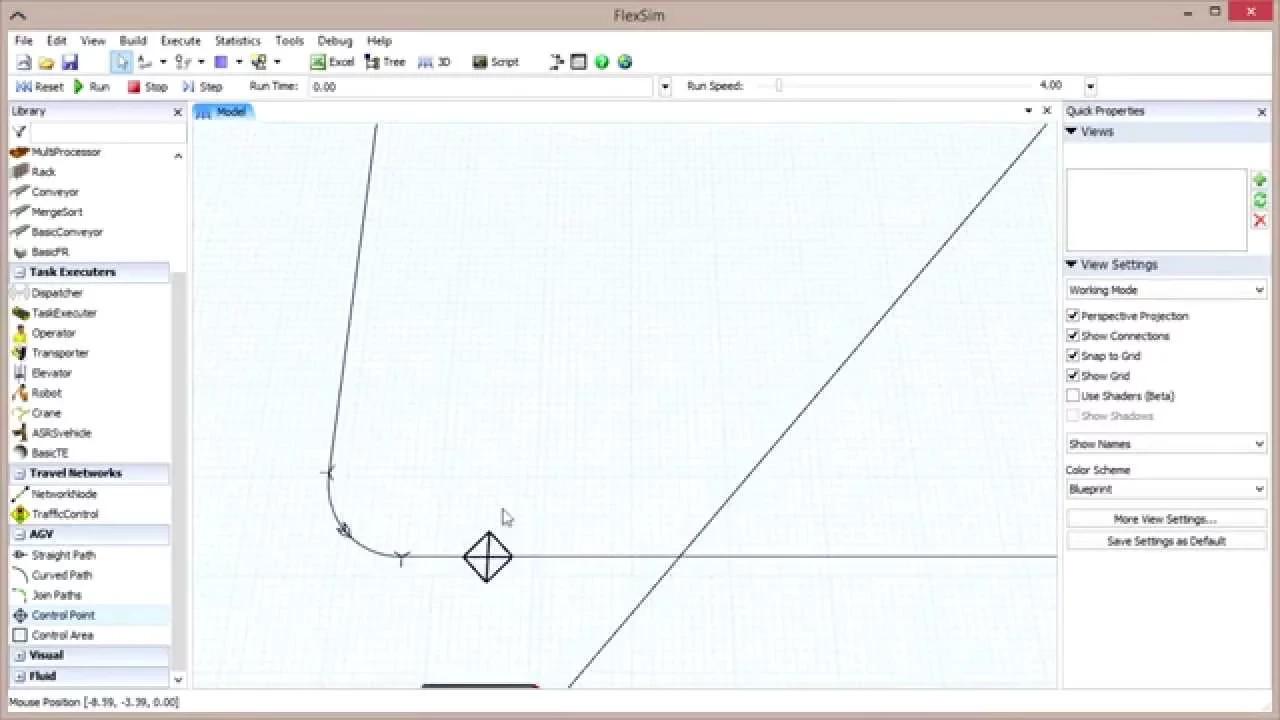
this video will provide an overview of the AGV module in flexin the first of several videos in the AGV module tutorial series and follows the material covered in Lesson one of the AGV section of the user manual tutorials the module enables users to easily build and model systems for automatic guided vehicles or AGVs it uses a unique set of objects to set up the system and utilizes familiar concepts and terminology such as looking for work and control points if you haven't already download the AGV module by clicking on help in the menu bar and then
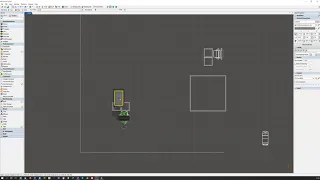
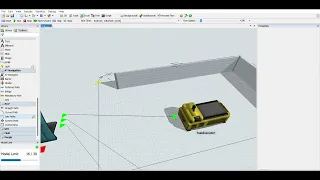
online content just click download and install to add the module and be aware that you'll be asked to restart flexsim once it's installed you'll see a new panel in your library called AGV that contains some new objects let's start by laying out some straight paths click on the object but don't drag it into flexsim like you would other objects when this object is selected your cursor will inter straight path mode click once in the 3d view to mark the beginning of the path and another to mark the end of the path a path will be
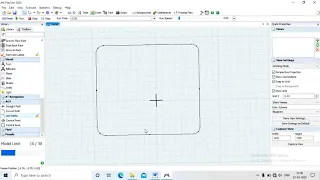
created between these two points if you look at the middle of the path you'll find an arrow indicating the direction that AGVs will travel on that path the travel direction is determined by the start and end points you chose when you created the path much the same as connections and flexsim objects determine flow create four paths in a square shape with gaps where the corners should be then right click to exit straight path mode if you click on one of the pads you've created you'll notice a red dot on each end you can click and
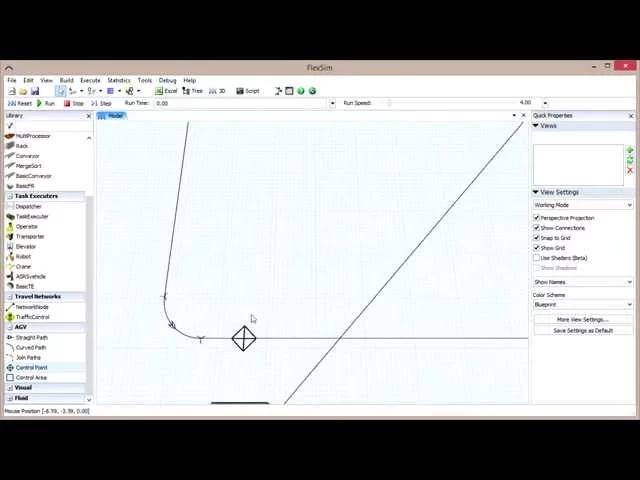
drag these dots to manipulate each end of the path when the path is selected you can also specify specific coordinates for the start and end points in the quick properties pane click on the curved path object and just like we did with straight paths click on the model view to start the path and then drag your mouse around to create the shape of the curve and even to create loops you can even use your mouse a scroll wheel to change the z-index of the curved path raising or lower the path once you've clicked a second
time to set the path and have right click to exit path creation mode click on the path again to bring up three dots two red ones on the ends and a green one in the middle clicking and dragging the green dot will let you change the radius of the curved path each of the red dots can be dragged just as in the straight path but with a few differences the ends will try to snap to certain angles such as the 90-degree angle and you can again raise or lower the ends with the mouse's scroll wheel
in the quick properties pane each curved path has several options you can specify the radius the start angle and the sweep angle you can use curved paths to connect to straight paths together and also to create a new curved path that branches off a straight path simply click somewhere on the straight path when in curved path mode when you branch off of a straight path this will create a transfer which is designated by a y-shaped symbol for now delete any curved path as you've created because we are going to use the join paths object to
fill in the gaps in our straight paths join paths works like curved paths except it specifically created to join the ends of paths click on join paths to enter join paths mode then click the ends of two different paths to create a curved path between them you can then click on the connecting path and alter it just as you would with a curved path when you change the radius it changes the size of the straight paths connected to it join the ends of the straight paths to create a full loop now that we have a
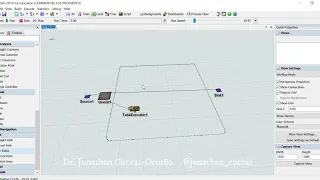
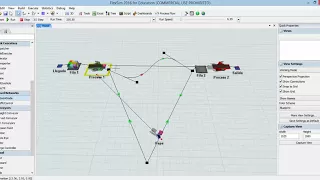
path we can add some flexsim objects first drag out a source and a sink place them at opposing ends of your path and connect them now we can add control points drag one out from the library like you would any regular object in flexsim and drop it on the path and near the source then drag another out near the sink notice that the diamond-shaped control point has a cross inside of it that means it's connected to the path drag it off the path and the cross will disappear indicating that it's no longer associated with a
path when you connect the source to the control point it will be automatically recognized as a destination denoted by a blue connection line finish by connecting the sink to its control point drag out a dispatcher and to AGV task executors and connect the dispatcher to each of them then connect an Ag V to the sinks control point using a regular connection when you do a dialogue will appear asking you to specify whether this object is a traveler a G V or a destination connect this and the other a GV as traveler AGVs and note that
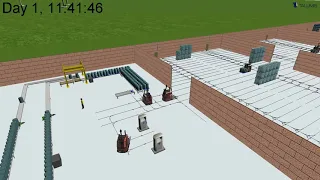
this connection is visually displayed as a red line finally we need these ATVs to transport the flow items from the source so use a center port connection to link the dispatcher to the source and then check the use transport box in the sources quick properties pane reset and run the model the AGVs will pick up flow items at the source and transport them to the sink following the path we've created this is a simple model designed to show basic principles and if you let the model run for a few moments the AGV system will experience
deadlock with each AGV occupying a specific control point this happened because when AG V's travel they look ahead to the next control point and attempt to allocate that point if they can't they just stay where they are this type of deadlock is called circular wait the AGV module provides a tool to help you detect and diagnose deadlock in the system right click on any AGV object and select a GV network properties from the menu go to the general tab and check the box that says check for deadlock if you reset and run the model again
a window will pop up within a few seconds indicating that the system is in deadlock and telling you what caused it this can be prevented in the current example by adding one or more control points which will keep our AGVs from stopping at control points that are blocking another AGV add two more control points to the path one on the left side and another on the right side if you reset and run now the AGVs will no longer reach deadlock but you might notice that they are consistently stopping to maintain a two control point gap
between them why is this the AGV module has a mechanism for control point allocation and de-allocation and the conservative default setting only D allocates a control point when the AGV reaches its next control point let's change this now hold the shift key and drag over the entire path to select all of the control points you'll select other objects as well but that's okay because they won't be affected click to highlight one of the selected control points and find the D allocation type setting in the quick properties using the drop-down menu select deallocate when past current
and click apply to all selected to apply the setting to each of our selected control points hold shift and click on any blank space in the Model View to deselect all the objects this change will set our control points to deallocate their space as soon as the AGV leaves instead of waiting until the AGV reaches the next control point this change will set our control points to deallocate their space as soon as the AGV leaves instead of waiting until the AGV reaches the next control point reset and run to see how the model is affected
if you intend on continuing in the AGV module tutorial series it would be a good idea to save your model now as we'll be using it in the next video thank you for watching to dive deeper into the AGV module check out the other entries in the AGV module tutorial series