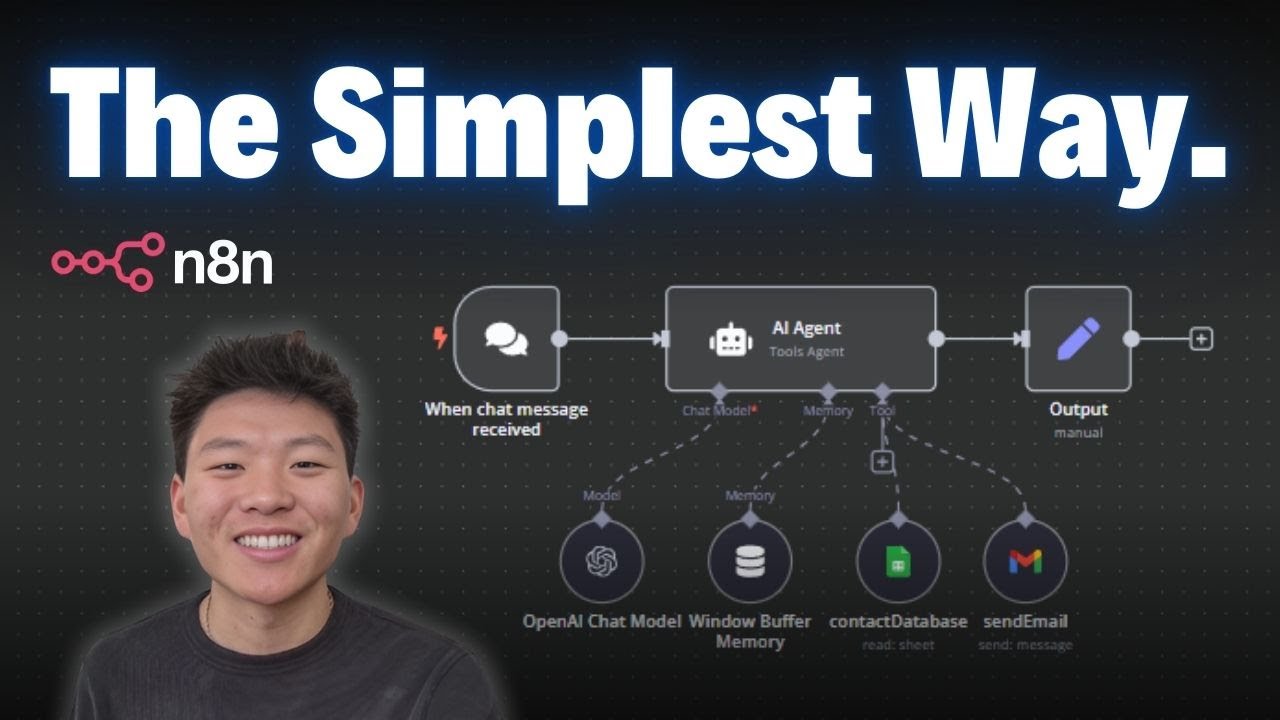
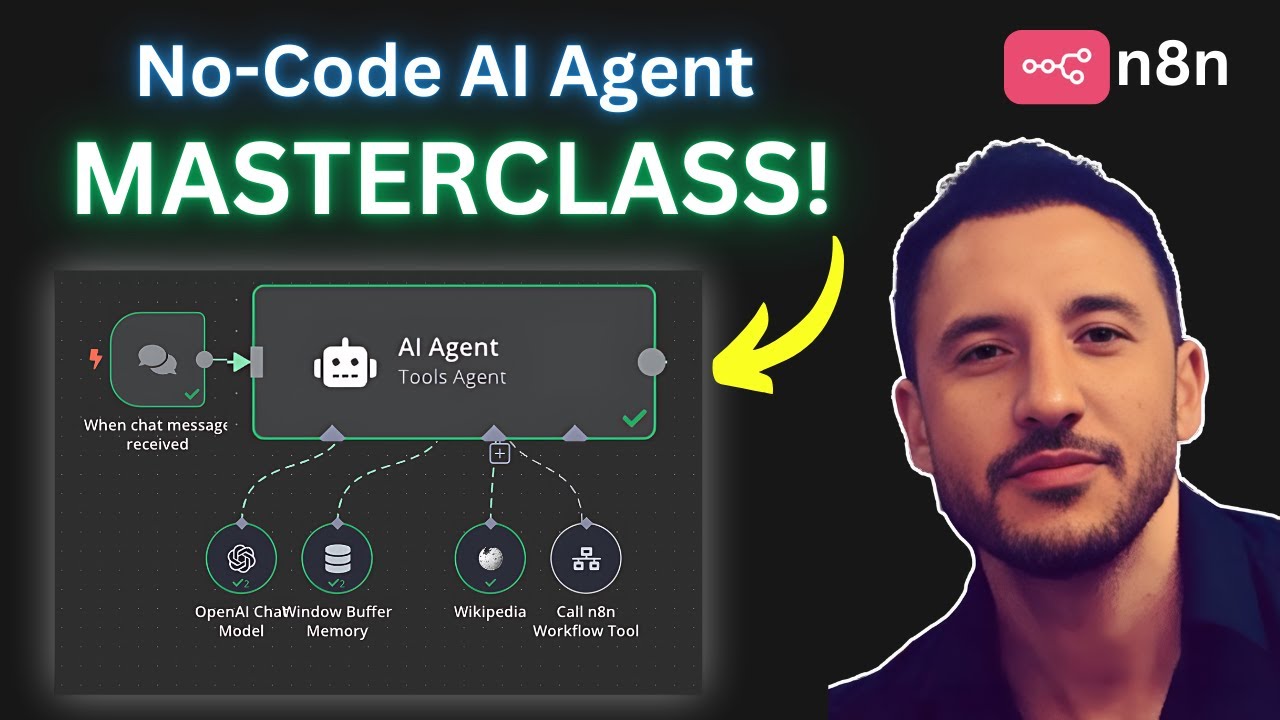
This video is a beginner crash course on AI agents in NN what we're going to be doing today is building out two scenarios the first is going to be incredibly simple you'll probably get this up and running within literally 5 minutes from now in this AI agent we create a chat bot where we essentially can ask it questions like let's say math questions so for example what is 45 * 3 and it's going to use its reasoning to Ask the calculator what that response is it'll give you the response back we can also connect that
into things like Wikipedia and whatever else that you want to connect this into the next chat bot is going to be a little bit more advanced this is not going to take too much more time to build out but it's going to be really really cool it's going to be the foundation of you building any bots on top of it essentially we're using telegram to send Messages so I'm going to say please create a calendar event for me today at 5:00 p.m. to cook and what's going to happen is this chat pot's going to start
it's going to use its reasoning to understand what task it is that you're looking for it to do it's going to create that calendar invite we can take a look at my calendar here just to see that in fact it has been added to the calendar and then we're also going to go ahead and log any added or changed Calendar events over time to our particular log and Google Sheets here All of These Blueprints are going to be for free in the description down below all you have to do is come in and import them
into your account you can just hit these three dots here and import from file and then you'll have these in your account I highly recommend you guys actually following along with me in this video downloading the in the the blueprints and working with me on the Scenario because that's going to be the fastest way for you to learn with that being said let's get into it right now so the first thing we're going to do is we're going to create a new scenario in naden if you guys haven't done so already you can go ahead
and sign up for a free account um you get a 14-day free trial and once you're inside we're going to create a workflow here okay and the first step that we're going to do is we're just going to hit that massive Unavoidable add first step in the middle there and we're going to go over and we can see there's a lot of different triggers here now some are easy some are complex but we're just going to start off like super super basic here just for your first AI agent so that you can feel like you
get a massive win like literally in a few minutes here and get something up and running we're going to choose on chat message and essentially what this is doing is it's just an Internal message in nadn that you can use to essentially power your automations so that's all we're going to do this actually looks good to me you can hit the escape button or just click outside of it and then we're good to go and now we can start messaging in this chat bot right I'm actually just going to reset this session and um we're
good to go I can just say hey here and essentially nothing's going to happen because nothing's hooked up yet right The Next Step that we want to do is actually come in here and create that AI agent so so we're going to type at the top here AI agent okay and essentially more or less this also looks good to me here we're not going to touch this right now but just to come in here and explain what's going on so on the left hand side you have the input field you can see the message that
we just sent which is hey you see the session ID and action which is send message the right hand side is The output this is what's going to happen when this task is ex executed in the AI agent and in the center you have the settings here right so how do we want to set this up and we can go into the a agents tab here there's a lot of different things that we can use here but essentially we want to use tools agent and what this means is that we're going to attach multiple tools
like we'll attach a calculator we'll attach Wikipedia to this so that we can do some Research on Wikipedia or we can do some calculations and what's going on in the back end is that we're going to ask this AI agent to pick the right tool to use right so there's mult tools and you can think about like building a house you might need a screwdriver or you might need a hammer and you're asking like hey for this particular project I have a screw what should I be using should I be using the screwdriver or the
hammer it's going to pick the screwdriver for you Right so we're going to go ahead and choose tools agent here and that's pretty much good to go and you'll see that there's three options here we have chat model we have memory and we have tool and we're going to have to connect all of these in together now the first thing that I want to start with is essentially the chat model we'll go left to right here so we'll hit plus here and essentially it's just asking you to attach a large language model you can Use
any of these whichever you're most comfortable with so you could use like anthropic but for me I like using open AI I use it in most of my videos so I'm just going to go ahead and choose that and right away this is pretty much good to go if you guys are brand new to nadn you will need to connect an account so it says credentials to connect with and all you have to do is Click create new credentials okay and you need an API key now this is pretty straightforward to Get you can just
open up a new tab and you can go platform open aai in Google and it should be the first result here that we're going to click into and you'll have to log in and click once you're logged in I just am already you can click dashboard here and go to apis and then you'll just create an API key and I could call this like test and Aden and then create secret key and just copy this and paste it back into the API key SE section here and we're essentially Good to go the only other thing
that I recommend here is actually setting a budget on this because if you don't uh you're not going to be able to use it so you need to head over to the profile section here and just click profile billing and then just add credits I think the minimum is $5 that you can add and once you do that then you're pretty much good to go and you can start using um you can start using Chad gbt in n8n immediately so I'm going to close out of That cuz I've already connected my account in here and
the model that you can choose doesn't doesn't really matter I'm just going to use 40 mini the default one here just because it's a bit cheaper than some of the other models in here and this is pretty good for the questions that we're going to be asking in the in the uh in the first AI agent that we build out it's going to be rather simple you'll see that it still has that error message here that's going To go away in a couple seconds so we can just forget that and then the next thing is
is the memory so just before we move on this model here this is like the reasoning behind it this is like the brain in the AI agent we're saying hey like how are we going to think how are we going to process and understand the questions and understand you know what to actually do and that's where the that's where the chat model comes in because this is going to be figuring out What tools to use how to respond back to somebody how to interpret the messages all of that kind of stuff right so that's why
having the chat model there is important the next thing is the memory so with memory there's a couple options here we're going to choose the first one you can see and it made it easy for us they just said like in Brackets like easiest um but yeah it's just super simple to Plug and Play what this does is it just means that like if I'm going to continue messaging it it will remember my previous messages so like if you go into chat gbt and you ask a follow-up question it has the context of the original
question you asked same kind of deal here you really don't have to do anything we can just click off this and we're good to go right and so this is going to be able to give us memory so if I say hey how's it going or hey what is the capital city of um let's just say Ontario it's going to go ahead and see it right and now here's where the memory comes in if we had no memory here we could be like what's the temperature what's the average temperature there if there's no memory it
it it would be like what city are you talking about I don't I don't know what city you're talking about but because we have a memory window buffer memory here it's actually going to remember that I asked what was the capital it's remember the response And now it's going to be able to answer this appropriately right so now it's going to give me an answer based on the temperature in Toronto right now we can change this up like it can be a context window of five or 10 or whatever but but uh I would just
recommend sticking to five for now and that looks pretty good to me right so those are the two now we've like secured two things in this AI agent let's just move on to where all the magic happens which is the tool Section now with this tool section you can add whatever it is you want because this is just our first example uh we're going to keep it kind of nice and easy and let's get go ahead and get started here the first thing that I want to add in here is a calculator okay and so
with this calculator what we're doing is we're just giving it access to do math equations cool thing about this is that again there's no real setup this is just plug andplay out of the box it's going To work immediately so we can go ahead and ask it some math questions so what oops I'm not going to yell at it with all caps what is 40 or 54 / 42.3 and you can see that it's going to check off the calculator which means that it has used it and it will give us the exact response back
which is 1.28 now we can add in another tool here which could be Wikipedia for example and using Wikipedia we can ask it to search specific pages on Wikipedia again this Is plug- and play so that is literally nothing that we have to do to set this up so I'm going to go ahead and close this and now we can ask a specific question um related to Wikipedia so the next question could be what is the diameter of the Moon according to Wikipedia and now it's going to figure out what tool we used Wikipedia this
time but not the calculator and then it gave us a response back and it said the search did not return specific Information about the diameter of the Moon however the average diameter of the Moon is approximately 3,474 km okay perfect so we could also take it a step further and now leverage both tools at the same time instead of just one or the other and we can say what is the um size of the sun divided by 54 and let's take a look and see what it says here okay so it says and and we
can see Actually looks like it didn't even pull in the calculator for this we can go ahead and say um let's first read it the search did not provide a specific numerical value for the size of the sun however the average diameter of the Sun is approximately this many kilm now divide that by 40 54 and then it gives us this many kilm so the average sun is divided by okay so it gave us the answer there just using the the AI model here it was good enough to reason and come up With that answer
all by itself but in essence this is kind of how AI agents work it would first of all we'd type in the message up here it would send it to the AI agent it would pull in the memory of the previous context window so like the previous messages in the past it can see five messages back up pretty much the beginning here and then it's going to send that to the model the model is going to be like hey what's going on here what's the input what are they Looking to do so they're going to
it's going to read this and then it's going to have the context window of everything else above it and then it's going to have to send that back to the AI agent to decide hey what are we doing here like are we sending this to the calculator we sending this to Wikipedia and because of what we said here it first searched for the diameter of the sun on Wikipedia and then it brought that back and it's like hey okay we have The diamet of the Sun and we now need to to accomplish the second task
which is calculation in this case it just bypassed it because it had the the logic to deal in the first place but it would have sent it back to the AI agent to then calculate the diameter of the sign that it received from Wikipedia and then give you the answer backwards right so that's essentially more or less how AI agents work and you have officially created the first AI agent um of your Life hopefully the first of very many okay so that sounds good to me I'm going to go ahead and I'm just going to
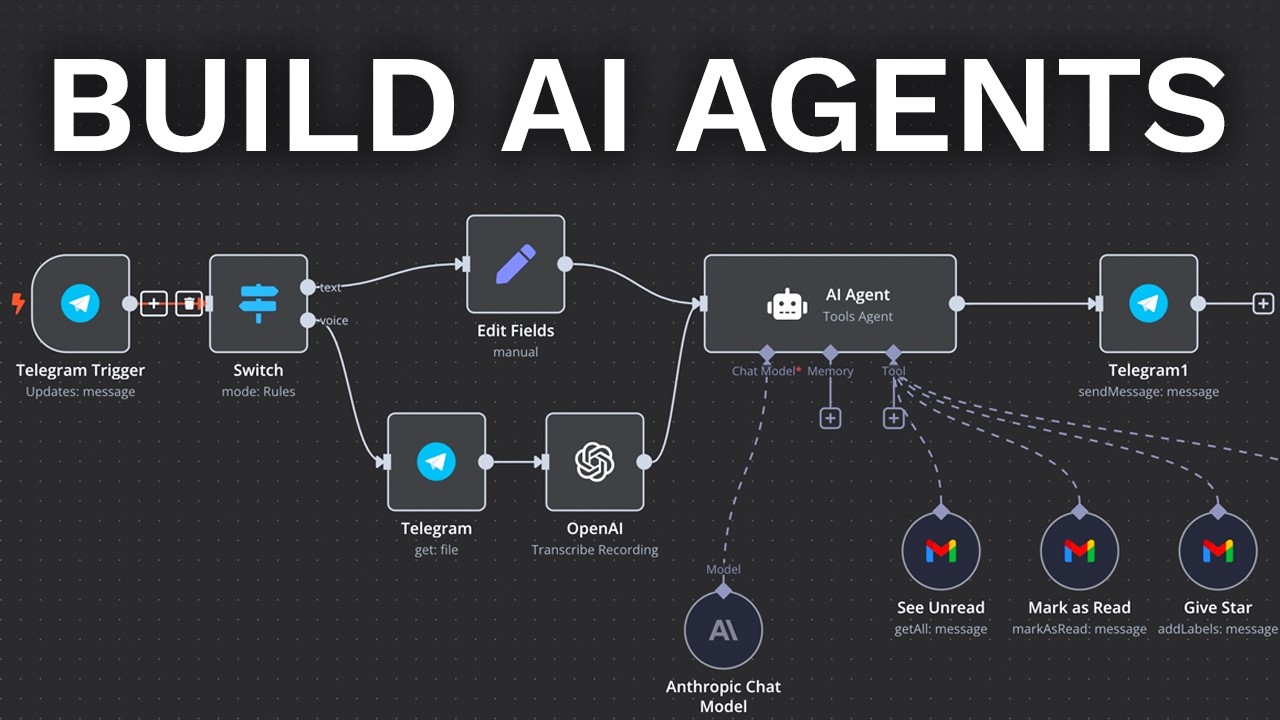
save this scenario now um and we're good to go I'm going to title this AI agent number one and that looks good oops just we need to actually add the number one there okay perfect sweet so we're good to go the next thing that I want to do is create another AI agent this one's going to be a bit more complicated and there's two parts to this the first part Is that we want to actually attach it to a messaging platform that is not natively stored in nadn so for example we probably don't want to
have to come into NN every single time to chat with it instead we'd rather chat with it on something like telegram or something like Facebook Messenger or Whatsapp or twio for Native like SMS uh text messages all that kind of stuff I chose Telegram in this particular example so we're just going to use that and the Second part of this is so so sorry the first part is just grabbing that message and whether it's a particular text or an audio file we're going to transcribe it and then we're going to grab that message send it
to the AI agent and then understand what it is that we're trying to do right so we can either get events up uh create events update events and then we're going to log those events one by one to the Google sheet and you can see here there's a nice breadth of Things um especially too in the Google Calendar module you can not only find create and update you could also delete events in here as well so it gives you a lot of different options in here so let's go ahead and build this out first things
first we're going to go back to the personal folder and create another workflow okay awesome and then the second massive unavoidable I don't think I can zoom in any further actually I take that back I definitely can um we're Going to go ahead and choose this and the first thing that we want to do is we want to create a trigger from telegram if you guys remember this one right here and that is located in the onapp events so we can go in here and search up Telegram and we'll select that and the first thing
that we're going to do is we're going to select on message so essentially the trigger here what starts this workflow is an on message so when we receive a message from telegram then This workflow will start the AI agent will will do what it needs to do now the first thing is is that we actually need to create credentials for telegram right so I'm going to go ahead and create new credentials here and we need an access token and so how we get an access token is by literally just hitting the open docs here it's
going to give us the exact details that we need to do in order to get um an access token from Telegram and really what we need to do Here is just start a chat with what they call the bot father of telegram so we'll open this up and this looks good to me I'm going to open the app up here and now it's just going to give me some instructions on you know what to do and I'm just going to circle back here to what it says and it's just saying hey first start the chat
second enter in the command new bot so I'm going to go ahead and do this here and if we see it says we need a Name and we also need a username so I'm going to go ahead and do this so um I'm just going to call this test bot test 1 2 3 4 5 and that looks good and then we'll go ahead and choose a username which I'm actually going to copy this and do the same thing here okay perfect so now that has been completed it's going to give us this API code
here and all we need to do is copy that and then come back into this part here and paste that access token in and Then we can save it and we're good to go you'll know it's completed when uh it goes green here okay cool so that's pretty much it for this we can move on to the next step here which is first of all just testing this trigger to make sure that we're receiving information from it so I'm going to go ahead and test this and it's just waiting for a message to come in
so I'm going to circle back to telegram here and let's Just see here um cool so I'm going to go ahead and start a conversation and I'm going to say hey right and awesome so we're going to open this up and we can see that we have received a message already and it just by default started with the the message SL start so we're good to go there now the next thing is is that we need to decide whether or not this is a text message or if this is an audio message and so how
We do that is by creating a um flow statement here actually hold on one second yeah we're going to choose an if statement so it's like if that if this then or else that right so if it contains an audio message go down the audio message path if it doesn't contain an audio message then go down the uh the text path so let's get this set up the first thing I want to do is just actually exit out of that and test the workflow again I'm going to open up oops I'm going to test this
and open up Telegram and just send over an audio message this is a test okay sweet so we can see here that we did in fact receive like an audio file here and here's the ID and all that kind of stuff so we can Circle back to this if statement and all we need to do is just enter in a value here and that value is going to be voice here so I'm going to enter in I'm just dragging this over into there and uh it says like in Curly brackets like dollar sign json. massage.
that is essentially just this right here right this is like a nicer way of seeing this message it's more like a coding way of seeing the same thing and all we need to do here is just come down to object and exists because technically this is an object you can see the the the data type so like this is a number this is text by the a field number and then this is called an object which is just like a assortment of Different information right so you have like a voice message which has the duration
in minutes or the type of file it is and the file ID and the file size and all that kind of stuff we're just checking to see if that audio message actually exists which it would only exist if we actually sent over an audio message and so that's pretty much it we just have one condition does that exist it's going to go down path a if it does and if it doesn't then it's going to go Down the other path so we can go ahead and deal with this audio message first and essentially all we
want to do is go back to Telegram and we're going to download this message so we're going to get a file here and the file ID we need to enter in here right this all we can keep the same uh nothing really needs to be changed there and all we need to do is just grab the file ID and you can see it down here right so voice and then file ID so we're going to copy this drag It over and just paste it right in there and then we are good to go this is
going to get that file and next what I want to do is I want to turn that file CU right now it's just we're just grabbing a file I actually want to turn that into text right because in order to process that message properly we need to make sure that it's not in an audio format but it's in a text format and so how we're going to do that is by going into open AI here and we're going to go ahead and Transcribe so I'm just going to search for transcribe a recording and we're going
to choose this one right here and circling back in here the accounts already good to go we've already set this up so it's the same one as before and yeah all we need to actually do here is I don't even think we need to do anything it should work out of the box it's just going to transcribe the previous recording that we received so that uh that looks good to me okay sweet So we can give this a shot we'll test this out and we're going to load in another message here this is a test
okay let's see the output here I'm going to double tap this we can see that the text came back as this is a test so that's awesome just one last thing here is that if for example we're not sending an audio message maybe it's a text message we want to be able to um we want to be able to accept either message right whether it's audio whether it's Text how we do this is in this other field here actually in both we're going to do data transformation and we're going to edit a field here and
all we're doing is we're just setting a particular value for a field called text and let me explain why so I'll just enter in text here and and we actually don't have any data here but essentially we need the output for both of these to be the exact same so they need to have the same key here which is text because if one had Text and the other one had like message then if you search for message then you're not going to find text if you search for text then you're not going to find message
so it's going to draw errors so all we need to do here is just essentially connect these in together so I'll go data transformation again here and the we're going to add a field the name is going to be text and the value if I just pull in um schema here the value is going to be here right and So that looks good we're all set on this side and we can just run this test one more time but this this time as a message and not like a audio file so I'm going to say
test number two and now it's come down this side of the path here and the value here that we're going to place is the value that we got of the message we typed in which is test two so we'll go ahead drag that over and this is is all set up and you can see that the key here is test but the key as well Up here is also test right and so why that matters is because we're going to merge these fields together so no matter where the data is coming from whether it's an
audio file or a text file it's going to be good to go right so we can merge these in and it's going to give us the exact same format I'll go ahead and click save here and we'll just run this test one more time just to verify that everything is in fact working so I'll just say test 1 2 3 Again and we can see that the text here is test and if I were to test this one more time and do an audio file I'm going to say hey this is a test now it's
going through the other path transcribing it and it's still the same text key that we can use for the AI agent right and so the next field here is AI agent this again has to take the correct key here and that is going to go into this uh this prompt message here so um from Here what we're going to do is we're going to keep the agences the same it's going to be a tools agent and we just need to choose the right source for the prompt and right now it's on like a default um
default setting here for connected chat trigger node and we need to Define below because right now we replaced if you guys remember the first example used that chat trigger we've replaced that with telegram so we need to say hey this isn't the initial chat Trigger that uh you know is just default we're actually using something else so we're going to choose Define below and we're going to pull in this text field from the merge category and so now it doesn't matter whether we send an audio file or we send a text file it's still going
to be the same message coming into that AI agent for us to use just like we did before what we're going to do is we're going to add in that chat model here I'm going to use chat GPT again and 40 mini looks good to me this is pretty much plug andplay nothing that we have to do there then with the memory we're going to do the exact same thing with the window buffer memory and again we're just going to keep it at context window length 5 if you want to keep change this to 10
we can do that as well I'm just going to keep it at five here and we're going to move this over and then essentially we just have the particular tools here so first things first I just Want to actually run this through so that we can get some data and then we can set up the second part of this so I'm going to send some data this is a test is a test okay and we can see that we did receive an error here and that is because we didn't set this up properly so this
window buffer memory is again connected to the chat trigger node and we just need to Define this below and so we need to enter in a key here and that Key is going to be coming from um the particular um telegram node down here so we see this chat ID we're going to just drag that in here and so we just need to copy in the ID of the chat that we had from Telegram and then this should work so we'll go ahead and we'll now give this a shot we're going to test it one
more time and come back in here and run this again so everything looks good so far now um just before we create the the tool section where we're like Connecting in Google Calendar and we're connecting in Google Sheets and all that kind of stuff let's just make sure that we actually have a message sending back to the telegram chat here so that we can actually receive these messages so on the other side so we've done the inputs here we've receiving messages whether it's audio or whether it's text and we just want to send that back
to telegram so we'll search up telegram here and we can search again send a message send a Text message perfect and really all we need to do is just send and the uh the text message we can see the output here from the AI agent and so that agent is outputting a response and now we're just placing it there and that looks good to me we can alternatively just put in the chat ID as well so I'm going to go ahead and move that chat ID here and let's try this one more time and just
make sure that in fact we're getting a message back in telegram test again it's going To go through and now we're receiving messages back so test again successful let me know how I can help you that is very nice of you chatot thank you very much for telling me that uh you all help me out okay perfect so this looks good the only thing in here is you probably don't want to say this message was sent automatically with NN and how we do how we remove that is just coming back in here and adding a
field and it says Append NN attribution we just turn this off what this is essentially saying is hey we don't want every single message message for the history of this entire chat to always say indefinitely um sent by NN because obviously that's a big pain in ass so we're going to go ahead and remove that and we're good to go sweet so the next thing that we need to do here is twofold we need to set up the tools so we're like finding calendar events creating calendar events updating Calendar events we also need to create
a nice prompt for this AI agent in here so that we tell it exactly how to respond to certain types of um situations and so what we'll do is we'll just start off really basic and we're just going to create a Google calendar invite so we'll type in Google Calendar here and this um we can see all the data being mapped in from the left hand side here and this looks pretty well good to me you'll have to connect your client Credentials up at the top here this should be pretty straightforward all you have to
do is hit the massive sign in with Google button and then you're good to go and and I'm going to close this and then essentially from here once you've signed into to your Google account then we can see that we're going to uh choose events here we're going to create an event okay and there's a lot of different options here we'll be leveraging this in the future like get An event or create or update or whatnot right and so they also have uh a list of where do you want to receive these events from I
just created a test calendar here AI agent and so if you look at my calendar here you can see for example example that it created that uh that test calendar invite for cooking at 5:00 p.m. today right and so we're going to go ahead and we're going to create events here the next step that I want to do is I want to create a start time and An end time and so right now it's just saying hey like the second that this workflow runs that is when the uh chatbot or that's when the AI agent
is going to start the event right so if it's 12:58 for me it's just going to say the start time is 12:58 which is not ideal we want to be able to message in telegram saying hey let's start it at 4 P p.m. and then it picks up at 4 p.m. when um the event should start right so this is going to be dynamic instead of Static and so how we're going to do this now is we're going to make sure that it's flipped over to expression and this might seem a bit confusing at the
beginning but uh at the end of the tutorial you should get the hang of it all you have to do is hit these double slashes here or these the braces and now we have access to all these functions by by naden right so they have a lot of different cool options here but realistically all we're going to do is We're just going to use the exact same option like literally every single time for the rest of this tutorial so you hit the dollar sign here and you're going to choose from Ai and this takes two
different parameters in here we're going to walk through this slowly key and description and and I guess it takes in four but we're just going to use two so the key is essentially saying like what are you looking for so the key could be like Start time or if we're looking for the end time it would be end time or if we're looking for the ID of the calendar INF it would be calendar ID right and so we can choose that and then a description is just describing what the what the key actually is so
let's go ahead and choose this and I'm just going to put in here quotation marks you can see that it's giving an error here because we haven't finished this yet and in these quotation marks I'm just going To put in start time so this is kind of the key that we're giving and it's going to try and find this data for US based on the key and we'll have the description this is the start time of the event okay awesome now it's gone to gray because it cannot find the start time in any of these
fields here right so like if I put in something else for example if I just like dropped in the output here then I guess it would be because this is actually coming later But if we typ if we dropped in like the ID here for example it would be green because this is a step that happened before getting to this Google calendar invite and it can find it on the sidebar here right so I'm going to go ahead and I'm going to delete that and when we run the data this will come in again next
step is that I want to create an end time as well and so we're going to literally just copy this and we're going to do the exact same thing for the end Time we're going to delete you could do like now plus 1 hour but just to make it a bit more bulletproof I'd rather just have like end time as its own thing because maybe you're creating like a cooking event and that's like 2 hours and then you're doing like a meditation thing that's like 15 minutes or whatever and so you just want to have
the flexibility to be able to choose the duration so I'm going to say this this is the end time of the event and that Looks good to me we can add in tons of other things in here um we could add in uh lots of things I'm just going to choose summary for now this is going to be like the title of it and again I'm just going to let AI decide for me what that title is so I'm going to say summary and then I'm going to say this is the summary oops I made
a spelling mistake here of the event and I'm going to say summary SL tile of the event and then That all makes sense to me now all we have to do is just uh test this out and it should work right away so I'm going to wait for a trigger here let's do an audio message hey can you please create an event for me at 400 p.m. for cooking and so that is now coming in it's being transcribed and we have gone ahead and created the calendar event and now it's coming up with a response
and it's going to send us that response back I've created the cooking event for you here here are the details so you can review the uh calendar link here which is awesome I'm just going to go ahead and take a look and we can see that it's not actually on the calendar anywhere so what I'm going to do is I'm just going to open this up and I'm going to see the start time and end time so it essentially said 2023 here now obviously we're in 2025 actually you can't see that here But uh yeah
anyways we're in 2025 February 8th so I don't want to be creating a freaking calendar event like literally 2 years ago that's so stupid but um for AI agents it just a lot of the times it just doesn't know the time frame or the time window so you actually have to tell it what the time frame and the time window is so we're going to open up this AI agent again in here and in here in the text I want to provide actually sorry in the system message I Want to provide additional information and we're
going to be building on top of this as we go but one of the things is is the exact uh date today is and then colon and then we can hit these brackets again actually it has to be an expression we'll hit the brackets again we'll hit the dollar sign and now right and so you can see that when we put now in here it's like literally going to say it's 2025 at this time right so now we're giving this AI Agent the knowledge of when exactly it is right now so we can go ahead
and we can try this out one more time can you please create a cooking event for me at 300 p.m. today and we're going to go through and again it's going to take the response understand it send it to the first AI agent and then deliver it send it back and here we go right so now we're saying February 8th 2025 so that should be good to go and we can see here that it has Put this in and obviously it screwed I screwed up somewhere the uh the title here right so um let's go
back and change that what I suspect why what I suspect happened here is that if we circle into this section here it's probably the slash no it's not that slash so there's probably just some spelling mistake here and we'll try that again summary this is the summary of the event oh gosh guess I put Fixed and so when you put fixed you're just literally entering it as a string of text and instead you need to enter it in as an expression which is actually going to run some code on NAD to give you the exact
value that you're looking for so that's great that's a that's a good first step the second thing is is like before we actually book an event I want to make sure that I'm not double booking myself right and so that's where the next step comes in where we can add Another AI agent and this is going to be Google calendar again and this time what we're going to do is we're going to change this from create to get many so this is going to search the calendar right and so from here or let me just
see yeah so we're going to choose get many and I just want to be able to search and find what my availability is like right and so I'm going to again choose after now and before Both of these are going to be Expressions same kind of deal I'm just going to choose um from Ai and it's just going to tell me after give me the time frame to look for this event after a certain period of time like today and then again same kind of deal with the next step which is before and I'm going
to say before here give me the Time frame to look for this event before a certain time period like next week and we'll see how this comes up with responses and more or less I'm just going to take a look at yeah 50 events for now and I want to make sure that I'm searching for of course the right list because if I look at the wrong calendar list that's obviously not going to be very helpful to me so that looks good to me this is going to go ahead and search for everything and all
I want to do from Here on out is save this and I'm just going to enter in to this particular system message and we're going to be building this over time so I'm going to type in instructions and I'm going to put in and I'm going to zoom this in just a bit so you guys can see this so instructions number one always look for the availability on my calendar before booking an appointment right and so that's step number one and we can just Go ahead and save that and that's good to go so now
what we can do is we can get all the calendar events we can create a calendar event but ultimately speaking the last step that I want to do here is I want to be able to update calendar events as well so I'm going to add one more tool in here this is going to be Google Calendar and in this particular tool this is going to be very similar but instead this time we're going to update an event we're going to Choose the right calendar to look and update events on and there's a couple things that
we need first of all we need an event ID again this can be just handled by an expression same expression as always which is double curly braces dollar sign from AI thank you NN for just like literally making my life so easy and this is going to be event ID here just make sure that like you can't put spaces or or special care or anything like that just make sure that There's no spaces in here else it'll throw an error and the second thing is is um is we're just going to describe what event ID
is this is the ID of the event okay perfect and really we can update anything it is that we want about this event but all I'm going to do is I'm going to update the start time and I'm just going to update the end time just to keep things simple and again this can be both both of these are going to be expressions and I'm just going to Copy this down paste it in this is going to be end time this is the end time of the event and then same kind of deal with this
is an expression and I'm going to choose this is oops start time and this is the start time of the event that looks good to me and right now there is a bug going on with nadn so for whatever reason like I just can't save this so unfortunately I Have to refresh the page and I probably lost a bit of saved work here let's take a look it did look like this saved Okay cool so we're good to go and we have everything saved it just froze and no matter where it clicked nothing happened and
so that looks good to me now what we can do is we can give this a shot and test this out the only other thing that I want to do just before we do that is I want to change this particular prompt here and just to save you guys time I've Already created this and this will be in the blueprints when if you guys decide to download it and we'll just take a look at this together it's essentially saying you're highly efficient AI assistant designed to manage calendar events and ensure seamless communication with attendees you
could do this if you wanted to but I'm just going to delete this for now today's date is this your primary functions searching creating and updating events create and update rows And Google Sheets with calendar titles descriptions IDs lengths this is something we're going to do later on and then you always want to search first rather than just like creating or whatever then number four is duplicates number five uh searching relative to dates number six is automated Google Sheets notifications so when something's created or when something's updated you just want to automatically send that into
the Google Sheets again this is Something we'll create in a couple seconds here uh or minutes and do not create new calendar events so sometimes you know if you don't word it properly and you already have a calendar event you're like hey I want to update this or change this or fix this or whatever it might just go ahead and create a new calendar event which is obviously not ideal you rather have it update the existing calendar event that you've already created so we're just coming in Here and prompting this properly to make sure that
that's the case and um if there's no time provided for the calendar invite please assume it's 1 hour in length number nine here is if searching display matched events or indicate that none were found if creating confirm the event details and so this is just a few more housekeeping rules so we can just type in rules here and so on and so forth so this looks good again it's going to be in the Description and of this video or in the blueprints and that looks good to me we'll click save and we can quickly test
this out so we'll say hey can you please schedule a boxing event for me today after 400 p.m. and so what's going to happen here is it's going to check my calendar event it's going to calendar it's going to see you know that you already have a cooking event scheduled at 5: to 6 which overlaps at the same time at 4 p.m. when You're looking to schedule EV an event would you like to move the cooking event or adjust the time for the boxing event hey can you please schedule the boxing event after the cooking
event oops and then we're going to test this workflow and now it's going through and now it's schedu it's now created that calendar event for us and looks like it's been a success so we're now checking for um checking for Other events on our calendar and making sure that there's nothing that's going to overlap so that looks pretty awesome to me I'm just going to go ahead and delete this one and so we've now created this and let's say that I go back and I want to update that event I can simply just say hey
I made a mistake can you actually push that calendar event for the boxing event back an hour and we'll test this workflow and See if this calendar event worked okay it's finding the calendar event and now it's updating it and it should give us a response back and now instead if it's starting at 6 p.m. it's starting at 7:00 p.m. and so if we go back in here now this has changed to 7:00 p.m. and this is just like kind of like scratching the surface it's like the tip of the iceberg as to what you
can do with these AI agents right they're working autonomously where you know it's Trying to figure out what tool to use so in this instance we didn't create anything because we weren't looking to create something we were just looking to up update something so first we said hey you have to search to make sure that you actually find the right event and then once you find the right event then you're going to go ahead and actually update that existing event right and so that's great but we can do more than just working with Google Calendar
There's tons of other things because this is just an introduction course to AI agents in NN I'm only going to work with really simple tools that are like free to get started and so what we're going to do next is Google Sheets and again if you guys are probably going to have to create credentials here so we'll just sign in quickly and we should have access we'll click continue here okay perfect so we've gone ahead And we've given ourselves access we can see that the account has been connected and we're going to go back and
essentially that brings us to the second part here which is I want to log these particular events here right I just want to get like a good overview maybe I'm like looking at my schedule I want to track my time I want to see how efficient I am how many how much time time I'm spending in meetings or how much time I'm spending doing certain Activities throughout the week so that I can like prioritize my my schedule a bit better you can do that and so in Google Sheets what we're going to do is we've
connected in the right account and we're going to set automatically and we're going to choose a sheet within a document and the operation is going to be a pend or update and why this is cool is because instead of being like hey I have to create two tasks one to create or one to update this is just merged Into one so you can create or you can upate simultaneously depending on if that exists so we're going to choose append or update row and again we're going to choose from a list and I'm just going to
do like log events here and the sheet I'm going to choose is sheet number one and this sheet number one is just simply right here right so if we created new tabs then it would log those tabs as well for us to choose from okay perfect So this is shaping up quite well we have all these values and I'll also include this Google sheet in here as well if you guys want to copy this but yeah it's just simply like date time start time and time description length and ID so we're going to go ahead
and we're just going to map these out so really similarly to before I just want to create these is all Expressions first of all just before I forget to do that and we're just going to use pretty much the Exact same thing as always double quotes uh dollar sign and from Ai and we're just going to choose the key here so this is going to be date and I'll just say this is the date of the calendar event and we can just copy this down I'm just going to start from the bottom ID this is
the ID of the calendar event and we'll do length this is the length in hours of the calendar event Description which I don't think we added any here but you could add in additional things in here but right now we haven't even created a description so this will come up empty this is a this is the description of the calendar event end time end time this is the end time of the calendar event and then start time sweet this is the start time of the calendar event and then lastly title oops summary this is the
summary of the calendar event okay sweet so We've got all of this in here the only thing that we need to do is just make sure that we're call uh there's a column to match on so essentially when you're updating a Google sheet row if you have values like a b and c here you need if you're trying to update B you need to know how to update that and so it has to find a particular value and that's where this ID comes in right so every calendar will have an ID that's going to be
unique and so actually if I just kind of Bring that back here these are all going to have like different IDs right and so we're going to find that unique ID and then update it if it already exists if it doesn't exist and we're creating it for the first time then we're just going to add that to this Google sheet right so it's either create or update so let's go ahead and let's choose the ID of the section here and now this has been brought up to the top so it just says ID using match
and so it's going to find That ID and then it's going to match that ID so either uh update it if it's already existing in the Go sheet if it is not then it's going to create it okay so we're going to go ahead and test this all out just one thing that I wanted to include in this prompt that I added in here was that I wanted to include these this section on just how to handle all of these events so if you create an event this is just for solo events if you want
to get events you can fetch Them uh calendar schedules when requested just to make sure there's nothing conflicting and then if you're going to update an event just make sure to get the events first and get the ID to up that event and then you can use Google Sheets to create an update rows about event data okay so let's go ahead and give this a shot here I'm going to test this scenario out from the beginning here and we're going to see how this Works hey can you please create a ski event for me tomorrow
at 2 p.m. oops I will take a look here and see how it's working so it's gone ahead found the events created the event now it's going back to understand what to do next and now it should be sending data over to Google sheets to log that in Google Sheets okay perfect awesome and then it's going to send that response back to us via telegram so let's take a look at that perfect so the Ski event has been successfully scheduled tomorrow at uh February 9th and we'll take a look at the calendar event so 2
p.m. and I also uh can see the event here at 2 p.m. I actually just ran a couple tests here just to make sure I'm going to delete these and so this looks good right everything is acting according to plan here and we're going to go ahead and we're just going to update this one final time so we're going to wait for new data to come Through we're going to go back to Telegram and I'm just going to send another message hey can you actually update that ski event tomorrow to 1100 a.m. and the data
is going to flow through first it's going to search then it's going to update and now it's going to add it to Google Sheets here perfect then it's going to send us the response back via Telegram perfect so the ski event has been successfully updated to 11: a.m. Tomorrow we can take a look at the Google spreadsheet now it's at 11 and this has been updated to 11:00 as well and so that's essentially how you can use AI agents in NN super powerful stuff this is just scratching the surface of what they can do and
I'm going to be building out many more videos going over exactly how you can build these systems out and implement it into your business to see really amazing returns thank you guys so much for watching I hope you Found value in this if you have any questions leave them in the comment section down below again the blueprints are going to be free all you have to do if you want to download them is come into nadn hit these three dots up here and then import from file and then you are good to go I'll see
you guys in the next one thanks bye-bye
![Building AI Agents: Chat Trigger, Memory, and System/User Messages Explained [Part 1]](https://img.youtube.com/vi/yzvLfHb0nqE/maxresdefault.jpg)