This is a YouTube video content workflow with AI agentic capabilities built into it that took me less than 10 minutes to build. It automatically searches YouTube, generates video ideas, titles, outlines, will write the script for you, gives you thumbnail ideas, and a YouTube video description with human approval stages built into this workflow. The tool I'm now using to do this is called MindPal.
And in this video, I'm going to show you why I think this is the easiest way to create automated noode AI workflows with Agentic capabilities built into them if you want in a matter of minutes. And no, they are not paying me to make this video. I use this tool all the time and I absolutely love it.
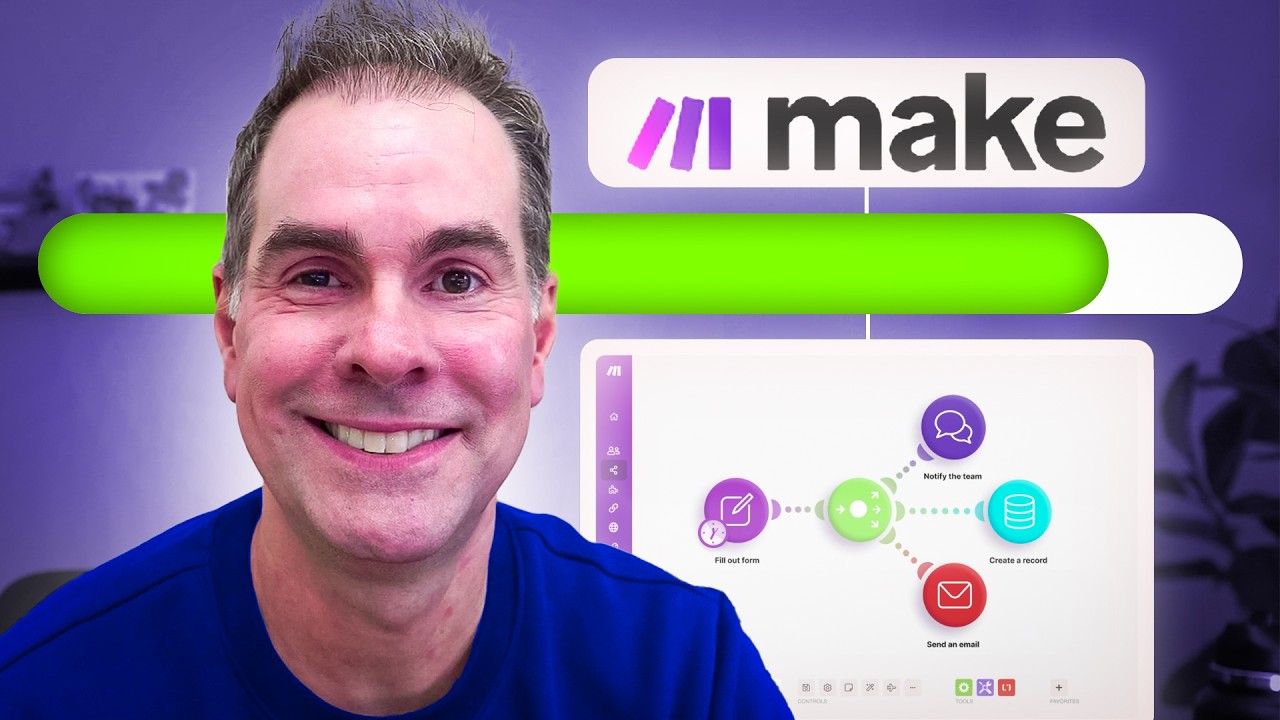
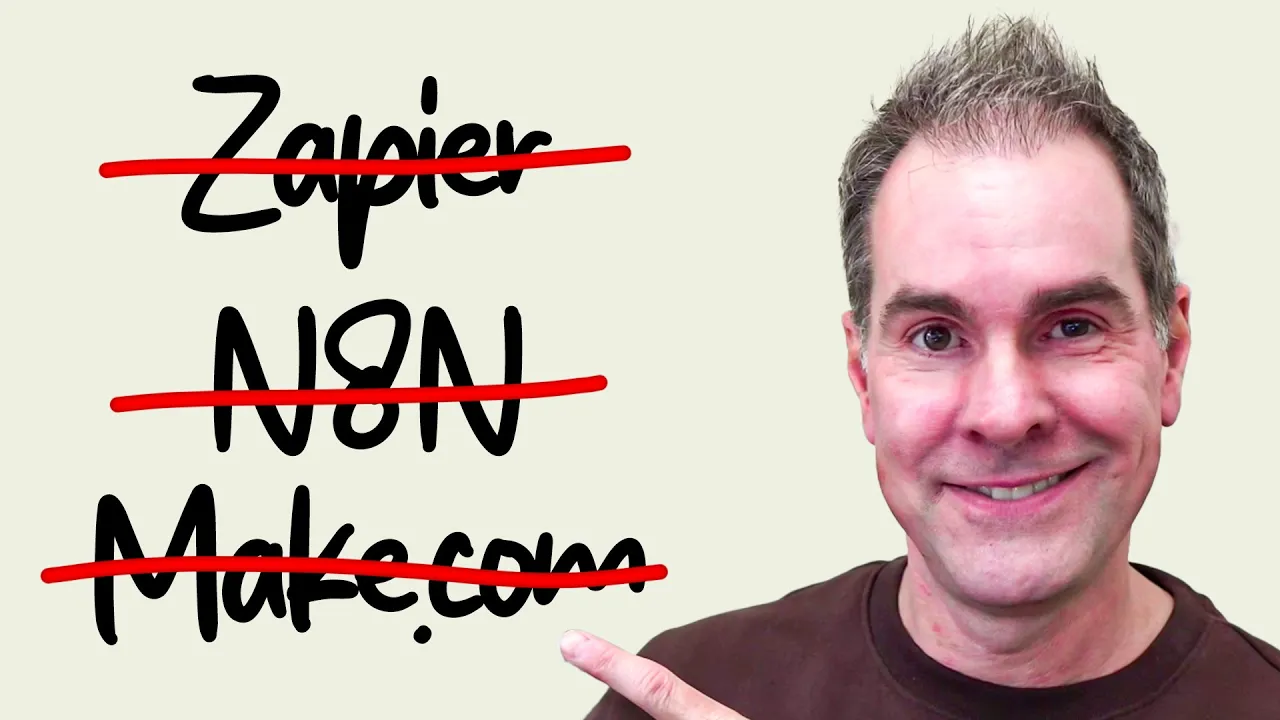
I originally created a version of this workflow in make. com and not only did it take a couple of hours to build, but it was really tedious to do it and it also required some technical knowhow. What you're looking at here on the screen, in fact, is only part one of a two-part automation that I had to create in order to accomplish what I just showed you in MindPal.
That was far easier. By the way, if you're new here, my name is Rick Mully and for the past 11 years, I've run a multi-figure online business helping other online businesses scale their business while becoming more efficient and profitable in the process. Today, I run an AI community for online businesses called the AI playbook, which I'll link to in the description below.
Here we are inside of MindPal. And what I want to do in this video is show you how quickly you can build that YouTube video content creation workflow that I just showed you. So I'm going to go into the workflow section here.
Click on new workflow. And I've got some different options here. I can import from JSON.
I can start from scratch or I can generate with AI. And that is the fastest way to get the AI within Mindpel to build out the automation for you. So, I'm going to say a YouTube video content creation workflow that includes searching YouTube for video ideas based on a keyword.
And I'm going to click on generate with AI. So, that's literally all I've typed in there. And it is now putting together this proposal, if you will, of what the workflow um can look like.
So, it's got a keyword input. Searches YouTube for video ideas. Select video idea.
Generate video script. Review the script. Finalize the script.
And if you're not happy with it, I can just simply regenerate that. But I'm going to go ahead and click on create. And it's going to build out that entire workflow similar to what I showed you originally.
Here's the workflow that has just been created here. So, I'll take you through each of these steps here. But as you can see here as I'm scrolling down, it's added in Minepal calls these nodes.
So we'll go to the top and we'll go into each one here. So the workflow starts off with a manual input. So I've put this step in here because I want to be able to put the keyword of the type of video that I want to create into this workflow.
Now I also want to take in the target audience. I'm going to require that. And I'm also going to put in the business niche and also require that one as well.
So what I've done here in a matter of seconds is I've created a form, an input form, so that when this workflow kicks off, I need to enter the keyword that I'm interested in researching. I get to put in my target audience and my business niche. So now the next step in this workflow takes the information that I've just put in in step one and assigns an agent to it.
Now, for this particular agent, I already had it created. So, I just want to click on it and show you what this agent looks like. So, the background and the output format here, the background is basically the instructions for the agent.
The output format is what the what I'm looking for the agent to give me in terms of output. I also connect it to knowledge sources if I want to. I don't need this particular agent connected to any kind of knowledge sources but I choose the I get to choose the the model and I can choose between Gemini, GBT, Claude, Llama, Grock, uh, Perplexity, Deepseek and you just connect your API key to any of these models that you have an API key for and then you can simply choose to work with that particular model.
Now for this one right here, I'm obviously, as you can see here, I'm using the Gemini 2. 5 Pro model. And then the most important aspect of this particular agent is I've connected the YouTube MCP to it.
And this is what's allowing me to actually search YouTube within this workflow. And by the way, MyPal makes it super easy to add a new MCP server here. So you can just give the server whatever name you want.
And then you put in the specific URL of the MCP server that you want to connect with. In this case here, it's YouTube. And I got the URL from a site called Composeio.
So now that it's already automatically selected this agent to work with. I didn't select it. It automatically assigned it to this workflow.
I can then put in the specific task that I want this step to do in the workflow. Search all YouTube videos that have been published since March 1st, 2025 about the topic. Gather initial input keyword.
So basically the topic that I put into the first step manually, I want it to do the research on that specific keyword. And by using the ad symbol, I can choose any of the human input values from the previous step to base this search on. Now, in the next step of the workflow, it will take the results from the previous step search and brainstorm topic ideas based on the key points that are found within the video search results from the previous step.
And again, it's automatically assigned an agent to this step in the workflow. So, basically, this is the YouTube content idea generator. By the way, if you don't have an agent already created and you want to create a workflow like this, it'll create the agent automatically for you.
So for me, for this one here, I'd already created this particular workflow. And I didn't assign it, by the way. It assigned it automatically.
And so again, it automatically writes the instructions or as Minepal calls it, the background gives it an output format. So when it automatically does it for you, you can go in here and edit the the background or the instructions in any way that you want. You can also edit the output format.
You can also come down here and click this little enhance with AI and it will change the background and it'll rewrite it in what it thinks is a better way. Now, for this agent here, I'm not using any knowledge sources because it's using the results from the previous step to come up with YouTube video content ideas, but I am using the uh 2. 0 Flash from Gemini model for this particular step.
And then again, I just give this particular agent a specific task to do. So scrape the transcript from all provided YouTube videos. Then brainstorm all possible content ideas for me with and then again the the key based on the keyword and the video search from the previous step.
So as you can see here I can just type in the number sign or click on this to use the output from previous steps in the workflow. So the next step in the workflow is the human in the loop step if you will. So I want to choose the video topic from the previous step to work with in the rest of the workflow here.
So I can click on this. I can show you. So in order to add this step here, I just mouse over the little plus button here and I can just do human input and it will add the field and I can just say um video topic.
And just like that, I've added a human element of approval into the workflow. And now that I've chosen the topic of the video, I want the AI to come up with title ideas and also thumbnail ideas. So again, it's automatically assigned this particular agent to it.
And this is one that I already had created before. But again, if I didn't have this, it would automatically create it for you, which you can then, as I did in the previous step, go in here and update it. So for this one here, you're worldclass YouTube video content strategist specializing in generating captivating video titles and thumbnail concepts, blah blah blah.
So you can see here, this is the entire instructions for this particular agent. And then here is the provided output format that it has come up with. Now, it says here, provide a list of five title ideas and five thumbnail concepts.
Obviously, you can do 15, 25, 10, however many you want. Is super easy to adjust in here. And again, for this particular agent, I'm using the Gemini 2.
0 flash model, uh, fast and cheap. And again, I want to set a specific task for this particular agent. Generate 10 creative and engaging title and thumbnail ideas for the video topics.
Again, I'm saying given this information, now again, this is the chosen video topic from the previous step in the workflow. Now, I do notice here that I'm asking for 10 and the agent comes up with five in terms of the output format. So, I'm just going to change that in the actual agent itself.
And then update the agent pool. So, that's already done. I'm just going to refresh it and move on to the next step.
So once it comes up with title and thumbnail ideas, I want to select the title that I want to go with. So again, this is another human in the loop uh step in this entire workflow here. So as you can see here, chosen video title.
Uh I didn't add a label to it, but essentially it's I just put in the tit the name of the title that I want to select because once we have the title now the next step in this workflow here is it will outline the video script based on the title and the topic that we've now chosen from the previous steps of the workflow. And the agent that's been assigned to this step in the workflow here is called my YouTube video script outliner. Again, I already created it before, but it would automatically create this for you if you don't already have it.
It's written out the full instructions here. So for this particular agent, I have included two knowledge sources that I want it to reference when coming up with my video script outline. And it is uh transcripts from other YouTube videos that I really like talking about the format of uh YouTube video scripts.
And I have this little slider here that says force always get context from the knowledge sources. So I'm essentially saying, hey, do not do this step without referencing the knowledge sources. The other important thing on this one here is I'm using the 3.
5 sonnet model because now I'm getting into writing of the content. And for this specific task, I'm saying create a detailed element for the YouTube video script based on the selected video topic. Again, the chosen video topic and the chosen video title.
I've assigned it here and move on to the next step. The next step in the workflow that I created is another human in the loop element where I get to approve the video script outline that has been created. I'm using the boolean type here and I'll show you what this workflow does and what it looks like here in just a minute.
It's literally a checkbox. Once it's checked, it goes on to the next step. The next step in the workflow that's been created is to write the actual script once it's been approved in the previous step.
So, I click on that and the YouTube video script writer again the exact same thing. I'm using the knowledge sources that I used previously and then also for the language model I'm again using 3. 5 sonnet but again you can use any of these models that are represented here as long as you have an API key for them and the task write a full YouTube video script based on the approved outline given this information the outline video script from the previous step and it has to be approved again from the previous step for in order for this step of the workflow to run and then the last step in this workflow that I created was it's going to write a YouTube video description based on keywords that were previously researched in the earlier steps.
Again, you're an expert in crafting, engaging, and SEO optimized YouTube video descriptions, blah blah blah. And I believe I'm using the I'm actually not choosing a model here. I'm allowing the AI in the workflow to choose whatever model it thinks is going to work the best for this particular step.
And so, again, the task here is write a keyword-rich video description using the video topic and title. I'm going to put a colon there given this information keyword chosen video topic and the video title it automatically saved but again so this is the entire workflow and what we're going to do now is we're going to run now obviously it took me more than a few minutes to put this together but I was explaining each step of the workflow that it created based on me telling the AI in the original setup step what I wanted to create and then it went and created it. Then I get to go in and just edit each of these steps here that I've been showing you to whatever I specifically want them to look like.
And then we run it. And that's what I'm going to show you right now. So as I run this, you can see here I have the form that is the result of that first step in the workflow for the manual input.
And for the keyword, I'm just going to put in AI agents. Target audience. I have a shortcut for that.
And then the business niche, I'm going to say AI uh for online businesses. Click on continue. So as you can see now it's using Gemini 2.
5 Pro to do the thinking and it's searching YouTube based on the parameters that I have given it. So these are the results. These are the videos that is found on YouTube.
Now I will say that it didn't quite follow the exact dates that I was looking for. If you remember I was looking for anything after March 5th, 2025. But what it's given me here is now it's scraping actually now it's scraping the transcripts for all those videos that I just found.
And here are my content ideas broken out into a nice table format. It's given me 11 different ideas here. And I asked it to give me an ID number.
Here's the content idea. Here's the target audience, the key message of what a new video could be. And then also the expected outcome of this particular video.
So let's just say that I want to go with AI agent productivity hacks for entrepreneurs. It's not great, but I'm going to put that topic in there. And again, I can regenerate if I don't like any of these results.
I can just simply regenerate and it'll rerun it through and give you new ideas based on rerunning it through the model for this particular step. Now, I'm going to choose that particular video topic and click on continue. Now that I've chosen the video topic, now it's going to come up with my title and thumbnail ideas.
So, one iteration I would make to the agent in this particular step is I would add some knowledge sources of really strong video titles to give it examples and context from which to work cuz I'm not super loving these titles, but I'm going to choose this third one here to continue the workflow and show you what this thing can do. All right, so I'm going to paste that title into the chosen video title. Again, this is my human in the loop or one of the human in the loop steps of this workflow here.
And now it's using claw 3. 5 sonnet to generate my video script outline. And here's the outline.
It's not bad actually. It's givingven me a hook and context and the introduction part. Then it goes through the different main points here.
So what I can do here, as you can see, is I can either regenerate that if I'm not happy with the overall outline of the video. I can click on edit and I can go through here and make any kind of edits that I want. Or let's just say that I'm really happy with the with the outline and I can just click on here's another human in the loop step.
I can approve that outline. Now what it's going to do, it's going to take that outline and write the overall video script from that outline. And as you can see here, it's writing this script really, really quickly.
And here's the video description. I didn't give it any context, by the way, in the knowledge sources for this particular step, this agent in the workflow. Nor did I choose an AI model.
If you recall, I let the AI in this workflow here choose the model itself to do this. So, literally in a matter of seconds, it searched YouTube based on a specific keyword that I put in there. It brainstormed ideas for me, giving me 11 different ideas set up in this nice table with a target audience that it proposed, key message for the video, and the expected outcome of that particular video.
I choose a topic from that list. Then, it generates 10 title and thumbnail ideas. Again, I would absolutely iterate on that version of the workflow here.
I would change up the how the agent is written a little bit. I choose the video title from the previous step. Once I've chosen it, it then outlines this the video script for me right here.
I can either edit it. I can have it regenerate the entire script or I can approve it with a simple checkbox. Once I click the checkbox, then it writes the entire video script.
And then after that, it writes a keywordrich video description all in a matter of seconds. And as I mentioned earlier in the video, I once did a version of this exact workflow I've just shown you over in Make. And it took not only a while, it took probably a couple hours to set it up.
And as you can see here, there's a lot more complexity because I set up my form in Air Table. So once the air tableable form was filled out then the web hook was fired in make and then it fired off the rest of this automation here. I also put the approvals in air tableable.
So I had to do the manual approvals over in air tableable and set up automations in air tableable that spoke with make in order to continue the process of the scenario or this automation here and it was a mess. But by using MindPal, no code, and it has 138 multi- aent workflow templates that you can select. So let's just say I want to select this daily AI news report generator.
I click on it and it's going to show you the each of the steps here. So I can duplicate this, bring it into my account in a matter of seconds here. And as you can see here, it's searching the latest news.
So it's assigned an agent. I didn't create that agent, by the way. Uh it's assigned a task here.
Obviously, I can edit this however I want and customize it to me. Uh it's going to curate the important news based on whatever criteria that's given it. Again, it assigned this AI news curator.
I didn't create this agent. It created it by itself. And so I can go in here and make any kind of changes that I want to it.
I can add um you know an MCP connection, a server connection to it if I wanted to. Then down here, it uses deep research to uh get into this specific research of the AI news. And it's using what Minepal calls a loop within the AI automation here because it has different headlines.
So, it's doing this automatically for each of the news headline that is pulled in the previous step. Again, it's using the agent headline insight analyst that I didn't create this. It created it automatically.
Um, and it would have taken me forever. And then the final step in the workflow is to come up with a report of that news that is just generated. And you can set this up.
By the way, the agent is called the AI news report summarizer. I didn't write it. I can set this up to run every morning at a specific time if I want.
And all I had to do was go into the templates, duplicate the template, and it goes right into my account. So these workflows are, as you can see here, multi- aent workflows. So, it's just putting together different agents that you can build.
And again, similar to the templates it has for the workflows, it has 42 different agents that you can choose from. Scrolling down through here and similarly to what we did with the workflow, I can click on new agent and I can describe what I want it to do and it will create the agent for you automatically. Another big thing with MindPal that you definitely should know about is you can sell these workflows.
So, as you can see here, it's super easy to build these workflows. And by the way, they're not they're not paying me to do this video. I just love and use this tool all the time.
It's so easy. But you can sell your workflows in here. You can set up payw walls within here.
You can get people to opt in to use your agents, for example, or you can share your workflows with people. You can use them as lead magnets, for example. They make it super, super easy to be sharing what you're building right here within MindPal.
All right. Again, as I mentioned earlier in the video, if you are an online business and you're looking to leverage AI in your online business so you can become more efficient and increase profitability in the process, I want to invite you to join us inside my AI playbook community, which I'll link to in the description below.