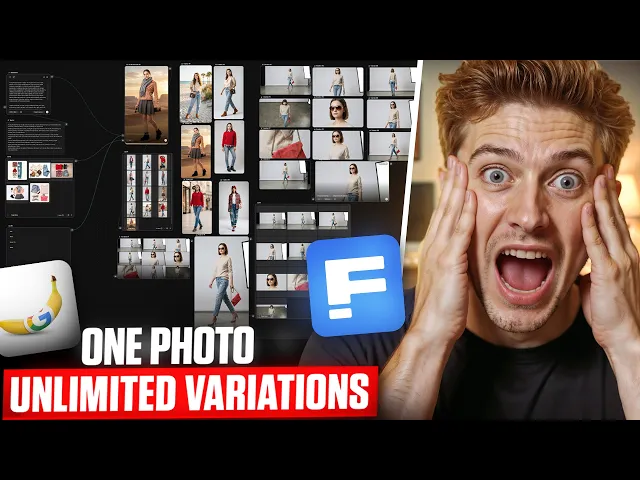
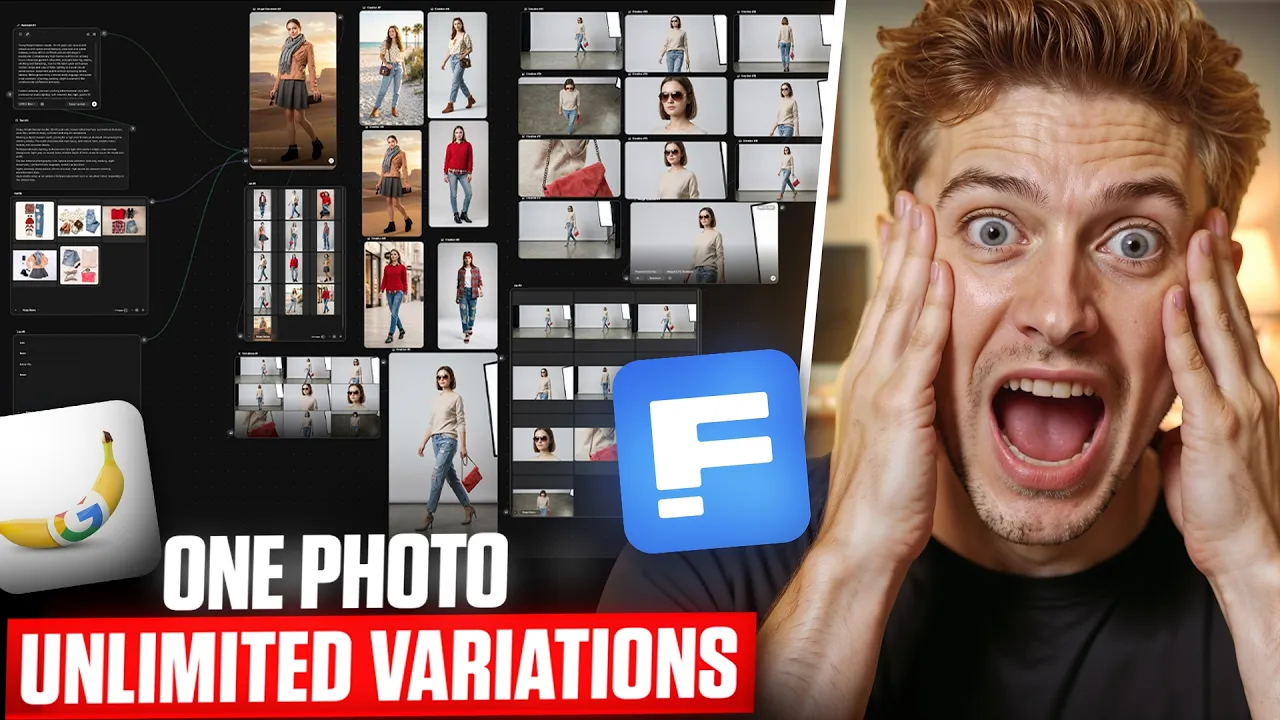
So, I tried something interesting. I built a full fashion photo shoot using just AI. Same model, different outfits, multiple angles, even different locations, all inside one workflow.
No camera, [music] no setup. And honestly, it turned out way better than I expected. So, give me 10 minutes and I'll show you exactly how this works step-by-step.
If you're into content creation, [music] e-commerce, or even client work, this can save you a lot of time. Now, before we start, let me quickly explain what Nano Banana 2 actually is because this is not just another AI image model. One of its biggest strengths is consistency.
Unlike most AI tools where every image looks slightly different, Nano Banana 2 can maintain the same character, outfit, and even multiple objects across different scenes. In fact, it can handle up to five characters and around 14 objects consistently, which is honestly very impressive. Another big advantage is speed and quality.
It can generate high-quality, almost pro-level images much faster compared to earlier versions, making it perfect for creating content in bulk. It also handles text really well. So, if your images include titles or branding, they come out clear and readable, something most AI models struggle with.
And on top of that, you get better control over lighting, textures, [music] and details, even up to 4K output, so your images look much more realistic and polished. So, if you want to create consistent, high-quality visuals at scale, this is where Nano Banana 2 really stands out. If you're curious to try this workflow on your own, the link is in the description.
Definitely give it a try. After signing up, you'll see a dashboard like this. From here, click on spaces, and then click on new space.
All right. Once you open it, you'll see an interface like this. And don't worry if it looks new, it's actually very simple.
Freepik Spaces works on a node-based canvas, which means instead of doing everything manually, you create a workflow using different nodes like media node, image generator, video generator, assistant node, and more. And trust [music] me, once you understand this, everything becomes much faster and easier. So, let's start with something simple.
Click on the plus icon and add a text node. >> [music] >> Now, inside this node, we need to add a prompt that will generate our AI model. I'll type an optimized prompt here, something like this.
Now, here's the interesting part. You can move this node anywhere on the canvas. You have full flexibility to design your workflow however you want, and that's one of the most powerful things about Freepik Spaces.
Now, you can directly connect an image generator node and generate an image, but if you want better quality and more realistic results, there's a smarter way to do it. So, let's add an assistant node. Just click on the canvas and add it, then type a simple prompt like improve this prompt.
After [music] that, connect the assistant node to the text node. You'll also notice that you have access to multiple AI models here like GPT, Gemini, and Claude. For now, let's go with GPT-5 Mini and click on run node.
Now, watch this carefully. The assistant node analyzes our original prompt and transforms it into a much more detailed and optimized version. You'll see that it has added things like camera aperture, lighting, and angles, details that most beginners usually miss.
So, instead of struggling with prompts, the AI is doing that work for you, which is a huge advantage. Now, let's take this to the next level because this is where things start getting really interesting. We're going to add a lists node.
Just click on the canvas and add it. Then, inside this node, upload four to five outfit images that you want your model to wear. Click on add media and upload your outfits.
You can also adjust the list view and move the node anywhere you want, depending on how you like to organize your workflow. One mistake I made at the start, which you might also make, if your lists node isn't structured properly, the outputs can get messy or inconsistent. Like if you try to combine multiple ideas into one input, the model can mix everything together.
So, it's better to keep each item clean and specific. One input, one clear result. Okay, let's move on.
Now, add an image generator node and connect it to the lists node. You'll notice that the system automatically detects how many images you've uploaded. For example, if [music] you added five outfits, it will automatically set the number of generations to five.
Now, choose your image model. You'll find multiple options here, but right now, Nano Banana 2 is one of the latest and most powerful models. So, let's select [music] that.
Then, choose your aspect ratio and resolution. Before running the node, make sure you connect the image generator node to the assistant node because that's where your optimized prompt is coming from. Once everything is connected, just run the node.
And now, just watch this. With a single prompt, we've generated multiple images with completely different outfits, but it gets even better. If you open these images, you'll notice that each image includes multiple shots, like close-ups of accessories such as shoes, glasses, and even a wallet.
This is something that would normally take a lot of time and effort, but here it's done automatically. This feature is especially powerful for marketers, brands, and anyone who wants to create product-focused content quickly. Now, before moving forward, make sure to add all these images to your board.
And here's another smart thing. Just go back to the text node and slightly modify the prompt. For example, I'll add a line like clean studio setup or outdoor lifestyle environment such as an urban street.
Then, run the assistant node again. Instantly, you'll get a new set of images. You'll notice that the location is changed, the background has changed, and even the model's pose has adjusted accordingly.
>> [music] >> That's how powerful this system is. Now, if you already have your own studio backgrounds, you can use those as well. Just add another lists node, upload your background images, and connect it to the image generator node.
Run the node again, and now you'll see that all images include proper backgrounds, and even the poses are adjusted based on the environment. The AI is not just placing images, it's actually understanding context, which is honestly amazing. Now, if you look at your board, you'll notice that you already have a full product style image collection, just like what you see on e-commerce websites.
But we're not done yet. Now, let's take one of these images and create multiple variations from it. >> [music] >> Just pick any image, add a variation node, and here you'll see multiple camera angle presets like close-up, back view, [music] eye level, and more.
Select the ones you want, check the settings, and run the node. Now, look at this. From just one image, we've generated nine different camera angle shots, all with a consistent face and background.
Just imagine [music] how much time this saves. If you were doing this manually, you would have to write separate prompts for each shot, which is not only time-consuming, but also difficult for beginners. But here, the AI handles everything for you.
Now, if you want, you can upscale all these images as well. Just [snorts] add an image upscaler node, select all the images or specific ones, check the settings, and run the node. That's it.
Your images will be upscaled and ready to use. You can download them and use them for social media, ads, e-commerce, or even client projects. Now, before we wrap this up, let's quickly talk about the pros and limitations of this workflow using Nano Banana 2.
One of the biggest advantages is consistency and scalability. You can generate multiple variations of the same model, same style, and same product without things randomly changing, which is exactly what you need for ads, e-commerce, or social media content. It's also fast and efficient, so you can create a large amount of content in a very short time.
At the same time, like any AI model, it's not 100% perfect. Sometimes you may need to slightly tweak your prompt or rerun the node to get the exact result you want. So, your input still plays an important role here.
And honestly, the reason this entire workflow works so well is because of Nano Banana 2. Its ability [music] to maintain consistency across multiple outputs and handle variations properly makes it ideal for this kind of automated system. Without a model like this, scaling content like this would be much harder.
So, instead of creating one image at a time manually, you can now generate multiple variations, test different styles, and build complete visual sets, all in one workflow. And that's what makes this setup really powerful. If you want to try this workflow yourself, I've left a link in the description.
You can check it out. And if you found this helpful, make sure to subscribe and turn on the bell icon because I'll be sharing more advanced workflows like this very soon.