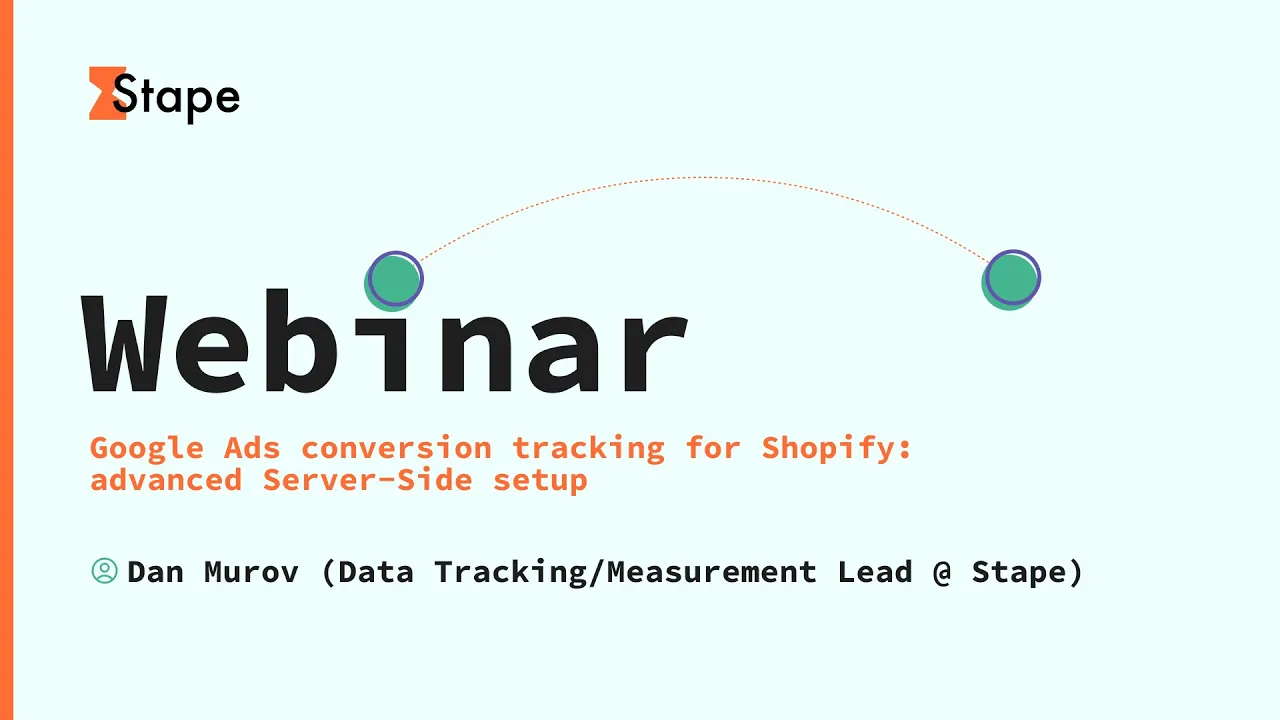
hi everyone I'm happy to welcome you uh to this webinar about server side Google ads conversion tracking for Shopify thank you for joining my name is Nastasia and before we start I will give you a short introduction and then then we'll jump in for the most interesting part so what will happen today of course of course we will talk a little bit uh about benefits of server side tracking but most of the time uh we'll spend on a live demonstration of all NE necessary steps you need to take uh for accurate Google ads conversion tracking
for your Shopify store in the end yes this is the most important slide in the end of this webinar uh you will get recording we will also send you links to the written guides on G4 server Google tech manager and Google ads setup for uh Shopify and there in that links um you will have a space for any additional questions um if you have them and also during this webinar you will also ask us questions and um we will send you written common questions and answers right after the webinar in just a few minutes um
I will give a word to Dan who will walk you through the setup process if you have any questions now we know that you know that there is a Q&A uh feature in zo Zoom webinar so if you have any questions during this presentation demonstration please leave them um and Vlad and Dennis era search um will reply to you of course we will have in the end additional Q&A blog I'm almost done with introduction part just a few more words about stape for those who are new here and um also is a good reminder for
those who are already with us so yeah as you know uh as you now know uh stap is a reliable hosting provider for your server Google tech manager container and the easiest way for server s side tracking and in addition to that we developed and keep on developing uh a lot of tags a lot of templates a lot of plugins uh apps powerups to boost your data track and setup we are young but strong and basic now thousands of um business owners marketeers and Data Tracking experts all over the world use tape for their server
side tracking setup and now then it's time the scene is yours I will stop sharing my screen please start share your and yes enjoy right hello everyone uh I'm Dan thank you n for the introduction uh let me just give me a second I'm going to share my screen and we'll continue over little than so in service side and Google as conversion tracking uh obviously as already discussed we're going to go through a live demo of how you approach that we will start from the very beginning we will have empty containers we will uh we
will do the whole process essentially right as few introductory steps like why you want to consider service ey tracking for Shopify I believe most of the attendees know this already but essentially you are overcoming the cookie limitations on Safari iOS and uh what have you from Apple as well as you're getting resistance to ad blockers which will which will'll discuss in more detail uh during the during the presentation and well blocking of GTM G for another tracking scripts by various tracking prevention tools essentially doing Google ad server side you invest in the quality of signal
that you send to Google ads which in turn results in the better performance of your campaigns and better return on your ad how service side tracking Works in general again I will assume that most of the people here have seen this diagram a lot of the time but essentially uh you can see it in front of you service side container is a is a piece of software that sits in the cloud receives requests from your web GTM the good old one that you all know before sending them to uh ultimate destination be it analytics uh
Google ads or any other uh any other ads cabinet uh you may be using uh benefits again we probably talked about it already more accurate data collection which is what I just mentioned you start benefiting from setting up first party cookies instead of using the third one third party ones you also extend their lifetime this is especially important uh with Apple devices uh you reduce the impact of ad blockers like we said we're going to we're going to look into how we can get some resistance to uh popular prevention tools control what data each vendor
receives this is basically because service side uh Google tech manager is a middleware so you can redact any data before it ends in a destination this might be relevant for people in Europe where uh okay I'm being asked to be more loud is it better now can somebody confirm please okay good yeah it's better yeah sorry about that so data enrichment this is not something we're going to touch today but essentially again being a middleware you potentially can in real time enrich uh the uh requests you're sending towards any destination and then the obvious part
is if you're using any secret API keys or anything you don't want to expose them in your web container so that people can't you know steal them or anything the server one isn't accessible from the browser so obviously that will be hidden Google ads conversion tracking setup for Shopify which is the reason why we all gather here today this is essentially our agenda we're going to set up a server container from scratch so we're going to create one in GTM and host it on stape we're going to install the state uh Shopify app to to
essentially embed uh a web container on your shop as well as provide a data layer which we will use for our conversion tracking and then we'll set up the texts themselves show you how you can debug them and then the last item is we talk about custom loader and how it all benefits you and uh all of that so with this we can pretty much switch to to a demo which which I'll do in a second uh you can still see my screen so uh just briefly so our weapons of choice here we will have
a Shopify store we will have uh the server container we will have a web container we will have a stape account obviously and then there's our Google ads that's the only stuff we need for today so I'm just going to start uh from the very scratch so I'm going to assume you don't have a server container at this point so we're going to go through the creation of it so we just create a container on Google tech manager we pick server we call it something naming doesn't like naming is arbitrary you can use whatever you
want webinar demo let's go ahead and create that at this point in time you want to say manually provision tagging server the reason for this is you want to grab this container configuration string which we're going to use on stape in a second now I already have an account obviously but if you were to log in for the first time you will see something like this in front of you and there's a huge button to create a container so I'm going to do just that uh I'm going to name it something again and give it
that configuration string that we just copied from GTM again for clarity this is this thing uh and we're going to pick a Zone you you want to pick the the the the zone that is closest to you normally so I'm going to go with us IA just because I'm used to it and create a container we can do with a pre free plan for now so we're not going to update or anything and we're going to skip the adding of bilding details which normally you should do and go back to sgtm container you will see
that is currently verifying the system is preparing everything for uh for it to work meanwhile we can uh we can add a custom uh subdomain right uh a small uh side note here custom subdomain is something that you want want to have so we will ask you normally with a setup you you want to create a DNS record and point it to our servers the reason for doing that is uh you want your server container to sit behind the same top level domain as your website so that that match is what assures that your server
container can set up first party cookies rather than anything else so the process looks like that so let's say we create something like I don't know SS and I'm going to go stay agency because that's the domain of our shop for now going to hit verify and pretty much the process on stap side compl is complete for this stage the verification of the domain might take some time so uh in order for us to avoid all of that I'm just going to switch to a container I have created previously same situation has a name has
a has a has a Zone you can see that the server uh the subdomain that I've pointed to stape has already verified like I said because of I did it in advance and from here on we can go to Shopify and uh prepare our things there this is obviously a demo shop so there's nothing going on here uh what you want to do is you want to go to apps uh open the uh oh not all recommended apps one second and we want to go to Shopify App Store and search for statee you will find
this uh which we can just install let's confirm yes install give a second right this is a very important step which a lot of people Miss like they they close this window and don't do this in order for the application to actually work you need to activate the vidget on the theme side so that button will lead you here to the uh theme customization where we want to make sure that our application is turned on like this right and I don't need to save anything because it's already activated for me if you have skipped that
screen just in case the way you do it is you go to your online store themes uh and you say customize and in here uh you switch this app embeds and you will have the same screen we just talked about so you want to make sure this is active so that the app actually works now with that being done we going to go back to our app to set it all up so the first thing we want to do here is we want to insert the web GTM container on on our weite so we need
the ID and uh make sure this is the ID of your web container not the server one a lot of people confuse those things so here is let's close this up here's our web container it's an empty one like I promised here's the ID that you want to grab GTM and your ID so we put it here from here on if I hit save the container with a normal native uh loader will already be added on the website but that's not good enough for us so we also go to add the custom domain that custom
domain will be the same thing that we've uh that we actually added uh on stape and that we have verified right so I'm going to just copy it apologies here and put it here the entire URL like this no trailing slashers this is this is all good so again we can hit save because we did this step custom loader and cookie keeper uh I'm thinking let's get back to those uh as we had in theed after we've complete the ad setup so we're going to get back here discuss the the the benefits of custom loader
and cookie keeper what it does for you and everything for now we can hit save and the next step for us is to make sure the data layer is enabled so I have these two check boxes at Ecommerce data layer events and I also take time using checkout extensibility for the thank you page this is a newly created shop on Shopify so there's no options for me so I can only use checkout extensibility and this is what going to demo for you now because of the checkout extensibility functionality that Shopify introduced which essentially runs in
a send box which again we're going to cover further down this discussion you also need to make an additional step which is copy the script entirely and follow this instruction this instruction essentially is copy this go to settings find Customer Events uh and create this so let me actually delete this and make it a new so when you go here if your app is installed you will see St server GTM type app connected that's good you don't need to do nothing with it you add a custom pixel on top of it again the naming is
arbitrary so you can do data layer or anything you like you add that pixel you copy that script we just we paste that script we just copied from from an app we hit save and then we need to hit connect to make sure that it's actually working with this we are done with uh creating a data layer and embedding a container on our store so if I were to go to my web container real quick and just test it out by going to to our test store this will be shop state agency right you will
see that this is obviously a demo theme there's a dummy t-shirt there and let me close this up but you can see that the container preview has connected and we have the basic GTM events here which means that we've successfully embedded our coner on our site which is part of the success here uh to test the data layer and that the check boxes we take there are actually working we can go to a product page for instance and you will find that there's an data layer push view item stape with all the product data here's
my t-shirt the the value currency of the image URL and everything which we're going to use shortly just to continue on that let's do an add to card and make sure that we have an N to card push same idea with this in place we can actually start and uh set things up across the two containers right so I'll be switching back and forth between web and the server but let's start from the web first so we have an empty container there's nothing going on on our goal here is to set up Google ads uh
in order for us to do that we need to first pass information to the server container which we're going to use Google analytics to do that so step number one we create this thing Google tag we want to trigger it on initialization uh give it a name again you may follow different naming conventions everybody has their own style I'm going to just I'm just going to use mine but again the naming is arbitrary this is more for your convenience so and we need to give it a tag ID actually let's scratch that sorry about that
let's let's do some some some some preparation so we're going to create a few variables that we're going to use widely in all of our tags so they will be constant constants the first one would be our ga4 measurement ID I'm going to use a dummy one for now uh but you will probably use the real one of course so let's do something like this the second variable I want to create in advance because I'm going to be using it a lot is our server container URL which is that subdomain we've created and pointed to
State container so server container URL and in here we want to put that subdomain of ours again no trailing slashes know everything https is here so this is clean we can save it now we have some uh we have some dependency and we can actually create that tag that I started so again we hit new we pick Google tag from here on we can actually select that variable for G for measurement ID this is much more convenient because we're going to use this variable across multiple tags so instead of changing it everywhere we can just
change it once if needed so again let me just give it a name real quick big uh and let's add a few parameters so first parameter will be our server container URL and you can see that Google is already giving you hints on what that might be I'm going to populate it let's do it like this going to populate it with a variable server container URL and another thing you want to put here probably is send page view true this is a basic setup this will make sure that when configuration tag fires it also generates
a page view event towards your Google analytics with this parameter specifically we told the tag that all of the events that it's sending need to be directed to your subdomain instead of being directed to Google analytics directly which is the whole gist behind service side tracking so we can save this a side note I'm just going to I'm not going to focus too much on ge4 and its intricacies we're going to do a couple of uh events so that we can use them as conversion and the focus of this will be on uh Google ad
right if there's any G4 questions you can try them in QA Vlad will take care of them or we can maybe spend some time on it in a live Q&A at the end of the session for now I'm just going to do some dependencies do a couple of events like I said and show you how Google ads uh can be done so we created a basic configuration and we created a page view now we want to create uh those events that we're going to use for the purposes of this demo I'm going to do add
to card and then we're going to do a purchase which are most of the time are the main configurations you will be uh using so let's create a trigger for our red two card first I'm going to go into triggers create a new one pick custom event and we want to give it the event name that we see in our data layer this is add to card stape lowercase underscores so I'm going to do the same at two card stage uh I'm going to call it like this c e stands for custom event again like
I said there's as many naming conventions as you can imagine so you can do uh you can use whatever you want add to card now we have a trigger we can create a tack hit a new again we go Google analytics Google ANS G4 event again it asks for our measurement ID which is the reason why we've created that variable so that we can reuse it measurement ID our event name will be add to card because that's a native event name in G4 and and we're going to give it a trigger and let's give it
a name as well so little G4 at two card I usually name the text the same uh as as the events that they send so you will find that this is matching let's save that now we need to give that tag some data which is essentially value currency in your product information so let's look at that real quick in our data layer here we have this push which is entirely in G4 format so we just need to reference value currency and items to successfully report what we need so let's create a bunch of variables for
that I'm going to hit new select uh data layer let's find that data layer variable and just reference it by key all of our things live inside e-commerce object so we're going to use dot notation to reach them so we will have e-commerce do value for our value I'm going to name it the same dld stands for datalayer variable if anyone asked save that and create a bunch of copies of that referencing different uh different keys so we also want e-commerce currency right let's be clean with naming do this and the last item we care
about is items so we're going to do e-commerce do items and syn here so now we have the basic payload uh from the data layer and we could put it we can put it in our into our tag so let's go G4 add to card open Event parameters and add those three so we have value again G4 will kind of give you hints on the native parameters you can see these check boxes here value currency and lastly there's items so we just going to put value currency and items here and this concludes the setup of
the at to card G4 Tech pretty much now uh having done that let's prepare the server and then we'll complete with the purchase event and some conversion tracking as well so to finish ge4 setup to make it server side you will find that any server container you create in Google tech manager will have this in the clients will have this G4 L by default Google is taking care for you so it's always baked into the Container so what we need right now is only to create a trigger and the tag that will send all of
the events received from the web container to actually to your analytics property so let's go ahead and do that start with the trigger we're going to pick custom not custom event because we essentially want all events to be handled by it we're going to make this clarification here chose built in variable I'm going to pick client name and we're going to say contains G4 this is just a layer of protection to kind of make sure that you are not triggering things on other clients by default you're only going to have the one and I assume
most of you will use the one but you might have alternative clients here such as our data client there's snowplow there's mix panel there's all these proprietary clients so we made this uh specification here in the trigger to make sure that we only fire on on when client name contains G4 essentially only on incoming G4 hits and nothing else Next Step we're going to create a tag configuration I'm going to pick Google analytics and say G4 measurement ID here you don't really need to populate it that's not necessarily it will be inherited from the event
so all of these settings you can forgo unless you have specific specific requirements your measurement ID your event names your payload and everything will be inherited from the web tags that we do here so there's zero configuration we need to do here by default I'm going to call it G4 base because it's responsible for everything and give it that client name G4 trigger if our goal at this point was only to send page views and at2 cards to analytics we're actually done and uh we could test it at that point uh maybe to to to
to make a small small pause let me actually show how how this is working how the data is Flowing before I can do that in the server container I need to add a preview URL which is uh again our subdomain you already know that so we're going to add a URL copy this thing again put it here click save what this does is when we hit a preview button it will launch preview on that subdomain you can see it here assess tape agency give it a second it's launching a preview server this is it now
I'm going to go ahead and relaunch the web preview just to show you a few events falling to the server and uh you know actually actually tracking so there we go we loaded the page you can see that on initialization here where we set it up the Google configuration has fired we also have sent page view true which leads to our server container review receiving that page view event from uh from the web right and the G4 based tag is firing and it's passing the page you event all of the payload that you rece sent
from the web so like I said zero settings on the G4 tag everything is inherited from the client we generated aead here it reached our server container tag has fired here and delivered that to Google analytics which you can see here this is an outgoing request to Google analytics.com G collect there's our there's our mock um measurement ID that I've put there okay uh with that out of the way let's prepare ourselves for the uh for the Google ads right uh we are doing Google ads fully serers side and we're doing them off of the
G4 signal so nothing Google ads need to be done on the web container uh eventually we're going to add a purchase tag here but that will follow so things you need to do on the server container to run Google ads number one let's create a trigger and and uh we want that to be a page view reason for this is because we are going again I'm going to make this specification here that we only wanted on ge4 client this is just like best practice and you you you may ignore this if you're only existing client
is G4 so I'm going to call it G4 P you reason I'm creating this tag is I want to introduce conversion Linker which uh for those who are not aware of that's a tag that actually sets a cookie with your click ID and when you when you land so we want to fire it on all pages to make sure we're not messing a landing with a click ID so we pick the conversion Linker we trigger it on ge4 page views there's nothing you need to do here again unless in very advanced cases so I'm not
going to cover that today so you just name it conversion link there as is you hit save you're good to go now any any page you that comes in with a click ID will be handled by this The Click ID will be set in the cookie which again once we start debugging this shortly I'll I'll show you all of that now let's create a trigger for uh for our red two card again we want to create a new trigger pick a custom event the event name is the same as we've put in RG for tag
here right so we're sending an event name of add to card lowercase with underscores this is exactly what we're going to use in our trigger like this and then again I'm going to make this to make sure that we only fire it on G4 uh events let call G4 at G cart save we have our trigger we can create a conversion tag finally so we hit new we pick Google ads Google ads conversion tracking we give it our to car trigger and we're almost there going to call it ads add to cart and in here
what we need to do do let's take this checkbox and uh we need to give it conversion ID and conversion label so with this I'm going to switch to Google ads have a dummy account here and let's create new conversion actions that we're going to report to so I'm going to pick website give it our our demo shop going to cancel these suggestions I don't care about that turn on enhance conversions if you don't have it already this will pop up and I want to add conversions manually I'm going to select the category we're going
to go add to card let's have it primary that's okay let's call it something call it like this uh doesn't matter it's my local currency different values all right again I'm not touching your attribution settings or anything I'm going to leave everything as default P conversions we're going to uh get back to in a second and this is done we've created an to card let's go ahead and actually create a purchase right away because we're going to use that so I'm going to go sttm purchase again we want to use the the the dynamic value
because it's going to be dynamic and not touching any attribution settings you may play with that if you want to agree and continue once we've agreed and continued we want to switch to this tag use Google tag manager which was going to give us the conversion ID and conversion labels which is exactly what we're looking for so I'm going to copy this conversion ID and again I want to be let's put Temporaries here I want to be smart and clean about it so I'm going to actually create a variable sorry stale data this happens uh
right so I'm going to create a variable first to hold our to hold our conversion ID because is going to be used in multiple texts potentially you're going to have like more conversions and this data point will not change so again I'm going to create a constant I'm going to call it ads conversion ID right going to go back to tags let's create that conversion tag again take this box give it our trigger we now have the conversion ID in the variables so I'm going to use that and for the label we go back to
ads and copy our add to card tag this will be our conversion uh label right let's call it give it a name and hit save so with this we've created G4 uh flow and everything we're sending events to our server and we've created a ge4 Google ads conversion so let's just go ahead and and test it real quick before we switch to purchase which is a little a little bit more complicated so I'm going to close my preview sessions because we made some changes let's launch them a new uh again server preview empty and in
here let's launch the web preview again and go to our website let's go to the product page and actually add something to card when we add it we have data lay push like we discussed before on that data lay push we fired a G4 event which holds our value currency and the items array with all of the goodness we can look at it reaching our server container here's our add to card incoming you will find that in the event data we have that items array because we've sent that we obviously have value and we obviously
have currency somewhere here here it is currency USD so and since we've set it all up here's our tag faring on it to C you can see that it's successfully fired and we look at the values here's our conversion ID and here's our conversion label essentially it has fired it it is delivering Google ads conversion uh to to your ads account it's hard to see here because uh like let me let me save this for a sec because the validation on Google ads happens within three hours so the newly created conversion action if if I
if I show it to you right now would still be as inactive but couple hours course after you send the first hit it will become activated and there you go we just did an add to card uh so I'm thinking let's go and uh do purchase uh for the purchase event let's first of all let's go ahead and actually reach the thank you page so that we can uh see what's happening there let's go to check out and here comes the interesting part just give it a second to load and I'll walk you through that
not sure why it's stuck on me oh well this was supposed to happen on a webinar right otherwise it wouldn't be wouldn't be proper so let's try again just take your time to drink some water yes there yeah right I mean I think kind of have a lot of things to cover yet so I I just want to make sure we make it all happen again let's try and go to check out maybe reduce this to one good luck and this does not want to load again interesting Shopify what you doing okay let's try live
TR without the preview still have my car let's go to checkout and it loads now okay so what you may see here is we were on a page uh with a we were on a product page then we went on cardr page but once we reach the checkout you can see that the preview is no longer connecting right otherwise we would see a checkout page here but you see this this is crossed out the preview is not connecting to this page and nothing is going on the reason for this is check out extensive ility as
we discussed right if we go back to our shop here and go through the settings and look at the checkout we will find that uh the uh order status page additional scripts are depreciated because we're using checkout extensibility the way checkout extensibility works is that you are not allowed to add code directly to this page or the thank you page for that matter and everything that is going on happens inside a send box so essentially a hidden iph frame which you can find in the console here but then again don't get too scared I'm going
to I'm going to cover more ground on this let's just let's just find that first uh it's going to be a web pixel send box something and that place is where our data layer and everything and our GTM is running so to repeat myself because of the checkout extensibility we are not able to add any code directly to checkout or thank you pages when I say code that includes data layer pushes that includes the ggm container itself that's why it's a little bit complicated to debug it but we're going to show you how also just
to connect the dots these Customer Events pixel that we created with you and then we copied the script from the app is what helps us do it right because these scripts these custom pixels they run in that sendbox you can see it here pixel access is send boxed right it's not on the parent page it's like Buri deep er down and that's in the uh that's the particular reason why we can't connect to the preview although the GTM container is essentially here as we can as we can figure out from the console so uh knowing
that what I'm going to do is I'm going to create a a purchase event here and then I'm going to show you how we're going to debug it all right so for the Simplicity of it let's create the trigger first uh you can probably guess how the purchase event is named so that will be purchase save again if anyone if anyone is curious the reason we add those uh suffixes there is not for like branding purposes or anything we just want to make sure that there's no conflicts with existing data layers existing triggers that people
have and probably and we thought like adding our brand name there will probably make it a unique uh unique event so there's never an overlap you're never going to fire like tags where you're not not supposed to or something like that because we're dealing with a new store right now but a lot of you imagine will be dealing with the existing store so you don't want to mess up what's what's already going on there so we created this trigger which is purchase statee we're going to go ahead and just copy our ed2 card because essentially
all the events in G4 have the same model so I'm going to call it purchase I'm going to give it an event named purchase we have the same value same currency same items they they sit in the same place so we don't need to change anything and we're going to just change the trigger to purchase hit save we now have our purchase tag now as we discussed right we cannot connect in preview to the checkout pages so the only way we can then see all of this actually working is by the server container receiving those
events in order for that to happen we need to publish our container because again in that send box we cannot connect with a preview environment so in that send box only a live container will be running so I'm going to go ahead and and publish this uh let's say webinar I guess so the reason I'm doing that is now that container is published and and that published container has those events and everything when we go to a checkout page like this here just refresh that uh it will actually execute in that sent box that's why
I have console open and we're going to do some manipul manipulations there uh meanwhile let me just finish the purchase so let me uh put some something here a zip code uh and this is a test uh test payment of course so there's uh there's no credit card to put there let's something then stape should work this is all there okay pay now we are now on the thank you page this is where our purchase event uh would have fired again on the parent page no GTM no dat layer no nothing we can go to
console and in here find our web pixel send box type data layer just to really just to quickly check ourselves and to make sure things are happening here and you will find that the purchase tape event right here has fired so data layer is in place we have validated that our live container which we just published should have fired a purchase event off of this push and deliver it to the server so let's look uh apologies let's look at it here here's our purchase event incoming right so everything worked we received our purchase event on
the server however we are not able to from the website we are not able to debug it normally like everyone of you is probably used to right so again just to kind of nail that concept when I go to the normal Pages uh like this right the parent Pages where we can put the code the preview connects and we see events everything is okay we can trigger our view items uh and such you will find it here the moment we go to check out set this to card the moment we go to check out and
this loads right now beautifully you see that the preview is not connecting because the preview cannot find GTM on the parent page it's buried down in the send box I apologize I'm going to be repeating that word a lot but that's something you need to understand so the only way to actually there's two ways to debug those events that are in the send box one is like I showed you in the console so you can find that sendbox it will be called Web pixel sendbox and then a bunch of random numbers you can type things
like data layer here to see that the data layer is uh you know is is actually there that the pushes occur you could also look at the network and uh just look at the events that are happening this is our actual G4 head going to our server container but that's needlessly complicated so we can just publish the container open the server preview and wait for that event to actually land here right okay now I need a drink just give me a second okay the last pretty much the last part we need to cover here before
we go to custom loaders and all of that goodness is uh well create a create an actual conversion here so let's uh create a trigger let's copy our add to card because we're lazy don't want to do extra work so we're going to say purchase let's call it G4 purchase and save that let's go to tags again we're lazy so we're just going to copy the add to card let's do purchase our conver okay let's change the trigger to a purchase our conversion ID Remains the Same right hence using the variable we need to replace
the the label and we find it here back when we created our conversion in Google ads so I'm going to copy the label of a purchase dump it here value and currency you don't need to explain licitly put them here they will be inherited from the event data you can beat about this under these hovers uh there is no longer there used to be uh a checkbox for sending the user data it's no longer here so we don't need to care about it and I'm going to show to you in a second how you make
sure user data is also passed so for Google ads purchase tag we're we are done we've given it the correct label we' using the same ID we gave it the proper trigger which is a purchase event we said that the product level data will be grabbed from the incoming event so again you don't need to give it items or anything this will be autoc collected let's hit save with that now uh let's switch to Google ads for a second right because this is a new dumy account we need to uh and we've enabled uh enhanced
conversions when creating this we just want to make sure no they are not here right sorry we want to go to settings and look at enhance conversions they are turned on and instead of Google tag we want to say Google tag manager because that's what we're going to use hit save we're done with the setup Google ad site pretty much let's look at our goals like I told you before they are inactive because well it needs to be at least three hours before we they receive a first hit for them to actually show as as
activated and everything right so enhanced conversions are activated Google site uh we have the tags ready in our server container the only thing we need to do is with the purchase event actually pass that user data right uh let's look at the data layer structure of ET to card let's use that as a blueprint every event pushed by stape on Shopify will have this object user data these are NS right now because I'm not logged in I'm on an at to card stage so this is empty if we go back to the purchase that we
did and just look here real quick you will find that on a purchase event that user data is populated with my inputs that's St stape there's my email region zip everything so to make it quick on the web container let's create another data layer variable to grab my email which I'm just going to do email for example because I want to save everyone some time so we do user data do email address I think let me check myself no it's actually just email okay so user data email and let let's rename this and do user
data email and hit save and again this is happening because I'm on different accounts in Google ads and in GTM apologies for this Let me refresh um and we haven't created it so let's let's do it again real quick so we want to say user data. email P it accordingly hit save now we go to ge4 purchase event and we take this checkbox include user provided data from your website G4 digests user data in a specific variable so before we do that let's untick it sorry let's create that variable so we go to variables we
hit new and we find what's called user provided data right uh let's call it exactly the same let say G4 sorry G4 user provided data manual configuration and let's pick up email our email is userd dat. email you can you can create a bunch of other variables all of that is at the da layer and populate these drop downs with those variables I'm just going to do email for demonstration you follow the same process for for other stuff so we're going to hit save and we're going to go to our purchase event take that box
include user provided data from your website and now we can select that variable which we just created we hit save your implementation is done we can publish the container say purch is done okay you can publish the container and we're pretty much done so we did Google ads at to card conver we did Google ads purchase conversion we discuss how you can validate it if you uh can re can can do it maybe once again uh do another purchase but essentially like I said because of the sandbox environment you can't connect to the web preview
on the thanq pag and everything the way you debug is you listen for those events with server and uh you know and make sure they actually uh fall here that's pretty much it on the Google adite but when when used when you send a few first hits these conversion actions of yours will uh switch from inactive to no recent conversions and essentially one eventually once it attributes at least one it was going to say active and it's going to show you some STS here such as you know less signal received less conversion attributed stuff like
that um I think at this point following our agenda I can switch to custom loader powerups and all of that goodness this is fairly easy especially on Shopify so what we're going to do I'm going to get back to our app so let's go apps State give it a second to load and uh right so we're interested in this at custom loader and the cookie keeper now before we hit save we we need an input here and we need to do a few things on stap side so I'm going to go back to my account
here I want to grab the container identifier which is this just copy it and put it in this box this is State container identifier this is this this part will replace GTM GS in your snippet essentially masking it from add blockers and and things so that's done let's go back here here go to powerups and uh let's actually enable this custom loader save changes ID well this is a dummy ID we don't care the idea is with Shopify if you select the Shopify everything is done by the app so this is just more for your
information what we want to do is we want to go and enable this cookie keeper I'm going to enable it right now and then I'm going to tell you all what that does I'm going to pick all the cookies that we have available here so this this this and that and I'm going to save changes you will see that container is redeploying stap side so it will take a couple of seconds before all of these changes actually apply but meanwhile we can switch to here we've put our container identifier we've selected the cookie keeper we
can hit save now to speak about those powerups for a second Uh custom loader is a thing that prevents you from being blocked by ad blockers uh if you real quick if you look at the native loader which can be found here if you look at the snippet you will find that your container is downloaded from googletagmanager.com the file is gtm.com in the lettering what happens with the custom loader uh let me show it to you here I guess let's grab the same ID you don't need to do it like I said this is handled
for you by the application on Shopify but just to give you an idea of what's Happening under the hood uh let's uh just ignore all this generate if you look at this snippet you will find that instead of Google tech manager.com we have our subdomain which we've created so the container will be downloaded from that subdomain so any blocking attempt will not recognize anything Google here next point is instead of gtm.com container identifier. GS which is again to an outside Observer this is gibberish we also replace the ID with STD just to mask it a
little bit and you will find that the GTM uh ID no longer has this prefix again doing some masking from ad blockers and such so pretty much making sure that you have resistance to uh to to add blockers to tracking prevention and uh you have done it all simply by doing these checkboxes on uh on a Shopify app so if we look for instance at the shop itself and let's say we go to network and let's say we try to look for GTM you will not find like this is not GTM this is your Google
analytics hit so you will not find Google Google teag manager being downloaded here with normal means however if you put our subdomain here for instance this this is your Google container uh Google tech manager container downloaded like I told you it's downloaded from our custom subdomain downloaded with a gibber sjs file instead of ggm JS and your ID is cropped to also be a little bit masked from uh from the things so that's our custom loader so we encourage you to use it at all times that that only benefits you and there's no there's no
drawbacks from it now the cookie keeper is a little bit more complicated this thing is essentially built to help you extend Lifetime on Safari I don't want to go into too much technical detail but pretty much even with server side tracking even with a custom domain like we did here your cookies on Safari will actually live for seven for up to seven days in order to remedy that without going into CDN and complicated uh implementations that might not be available to a wider crowd we've created this cookie keeper what it does essentially is it externalizes
the storage of cookies to our database what's going to happen on Safari is every time a person loads your Google tech manager container a set of cookies which we've configured here which are the main platforms you have analytics Google ads which is the you know which is the topic of the webinar they will be restored from a database and each time they change a page or navigate the website the cookies will be store to that database effectively this means that on Safari your cookie lifetime at any given moment at any given moment in time it
will be seven days so whenever you're looking at it it will have seven more days to live you look at it tomorrow another seven days and everything uh so that's cookie keeper for you and uh yeah I think I think I'm done and I'm ready for live questions if that's if that's okay I mean I think we can spend another 15 minutes or something to to answer something live if if if that's needed so you guys let me know uh I think we have 3 minutes left so not not too much time uh I think
we answered almost all questions in uh in the chat so we will create a blog post with the link to the video uh of this webinar and right there all questions that you ask us and answers for them and if you will have new questions you will will be able to ask them uh under this post uh on our site and we will be happy to answer them and just to build your expectation this will happen early next week yes we need just some time for this yeah I just want to add like a like
a small bonus well from me and the team I think within those materials we're going to distribute we're going to also eventually send you container templates web and server uh designed for Shopify specifically based you know based on working with our data layer so you can import export them and test this real quick and this will be much more accessible you don't have to jump through all of these hoops so expect that as well with this I'm going to shut down my microphone because I've talked for an hour so I thank everyone for joining and
uh best of luck in your tracking endeavors
![How to set up server-side Google Ads conversion tracking [Step-by-step guide]](https://img.youtube.com/vi/s-R6mvpiLk4/maxresdefault.jpg)
![[Stape & Meta Webinar] Conversion API Gateway vs. server GTM: what to use, why and when](https://img.youtube.com/vi/mKU0FmMLt8A/maxresdefault.jpg)



![Google Ads offline conversion tracking setup [Step-by-step guide]](https://img.youtube.com/vi/gsFYcfHWOA8/maxresdefault.jpg)
![How to add a custom domain in the Google Tag Manager server container [Step-by-step guide]](https://img.youtube.com/vi/0TNJYHbXT8s/maxresdefault.jpg)
![How to use Stape Store [Step-by-step guide]](https://img.youtube.com/vi/BadIVCxppuM/maxresdefault.jpg)
![How to set up LinkedIn Conversions API [Step-by-step guide]](https://img.youtube.com/vi/u3HhXsQ24Ec/maxresdefault.jpg)

![How to set up TikTok Events API [Step-by-step guide]](https://img.youtube.com/vi/PNUpy8wsdeI/maxresdefault.jpg)
![Meta (Facebook) offline conversion tracking [Step-by-step guide]](https://img.youtube.com/vi/EeQjsLh4wrI/maxresdefault.jpg)
![Snapchat Conversion API setup using server Google Tag Manager [Step-by-step guide]](https://img.youtube.com/vi/24x_A5fO5ug/maxresdefault.jpg)