Okay uh hi everyone welcome to the velociraptor um training um and um you know uh today we're going to look at the introduction to velociraptor so we're going to be doing uh the installation and overview to give you an idea of what exactly the velociraptor is what is it doing what uh you know what what can you hope To achieve with it and uh and just give you a bit of a taste as to you know what what we can do with it so that uh you know we're gonna get into much more detail tomorrow
and the next day uh but um you know but uh but but uh today we're going to just look at an overview so just uh to recap a little bit of administrative information about the the workshop um so You guys should have a link to the drive folder that has all the slides from all the sessions so we have uh seven sessions and a two two hours each uh we're gonna do uh four sessions this week and then we'll have a week break and then we'll do the other three sessions and it's really detailed that's
that's a very detailed uh workshop there's a lot of information So you know some of it is uh you know going to be um you know introductory and some of it will be advanced and so it's kind of like a bit of everything um this is just a bit of an outline here of what we're going to be looking at in each session so you can follow along and then down further down we have the zoom links for all of these things uh okay so let's Let's get started um all right so what is velociraptor
you must have heard about it it's a kind of uh popular tool and if you are in the dfir fields you probably uh you've probably come across that uh it's it's only been around for about two or three years so it's not sort of that um that you know established but it's already quite a powerful tool So this module in this module what we're going to do today is just explain the tool explain what it is that it's trying to do introduce it um and um what we'll do is we'll try we'll deploy velociraptor in
a cloud environment um you know because we would you know normally you can um if you look at you know the website there's a number of ways of deploying it But in production like when we actually really use it for um instant response we we normally use use cloud environment so this is kind of the um what we're going to try and do today so we want to try and make it as realistic as possible right so kind of like fairly secure and we're going to have a play with the gui and introduce some of
the main concepts so it's kind of an introductory kind of module So because this course is quite large i mean we have so many people then uh we can't really offer uh people clouds our own cloud infrastructure as part of the course so uh indeed this we're gonna do it a little bit differently today uh we're gonna have everyone use their own virtual machines uh on either you can use in the cloud you can get your own cloud virtual machine or you can just download A virtual machine from uh you know microsoft for example and
uh and just you know use that on your own machine uh or you could you know use build if you can you can build your own virtual machine it doesn't really matter what the virtual machine is or um it's just for us to do some exercises and some practical work on it uh the only thing is that you Should have um administrator level access to it okay so um well the problem is that what we what we're going to be showing in this uh workshop is we're really going to be showing how to install it
in the cloud uh particularly on google cloud so it's you know what we're gonna we're gonna need to really kind of walk through that so i can't have Um accounts you know you guys have your own cloud accounts and then you can uh you know repeat that process with your own accounts but for this session i'm just going to be demonstrating that and just pointing out what you need to do and how to get it you know configured how to configure the cloud parts so that it it uh you know so it works and then
we're gonna go and and show you And show you how to install it in uh in the cloud okay so um so what is velociraptor so this is you know kind of what we wanted to be right we wanted to be a really super awesome powerful tool and so um okay um the the the thing that makes velociraptor really cool is this uh query language because we have Uh the velociraptor query language we are able to essentially create new detections on the fly so this is what makes it uh you know powerful being able to
be very flexible and to create new uh new content uh on the fly so you know for example if you have uh you you read a blog post someone just describes a new way of determining um you know of Detecting a particular kind of threat or a particular kind of attack you can quickly write your own vql and then just you know detect that uh you know quickly across all of your endpoints so vql is used really for everything and it's kind of like the central concept in velociraptor the central tool so we use vql
you know to collect the uh information from the endpoint so query the endpoints Uh we can also use it for creating monitoring queries and finally we can actually use vql to administer the server and to manage everything so we're gonna we're gonna go through these examples here so just a little bit of history um where did velociraptor come from so velociraptor comes from two major uh inspirations i would say um Uh yeah so the first inspiration is um what is the difference with volatility excellent so there's lots of questions here um so the two major
inspirations are grrr which is uh a google project uh and then os query and for those of you who are familiar with those those tools will let me just um show you just in one slide just explain the differences and uh how is it different from each of Those tools so grr is really the first the first open source uh hunting tool i would say uh it's actually really designed to haunt for a large number of endpoints um and uh it was kind of the first the first tool out there where you could actually uh
collect the uh the same kind of uh information like say a registry key or a file or something like that from thousands and thousands of machines at Once and uh and then you know we could do active uh proactive hunting so that was really cool um and so velociraptor really is um you know takes a lot of inspiration from from grr so just like grrr the uh ability to hunt across a large number of endpoints uh is really important it's really cool we can do like hunting across Thousands of endpoints in a few minutes right
uh we can also collect file data uh jrr is really unique because it allows us to collect actual data uh from from files so we connect you can collect that particular file from all the endpoints it's also an open source tool so that's great so these are the commonalities with grr um velociraptor is a little bit different From grr as well uh it's a lot faster jrr is written in python so it's pretty slow uh but velociraptor is much faster it's also much more scalable and it's also has a much lower footprint on the endpoint
so the agent is much smaller footprint but the really the the killer feature is this flexibility that we get uh by having a query language so we don't have To write any code we don't have to write any python code deploy uh we can we can just write a query and essentially create new um new um uh um detections uh instantly right velociraptor is a lot easier to deploy compared to grr and it has these event-based queries which we're going to talk about as well um and let's let's look at os queries oscar is also
quite a common Very popular um like um tool out there uh for dfir and oscar is really kind of the second inspiration for velociraptor os query also has a query language right so it's actually the os query query language is based around sql so it is actually quite uh useful because you can you can write different queries and and the different queries can uh vary Uh depending on the use case so that you can actually detect you know new kinds of um over artifacts or new kinds of detections uh without having to write any code
you just write different queries so it's that was actually kind of like really cool very similar to um velociraptor uh also osquery is a single binary with no dependencies so it's much it's quite easy to deploy it and it's a Multi-platform binary just like velociraptor but where velociraptor really differs from os query is that velociraptor uses a different query language called vql which is a lot more powerful than sql and much easier to use and we're going to see this in this course as we arrive vql it's a lot simpler to use and uh so
um [Music] so and it's also much much faster than osquery else query is quite slow and velociraptor is quite a bit faster and has much smaller memory footprint for some operations uh and but the biggest difference is also that uh velociraptor can transfer file data and oscar can cannot generally do that uh and this is a bit of a a bit of a Sort of philosophical difference um oscar uh actually can't can't modify the system or doesn't want to modify it so that's kind of one of the design goals is not to modify the system
but the problem is that when you have a dfir tool the r tool the r stands for response in order to respond to something you have to be able to actually change The system so you can remediate it or you can actually do something about the system so velociraptor doesn't really have that goal of not modifying the system so you can modify the system because that's how we do response right we actually respond by modifying the system so that is actually a a reasonable goal we can do that but we do it in a very
controlled way of Course because we need to mitigate risks and so on the other problem with oscurry is that oscar itself doesn't really have much or any of the stuff that you really need to be able to deploy in a distributed environment you know you need to have something else for example like fleet or some other tool to actually make this voice query work you know across lots of Clients and servers but um you know you don't actually need to choose between velociraptor or query you can actually have both and we'll see that later you
can actually run osquery queries in velociraptor as part of velociraptor um so let's just have a quick look at the overview um of what does it look like in an overview So this is kind of what it looks like right you have the cloud so usually usually we put velociraptor server in the cloud and that's that's the velociraptor server and then we have a whole bunch of assets which are you know clients or which are called clients and that would be like laptops or workstations servers these kind of things and in the velociraptor terminology we
call them clients because You know that's the server and these are the clients so in velociraptor the clients are connected to the um to to the server in the cloud and we use a persistent communication so it's always connected so we don't really pull um i mean we we can poll but we don't do that though that's not how it works it's supposed to be persistent uh so you know If the connection is dropped with reconnect of course but it's always on so the idea here is that because this is a persistent communication then whenever
we want to task the endpoint so we want to say collect this information or whatever it happens instantly whereas as in a lot of the other um systems like you know os query or grr you have to wait for it to pull back so it's actually Quite slow um then we have a web ui which you can use to control the the system and we're gonna that's what we're gonna be looking at today uh and and we're just gonna look at how we can control the server and so on um so let's let's cover um
[Music] yep um so hopefully I'm going to address the questions that you guys uh are asking um and um [Music] as we go along so uh let me just um uh carry on and then maybe you know you guys will will get get your answers um as we go along typically velociraptor is actually very efficient and it's much faster than many Than some of the other tools and the reason for that is because of this vql so the velociraptor server doesn't really do anything right it doesn't really do a lot of work all it does
is it essentially manages uh these vql queries that uh we can send the vql queries uh to the endpoint and then get the results back So if you look at uh at how you know the tasking works so in here in your admin ui let's say that you said okay i want to know all about the active services on this machine right so that you would issue some vql query to the server and then all the server does is it's going to push that query that vql to the endpoint then the endpoint will go ahead
and You know look at the services and so on and then it returns back a result set um this which is a json json document i'll go back to the server and then it just gets written to the disk so all the server is doing is it's just sending queries and getting the results and writing to disk so it doesn't really do anything with the results it doesn't really process it or analyze it or any of that stuff And because of that it can be very fast and very scalable because it doesn't really do anything
with the data most of the logic and the heavy lifting is really happening on the endpoint itself as it's looking through running the query right so because of that it means that the server is actually quite fast and and quite efficient and it's optimized for speed and Scalability so there are lots of um you know mechanisms in the server to make sure that we can serve thousands and thousands of endpoints without having uh you know the server crash or whatever uh okay there's a question if the connection is persistent how does it handle offline clients
yes well that's a great question yes so what happens is when we schedule a Search uh that is an exit question um when we schedule a search uh or on an asset it just schedules it so when that client comes back online at some time then it will do it right so we don't actually need to wait for the clients to be connected a lot of other adrs you can only use you can only you know issue a request to the client if the client is online so You know you have to wake up at
2 am when it comes back online or whatever we don't have to do that in velociraptor you can just say collect all this information if it's offline and then when it comes back online it will just do it immediately right so you can just wait uh for it uh does this mean a little better no so the resources are managed on the endpoints we'll see that In a minute um yep you can schedule the queries and forward the results to the scene and yeah and you can do all the usual machine learning stuff yep so
velociraptor is designed to work on thousands of endpoints we will see that as we go along so this is the current recommendations for uh deployment so um for example um so we we are talking about Maybe 10 to 15 000 endpoints uh on one server uh that's that's usually uh kind of i guess the limit on one server the biggest the biggest uh problem the biggest load that we find on on the server is the ssl operations and if you can do tls offloading through a load balancer that really helps a lot um and so
um so yeah so Using that technique you can go up you know quite a bit more than that i mean we've had some people using 25 000 endpoints and so on on one server because up until this version this last this current version uh that is coming out uh that was the only supported configuration uh but uh but now in uh zero five nine which is in release Candidate right now we actually also have uh the ability to run multi-front ends so we can scale even more than that um so hopefully there is a blog
post here you can read it but how to deploy that is kind of out of scope for for this um for this workshop but we recommend you do that for bigger than ten thousand end points right so if it's more than ten thousand Think you don't have to you can you can sort of still make do like you know we've got people using 25 000 endpoints easily on one server but it becomes kind of sluggish and it's better to it's better to uh to have multiple servers there um okay so so um let me just
quickly recap a question can you ah okay cool um yeah okay so that there's uh there's a lot of Questions i'll just pick one um [Music] yeah yeah so uh exactly so uh one the question is if we run multiple queries on the endpoint doesn't that impact user experience on the endpoint that's an excellent question because of course it's very important to make sure that we don't you know have a lot of impact on the Endpoints in terms of user experience uh we you know in terms of cpu usage and i o usage so we
do actually have con resource controls we will see that later on in the course to control that to control how much resources that we're using on the endpoints um but generally it's not too bad it's very quick for a lot of things um so we will see that uh you guys will get the feel of it Because you know you guys are going to try this out so during the course right so um all right um so let's let's uh look at the different deploying mod modes the different uh modes for deploying so uh out
of the box we have a number of different uh sort of easy deployment modes but of course you know uh people people do some very creative things with It but um out of the box we have the the first deployment mode is the most easiest one which is uh just run velociraptor on your machine this way we're going to do that just right now so it'll be a bit of a a little bit of a practical right so let's let's start off uh just jump on to the github release page And uh let's have a
look at the releases so the the stable release is zero five eight but we're going to use the zero five nine one which is coming out soon so it's in the release candidate but if we can uh just grab the windows executable so you can either use the msi or the windows executable but we'll just use the windows executable that's probably the easiest um And okay so it's uh the the nice thing about velociraptor it's just it's a single binary and it includes everything all the tools the server the client they're all the same binary
and all the administrative tools so you don't really need to install it as such you just you can just use it as the executable that's why we make the executable available any reason a question uh there's any Reason why not use a linux vm for this we we are using a linux vm for this part of the course yes but i'm just going to show you how to use uh the velociraptor binary to build to build your deployment and then and then we're going to use the linux vm for that because as i mentioned before
uh in reality we use linux for the the vm cool so if you guys can just uh uh grab that and uh what i'm going to do Is i'm going to bring a command prompt and run it as an administrator and i'll try to make the font a little bit bigger so we can see it a little bit better here um oops download sorry and uh i've got some other things that i downloaded before for this vm but uh this is the binary that i've got so i just wanted to show you guys this binary
if you just run it without any uh Command arguments then it just kind of prints a bit of help and uh and you don't you don't need any dependencies so there's no you don't need any dlls or any dependencies it's written in go so it self contains and it's a static binary so it doesn't really need like dot net or any of that stuff it doesn't uh need it so you can uh you can Download uh in the windows machine or the linux machine doesn't really matter um you gotta get the right platform binary um
cool so uh so so the first mode that i just wanted to show you real quick of how to actually get velociraptor up and running in uh very quickly right you don't even have to do very much this is all you have to do you download The executable and then you just run velociraptor gui just like that right and that actually brings up the gui and you can see that what it does is um let me just show you the let's scroll up a bit and it basically starts up a ui it starts a server
and it automatically configures the server it creates a configuration file which we're going to look at in a minute And it puts it in the temp directory and it builds up some files in the temporary directory and this is where it's going to start storing its intent directory it's going to store some files and essentially it's just building a very very simple server and client and it's only listening on loopback on the loopback address so it's not open to the world But it basically just builds up the server that you can essentially start with a
self-signed ssl configuration so because it's self-signed we have to click through the ssl warning and then that is basically now a fully uh functional velociraptor installation and it has a server so you see the server is up and then if i click the show all then i can see a single Client so it creates one client uh and um you know and then one server so this is my client and actually it is just a complete velociraptor installation it works i can collect anything i want from this client but of course the client is locally
on that same machine uh and um uh yeah so it's it's a it is a server side it is a server and a client it just creates them both Together on the same machine so it's just kind of like a something that you can use to to just spin it up and play around with it yep so once you download it you just just run velociraptor and then just a gui parameter that's that's all right then you just delete this so it's the same binary that uh you know you download from from here and you
just run it with a gui Command and it will just configure itself and set itself up so that's the easiest way and for a lot of users that's that's what we're going to be doing for the rest of the course so the rest of the course we're going to be uh looking at vql and how to actually write pql and um and so what we're actually going to be working pretty much only in windows for the rest of the course so this is the way we are Actually going to run it for the rest of
the course but it's the easiest and simplest way but what we want to do in this module is to show you how to actually deploy it you know in the cloud in a proper deployment so i just wanted to show you this and so to uh so while some because i'm going to demonstrate for the rest of the course uh of this module and then you guys can Have a play with the velociraptor gui uh server that you guys you can bring up on your own machine and uh and then work walk through the rest
of the of this module on your own machine uh here um okay so uh you would have noticed that this has a self-signed ssl mode and what that does is it creates uh so velociraptor creates an internal ca The first time uh when you configure it and that is this year that's unique to your own deployment right so it's specially just for you and it it makes sure that this is really the ca that secures the entire communications of uh between the client and the server and when it's in self sign mode that ca creates
the certificates uh for using tls uh for both The clients and the gui so in velociraptor terminology the front end is the thing that's talking to the clients right and in self-signed mode the front end is obviously exposed to the whole world because you have to be able to talk to the clients on port 8000 but what is actually pretty cool is that When you use self-signed ssl mode is that the front end is actually pinning the certificate so certificates are actually pinned to the ca so even though it's self-signal it's actually um much more
secure even than a ca right because you can't you can't actually uh if you don't have that velociraptor ca you can't do a man in the middle attack even if you compromise a public ca Because it doesn't use a public ca infrastructure the only problem is that when you do that of course the browser has no idea so that's why the browser shows us the ssl warning because it's self-signed so in that case what we do is we only expose the the gui over the loopback interface just because we don't want to expose self-signed browser
certificates um over the you know the internet so so You know by default in this mode uh it's only exposed on the loopback and um and you know that's perfectly fine you can you can still use as such tunnel link to uh to actually use it if you if you wanted to um okay uh so that's that's a uh that sort of deployment is what you would do when you want to run let's say on-prem without you know without having uh in The cloud yeah so you can customize all this stuff after uh afterwards it's
just a config file which we can just edit [Music] yeah so there is actually a question here sometimes you will get a weird https admin password when you run it with the gui command it creates Uh an admin admin user with a password of password and it tries to essentially um uh set the url that it opens you know includes that some browsers won't allow that won't allow the username and password to uh to be appended to the url so in that case you know it will ask you for username and password but the username
is just admin and password so you can just Uh use that uh but you know chrome is fine with it uh and i think edge is okay too so i think that's the only supported kind of browsers that we use now is chrome and edge um okay but anyway we're going to look at this uh gui later on uh in this course so we're just going to start off with i'm just going to show you guys how to configure it In um in the cloud because that is really what we what we use you know
in production you know a lot of the time right so i mean so this uh self-signed mode is okay for if you want to configure it like on-prem uh but there's a couple of problems with it the first problem with this is that um is that you don't really have a real certificate so as you can see as you've seen i got An ssl warning from my browser and so that's that's not great you know and so you know so it's it's not great right so i want to actually have a proper certificate and then
the other thing is uh that i have usernames and passwords and in any like real organization uh you really want to be able to use centralized um you know iem type type thing so you want to be able to Have a single sign on sso so these are the two disadvantages with this this mode and so uh in reality what we would want to be able to do is deploy it in the cloud and then configure certificates automatically and also configure oauth sso so so i'm just going to show you how to do the so
once we do this the first step Then we generate a configuration file and then we install it but i'm just going to show you uh how to get to this sso type to configure the sso so in order to do this in the cloud you need to actually create some um can it be integrated with ad yeah absolutely so that's a good question right so the sso is uh is just a generic oauth and A lot of there are lots of providers for oauth right so you can have uh google you can have octa you
can have active directory uh uh integration all these things uh is how you do this right so so they're all different providers as we'll see so in this workshop we're going to just show i'm just going to show you how to use the oauth uh with uh google cloud's um platform Uh but uh there are you know you can you can um there's a blog post that explains how to use uh azure and you know and uh github and you know any other uh providers like octa you know all of these uh you you can
use uh oauth with them right as well so i'm just going to show you in order to do that i'm just going to quickly show you this Is the google cloud platform and what you need to do for oauth integration is create credentials for the uh for the server and the way this works is is is like this right so you have your um server and it will be served somewhere on the internet on some some url right and then the user uses their browser to go and talk to your server to Velociraptor server now
the first time that they do that velociraptor says i don't really know who you are right so it needs to then go and integrate and um uh it needs to go and uh and and have someone verify who uh who who it is so um so uh we've got someone with the hands up let's uh okay is there a question or yeah No uh okay so um so then we redirect the browser to uh google's authentication uh servers and then uh google has to authenticate the user and um uh and then respond yeah so um
so so this is how it works right so we go to the in this cloud platform we go to the api and services and we will we need to create credentials for the user right so I've already got credentials here created before but i'll just show you how to create new credentials so you'll have a dns name for that um server for the velociraptor server and then you just click create credentials and uh auth client id so this is how you read google cloud platform but of course you know other platforms will have a slightly
different ui But the principle is very similar you're basically looking for something called oauth client id and that's basically going to be the same thing in every platform and in this particular in cloud platform we're going to just select web application you know we can give it any name that we want you know velociraptor um and then the most important thing is here uh this redirect uri So what happens here is that this url redirects back to uh redirects back to to velociraptor server and that's how google is telling us that you know that the
user authenticated correctly so uh so what we have to do here is actually provide it with exactly that url so it will go back to our application so for instance if our application is going to listen to a Particular um you know it's vm1 and then the dns will be velocidextraining.com and then there will be a a handler inside of that that will receive that uh that um uh authentication from google so so it would be something like all google and if we we can just have a quick look at the slide then you'll have
the exact so yeah we went Here and then you see how it says slash auth slash google slash callback so that is the callback that will receive the um uh the authentication go back right so https has to be a s so you put that url in here and that is how you can tell essentially what this is doing is it's telling google authenticate this user and then send the result back to this to this url so that we can You know that goes back into the velociraptor uh server yeah yeah exactly um so yeah
so once we do that we just um you know press enter in this url and then what will what what it will do is it will create two pieces of information a client id and a client secret and those are the information that essentially velociraptor is going to Need to send back to google to authenticate the user so you can basically think of it as you know you are just what we're doing is we're using google to authenticate users so we don't need username and passwords essentially we're sending it back to google then google um
yep then google will authenticate user and Then send the um and then it sends back a token to say yes the user is authenticated you know and gives some information about users email addresses and other things like that so uh so that's you know if when we created this new new name right velociraptor then we have a client id and a client secret so this is really all we need to Do i mean essentially all you have to do is just follow this and then get decline of the incline secret and i'll just show you
how you can just put it into um yeah it looks like people have already figured out there is a blog post that talks about azure um and um and uh and and other oauth providers octa other things like that so um So that's the first piece of information uh and then the second piece of information is to do with the dns names now you can just use normal dns like every you know just a normal static dns you go into google domains and you set up or whatever the domain provider you don't have to use
google domains and you can just set up whatever dns you want right but The nice cool thing about it when you're in the cloud are static ip addresses are you know more you know more difficult so um so if you have dynamic dns that is actually much nicer because you can you can have an ephemeral ip address and you can just change uh but it doesn't really matter so velociraptor can actually automatically update the Google dynamic dns records so that you can just use a normal ephemeral ip address and it will just automatically update updated
when the machine starts up so you know for example if we velociraptor okay we just select dynamic dns here say the domain and it will just create us a new record for this dns name right and the dns name Has the credentials when you click on that so it's it's called username and password but it's not really username and password it's just they're just random strings but you use those to update the dns name so velociraptor can be configured so when it starts up it will automatically update its dns names right so let me just
show you how uh how to configure it so using these two Pieces of information let's just go through the slides and make sure that we didn't miss anything so this is the dns thing you just create dns you click the credentials here and then you can see you know what the username and password is so you you just need to copy that and put it into the the wizard basically um and then um and then for the oauth you just select all client id and fill in the all The information you just the most important
thing really the only thing is it's going to be a web application and you just put in this is the callback uri and i'll show you how the callback will be slightly different for azure and but i'll show you how how you can figure that out it essentially tells you and then you copy this information this Client id and the client secret you just copy that into the config wizard so once we have this information then we are ready to build a new deployment so it's actually very easy um it's actually very easy to create
a deployment all we have to do when i say create a deployment i mean uh we just have to create configuration files so remember that i have my binary here That i downloaded and and all i have to do is generate a new configuration file and the command for that is just config generate and if you use the dash i flag then it's interactive and it will just create a wizard then it will ask us some questions and it will create configuration files so what i showed you before was like The velociraptor gui was just
the easy easy way of getting something up right so it just used defaults for everything right but it's not really appropriate for production use because you know it's self-signed and it's just a particular way right um it's good for very quick you know uh deployments but to build a real production deployment you have to generate a proper Configuration file and if you use this config generate-i then we'll have a wizard and it will just ask us questions about how to deploy it so in this case what i'm going to do today is deploy it actually
on linux so the first question is asking me is where are we going to deploy and it's just this question it just has to do with the default paths for things you know and You know just the defaults so i'm going to deploy it on ubuntu today so a linux machine so i'm going to so remember so notice that i can actually create the configuration i can create all the deployment on a windows machine i don't need to create it on a linux machine but you know i'm just creating it for being able to to
deploy it on on a linux machine so i'm going to select linux and and then It's offering me a path to the data store directory but that's that's great that's fine uh and then i've got the three different modes uh as we we went through so the first one is self scientist as cell we talked about that before then the next mode is having [Music] yes so the the wizard allows you to Build as simple so the question here is is it possible to integrate an external certificate and yes but that is that is a
more complex thing so you have to do it manually kind of right by having uh essentially you have to edit the config file and add the path to the certificates so what we're trying to do here is with the Wizard is like the 95 of the cases the very simple common cases it will create the config file and then if you want to do anything more complex then you can edit the config file it's just the yaml file so you can just edit it to to do something that's a little bit different so um the
the different deployment modes are the self sign Then this one basically just creates an ssl certificate for itself um and then finally this is the one that we use with so it it uses ssl but in addition to that it also uses this single sign-on with the oauth as we discussed so this is what we're going to use today the single sign-on so we just select that and then the next question is the public dns name so this is the most important Part this is the dns name for us you know to to actually connect
to this uh endpoint and you basically just get it from uh the thing that we created here so i'm just going to use this vm1 because this is the one that i created for this workshop it's called vmware.velocitextraining.com so that will be our first public dns so um Okay okay so vmware velocitextraining.com that's our dns name and now we can choose the different sso authentication provider so here is where we which we get to choose which provider to use uh we're going to do google but you can also do github or azure or oidc is
actually a an oauth standard and oitc is where you would use octa Or anything like that most things actually also offer all idc things so so these are not so when if you use oidc you can pretty much use any other uh authentication provider as well so we're going to use google for the day so all you do is you just select google and then all you have to do is just exactly put in the information that that we got from the different things so So this is the client id so i'm going to open
it up uh my credentials for the vm1 and you can see the client id is just you know this thing so it's just a string i mean it doesn't really mean anything right you just copy and paste it basically and where it says client secret you just you know copy and paste it you know so uh and then if we're using the the google domains on dns then we Can go and add that in um but you know we don't need to worry about that now the next question is uh uh basically it's asking what
email address to authorize so when he first installs itself like on a brand new machine right it has to create a username the administrator user too uh so someone can administer it you don't have to create it um but if You don't then you won't be able to log on to it so you'll have to ssh to the machine and then create it manually so uh he also the wizard actually offers us the possibility to say well if you add an email address here or username then i'm going to use that and give them administrator
access right away when it starts up so i don't need to um to create it specially right So mic at velocitex.com because we're using google it has to be a google type address here so it has to be like a gmail address or a g suite or something like that or even a youtube as well uh and i can put multiple ones so it just keeps you know um asking me when i put uh press enter so have an empty line that means that you know it i can i can you know It stops right
so uh it doesn't really show it but it actually added one address into it and then it asks and then it goes ahead and generates some keys right so i've got some key generation going on and then uh i just tell it where to store the logs that's usually fine uh and then it just creates uh two files right the server config and the client config so just press Enter and enter that's really all it is um is there a limitation to implement 2fa with microsoft from google earth so the whole point this is a
very good question right the whole point is the velociraptor doesn't really want to be in the authentication game right like we don't really want to have to do 2fa or or any of that stuff if we if we just hand off the authentication to google Then google can go ahead and do the two factors or whatever uh that you know people need but we don't have to in velociraptor worry about that literally all that we're doing is we are saying to google there's a user who wants to log on tell me um have they authenticated
and uh you know and that's basically it so google takes care of the two factor and um and then we just Kind of um uh you know we just believe what google says right so um so 2fa is possible just using uh yeah use using that so but in the end all we are doing is we're creating this configuration file let me just quickly show you i'll use notepad and i'll just show you the server configuration file just to show you um uh what it looks like Make it a bit bigger you can see that
it's divided into sections and inside of this there are certificates here i'm just going to point out this is the client side the client part of the configuration file is telling the clients where to connect to so so the clients know where to connect to and then we have the different certificates and then we have uh you know More certificates more keys they're all just basically generated with the wizard then over here we can see the initial users so this is what will happen when we install it the first time it will create those users
and give them you know administrator access and this is how we're going to authenticate so we're going to use google to authenticate and we're going to use these credentials To authenticate with google uh and and this is the ca that is used to sign or secure the internal communications so this is really that uh key here is what everything depends on in velociraptor the security hinges around this ca um okay and then and then we have you know certificates for the front end and so on um so we still have Self-signed certificates the certificates here
are used uh internally so there's actually two layers of encryption uh with with the between the front-ends and the clients it will use auto let's encrypt to create property less certificates but underneath that it still ends up doing this self-signed ssl uh because uh it's kind of So it's so even if you have uh i mean in the middle with let's encrypt it still doesn't really help because you still have another layer of encryption um in there uh can you generate your own private ssl certificates uh if you already have an internal ca you you
can um but it has to be proper pki right so we support two modes self signed is with velociraptor self sign right so Self sign means that it's signed with the velociraptor ca exactly or proper pkis this is the two modes so you can't really have um generate internal self-signed certificates that are not part of the proper pki you know um that are not also a part of velociraptor because that kind of defeats the whole security model right do we need to regenerate the config Every time we update velociraptor this is an excellent question so
you don't right this is the first time you create it in fact you can't right once you generate your keys you can't regenerate the keys right because then you won't be able to talk to your clients right so your clients are actually going to embed these keys these certificates in it and it uses that to authenticate The server so once you actually generated your config the first time then after that you can't regenerate it because you won't be able to talk to your clients anymore because they're or you know they're not using the same keys
so you can't you can't actually talk to them so so you only create that step the first time and then when you upgrade the next the Next time you use the same config file and upgrade it to the next to the next one all right so um yeah so i just wanted to just give you like a quick view to see what's actually in this file and it's just a yaml file so you can actually go and tweak it and do some more complicated things you know with this that are more complicated deployment scenarios like
we mentioned with this Uh tls offloading and we mentioned the the um uh you know someone asked about the certificates uh you know and other things um [Music] yeah okay so um yeah so so once we do this uh we end up with essentially that wizard that interacted with just created this config file server config.yaml so Now what we have to do is we want to create a debian package so we can you know push it into the server so we can install it so all we have to do again there's no other tools there's
just the one binary and it can do everything right all the uh all the things that we want to do with velociraptor so any scripts or anything we don't really use scripts we just use the same Tool but different command line so in this one what we want to do is we we want to use the dash dash config flag to say use this configuration file the server config yaml and uh and if i just do dash h then i can see you know there's all these these are commands that i can write different commands
and then each of them have sub commands right so Um i'm looking at this command called debian and that creates debian packages right for the diff so there's two types of debian packages there's a server and there's a client so the server is you know to build a debian package for a server but also you know velocity also runs on debian as well right so you might want to have a client on debian as well so this This second one builds a client debian package you know which is independent it's different so but in this
case what we want to do is just create debian server right so if i just do this then what will happen is it will say okay what is this debian package that it wants to create it's it's going to take the binary the velociraptor binary it's going to put it Inside a debian package it's gonna have like the different um startup scripts and so on and then it's going to embed that config file inside of this package so it's all you know embedded ready to go but in order to do that it can't actually find
the binary file the actual linux binary right because we are running it on windows right now uh so if we were running this on linux Then it's smart enough to figure out that hey you know you're probably i need to find the linux binary another linux binary so i'll just use my my own binary right so it will work but in this case because we're kind of like cross packaging it so it doesn't know how to package this linux binary because it has to find the linux binary so what we need to do is we
need to actually grab the linux binary from here So this one so we just download it because we're going to package it into the debian package so you know it's going to download it and then back up here so you see this is the linux binary so what we're going to do is we're going to tell it dash dash binary we're going to say use this binary right and it's going to package that Linux miner in the debian packet right so it's going to go off and build the deviant archive and and there there it
is right so it's going to be the ir there's a debian package deb right so inside of that debian package we have the linux binary we have all the startup scripts you know the systemd all that stuff so it's ready to go and and then we have the configuration File the server config is in that in that as well right so be careful with it because it has all the keys and stuff but the idea here is that you can build those packages in advance so when you're doing uh an incident response let's say and
you need to spin up a velociraptor server real quick then you don't need to necessarily do all of this uh Right away like you know you know under time pressure you can do it in advance and then just hold on to those dev files uh and then you know all it really all you need to do is go to the cloud create a new vm and then just install the dev and you're ready to go right so that's really all you need uh how about rpm excellent question same thing So you uh you also have
the same the same thing uh called rpm right so so it's just it works the same way uh you just use rpm but we we don't support um running the server on on an rpm binary but we use rpm for clients because we we sometimes install velociraptor on centos or something like that but um it doesn't build a server up here but i mean If you wanted to do that then you know file a um request feature request i just we just never really do that run it the server on rpm for a deb package
it's possible to add section option and priority section um i don't know it basically builds a depth that sort of works um it's possible i don't know what those things are Section option and priority section um yeah i mean if if you need them then uh file a feature request and we can add that um to it i'm not sure what those things are so once we once we have the dev package then what we're going to do is we're going to push that over to the server so we use scp this is how you
do it um even on the cloud so You you know you would normally go and create a vm and add one and then get the ip address and then push it to the um to the vm using scp um so i'm going to now i've already actually prepared this one before so it has a dns name set up but velocity decks training dot com and i can just put it in the temp Directory right and then where login you know and it uh basically just copies the debian file to the vm to the cloud via
right uh does velociraptor support terraform deployment so yes so the thing about um oh there's a whole bunch of infrastructure as a service type things like terraform and docker and there are many many projects that Are building these uh these these additional deployment mechanisms because the velociraptor itself is just a binary all you have to do is deliver the binary put it somewhere and run it with a config file and that's it right so you don't really need anything special it's very easy to do so we don't um i we don't maintain these kind of
infrastructures or service Things as part of the project but there are other third-party things that are doing there's a docker project i think it's mentioned on the readme page um and terraform and things like that so um there's a whole i think there's a couple of terraform projects on git on github to do that but i don't i don't personally use it uh very much uh because you know we don't i don't really set up a server That often but you know of course people people do that uh okay so once we once we go
there so we copied the um the debian package there and all we have to do is you know ssh to there okay and you can see that we have our debian package so all i have to do sudo dpg dash i Slash tab votes rapture all right and it will just go ahead and install it and you can see that all it will create a new uh user and uh it sets it all up sets itself all up and and it's basically uh ready to go once we install it it starts the service you see
it creates a service called the velociraptor server service And uh and you know this is this is just an ubuntu top um this control um what was it so uh yeah we installed the package and then we download the two binaries because we're doing it sort of on windows and um this is just a screenshot showing you guys how we we've done uh that part um So this is a this is just a slide that shows you how you can like super automate this thing you can you can uh some people have this very older
maintenance uh system control yeah good yeah and um yeah we install the dev um we sap it over there and then uh we install it sometimes you might have like dependencies depending on like how lean your Ami your your image is you you may need to um install some do do this apt-get install f um but yeah otherwise we do service velociraptor server system status status and that just shows us whether it's running or not so let's let's do that yep so sudo service server status uh yeah okay so i've i've actually got It set
up i've what i wanted to do in this workshop is i wanted to show you guys how to set it up with a large number of clients so i actually have an installation already here but it seems to be conflicting uh but it's conflicting because i've just installed this this one but i actually have a different dev package that i've used before because i have 2 000 clients connecting to this guy so i'm going to just install that again so this is uh very easy uh you can just change between different deployments i'm just going
to install this yeah but it's basically the same the same is the same thing so yeah so so once you do that it starts up and and it's running so what you'll see is that the first time when you run this it will issue itself Its own certificate from let's encrypt and and then it's just going to be ready to go and i'm just going to show you how that looks like here so i've got one already ready so when you first start it up it has a light mode you'll see it in light mode
so this is the light mode this is just the default right but uh you can change to dark mode if you click on this You can change light mode dark mode and maybe you know where you're going to have pink mode or something i don't know but you know this is uh i like the dark mode because it's a little bit easier um to see so um yeah so let me just see what's going on here yep okay so i just wanted to show you this is the um the main thing uh the welcome screen
So uh so so now we have the server set up and running this this server actually has 2 000 clients i'll show you um approximately 2 000 clients here which we're going to do some hunting with it a little bit later on so so i'm just going to i'm just gonna leave that uh while i'm talking about installing the clients um that's the next step so we have a server running And we're gonna do a tour of of the gui once we once we do that so let's so yeah so we just navigate to that
and it goes off and um and gets its own certificate and then we can log on with google what will happen is when you sign out then it will say you're not authorized on this system right And then you have to do this over thing you log in with google and select your google user and then you know then you authenticate but the only reason that we are authenticating here is because we said that was the initial user the initial user account what is the source uh conflict so what's happening is you make sure if
you uh so there's a Question here uh sometimes you'll see there's a source client id conflict what that means is that you have multiple clients that are trying to use the same client id and you can only really talk to one client with that client id at the time that usually means that you have something like one service and then you're trying to run it Separately so they're both using the same config file basically and the same client id or something like that um okay so let's go back to the slides uh and then let
me just see that i didn't yeah so there is the user permissions we have acls in velociraptor let me just quickly show you uh what it looks like so here uh i have a ssh session To the to the server and uh i'm just running as mike but the velociraptor user just show you you see that the velociraptor process itself is running as user velociraptor so velociraptor has its own username how can you update velociraptor for a new version so the way to update to a new version is very easy you just create another dev
just like you know we did just now with The same configuration file but just a new version of the binary and then you just copy the dab to the server and then you just install it and all it will do is you just uninstall the old app and install the new dab and off you go right so that's how you upgrade upgrading is very simple very easy and you can just also upgrade or downgrade like i just did right i just installed One version on the on top of another uh can we use our own
service account um what do you mean by service accounts uh you mean you mean instead of velociraptor name user user name uh that that's what the debian package um does by default i guess i don't know if it's configurable really but um i just wanted to to give you guys A quick look to uh to show you what velociraptor does so you you'll notice that we didn't really use a database we haven't installed like databases or backends or you know or any anything really we just installed this thing and it's just one binary and it
just runs right so you might wonder like where is this data stored where is it uh what's it gonna do And the cool thing about velociraptor is that it just uses flat files for everything and you might wonder like how come it's so fast when it doesn't use a database it turns out that the way that we use those files is actually quite efficient so we don't really need the database we just use flat fast and you can see and it makes it much much easier To manage when you use flat files right so i
just wanted to quickly show you what it looks like but by default the debian package is very locked down and you can see that these directories are owned by the use of velociraptor right so this is where we store uh the data uh that we use right so here these are the ssl keys but then we have all the information about each client and and the acls and All this sort of stuff um and um and it's quite locked down right so uh so we can we can see that top level directory but we can't
actually go into it because you see there's no permissions on this right so if i wanted to uh to inspect the files in velociraptor then i have to do this uh change the velociraptor user right and then uh you know usually i Just create you know bash and then and then i can you know look at the files right so and then you know i just wanted to quickly show you uh all philosophy users you know that's my user account that is authorized you know and then you know you have the acls you know oops
acls right so these are all the acls so they're just little files they're stored Everywhere and that makes it really cool because you can actually just back them up you can delete them you can copy them from machine to machine it makes a management of the server a lot easier uh is it possible to run it on kubernetes bid flat files can they be stored on s3 on file server yes so for cloud deployment we use something called Efs which is essentially nfs for the cloud uh that's on amazon and then on google we have
something called file store which is a similar product so it's a network file system so again as far as velociraptor is concerned they're all just files but they are actually available over the network indexing usually makes faster wondering how Flat files are more fast when you have thousands of clients reporting ah very good so we do actually have indexes yes so we have indexes on the files and and that's why it is very fast but there's still files so we don't need to use the database so that's a this would be a good good point
a very great question so i just wanted to show you guys the back end and and just to give you a feel to how easy it is to essentially um To you know essentially manage these things so like this directory here contains all the information it's collected from clients and and and this is the index which we talked about um but um yeah but actually it turns out that you can just delete any of these files like it doesn't really matter you can delete the the files and Velocity i would just create them again uh
so you know if you're running out of space uh you can just delete them like you know what we do is sometimes when we do um engagements and um you know you collected some data from a particular customer and then uh and then we can do this and then the job is finished we do this thing the return of evidence type uh exercise where we just Like zip up all this data in a big zip file and then just give it to the the customer and say here's all the stuff we collected from your network
just you know for there's there's some legal requirements for for them to know what you did on their network exactly so you know this is actually exactly that okay so yeah so we can see that the acls there Are roles um and i'm just going to like really go through it quickly because there is an access control role role-based access controls and you can create different different kinds of actions you can have an administrator that can do anything and then the reader can just read and so on we'll talk about those roles a bit later
on so i'm not going to talk about it in too much Detail here i think in module 7 we cover them again so i'm just going to quickly go over over those um we might go back there um yeah so once you have it properly deployed you'll see that you're getting the ssl here and because of google sso we can get the avatars and so on here all right so um yeah so we talked about The file store we just use internal files for so it makes it really easy to do backups and migration and
all this kind of stuff it also makes it really easy to integrate with another system because all we are collecting is just json files so for example you know people some people just use like logstash you know to just take those things and put them in elastic you know splunk was mentioned before Yeah you can use use splunk i mean we can use splunk with the api or you can just use it with the flat files and just you know have a splunk um uh uploader to upload that so there's there's a whole bunch of
stuff and you can write python stuff uh python code scripts or whatever to process this so it's really nice to have just these flat files everywhere um you can use you know sap and rsync to back things around Specs and stuff and you can just delete them from anywhere um all right so so that was the server so that's cool now we're going to talk about deploying the clients right so deploying the clients is actually pretty neat uh and one of the things that we have to be careful usually you know when we do an
engagement uh we don't really own the network right so we have to give the administrators Of the network something they could deploy for the agents right so usually when we're talking windows pretty much it's expected that we give them an msi package so what we're going to do now in this part of the workshop is to build an msi package that that we can use to deploy to deploy um you know the the msi and so um you might have noticed that You can actually download an msi package from here but the problem is that
if you um download you know we don't know uh the config file right we so you know so basically we can't include this is the msr that you know we make as part of the project so we can't include the config file in there so what we really want to do is we want to take That we want to build an msi that's customized msi that includes the configuration file in the msi so then when we deploy it it just it's all ready to go right it's uh either it just knows the installs and off
we go uh yeah so so um so i'm just gonna show you how to do that so that means we're gonna need to build our own msi Okay so um okay i'm not gonna talk about repacking but i'm just gonna i'm just gonna go ahead and show you guys how to build the msi straight away so in order to build the msi we use a tool called wix so wix is a tool for building msi's it's it's kind of like a compiler for msi's i mean it's just a standard tool so i mean you don't
really need to know a Lot about it other than you know you just use it for building msi and so the way that it works wix is kind of a very old tool and it works with xml files so there's a whole bunch of xml files that you can use to tell it what to do and it's quite a temperamental tool it's quite hard to build i think it's hard to build those xml files so you know so basically for us in the In the project we we've kind of built those xml files for you
and you just you could just use those right like instead of writing your own from scratch because it's it's actually not so easy so that's kind of what we do right we just use the same thing so we have in the source code of the project there is a directory here that's called um docs in docs there's a directory called wix And this directory contains those scripts for building the msi yeah uh yeah that so so what we want to do is we want to copy this wix directory copy and i'm just going to put
it in the downloads folder just you know paste because i'm just going to show you how to do to do that so here we are in the wix directory And uh inside of this week's directory we have some scripts right to build the msi so all we have to do is um let's go back to um exit okay so here we are in the downloads directory and remember that we generated before a client config and a server config and if you recall we used server config to build the server that packet right but what We're
going to do now is we're going to build the client and assign packages using the client config right so we're going to go into this wix directory that we extracted from the zip file of the github so we downloaded the entire source code of the repository from the github and then we just extracted that wix directory in docs wix right that's the only thing That we need it's just got some scripts in it and if we have a look at the scripts it has some batch files that we're going to use for building and then
but the most important thing is these xml files and there's a readme in there you can read it to explain you know a little bit in more details but essentially that custom xml file that is what's used to build Uh the customized msi right which will include velociraptor and then also as well as that include the um you know the uh the configuration file in it so uh let's have a look at the xml page let's make it a little bit bigger okay and it's it's kind of like a it's it's yeah it's not easy
to read right it's just kind of xml-ish kind of but this is all weak stuff so you don't Really have to worry about that at all all you really need to worry about is uh you don't really even need to change it too much but here is some tweaking things that you can tweak like the name of the servers and the name of uh uh can you only run wix uh on windows that's an excellent question in a lot of building pipelines it's not convenient to have windows it's you have to you can run it
i think You can run it with wine there are some docker uh images that run it with wine uh i think if you're just doing it manually it's easiest to just run it on windows um but it is kind of it's a very old.net you have to use net uh 3.5 it's quite an old framework and it's i think wine supports it pretty well so you can run it with wine as well uh on you know linux Uh okay so so uh the the the what happens here if you look at it very carefully is
that it actually takes two files right one there is a directory called output and it takes a file called velociraptor.exe that's the binary right and then it has another file which is the config file right and it's going to take that from output client.config.yml so these are The two um the two the two things right so um so all we have to do is we create a directory called output and then we are copying the uh the velociraptor binary so it's the same binary that you know we want to package right so it's so in
this case we're going to use zero five now in rc2 windows name like that but we have to call it exactly Velociraptor.exe because that's the name that it's gonna use to package it you know into the um copy so it's just going to copy that into this directory and then what we're going to do is we're going to copy the client config into the output directory as well and inside the output directory we're going to have two files the client config and the binary and That's really all that's going into this this msi only has
two things in it it just has that and that right just because again we don't need any dlls we don't need any dependencies we don't need libraries we just use it exactly how it is um yeah i don't think you can build um an msi not with wix it's kind of this is this is the standard tool and pretty much you can only You can only really use wix um that i know of msi is really complicated so yeah and it's one of those black magic things as well like so you know you also should
just use those xml files um and that's really all it is now you can see that here just to make it even easier i've got some batch files here that i use because it also requires a bunch of Command line uh arguments that i can't remember so all i do is i just put the files in the this directory as it is and i just run this i just run this batch batch file and off it goes it builds this you have to install weeks before in advance and then you have to install.net and all
this kind of stuff as well but uh you know but it's usually it installs itself into the same place You know it's um is there a typo in the build x86 pad file name um this one um so oh yeah oh yeah there is a tripod that's right yeah it's just the name of the file yeah but basically this this one builds the um yeah the x86 the 32-bit version we hardly ever really use the 32-bit version but anyway so so that's cool right so now it's Created an msi package right here right and now
you can sign it and other things right so you we would normally sign it as well uh when you sign it so you notice that it's we're using the standard uh velociraptor binary which is already signed it's important to have it signed so otherwise windows defender will catch it and be very upset so if you sign it then it makes it Better right you know it doesn't alert as much right for windows defender and stuff like that so it's so it's better to sign it and also sign we also sign the ms i'm not sure
if that's necessary but then i just install it msi exec slash i custom dot msi right so i'm going to install that and essentially you'll see that it just goes ahead and you know it installs the msi it's it's non-interactive and you can Also use slash q to make it you know silent um you know oh not slash q slash oh yeah slash q n to make it uh known interactive all right anyway um and uh and you can actually also use group policy to assign it and all this stuff so this is why we
use msi because it is actually quite a bit easier to deploy all right let's uh let's So it goes off and it installs it and that's what we would do now is we would just give the customer uh the same assign they will just assign it through the entire org and then we'll get deployment okay let's quickly go through so i mean building the msi is actually pretty easy all you have to do is exactly that right it took like You know five seconds right it's very quick uh just to summarize what we did we
went through here we copied the wix directory from the velociraptor release uh put it in a directory we can change some things here if we wanted to normally i just changed the version really that's the only thing and then and then we just create a directory called output we copy the binaries into the that And we copy the client config into that and and then we just run the build custom that builds the custom msi so it looks at this custom xml and then it creates that then we just install it and so you should
install it test it make sure it works and then you'll see you should be able to see it you know in the ui so i'll just quickly show you the ui So when you click uh show all uh then you should be able to see the decline right so it's you know connected and you know you can interact with it and so forth um let me just see here okay so i think the next part is we are going to look at the ui now what i'm just going to do a quick velociraptor gui tour
what i did here just quickly is i started off something called the pool Clients which basically brings up uh several thousand clients in this case with two thousand clients so we can see what it looks like with a lot of clients you know that that are connected so it's like a simulated uh a lot of clients yeah um all right so let me just uh go through uh the ui real quick and uh we're basically going through it in uh in sort of order so when we first start off This is the welcome screen you
can always get back to the welcome screen by clicking the the velociraptor icon it just jumps off to the welcome screen and this is just a little bit of uh you know a little bit of hot hot links to go into different areas it's a bit of an introductory screen um so you know over here we have the sidebar Uh the sidebar um you know once you're used to it you hardly ever really open it because you don't need the text because you kind of already know what the pictures you know represent so um so
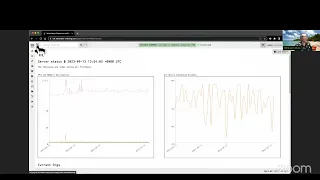
then we have the different different things and i'm going to point out some of some of these but not all of them because we're going to look at them later on as well So the first thing that i want to show you is this thing called the dashboard so this is the dashboard which basically just tells us a bit of information about the server status like you know what is it doing how loaded it is so over here we have two graphs we have the cpu memory utilization here that just tells us you know how
much memory we're using Um you know and how many how much cpu we're using so you know in this case you know we're not doing anything it's three percent i'm using 300 megs you know so it's not not too bad here i was doing some hunting before so it was using um a little bit more memory then it goes back down and then on this side i have the currently connected client so remember That i mentioned that clients they're not really polling they're always connected so that means that in any instance in time i can
tell how many clients are connected to the server you know at any time right so um so over here i was i was just playing around before and i started 5000 clients and then i started 2 000 clients so now you can see that you know that i've got some clients in here i just Restarted them so i should be able to see the clients coming up here a little bit yeah they're already up um okay and then over here i've got the users so these are the users that are you know on this machine
like the administrators and you know other ones and then the server version so this is just telling me what it is uh okay so That's cool um so we talked about the dashboard so that's the welcome screen the dashboard so this is this is not really a replacement for something like uh datadog or grafana those are really good systems and you need to have them when you have a very big deployment you need to use prometheus grafana this is just a quick a quick one right you can still Uh hook up prometheus and graffana you
should right also hook them up to to actually get a better idea of what's going on in internally there's many many more metrics that are exported than just those right so you can use grafana [Music] so question would you please share later how to create those simulated pool of clients Uh yes and i actually also um talked about that in the latest um the latest uh blog post so you can actually have a look at globe uh you can uh take a look at at uh this blog post that talks about that how to start
up that pool client it's down on the bottom here because that's that's a way of doing this load um uh or maybe i know maybe i talked about it in a different one i'll have to think About it uh but yeah it's it's a way of doing this load testing um but okay so so now let's talk let's look at uh trying to um trying to um search for a particular client if i click the show um then um then i've got i can see all my clients because i've got these pool clients so they're
all basically the same client but they're Just different like different numbers so you can see a whole bunch of these you know essentially the same hostname but just a different number so there's two thousand of them right so these are all different ones but i also have in this case another another system that's a separate one uh and that is not a poor client that's just a normal client i'm just going to show you that one for For this um exercise so you can see we can search for it by and you can see that
um you know it's got like command completion for the host name and things like that so i can i can do this search and over here this is the hits that i get from searching so on this search screen here i can search for a hostname or client id and over here you can see there's labels And i can label a machine labeling the machines allows you to essentially put them in groups so you can have a whole bunch of groups like say for instance you have servers all the servers will be labeled and that
allows you to do things like hunting on specific groups of machines so you can just hunt on those servers or laptops or whatever so i'll just show you how to label so You basically just click on this click the table and then you can say server give it whatever label you want and uh and then you know that just creates a label here oh if you click on that it clears the label from the from the machine as well so i can add or remove labels from the ui so that's the search screen and you
can see you you can you can sort of you know page through it or whatever But you know normally we just search so let's go back yeah now once we find this client that is you know kind of interesting then we can select it so we select that client that goes into this host information uh i think some people call it the blade a screen i guess it's a screen a host information screen uh and this verse first uh tab i guess Is called overview that's just showing us information that we collect about this client
just a little bit of metadata about it so um memory why memory is superior to 100 percent where do you see that it's not 100 percent it's 100 megabytes is that what you're saying the memory uh it's the cpu is percent but the Memory is megabytes yeah it's not 100 of memory it's just 300 megabytes so this is the um the overview that's just some information that we collect about the client and we can actually put in some metadata here so velociraptor doesn't really do anything with this metadata but some people use it for um
managing escalations and things like that so you know you can say like you know Suspicious suspicious um or whatever right i can put some notes in there and it just kind of stores it together with this client um yes yes can you so the question is can we group particular clients by writing automated logic for labeling them absolutely and we're going to see that so this is a very good point as you've seen you can use the ui to Label things but that's kind of it kind of sucks right because you're going to have to
search for it you're going to have to click it's not really useful when you have thousands of machines you really need to automate that so we're going to look at that in module 7 how to how to label things to create those labels in an automated way because that's that's more efficient Yeah so um okay so so that's the overview the next screen along i just wanted to show you is the vql drill down now in vehicular drill down what we're seeing here is just some information about the that we collected about the client now
you can see some more information about the version and the kernel version and all this kind of stuff the ad domain And so on but then we also see this thing this is the telemetry so we always collect telemetry from the endpoint because we want to know whether the client is you know you know impacting performance on the endpoint so that we don't you know we don't uh you know have performance issues on the endpoint of memory or whatever so we always collect cpu and memory use of the client on the endpoint so you can
see And we just do it every 10 seconds you know forever right all the time and so when we're doing hunting you'll see this spike a little bit and it should go down again and uh you can see you know the cpu percent is like 0.1 and then the memory is like 50 50 megs or something so it is very very light on the end point when it's idle and it's not doing anything then it's basically very low impact right Um and then over here we've got the list of users that are on the machine
but this is just an artifact that we collect so that we'll talk about that later there's a query that he uses to get the list of users so this is just kind of you know a little bit of metadata about this endpoint now over here up here you can see it says connected Again our endpoints are connected all the time they're not just polling they are really connected so if i go over here this is the shell screen so it allows me to run arbitrary commands on the endpoint so i don't use it that much
but i use it sometimes it's very useful and i actually have a query here that i just kind of copied um where was it that um that is kind of cool Oh yeah here yeah so here's an example of uh getting the local group member for administrator so essentially it tells me all the administrator users so if i run this is a just a powershell and i can run this command through powershell so when i launch it it goes to the endpoint and it runs a query vqr query that runs this powershell command And by
default you know the ui just kind of like folds the output a little bit so it's just you know so you can see more but i can just look at the result from this powershell snippet so this is a really cool um uh feature that just allows us to you know kind of interactively run powershell on the endpoint and uh and then collect the results you know in the server Um over here um [Music] what's the difference between pool client versus no normal client oh the pool client is just used for testing it's it's just
starts up lots and lots of clients in a thread um does it have a lot of suggestion enable while writing powershell commands no it does not it does not have auto suggest Enabled when writing powershell commands this is just a text box you put your powershell script in there and uh and off it goes um which user roles can execute partial commands excellent excellent question so yes partial commands are super powerful right you don't want to be able to uh to we mentioned this acls and user permissions only administrators can run this Can run this
this thing only an administrator can run it so if you have someone who is less val less acl lower than administrator they cannot run the partials but they can see the results of someone else that ran it but they can't actually run arbitrary powershell but that's an excellent question yeah okay so So we're just going to lock going through the ui so so we have this now the next thing i wanted to show you is the vfs so the virtual file system vfs stands for uh virtual file systems uh and essentially uh what this is
is a view of the files on the endpoints uh you know from as as they are cached on the server so um when we start off we just started off Uh installed this machine right so we don't have any information about uh any of the files so when we click on on this tree view here then it says no data available refresh directory when we refresh a directory it basically gets a new listing file listing from the endpoint so i'm going to click on this and it will just refresh that directory So at the top
level it just tells me all the drive cge right and then i'm going to look at the c drive and it just tells me you know uh you know everything in the same drive right so that's kind of cool and i can actually go through and click and refresh click refresh but it kind of sucks a little bit you know because uh sometimes especially you know slash users see users I want to be able to just see all the files in there like i don't care right like i just want to see them all so
this next button along is the recursive refresh directory so when i click on that you'll see it syncs it's going to sync a lot of files so 5 000 files and so on it just kind of like recursively searches uh syncs you know all of the directories um And and then i can actually you know i can i can get this but this this information is uh placed on the server right so it's stored on the server so you know i can go through here um and i can say okay you know here's mike and
he has the downloads directory over here and look there's a bat file in there um let's have a look at it right so i i only again this is only Looking at information that's on the server uh and if i say okay this is just metadata i've got metadata of timestamps and things like that but if i want to actually get the data i just click this collect from client i'll collect that data right and once i do that then i'll have a little floppy floppy disk icon sort of over here and you know i'll
be able to you know to View it or whatever uh but usually i just i just hit this to download uh you know download the um uh i can download this batch file right so i'll just download it there's there's the batch file so that's that's fine um but what if i had this entire directory or recursive directory and i just wanted to download that uh yeah cool uh cool question um So i just click this uh recursive download thing right so when you download a directory recursively you gotta realize that like they could be
you know gigabytes in there right like it could be huge absolutely huge right so um because you know if you accidentally downloaded like the windows directory there's gonna be like 20 gigs of files in there Before you know it right and velociraptor is so fast it will just do it right it will just transfer 20 gigs and fill up your disk on the server right because uh you know it will just do what you tell it right so um so this is like a bit of a dialog box it says hey you know just be
careful you're gonna download this thing make sure that it's not too much there is an upload limit So one gig is the default once you hit one gig it will cancel so it will stop um and you can change it if you wanted to but you know but uh if you know that's the default right so if i decide yet go ahead and do it then you'll see that this basically goes ahead and starts to download files and it will just kind of tick over and just you know keep uh keep downloading i'm not entirely
sure i mean That's probably not too many files once they're all done you know they're all gonna be like you know you know like a floppy disk icon so i can download them individually uh or i'm gonna show you in a minute how you can you know download them all at once so over here you know we have hashes and you know things like that uh what was that supposed to show so we talked about that talked about That um yeah interactively fetching files so we we could fetch it uh we can we we can
download it individually we can download it refresh it from here and then oh and this is the ntfs uh part so it uses a raw mtfs accessor to to get this information but we'll talk about accesses i think in another in the next module so it should be um i'm just going to skip it Um is it possible to define a file size which is limit to download these are actually excellent questions it's possible to do everything as i'll show you because uh everything that you're doing in the ui is essentially running vql so you
can always write pql to do exactly what you want this is just what comes out of the box you know by default so it's just the 95 Percent of cases that people want to do um and yeah and you you know and and then everything else is you know more customizable so you can see you can you can look at the registry as well and things like that but but this is just the ui thing and you can sync you know thousands of files and so on right uh so yeah we're refreshing it we are
um you know looking at it we've done This okay so there is an exercise here and you can do that uh later on i'll just quickly go through that real quick so um the thing about uh using the vfs view and and a lot of people when they start to use velociraptor they really like the vfs view because it's very familiar it looks the same as uh you know it looks the same as any Other you know windows explorer or you know a lot of other tools that have this kind of familiar inter interface right
but when you actually think about when you actually start to use it to try and find uh you know evidence of compromise or try and find you know artif forensic artifacts and you realize it's actually not that easy to use uh this interface for example like let's imagine that you Wanted to determine user activity and so how do you do that well you know you know that you might want to look at the user's download directory so you know so you're going to be sitting there going okay it uses download directory is here i'm gonna
find it and then you know maybe it's gonna be user's app data uh you know you've got a local you're gonna have you know And then uh what was it again oh local temp um you know and so you end up with like a whole bunch of you have to know where you're going to find things and then you have to kind of click through it so it's not very convenient what you really want to do is you want to actually automate things uh you know and actually just get the information you want Quickly this
leads me to really what makes velociraptor unique to many of the other tools and that is the ability to encode a surgical artifact so what we call velociraptor artifacts are queries that just get results in a very surgical very quickly and uh and and it allows us to automate a lot of this stuff um so let's just um let's just take a step back uh from this And let me just show you when i was clicking around the ui here and you know what was actually happening under the covers right what was what was actually
happening so if i have a look at this collected artifacts screen here let me go look at that then you'll see these are this is what we call uh the artifacts that we've collected from the endpoints so you can see that There's a list of them and they seem to correspond exactly to what we were doing in the ui right so before we run the powershell remember we run a powershell command and you can see here we have the parameters and this is really the the powershell that we ran right in the ui and then
we listed some directories and then we downloaded some files and these are the files that we downloaded So you know remember we downloaded this around metal bats and so essentially what you'll see what i'm trying to show you here is that everything that we've done in velociraptor it's always always just collecting artifacts because velociraptor is just a vql engine so an artifact is just something that collects specific uh Query vqra query so um that's i'm just going to show you quickly what an artifact looks like so you can see these are the requests that's what
was actually sent to the endpoint and i'm just i'm just going to show you that but we're going to go into more detail later it's basically just these are the vql that that the query is going to the to the server so we're Just seeing that every time we do something in velociraptor we're actually collecting an artifact which are just queries right so the artifacts are just queries and the queries can either download data or return rows so we can see the results so this is the stuff that we just did before right um you
know we downloaded some files and So here are all the hashes right the file names the hashes the sizes and so on as well as you know the actual files that we downloaded as well right but but basically um that's what an artifact is it's just returns and it has a name so that's the name of the artifact if you click on it then it just tells you you know a bit about it what the Explanation is and over here you can see the query the vql but we're going to look at that in more
detail later but the important thing to take out of this is that you know they've got is that artifacts can transfer data and return rows um so let me just show you real quick so an artifact is yaml files we look at them in more detail later and then We can see that we're just running these queries and uh and collecting um different things so what why do we want to have an artifact why do we want to use that so the idea is that what we want to do is we want to have uh
an artifact which is a yaml file and in that yaml file we're just containing the vql the query and the query is actually the thing that's collecting This specialized knowledge right so for example uh let me just collect these scheduled tasks right so i'm just going to search for a windows system task scheduler and that artifact uh is basically collecting the schedule tasks on windows and passing the and so it's xml files it pauses it it has some some logic and here's the query that Actually does it right and here's where it's going to get
them from so all of this information where to take the data from and how to pause it and what to do with it and how to understand it that information is what a dfir expert has you know figured out right someone's written a blog post and they they figured that out right but as a user i'm just a user i just want to know whether there's any Malicious tasks here so i don't really need to look at that i mean i can see it it's great but i don't really need to understand this all i
need to do is i need to say collect me all the scheduled tasks and then i just go launch and as soon as i do that it's going to send the query to the endpoint and you remember that it's connected so it happens immediately so 0.85 seconds later Right i'm going to get my results and i look in my results tab and it's showing me this result tab is showing me all the scheduled tasks right so i've collected all the scheduled tasks what programs they're going to run so this is the command you know it's
going to run these are the arguments and then i can figure out looking at those whether they're malicious or not right so So the idea is that i'm encoding this analysis in this vql artifact so i don't need to know it right so it's so so this is really where velociraptor uh what velociraptor is trying to do it's trying to get the knowledge of uh or the specialties knowledge and encode it into this artifact and we're going to have we have hundreds of artifacts and They're all uh specially designed to to get particular types of
uh of of indicators uh so yeah we just go through here we select it um and then we run it and again each artifact can just return rows and bytes uh we we're gonna uh look at that again later or and then we have the uploaded files we've seen that before Um and uh and then um yeah and then the results as we can see that's the results here you can also once we collect the artifacts you can export them so in this screen here you see for instance here we've collected 196 rows then i
can just prepare a download and that prepares a zip file that i can use to export the z file so i can click on this zip File and open it up and you know in here i've got the results right so this is useful for you know if you want to export it and you know there's a csv or json uh results um okay uh let me just really quickly i just wanted to we are sort of running low on time so let me just cover a couple of things now i'm just going to skip
this part because we're going to be Doing this for the rest of the course we're going to be searching viewing and modifying the artifacts so we're going to be explaining how to to do this editing of the vql that's kind of what we're going to do i just want to go into hunting because i think that is the coolest thing uh what we've actually seen here is that You can see that uh we've collected from this machine we've collected as the list of all the scheduled tasks so we could do you can collect it from
one machine right and that's good but what we really want to do is we want to see whether there's any malicious tasks anywhere on the network so we want to collect it from everywhere at the same time right it's we don't Want to be like searching for each machine and then going collecting each one right what we really want to do is uh you know we we want to we want to do a hunt so we want to actually look at all of the machines at once so this is called a hunt when you're collecting
the same artifact from lots of machines at once so you go to the hunt manager Screen here and here is where we are setting up we set up hunts so we start off by selecting the hunt the hunts are just kind of a logical collection of you know the same artifact you know from everywhere so in this case i'm going to look at the scheduled tasks right now uh a hunt is always active right so when a client joins It will just do the hunt right uh i can you know specify uh you know that
it's on the operating system or specified on specific labels and so on um and now just select my artifacts so just the same as before so it's the same kind of screen but it's just used in a different context so it's the same thing i'm going to collect my task scheduler As a hunt so i'm just going to there's a couple of other things here which we can we're going to talk about later but we're just going to skip that and that creates a hunt as you can see when you create a hunt it is
uh in a posed state so it's not running when you create it because i want you to to think about i'm about to go uh so first of all let me just show you We have uh 2 000 machines right so there's 2 000 machines up there right there so when we are when we're going to run this hunt we're going to launch this on 2000 machines at the same time so we need to know that we are kind of you know we're not going to kill the machines right um so i'm just going to
you know i have to click this and and Acknowledge through it but anyway i'm going to run this and it's going to go off and you can see that what happens is as soon as i start the hunt so it started then it's it goes off and it starts to schedule these these clients right so remember that i have 2 000 clients basically connected all the time so um so now i'm starting to schedule them right And uh and then you see results are coming in right so it's actually you know if i look at
the clients tab here then you can see there's a whole bunch of finished ones you know um go to the end there's a few of them are running right and they're running and finished and running and finished and then you know they have uh each one you know Returns some data rose or whatever um and as we are looking here this is you know it's ticking over and it's gonna take you know maybe like a couple of minutes to to do like 2 000 clients and it's getting all the results from all of these clients
right so so that allows me to collect all this data and that's really awesome right um but what i actually really want to know is i Want to maybe do some post-processing so i'm just this this part of the uh workshop i'm just giving you like a quick taste of we're going to be doing a lot of this stuff you know throughout the workshop but i just want to give you a quick taste so we're we're doing this like uh it's going to be you know oh the entire fleet is ticking over right but whilst
this is doing i don't need to Wait for it i can start to post-process it immediately and over here i've got this notebook notebook is like a workbook that i can use to process it i'm just going to i'm just going to delete that top cell because it takes up too much space but over here i can see this is the results that i'm seeing right so this is a query and i can use the vql query to post process My data so you can see that these are all the scheduled tasks from the different
machines and uh if i scroll over you know this way a little bit then i can see you know this is the fully qualified domain name that's the hostname of each client so we can see that you know this is from this machine and you know it's only showing me by default the first 50 Um you know just for because i'm going to write a query to do this cross processing but what i want to do is you know i know the scheduled tasks you know the you know there's a lot of legitimate ones but
usually a lot of sometimes the um the malicious ones they add the scheduled tasks that might run you know powershell or we might run the command prompt something like that So let's say that i just want to look at so here it's just a select this is just a vql but i'm just going to look at commands that match and matches cmd.exe so that's just going to show me those commands that match this cmd.dxe all right i'm just going to look at the first 50 of them and there's going to be thousands of rows here
right because This is a big hunt but i mean it's almost almost done right so it's 2 000 machines and as you can see that there's a lot of common ones the common ones so maybe i want to do like stacking which means i want to count how many machines have unique uh commands you know because some of them like this is probably legitimate because it's the same all over the place right So i'm going to do this count count as count and what i'm going to do is i want to group them right by
command and arguments so gonna group the arguments command and argument so all the ones with the unique pair of commands and arguments that happen to also match this you know cmd cmwx right so there are unique ones And i'm going to count them and that will tell me how many there are across the entire network right this you know 2 000 machines so when i run this it's going to go off and it's going to it's going to basically do this group across and it's going to take some time right because it's going to look
at all the data um right we don't really have um it's not It's not doing like um it's not really an elastic thing right it's not doing a query it's actually really doing this um essentially it's a row scan right um what does equal tilde means excellent question equal tilde is the regular expression match operator so it's saying where the command matches cmd alexis that's a regular expression all right so it's going to go and filter All the rows that have that uh command you know that the command matches that right so so that's our
regular expression operator if you like um so this is going to take maybe a couple of seconds take that long unless i messed it up um can i hunt for my own artifacts yes absolutely so you can write your own vql and hunt for it as well um so you can see that now my query and Let me just bring the query up again so what it's doing is it's taking the hunt results which again is all the tasks from all the machines everywhere right and it's filtering out the all the commands that match this
cmd.dxe and then it's grouping them by pairs so all the unique ones right so you can see that this is ds reg command Uh it's the same command right but it's got different arguments so you need to see it so it's actually different right and then we're counting how many times we we see that right so we we have 2 000 machines i mean this is a pool client so they're all exactly the same right but so so it's going to be 2 000 machines that all have these and 2000 machines that all have that
so that's great that's you know probably Legit right but then this guy there's only one machine that has this cmd.xz and it starts capital dxe right so so obviously this one is weird right it's unusual so maybe maybe it's a malicious one right so then i'll look at it in more details but anyway the point of of this exercise is just to show you guys How uh we can do a hand and at very large number of clients i mean the the hunt took us you know maybe a couple of minutes to do this uh
maybe five minutes or so um to collect this data and then we we did this stacking and we can do the post-processing analysis in vql in the ui directly and then get actionable data straight out of that you know and then of course we can always you know go and uh and create an Export and build up the zip file and export it and all the rest of it right so you can export the data but you don't need to export it because you can always you know post process cd in here so this is
just gives you a bit of a taste for the rest of the workshop we're going to be learning how to do this vql how does this vql work How can we use it uh this is just one example of using vql for post processing but you it's the same vql that you can use you know for getting new artifacts or getting new new kinds of detections so this is just a taste hopefully you guys uh will come back tomorrow and learn more about it so you know so this is uh hunting um Yeah so uh
the the thing about hunts is that they are always active some people ask me oh my hunt is when is my hunt done it doesn't make sense to have the hunt done because in any real in any real network you have lots of clients that just constantly come online you know uh someone joins the company and they get a new laptop and suddenly it appears from nowhere So it doesn't it doesn't really make sense to say when it's done because you never know uh you know whether you've got all the inventory or not so what
happens with hans is that they are active until they expire so if we look at our hunts you can see that it's it started and it expires you know it is by default it's a week so in six days it's going to expire so that just makes It stop and then but if any machine turns up you know in that six days you know that week then it will also uh run this hunt and collect this artifact and so the results from here the results that we're seeing here this count is never really static right
it's static in this course because i have a finite number of clients But in reality it changes all the time because new clients appear all the time so those numbers will change so when i do this post-processing calculation it's very important to realize that i've got a timestamp here that's when this query ran and also how long it took to do but it ran three minutes ago you know there could be another client right now and suddenly There's new new results i don't know until i recalculate it which i can do by clicking this recalculates
button then it recalculates it right but that updates it but it's going to take the same amount of time so it's important to understand that hunts are kind of fluid right they're always changing [Music] yeah so we did the task we collected That we went through the example we can we talked about labels um yeah we we did this this is the query that we did and conclusions great so in this in this module we introduced velociraptor we introduced the gui um we talked about the virtual file system abstraction which is just like a gui
it's just a gui tool right so to be honest i very rarely use it But i know a lot of people that's kind of like their stepping stone into velociraptor they feel comfortable using the vfs and it is useful sometimes but you know you really don't have the full power of automation when you use the vfs um we touched about we learned about artifacts as the main way of actually running vql and we're going to look at them for the rest Of the course of course and uh and then we can see how artifacts can
be collected from one end point individually so when you are you know uh doing a deep dive into a machine you can connect collect a whole bunch of artifacts you can pivot change and so on and then and then you can do a hunt which is more automated across the entire fleet Right so um yeah so i've got a couple of questions in here which we could probably maybe answer a couple um let me just answer a couple of questions um just [Music] uh will the recording remain available yes the recording will be made available
uh there's a question is it possible to remotely uninstall cleanup velociraptor client indeed it is So uh you can you can do anything really because remember that we mentioned the velociraptor was all about r for response right so we can run arbitrary commands and one of the things that we can do is we can uninstall is we can simply collect these artifacts so this is a bit of a ql that will uninstall the client from the endpoints right so when you're doing Um you know it's essentially it you can see what it's doing it's just
running msi uh you know slash x which uninstalls it right um but that's that's essentially possible that you just do a hunt and then you go and collect it from everywhere and we'll just install velociraptor um yeah um another question would such a query be around faster uh The second time or is the data gathered ah so no the uh i guess you're talking about this query here um the we're talking about this one right no so it's the same it will take the same amount of time because it's still doing it's still doing the
same raw scan it's going over all the data uh it's not uh it's not caching it Necessarily but there are some performance tweaks that we can do here but it's remember that there is no database right so we don't have a database as such so we don't really have indexes we can add you know some we can sort of simulate it a little bit but it isn't really um we're not really trying to reinvent the elastic or splunk or something like that if you wanted to do these kind of Queries you can you can actually
use planck or elastic you can export it to a splunk or elastic but it doesn't really make a lot of sense in to me at least in many cases because by the time you actually export that data to elastic i mean you're going to have to export it row by row to elastic anyway and then you're going to do the query in elastic and You know by the time you do that um you know it's just quicker to just do the query i mean if you're only going to do one query ever you know i
mean in this case we just did a hunt and then we're just doing one query and that's that's it right that's our answer here so i'm never going to look at this data again so i don't know whether it makes a lot of sense to to to use elastic for that but i mean You know other people are doing that so yeah i mean it's it really just depends on what you're gonna do with data um question questions okay anyway um i think i think we are a little bit over time hoping that i hope
that was interesting tomorrow uh we're going to do more of a deep dive so this is the first module which was kind of introductory And what we're going to do tomorrow is really we're going to um to concentrate on understanding what this vql is all about so that we can use that to write uh more complicated artifacts later on so we're going to look at these uh details uh of vql uh and and then we're going to uh you know in the next the next uh modules we're going to go and uh apply this to
actually doing writing our own detection The whole goal of this course is for you guys to be able to write your own vql so write your own detections um okay cool so any any other questions send me an email or jump on discord um uh okay cool i hope that was uh that was good uh thanks i'm just gonna stop the recording cool