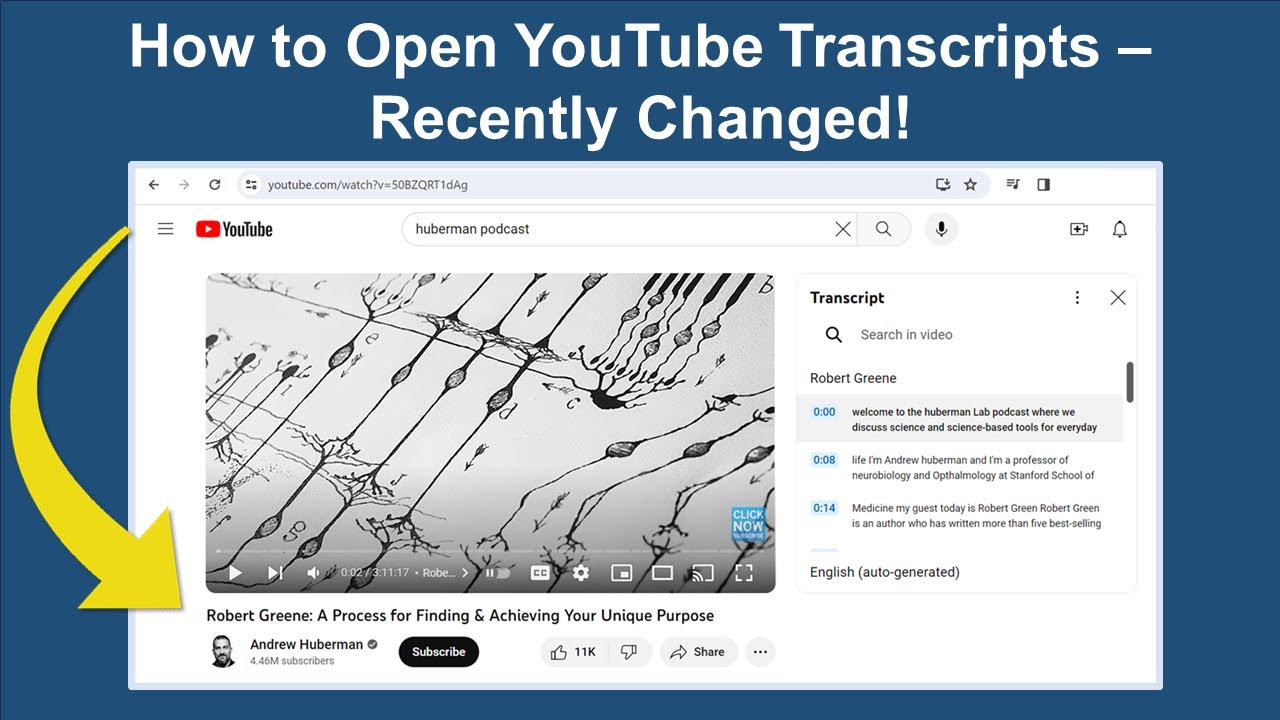
Hi everybody! Today, I'm going to show you a really useful feature in YouTube that lets you search for topics in a YouTube video. This saves so much time because you can search for a topic before you spend a lot of time watching the video.
Here's how you do it. Say I want to know whether this video discusses using commas, but I don't want to watch the whole 14- and-- half minute video. Instead of watching the whole video, I can just search in the YouTube transcript to see if the video covers commas.
Here's how: First, we open the transcript. To open the transcript, we go to the video description, and we click "more. " Then scroll all the way down until you see the button that says, "Show transcript.
" Click that button, and then, we see that the transcript opens at the top right of the screen. Here is how we search: We click into the area near the search icon that looks like a magnifying glass, and I'll enter the word "comma. " As you see, YouTube pulls up all the sections in the video where the narrator or the speaker discusses commas.
So we have five parts of the video where commas are mentioned, and the numbers shown, of course, are the video timestamps where that section appears. You can click onto the section to go to it. But sometimes, YouTube videos do not offer the search icon, but that's okay!
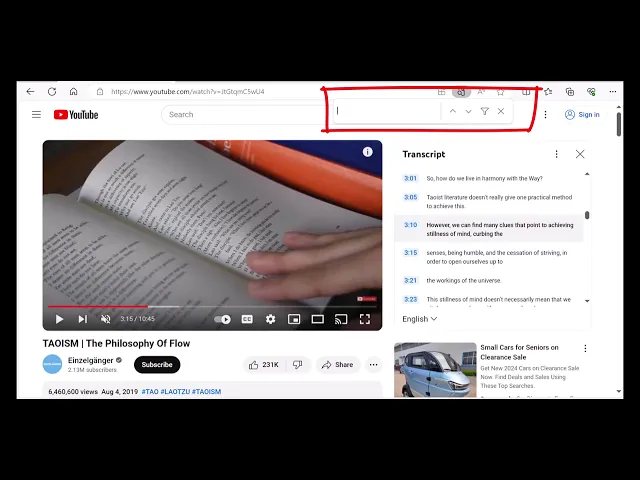
You can call up your own search icon and still search the transcript, and I'm going to show you how to do that right now. Here's another video. One part in this video tells a story about a Taoist philosopher.
So, let's search this YouTube transcript to find that part part of the video. We go down to the description and click "more," and then, we'll scroll down until we see the button that says, "Show transcript. " There it is.
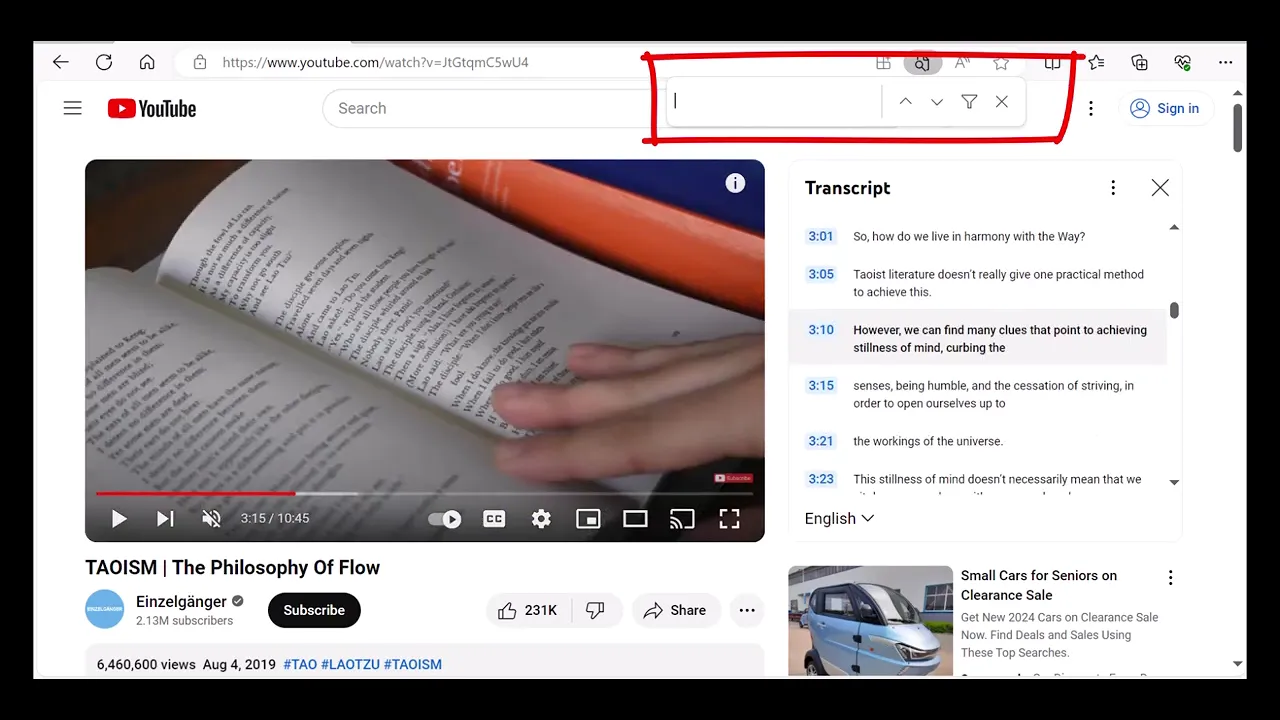
Click onto it, and the transcript opens up - but, as you can see, this video transcript doesn't have a search icon. You can call up your own search bar and use that to search the transcript, and it's really easy. So click CTRL+F if you're on Windows, and if you're on Mac, you can click Command+F.
Then the search bar opens, and, by the way, you can use this search bar on any web page, not just on YouTube. So let's go ahead and enter "Taoist philosopher" and we can see that that term appears at 2 minutes and 39 seconds in the video. So, if I click on to that section, it takes us to that part of the video.
So that's the quickest way to find a topic in a YouTube video.