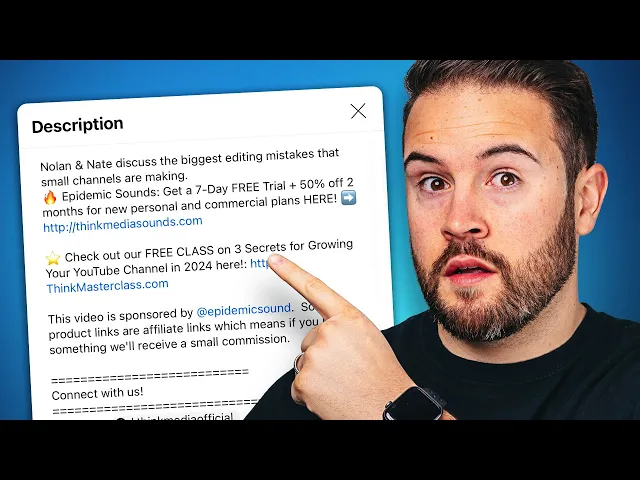
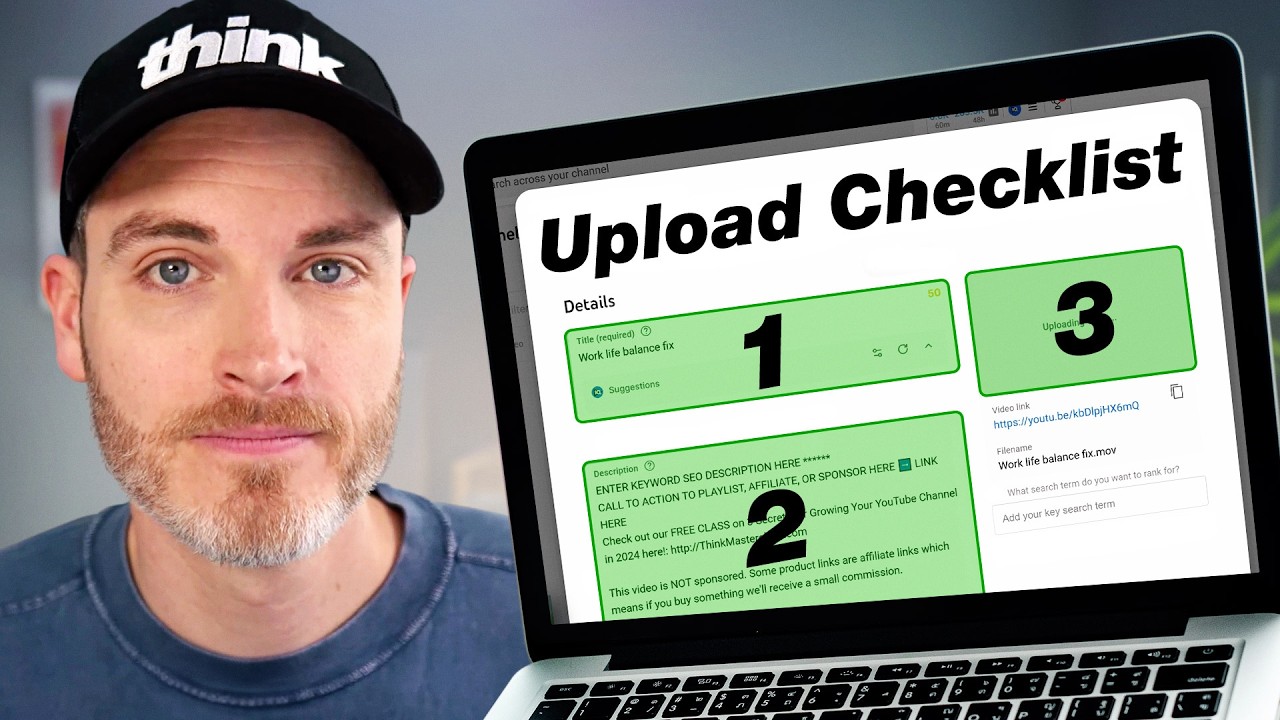
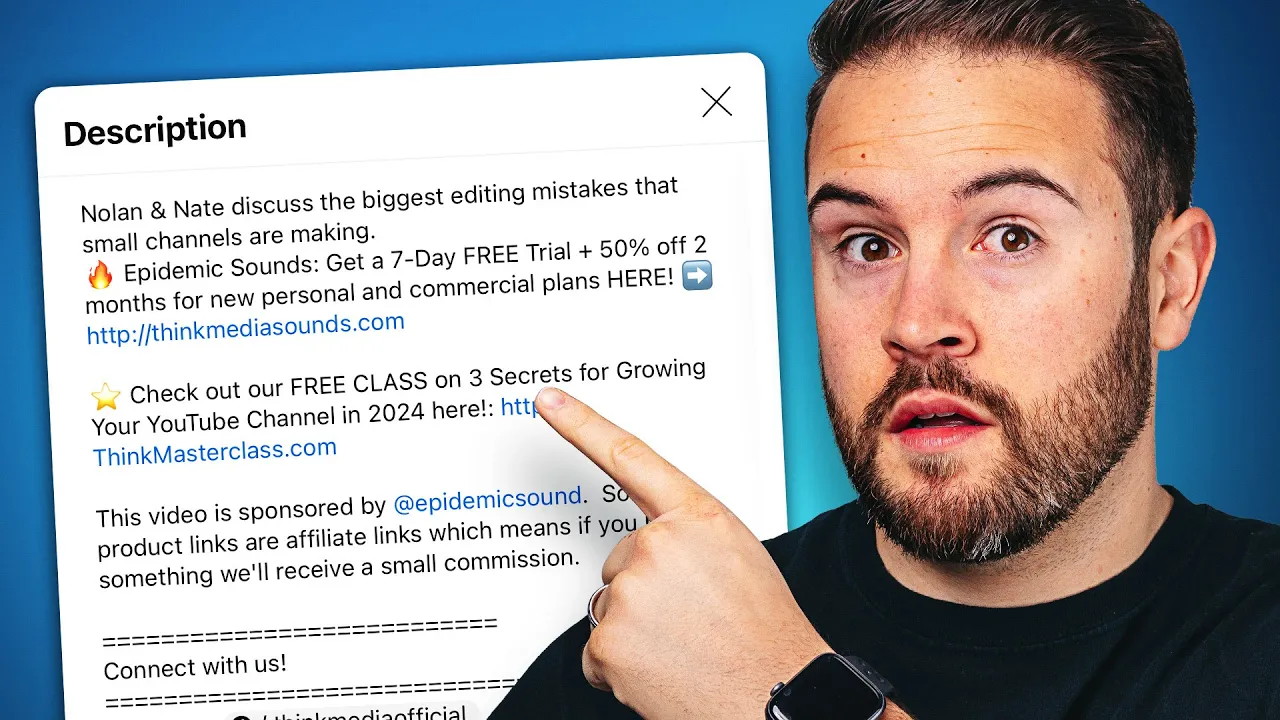
I'm going to show you the best way to use your YouTube video descriptions to actually get more views on YouTube and make more money I'm also going to give you a template that you can use in your descriptions and later on in the video I'm going to show you how to set this up so every time that you upload a YouTube video it's going to be automatically applied to your description now on YouTube you'll notice when you look at the video description it only shows you a couple lines at a time it doesn't show you
the entire video description so these top two lines are very very important and I want to share with you some of the best practices that you should be using for these top two lines basically on the first line we are writing out one sentence describing what this YouTube video is and we're trying to describe it in words that people are actually looking up and searching for on YouTube and on Google this is going to help the video Rank and search so that when someone searches in those keywords this video is going to pop up now
just doing that alone is not the only thing to rank and search but if you check the description I'll leave a video down there where we show you the entire process on how to R rank your videos in search in this line I like to use words slightly different than the title because the title can also be used to help rank this video in Search and so we want to go after as many keywords as possible we still want to stay accurate to what the video is but try and use words in a slightly different
way now on that second line this is where you can really make a lot more money on YouTube and this is simply by having your call to action or your monetization plan in that second line because this is going to be visible to everyone ultimately a lot of people aren't going to go down here and click this more button and so you really want to make sure that if you're trying to send someone to a funnel to a website to maybe even a specific affiliate link on something you're reviewing in the video you want to
have that in the first two lines and ideally just right there on the second line now quick power tip here is in your video if you can somehow tell them about something down in the description whether it is an Amazon affiliate link or is another video for them to go watch this is going to get more and more people to go over here hit that more button and actually check out the majority of your description where there's going to be a lot more ways for people to work with you to purchase other affiliate links or
even go watch other YouTube videos now for the next line in the description we have a video for people to go watch and this is the same video that people are going to get over here at the end card which is this video right here the key to massive growth on YouTube we are also going to link this right here because some people just aren't going to make it to the end of the video so we really want to make sure that before they jump we give them the opportunity to go and find that next
video that they should watch and simply by doing this you're going to help get more views on your channel the ultimate goal is that when someone finds your videos they want to watch another video and another video and another video and so make it really easy for them simply by telling them what is the next best video they should go watch just under that we have a link with all of our affiliate links based on the gear that we use and if you guys are curious what kind of video audio and lighting equipment we recommend
at think media just go to thinkgear guide.com or check out that link in in the description as well and so we like to put this at the top because that can be a great way to make a lot of passive income on YouTube and so whether you have some products that you use all the time this could be a great place for you to put those and we've actually decided just to put all of our links onto One landing page so whether that's your Amazon storefront or your kit. whatever that looks like for you this
would be a great place to put that link now just under that you might not have a second Channel or a podcast but we like to promote our podcast and simply by putting that at symbol and then tag think media podcast when someone sees this whether it's on the desktop or on the phone if they click on that it's actually going to take them directly to that podcast which is a really cool new feature that YouTube has been implementing and it looks really clean and nice instead of a long link you can just click on
that and it'll take you over there on YouTube now just under that we have other ways for people to work with us at think media whether they want to purchase the book or they want to check out the free class we make sure that we put that in every single description because you never know when someone wants to go a bit deeper with you they want to take that free class buy a book or just simply book a consultant call with you whatever it looks like for your business or whatever it is that you're doing
on YouTube this is a great place to kind of advertise how people can support you in your channel below that we like to have a connect section where people can follow me on social media or whoever's in the video on that think media video people can go you know check them out on Instagram or check out their YouTube channel next we have a place where we're really encouraging people to drop something in the comments a question that they might have we really want to to make that open and say hey if you do have a
question leave it in the comments we'll do our best to respond and so just having that in the description as well can be a motivation for someone who has a question to actually leave it in the comments which is great for engagement and it's going to give you a lot of ideas a lot of feedback based on what they're asking you for videos to make and different things for you to work on just below that we have another affiliate link with epidemic sounds and so if people want to check out what kind of music that
we use in our videos we like to leave this in all of our descriptions since it is a common question that we get asked now this part is super super important so please don't skip this and this is actually a disclaimer that you need to make sure you're doing if you do have Affiliates specifically Amazon Affiliates in your description we like to let people know that hey these links in here you know this video is not sponsored but some of the product links are affiliate links so having that in there is going to help you
you know follow those guidelines that you should when promoting Amazon affiliate links or other affiliate links inside your YouTube description now I like to put the time codes at the very bottom of the video because most people aren't going to be checking out the time codes anyways since now there are chapters on YouTube people can just see what those time codes are right here that's a lot easier for them to do so I like to throw those time codes down at the very bottom followed up by that we have a couple hashtags that we like
to use on our videos we'll have think media and then you know one of the creators on the channel we hashtag that so if people want to go binge watch maybe all of my videos they could hit that hashtag and then go check out all the NL and malt videos and then just under that this one's really important as well for ranking we like to do another couple lines of the about what is this video about and this is going to help give YouTube just a little bit more information as to what kind of content
is in this video in the hopes that it will show it to more of the right kind of people and rank Us in Search and then lastly we have a disclaimer here at the bottom that you probably are not going to need for your YouTube channel but if you guys want to check out a template that you can download for free then check the link down in this description and then when you copy that I'm going to show you exactly how to implement that into your description every single time you upload a video all you
need to do is go over to YouTube Studio by clicking this button right here and then we're going to go down to settings in that bottom leftand corner we're going to hit settings and then you want to go to upload defaults this is going to save you a bunch of time so this is under basic info right here you're going to see description so anytime you upload a video this description whatever you put in here is automatically going to be put on that description so once you download that free template all you have to do
is paste it into this description and hit save and now every time you upload a YouTube video it's going to be right there for you to just fill out a few things maybe replace a couple links change some words but that is going to save you a ton of time now if you're just looking to grow your YouTube channel then check out this conversation I had with Omar where we break down everything you need to know to grow on YouTube and we'll see you guys in the next video