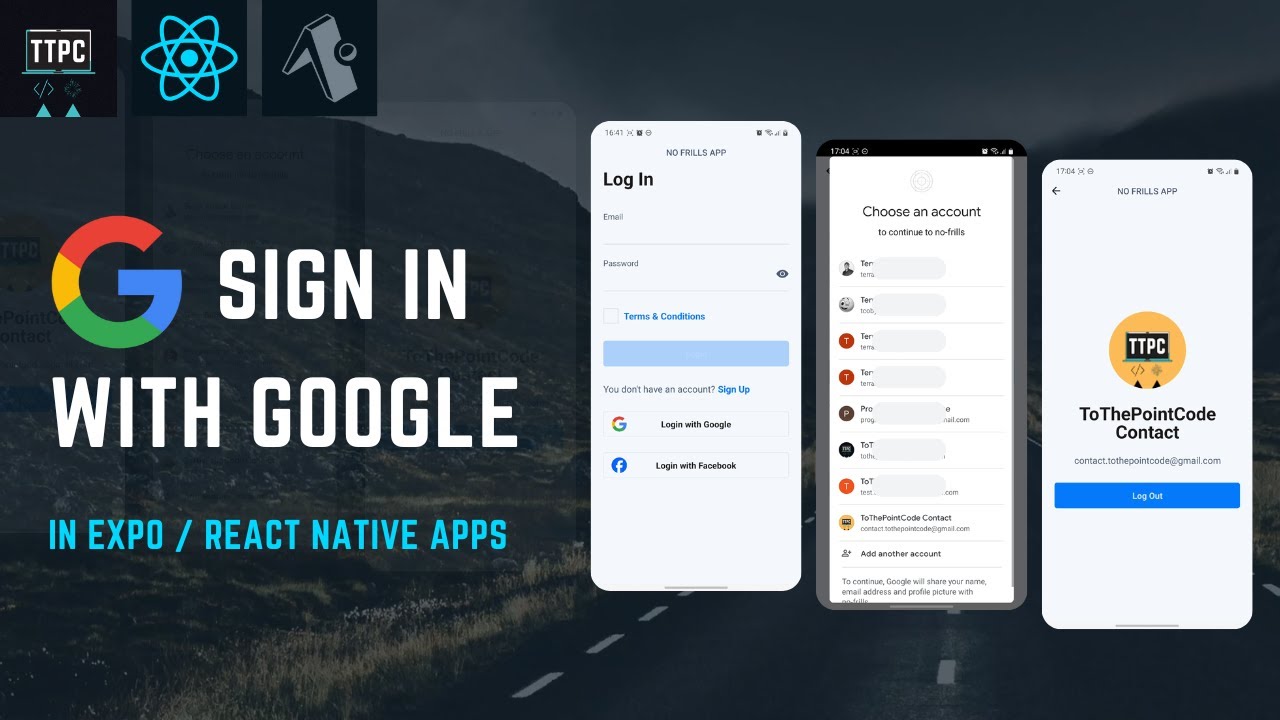
in this video I'm going to show you how to set up Google sign-in through your lovable app so this is going to allow users to sign in with Google and get an account on your lovable app so this would replace or be an addition to email sign up with an email and password Google authentication is really great to allow users to sign in easily to your app this video is going to assume you have a little bit of familiarity with lovable if you're brand new to lovable check out some of our other videos in our
Channel where we cover lovable from the very beginning but I'm going to assume you already know how to get started build a simple app connect to supabase so that you can um have a database and you kind of have those Basics set up so once you have those Basics set up um what you're going to want to do is go to the the chat ask to set up Google authentication as simple as that say Hey I want users to be able to sign up with Google uh in my app uh once you do that it's
going to set up all the initial steps and it's going to ask you for a few key pieces of information so on the left side it's going to say basically you can see what I asked is I'd like to add user authentication I want to add ability to login with Google only don't worry about privacy for generated apps uh don't worry about that this is basically like a web um I'm building an AI prototyping app um so you can uh prototype uh simple designs if we go down what it said is it it's going to
kind of go through that proc process it created the dedicated authentication page for Google sign-in user authentication State Management with context uh UI components for login log out fixed there was a terminal component that was missing um so basically then it's going to tell you what to do you need to configure Google off in your super based project go to authentication providers Google and add your Google oo credentials so to do that it's going to give you a link so I can go ahead and just click that and then here we are in the authentication
for super base we're going to scroll down and you're going to find Google and you want to click on that so once you click Google you're going to turn check this on for enable sign in with Google and then there's going to be two pieces of information here that you're going to need to add and we get these from Google thems itself so let me show you how to do that you need to go to Google Cloud create an account on Google Cloud you can sign in with your um with your Gmail account then it's
as simple as going to the top and searching for Google off platform so go ahead and and click on that and then once you're in the Google off platform we're going to go to clients on the left side uh and then what you do is you would go ahead and you create a client so click create client you select web application you can name it and then what you want to do is this information you can fill in uh part partially from the information supabase gave so this callback URL here uh that supabase has for
off you want to copy that we're going to go back to the Google setup we're going to add that here and we don't have to worry about right now authorized JavaScript Origins I don't believe and then we can go ahead and click create so once you create that you can see we have a client ID so you just go ahead you copy that client ID you paste it in here and then if we click edit oo and then you open the screen a little bit make sure you have a wide enough screen here you can
see a client secret so you copy that and then you paste in that client secret right there and then the one other thing I'm not 100% sure if it's necessary but I did it and it ended up working for me so uh under authorized JavaScript Origins go ahead and click this and paste in the URL when you preview your uh your lovable project uh so uh basically you go to lovable preview it and then enter in the URL there um so it can be a a subdomain of uh lovable unless you've published your um your
app to an actual domain and then you can put that actual domain where it started with um okay so uh once you have all of that set up then we go back to supabase we go ahead and click save now we would have Google uh authentication uh set up I'm going to go back and and basically went and built it um then uh and at this point it should work um I did have an error when I tested it with that redirect URI mismatch and that's where I was saying you want to get that from
subase and then paste that in um in the way that I I showed you for the URL oh there's one more thing you need to do because I got another error here so you want to go back to uh before finishes the last thing and then it worked perfectly for me go back to authentication providers we need to go to URL configuration and what we need to do is paste in your lovable site URL here and then we go ahead and click save this is the URL that Google is going to redirect back to uh
once it's uh signed the user in um so it's as simple as that uh just go ahead uh make those um changes and uh you should be able to set up Google authentication uh in your app and it'll all work perfectly so if you have any questions uh let me know leave a comment uh below be sure to check out the link in the description go to no Cod MBA H if you want to learn more about building with AI and no code tools from experts in the industry with in-depth uh tutorials uh that help
you build from start to finish And subscribe to our channel to get more free videos like this right here uh thanks again for watching uh and uh in a future video I'm going to show you more about what I have built here in level because I think it is pretty cool and and one of the more complex apps that I've seen someone build in lovable so I'll definitely share with you soon thanks again for watching we'll see you in the next video