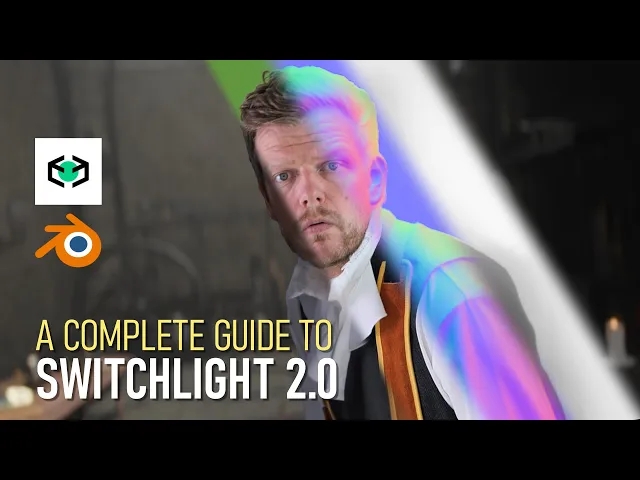
[Music] So, hi everybody and welcome back to another very exciting tutorial. I'm pleased to say that the great people at Bele have contacted me to ask if I could make an updated video because of the advancement they have made with Switch Light version two and they completely rethink the overall workflow. So, I said sure because I already used their tools last year and I was pretty impressed if you remember.
And now I played around with all the new possibilities of Switch Light version 2 and I was truly speechless at the result. So if you haven't seen the short film yet, you can check it out on my channel. But now without further ado, let's get started with Switch Light version two.
Okay. And as always, we will start in the green screen. And as you can see, it's a pretty pretty simple setup.
I only used two additional soft boxes in order to get an evenly lit subject which is pretty important as you remember because we will create different maps within switch light. So an alpha map, a base color, a normal map, a roughness, specular, metallic, occlusion, depth and flow map. And in order to get the best workable result, we will need an evenly lit subject.
Okay? And the rest of the workflow is more or less the same. So you can for example use a mask in order to just remove everything around the green screen.
Then we can use key light in order to get rid of the green. And this way we have a perfectly removed background with all the necessary alpha information that we will need for switch light. So if you want to go a little bit more into depth you can check out my channel.
I have a lot of tutorials to this topic. But now let's really focus on the overall switch light workflow. So in order to retain all the alpha information, we can just render this out for example as a PNG sequence, whatever you like.
And this way we can have an image sequence which we can now render out in After Effects and bring this directly into Switch Light. So here's an important note. Uh if you want to test out Switch Light and use the free plans, you can of course use a video instead of an image sequence.
The only difference would be that you just lose all the alpha information and you will have a black screen. But this is no problem because the AI removal tool inside of Switch Light will do a pretty good job detecting the subject and remove the black background for you. So you can do the exact same workflow with a video as well, just for you to keep in mind.
And now without further ado, let's jump right into Switch Light. And all the magic is going to happen on Bull. ai, which is now cloud-based.
So we don't have a desktop version. Everything will be done inside of this studio version. And we can start be down here.
If we click on try ble now. And if you already worked with the software, you will have recent projects, which is pretty handy because you can return to almost every shot that you've ever created. But if you're new to the software, you will have a blank space except for the resources down here.
And they will provide some pretty important information that we already covered. So, especially when it comes to the best footage for our VFX passes, it's about having a good setup with good evenly lit subjects with a perfect neutral background. Everything should be clear and crisp in order to get the best passes.
And here would be some examples how to not shoot your green screen or video stuff. So, avoid any log footage or grayscale footage or heavily lit footage. It should be crisp and clear without any shadowing.
The subject shouldn't be that far away from the camera and we shouldn't have that much motion blur or some blurry footage overall. So really the basics of this. The same thing goes for the technical aspects.
So some requirements for your uploaded footage whether it's video or image. So you can really check this out in the resources. Anyway, if we want to start a fresh new file, we can click up on this green button where it says create project in people studio.
And if we click that, the software will ask us to import or upload a new subject. In this case, we want to upload something. And you can choose whether you want to upload an image or video or in our case, an image sequence.
And you can process up to 2,000 files at the same time in a resolution up to 2K. And we can search for our file. And we can click Ctrl+ A in order to select all of our files and hit open.
And then the files will be validated, which goes pretty quick because the software will ask you whether you shoot this in a frame rate. Uh in this case, we use 25 frames, but you can choose 24 or 30 frames as well. And then we can upload our files.
And what will happen is that Switch Light will upload all the different images and then we'll generate for each frame the different passes. And this is pretty handy because we will have full control over all the different maps later on in Blender. So we can really treat this as kind of like a 3D element.
And once the upload is complete, there is another pretty handy option nowadays in Switch Light version 2. And this is where the magic happens because you can see the generated passes for our first frame. In this case, we have a perfectly white silhouette, which is what we want.
But you always have the option to check the base color, the metallic, the roughness, the specular, the depth map, and of course, our source file, and pretty important, our normal map because this will be the most important map when it comes to the relighting. Okay. And if we're happy with the result, which we are, we can generate all the frames.
And the cool thing is even though we have to wait another 10 to 20 minutes depending on the length of your shot, we can already play around with the first frame. So you can see the studio version is telling us that there are no lights detected. But we can click for example on point light.
And this is where Twitch light is really going to show up all its magic because now we are able to relight our footage. Even though this is just the first frame where all the passes are already been generated, but this is really like a first glimpse of the magic that is going to happen with switch light version two. And you can of course play around with different settings here.
You can, for example, change the color of the light. You can import multiple lights, whatever you want. You can, for example, use an HDRI image in order to get a 360 light for your subject.
So if we just uh turn off the point lights and for example move the HDRI, you can see that our subject is being lit by this HDRI image. So this is pretty pretty powerful and especially for people who just want to do a quick and dirty approach for some social media content, you can really really quickly create something interesting. There are options, for example, in order to use AI and prompt some stuff, but this is not our topic because we want to do a little bit more in-depth stuff with Blender.
So, we will wait until our shot is completely processed and then we will import all of our maps into Blender. And once all of our frames are being processed, we can click on import and then Switch Light will load up all of our VFX passes, which goes pretty quick. And now we can see our real footage.
And while the footage is playing, we can still play around with the options and have a pretty cool effect. Like I said, it's just a little gimmick. It's just a cool preview option, but we want to take this to the next level.
And this is where Blender comes into place. So, if we're happy with the result, we can click on export up here in the corner. And now for those of you who are searching for the Blender add-on, we can click on the advanced tab and you can choose between your DCC of choice, whether it's Unreal Engine or in this case Blender.
And here you will find the Blender plugin and you can download this and save this on your PC. And we can later on install it inside of Blender. But for now, let's just download our VFX passes that we've already created inside of Switch Light.
And inside of Blender, we can first of all install the add-on. So, we can just drag and drop this into the viewport. And we can hit okay.
And we can go under preferences and search for the people add-on. When the add-on is not enabled, enable it and hit save preferences. And now we can open up our site panel by hitting the N key.
And there you will find the people add-on. And once you just logged in with your people account, we have the option to import our VFX passes. So, first of all, let's just delete everything that we have in our scene and we can just start importing our files.
Uh, you can choose to import this as a zip file or as the unzipped folder. I tend to just directly use the zip file because it goes much quicker. So we can hit import and we can search for our files and there you will find the passes pretty big 1.
3 GB and we can choose VFX passes and you can see what the add-on is doing first. First of all it will tell us that there is a conflict because our Blender scene has 24 frames and the imported passes has 25 frames. So we will change that to 25 and hit okay.
And once this is imported we can see what's going on. So, let me open up a second screen so you can see better what's going on. And we can open this up in our 3D viewport.
And we have this setup here. If we click on our rendered view, you can see we have our footage and everything is a little bit grayed out because we haven't touched any lights yet. So, maybe we can just import a light.
Shift A. And then go for point light. Maybe bring this one into position and crank up the power a little bit.
Something like that. So you can see what's going on. And if we now scrub through the timeline, you can see our perfectly lit footage.
This is pretty awesome because the Atom is doing a lot of steps at the same time. First of all, you can see we have our own collection and inside of the collection, we have our anchor, which is great if we want to move everything at the same time. So the camera, the footage and the focus object.
And if we open up the two existing null objects, you can see we have our footage which is connected and our bele camera and focus object which comes in handy when you just enable the depth of field option. But overall this is the setup where the add-on really shines. And if we take a look at our footage in the shader, you can see that the add-on directly with one click imported all of our maps that we've generated inside of Switch Light and just connected it with a principled BSDF.
A pretty powerful setup. And there are just a few tweaks that I like to do here and there just in order to get the most out of the footage. But talking about the footage, if you have played around with Switch Light version one, you will see a drastic improvement in the quality of the maps, especially when it comes to the normal map detail.
Look at this. It really looks like it comes straight out of the camera, but with the option to relight everything that you did maybe wrong on set. So, this is really, really powerful.
I was forced to do a little bit of tweaking in version one and I had to do an overlay pass with the original footage in order to get a little bit of detail back. But with version two of Switch Light, there is no need for that because really this is really really detailed and pretty crisp. So shout out to people.
That's really a big improvement. As a next step, as you can see, especially if we take a look at our footage, uh we have a few options to play. Uh, I tend to still bring down the specular value a little bit because sometimes it just feels a little bit too waxy, but overall the setup is pretty pretty good.
And if we start to play around with our options, you can see that the add-on offers a lot of stuff to play with. So, in the footage tab, we have a few options which we can talk about. First of all, you can see that cast shadows is enabled.
And this is a pretty powerful tool because it really just gives the illusion of a little bit more ambient occlusion. So if I would turn this off, you can see that a lot of shadowing inside of the face and on the closes are going to be whipped away. So this is pretty powerful because it will add a little bit more of realism even though we have an ambient occlusion map setup, but the cast shadow option will boost this a little bit more and will give us a little bit more of a realistic result.
The more interesting feature is the use depth option. And if we enable that, maybe we can see it better here in the view port is going to do something like that. And what is going to happen is it will add in two modifiers.
So a subdivision modifier and a displacement modifier using our depth map. And now we can kind of like treat this as a 2. 5 element.
And the cool thing is if I would duplicate my point light and put it behind the character, you would see what the use depth option will do to our light setup. So now, even though this is a 2D plane, I'm able to really create a nice and crisp edge light or rim light, whatever you want to call it. And look at the shadow of the nose.
This is pretty damn cool. And you can see what possibilities you will have with this use depth option. If I would turn this off, you can see that the three-dimensional look is going to be a little bit more dimmed down and you will lose a lot of cool light data.
Even though we can just push this a little bit further and get a little bit back, but you can see at some point I will have like halflit face and then kind of like a little bit of a poman's approach. But once I add the depth option, I can really really fine-tune my light and give this a pretty dramatic and cool look. If you remember last year's short film, there was a car crashing through some concrete walls and the detective just stand on the edge of the abyss and it was heavily lit by the headlight of the car and therefore I was not able to produce a nice looking result within switch light version one and I had to do everything within the camera shot using some LED lights in order to replicate the light of the car.
But with this approach of use depth, you are able to create something similar without the need for additional lights on the shoot. You can hire the subdivisions if you like and you can play around with the normal strange settings. I would highly recommend to not go too crazy with this option because otherwise it will kind of like break the overall shot.
But something about 1 to 1. 5 should be good. And you can play around between before and after by using this slider render and original.
So you can really see what's going on. And furthermore, you can uh just play around with the base color in order to get a little bit more information back if you need to. So maybe a little bit of a pouring and stuff like that.
So this is a pretty powerful feature as well. But overall, I tend to just use the depth option and the cast shadows option. And here you can see some of the smaller glitches and artifacts depending on the quality of the light.
Sometimes the ambient occlusion is a little bit wonky, but overall it's a nice little feature and really helps with contact shadows uh if you integrate your shot into an existing 3D scene. Talking about the second option below the footage, there is the camera option. And here you have some basic options for the focal length, for for the zoom, for the aperture, stuff like that.
I tend to use the direct values inside of my blender options here. Uh therefore, you will have to kill the driver uh with a right click and then delete the driver and then you can do whatever you want to do. But you can see the problem sometimes with the use depth option.
So be careful about that. If you change the position of the camera, especially if you're going for the site, you can see that our use depth option is a little bit wonky. So if you want to do crazy camera movements, then maybe the use depth option is not that helpful.
So it's more of a of a close-up shot stuff. But there it will really pop up the overall frame and you can really see what is possible with this. Okay.
So I think this is the uh let's say most important feature. And if we want to add this into our existing scene, it would look something like this. And here I've added the footage into an existing scene.
We will talk about that in another tutorial and give it sort of a dramatic lightning and a little bit of camera movement. And then everything just works pretty pretty much the same. And it looks at least in my opinion pretty awesome because I haven't touched any lights on set.
Just had some you know pretty basic softbox setups. But with this approach, I'm able to produce crisp and interesting looking light effects inside of Blender in the post-prouction and create sort of a pretty realistic and pretty organic looking shot. Okay, so that was it for this tutorial and for the upcoming tutorials we will play around a little bit more in depth with switch light and we will just create a scene from scratch and overall get a better feeling for the workflow and you can hopefully see what is possible with this awesome tool.