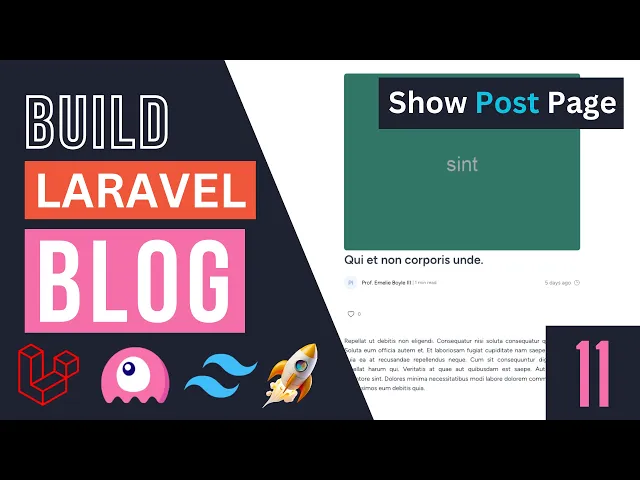
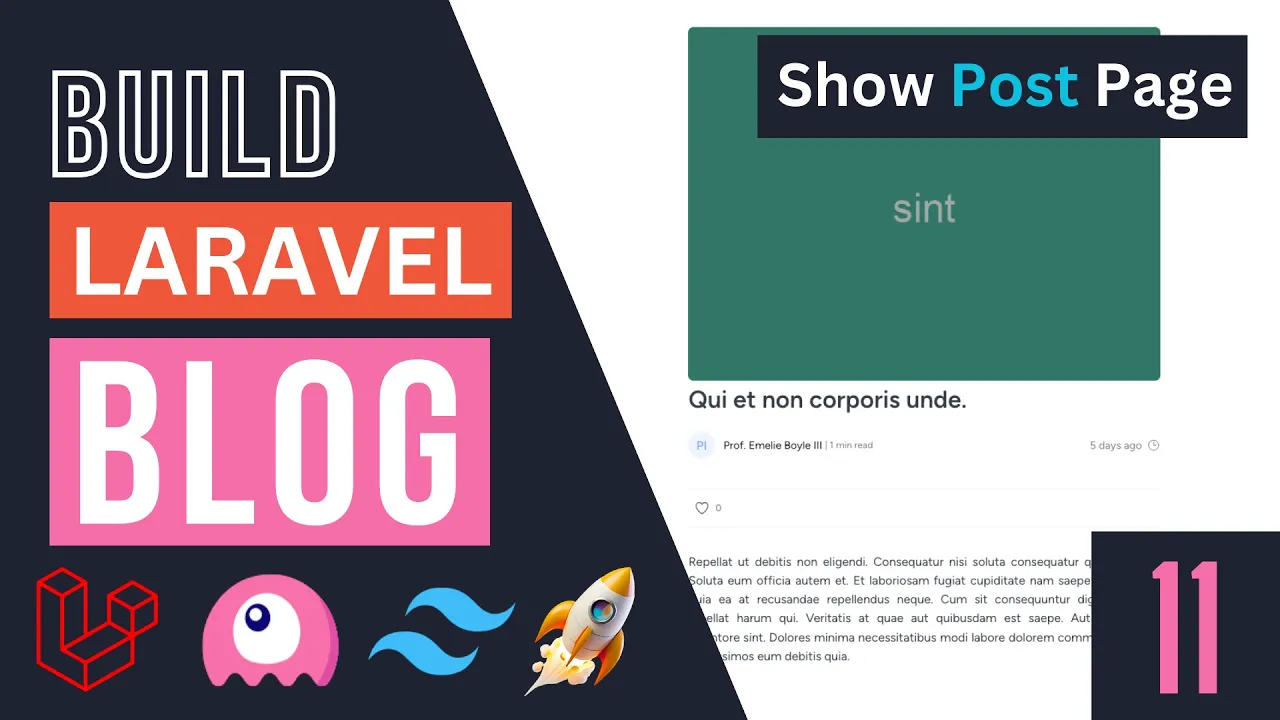
hey guys welcome back on today's episode we are going to work on our show post basically it's going to be a page that displays a single post right now if you click on any of these uh posts that we have we are basically redirected to a not found page right so let's go ahead and fix this on this episode now before we do that guys we currently have an issue on our admin panel and it was pointed out by one of our viewers on the previous episode basically if you try to create a new post and you click on create you actually get an error message and we didn't get this because we obviously already had a lot of posts that we created user ever using our post Factory so this should be a very easy fix basically open up your post resource file the filament file and then where we are actually displaying the author the select under inside the make this shouldn't actually be authored this should be user ID or the column name you use so if you used author ID go ahead and replace it with author ID in this case I use the user ID so I'm going to go ahead and use this and you can double check it if you set up your fillable or you can check out your migration file so now that we have fixed this issue let's save it up let's go back I will reload and I'll try again put some random stuff select an author click create and now as you can see guys it is indeed working so thank you for pointing that out guys I appreciate it so now that we have this let's go ahead and work on our post show page so this is going to be relatively simple page first I'm going to define the routes and set up the controller and then we can go ahead and set up the views so let's go ahead and do that open up our web. php file so for the show page it's going to be a route after blog so it's going to be blog slash and then here we are going to use our post slog right so for example it could be post title something like this so for this one we need to what needs to be an argument or a route variable and here we can say post without the dollar sign now we're actually going to use this log so if you just put post a lot of all will assume that you're passing in the ID especially if you're using a route model by Nick so what we need to do is you need to go ahead and do a double colon as a log so the route model binding will automatically detect it and then for this index we need to replace this with show same for this index over here and that's all we have to do in our routes let's open up the controller next I'll just copy the index it's going to be exactly identical so we don't need the category this should be show and then we need to accept our post so we need to get the model type and then post that's all we have to do now one thing to be careful guys is the argument name you use over here should be exactly identical to what you have inside your route so here if you use the article this variable name should also be article okay so that's very very important just be careful of this if you're getting any error messages make sure you you have the exact same name and now we can go ahead and pass it in to our blade file now if you guys would like you can go ahead and use a compact I personally don't like to use it on videos because it is a bit confusing for new people to a lot of all so I'll just go ahead and use this syntax I think it's very easy and you can immediately know what is going on so now we need to actually create this post show blade file now a lot of all tender is actually supposed to be a new command that was introduced I believe just last week or two weeks ago PHP arts and make View and then you should be posts show let's see if it works or not I'm just trying it for the first time and it isn't it working very nice so let's go ahead and copy the code from our index. blade.
php put it inside show and we don't need any of the content inside so let's just save this guys let's also save the controller now in order to test this we need to actually update our post item so it actually points to the show page so let's open up post item and we are supposed to have the post show page inside our image as well as the I the title okay so for this one for the thumbnail it's a very easy code we can say route posts show and then we need to pass in the post slog so I'm going to say post slug and we can copy this and reuse it over here so let's do a quick test see the routes is working so I'm going to click on it and it is indeed now working now we're also referring to it over here on our home page so this is going to be our postcard component so let's also open it up and set up fix the links there as well so we have the link over here as well as over here and let's see if it works as well it is indeed working very nice so now that we have this guys we need to actually set up the HTML inside of it so for this one you need to go ahead and open up the GitHub link for our HTML template I will have the link in the description it's going to be on all the videos in the description but basically we need to use this post. html file so it's a simple HTML I'm going to copy the entire thing by clicking on this copy Raw on the right side move over to our show file and paste it in inside our app layout so let's paste it in I'll format it so we need to remove obviously all the HTML we don't need so we don't need anything from header above let's delete all of these I'm going to minimize this article element we don't need the main and the body all those stuff we don't need we also don't need Main basically we just want this article tag or element okay so let's save it let's go back and as you can see it is now looking nice let me close this GitHub link so now we can go ahead and replace this with the actual post content which should be very easy to do so let's get started guys the first step is we need to update the post title I'm just going to say post title for the image I'll just copy it from our post item so it's going to be post get on mail URL let me copy that I'll paste it in for the alt I'm also going to copy it from Post item it's just going to be thumbnail we can also put the post title if you like next up we have the author details I'm actually going to leave that for now because we are reusing this on a few pages multiple pages on this page and item page I will actually go ahead and create a blade component for this so we can easily reuse it so I'll leave it leave it for now next up we have the kind of reading time I guess you could call it so for this one I'm also going to copy it from Post item is going to be post get reading time so let's paste it in over here next up we have this one which is the when it was published and we can also get it from here post published at diff for humans so that's it let's do reload make sure everything is working it seems to be working then we have ever like button so this one we don't need to do much we can actually copy the exact same code from post item and because we're using a liver component but the like button is guys is where the one is so you need to find it we need to replace the entire a tag inside show page let's save it let's go back make sure it's working and it is indeed working so we don't need to worry about anything again it's a independent component so it should work out the box as long as we are passing in the key as well as the post itself so the whole thing remaining now is the post content inside of it okay so let's scroll down now we do have this button over here this at three dots we don't have any use case for it currently on our application if you guys would like maybe you can go ahead and add some custom buttons I'm just going to go ahead and remove it because it's kind of useless at the moment we don't have any functionality for it so for our Port content we can go ahead and display the body so I can say post body now if we reload you can see guys we're not able to see any of the HTML tags so this is because by default a lot of a blade actually escapes or removes basically any of the HTML tags you have for security reasons right this is primarily because uh we want to avoid any xss attacks on our application okay so in order to fix this you can go ahead and replace this kind of mustache syntax two curly brackets with one curly bracket so basically replace it with this and this will disable the default HTML escaping okay so this is so you need to be careful with this if you add this your site will be potentially vulnerable to cross-site scripting attacks now in this case because we are only only our admins have the ability to post articles we don't need to worry about it obviously we trust ourselves in this case so we don't need to worry about anything but if you are using this with User submitted content never use this okay always Escape it just to be safe now if you for example have a Blog application such as medium or other people can post you will have to go ahead and either manual yourself Escape only the dangerous one so you need to only allow maybe H1 tag P tag the image you know the most common ones or maybe use a package for that that's kind of outside the scope of this tutorial guys so I'm not going to be covering it in this case only our admins can post an article so it's safe to do it and it is indeed working now we have this issue where this is going outside the page so this is a Telvin CSS issue if you're using it like bootstrap shouldn't be an issue but in Tailwind it just removes all the default styling Okay so and I believe there is an HTML there is a tag of I'm not sure what it's called Rose if I'm pronouncing it correctly this font so you need to go ahead and add this so let's do a Reload and as you can see it's now our pre-tag is looking nice and it also fixed the Overflow issue I'm not sure actually how you pronounce this is it Pros Pros I'm not sure but that's the tag that's the CSS class for fixing the issue next up we have the categories this one is going to be also very simple we can actually just copy it from here from our post item for each and then a display batch all right let me format this guys let's go back and it is indeed working if I click on any of these links as you can see it is indeed working now one thing I did forget guys is when we are adding these tags I forgot to add volume navigate to it if you notice the page is actually reloaded so let's go ahead and fix that inside our post item so this one needs to be volume navigate now you could potentially go ahead and create like a link uh blade component so we don't have to add this wire and navigate every time we use a link but that's a potential thing you could do for now I'm just going to go ahead and add it myself and we also need to do it on postcard as well so let's go ahead voy here navigate and also voy your navigate we might refactor this later on okay let's save it and I believe we are good to go guys let's test it and it is in now working without reload so we still haven't added the author so as I mentioned guys I would like to make this a reusable component I would also like to refactor our category badges so if you guys pay attention right now we are we have this piece of code over here where we are passing in the route where you navigate and the BG color this is kind of duplicated on multiple pages I believe three or four pages and if we later on decide to change this for some reason it's going to be a little bit annoying and we might forget to change it on one of the pages so I will go ahead and create actually a blade component just for category badges so let's go ahead and do it open up the terminal and type in PHP artisan make component and I'm gonna it's going to be obviously instead of a posts folder and I'm going to name it category badge or we can do category batch and do Dash Dash review hit enter and now let's search for a category badge is over here so this is going to be basically same as the badge over here right so we don't need to actually write any additional code just cop cut this or copy it come over here and that's all we have to do now we do need to add a pop to here to it over here so I'm going to say props and then a category and that's all we have to do super simple stuff now we don't need to basically repeat this piece of code on every single page and over here it's going to be super simple we can say x post category batch of course we need to pass it in the category so I'm going to go ahead and do it and this should work out the box let's do reload and it is indeed working now we do also need to change it on all the other pages so let me copy this uh posts category batch so we have it on post item so let's replace it over here yeah this looks much nicer we also have it on a post card so it's also updated over here and I believe we also have it on some categories box something like that yeah over here as well and I saw four different places and let's make sure everything is working I'm gonna test it over here this one works this one is also working very good so next up we have this author details so this one I also wanted to be a reusable blade component so let's go ahead and create that it is going to be this Pawn and I'm gonna say author right post author I think author should be enough so let's create it so let's open it up to author and we can let me close all these extra files we have so it's a bit easier for you guys to see so for now we'll go ahead and copy it from everpost item. blade file so the author details is this one it is this image as well as this span okay so I'm going to copy this or cut this move it over here now we need to accept obviously the author as a prop so let's go ahead and do that so I'm going to say props author you can also use user if you guys would like but I'm going to go with author so it's consistent with the component name of course we don't want to use it use the post for this so I'll get rid of that same over here and also same over here and I think that's all we have to do now uh we do need to do something for the sizing I'll fix that in a second so let's go ahead and in this case we can just say x post dot author and I think this looks actually very nice we're basically displaying the authors the post author and now we need to pass it in author as post author so let's save this let's do a Reload and it is indeed working so next up we need to do the exact same thing on our show page so let's also do it over there I'll just copy it from here go on the show page find the author should be somewhere at the top it's over here this MN part so let's go ahead and paste it in over here now if you guys pay attention and for this one we're using W10 and h10 so the size is actually different so we will need to fix that although it might look with the smaller size as well let's yeah I think it looks a little bit too small yeah I think we should make it a bit bigger so let's go ahead and add the ability to adjust the size so inside our author we can go ahead and accept an additional prop of maybe a size and we can do the same thing we did on our badge and basically Define a few different configurations so if anyone even opens the file they know that okay we accept like three different size sizes right so it's easy to use so I'm going to go ahead and take a similar approach so we can go ahead and use the PHP tag over here and then we need to so the size is applied both to the image as well as the text itself so we can maybe have two different variables for this I'm just you know coming up with a solution right now guys I'm going to say image size and this one I'm going to use a match statement so I'm going to say size and then for this one we are going to have small if we're small I'm going to go ahead and use the exact size we have over here with seven and then we need like a medium so for medium I say 10.
so this is what we are using on our show page or we were using and then I'll also add a large or later on maybe it's going to be 12 okay or maybe 13. let's have three difference between each and then I will also add a default in case we get some invalid value and for default I'll just go ahead and use seven or let's go over 10. okay so now we can go ahead and replace this w77 with image size okay now we need the exact same thing for the the text size as well so I'm going to say text size so for small you're going to use a text extra small although I know it looks a bit weird but we could technically go ahead and also add an extra small but I think this is okay for medium we are going to say text Mall and then for LG and this one should be LG not MD we can say text base so text base is basically the default size or we can just leave it as empty but I'm going to use text base and of course I can go ahead and use any other size you like guys you don't have to use the ones I'm using and then here I'm also going to say a text base so it takes small okay hmm actually I think medium should be base Yeah medium should be base and then maybe for this one we can use LG yeah for some reason our sizing is not exactly consistent on the pages right so on the let's go back on this page we are using extra small and then on the show page we are using LG so I guess I'm going to go ahead and also add an extra small I think it's a bit confusing here so let's do extra small here for the extra small we are going to use a w 10 w 7 H7 and then for small we can go ahead and maybe use nine same over here for the text size so this one is going to be extra small this one is going to be small and then the LG is going to be whatever it is okay now I think it's a bit better and then by default obviously we are going to use text base which is going to be our medium okay so let's save this now we are getting an error is telling us size is not defined now one easy solution is we can go ahead and set this to null by default in case the user forgets to add a size I think it's okay if you do that and then so by default obviously these got a bit bigger so we need to go ahead and Define it so let's open up our post item and I'm gonna say as size small or it should be extra small and now it's working now I think the size is a bit different I might have made a mistake on the class names this should be seven not six as a matter of fact I feel like it could also be a bit smaller I'm not sure I think it's okay I think it's okay let's click on this and this one I think by default is okay we don't need to actually Define a medium but let's go ahead and do it just to be safe so I'm going to go ahead open up our show page and here we can say size medium all right let's see actually how large looks is it too big yeah it's way too big or unless we have some issue in the although I don't think the television actually has a W13 so we can change this just to Tailwind width I believe it doesn't have 13.
it might have 16. so it has 10 11 12 so we don't have 13 but we have 14.