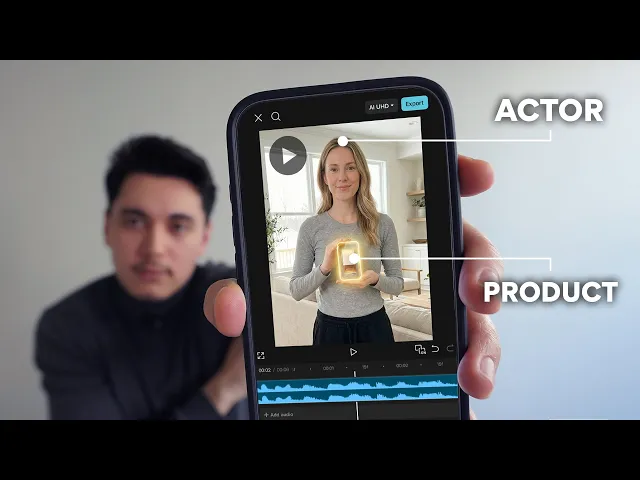
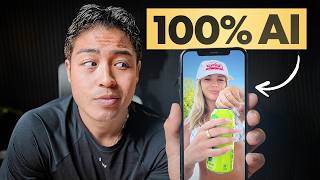
In this video, I'm going to show you how I create terrible AI UGC video ads that look something like this. >> So, I finally treated myself to this oversized lounge hoodie. And I'm not even kidding.
I basically live in it now. >> So, the reason I'm saying this ad is terrible is because it's extremely boring. And this is the biggest problem that I see with most people creating AI UGC videos is they think they could just generate some random actor who talks about the product for like a minute long and expect to get sales.
But in reality, you need to understand how to use AI to develop different shots and scenes to make your ad a little more engaging and look a little something like this. >> So, I finally treated [music] myself to this oversized lounge hoodie. And I'm not even kidding.
I've basically [music] live it now. >> So, now that you understand what I mean, I'm going to show you the step-by-step process on how I created this UGC character from scratch and how I maintained consistency across different scenes of that exact same character, showing different angles and different use cases of the product. So, let's get straight into it.
[music] So, I'm going to first start off this video showing you some actual proof that AI ads are currently working for my store. So, you know, this video is worth your time. So, I recently launched this new campaign for a new product that I've been testing.
And you can see yesterday I spent around $400 in ads, giving me a rorowaz of 2. 12. And to give a closer look, you can see the total net profit was around $170, giving me a pretty standard margin of 20%.
But I think it's pretty good, especially for a new product test. And considering the fact that I didn't even film the product that I'm testing and I purely used AI to create all of the visuals. And by the way, if you want to know how I'm calculating my profits super easily, this app is called True Profit.
And I use it across all of my stores simply because it shows me the complete breakdown of how much I pay my supplier to fulfill my orders, how much I'm spending on my ads, and how much I'm paying in transaction fees to Shopify. This way, I could see my true realistic numbers after all costs so that I can make the right decisions for my business. If you want to try this out for one of your stores, feel free to use my link down below and you'll get a free trial so that you can test it out.
And once you're inside the app, setting it up is super easy. It connects to all of your ad platforms so that it could sync all of your ad spend every single day. And it'll also pull all of the products from out of your Shopify store.
And then from here, you could just simply enter exactly how much it costs to fulfill all of your products. And once you have all of that set up, everything is pretty much hands-off from here. And you can see all of your numbers straight from your dashboard.
Believe me when I say that this is an absolute essential app to have if you're actually serious about running ads. All right, so now let me show you how to create an AI UGC video ad from scratch. So for this video, I'm going to use this oversized home hoodie as an example.
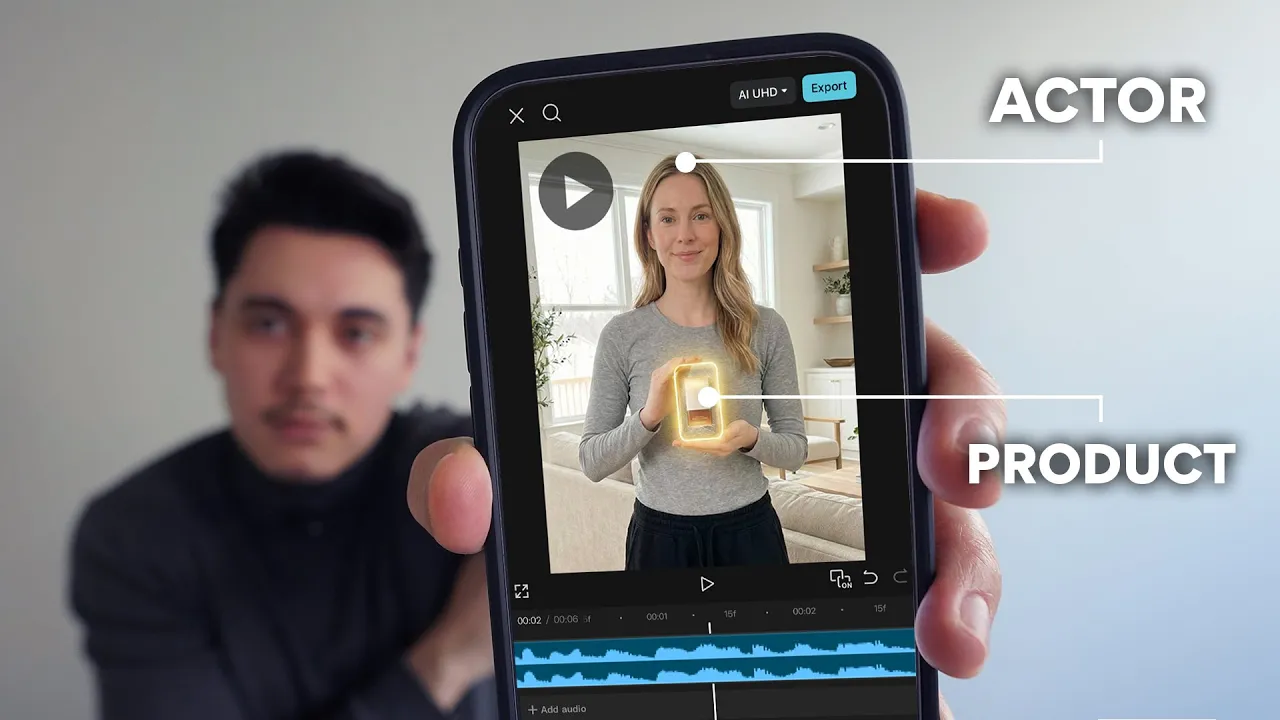
And the first thing that we need to do is create our UGC actor. And I'm going to show you how to do this completely for free without using any expensive tools. So to make this work, you need to go down to my description and get access to my free custom GPT.
Once you have access, it's going to look something like this. And what I'm first going to do is upload an image of my product. And then I simply wrote, "Help me make a UGC ad for this oversized home hoodie.
" Now, depending on what your product is, and if it needs a little bit more explanation, then I would recommend writing a brief product description and maybe upload a few more images and infographics of your product. This way, the GPT has a better understanding of creating a good ad for your product. Once you submit those details, it's going to ask you who your target audience is and whether you want your character to be wearing or holding your product.
Now, again, this is personal preference and it really depends on what your product is. Because this product is a piece of clothing, I definitely want the actor to be wearing the product and I want them to be in a really visible view. So then I just said that I want it to be wearing and I want it to be a third person shot.
And as for the target audience, I just let the AI choose it for me just because this is for demonstration purposes. If you want better results, I would definitely recommend putting in a little bit more effort and explain who your actual target audience is so that all of the visuals in your final ad are actually going to appeal to the right people. So after submitting my reply, it basically chose the target audience for me and then it created this entire image prompt that we can simply copy and paste into the image generator of our choice to create our UGC character.
Now if you want you can do this directly within chat GBT itself but in this case I'm going to use Google Gemini so that we can access Nano Banana Pro which I believe to be the best image generator as of right now. So I'm just going to paste in that prompt and then just upload a clear image of the product. And after submitting that we now have our UGC creator.
Now, one thing you're going to notice when you generate images through Google Gemini is that you're always going to have this watermark on the bottom right hand corner. Now, there's two ways that we can fix this. The first way would be to upload this into Canva and then we can edit the photo and then use the magic eraser and simply just brush over that watermark like this.
Click on erase and now the watermark is gone. And another way you can do it is when it actually comes time to editing your video. For example, I'm using Cap Cut.
And what I can easily do is just crop the video so that it appears a little bit closer and then just move the video so that we can hide the watermark. And there you go. All right.
Right. So, now that our UGC character is ready to go, we just need to go back to the GPT and then simply upload that image that we generated. And then it's going to take us to the next step where it's going to ask us if we have a script for our video ad.
And this is one of the most important parts of this process because if you don't have a good script, it can literally make or break your ad. But don't worry, I'm going to show you my method of creating high converting script for pretty much any product. So, one of the best ways of creating a script is by simply taking inspiration from other top brands or successful stores that actually have successful UGC ads that are running.
And you can find inspiration from many different ways. A couple of free ways you can do it is by going on the meta ads library. And then you can simply type in keywords that are related to your product.
You can also use the Tik Tok creative center which also has a full library of ads that you can take inspiration from. But in this case, I'm going to show you how I like to personally do this with an app called Mana. And one feature that I really love to use from this platform is their creative finder because I can just upload an image of my product and it's going to use AI to find all the other stores that are running ads for the same product or similar products.
And for example, let's just click on this store. It's going to give us this drop down which is going to show us ads that are related to this product or at least some similar products. And from here we can take a look at all of these ads one by one.
Listen to see if they actually have a script in their video and then we could see if we could take this as inspiration for our own video. Now, another way we can find more ads for inspiration is by going into the meta ads library as there's tons of different filters that we could choose from so that we can easily find the ads that are actually successful. So, for example, I'm going to choose all ads that were posted at least within the last 6 months.
I want to see videos only. I also want Shopify stores only as well. I'm going to filter by United States only.
I want to make sure that these ads are still active. And then I'm going to go up here and sort everything by the longest running time because the longer that the ad is running, this is going to be a higher signal that the ad was actually successful. And to take it a step further, I'm going to type in some keywords that are similar to the product that I'm selling, so that I could try to find ads that are targeting the same angle.
So, because this hoodie is kind of like the cozy and the comfy angle, I could first try to type in a keyword like comfort. And now I have a ton of ads that I could take inspiration from that have the angle of comfort. And I can even choose something more literal like hoodie.
And now I could see all the advertisers that are selling hoodie related products. And maybe one of these ads could have a script that I might want to take inspiration from. And lastly, one of my favorite methods is by simply looking at the ads from the top brands that I've already heard of.
For example, this brand called Omnilux is a brand that I've always seen on my Facebook feed all the time, and I know that they run a ton of UGC ads. And what I can actually do is type in that store name directly in Mana. This way, I have one complete view of how much money they're making every single day, how many monthly visits that they're getting, but most importantly, they also have all of their best performing ads all in one place.
And now we can see all of their ads that they posted within the last 7 days. And for example, let's click on this ad and see what they're saying in this video. >> Okay, so after all the gifts were unwrapped, I realized the one thing I really wanted wasn't under the tree.
So I finally treated myself to the Omnilux LED mask. >> So I think that's a pretty solid script that I'm going to use for my product. And again, this is one of the many methods that I like to use across Mana to help me find ads with good scripts.
If you want to give Mana a try to help you find inspiration for ads, I'll leave a link in my description down below. So now that I found a video with a good script, I'm just going to click these buttons down below and then click on download. And then I'm going to open up a window on Google Gemini.
Drg over that video I just downloaded. And then I'm just going to say to transcribe this video. And as you can see, we now have the full script of that video.
And then what I'm going to do is copy that entire script. Then I'm going to take it over to my other custom GPT, which is going to help us adapt this script for our own product. And this GPT is completely for free and I'll also have it linked in the description below.
So firstly, I just quickly wrote a prompt that says, "Help me clone and adapt this script around my product, which is an oversized hoodie for lounging at home. " And then I'm going to paste in that exact script. And then I'm also going to just drag over a clear image of the UGC character wearing the product.
And after submitting this, we now have a full script that is modeled after the same structure off of that ad from Omnilux, but it's now tailored for our own product. Now, do keep in mind that your first script is probably not going to be perfect. You might need to ask Chattyt to make a few changes here or there.
And if you want the best results out of this, I would recommend putting in some more effort describing the features and the benefits of the product that you actually want to explain in your video ad. And once you have a script that you're happy with, you just simply need to copy that script. Then we're going to go back over to my other GPT when it asks us if we have a script.
And I'm just going to type here is my script. And then I'm going to paste it below that. And then you're going to see that it also asks another question of what accent our creator should have.
And in this case, I'm just going to put American accent. And after submitting that prompt, it basically just analyzed my script and asked me if I want to proceed. And what it just did from here was break up our entire script into 8 to 10 second pieces and turned them into prompts that we can use to generate with Google V3.
And in case you don't know what that is, it's basically one of the best video generators out right now. And you can actually get access to it completely for free if you just sign up for one of their free trials. And it's literally going to give you a,000 monthly credits, which is going to allow you to create up to 50 different videos.
So after you sign up for your free trial, you want to head over to this website called labs. google. I'll also leave a link in the description below.
And this is going to be the platform that we will use to animate our UGC actor. So once you're inside here, you're going to click on new project. And then you want to make sure you're on the videos tab.
Then instead of text to video, we're going to click frames to video. And then you just want to upload the image of your UGC actor. We're going to make sure it's on portrait view.
And then click on crop and save. Once that is uploaded, we're going to head back over to the GBT that created all of those prompts. We're going to copy the very first prompt and then paste it into this box below.
You want to make sure that you're on the VO 3. 1 fast model and you want to set the amount of outputs to one. This way you can conserve as much credits as possible.
Now, if you take a close look at this prompt, it's basically just guiding Google VO to animate that actor and make them say the first line of your script. And after submitting that prompt, this is how our first clip looks like. >> Okay, so after all the gifts were unwrapped, I realized the one thing I really need >> that looks pretty good.
And basically all we need to do from here is click on this button to reuse the prompt. This way we have the exact same image of the girl uploaded. Then we're going to delete that original prompt.
Then go back over to the GPT so that we can copy prompt number two. Paste that in. And it's basically a rinse and repeat process until you have all the clips that you need of your actor narrating the entire script.
Now, one issue you're probably going to notice across all of your different clips is that sometimes your actor might say the script really slow or way too fast. And this is because Chad GBT is not always going to do a perfect job of putting the correct amount of dialogue in your prompt. So, for example, if this dialogue was causing the character to talk way too fast, then what I could do is delete one part of that script and then try again and see if the character talks more normally after that.
And besides that, another issue you might come across is that your character might not have the same voice across all of these different clips. But don't worry, I'm going to show you exactly how to fix that. So, what you want to do is download all of those clips that you generated.
And then you want to import everything into your video editor. In this case, I'm using Cap Cut, which is completely for free. Then we're going to put all of these clips directly into our timeline.
And you want to make sure that you take the time to edit everything. Chop out any specific parts of the video that you need to. This way, it looks like your character is explaining everything as fluidly as possible.
Once you have this initial video ready to go, what I'm simply going to do is go up here and then click on export. But instead of exporting the video itself, I'm only going to export the audio file. Then we're going to go over to a website called 11 Labs.
And if you want, you can use my link in the description below, which is going to give you some free credits to be able to use this platform. And once you're inside of 11 Labs, you want to use their voice changing tool. Then you're going to upload that audio file that we just exported.
And on the right hand side, you have the freedom to choose any voice that you want. In this case, I'm using this voice called Vanessa, which sounds really realistic. And it's basically just going to convert our entire audio so that the voice stays completely the same for our UGC character.
And after you generate that voice, you want to go ahead and download that file. Then go back to your video. Then we're going to import that directly into Cap Cut.
Then I'm going to put that audio below the clip just like this. Then I'm going to zoom in the timeline just a bit so that I can clearly see the audio waves. This way I can line up the audio waves perfectly.
This way the voice can be synced with our actor. So now let's quickly see how that actually looks like. >> Okay, so after all the gifts were unwrapped, I realized the one thing I really wanted wasn't under the tree.
>> So as you can see that sounds pretty good. However, the only slight issue is that it sounds a little too good and almost sounds like she has a podcast mic. Now, this is the only slight caveat of doing this method because Google VO doesn't have a way to maintain the same voice across all the different clips.
This is the only solution that I found to work as of right now. All right, so now that the base of our UGC video is complete, the next thing that we need to do is create some B-roll shots that we could put on top of this actor. This way, it's not just a boring video ad of this person talking about the product, which is probably not going to convert that well.
So, what we're going to do is go back into the GPT and when you get to the end point where it's created all of the prompts for your VO clips, it's going to ask you to upload an image of your A-roll character, which is basically the image that we created in the beginning of this video, and then also a clear photo of your product. After you upload those images, it's going to create your first batch of B-roll image prompts that you can simply copy and paste into a brand new window of Gemini. And you're also going to see that it's going to recommend what image you should attach along with that prompt.
And in this case, it's telling me to put the A-roll character image, which is basically this image right here. So, I'm going to paste that along with that prompt. And I think I forgot to mention this earlier in the video.
Make sure you are using the Pro model when you are creating images. Otherwise, if you're not, you're going to be using the older version of Nano Banana, which is probably not going to give you the best result. So, you're going to basically copy and paste all the prompts from the first batch that the GPT gave you.
This way, you end up with a bunch of different shots that we could potentially animate later on in this tutorial. Now, one thing to keep in mind is that some of your images may not come out that good. So, for example, with one of the prompts, I ended up with this image of the character kind of like floating on the couch.
And don't worry about this. This is completely normal and it's a part of working with AI. Sometimes you're going to get really, really good images and sometimes you're going to get images that you just cannot use in video.
And one thing I would recommend that you do with the GPT is to ask it to help you create as many B-roll shots as possible. This way you could just spam copy and paste as many images as you can because the more images that you have to work with, it's going to make the next step of this process much easier. So, for example, I replied to my GBT and I just said, I want more B-roll close-ups of the products and also more lifestyle photos of the creator chilling on the couch or in the home with the hoodie covering her whole body.
And then it just created a brand new batch of eight prompts that I could just copy and paste. And then I ultimately ended up with really nice shots like this one. a nice lifestyle shot of the girl working on her laptop and also that same girl chilling on the couch with the hoodie covering her whole body.
So, now that we have all the B-roll shots that we can work with, the next thing that we need to do is take these images and turn them into life just like this so that we can actually use it in our video ads. So, this platform that I'm using here to animate this photo is called Cling. And you can sign up for a free account in my description down below and you'll get some free credits that you can use to generate your first few clips.
And there's also a paid plan that starts at like $7, which is going to be enough to help you create at least 30 B-roll clips, which is extremely cheap, especially compared to some of the other platforms out there that will charge you hundreds of dollars just to generate a simple UGC video. So, the way I was able to animate this scene with Clink, you just want to make sure you're on the AI video generator and you're under the imagetovideo tab. In this case, I'm using the 2.
5 Turbo model as this is the latest version at the time of recording this video. Then, where it says start frame is where you want to upload the image of your B-roll shot. Once you upload that image, all you have to do from here is write a simple prompt of what you want to be animated from that image.
And there's two ways you can do this. You can simply write out the prompt by yourself. In this case, this prompt right here is something that I actually wrote on my own.
Otherwise, you can also upload all of your B-roll shots into the GPT and then it's going to analyze everything and actually create the full video prompt for you that you can also copy and paste directly into Claim. So, I'd recommend testing with my GPT prompts if you're not really good at prompt writing. But most of the time, depending what you're looking for, you can actually get better results just by simply writing out the prompt yourself.
So once you enter in your prompt, you can choose if you want a 5 or 10 second clip. I would recommend going with 5 seconds as that's usually enough to get a good B-roll scene and it's also going to use the lowest amount of credits. And then we're only going to select one output because if we select more outputs, it's going to use way more credits and you're going to burn through it pretty quickly.
And that's pretty much all I did to be able to animate this exact image of this girl chilling on the couch. I was able to create this B-roll shot here just by using a prompt I wrote by myself. We also got this shot of this girl actually working on her laptop and even this nice action shot of the camera zooming towards the hoodie and the girl rubbing the fabric to show how soft it is.
So, you can really just see how the possibilities are pretty much endless with AI. And as long as you have the right visuals and the right B-roll to match with your video, that's what's ultimately going to build the most value and the most engagement behind your ad. And once you're satisfied with all the B-roll clips that you've created through Cling, you just want to download every single one of them.
And then you import all of those into Cap Cut. And then you simply place all of that footage on top of your actor so that you can create a full video ad that looks like this. >> Okay, so after all the gifts were unwrapped, I realized the one thing I really wanted wasn't [music] under the tree.
So I finally treated myself to this oversized lounge hoodie. And I'm not even kidding. I've basically live in it now.
It's oversized in the best way, [music] super soft on the inside, and feel like wearing a blanket without overheating. It's become my go-to for lounging, working from home, and just relaxing at night. If you want something you'll actually wear [music] everyday at home, get this hoodie now.
I'll link it down below. Now, I know that video ad was not 100% perfect, and it's definitely not one of my best work, but I really created this video just to give you an idea of how you can create a full AI UGC video from scratch, and how you can use AI to your advantage when you don't have access to UGC creators of your own, which are actually very expensive, or if you don't really have the skills to record videos of your products at home. Now, if you did enjoy this video and you found it valuable, be sure to drop a like and subscribe to my channel, as I'll continue to make more tutorials around AI and how I use that for e-commerce.
And also follow me on Twitter as well as I share some tips from time to time on everything related to AI, Facebook ads, and e-commerce as well. And with that said, I thank you so much for watching and I'll catch you on the next one.