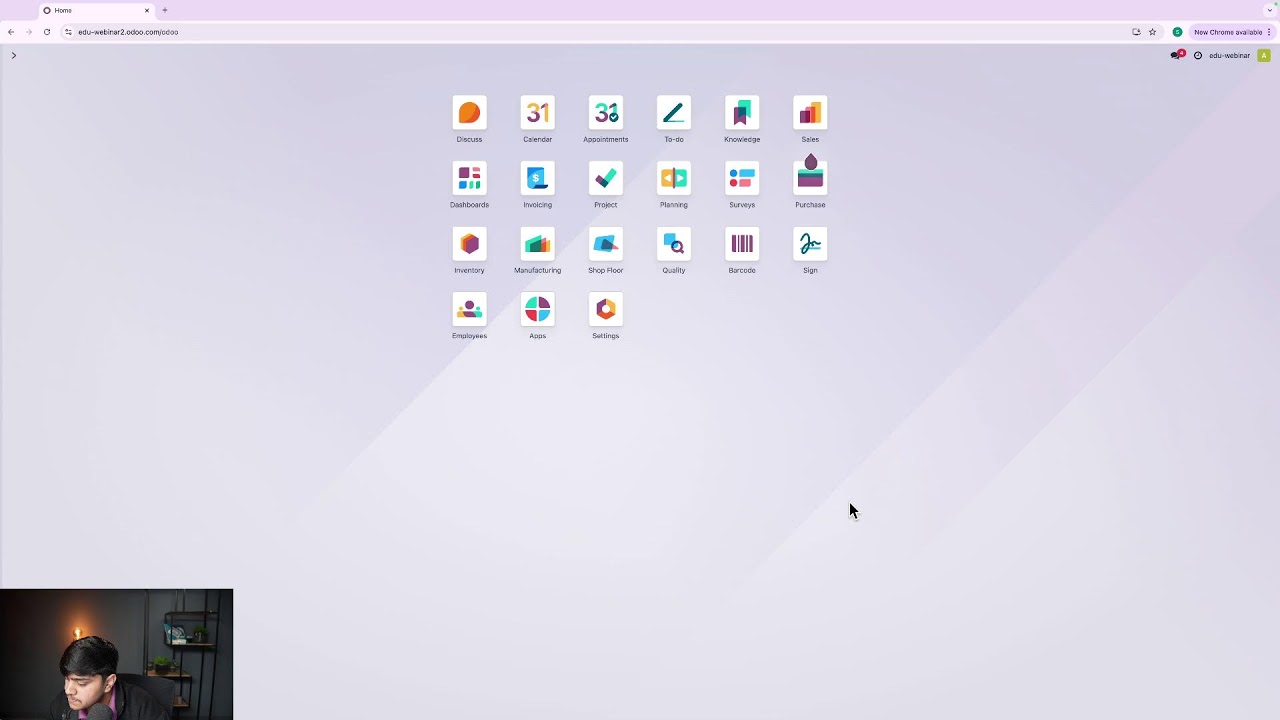
hello doers my name is Jose gasio let's be honest right here this is a safe space would you ever get anything done if it wasn't on your calendar me neither I'd probably never attend a meeting again and since my boss wouldn't necessarily like that I should probably make sure all of my most important calendar events are synced across all my devices and all my accounts fortunately the ODU calendar app is integrated with so many other ODU apps from CRM to sales to appraisals we are constantly booking appointments and sending meeting invitations not just to our
team but to our customers as well so today we are going to connect my Google Calendar to my ODU calendar now before we get started ODU recommends testing the setup on a test database with a test email address that you use just for this process that way once you are ready to create events you won't accidentally invite a whole list of people to a meeting that none of them really want to attend so let's get right into it shall we enough chitchat so first we have to make sure everything is good to go on the
Google side of the equation this right here happens to be the Google API console and the first thing I'm going to do is create a new project to work with so to do that see up here where it says select a project let's click on that and select new project right there okay we got to give it a name inside of this popup window so why don't we call this one Odo calendar project perfect then you want to select your organization as well as your location you can browse do whatever when it comes to that
and then you hit create and now we wait a little bit because after a little bit I'm going to be notified that we have our new Google project then once that it's done it's going to appear right here and would you look at that there we are it's already selected it for us and we've been notified great looks like everything is all set now I want to select enable apis and services up here at the top all right what are we looking for well this is the library with all the apis that I can enable
on this account but right now our only concern is with calendar so let's make sure we go over here and find calendar there we go it's the first one it says Google Calendar API then we're going to select enable on it right there awesome while this is working we need to make sure that we can actually log in and actually use it so for that we actually want to make our way over to where it says oo consent screen over here okay now this is the step where once we select this and get started we're
going to create everything so the very first thing we need to configure is the consent screen that will pop up when we establish the sync in the yo database the second thing I need to do right now is decide if I will be targeting internal or external users so I'm going to enter in right now my app name and then my support email happens to already popul right there and it happens to be the one that we're using for this we're going to select next after that then we're going to select external for these then
we go forward now it's going to ask us for our contact information now I'm going to be using my personal Gmail account for this app so further from this I also have to add my email one more time as the developer contact information so let's just put that in right there and select next okay we agree to everything and hit continue when we're finally done we hit create boom after all of that we're finally done and we're done here but we want to return over to our branding page because you want to scroll down to
this area where it says authorized domains we're going to add one in real quick that says odu.com once we have that in there we hit save this one is necessary so make sure you save right there and also while we're here I think it's time for us to also talk about our people who are going to be using this so let's go over to audience and scroll down here to test users hit add users type in the person who's going to be a test user for this and then select save boom just like that we're
added there as well I've made myself a test user all right now that we're done with everything let's go back over here to our overview okay and if I wanted to add any other users by the way with personal accounts giving them the ability to sync I will need to add them back over on the page but for now I'm just going to stick with my own setup Soo now we can finally create our client so before we head into Odo we need credentials so to do that we going to select create oo client right
there it's going to ask is for our client type or our application type in this case we're setting up a secure connection between our ODU database and the Google API so I'm going to need to create those credentials so immediately ours is a web application and we're going to need to be able to create one with a name what are we going to do for this one I'm just going to do my ODB for database all right perfect so under authorized JavaScript Origins this is where we're going to select add URI and very quickly I'm
going to go look for mine because I just realized did not put it in there right away this is going to be the URL of your database right there and this is going to allow for a connection to the database and to pinpoint where the sync requests are coming from so I need to make sure that I am typing the full URL for my Odo database exactly correct here as you can see okay now that that looks good under authorized redirect youris I'm going to do the same thing but this time we have to add
something else going to paste it back in there right there and we have to add a dash first don't forget that Google underscore account Dash authentication I know that's a mouthful but trust me you're going to need that right there okay and let's double check to make sure for our own sanity that we did that correctly Google account authentication perfect everything is done all right once that we're we're done with that this will create the redirect request or link back to Google and link to the ODU website to this newly created oath login once that
you've double checked everything you just select create right there and then once that everything looks good as we could tell right there you got to give that system a little bit of a few seconds to cheer up and fix itself so first what we have inside of here happens to be the client ID and then beyond that if we select it in here you're going to see what I'm talking about we also happen to have the client secret I'm going to need both of these in just a second mine has been blurred out for my
own safety so I'm going to keep them somewhere safe for now then as a small o dupy I almost forgot we still had one last step to do you actually want to make your way back over to the main overview over here on the Google side and then you want to select audience select publish app and select confirm at the moment we happen to have had it on testing it won't work unless it happens to actually be in production with that done we can actually now move move forward into ODU okay we're actually almost done
the very first thing I want to show you right now is on the screen happens to be my actual calendar you'll see some nice events over here but let's move on inside of Odo okay so the very first app we're going to open up is calendar so inside of the calendar application we want to direct our attention to configuration and settings now you see where it says Google Calendar make sure to toggle it and then hit save and you get a nice prompt save this page and come back here to set up the feature don't
worry we're going to put that in right now okay so inside of here now going to take our two secret things our client ID which is still blurred everything is still going to be blurred OD doers yours is going to be unique and then finally our client secret remember to hit save and with that we're good to go now once that we move back on over to our page for our calendar if we select our calendar you're going to see something new pop up you see right here where it says synchronize with Google that actually
isn't normally there unless you have the option selected right now you also as you saw have the option to select it so let's select synchronize with Google select your account from the list and if you get this it's okay if it hasn't been verified just select that uh show Advanced as you see right there go to odu.com it's going to ask us to verify this and if we did everything correctly would you look at that everything right there is perfect ah I told you guys everything is really nice now I want to talk real quick
about if we go back over here to settings you'll notice there's an option to pause synchronization this is useful if there is ever a time when we want to disconnect the syn temporarily we can actually check that box off that will turn the sync off globally for the database but it won't delete any of the credentials or undo any of the setup work we had to do this is helpful as a setting to use when testing a Sandbox now it should be noted if the setting isn't turned off and you make changes to an invite
and you save it or create SL delete another or even remove someone from an invite it will send an invite out to all the recipients so be mindful of the spam this can cause all right everything looks perfect and beautiful as you could tell from our nice calendar now and with that oo doers we're finally done now all the meetings and appointments I schedule on ODU are added to my Google Calendar without any extra steps for me that wasn't so bad now was it you made your first API connection with ODU nice work go grab
a snack I'm eating seaweed again it's my healthy face [Music]