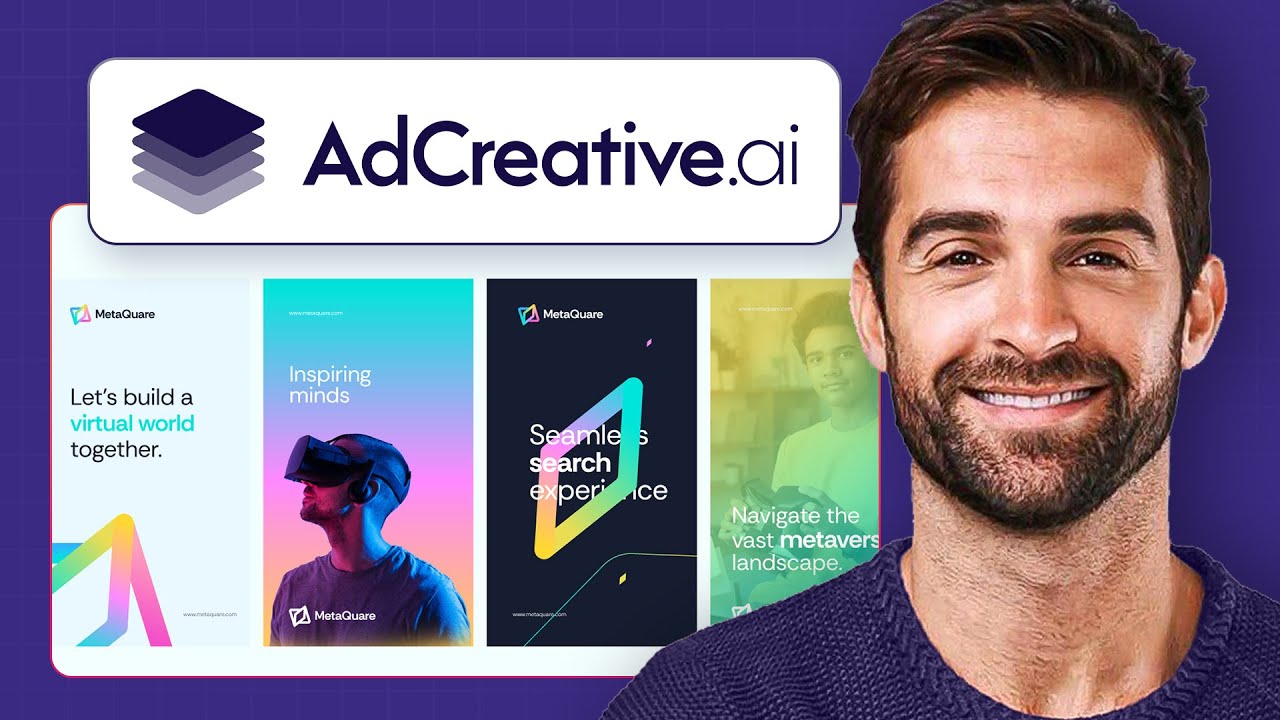
let's face it we should all be running more ads for our business because that's how we make more money but most of us don't why well creating a range of different ads and testing what works is really time consuming or at least it was the tool I'm going to talk about today lets you effortlessly create ads for Facebook Instagram LinkedIn and more you won't need to hire a designer an advertising agency or a copywriter to create amazing ads I'm going to show you how to use it even if you are a complete beginner and the
tool that you will need and that I will be talking about in this video is called adcreative.ai I'm going to cover how to link your advertising accounts how to set up your brand within the tool how to go ahead and create your ads pay close attention to this part as there are some bits you easily miss here and some steps that are a little hidden and then number four is I'm going to show you text projects what they are and how to use them okay so the first step is to show you ad creative dot
AI so the first thing that you need to do here in ad creative is actually integrate it with your advertising accounts so the way you're going to do that is click in the top right hand corner here which opens up your account options you will then select Integrations and you can see I have already connected my Facebook ads and my LinkedIn ads but it's as simple as clicking on connect account it's going to take you to a little pop-up window where you'll simply log in to either your Facebook LinkedIn Microsoft or whichever ad account you
want to connect and then it will be able to get all of the data about how your ads are performing make sure to do this it's going to make this tool a lot more powerful okay so the next thing is then to go ahead and create a brand and everything you do within ad creative is going to be based around your brand so you go ahead very self-explanatory click on Brands and then you will go ahead and click create a brand what you're going to do in this part it'll guide you through it step by
step is you'll pop in your brand name you'll then add your logo then a brand description the biggest piece of advice I can give with this tool is to give it lots of information the more information you give it the more accurate it is going to be and then of course you want to go ahead and choose a brand type so e-commerce local business technology Etc I have already gone ahead and created a brand so you can see here this is what it will look like when it's finished and then within that you can see
some of the projects that I have already created so next we're going to move on to the ad creative itself there are a couple of really important options to fill out when going through this process that are a little hidden which I actually missed the very first time that I used this tool so I will discuss those mistakes and the pitfalls to avoid when we get to creating the images themselves first up you want to click on create a project which is just up here and then you're going to choose of course the post size
so do you want it you know this is more of an Instagram format do you want landscape story vertical Etc and then you've also got different display sizes as well so if you're doing display advertising of course you can select one of those so you can also and I would highly recommend that you fill out these project descriptions and also your target audience these are a little bit hidden right at the bottom and I actually missed these the very first time so I'm going to use what I've already put in there and then target audience
is going to be new four sets so again I would say to use as much detail as you can this of course just for example purposes so you'll press save and continue and then what you're going to do here is you can if you have a headline you want to use a punch line a call to action Etc but this is where the tool really comes into play if you have no idea about copywriting what a catchy headline would be and this is why I say a complete beginner can use this tool because all you
have to do is click this button for text AI I'm going to choose English of course and then it's going to create the headline punchline call to action for me so you'll see it pop up on the screen in a minute and there you go so you can see it's generated a really good headline so get your legacy in print write your legacy as the call to action it has repeated itself here so I would probably choose one of the other options you know craft your book leave a legacy so it will give you some
different suggestions and then here you can see the preview so next up of course save and continue and then this is where you will add images to create the ad okay so now that we've moved on to creating the actual image itself this is where I went wrong the first time I was using this tool so you can either generate a single image or generate multiple posts from multiple images but there are a few catches when you're generating multiple images and it's not obvious which ones and how to do it so I'm going to make
that clear for you right here so the first thing you're going to do is go ahead and with the single background image it's really straightforward you would just click here upload an image and then it's going to appear here you'll then go ahead and get your variations now with the generate several background images it's a little bit more complicated so I will go into that now so you'll click on this little down arrow what you can then do is use a number of different images so let's just use image search engine it's going to come
up actually with some recommendations so here we go it's got a few that we can use so I'm going to select that picture I am then going to select another picture of course as well let's use this one here there we go we now have a couple of pictures so what you're going to do is go ahead and click create a post let's call this author add save and generate as you can see it's now going ahead and generating these posts for us okay so now we can see all of the posts on the screen
but what we can see is just the very first ad image so remember we use two different images so that we could create all of these ads but with the two images so the way that you actually access both of those images I will explain in a moment first off what you can do is see all of these previews of the ad and how they will look and then you can select the ones that you would like to download in effect so you can go through all of these they also rank them in terms of
their conversion score How likely they are to convert and do well so as you can see there's there's hundreds you know that they post here you can just kind of keep scrolling and scrolling um so I actually liked this very first one uh or second one I should say this one here and then what you'll do is you go ahead and click on download options so you can either download just that one image or you can do the bulk download right and that bulk download is what's going to give you the two options that you
created so it's going to have this advert with this image but then the same advert with the other image so you'll click on bulk download it's then downloaded as you can see so then what it does is it downloads to your computer you have to actually open up the file and what you'll see is in here there will be two versions of that so this is the first version with that first image and then you click on the other one and there is the other image in the same advert so that really tripped me up
the first time because when you're in this part of the dashboard it only shows you the one image it doesn't give you a preview of the other image maybe that's something that they will change in the future by the way you can get a free trial of AD creative dot AI for 30 days completely free by clicking the link below in the video description also comment below and let me know how you get on with the tool okay so the final part of AD creative dot AI that we're going to move on to is text
projects I would say this is an underrated part of the tool it's going to help you generate a range of different ad Tech sets so listicles pain agitate solution and you can even change the tone so I'll show you what I am talking about here so you go on to text projects in the menu and then you can create a project and what this is is going to do is generate add text using the AI and to put it even into even more context you might want to generate a short headline for an ad you
might want to generate you know a general ad text a listical style which you can see here you know this one here is for teeth whitening world's number one teeth whitening system loved by 600 000 plus customers you know and then this kind of highlight the pain agitate it and then offer the solution so there are all these different styles that you can choose and then on top of that you can choose the tone so you can have friendly luxury you know professional Etc and then what you want to do is give it you know
your product a service name and also give it some you know description to really help the AI figure out what it is that you're selling and again the call to action so similar to creating the images but of course for text I think this is hugely underrated and I'd highly recommend giving it a try finally knowing where to get the best return on your ad spend is crucial and in the next video you can find out if Twitter is the place to get underpriced attention and make the most of your advertising budget [Music]
![7 Best AI Ad Generators to 10X Your Ad Creatives in 2024 [Images & Videos]](https://img.youtube.com/vi/JmmhbzcGWNg/maxresdefault.jpg)