[Music] what's up everybody I'm Jesse Showalter and in this episode I'm gonna be taking a look at the most basic commands you can use in the terminal how to get started in the command line not to be scared of it it was Daniel Johnson that left a comment on my channel asking for a video covering the basics of the command line and so that's what we're gonna do today cuz I know exactly how he feels when you first open up the terminal it looks scary it looks sketchy you feel like you're gonna break your computer
but you don't need to be afraid and here's the first five or maybe ten we'll see how far we get commands you can start using right now okay so we're gonna get started in the terminal today and to do that I'm gonna come down to my dock and open it up if you don't have it in your dock you can just open up a new Finder window you can go into your Applications folder and all the way down at the bottom you should see a folder called utilities and you can double click and open up
the terminal you can set different colors for your terminal I just have mine like Matthew Broderick or games like black and green cuz that's how I like it let's talk about the terminal and what all this is that you're looking at here on the screen the command line is the actual line that you're about to write on so if I was to right here I'm on the command line I'm about to put a command into the computer on that line and it's gonna do something the prompt is a common term you'll use when you're dealing
with the terminal and for me my prompt has the name of my computer and my username with a dollar symbol some people simplify the prompt so it's just the dollar symbol and they don't need all that information beforehand but by default this is what it looks like most likely the terminal is what we use to describe the program itself when I open up terminal I get this whole interface that is the terminal okay let's talk about running a command on the command line now but first to do that we have to know the parts of
the command that you're about to run nearly all commands you're gonna run have three parts the program the option and any arguments that might go with it I know that sounds really scary really confusing but stick with me let's run our very first command in the terminal and that's gonna be a simple command that just has the program it has no arguments or options on the end of it just the program itself we're gonna figure out where the heck are we in our computer we're gonna type the letters P W D a sense for print
working directory and what we're gonna do is actually print to the screen where we're at in our computer where is the terminal actually almost like a little investigator he's sitting somewhere in your computer ready to do stuff we want to figure out where the heck he is right now so I press ENTER you're gonna see it says slash users slash Jesse Showalter that's the folder I'm currently in everything that's gonna happen in the command line for the most part is gonna be a representation of what happens on your computer so I can come over here
and open up and you can see that I have a folder called Jesse Showalter right that's my standard like Mac OSX like users folder right and and this is now telling me where I'm at I'm inside of this folder so I should now be able to access any of these folders that are inside of that directory let's run our next command in this command we're just gonna see a list of all of the different stuff and folders and directories of the directory we were currently in so remember if you saw remember our last command we're
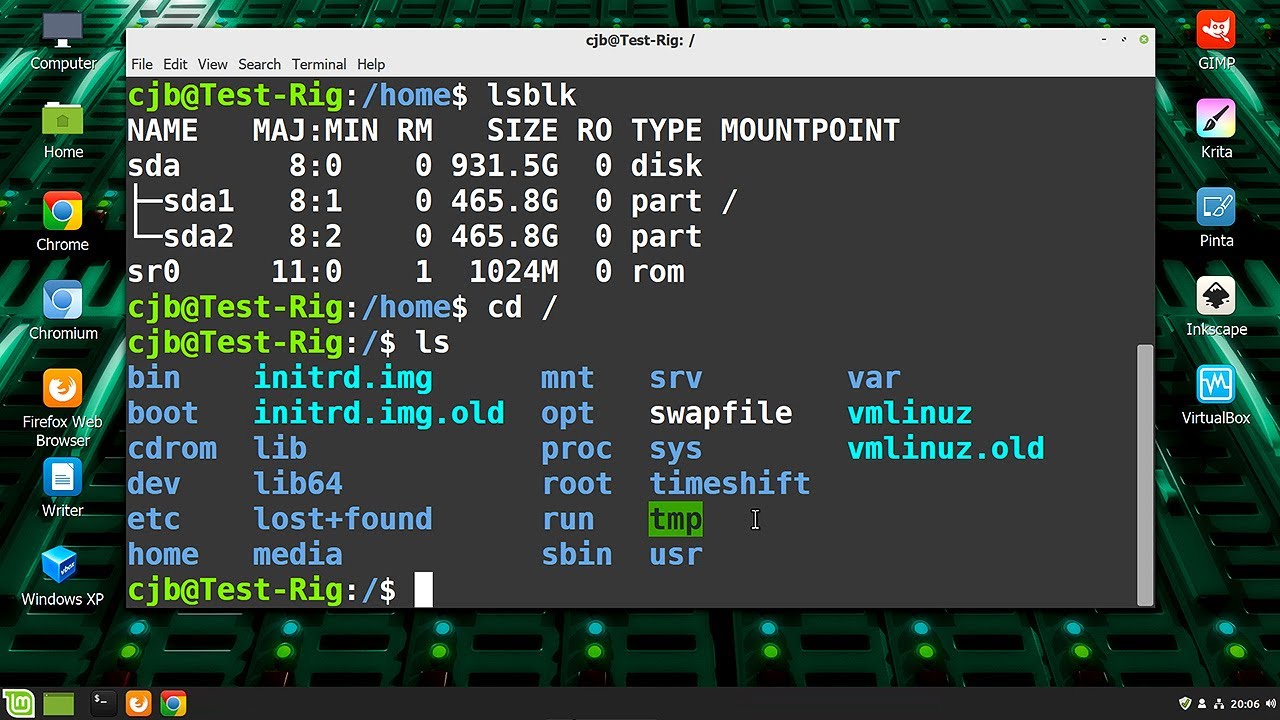
inside of my users slash Jesse Showalter folder we should be able to see all these other folders how do we actually see them I'm gonna type the letters LS that stands for list and when I press enter you can see I get a list of all of the items that are currently there you can see in alphabetical order those are all the directories that are you know available to me right now now that was another just program let's add a little option to the end of it I'm gonna write the word type list but then
I'm gonna put a space a dash and an L and then I'm gonna press ENTER that's gonna give me a list in long format that's the argument to the program right so now I've listed everything out congratulations you just ran your first complex program in the command line well now that we know that we have all of these directories available to us let's run another command that will actually change the directory that we're currently in into one of the other directories so I want to type the words C D or the letters C D that
stands for change directory see how easy the terminal is so awesome the command line is so simple so we write C D and that's gonna help us change directory now we're gonna pass an argument what directory do you want to change into well we want to go from where we're at which is currently inside of our jessie Showalter folder and I want to go into my let's say the desktop okay so I'm gonna write space capital D and just spell the word desktop okay now a quick tip you can spell out a large portion of
the word and just press tab and it will auto complete the rest of the word for you as long as it's not confused from other directories you're about to go into I press ENTER and now it tells me I'm on the desktop see my prompt if we zoom in and look it's telling me that I'm on my desktop this is why I don't like to change my prompt because I like that confirmation and so now I'm on my bet desktop you could as soon as you get here to confirm write print working directory yep absolutely
I'm on my desktop I can then write lists but I don't get anything because there's nothing on my desktop how about we make something on our desktop so our next command we're gonna actually make a directory I know don't be scared we're gonna make a file usually you would make a file on a Mac just by right-clicking and writing new folder right and now we have an untitled folder there that we can name something but we don't want to do that we want to use the command line to make stuff so here we go we're
gonna make something the command line you can see we're gonna print working directory first what we're gonna do is we're gonna write the word clear and just clear up our our terminal to make sure it's nice and easy I don't like looking at all that stuff you can always just write clear to wipe out everything you've done now what I'm going to do is I'm just gonna write print working directory sure enough I'm on my desktop and now I want to make a directory okay how do we do that we're gonna make a directory by
writing the letters MK dir make directory if I do that it's saying you can't do that you need to pass some arguments you got to pass some options what do you want your directory to be named you can't just be saying make directory I don't understand what you offer me so let's pass it an argument we're gonna say mkdir that stands for make directory and I want to call it test you'll see the minute I press ENTER we got a test folder that just popped up here on our desktop we just made a directory let's
um change directories into that folder so impressed CD and we're going to go into the tests and now when we print working directory girls you'll see that we're inside of the test directory let's get out of that directory and go back to the desktop ah how do we do that we're gonna press CD and then we're gonna press dot dot slash that's gonna go one layer up one level up in the directories all right it's gonna back out I do that you'll see that I am now back on my desktop so anytime you want to
get out of something you can just do dot dot slash and go backwards yeah if you want to go out of something and into something else like for instance let's go back into to the test directory if I want to get not just out of tests and go into the desktop but then I want to go somewhere else you can do that so let's say for instance actually we're in a back up one second we're gonna make another directory on our desktop we ran mkdir one called Jesse and now we have a new directory there
and I'm gonna CD into Jesse now you can see I've changed directories into my Jesse folder or Jesse directory okay I'm in there I don't want to do separate command to go up and then another command to go into tests so I'm gonna do CD dot dot slash and then I'm gonna start writing test and it knows that it's there and I've just done that whole traversal into the test directory like that now I'm gonna see B one more time and I'm just gonna come out of here now I've made these junkie directories I really
like my Jesse one but I don't like the test I want to get rid of that directory okay let's do this so we're gonna get rid of that test directory to make it we put mk4 make directory if we want to remove it maybe we'd write RM dir and then the name of the directory test ooh we just completely deleted so we've removed the directory and now we just have you know the one directory that we've made sitting on our desktop really fantastic but what if we want to make a file inside of that directory
what we can do that let's just CD into Jesse and now we're going to make a file there's a lot of ways that you can make a file and I'm going to cover two quick ways to do that right now the first one is called touch it's like you just reached in and touched a file into existence and you literally just write the word touch okay if you're right touch and do just that it's gonna say man you need to pass me an argument I don't know what you want me to touch that was little
bit creepy the way that I said that but if you passed an argument just like making and removing a directory you want to write touch that's the command or the program we're about to run and you want to name the file so we're inside of the Jesse folder let's start a website we're gonna write touch index dot HTML and we're gonna hit it and when we go into our desktop or Jessie file look at that we have a brand new one here let's let's do that again so you can see this is another good lesson
I've deleted that one manually just with my mouse and my cursor I'm gonna go back to my terminal and I want to do that same command again I'm just gonna press up on the arrow key and that's gonna start cycling through all of my most previous commands that I've run so I can cycle through and just find touch index dot HTML again and hit it again and bam it made me an index.html file monk let's do that again in a different way and actually give it a little bit of something-something so first thing I'm gonna
do is I'm gonna remove index.html okay so I've deleted that one and instead of removing a directory I just removed the file right so I removed the file and now I want to make it a different way instead of touching it and having like an empty file I want to actually put something in it so instead of that program of touch we're gonna run a program called nano and we're gonna then name the file index.html and it's opened up like almost like a text editor so we can put something so I'm gonna put a little
paragraph actually let's make it an h1 that's a headline for those of you that are savvy with the website making and we're just gonna say hello world as you know as you always do when you make a website and that says hello world okay so it says hello world and then we're going to exit by pressing command X and it's gonna ask you down at the bottom do you want to save this modified change I'm gonna press yes and I'm just gonna press ENTER and bam it's creating an index.html file that when I open it
with Chrome you'll see I have a whole little world statement inside I just wrote a website inside the command line well that's it that's how simple it is to use the terminal to get into the command line and start running commands on your computer this is going to be different for PC versus Mac but there's a lot of similarities I'm gonna leave some links down in the description about basic terminal commands basic command line stuff for PC and for Mac and so please make sure to check out those resources so you take this kind of
introduction to the terminal to the next step and actually use it for all of your stuff it's an awesome thing and you should spend as much time as possible in the terminal a little bit of advice if you really want to learn the terminal I would just keep it open on your computer and try to run all basic commands like creating and deleting of files and moving files around using only the terminal and see how you can do with that you become really proficient and just running commands and cycling through them for your development process
I hope that helped you guys I hope you enjoy the video if you did make sure to leave a thumbs up and subscribe to the channel I like to do a lot of stuff about design and development and creative stuff just like this so I hope you guys enjoyed it and I hope you'll stick around if you have any questions make sure to leave them down in the comment section and remember to check the description for all the links to the different learning resources I've put for Mac and PC and command-line hopefully those will help
you guys hope you guys are making amazing stuff hope you're designing amazing stuff and I hope you're a little less afraid of the terminal I'll talk to you guys next time [Music] [Applause]