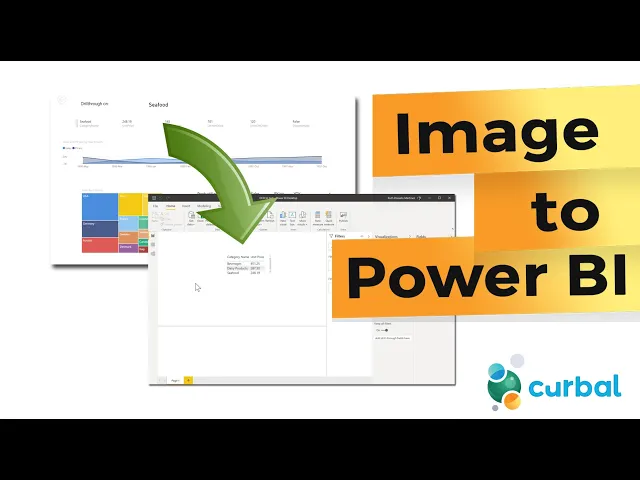
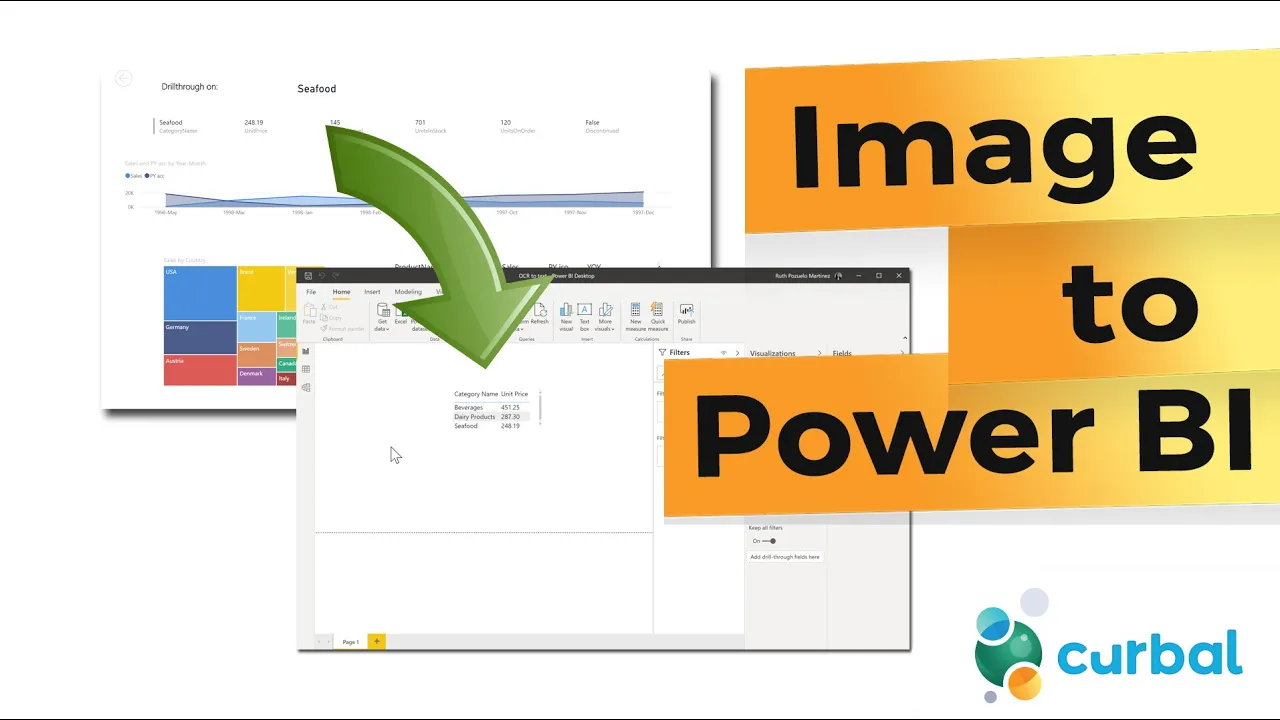
so hello everybody this week i developed some serious superpowers and because you clicked that play button you are going to develop them too so this is what we're going to do we're going to get an image for multiple images we are going to get all the text out of the images into a text file and then we're going to import the text file data into power bi to get the data that we want out of those images so cool so good and very easy to do let's get started i can't wait okay guys so this
is what we need we need a place to store the files i'm going to use onedrive business that's the one i found that was best then we're going to use flow to get the data out you know to automatize the process of getting data the text out of the png files to actually get the text out we're going to use azure computer vision so cool cool but don't worry it's very easy to do and then we're going to get you know store the text into text file and then we're going to get power bi to
get everything out it's so cool so what we need first of all we need to go to onedrive and we're going to create two folders we're going to create one folder where we're going to put our png files and then we're going to create another folder where we're going to put the text file so obviously you can put it in the same output too so this is step number one now step number two we need to create the flow we're going to go to new automated and then we're going to say when we create a
file when a file is added into onedrive and this is to our folder the one that we just created it was called png files so when something gets dropped in there our next step is going to be ocr you search by ocr and then you'll see here ocr to text so image to text that's the one that we want now here you will need to i've already logged in but you will need to have it let me show you if you go to cognitive services here and then you go to vision api i'm going to
put this link down below so you can access it here's the computer vision you click get an api and here seven day trial get started and that is going to give you the endpoints and the keys that you need okay so it's going to ask you first for the name of your the service and you can call it anything you can call it like ocr to text for example then it was going to ask you for the key and you will get that so i'm going to show you my so you can see it i
will blur everything but then you will get this key and then you can use any of these endpoints for your test and then if you want to run it in production you pay for it right so that's all it takes you add that and then you will get this and it says okay image source this is going to be an image content and issues show up ah there we have it image content and then in here what we need to do is to convert the png file or the image file that we're going to put
in there into binary and to do that we need to do like these data and then in there we need to put the file content so this basically what it does is it converts the png file to binary and this service needs that basically to do it and once we do that we're going to create the file and then we're going to put the folder path is our text text text text files file name is going to be file name this is going to create a file so text file and then the file content is
going to be the detected test text from the azure service save and what we are going to detect what i did is i took my north wind data set from power bi i just took some snapshots of it you see this is really true on beverages dairy products these are images so we're going to convert those images into text using the flow that we just created basically so what we're going to do here is we have one drive we have our pg files and we're going to put the images in there so let's put first
one and then we put the other two here we have save take test use data from onedrive created the file so it tells me that something must been created let's see if we go to our text files it's pretty it's just brilliant this is brilliant and here we have the data how cool is that okay so now we're going to open power bi and get the data in from those text files that get created so as i showed you in a previous video i'm going to link it down below onedrive for business is sharepoint in
this guy so to get data from onedrive you just get data from sharepoint folder i will link it down below so you see what you need to do but this is basically it put it in there then we're going to change that to content content and then we go to document and we go to text files right that was our their table text files perfect and now we get here the text what i'm going to do is the way i always import this kind of things i do have a video on why and how down
below so make sure that you check it out so csv dot document and then we put content in there okay and now i'm going to keep customer name i will tell you why i keep name in just a second and then we're going to remove a lot of columns it's not that we need a name is to be able to pivot back and then i'm going to just open this and this is going to give me just you know whatever got extracted from those files now what i want to take out from this is category
name and unit price just picking something okay and what you see here is that we have category name and then above and then there is unit price above so this is what i'm going to do to take it out we get a power query tutorial out of it awesome if column one equals two equals two category name then category name otherwise we're going to do the same with unit price you need price then column one else no and because we are going to get errors i'm going to get rid of them already now so everything
else that is never just no we don't want it and now we have here category name and unit price i'm going to now add an index column because we're going to get the above row i've showed you before link down below on how to get above rows or previous rows basically but this is the one not previous but this is a previous row anyhow so what we're going to do is like this if custom it's not no that means we are in the column that we want to be then get and again check that video
if you want to know exactly what i am doing because i explain it in detail basically uh the index spread it right index and then we're going to get the column the row the row is going to be index minus one so wherever you are i want the row above minus one and then return column one so whatever is in the row above the one that you are on if it's not black else no i don't think i need otherwise let's see so category name beverages you need price wonderful okay so now we're going to
get rid of all the nulls that will give us the rows that we want and then i can get rid of well instead of that how about oh this is just this one that i don't need so i want to keep this one this one and in case something else shows up remove the columns and now as you can see there is a slight error because here we don't want germany we just want the number so what we're going to do there is let me show you so we're going to split digit by not digit
no we're going to split non-digit by digit we're going to merge these two okay and now we're going to do the last question column which is if merge is blank then give me that one yeah otherwise give me that one and this is the one that we actually are going to use and then can get rid of what is removable the columns no okay no bad idea let's get there and then get rid of that you need that you don't need that you don't need okay so there we have it now the reason why i
left the name of the file is because when we want to um view that these two you need to have a unique identifier for each file otherwise you're going to get a pivot error so when i have this i can actually go in here and do a pivot value don't aggregate and there you have it category name okay now let's put some more files into our folder okay so we're going to put two more files into our png files and then we're going to go back to text files and wait a minute there are so
until you know sharepoint sends a message to flow as a flow says hey i have to do something it's quite fast actually but it might take a minute so let's see nine minutes ago soon is going to react three seconds ago four seconds ago it's just wonderful so now we go back to power bi and we're going to refresh these two so now we are reading the rest of the file how cool is this wonderful right and what took us okay 15 minutes 17 minutes if you remove all my talks 50 minutes i actually converted
in the png to pdf and then got rid of the text files if you want to show me not of the text files or the png files so if you want me to show you how to do that just let me know and i will be super happy to do it so this is all for today i will see you again on wednesday with another party video and until then as always take care and enjoy your new superpowers