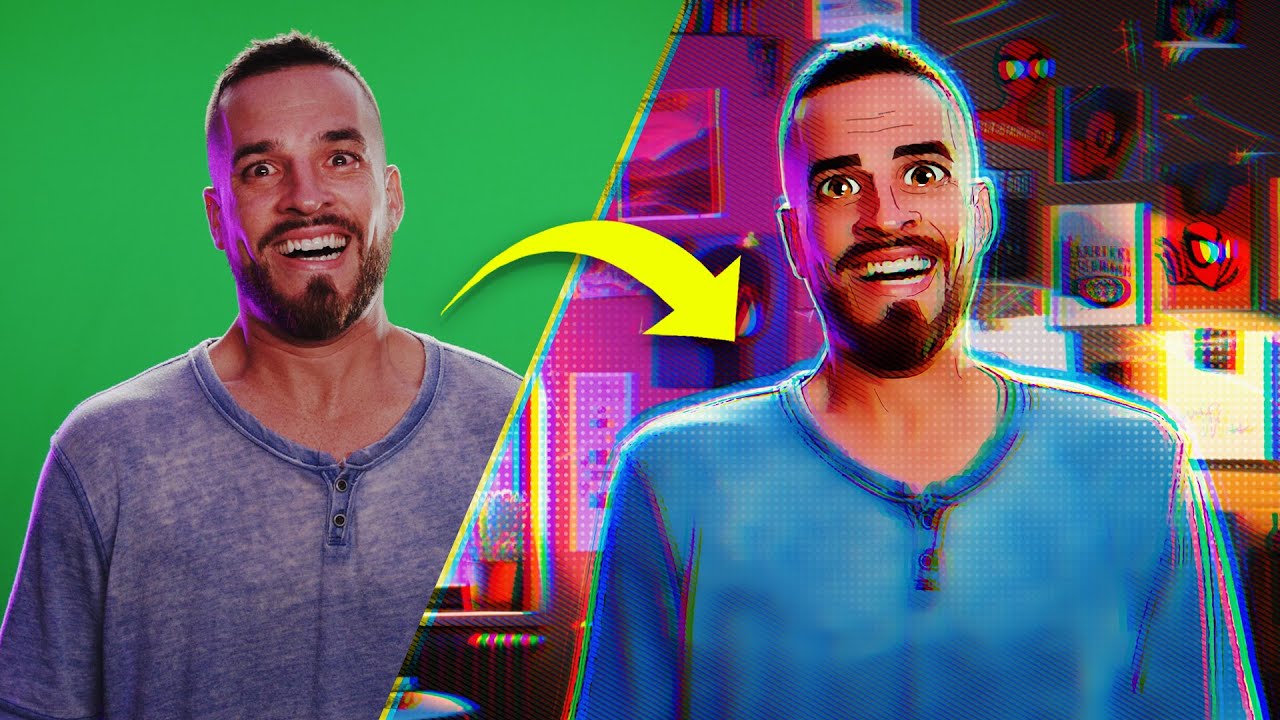
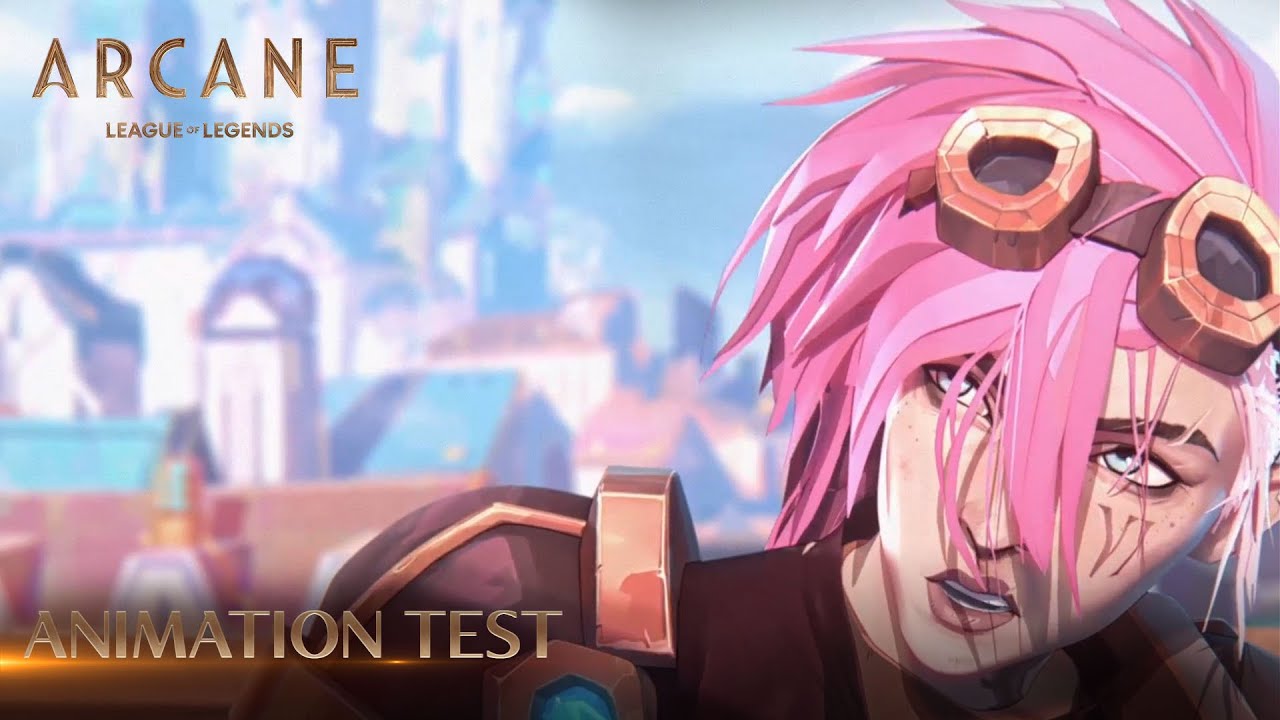
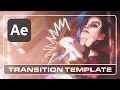
[Music] yo it's herman here and by now you've probably heard of a little netflix show called arcane made by this small company called riot games but seriously if you haven't watched it yet you've got to go and check it out because there was so much hype for the show and honestly i think it was well deserved even if you don't play the game league of legends the animation in the show was just world class and it was pure eye candy from start to finish now being into insane visuals myself i wanted to break down some
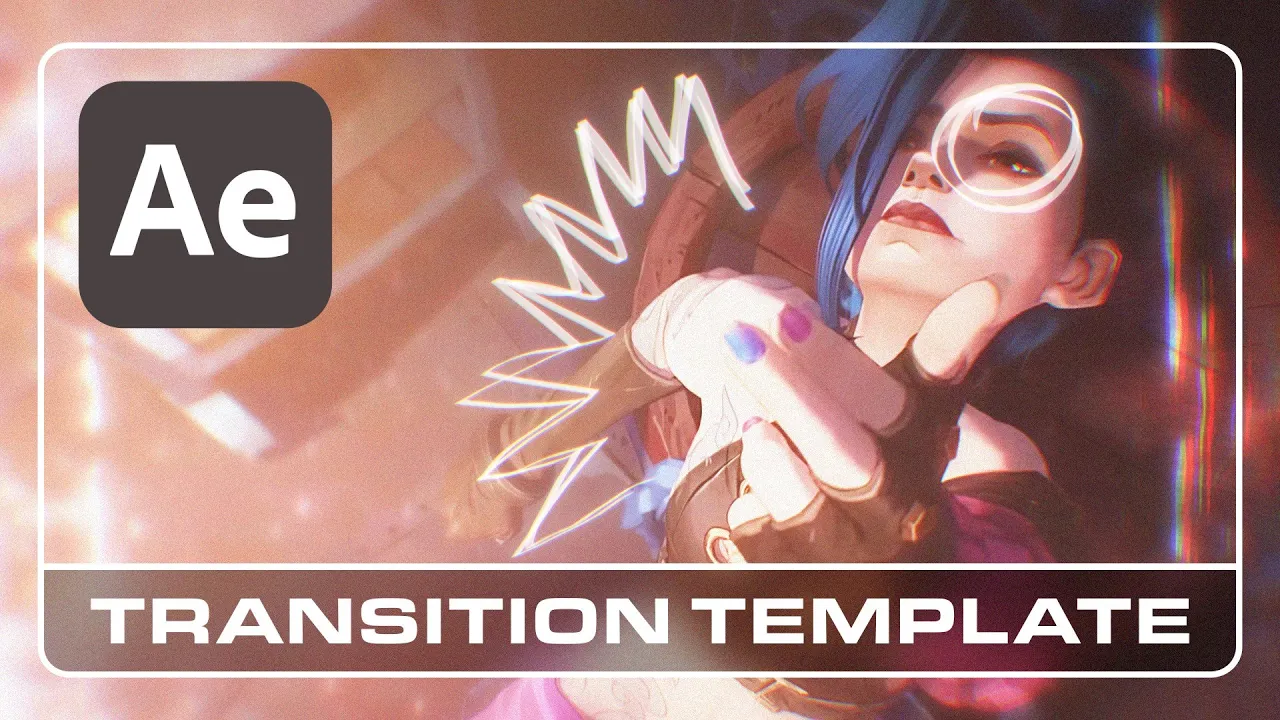
of the effects that they use so that not only can i use them in future projects that are suitable but also share them with you so that you can use them as well now there are three effects that caught my eye and during the more intense moments surrounding the character jinx they would even combine several effects to really create this dramatic effect so i kind of reversed engineered and recreated some of the assets to create a project template where you can literally just drag and drop some footage and make some sick transitions like this now
the link to the project file will be in the description below so you can go ahead and download that before following along but uh let's hop over to after effects and see how it all works so at this point you have launched the after effects project file now before you do so though i want to advise you please read the readme document first and read through the license agreement before you open this up and start using it it's basically just saying you can't pretend that this is yours and like go and like sell this template
out or anything like that don't be that kind of person and don't do that i'll find out but once this is open basically as you can see uh it's nice and organized or at least as organized as i could make it unlike my background a bit of a mess back there you can see that christmas tree's been there for like five five years now but here it's pretty straightforward you have some main comps over here and they have three effects that are provided and done for you and you can just open them up and these
are the compositions that you will render out so you can render from here same for this film roll transition and this doodle effect transition as well now the folder underneath you can ignore and then three over here is footage and there's nothing in there but that's you know just for you to keep things nice and tidy when you import your footage in this case i'm gonna use some stock footage that i got from art grid not sponsored by them by the way but they've got a pretty good selection of footage so i'm just gonna import
that in and i'll put that into the footage folder for me to use as an example in a bit and for the assets you can ignore these as well except for this doodle animation render we'll go over that when we get to that section and then over here number five is an important one it is called replace footage and basically in these compositions all you have to do is just double click them and then you will be putting your footage in here so i'm gonna go through the effects one by one starting off with the
stretch flash transition so in order to do so i'm just gonna close these other tabs over here and i'm just gonna start from scratch i'm just gonna start like from the very beginning over here you just open up the project file what do you do first thing you wanna do is go into your replace footage we're gonna go for the stretch flash footage replace composition oh that's a bit of a mouthful and in here as you can see there's nothing in here except this marker over here that says transition point and this is basically as
the marker implies where you want the transition to happen so i'm gonna bring some footage in i'm gonna use uh two clips so let's use uh this guy over here is playing the guitar okay we'll just i don't know just putting some random moment this in and out point and just throw it over here so this is clip a okay this is the clip that is before the transition and let's say that you know i'm going to move it a little bit like that it feels a little bit better okay i know this is just
an example and it doesn't matter but sometimes i can be a little bit picky we're going to use another moment like over here let's just say starting from here and then all the way over here we're going to put that in as well so these are your two clips right we're going to transition from this shot to the shot that's all there really is to it in terms of what you have to do you just go to the main comp which is the stretch flash transition and everything's already done for you all you have to
do is open up that comp and then play it back and see if you're happy with the results oh that is spicy if you're happy with this all you got to do is render this out as you normally would in after effects by hitting the shortcut control m so you add it into your render queue and then you just render it out how you normally would that's how you basically use this template it's that easy you just drag and drop your footage and then you just export the main comp i'm going to show you with
another effect over here the film rolls transition so this is the main comp that you will be rendering not where you're going to be placing your footage remember you want to go to your replace footage and then go to the film roll footage replace we open that up and you can see there's that transition point marker so we're gonna use some different footage just to have some variety and see what it looks like so we're gonna put maybe this uh dancer looking into the camera very intimate and we're going to just put that over here
and then we want the second clip to happen i don't know i guess like right when she kicks put that in and then basically it will be from this shot to this shot so we now go to the film roll transition which is the main comp under the main comps over here so i'll double click that and we will play this back and see if we're happy with it and that is the effect the difference between the two is that although it's using some grungy textures and a bit of like this flash happening it makes
it look like it's kind of like a film roll that's just like scrolling by if you know what i mean right so you can see these kind of dividing lines it's a quicker transition and then the one over here the stretch flash transition uh just like you know inspired by the effects that i saw in arcane uh during the scenes that involve jinx some portions kind of stretch left and right a little bit and then there's this chromatic aberration this rgb split so the stretch flash transition is a little more intense than the film roll
transition and then finally we have the doodle effect now this one isn't necessarily a transition but you can use it as a transition in this case you'll notice that in the replace footage there's no doodle replace comp and that's because all you have to do is just go over here there's already one overlay that is slapped on top and you can just use this marker as a transition point for you to put your clips in between so i'm going to you know go back to this i'll just copy and paste this just to show you
what this looks like so this is how you can use it as a transition you have this cool doodle effect very similar to the jinx scenes but i know you're thinking this is a little bit lackluster compared to the other ones and that's because i'm allowing a bit of customization for this effect because i actually hand drew a few doodle animations and i pre-rendered them which is also in this project if you go into assets and remember this folder that i said that i would talk about later now is the time doodle animation renders will
have a few clips where you can see there's some doodles like that that you can literally drag and drop over your footage and just play with the blending modes to get something desirable and i'll just do like a really really rough example for now so let's say you know let's put like some angry eyes on her and you're going to want to change the blending mode to something like screen so that we can have the brighter parts of the image show through in the blacks transparent so we go to mode over here and then click
screen and then now it's see-through and then we hit s to bring up the scale and we can scale that down so that it matches you know her eyes and if you ever want to you know make adjustments it's how you normally would for after effects you can just rotate it like that so that can just be like a really brief moment that comes up right it's like angry eyes we can even do like angry teeth so we're going to drag and drop that just like we did earlier screen and then just do that rotation
boom something like that and this can signify you know showing her how she feels her inner consciousness she's actually angry during this performance maybe not but find a suitable scenario where you can use this quick tip though is if your subject is moving around like their face is moving around then in this case because she's staying like near the same area of the composition i don't need to really do anything but let's say they're like moving their head around a lot then what you can do is just track it in after effects and then parent
these animations to the track now i'm not going to go over how to you know the nitty gritties on how to do that because that's not what this tutorial is about but you can search up tracking and after effects and you can track these animations to the person's face as you can see i've got some more overlays some jagged lines some scribbly lines to show like they're really like you know jumbled jumbled thoughts or like really dizzy and then we got that transition earlier we even got this question mark and the straight line that you
can use as well to like cross over something so there's a nice variety that you can choose from and as an example i even made this really quick tick tock video to overlay it and try it out and this is what it looks like and once you're happy with this effect just like the previous ones all you got to do is hit ctrl m so you add it into the render queue and then render it out as you normally would that is it guys that is how you use the template that i made and i
think you're gonna have a lot of fun using it it's a great way to show like an unstable frame of mind for a character or just as sick transitions in your music videos i even made a tick tock using the project template regardless i hope you enjoy it and let me know in the comments what you thought about the show arcane and if you haven't watched it yet then let me know what you plan to do with the effects and transitions now if you like this template then do me a huge favor and smash the
like button so that the youtube algorithm gods will know that it's a good video and also let me know that it's a good video so i can keep making stuff like this and of course subscribe and hit the bell notification if you want to see more videos like this my socials are in the description below so if you want to see what i'm up to you can just check that out otherwise i'll see you guys in the next video