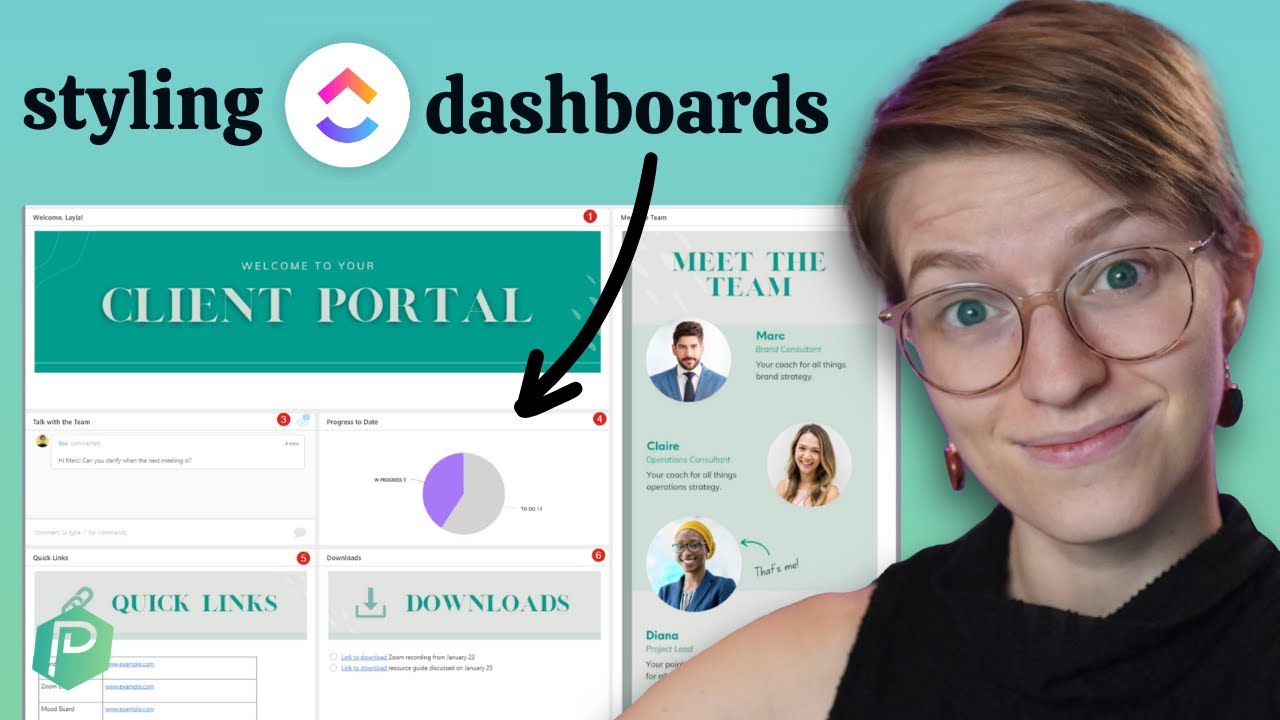
as an agency having to continuously update and send your clients notes documents reports timelines in a list of completed deliverables can be a very timeconsuming and tedious process this can also cause stress on account managers it can eat into your profit margins and even take a hit on MPS ratings especially if your work is all over the place and you don't have a central source of truth but what if I told you that there was a solution and then you can build a central dashboard or portal for your clients and automate this whole process you
could send your clients one link and everything would be there for them hi my name is Jeff Cipher and in this video I'm going to be walking you through step bystep how you can build out a client portal inside of clickup let's get started so let's jump into clickup here and yes this is a question that we get asked all of the time how do we create a client portal that can be very automated and just give clients what they need all the time without me having to touch a lot of the process here so
the first thing that you need to know is within this there are essentially three different ways that you can create a client portal or a dashboard um so the first way um that you can choose to do this is by creating a list that you're going to share with your clients and so for this if I'm in sh farms in this folder here I go to sh Farms Zen pallot this list is something that I can essentially add one of my clients in as a guest so if I come here sharing your permissions I can
add them as as a guest into that list and they'll be able to see everything in that list so the views in there if there's any documents if there's any tasks so that's a great way for you to collaborate with your clients um however that's going to take a little bit more work um you're essentially going to have to utilize the tasks in Multiple List features so if I wanted them to see um this task right here I can come here I can take it and then I would go to move tasks and then I
would have to move them into that and just make sure that they're move and keep in current list so I'm utilizing that feature a click up of keeping tasks in multiple lists there um and that way you can then have them living in your list where they're actually being worked out of and then in here for your clients to see so your first option is to create that public list for clients option number two is going to be creating a client facing dashboard and so this is a common one that people like to use again
with this dashboard I can't create a public view of this dashboard you have to invite your uh clients into this dashboard for them to see it and then for some of this stuff they're also going to need to have access to where these tasks actually live if they're going to have visibility to that so there are some downsides to a dashboard I typically lean towards creating that public list or my third option which I'm going to go over in a second but a dashboard is a nice way because there's great ways to have widgets you
can put a lot in here a lot of customization capabilities you just need to note that you need to invite them as a guest and then they need access to some of the stuff that you're actually showing them for them to see um so that's option A and B option C which I'm going to be focused on and this one is great because it does not require them to be a guest at all you don't need to invite invite your client clients into clickup at all you can essentially just set it up create a public
dashboard or a public doc with views in it that they can see so if I come here into um D Mifflin or actually let's go to shot Farms this where my example is I'm going to be building in D Mifflin but as you'll see here I have this portal this is a great way for me to just utilize a document that has everything I would need here from just intro text um I can have resources so with some buttons here of scheduling the meeting submitting a request Google Drive progress report have completed or or tasks
that are ongoing um also completed projects that we've done for them as well as some current analytics that I can put in here as well and then also if I need to put any meeting notes and things like that so essentially it's all in one location and if I were take this I have this as a public document I can take it copy and paste it and then I'll be able to see that um publicly um for my clients so they have one link and they can see everything there so that's what I'm going to
focus on is how we can actually build that out for your clients all right so let's jump into this so Step One is obviously going to be the hierarchy I started a lot of my videos talking about the hierarchy because that is extremely important you need to have the correct sort of hierarchy for agencies to actually build this out um so in this case we have a bunch of videos on that I don't need to go into too much detail but the tldr is essentially you need to have a space for all of your delivery
work and then each client is going to need their own folder that way all of your work for that client is going to be hosted in one location um so I'm going to have this folder and then I'm my list there's a couple different ways that you can set up your lists that's that's why we have a blueprint process at zile to kind of walk you through that to make sure we get those all set up correctly that's where there are some customization capabilities that you can do almost s this so we want to make
sure it's set up the right way uh when in this essentially I can either have just a retainer list here or I can do more of a surface line specific lists um so right here what you're need to do I have this retainer XYZ list I also have a review and strategy list more for some of my account management things like meetings and and those kind of tasks but in this retainer XYZ list I have all my tasks that we're doing for duner Mifflin so as you can see here I have an ebook which is
the paper manual I have a blog post top five types of paper we're having the Google search campaign paper suppliers meta campaign Al sort of same thing running those in tandem um as well as a case study that we're doing for them as well so a lot of work to be done here for dun Mifflin Michael Scott is great client for us um but within this we need to make sure that Michael can actually see all this work as well as what we've done for them as well as what the results are for um those
pieces of content or our strategy that we've been putting together or some of those um campaigns like our search campaigns meta campaigns things like that so how do I set this up so your first step is obviously again the hierarchy then actually getting our tasks in here which I already have all that done you can also use some custom fields and things like that I'd recommend you watch our video how to implement click uper agency it's going to be super helpful for setting all this backend stuff up for this process um but what I'm going
to do now is I'm going to start off by creating a document here at the folder level and I'm going to create it at this level because then I'm going to be able to see everything that's underneath the Dunder Mifflin folder so if I come here what I want to do is I want to go add and then I'm going to come here create a doc view just like that we're going to add a document very easy um I can go blank page and you can really name this whatever you want so this is where
you get a lot of customization but let's say for this example I'm just going to do duner Mifflin portal now what I want to do let's get a little creative we can go and add a cover photo to this so if I want to just upload something uh very easy I'm just going to grab a Dun mithin cover image that I've created and drop it into there so this is something that you can just create in canva if you create a canva template you can make this way easier for this whole process so for this
one I just have our logo that mifflin's logo your marketing Hub with a little arrow and then if you want to put a picture of your account manager saying hi or something like that just to make it a little bit more personal um do whatever you want but that's just a great way to to make this just a little bit nicer in our our little portal that we have here for for rlin and then in this uh we're able to create a little intro text if you want to put a loom video here just kind
of saying hi to them whatever it may be make it uh very custom for them because it's going to just make the experience a little bit better but for this example let's just go ahead and create um some very general intro text which um in this I'm just going to take to save us some time I'm I'm just going to take this information here from shuit farm so here I just have a little high team I'm going to go ahead and just copy and paste this you can also create a a template if you create
this as like the Bare Bones here um and I get sort of the overview with all the headers and things like that I can come here and take this and I can save it as a template and saving that as a template I can take that and then deploy it um in all the other locations that I need it just to get me started so again if I wanted to have all the headers all the base text in there I don't need everything else that's super customized for each client but if I just want to
get the Bare Bones in there save it as a template that's going to save me a ton of time um that's what I like to start off with then if you want you can do a table of contents if that would be helpful just as you get a bunch of different sections in there um but for this I don't have too much so I'm not going to do that but let's just say uh our first section is going to be focused more on um let's say resources so I'm going to do let's do H2 just
like that we can do resources and if you want you can add an icon to this I can also turn this into more of a banner let's say we wanted a green Banner like that and then I can add this let's do a book emoji I think that's pretty good for resources that way it just looks a little bit nicer like that we can do it um and then you'll double space or double um enter there to to get out of your your banner and then I go into this and for this resources if I
want to do a little intro text as well but this one I really want to have certain buttons for them to access certain things so with this I can come here and we're going to do use our slash command button and in this let's say that this one is book a call so maybe we just want to give them an option to easily book a call with us I can then go in enter my link this link essentially would just be my calendar link for the account manager or whatever that may be um let's just
for the example I'm just going to do this so that the button shows up but I would go in here and I would add in my calendar link um if that's the case I'm going to go add a button so they have one to book a call let's say another button could be submit a bug or submit a request and this could be then a link to a clickup form so I can take a clickup form and I can put it in this button so that they have an easy way to go and just click
on that they have a form for them to fill out again it's all in one place for them they don't have to go find that form elsewhere they just have one link where all this portals going to live then I'm going to come here I'm going to add that button so now we have book a call submit a request and then let's say we have a a Google Drive that has sort of all of the deliverables and ask that they have um that this is shared amongst us both so we want to make sure that
it's easy for them to get to that as opposed to again them having to go to different link it's all right here so we're going to go we're another button and let's just say Google Drive and I have to add a URL in there so this example just ile.com to sort of override that so now we have a couple different options for them to choose from they can either book a call they can submit a request or they can find their their Google Drive and I can move this around a little bit just like that
but now we we have sort of our different buttons that they're going to need to see and so there's obviously ways to make this a little B better we could add some intro text to this I could edit these buttons I could put on some emojis in these I could make them all caps things like that just to make a little bit nicer um so feel free to customize this anyway you want or if there's different buttons that you would need you can put those in as well um but that's really the first part is
just kind of getting those resources so having them quick links for them to kind of go from place to place to make sure again one spot for them to come and then they can go to booking a call submitting a request seeing their Google drive or things like that so that's really the first section that we're going to want in this after that the next one I like to put in is a progress report so there's a few different things that we're going need to set up here so for this one let's go and we're
going to do it pretty similar to what we have above we can do a banner here I'll do a green banner and this one is going to be a progress report so essentially this is going to be all of the things that we're working on they're not done yet we want them to see all the things that we're do so I'm going to come here let's take that let's add in a little graph like that I think that's a good Emoji for it um I also need to make this a b bigger let's make this
an H2 as well and then double enter there and now we need to actually set up this view for them to see all the stuff and then we're going to embed it into um this section right here and so this is where it starts to get a little bit tricky but um I'm seeing that too tricky we just need to create essentially a view of all our tasks that are being done so what you're going to do is you're we're going to create this here at the foto level again we want to make sure we're
seeing this across all of our lists here so within the clickup hierarchy if I create a view at the foldo level that means I can see work in this list and this list so if you have more than just these two lists and there's um basically your service lines like I have in this Advanced Refrigeration if it's in this structure this will make it super helpful to to have all of those in one spot rather than creating a bunch of different views so if I come here to the dner Mifflin folder um I'm in this
document what I need to do is go add a view um and so the big thing to note here is that a list view I believe or I feel looks super nice for this you get a nice like progress bar um that shows you essentially 0 to 100% however with a list view there's not a great way to make it so that they can't see all the subtasks so if I set up my structure here retainer XYZ list here if I have my parent tasks as my deliverables and that's really the only thing I want
them to see I just want them to see this maybe the due date maybe the status and then maybe a progress bar I can create that in a list view but they're always going to have the ability to then see the subtasks or click into a task there's not a great way to hide all of that so if you don't want them to see all of the nitty-gritty details you're going to want to create a table view because that allows you to hide the subtasks so again they can only see these parot task items they'll
just see the deliverable they're not going to see all the nitty-gritty details that you're working on um across your agency so if I come here here what I want to do is I want to go to add and I'm going to do a table view we'll see it right there go add the table and then this is just going to create a list um with sort of the basic columns and settings that are added here so as you'll see here we need to do some customization ENT what we're trying to do is show them only
the tasks that are still open that we're working on show them status due date maybe priority if you want that if you use that and any sort of additional things you'd want to put into this view but here I need to edit this a little bit so what I'm going to do is I'm going to make this task name a little bit bigger there so we can see all these um also you'll notice here subtasks this is what we want to keep turn it off so if I turn it on we're going to see all
the subtasks here turn it off so that they can't see all the nitty-gritty details um I don't need a signy on this I'm going to hide the column status that's perfect we have our due dat here I don't need the priority the other item that I'm going to want is I can come over here to add a column and I'm going to go here and I'm going to add this progress bar if you don't have this here I can go to new column and you can come type in progress or you'll see it's right there
we either have progress manual or we have progress Auto auto essentially just bases it off the subtasks that are completed so if I'm seeing this parent task as I complete my subtask that progress bar is going to fill up um progress manuals essentially you're going to have a slider and you're going to be able to slide it across to sort of show that progress so this one's going to have manual effort this one's going to be very automated just based off your sub test so after that add my progress bar in that's what I want
that's perfect that'll just show them hey this one's 50% of the way done this one's zero so on and so forth in addition if you want you can group buy certain things so if you have custom field like us we have work category so if you want to split that up and sort of this is your inbalance services your paid social your paid search um I'll be able to do that as well just to sort of group things if you want to make it a little bit nicer so it's not all one section that's sort
of a great way to to edit your view there um you also want to make sure that closed is not being shown and if I want to do this I can kind of custom it a little bit more so as you'll see you have a bunch of different options to kind of come here I like to adjust this row height I like to make it medium just so there's a little more space in this um that way it's not all clumped together it's super small but that's sort of your way that you're going to go
and create this nice view for them again you can customize this you can add additional custom Fields if you want um for them but I think this is a great way to to do it I if you want to show them the time track across these things you can it really just depends um on if you want to do that or not however so much detail you want to add into this now I'm going to come here I need to make sure I name this so I'm going to name this one deliverable progress just like
that make sure my R is NOT capitalized and then I'm going take this and what I need to do now is I need to go and sharing of permissions share this link with anyone copy the public link and then what I'm going to do go back to where is my under portal there it is let's pin that so it's easy to find then I can come in here progress report I can go embed just like this embed any website if you want share that P it in there and now as you'll see we have a
nice view of all of this information so I can either do that or I can just come in here and embed a clickup list um just like that so feel free to do it the way that you want um but for this example I'm going to just leave it like this so that way now they'll be able to see sort of all of their different options I can also um make this a little bit bigger if I want to that way they can easily see it but as you'll see now we have our options or
our ways of seeing sort of all the things that we're doing for them so that's going to show them all the tasks or sort of all the deliverables that you're working on uh for them as an agency and after that's done what we need to do next is we need to show them sort of what we've actually completed so after that we're going to come in here and we're going to go start creating sort of another header so let's start with this we're going to do completed projects just like that let's turn this into a
banner like we've had in the other ones turn into Banner green Banner we'll do completed projects let's do a little check mark on this one just like that and that's perfect again if you want to do a little intro um of what this is so I can just say like hey this is a completed project from last month I can also make sure I I just do last month or I can do a larger time I'll show you how to do that but now what I'm going to do is I'm going to go and I
need to create another view so let's just take this to make it a little bit faster see this deliverable progress view I can come here I can take this and again instead of creating another view from scratch um what I'm going to do is I'm going to duplicate this as another table View and that's just going to show it as the progress typically we'll say copy but let's just say this one is now completed liol so just like that so now I have my completed lbls as well as my um open um deliverables as well
so this one obviously now I need to change some of these I'm going to leave it sort of the same framework of group by work category keep subtasks turn off but now what I can do is I can come into my filters and so now I can say when the status is closed just like that confirm as you'll see now we're only going to see the tasks or the deliverables that we've actually closed and so you can keep that progress bar if you want obviously it's always going to be 100% but if you wanted to
to get rid of that you don't necessarily need that cuz they're all going to be 100% um if you wanted to you can also add in when status um is closed so in addition to that if you wanted to as I was mentioning earlier if you want to be able to come in here and just show the the deliverables that were completed in the last month I can come here and I can do date um date closed is um in the last month so I can go in there I can make a little bit more
custom if you don't want to show them say you've been working with them for a year and you don't want to show them every single deliverable maybe you do maybe you don't but I can just go in here I can choose last quarter last month whatever it may be that just gives me the option um just note that that's going to automatically adjust once you enter into sort of the new quarter of the new month um so just be uh cognizant of that um but for this I can just say let's do um just the
ones that were closed last month again so that's going to show me that none of them show up um maybe let's just do this month and see when those were closed so there we go now we're just showing the ones that were closed in uh August so that makes it super helpful for me once we hit September these will kind of disappear we'll just do the September ones but that's just your option to customize a little bit further so what I can do now again sort of same process we're going to go to sharing in
permissions share the link with anyone copy the public link come here to my dun Mifflin portal scroll down to the bottom and we're going to go into completed projects and now I'm going to do embed whoops we're going to embed any website again bottom just like this and paste that so now again we have our completed project we have our progress report of projects that are not closed but we're working on and we have our resources so that's sort of the main three that we're going to want to have and then after that again you
can adjust the settings do whatever you want with that makes it super easy for them to see completed projects and so after that another big thing you want to add is obviously the analytics so you are doing this you've done that and now what are the results of sort of the services and uh bubles that you've been providing for them so we need to make sure that we show them that our strategy is really paying off here so what you're going to want to do is now again we can follow the same process we can
add in this we're going to do current analytics and I can add in um my emoji again I can add in my banner just to make this look a little bit nicer we'll do another sort of raft type thing that looks great and what I can do now is depending on what you're doing um whether you have data box or some or other sort of solution maybe you bring in um data into a looker Studio or something like that you're able to then embed sort of non- clickup things into this so I can come here
and let's say I want to embed a data box report I can easily grab something just like this and we're going to Ed that there and so this allows me to see sort of from what we've done what has happened so these are just Google analytics here but again you can pull in any sort of report that you want that way they're going to be able to see again the Cur deliverables completed projects as well as the results that you've sort of driven from your strategy for them so we want to make sure all three
of those sections are in there as well as the quick links that's going to make it super easy for them to find everything that they need and so after that another thing that I would recommend um if I come here to the top you'll see I have this option to add a page so we have our main portal here but let's say we want to add in meeting notes um or other things like this I can come here do meeting notes and then if I want to like you click up docs you have the option
to create a lot of sort of uh sub docs underneath that so if I wanted to group this up by quarter or year depending on how long you've had this client for I can come in here and let's just say I want to do q323 and then I can come into this and I can add in all the meeting notes that I've had at all sort of those weekly or bi-weekly stand-ups with them so I can come here and I can just put a date on all these and then again if you want to put
all your meeting notes from those meetings you can put them directly here that way it's easy for them to find or if you just want to have a summary uh that you put in the as well it's super helpful it just makes it way easy to keep everything organized it just gives your clients a way to see sort of everything and I would highly recommend you put either a summary of your notes or talking points or things like that that way you capture the journey so if someone comes in that's either a new point of
contact and needs to know what you've done what's happened and things like that again all of it's going to be right here all the proof is going to be there you have the whole story documented in one place for anyone to sort of see what you've done what you've been delivering and what you've been able to accomplish um through your relationship with that client so highly recommend putting meaning notes in there and this is a great way to sort of give a good hierarchy and structure there so that they can easily find things um and
you're able to search too so it makes it super easy I can search for things even when it's a public document makes it great for for the client a good sort of client experience here so after that's done the only other thing that you need to do once you get this all ready to go um and edited and looks all nice and pretty and we have all of our sort of views in here um all I need to do now now that I've created those public views is I can come here and create this document
as a public document so I'm going to do is I'm going to go into sharing of permissions follow the same exact process that we've done before so now you'll see here as I switch my screen I'm able to take the the link from this by going to sharing permissions again copy this public link and I'm going to go into my browser paste this just like that and then as this loads we now have a nice portal for our customer so as you can see over here we have the dmth portal um if you want to
get rid of your little face here last updated you can I'll show you that in a second as you'll see here I have my little intro I have my resources I have my progress report of everything we're doing I have my completed projects and I have my current analytics as well as the option for them to see all this information over here with my meeting notes broken down by specific meeting specific quarter and things like that so again super easy for them to have everything they need they can search for things up here and now
you have one link for them to go find everything they need but really when you're creating all these out the world is your oyster you have a lot of different options you can customize it any way you want a lot of different settings within these documents you can add an additional things over here if you want make it a little bit prettier than I did here um add in emojis and things like that to these buttons um make these different colors so really a lot of different options that you have but that's how you create
a client portal and click up and there you have it that's how you build out a client portal inside of clickup taking your operations seriously will change your life and I want you to experience this life-changing impact so whether you're looking to boost productivity increase profits improve team health or just create a system that runs without you so that you can essentially go on vacation once in a while we're here to help and if you like this video go ahead and hit subscribe we're going to continue to deliver content specifically for agencies looking to get
the most out of clickup and if you're ready to completely transform your operations go to Zen pilot.com call in book a call with one of our experts I'm looking forward to you becoming our next agency success story we'll see you again next time [Music]