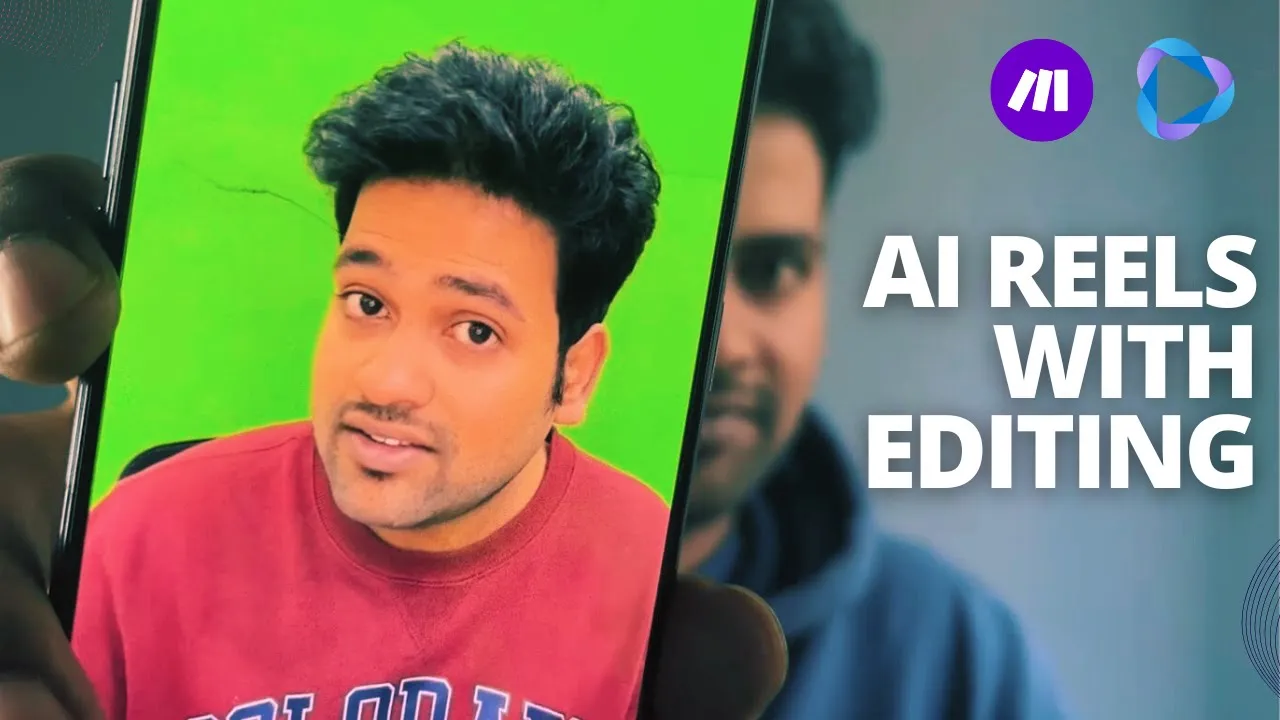
what do successful businesses know that you don't they Implement systems answer this how often does your team spend hours answering the quick question can you tell if this video wasn't made in a professional studio looks pretty rigit right well here's the kicker I made it under 5 minutes no cameras no lights and no endless retakes with just one automation recording yourself is not easy easy at least for most of us adjusting lights fixing camera angles and spending endless hours on editing it is a training process let's fix this today do you know that you can
create AI avars of yourself using hen and you can also edit them without putting your time by the end of this tutorial you will get everything you need to replicate this process for yourself or for your clients not only that but if you click on the first link in the description you will get the exact template that I'm going to build in this video the exact blueprint that you can import and get yourself up and running so watch till the end so you know what to do with it and if you're new here hi my
name is Mo manal a developer turned content creator and AI consultant I work with AI every day to build smart workflows and AI agents for businesses there is so much that we can do with it and I try to share a little bit of it here on YouTube so let us build a smart workflow that takes up the script generates your AI avars and then edits it on the Fly adding background music style captions and branding videos at the end and then finally post it across all your social medias automatically without you putting your own
time let's get in so this is the wonderful automation I'm talking about let me go through it real quick and then we will dive deep into the details of each module I'm taking direct script text from a Google sheet putting it into haen to generate my Avatar video and then retrieving it after waiting for a while because it needs a little bit of time to generate of course and then after retrieving the video I'm putting it into Json to video which is another service that we'll be using into two stages in the first one I'm
using it to add the background music as well as The Branding video at the end of the clip and the second one I'm using it to generate automatic subtitles to the video and then I'm storing the output video in the Google sheet again but in in in production you can actually have a router over here to post it directly to your different social medias for example LinkedIn Facebook Pinterest Instagram whatnot also if you need different different captions for different post then you can have another module in the Midway to use that script and generate a
platform specific caption for the text part of the video that you will be posting and if you don't want to have a different caption text for each platform then you can directly have a single openi module or any other L language model of your choice to generate the caption text and directly put it on Buffer so buffer is a service which you can use to have or maintain all your social media Accounts at one place and then from here you can directly schedule the post to buffer and it will post it to all the rest
of the social media channels automatically so it's up to you if you want to directly uh route it to buffer or have different captions for different platforms and post it from the same sequence itself now let's get to the details even in the first module I'm using the direct script from this Google sheet because this gives me more control over what I want to produce in the final content so usually what my clients does is they have like a list of all the script they they they take a day and then they write all the
scripts over there maybe even with AI generated automation that I have specifically for them and then those scripts are taken one at a time every day to generate videos for them to give you an example uh this is one of my client Martin paros he he runs money mag. and this is the kind of videos that we are generating using the same automation that I'm going to show you today these are all his AI ofar so the main service that we'll be using is haen which helps you create your AI avar videos there are two
ways you can do it first is that you can use the dashboard manually to create those videos and the second one is through the API that we'll be using in this automation you have to create a 3 to 5 minute clip of yours and that is used to train the model on how to generate your output so these are like four ofar that I have trained with and these also comes with AI voice that is taken down from my training video itself so I have like a video ID and audio ID that I can use
to generate content from the API so for that I I just need to copy this avar ID so let me show you how to set up this hen so after taking up the script from the Google sheet this is the first hijen module so I first need to create a connection with hent using the API keys and then you select the type I'm using AAR it can also work from like uh photo to video conversion but that is not so good because yeah it doesn't know about the just ters that you could be making and
other stuff and then uh this is the avar video ID that I have this is the scale you can change a lot of settings from here and then for the voice I can either select a direct audio clip or a text so in this case I'm using the script so text will go over here and this is the voice ID so let me also show you where do we get the voice ID so in the AI voice section you get a list of all the voices that you have so you just click here and get
the voice ID you can also integrate a third party tools for The Voice let's say for example 11 Labs so you can also train your voices on 11 labs and integrate it over here and use those voice with your avar video from hent to create a very very nice video output because yeah voice cloning models at 11 labs are better as compared to the native voice models at Hen because because hent focuses more on the video side of things so yeah this is the input script using this voice ID add this voice speed and the
tone I can select I selected it to be excited and this is how I'm uh making each file name different like with Moore timestamp timestamp is basically just a numeric value of the current time so it is always different and I'm not generating captions from haen itself because we want it to be styled more and this is like the dimensions for the reels that we'll be using and then after the generation command is done it waits for a while and then R see and then retrieves the video in these sleep modules you can put the
duration in terms of seconds of like how much time do you want to wait before moving to the next step so I have like yeah added few sleep modules before I move to this get a video module what it really does is is it reference this project ID and retrieves the final video URL so when we have this video URL this is like a very plain AAR video just using those script to talk with your own voice that's the main thing that we wanted now we want to edit the video so this another tool that
we'll be using is Json to video I'm I'm using it twice and every time I'm using it I need to use two modules first is to give it the instruction and the second is wait for the movie to render because of course we can't move to the next module until the previous video stage is ready in case of haen we had to wait for a while it did not have like this U rendering weight module in built but for Json 2 video we have so the very first instruction that we are giving is to provide
this video URL and the background music to be added on the fly as well as adding The Branding at the end so let me show you how it works so we have something called as movie templates which are like collection of different scenes and we have different parameters that we can put in each scene so for example in the first scene I have put a video which will be supplied as a URL and the audio file which again needs a URL and in this case yeah this is like you don't have to care about these
things when you create the template over here then you can directly reference the template uh from the make.com and then it will retrieve all the parameters that your template needs and the second scene is directly a video which is like my branding video and after this this stage is completed the movie is rendered then I'm using again this this project ID that you can you know reference from the previous module so every time you have like different kind of outputs from previous modules these are shown here so you can reference them in the further modules
yeah so I'm using this project ID to get the video clip and then in the second stage I want to automatically add subtitles to the video the reason why I'm doing it with json2 video is because it gives you more flexibility as compared to the captions feature from hijen so here uh I'm again yeah having a connection you again need a API key from Json to video to make this connection then you select the output resolution uh you select the video URL which is again the URL of the generated video from the previous module and
if you want to resize like there are multiple options that you can try out for but then I want to focus on the subtitle so this is the font that I'll be using the font size word color so this is the hex value of this uh yeah green color that we are using remember Martin's page so let me again show you what kind of subtitles we are planning to generate it's like this so this is the font this is the font size it will be white of course denoted by hash fwf and this is the
green color that is referenced over here and this is the outline width and this is the position so I'm using the middle of the bottom center that's right and then I'm waiting for the movie to render again and to be put in the Google sheet and of course you can uh use it to directly post on other social medias if you want but this is a demo and I don't want to post this demo so let me quickly move myself here and run this for you so as you can see uh the modules are running
uh what I'll get is that because I'm using this script so I'll get the final video URL over here so let's see where it is it should be done pretty soon because it's just one line of text in reality you will be having like a long script depending on like what's the length of the video you are trying to produce maybe 1 minute maybe more than that I think it's like less than 5 or 10 seconds so I should get the URL here real quick here it is so let me open this and show you
what we have got hi this is my Avatar video from haen and videos like this is generated every day on autopilot not only that it is edited on the fly with json2 video and this is uh the brand name from money. Martin's Channel not mine so uh I I hope you got the gist you can work more on the scripts you can work more on the your your your fstar styling and your audio but definitely this is the same sequence that you need this is not only useful for generating videos for your own personal brand
for social media but you can also use it for having a completely customized AI influencer for your company and yeah there is no limit to the use cases that you can do with this I hope it was easy to follow this kind of video making is helpful in so many ways whether it is creating res at scale for your clients using their own faces automating onboarding videos in companies to save HR hours of work or even making personalized explainer videos for your products it is all possible with just a few clicks and before you ask
yes I have the free template for you that you can check with the first link in the description below and hey if you're curious about more ways how AI can help you simplify your workflows you can follow me on LinkedIn where I share AI insights on a daily basis if you found this video help ful hit the like And subscribe for more such Ai workflows and AI agent tutorial videos in the future thanks for watching and see you in the next one