Hello and welcome to our Apple Pages class my name is James Hill an instructor for learn it and a Mac User for over 30 years and an apple evangelist of sorts since the very first iPhone came out 15 years ago I'm really excited to help you navigate the Apple ecosystem with learn it training now you might think with a simple name like pages that this is just a simple little program well at one time it may have Been but today's pages is as robust of a word processing document creation software as you could hope for
and now if you're a Microsoft Word user I think you're going to love how great this program is if you've used Pages before this training should help you speed up your creation process and you may even learn some new functions along the way now what are we going to learn about in this class well we'll start with the basics layouts opening and closing Saving printing all that stuff and then we'll wait a little deeper into text boxes and Graphics formatting our texts and documents We'll add some charts and tables to a document and we'll wrap
things up with ways you can collaborate and publish your document whether it's a poster or brochure a book or even an e-book and by the way many of these functions translate to the iPad version of pages as well so when you're finished with this training you'll be a power User on the iPad version too if you're enjoying these videos please be sure to like And subscribe and if you're looking to earn certificates and watch videos without ads please take a moment and sign up for learn it anytime our dedicated online training and subscription Services now
check the link in the description for more information as we go through this training if you have a question that we don't cover that you would like answered by one of our Instructors please join our off-site community the link for that is also in the description Oh and before we get started this course does have exercise files and you're going to find a link for them yep you guessed it right there in the video description below now from time to time I'll mention that you probably want to pause the video and go ahead and try
it yourself so be sure to do that but remember if you get to a part that you want to try and I don't Mention that go ahead and pause the video anyway I'm not going anywhere I'll be right here waiting patiently for you to resume the video also if you're old enough to remember video rental stores like Blockbuster their motto was Be Kind Rewind you can do that too if you miss a section back it up and I'll say it again now my hope is that you're watching this on your Mac already so let's get
ready to go all right so let's start with the Simplest task opening Pages now if you're new to a Mac the best place to find it is with the launch pad that's this little icon right here that looks like a bunch of sticky notes on another background we'll click that and then look for the pages icon it's right here looks like a little white ink pen with an orange background now click that and pages is ready to open now if you're like me and you use this program a lot and I mean a lot you
might want to do This trick go down to your taskbar and right click on pages and then under options click keep in Doc and there it moves it right over with the programs that you use the most you can even drag it over into place with these others we're not going to do that right now but you get the idea so by the way with a name like Pages it might sometimes be confusing when I talk about this software or actual portions of your document which are also called Pages so I'll try to be very
clear with the context as we go now when you open pages you should see a welcome screen a little bit like this one but you also might see something that looks a little bit like this there we go now we have some templates available everything that's basic blank stuff reports book templates letters resumes if you need to polish that one up yeah you're going to want to update that once you complete this training to Add the fact that you know Pages now there's flyers and posters newsletters different kinds of stationery here envelopes are included in
that also business cards there's some certificates available here just a few different miscellaneous things brochures maybe you're looking for an alternative to Adobe InDesign that might be a little easier or if you remember Microsoft Publisher doing brochures with those but at any rate those last three here don't Let the titles fool you on the stationary section because it is postcards it is envelopes it is business cards you've got a lot of availability here certificates again you've got an employee of the month you want to honor great things there by the way don't forget in the
miscellaneous there's a invoice template that you might want to use as well so what do you need to do today let's just take a look at a couple of the basics here first let's go back Up to basic and choose blank now we're going to click create and it creates a brand new Open document for us now let's deal with a few terms that we're going to use during this training first first off at the top of the screen we'll call this the file menu where you see file edit insert format arrange and so forth
all those are the very top of your screen by the way the word Pages here is not just to remind you what program you're using it's Actually part of the file menu as well but we're going to get to that in a little while now the format area is this over on the right side where it says nothing selected but from here you can format your text your graphics tables even the entire document like this right from the format panes on the right side of this and they open automatically depending on what you have selected
the view area is on the left side of your screen and here you can select what view You need to work with and even sections of the document that you might need to edit or create and we'll actually click View and we'll do page thumbnails so you get a view of that and finally only the top buttons up here these are obviously things that will be right up here at the top and many of these buttons have functions that have keyboard shortcuts which are my favorite but we're gonna have to wait till the end to
get to those keyboard shortcuts now notice as You get this blank layout it's ready for you to start typing this is a basic word processing layout I'm just going to type a little text in there so you'll notice the format pane over here on the right you have options for changing the style of the text that you're working on from body text and headings and subheadings all of these things things that a standard word processing document can do but what if you need a blank slate to work with well That's pretty simple let's remove the
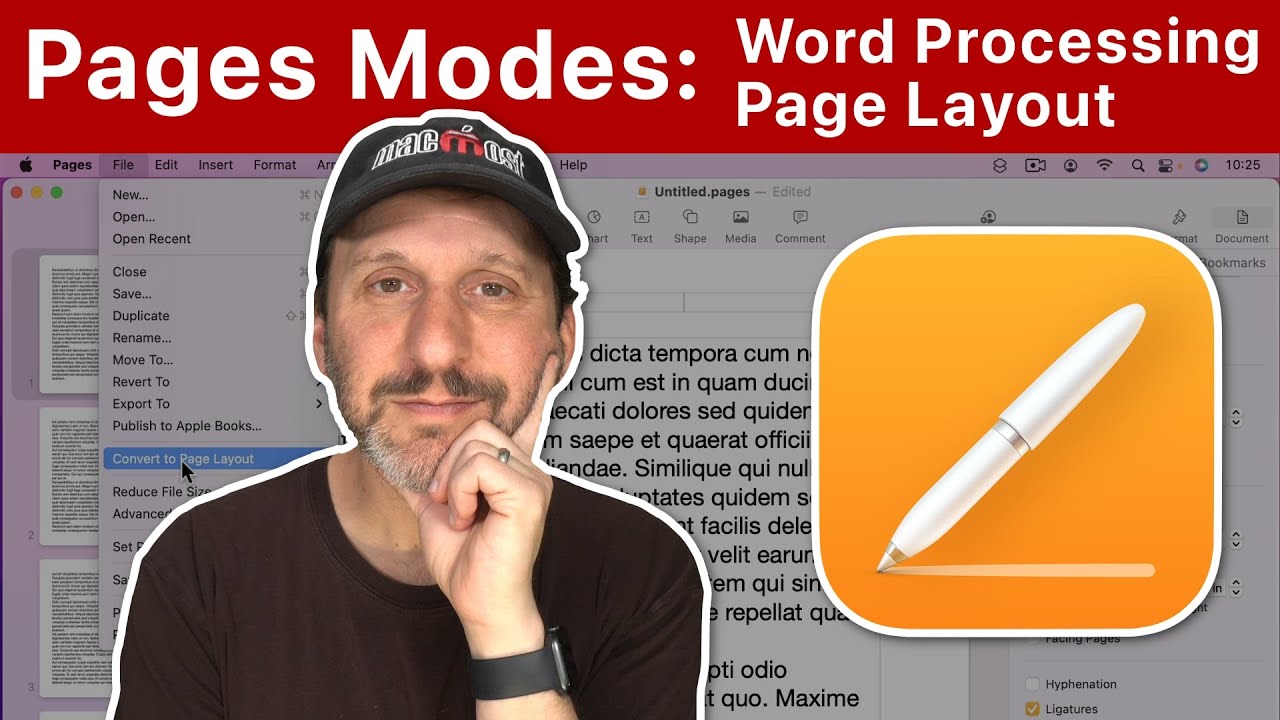
body of the document and now you're going to have a blank page to play with so click the document button over here on the right that brings up our full document format and then right here to the middle of that you'll see a box that says document body you're going to click that box and now pop-up's going to come up are you sure you want to convert this to a page layout document I'm going to click Convert and now even though you click in the document like I'm doing right now you cannot type any text
but it is a blank document for your creation pleasure from here you can add text boxes Graphics photos all of these things will stay right where you put them as well now obviously in the word processing layout you can do all those too but the added items were naturally moved with the text in the blank layout they stick where you Put them photos tables Graphics charts all of these things stay right there it's such a powerful tool for layout you can use this blank layout section for everything from setting up a short newsletter to getting
a book ready to publish nice right you just have to decide which is right for your particular project so while we're here let's look around at inserting some different objects into our document now obviously we have our Blank layout document open so let's play around with some of the things let's start with something simple like a shape or at least you think it's simple there's so many basic things you can put in there but as you continue to scroll you'll see there are objects animals nature food just different symbols all kinds of things there are
lots and lots of different Graphics that you can add into your document from there just a dizzying array of icons and they're Grouped into styles for you almost one for every occasion it seems now you also have quick availability for adding charts tables even text boxes media with photos movies even web videos music we're going to get into all of those things later on you can insert text boxes in here just like this and you can even add those text boxes into a layout with a document body but we're going to go in depth on
that a Little bit later so don't get bugged down here I just wanted to take a second and show you just what is available for you to insert into a new document now as we talked about earlier you have many options for what you can begin with let's go a little bit deeper into what you can create just select file and new and the new document dialog pops up now as we mentioned you have different basic things here in this area and of course if you're taking a class like this one Note taking is a
great place to start although I don't recommend it for this one on your first round but the next division is still good for students or even people who are generating business reports you can really dress things up all the way around whether it's a school essay or an academic report or even some professional monthly reports even project proposals here now when you scroll down to the next division you'll see some fantastic book templates that Memories of a traveler looks like something I'd like to read notice how they're making it easy to decide just which you
need by the way the text above each selection mentions how your text Will Reflow when you're publishing an ebook notice that and so this is very beneficial for that purpose the top section is better for text Heavy books while the bottom section is better for picture books or coffee table books or Even multi-column books now of course if you need a jump start for letters you've got a whole section of those if you need to polish up that resume there's a whole section of resume templates here as well I wouldn't let the boss catch you
doing that one on company time though there are also some flyer and poster templates which are great maybe someone lost their dog or are you trying to sell that scooter hey not a bad deal there then there are the newsletters now I know Postal mail is kind of slowing down and going the way of the dodo but some people still appreciate a paper newsletter pages also allows you to export these directly to PDF so you can send them out in your email as well now there are some card options and envelopes which are essential in
business obviously as well as some certificate and brochure options as well we're going to begin creating some documents here in just a few minutes Now what if you need to locate a document that you already created easy as cake not only can you locate a document by the title but you can search for words in the document as well just like this all right we're going to click on file and then open brings up our standard dialog box but look over here in the search window let's look up the word newsletter now we can have
it check all the files with the name newsletter but what Happens if we click the plus sign right here that's going to open up and give us some more options we can have it search by types of documents or we can look for contents that contain newsletter let's expand it to search the whole Mac and look right there there's one of our documents in the pages training folder how about that great way to find what you need even on the Mac by the way if you take time to tag your documents with the color coding
system in the Mac file System you can sort them that way as well but this Tech search is a great way to locate just what you're looking for now opening a document is simple of course file open we already done that part so you can do that also from the finder like this let's say you have a document that's been emailed to you and you want to open that up in pages so we're going to flip over and there we go we have an email document here let's double click that and surprised it opens Up
in Pages just like that easy breezy beautiful now again you get ready to close a document you can click the red dot in the upper left corner or click file and close or command W on your keyboard all of those work to close your document and once you have named your document it won't even prompt you to save it that part is done for you automatically in the background but what if you have a document that hasn't been saved yet well Pages won't let you down here either you see this document we've got it set
up here I haven't done any changes to it but it hasn't been saved yet notice what happens when we try to close it I'll use keyboard shortcut command W and it asks if we want to save the document and name it now since it's a blank document we're not going to worry about that if you want to save your documents while you're working on them there's an even easier way to do that just click right up here In the title bar and name the document and it's got a place to save it and now your
changes will be saved as you are editing you're in the groove you don't want to stop working on your document do you just name it so all your changes are saved on the go simple as that okay take a few minutes and get familiar with the interface try creating a document or two saving and opening just pause the video go exploring and I'll be here when you get back Hey you're back okay let's dive in and get some other work done now a lot of the documents that you create here are going to be printed
at some point so you're going to need to make sure what size paper you want to work with now you have a lot of control over all the aspects of your document let's take a look a simple way to see what some of that you have available is is to go create a new document and let's go down to Flyers and posters so we can see what We have see most of the Flyers and even the small posters are going to be an eight and a half by eleven but the big posters are going to
be tabloid size which is 11 by 17. now let's click on the event poster big here and as we create that you see that document is 11 by 17. now what if we decide to go with a different size document well if you need to do something smaller you've got a lot of flexibility the printer that I use can Print all of these size documents but one thing to keep in mind is that pages is not going to automatically shrink for you for instance if we go to a half sheet document here all that you
see is what's up at the top so what you'll need to do is be sure to shrink all of your things down to the approximate page size you need if you need to resize your page now for the rest of our training we're going to work with a standard letter size document so Don't worry about this we'll continue on from there okay let's get a clean slate ready to work with I'm going to close our example here and delete we're not going to save that and not worry about it there so got a new blank
document open and we've got everything stretched out now let's get this to zoom to see an entire page see we've got the zoom window here we want one page and fit page now we can see the entire document in our window now most Modern office printers can work with a one-quarter inch margin all the way around of course you'll have to adjust this to your own specifications but we're going to use wow 0.25 inches as our example here and then doing this is pretty easy you just select document in the format Pane and then you'll
notice you have your document margins we're going to take these margins down to 0.25 all the way around very simple to do right now Voila we have a full page document now suppose you need a header and footer on this and you want them above and below your text so let's make that adjustment we're going to bring that up to 0.5 we're going to take the footer to 0.5 there we go that's in the document body now we could bring those up to 0.25 to fit them above and below all of our stuff there we
go now wait a minute we can't see those so in The file menu you can click View and then show layout and now suddenly you can see all of your margins and your header and footer as they sit now you can see where you're working at now the blink layout with no page body is not going to give you document margins like that not like the document body or a word processing document will here's a pro tip that you may not get anywhere else you remember how we Removed the document body now notice that when
you do that the margins you see are only for the header and footer now that's all that's available so if you need to see rulers and set up guides to keep you within your print margins here's how to do that so with your blank layout selected we're going to click up here in the file menu and then go up to view and you can show rulers you can also do that here on view click show rulers and Now you can see where everything is now we can use some guides to keep us in check we'll
drag this one down to 0.25 inches see how that works and over here on the left there are guides as well you can drag those over and we'll drag another one over here all the way to this side of our document and then one all the way down to the bottom at and let's see that's going to be 11 inches so 10.75 we almost can't see that there we Go all right now everything is where it needs to go let's get that one nudged down just a little bit hey much better now those guides will
keep us in check and each one a quarter inch from the sides and there we go very nice now you can see where your document borders are even in a page layout type document now if you're creating a book then page flow can be a big deal making sure that your layouts work together as you're Turning a page can really help this is helpful if you're creating anything from a technical manual to a recipe book yeah ask me how I know about that one anyway viewing your pages document as your reader would is very helpful
with your layout now would be a great time to open one of the demo documents we have so let's open the one called technical manual one and it just happens to be in my recently opened documents so here we are a simple short technical Manual I know it's full of lorem ipsum text but that's okay this is going to help us get started on how this works so now that that's open how do you do facing Pages well it's actually very simple make sure you have document on the side over here on the format Pane
and then down at the bottom of this you're going to see facing Pages click that box and look at how it reformats everything it auto flows everything so we see how this is going to look for our Reader even on the thumbnail side of this if you'll double check the zoom level here you'll notice that it says two pages instead of one page makes everything a lot easier to work with to see if your pages are being placed properly now let's suppose you realize that things would be better with a full page illustration in this
manual well this can be a little tricky because how you add the New page will be different Depending on what type of document you started with this particular document was done in word processing layout so it's going to be the most difficult let's start with the hardest one and then the others will be very easy by comparison now the reason this is difficult in word processing mode is because Pages allows you to do things in sections and no we haven't talked about those yet so no need to rewind and look for it let me explain
watch as I create Another new document here just like this but we're going to do a blank layout create that get it open and then let's kind of move things around so we can see everything we'll expand our window here and I want to make sure you can see all of this now we'll get the thumbnails open and let's just add one page here now you can do that by clicking add page just like I did in the toolbar here very Simple now I'm going to click over the thumbnails on page two and notice that
even page one is highlighted in the background why is that because word processing mode your document is grouped into sections now this does make things easier if you need to move whole sections of your document but it can prove to be difficult when you need to just add one page or even move a page so let me create a new section here and we'll add a couple of blank pages you See if we click insert and then we click section now we created a new section and we can even add another page in this as
well simply by clicking insert and you get the idea from there so you can do this while you're in the document body or with the thumbnail selected and see we've got the new section here we need to add a new page here so we have to click into the document body to do that click add page And then pages one and two are section and Pages three and four are a section and so you can rearrange those sections by dragging them around as you need to any of the copy paste delete duplicate functions all of
those are available but in word processing mode they apply to the whole section not just one page for instance right click and cut and that whole section will disappear but then we can paste it back by right clicking here and paste But we get a whole new section there see all of that applies to the whole section so how do we just add one page well let's go back over to our technical manual now adding a page is as simple as clicking add page we'll go to the end here get into the text and we'll
click add page and now we just added a page here in the middle of our document based on where we were place your cursor where you want it click it obviously one at The end would be typical but your word processing layout will automatically do all of these things for you and you can add your illustration right here in the middle of the manual and just leave the blank page there for now we're going to add the illustration in just a little while now here's where the difficulty can come in but I'm going to show
you a pro tip that will make this easier for you and it's not found in the official Apple Pages manual you see if you need To move or delete that page it's in this section and it's not going to go see all of the pages here are grouped as a section here's your pro tip select the page in the thumbnails and now in the format pane click on document and then select the section tab now see the roll down here that says create a new section click on that and select starting with this page Now
look you've got a section here that has just the blank page and the page after it but now let's do that one more time but this time we'll select the page right after create a new section starting with this page and there you are now that page is on its own you can delete it if you need to you can move it around above another section whatever you need to do that is available for you to do we're going to drag this to the end There see how that works that's your pro tip for these
sections you just choose the place you need to put it and place it in there if you need to create a section or split it up and and drag a page or a section in there you just click the roll down and starting with this page and now you can insert your Rogue page right there now pagelayout style documents are much easier let's open one and take a look let's open the newsletter document in our demo folder And see we've got a cool little newsletter here and if you'll notice our tabs they don't highlight anything
else as we move around we've got three pages in this newsletter so let's let's add a fourth one click there add a page it appears at the end let's say that we want to drag it in after page two and suddenly we've got it there page three is appears if you need to move it you drag the thumbnail where you want it to go if you need to delete It right click delete there you go it's really easy in this mode now we're about the halfway point through this section take a few minutes and try
some of these things on your own and I'll be right here until you come back and we're back okay let's look at a few parts that may be necessary when you're putting a document together now all of these are available no matter which of the two layout options you choose but they may not be necessary for your Particular document and sometimes they just work a little differently if you use word processing or page layout now these are pretty Universal in how they work in many respects but first let's just do some headers and Footers and
then this is pretty easy in word processing mode because they're pretty much already there unless you removed them they're just invisible until you add something let's jump back over to our technical manual and notice how you Don't see the headers and Footers unless you move your mouse over them and there they are they begin to appear it's like magic and now if you don't see them go to the format Pane and make sure you have your document selected document your tab here and then make sure header and footer are checked if you're having trouble seeing
those now that works the same way in a page layout document as well and of course you can add all kinds of things your document title page Numbers the date and those things are not just restricted to the header or footer but they won't repeat on each page if you don't use them in a header or footer by the way if you want to hide the header and footer in the first page of a section you have that option over here in the section tab of our document format Pane and you can also make them
left and right pages are different and that option will not show up unless you're doing facing pages So what about a table of contents well setting that up is actually really easy and in a word processing document well even in a page layout document it will auto update that table of contents as you add sections and headers it's based on paragraph Styles which we're going to talk about very soon let's use our technical manual for this demonstration let's put our cursor where we want to insert our table of contents now in this case let's add
ourselves a blank page Right underneath this title and create ourselves a title page now on page two there's our cursor let's go to insert and we'll select table of contents and we'll tell it for the whole document now it's generating a table of contents for us as we speak and there we are now obviously that's in fake Greek but now if you want to customize this then go to format and then on select your table of contents and you can tell it to do the Entire document and you can even have it customize the Styles
see it will take any of the paragraph styles that you want to add in and add those to your table of contents it will also help change the way things are indented by the way you can insert a table of contents for an entire document just a section depending on what you need and you can even put it at the end of the document like for a newsletter in a page layout document Okay another part you can add are footnotes and end notes to insert a note you just click the text where you need to
add the note and click in the toolbar and insert an endnote so let's add a note here we're going to click insert and we're going to add a footnote here now see how it gave us the little one symbol and it gives us a place to add our text that we need to text to test our document right here as Our footnote see how the mouse cursor jumps down to the bottom and you're able to insert your footnote text right there now if you want to change this to an end note select a note that
you've already done like this and click on footnotes and we're going to change that to a document endnote now it's going to move your note all the way to the end of the document and add Another page for that see very easy to do or you can do that on the section if you have those by the way if you have the same control over the look of the text in these footnotes and endnotes that you do in the rest of the document and you can even change the symbol that it uses in the format
pane as you select the footnotes notice the format you can make it any of these symbols and very simple now if you really want to go in depth because You're writing a research paper or maybe a dissertation Pages works with endnote which is a great program for managing bibliographies and citations if you need that be sure to get the endnote plugin for pages and they'll have some great tutorials on that but we're not going to get that in depth on this today because our focus is the program Pages itself now you can also add bookmarks
and links to your document by simply clicking where you want to bookmark and clicking Insert and bookmark let's do that right here we're going to jump to this section and we will create a bookmark right here on our second paragraph we'll select that and then insert bookmark right there now see how it gives us a little bit of highlighted text and now these bookmarks will be available to anyone editing the document but they'll also be available to anyone that gets the pdf version so make sure those are cleaned up if you don't want Your average
user to see those bookmarks now one of the things that your table of contents already does is create links to the pages in your document but let's say you're creating a PDF and you want to link backwards well that's where a bookmark can work for you so we've got that heading selected and we created a bookmark now that shading has disappeared so we don't really know that it's there again but let's take a word here like this last word in our third Paragraph we'll select that word and then let's right click and add a link
and notice bookmark is available here and we can link to which bookmark this one right here see it matches the text we can even go to the bookmark and it'll show us there and now you have something that will jump you back to The Bookmark very easy that link Creation allows you to link to web pages and send emails as well just like in any other document it's almost as if they were planning for the future when we all get PDF documents instead of postal mail go figure now that was a lot in that section
so take a few minutes and try this yourself and I will wait for you right here all right you made it back now for a few less used items but there's still lots of fun and you might want to use these If you're writing a book of course if you need to change the background on a page it's really easy to do like this just make sure that you have a page selected that you want to do that with we'll just use our page three here and let's go over to document and then section and
notice you have a background here let's roll that down and we're going to change the background let's use a gradient color even an image let's use an advanced Gradient fill that'll be interesting and notice it changed this is the whole section to match that maybe you have an important section that needs a yellow background and so we'll change that to a yellow gradient instead let's go over and change our color there we go now that's going to grab everyone's attention isn't it now since we used our word processing document like I said it's going to
do the whole section if you use a page layout document it will Only do the page background on the one page you select so now you know now let's clear that out because it really can be distracting as we work on that now let's go add a border around a page this could be a solid or even a dotted line around your page now for this first you have to add a square shape to the page and then change the settings on the shape so it behaves like a border so let's do that in our
toolbar we're going To add a shape and let's make the rounded rectangle our shape now notice how that it drops it into the middle of everything now we're going to drag this around our document but if we do that it's going to move all of our text around so let's format that we'll go to arrange and we're going to tell this to stay on the page and we're going to tell it to not wrap the text around it there we go now let's make sure that this goes all The way around our document we'll move
it to Corner it at half an inch and a half an inch there we go that looks great now we're going to drag this all the way down like that and see our rules there get us centered on there now that's covering up the whole thing unless you're writing redacted Congressional documents that's really not going to do so let's remove the Color like this we'll go to style and we'll go to fill and we will take the fill away there we go much better now you can see our text again let's go to the Border
section and we're going to use a solid line here great now make that a little narrower good and let's reduce the opacity of that just a little bit I think that we want to make sure that it's not showing up quite everywhere there we'll just Drop that down to about 50 percent looks great okay that just draws attention to the center now we're going to click the arrange tab and we're going to click lock now that is going to stay on that page but it won't be on every page of the document to make that
happen we're going to need to make it a background object which is a perfect lead-in for the next section okay here's the term for you it's called Section layout object now that's what a watermark a logo or anything else that you need to be in the same place in the background of every page is called now you know the term let's explore it first let's do our border now we've already formatted it to fit how we want but let's make it show up on every page in this section so we've got our border selected but
we can't do anything with it because we locked it let's go back and unlock that and now we're going to Click arrange section layouts move object to section layout and magically it appears on every page in this section but what happened to page seven well that's a different section so we're not going to see it on that section there now watermarks kind of work the same way why don't we take our big company logo that's in our demo folder and bring that in Drag it into our document wow that moved everything around a lot so
let's play with our image we'll go to arrange we're going to make it stay on the page but we're also going to tell the text to not go around it it's just going to go behind it for now so let's take that logo and let's shrink it down a good bit I think I'd like to see that a little smaller and we'll put it down in this corner here that's better Now same thing we're going to take that click arrange and section layouts move object to section layout and there we go but wait this logo
needs to be more like a watermark but you can't select it now can you oh yes you can make sure you go up to a range and on Section layouts make sure make layout object selectable is checked now you can select it and let's go adjust the opacity on this and take it Down to about 35 or so that's much better great you'd even delete it if you needed to by the way Pro tip be sure to go back and change that setting so that you don't accidentally click and move it somewhere later see now
it's not selectable now that's a lot to take in in that section so go ahead and try this yourself and I'll wait right here until you're done okay we've been skirting around this a Bit but page templates are a really big deal as a matter of fact everything goes back to page templates in a page layout document you know our Blank Slate that we started with every page is linked to a page template now as we've seen already when we go to open a document there are many templates to choose from and these are all
great to base a new document off of but I'll bet most of us have particular colors fonts even logos that we have to work with so let's focus On creating a custom template for us to use so one thing you need to know you can't create a custom template based on a word processing document now I know that seems like a no-brainer but at the time of this recording with the most updated version of pages you can only create a custom page layout template now I like the way this technical manual is looking and I
know that we're going to have to do Tech manuals for several areas of our imaginary Corporation so Let's create a template that we'll use for all of our Tech manuals here's how to do that now to save some time in our learn it session I took the liberty of creating a technical manual that is already set up as a page layout so now I know you've been curious about it go ahead and open technical manual 2. it's in my recent documents here it'll be in your demo folder and there we go it looks a lot
like that original one but this is a page layout document Now to Create our template we're just going to select a page in the thumbnails over here on the left let's pick page three since it's got our watermark on the bottom it's got our border it's got a page number in our footer down here so we've got heading and body text all the things that we need and it has all the styles that we need in our format here when we select text we can see what all is available title subtitles all of these things
okay So in order to create our page template we're going to click on the file menu up top we're going to select format and then all the way down to Advanced create page template from this page once you click that voila it opens a page template editing window you see how it has the blank template over here on your left it also has blank copy which is the one that we want to use we're going to right click or control click on blank copy And we're going to click rename and let's change this to tech
manual there we go that's our new template when you click done at the bottom the template is ready to use and will show up in your new templates now why don't you take a minute and create a template on your own and when you come back we'll move into working with text hey I'm so glad you're back all right let's do some Basics with text now we're going to fly through this section so Buckle up and hold on if you've never used a word processing program pay close attention if you're familiar with Microsoft Word or
open office then you probably already know how to select text you can double click on a word like that or you can triple click and select a paragraph like that oh what was that did you see me select all the text in the document like that that's a keyboard shortcut and we're going to cover those at the very end but I'll give you this one Now command a is select all and it selects all of the text and all the selectable objects for that matter in your document oh and place your cursor at a new
insertion point just move your mouse put it where you want it easy peasy now adding text is as simple as placing the cursor where you need it and typing something new or if you need to replace a word or even a whole paragraph you can do it like This we'll select the paragraph and we'll begin typing over it now I don't like the way that looks so we're going to back up with my keyboard shortcut of command Z and put that paragraph back now copying and pasting text works like it does anywhere else we'll keep
that section selected and we will right click and get copy or you can control click that or You can hit command C for copy and then select where you want it to go let's go to the end of our document and add that paragraph and we'll paste it right there see super easy right now just in case you were wondering this works whether it's word processing or page layout document so there you go super easy with some text now this is where your Mac really shines You can use speech recognition to edit your document now
Apple has been in the Forefront of speech recognition for a long time and this will make your editing much faster I mean come on who can't say hey and if I say her name she'll start responding on all my Apple devices across the board here anyway to dictate into your document you'll need to select the place you want to start and then from the file menu click edit And then start dictation let's try it now it's going to ask us if we want to enable these things if you've never done this it's going to give
you these pop-up boxes here just like that and now it's going to see if we can put all of this text into our document just like that see how easy that was it's super simple especially if you're a slow typer accents and special characters are some other things that we can do here it's as simple as holding Down the key that you need an accent on for instance I have a friend from Cuba whose name uses the tilde over the N so just hold down the N key like this and it's going to give us
some options one or two to put that in there correct cool huh a does this o does this I any others that might have any of these Things by the way just for those who want to know those are called diacritical marks so now you know you can also Place math symbols Latin characters and even emojis although I don't necessarily recommend that last one in a business document just select where you needed to go and then go to edit go down to emoji and symbols and this cool little character viewer pops up and of course
you can scroll Over to the Emojis and put yourself a set of cool glasses down there but uh your most likely culprits are going to be all the way on the end over here symbols like these like a registered trademark enters that in there you go just click on it and it adds it okay many of us taking this training are going to be working exclusively in English but what if you need to enter text in another language now we're not Going to spend a ton of time on this because we could spend the entire
remainder of our time together with multiple language keyboard layouts and reformatting documents for them your Mac has a lot of flexibility when it comes to that right now let's just show you how you can create a document in a different language now my daughter is learning Korean so let's use that for our example here you'll need to create a new document but do it in a special way Hold down the option key and then click file and new and now you have a new option on your templates user you can choose English let's drag that
up so you can see all of the available languages but then we can also select any of the languages here that Mac supports in our case we're going to create a new document in Korean and so it begins with Korean characters now most recently We've used one of these so let's do that one and we'll create it and there we are a brand new report document all formatted for the Korean language really nice huh okay back to our English technical manual a good practice to have on anything like this is to put the most recent
date and time so you know when it was last edited now let's do that down in the footer of our document here We'll just click in the middle section here and we already know how to select text in the headers and Footers we'll click down in the center and then we're going to go to the file menu and click insert and then let's go down to date and time simple puts it right there now this is a technical manual so you may need to add a mathematical equation or two in there now there's an insert
for that as well just click insert an Equation and because I happen to know the latex formula and yes that is mathematical documentation latex we can enter this just like that let's enter insert and we'll go down to equation and see it asks if you want to use latex or mathml we'll just know that we can enter e equals m c and then we'll use the carat symbol over the six and the number two and that gives us E equals m c squared Entered right into our document mathematical symbols and we've got Einstein's math and
energy calculation right here in our text okay class recess of A Sort go ahead and play with these functions and I'll wait right here until you get back okay folks back to work changing the font is done from the format pane over here on the right side of your screen now you can resize your font you can make it bold italic underline strike Through all of these are available now one thing you may not realize is this any change you make will only be changed on what you select now what do I mean by that
well if you select one line of text like this and make it italics like this it's not going to change anything after that see these remain the same but what if we don't have a line of text selected go down a few returns and let's hit bold now everything Will be bold just like that and it will continue no matter what we type in there that will continue to be bold now if you need to make a change universally over the whole document you need to set some default fonts so a little word play for
you if I say we're going to set up paragraph Styles you're probably not thinking about fonts but that's exactly what this does paragraph styles are what you see over Here in the format pane where it says body title subtitle heading all of these things those are paragraph styles so let's switch over to our word processing document technical manual one and play around with some of those now these are going to create a consistent look across your whole document and if you change one it'll reflect those changes across the whole document as well if you need
to change them so let's play with this Now our technical manual looks really good but I think a more classic book format would look even better so let's do a book style font that'll help us out let's select all of this paragraph right here and let's change to Baskerville now that looks good and notice that we have a button that appears up here to update if we click update now all of our paragraphs are changed to that same font it's all the way across the document now what about our headers well they Don't look quite
right either let's select one of those and go with the same font it's already bold let's update our headings and wow looks even better there's that update button again that we just clicked and a side note you're going to want to do this before you create a template if you want your default fonts to be saved with the template so that's another Pro tip for you there and notice that it didn't Change anything up here because these are different title and subtitle or different fonts same thing for our table of contents okay another side note
you probably notice you can change text color over here in the format pane as well see the roll down box there with the different colors so color changes can be applied to a default font like this let's select our we have bold text line and let's change it to heading red just for the Fun of it now that's cool but let's change the color let's make it this second blue one here well that doesn't match that name anymore but we can update that and we can roll down and look at the arrow next to heading
red we'll rename our style to heading blue and there we go that kind of matches now you can add shadows and outlines to text as well that's going to be found in this Little Cog wheel over here underneath the where you change the font size and next to where the strikethrough button is so first let's add a outline to this one there we go that's not bad and that looks kind of like a neon sign actually let's click Shadow oh now it's really going to be great let's change that offset down to two points and
change our angle a little bit all right now we've got me singing John Mayer neon okay That's kind of cool okay that same Cog wheel also works for changing capitalization let's select the next paragraph here and play with that okay we've got our text triple click to select the paragraph now select the Advanced Wheel over here and let's go to capitalization now let's look at the different ones start case means every word has a capital letter at the beginning of it no matter what now because this is lorem ipsum text it's a Little hard to
see if you do title case but title case will give it a capital letter at the beginning of each word unless it's the word and the or or one of the participles like that then there's small caps which is kind of my favorite where everything is capitalized but in the beginning capital letter is just slightly taller than the rest that looks good so a little tall and short but you get the idea now you know you can copy and paste text but did You know that you can copy and paste a style yes you can
and here's how to do it select the paragraph we just used that on which we've already got selected now we're going to go up here and click format and then copy Style easy right well now let's select another paragraph and we'll paste that style just like that it matches there you go quick and easy Okay let's do some custom character and punctuation before we move on this is the technical manual so we may need to customize a measurement for instance if you type one half we'll go down here and type one slash two it turns
out like that for this you'll have to edit your preferences so let's go into the depths of the program click the word pages on the upper left hand corner of your screen then preferences and then we're Going to go to the last tab you have General rulers and auto correction let's go down to automatically format fractions there you go now let's go back and type in one half into our document and it gives us the option to select to make it a fraction now there are character Styles already created for you here you can create
your own character Style Just like this let's call this one bookmark and we'll use some of the things we already learned let's actually type the word bookmark into our document now let's change that to Small caps just like we've done before now we're going to select our roll down here in the paragraph styles and we're going to click the plus sign right up here at the top And we'll call this one bookmark and now you just created a paragraph style or a character style right here in your document one more thing in this part drop
caps are also a kind of a good effect to use to help direct the reader's eye especially when you're publishing a book to apply a drop cap you just select a paragraph like this one and then you select the drop cap box Right here and you have several options available the change out how your drop caps are going to look it's really good for leading the eye and it gives a nice effect when you're working with a book okay highlighting text requires a few more clicks or using a keyboard shortcut yes I promise we will
talk about those at the end anyway select your text and then click on insert let's use this one Right here we'll click on insert and go down to highlight seems simple right now by the way highlight assumes that you're putting a note in there so if you need to do that just Mouse over it and it's going to pop up with the opportunity for you to put a comment in here now you have a lot of control when it comes to your punctuation but let me Show you some things that the program does automatically for
you first pages will move whole words to the next line instead of hyphenating if you want it to hyphenate for you instead you'll need to select document in our format pane over here and then you'll need to turn on or off hyphenation depending on what you need in this case it goes for the entire document now you can remove the hyphens from particular Paragraphs as well see how this one has a hyphen in the Top Line let's select the paragraph and then on the format pane go to format and then more and then click on
remove paragraph hyphenation and it takes it back to the way it was pages will also Auto convert double hyphens into a dash just like this C converts that to a dash easy your default quotation mark Styles you can Select those like this we'll have to go back into the preferences pane for that so Pages preferences and you may have seen this already using smart quotes and dashes you can tell it to use double quotes in different ways depending on what you particularly need in your document same thing with single quotes okay I'm going to click
out of that and let you do some of this on your own go ahead and pause the video and I will see you back when you're done Okay let's actually work with some paragraphs now here select a paragraph like this let's get this first one now you can change the spacing over here on the right before and after paragraph spacing can be updated you can change the number of lines between and see how it updates all the format and style that you need to do on there all of these things are available at your fingertips
on the right side depending on what you need Now if you need to update the paragraph margins that's easy as well now this only applies to the paragraph you have selected so in this case we'll just keep this paragraph selected and you need to see the rulers so let's click on view and show ruler and there we go here are our two paragraph sides which we can cinch this one up a little bit make it look a little different than the others just like that now in many documents especially a Technical manual like this you're
going to have a list of some kind let's take a look at that I was about to see how easy that is but I think you're probably getting the idea by now so we have a portion of text selected and nuts tell it to be an image bullet list we'll go over here to bullets and lists on the right side and image bullets now because we don't have any return lines in there we're going to need to add some and get our bullets but I don't think I like That bullet image let's change that to
something else current image oh that's much nicer and let's go continue every time we hit a line new return line we get a new bullet see how easy that is now if you're using Harvard numbering if you're taking notes and you need to do that you can select the section that you're in and even update that as well just like this we'll go to image and change it to Harvard numbering And notice that it also allows you to hit Tab and it auto updates your numbering setup as well very easy to do okay while our
ruler is open you can also set tab stops it's really easy to do you can click right here on the ruler and it will set it you can even right click and tell it which tab it needs to be in the paragraph notice how it's looking to update the body paragraph style as we do that as well that'll make that tab stop Universal throughout our Document when you click update just like that now aligning and justifying text is also found on the right side as we look at formatting our text you can left a line
like we have done already you can write a line you can Center it and you can even fully justify it and it's a smart justify by the way so it looks good now let's play with how the pages layout with our text first line breaks are a very simple matter if you need to force A line to go down one you just click here and click insert a line break it works very much like a hitting return on your keyboard now you can also insert a page break in the same way simply click insert page
break and now you've got a brand new page starting there now we need to take care of our widows and orphans what what are you talking about well you heard me right always remember to care for the widows and orphans even in your Documents in a document a widow is the first line of a paragraph appearing at the bottom of a page and an orphan is the last line of a paragraph appearing at the top of a page now let's find a paragraph here that has some lines like this one that has that issue and
make sure that I prevent Widow and orphan lines box is checked just like this prevent Widow and orphan lines and there we go that's not a last line at several lines in taking care of the widows and Orphans every time right here in pages on your Mac now what if we need to make a section into columns let's take this section right here and it's very smart about it use that paragraph right here and in the layout section of the document pane we can change that into two columns as easy as that Now using something
else we've learned this doesn't look very eye-leading and could be a little confusing so let's put A line break right in here and that'll drop it down for us all right we need to jump back to a page layout document for this next part let's switch over to our newsletter we haven't been back there in a while now do you see the little dots here in the top of our text boxes those allow you to link text boxes together to make text flow from one box to another If you click on it you see you've
got a number on this one but notice at the bottom of this box we have a plus sign there's extra text there that is not showing up on the next page so how can we fix that well we'll add another text box just like this right up here at the top add a text box and let's get it formatted to go along with the boxes that we have already and now click the dot here in the top of the box And that links it up see how it autofilled the text that was remaining just magically
appeared that's because the first two boxes it just wouldn't fit so we need it to flow to the next one okay one last thing in this section on text you can add a border around a paragraph just like this let's take this one you can select a paragraph and then over here in the layout tab under format under borders and rules you can change The way it goes see now there's a border at the bottom let's make the Border go all the way around this and then just for good measure let's give it a little
bit of a highlight now that's going to stand out in your document give it a background for good measure and that highlights that section for you okay now there's a lot to catch but I know you can do it if you need to rewind it anytime I won't be offended heck I won't even notice go ahead and do This section on your own and I'll be here when you get back you're back awesome you should be feeling very confident in your Page's skills by now all right let's play with some graphics adding Graphics to your
document can really dress things up and lead the eye very well now what I show you here with an image can also apply to the different shapes that there are these are so interchangeable now we have an image that we can bring into our Technical manual so let's do that let's switch back over to technical manual one and I've taken the liberty of taking us to just a single page view so we can add it in we'll get an insertion point with our cursor right here and then insert media and choose now notice how advanced
pages is it's giving us the opportunity to take a photo scan documents or even add a sketch with our phone or our iPad and now you also know that I'm a Star Wars fan so there we go but for right Now we're just going to click choose and we're going to select our overhead projector jpeg image and insert there we go yeah like I said we're going to School gonna have some fun with this now there's not much text to work with on this but it will flow around so let's go down and see how
the text flows when we add an object let's go down to this first paragraph here and select in the middle of it and let's add a shape in there just to see how the text flows Let's select a circle now notice how tight everything is as we move that around it just stays along with it and we can use this for multiple things but you can also have it go above and below you can have it Go in line with the text you can even have it not fit like we've done before when we created
the border around everything but for right now we'll just go with a round but we're going to get this one out of the way and Let's go down to the top of our page let's go up to the top of our page and insert another shape and see what we can do there now I know you saw arrows as part of the shapes available but what about a line with an arrow yep you can insert that too and you can do it from here under shapes there are the lines up here but you can also
do this from the insert menu as well down to line and you have a line With Arrowhead with two a straight connection line or you can even draw it with your pen let's put a call out on our image here let's put a circle that we can write some text into and move that down here and now let's place an arrow right here but to make sure that stays where it goes we're going to make that stay on the page let's do the same with our Circle now we can adjust the arrow To meet the
top of our Circle and we'll have the arrow go to our projector there we go now we've created a call out you can insert it just like that and I know you've probably laughed at my example of the overhead projector but let's dress this up a little bit by the way I forgot to mention about the shapes you can put text in these as well just like this foreign see how easy that was Now we've updated our shape and we've made our manual even more current okay this part only works with the iPad or iPhone
version of pages but hey if it gets your boss to buy you an iPad then this is well worth showing them this portion of the training too right be sure to bookmark it and bring them along okay now you're gonna have to open your document in Pages for iPhone or iPad and create a drawing now for this I'm going to change this over to my iPad so let's Go over there okay here we are on my iPad and this is Pages for iPad that you see now let's take our technical manual and add a drawing
like this now that seems pretty simple right but now as easy as that was we can reopen this on the app on the Mac and do something really cool okay check this out we'll click on the drawing that we made on the iPad right Here and now you see the drawing tab that's open in our format pane check the box right here that says anime drawing now for a print document it doesn't mean as much but for ebooks and PDFs you can really draw some attention to this let's play and see what it does very
cool huh by the way you can add a description to the drawing as well titles and captions even audible Descriptions that someone with vision impairment can be able to hear so it will describe it to them you can also right click and share this video as an image or as a movie which gives us a perfect segue into the next part adding video and audio now this is just as simple as placing any other media like images but you do have some different controls and again this is only going to be for documents like ebooks
or PDF now to add these in you're Most likely going to want to drag it in from the finder or to add by clicking the media button up here and then clicking choose clicking the movies button up here will give you access to movies that you have in your photos app so if you're like me and you use that for personal photos from your iPhone or your iPad unless you're going to add kids to unwrapping their Christmas presents or maybe a little Johnny's piano recital that's probably not what You're looking for now I just happen
to have a file in our demo folder so let's go to the end of our document and let's insert our video that we have by clicking choose and let's add a little bit of wow factor wow and there you go so you can click the play button to play the movie now there's one more thing you can do here that is very useful you can also add an online video let's put a little space in Here now this only works for YouTube or Vimeo videos but let me show you how this can be a powerful
tool as well just as before click on media and then we're going to click on web video now I just happen to have a URL copied here to add and look we've got a link to learn it training right here in our document now if you feel like your document would be better with some audio you can also Add that in now the music link up here is going to give you access to songs that you have downloaded and purchased through Apple music the record audio link will obviously allow you to record audio through your
Mac now I personally love the record audio feature as an opportunity for an author to give proper pronunciation of a character name but again that's only going to work in an ebook or PDF format and we can't do it here because I'm Recording this audio as you're watching now you can have your Mac and Pages convert your video and images to be more compatible like this let's go back to preferences by clicking the word pages and then preferences now here on the general tab near the middle of the bottom section here you're going to see
a couple of check boxes that will change what your videos in your document are compatible with by using all of them you can make them Converted so they'll play on all devices and make them the most compatible okay let's click out of that now you go add some shapes add some media put a video in there and I'll be waiting here for you when you get back but you might better pause the video first now we've already covered moving an object around in your document but what about some other capabilities well Pages has many options
for your objects in your document let's explore a couple of Things some things we've actually seen before like transparency let's explore that just a little bit you see opacity you have here on the lower right hand corner when you have format and style selected and your circle you can turn that down all the way to nothing or bring it up part of the way to see what you like now you can also change the color of that as well you have some quick options up here but you can also choose any color you Like let's
make this yellow to match our brightness let's see if we can get a better yellow there that matches a little better now the line must change that as well now notice the line however is not a fill we're going to have to move our drawing over just a little to grab it but the line is not a fill it's a stroke so we're going to have to change our color like this on the line now we can move our drawing back over and Everything works well together now all that matches now while we're editing the
lines why not add a border you can do that around the circle and add a border to that which is pretty simple we can make a black line around our Circle but what if you want to do something a little extra what if we dress up the picture here at the top by selecting our projector and let's put a frame around that so where it says no Border let's change that to picture frame and then let's go old school and choose a frame style like yeah there we go have the little corner tabs on there
excellent now if you need to add a caption or a title to your photo just check the boxes for those as well and it will give you the option for a title and a caption we don't need those on this particular photo but you get the idea now what if we dress it up a little bit by adding a Shadow or a reflection reflection gives you a little bit there but that's not going to work very well on this one let's add a drop shadow now that makes that picture stand out very nicely now if
you're putting a lot of objects like photos and shapes into your document and you want them to be the same style you can use object Styles now we've already alluded to this with the selections that you can make right up Here on the upper right hand corner let's select our Circle and you can see these up here but let's create one based on our yellow circle just to show how this is done to create a custom one so let's add a reflection to this just for the fun of it and now let's scroll over one
section and click the plus sign here and there you go now you can apply that style to anything else in your document any other shape in your document that is Let's go add a shape down here at the end just for the fun of it just to see how this goes so we'll add a shape and let's make it a rounded rectangle we'll drag it down here but now let's apply our custom Style and there you go looks just like the circle at the top that way this is consistent all the way through your document
by the way all of those custom styles are available for photos and Videos as well now you go ahead and take a few minutes and add some things to your demo document and I'll be here when you get back okay let's work with some tables and charts for a bit now tables work just like they do in a spreadsheet you can edit cells add formulas sort data all of that kind of stuff charts have a lot of functionality in your pages document as well so let's add a table in the chart to one of our
documents and work with it For a bit just for fun why don't we add those to our newsletter let's bring that up to the front and we'll go to the last page of our newsletter here now notice we have a text box but remember this is the layout document so we've got open space here now jumping down to the bottom I'm going to add the table when you click the button to add a table it gives you a lot of choices on different styles that you can use Even some that are pretty plain I think
I like this one with the light blue border on the side great now what do we do well first let's move that table to the top of our area here and notice how the center guide helps keep us lined up right awesome okay now just for fun let's make sure that we have title and caption on this that's better okay now let's edit these and give it a name we'll make this sales Q2 2022 and Because this is our Acme newsletter we'll make sure that the sales don't include coyotes all right there we go since
he's the one that buys most of our stuff anyway okay so let's add and organize some data in here I'm going to add some info that I have in a note and just because we can cause cells to format just like in a spreadsheet and we'll change these cells to a date format just to make sure that we're getting What we want and we'll make sure that it shows it as a month and a year great there we go all right so now we're going to use Q2 so let's enter some data and I'll come
right back after we get the data in our cell Okay so we've got our data in but uh oh it looks like I've got the months in the wrong order well that's okay because again this table works just like any spreadsheet let's select our data points Here and we'll right click and we're going to sort them sending by column A there we go now the months are in the correct order now we need to Total these Columns of course so just like I said you can enter formulas in these tables just like this hit the
equal sign and it's ready for a formula but wait Pages even knows that if you select all of these it automatically assumes you're going to get a sum In your column and just like with any other spreadsheet copy and paste Works to be able to get our column totals there we go now let's put a chart under this table right here and just for fun let's do a 3D pie chart yeah that looks good there it is now we can slide this down we can move it around and look you've got control on the angle
of the rotation Of your 3D pie chart by grabbing the control in the center here now let's edit the chart data based on our table above it when you click edit chart data a pop-up window comes up and you can edit all of your data points we'll do it just like this I'll edit all these data points and then come back to the video in just a moment Okay so we've got our first three data points entered here but we have some extra information that we need to get Rid of to make our chart work
for our purposes so for that click over here and we're going to delete this column then we'll Mouse over and delete the next column and finally this one and now we've got our three data points and it shows our percentages of our sales just like that now we can close out of this box and if you need to move this around of course this will grab all of your points on the guides to get you centered Up on your page but you can also increase the size of this let's do that and then re-center and
you also can rotate your chart Again by grabbing the center by the way while you have this selected select the wedges tool and you can increase the distance from the center of your amounts or even your wedge positions and split out your 3D pie chart just like that makes it look very eye-catching chart styles are available as well you know This one we can update it with new colors we can do new chart Styles all of that kind of stuff now that was a lot to work with with tables and charts so go ahead flip
back to your demo newsletter add in a table add in a chart enter some data points and when you come back we'll use some of the writing tools that are available all right you have a ton of options when it comes to writing and editing tools checking spelling is just the first Select a word like this one let's go up to the top of our document and look we've got a word that's misspelled it's got a red line under it you can just right click or control click and it gives you a suggestion on how
to correctly spell your word now you can also have Pages check the whole document for spelling and grammatical errors by clicking edit and then going down to spelling and grammar and check document now now with this Being a Laura mipson fake text document we're not going to do that in actuality at this time but you see how that works now right clicking also gives you the ability to look up words on the spot as well see here right click or control click click look up and it brings it right here in the program so you
don't have to open your web browser to look up a word now for the big one find and replace text is a great tool for well finding And replacing words in your document and what if your company has a name change or update as you're preparing the newsletter maybe something as simple as adding dot Inc to the name is easy with this tool under edit in the file menu click on find [Music] and now we can add this in let's look for Acme cartoon materials And we're going to change that to acme.inc and we're going
to replace this first one that it found Now where's another one let's take a look there's another one and we'll replace it there you go see how easy that was all done by the way you can have your Mac automatically replace text for you now this actually takes you into your system settings so if your company administrator has them locked for any Reason this won't work but let me show you how this is done while in Pages click on edit up here in the file menu and then go down to substitutions now let's click show
substitutions and I'll show you a little something here so you can select smart dashes smart links text replacement all of those things but for this particular instance click on text preferences that's going to open up your system settings and you can add some of your Own Replacements the one I use quite often is the degree symbol as you see here and it can substitute the symbol for the word when I type it in let's close out of these boxes and I'll show you how that works click right here in a text box and I'll type
in the word degrees and it replaces it with a degree symbol for me right there just like that okay let's look around at a few other things dealing with our text and Documents you can see word count paragraph count page count and all these other things by clicking View and then show word count let's flip over to our word processing document and let's add in the word count View and then show word count and now it's showing us our words but you can change that to view the number of characters the number of paragraphs the
number of pages all of those things are available now if you need to add a page count to a Document you can simply click insert we'll put it right here and go down to page count foreign and there it is in our highlighted neon text right there of course this is best used in a footer of course but you get the idea let's insert our page count right here in the footer and there you go now your document can have annotations that have been added using Pages for IPhone or iPad Pages calls the smart annotations
and they look a lot like the drawing that we did earlier you can show or hide those on your Mac by clicking view right over here and then show or hide smart annotations as the case may be now you probably noticed this as we went into the Page's preferences you can set the author's name by clicking Pages preferences and then in the general tab there's your author's name right there Usually this if this is a corporate computer that will be automatically set to something like Mac User so you can change that so people know who
you are you can also personalize your comment color by clicking view in the file menu let's close out of this we'll click View and then go down to comments and changes and we'll change the author color I think I like this gray blue for my comments from now on perfect now let's say you've got a section that You need to update but you don't have the info right now but if you're like me you're going to forget to edit that later that's when a comment is just the right tool just place your cursor where you
need to add that comment let's put it right up here in our bullet point list and then we're going to click comment up here in the top toolbar need to edit this later and now we have our comment added in and it's showing a DOT where it's been added by the way if You have a lot of comments or if you're collaborating with others on your document you can see all of the comments by clicking View and then clicking on show comments pane that will add it to it and every one of these you need
to it'll draw a line to it as you select over it there you'll have the option to print comments as well we'll talk about that in just a few moments now if you want to track changes to a Document that is as easy as a checkbox you can click on edit up here in the file menu and go down to track changes and it opens up your track changes and see it's automatically turned on as you go that gives you control for tracking your document changes and even show you where you can back up to
if you make a mistake alright now it's your turn to try out all these writing and editing tools go ahead and work on it rewind the video if you need to and I'll be right Here when you are done hey we're back again now what good is our document if we can't share it with others let's start with the traditional method of printing I know it smells like toner and old coffee in there but sometimes you just have to do it it's as easy as clicking file and print or just hit command p as it
shows here now I personally prefer to have a little more control over my printing so let's show the details Now you can choose to print any backgrounds that you have Smart annotations or even comments that have been made and it even moves things over if you select comments so you've got a pain there for your comments if you're sending a physical letter Pages even gives you the option to print envelopes you can select an envelope style from the template Chooser let's click out of that and do one of those We'll click on new and let's
go down to an envelope Style we'll just do a modern envelope and create a new one and there you have it it's ready to print as you enter your information now let's go back over to our newsletter let's close out of a few view things here so that we can get a little bit cleaner section and let's go to our newsletter document now Sending a document has never been easier than with Pages you have so many options to do this so let's look at what we can do just click share and send a copy and
let's use messages as the way we do this now you have several options here you can share it as a Pages document a Word document a PDF even an Epub plain text or RTF that's rich text format to those that don't know what RTF means now you can also do much of this from the file menu you can Select any of these types as you export a document now sharing the pages file will be editable of course so a PDF would be a document that looks like what you're looking at on your screen without the
ability to edit it an Epub obviously is a digital book format that gives you much the same option as PDF but you can also include a cover page for your ebook as you get ready there now of course we all know about Microsoft Word notice when we select Word that you have an advanced option so you can make your document more compatible with older versions of word if necessary now collaboration is a huge bonus for working in Pages you can invite others to join in and help edit and add content to your document it is
a real Time Saver over emailing a single document back and forth and you can track the changes in real time just click the collaboration icon right over here on the upper right Hand side and you can send your invitations however you like now you can also see your collaboration in real time by clicking show collaboration activity now notice ours is grayed out because our collaborators haven't accepted their invitations yet but it will show up automatically and it will hide their activity when you need to hide that so you can see your document to work on
it now publishing to Apple Books is a great idea if you're a Budding author now without spending too much time on that there are Basics that you need for your book it needs to be saved to your iCloud account and you'll need to set up an iTunes connect account as well your book's going to need a table of contents before they'll accept it and there's a whole lot more like a whole training class more on publishing to Apple Books so be sure to take a look around for learn it to have a training session on
That topic very soon now why don't you take a few minutes warm up that printer send some stuff out on your email and I'll be here when you get back okay as I've mentioned before saving these documents in the cloud is very helpful as a matter of fact the things we did with the iPad version and drawing would not have worked if we weren't using iCloud you also can't collaborate if your document isn't in iCloud now if you're not saving your documents to ICloud Drive you're really missing out and it's as simple as making sure
that that's where they're going when I click up here on the document name you'll see that it shows the folder that it's in and if we roll that down you'll see that that's in my iCloud Library as well be sure that you're saving your documents to iCloud for the greatest possible impact now from that same spot you can change the folder where your document is saved Like we talked about but you can also lock a document just click the lock button and no one can edit it not even you you can also password protect a
document that might be helpful if you need to protect a document that can be found in the file menu and then go down to set password and you can even put a password hint in there now notice you also have Touch ID Available so if your MacBook has Touch ID like mime you can use that to unlock a password protected document now our technical manual can potentially get very large as we go let's flip back over to that one and we better reduce that file size by clicking file and then reduce file size you have
a few options to click here and that will make it smaller and also help your iCloud storage as well so Reduce the copy and there we go we'll save it but we're not going to replace that let's rename it just like that now if your document is getting pretty big say over 500 Megs pages will actually run a little better if you save it as a package file by clicking file and then Advanced and change the file type to a package easy as that now if you realize that you need to back Up a long
way instead of hitting undo or command Z for an hour just open an earlier version of the document it's under the file menu as well click file and then click revert to and you can even browse all the versions of your document that you've worked with over the course of time see how it flips back and forth as you go through these and loads those versions up for you pretty nifty right very helpful if you Need to wipe out something that you need to fix from a ways back now iCloud is the best option for
being able to transfer documents but what if that's not available well I've been in situations where there was no Wi-Fi and I needed to get a document from my MacBook to my iPad no problem just share the document using airdrop just like this click on share and send a copy airdrop and then you have your selection of exporting Documents just like before and send it to your iPad or your iPhone as you need to now it's your turn work with your documents and storage lock and unlock transfer some stuff over and when you come back
we're going to work on some troubleshooting steps and we're going to wrap up with those keyboard shortcuts just like I promised okay you're back and now I'm Gonna Make You The Office Mac hero are you ready here are some Surefire things to look at When things are going wrong in pages of course first try powering it off and back on again but if that doesn't work it will do some things like this for instance if you can't add or delete a page make sure which document type it is just select the document button over here
on the right and see if document body is checked if document body is checked it's word processing layout remember you're going to have trouble deleting a page unless you remove it From a section just like we talked about earlier now if that box is not checked for instance on our technical manual 2 notice document body is not checked here it then it's a page layout document you're going to have to add and delete pages from the thumbnail view over here on the left now if you've got something you can't remove from a document make sure
that the bot is not locked first of all which this one is not and make sure to Get more specific let's see if there are some things that you can't figure out you can't remove for instance it could just be some of the Invisibles see the paragraph returns here those are not going to print and they're not going to show up on your PDF but to get them out of the way you'll need to click View and hide Invisibles now if you can't find a button or a control from your top bar up here it
is possible that you're no longer in Pages Now I try very hard to keep my windows full screen when I work on these documents but if you don't do that you could have clicked out and see some different controls from another application now if you're sure you're in pages and maybe you're missing something up in the toolbar here then right click or control click in the toolbar and then go down to customize toolbar you can very easily reset it by simply doing what it says here drag the default set Into the toolbar we're going to
grab this and drag it right up into our toolbar and now everything's reset and back like it was now if page formatting keeps changing on you that's our one last thing in troubleshooting the template that you start with has the defaults for margins line spacing text and so forth so when you're typing and hit return the next paragraph should use the same formatting if you click away and then back and the Formatting doesn't stay the same you can fix that by selecting a properly formatted paragraph like this and then click on format copy style and
then go to the paragraph that is not correct and paste that style and then your document should be able to continue without any issues just like that okay The Best For Last perhaps my favorite part I am a confessed keyboard shortcut junkie I am many of the menu Items that I'm scrolling through even right now show keyboard shortcuts along beside them as you go and there are way too many for me to cover in this short training time let me give you a pro tip if you're moving to a Mac from a PC environment then
substitute the command key instead of the control key in a Windows environment for instance command C is copy command V is paste command X is cut and command Z is undo and so forth and If you want to see what all is available you can click help and keyboard shortcuts I literally could teach a two hour class on all of the available keyboard shortcuts that you have but we're not going to do it here now what I will do is make sure that you understand the symbols that are used here they are command looks like
this symbol right here for instance command a for select all And notice the up arrow is for shift there's your option there's control and there's function now notice how they show up in our edit menu there's command X for cut command C for copy command V for paste and here you see an option shift command V for paste and match style that's one that's very useful by the way so you'll see all these symbols up here when you're ready for keyboard shortcuts and remember all of these can be found right over here in The pages
user guide for Mac when you click help and keyboard shortcuts well folks that is all for our Pages training today what did we cover well we did some layouts opening and closing documents saving printing all of those things we worked on text boxes and Graphics we formatted our text and our documents we added charts and tables to a document then we published printed and shared our document and we even got some bonus time on keyboard shortcuts hey if You enjoyed this training be sure to let us know and be sure to mention your humble tutor
James Hill when you do thanks for joining us and may your documents always be stunning thanks for watching don't forget we also offer live classes and office applications professional development and private training visit learnit.com for more details please remember to like And subscribe and let us know your thoughts in the comments thank you for Choosing learn it [Music]