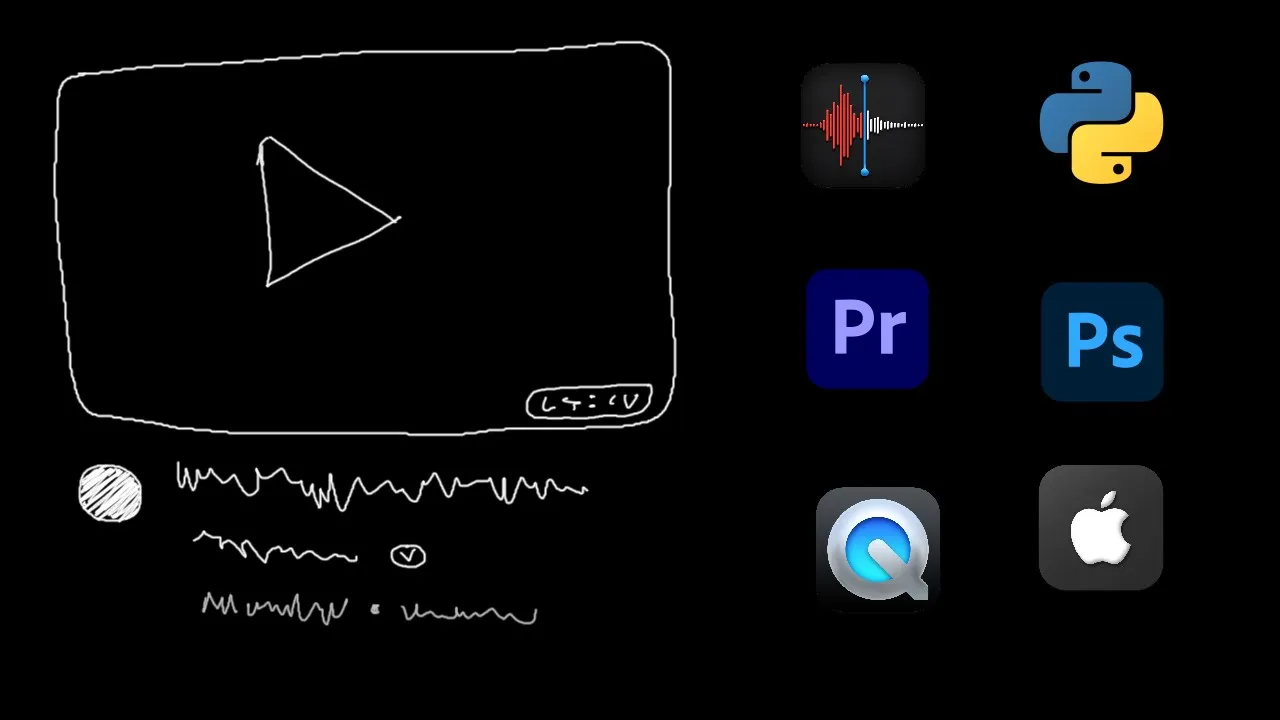
first you want to know what to make the video about if you're out of ideas don't overthink it go to YouTube and type something you're interested in or random words into the search bar YouTube will start suggesting things that you may or may not want to yoink for yourself another great method is to look at a few videos that you watched recently and just morph them together to get an idea you're happy about there's no way my first video is going to work so I might as well pick something that's interesting to me that's the best mindset to have at this point let's combine this video how I accidentally became the the best Mario player with how I learned to code in 4 months and we get how I accidentally learned python or how I accidentally learned to code sounds pretty good at this point I stopped making this video and the video that I'm making in this video and decided to go to sleep and I just couldn't really fall asleep so instead of recording this from bullet points I decided to script the first half of the video inside of Apple notes while I was in bed which is what I typically do before I fall asleep beautiful it's time to record there are a bunch of formats that you can choose from also you can combine formats just like video ideas I'll do screen share plus animations for this one I think maybe even talking hands I'm not sure I haven't yet made it there are a few things to know for recording audio is way more important than video make sure your audio sounds crisp to do that you can watch this video I made or just look at me showing this video through this video and do all of the steps here you'll sound amazing when you're recording don't be afraid to mess up around 500 times we'll fix it and post stop I hope you're enjoying your day but I have to interrupt to tell you about a quick sponsor it's the rec expert screen recorder from EAS us that's available for mac and windows it can record computer audio as well as your microphone or webcam set it up to capture a portion of your screen or your full screen in the settings you can set the output quality and FPS and also trim it afterwards if you don't like how it turned out you can use it to record meetings tutorials YouTube videos you know and you'll find your output file in the movies folder I'll leave a link to it in the description along with 100 pro licenses thanks to EAS us for sponsoring this segment of the [Music] video once you're done the fun part begins editing I edit all my videos in Premier Pro so let's learn how to use it for your first YouTube video so once you open up premiere for the first time this is the kind of screen that you should see if you don't yet have Premiere I'll leave a link in the description where you can get it or there are also other places where you can get it then I'll click new project and here I can choose the project name I'll call it Shrek beautiful name let's also choose the location to be on the desktop and create wow by default this is probably not the type of layout that you will see it will probably look something like this but you can easily resize all of these panels and drag them around so that you have the layout that you like beautiful so I already went ahead and recorded my script which I'm going to pick up from my desktop and drag straight into Premiere and we have our audio I'm also going to go into sequence and sequence settings the sequence is basically what's here it's your video and here I can set up my video resolution right now it's 3840 by 2160 which is 4K and that's beautiful here I can also select how many FPS I want I'll change it to 60 FPS okay so let us begin what I typically do is come to the beginning of my sentence here and start listening if I messed up or not I accidentally learned python let me explain so everything on the left side is not necessary so I'm going to click cck C to bring up the cut tool cut it over here and press delete there was also a little space here that I want to remove so I'm going to add both of these Cuts then switch to my move tool which is the letter V on my keyboard select this and click delete to delete it I can also select the space and delete the space to bring everything together and now this is what we get I accidentally learned python let me explain so I'm going to go through the whole audio clip and cut out all the silences and everything and we're going to have clean audio at the end of it [Music] and with that we are finished it took me 30 minutes by comparison this is what the audio track looked like before and this is what it looks like now so it ended up being like a third of what it was before next we have just a black screen here so we need to add a bunch of footage on top of this to make it into a video and not into an Audi book now this whole shebang looks quite fast on your screen but it took me 6 hours I couldn't figure out how to make it not boring but essentially what I did was create a bunch of animations with manim it's a python Library here's one of them for example learning skills don't just unlock Pathways to other skills like learning manim helped me Learn Python they can also help you make money and then did a bunch of screen recordings to fill in empty space as well as added text on the screen to make it more entertaining but here's some wisdom I decided not to leave out there's often advice that in order to keep people's attention you need to add as many Cuts Graphics Zoomin captions whatever I don't think so I think the best video pacing doesn't look like this it looks more like this it fluctuates if it's consistent someone will get acclimated to it and it's going to become their Baseline this is totally irrelevant if you're doing like yoga instructionals I like how it turned out but that's not all we still need one of the most important parts of any video the thumbnail I'm thinking about a similar thumbnail that I did here for the Mac OS terminal video or something along the lines of having a python logo in the center and then some blurry lines of code in the background so create a new document in Photoshop 1280x 720 create and import the logo also I'm going to yink the color from this thumbnail so import it as well add a solid color at the bottom and then choose this color beautiful maybe I should just leave it like this probably not also it's a good practice to zoom out the thumbnail as you're making it because most people will see it very small on their devices and most most often when you zoom out you realize that nothing is visible and there are too many things I like to put at most three objects in a thumbnail text also counts as an object it gives me a nice limit to not over clutter things so let's write out some python code actually I can just use some code from an animation that I've made screenshot this then paste it into the thumbnail I'll convert this to a Smart object so that I don't ruin it go to filter blur and gsh and blur and we're going to slightly blur the code that look looks pretty good maybe a little smaller of course the python logo needs a shadow so I'm going to double click on the right side of the layer and add a drop shadow I think that looks good and maybe also an outer glow this is way too purple it looks horrible with outer glow so I'm just going to leave the shadow now I'll combine everything with command option shift e which combines every visible layer and then outputs it to a new layer I'll convert this to a Smart object as well and go filter camera raw filter and now I want to add a little bit of Vibrance to this thumbnail you can see that the blue color becomes a lot more blue and I also want a little bit of a vignette around the corners to focus in on the python logo boink I may make another thumbnail because I like making more than one but this one doesn't look half bad next up we have our video prepared and our thumbnail prepared so we can go into studio. you. com and then up here click create and upload video we're going to drag this one in here beautiful and the thumbnail the most important part parts are the title and the thumbnail so let's focus on those first and by Focus I mean leave them exactly the same because I titled the video file with the title that I wanted maybe let's change it from python to to code because the python logo is clearly visible in the thumbnail and a lot more people know what to code means compared to people who know what python is so this potentially gives us a bigger audience that doesn't get confused by our title now during this video I mentioned two of my courses which I'm going to yoink from one of the previous video descriptions this one is about how to create animations with code and also my YouTube course this one over here paste it in maybe let's add an emoji on Mac you can add emojis by clicking control command space and this type of window should open up with your emojis now that we have our moneymaking links let's also optimize this description for SEO which means that we want to include a few keywords so that it's easier for YouTube to understand what this video is about and possibly if it's good rank it on YouTube search results if someone searches for example how to Learn Python for the first sentence I'm going to say how I learned python or did I and learned python is a keyword and then down here I'm going to put a bunch of random words that don't make any sense but that include a bunch of keywords that are related to this video there we go complete nonsense and then I'm going to scroll back say show more and add a few more tags here tags are basically useless but if you can add them why not add them I'm also including a few misspellings because it says here tags can be useful if content in your video is commonly misspelled all right that's enough with the tags I'll go into video elements and add an end screen to one of my other videos so that if someone watches till the end and is interested in another video they can click on it pretty easily from here and now all that's left is to wait for it to upload it's finished uploading finished processing and now all that's left is to go here and click public boink let's quickly give it a first like and let's see what happens after a few days I decided to upload it on my second Channel which has a few videos with some views the highest one is this one and33 subscribers so I'm interested to see how it does and this is the whole breakdown of how long it took to make the video scripting took around 50 minutes recording the voiceover 16 editing the voiceover 30 editing the whole video 6 hours and 23 minutes and uploading around 18 minutes oh I forgot the thumbnail which was 15 minutes so the total is 30,000 seconds which is 8 hours 34 minutes and 15 seconds to make this video not going to lie I thought this was going to be way less probably around 4 or 5 hours after the first 5 hours YouTube started pushing the video out to more people but the CTR was horrendous only 0.
3% of people clicked on the video after seeing this I got a little spooked and immediately remade the thumbnail so that it says oops in between the python logo then I waited a little bit and and it didn't work this video was shown to almost 10,000 people and of those 10,000 only 0. 5 clicked on it probably means that something is wrong at first it got shown to a bunch of people 6,000 then more people again 8,000 then even more and still only 0. 5% of them clicked that's why I'm changing up the thumbnail so I remade it once again this time to say impossible in between the python logo the thinking here was that it will hopefully make someone think how did he accidentally learn to code with it being impossible and this time this happened oh oh oh oh oh we got ourselves a fish 43 views in the last 60 minutes so I think this thumbnail is finally working and the views are coming from browse features which means the YouTube homepage which is exactly what we want to see okay it's been around 15 days and the video is currently sitting at 2.
3 th000 views not horrible this is when I changed the thumbnail from the original one to the current one it's also still getting roughly the same amount of views every single day I'm pretty happy with it because this is a channel that not many people know about and getting 2.