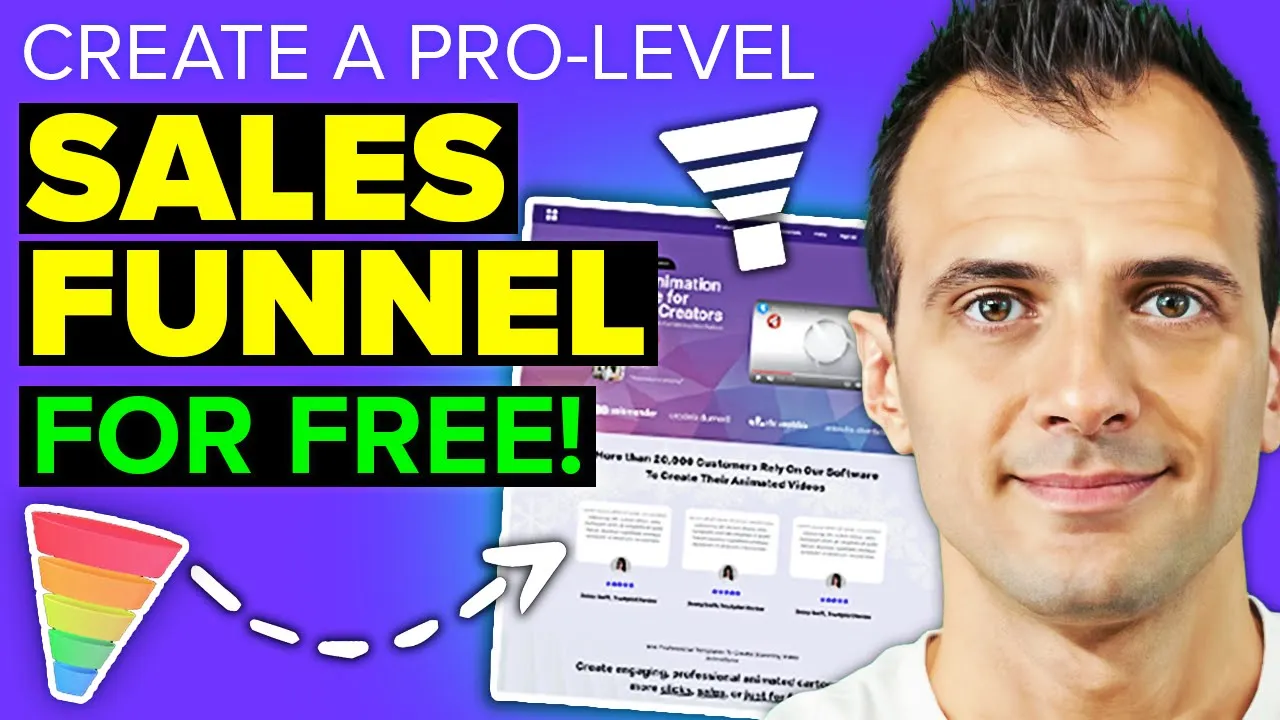
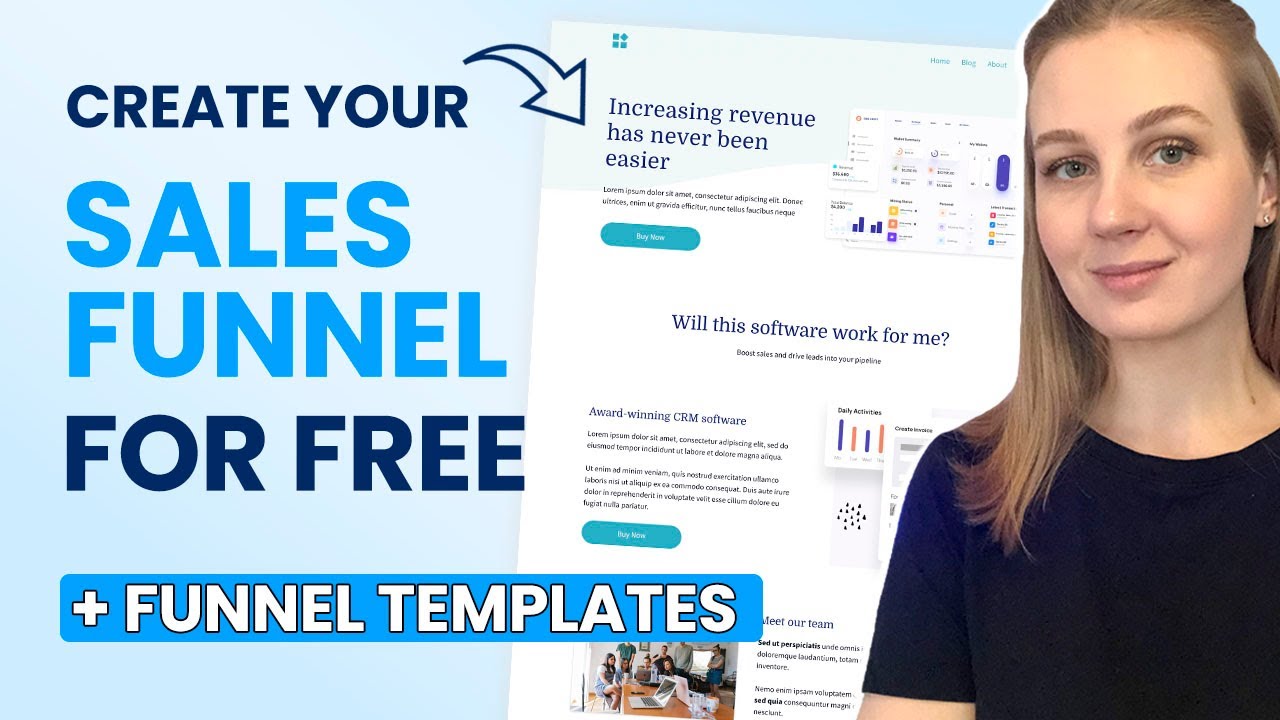
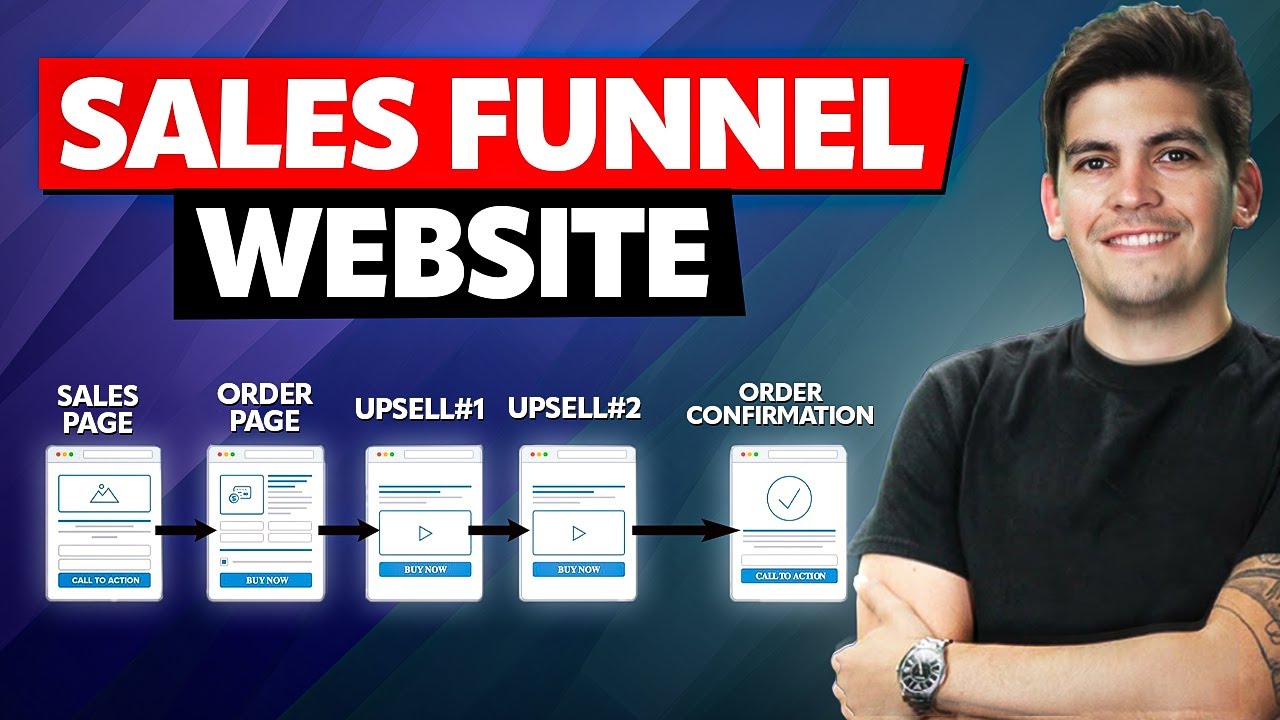
imagine if you could build a beautiful sales funnel like this one here in just 10 minutes and the craziest part is that you can build the sales funnel for free yes that's right there is a 100% free plan it's free forever without any catches to follow along with me in this tutorial click the link in the description below and get access to system. io you will land on a page that looks similar to this enter your email address and get my free account in this tutorial we will be using system. io to create sales funnels once you've got your free system.
io account you will log into the dashboard that looks similar to this make sure that you choose sales funnels at the top and then from here you can click the plus sign to create a new sales funnel here you can give a name to your sales funnel I'm going to name mine grow confidence course and then you can choose the goal of your funnel you can choose any of them for the purposes of the tutorial today I'm going to choose the sell purpose which will be to sell a product or service you can also nominate a default currency for your course I'm going to leave mine at US dollar let's click save we've now got the funnel added to our active funnels let's click on it and this is where you can configure the pages of your funnel a typical sales funnel will have these pages and opin page to collect the email addresses of the prospects a thank you page to thank them for opting in a sales page to sell the product and emails that are going to be sent out to the prospects to direct them to the sales page there are many variations of sales funnels and if you'd like to build something slightly different then system can do it as well so first of all let's add an opt-in page and we're going to call this step opin page under the type of course we're going to choose optin squeeze page but here in the drop down you can see the types of pages that you can easily create with system. io there is a thank you page inline form popup form there is an optin thank you page inline form popup form different types of sales Pages webinar pages and other types of pages we're going to choose squeeze page and let's click save now let's let move our opin page to the top of our funnel and we can now choose which template we'd like to apply to our opt-in page there are tons and tons of templates I'm going to choose this one but you can of course choose any other one that you like you can preview the template from here this is looking pretty good to me so I'm going to click select give it a name and a URL path and we can click edit page to start editing our opin page I'm going to customize it a little bit and I'm going to delete the stop section everything is click and edit so I'm going to click on here to select the whole section and then click delete and then I'm going to delete it then I'm going to change the headline if my course is going to be about how to become more confident then I'm going to offer a free report how to become more confident in 7 days as an opt-in gift on the right hand side I'm going to say instant access below and then we've got the two fields to enter the name and email you can make this as complicated and as beautiful as you would like because system Rel has got all of these elements here for you which you can duplicate drag and drop and edit any way that you like I'm going to keep my opin page simple I'm just going to delete these elements that I don't want okay so let's delete this one and let's delete these ones over here click delete and then I'm going to click and delete this other one as well now we've got this empty row which we no longer need so let's click on that and click delete as well and then you can delete all these sections below that you no longer want so let's just click here delete click here delete all right now we've got a nice and clean opt-in page which I'm happy with so I'm going to click save changes we can even preview it so let's click the preview button and you can see what it's going to look like once it's live on the internet let's close the editor using this button here and we've got the first page of our sales final sorted next let's add a sales page so we're going to click this button here to add a step so this is opin Page done let's now add a thank you page to do that let's click this button add step I'm going to call it optin thank you page and under type let's choose optin Thank You page click save let's choose a template this is the same family of the templates which we've just used so it makes sense to use it as well let's click select give it a name and a URL and let's click edit our customers are going to see this after requesting a free report so we can customize this to match that we can say your report is on the way let's get rid of this header at the top which we no longer need the idea is that we're going to be sending an email out to the customer to deliver the report so let's mention the in this text just below so I have said in the next 2 or 3 minutes you're going to receive an email with your report into your inbox this is a little bit small so we can increase the size of the font just go here on the left hand side and you can use the slider to make it a little bit larger to make it more visible like this seems good best practice tells us that once we've got the customer on the thank you page it's a good opportunity to try and convert them into a sale right away so let's add a little call to action that will invite the customer to check out the sales page for our product right away way so let's duplicate this headline and let's move it down using this control over here and let's now change this headline to entice the customer to check out our sales page right away something along the lines of want to know how to instantly impress others we can also change this text to match this color for that let's select this text then choose this color control and then we can enter the color number into this box here so that's our color number and we've now got the color matched let's now put a button like this so I'm just going to copy this button drag this one up and drop it just below this headline let's now Center this so I'm going to click the center control we can now make the font size a little bit larger so perhaps something like this let's increase the line height to make this a little bit larger and we can change what this button actually says look on the left hand side it says SE all project so we're going to say yes show me how like this to invite the visitors to click this button let's delete the other elements that we no longer want so let's click on this section and click delete confirm and continue like this with the other sections there we go we've got our thank you page ready to go so we're going to hit save changes we can preview it to see what it's going to look like this is looking fine to me and now we can click exit to deal with the next pages in your funnel let's drag the optin thank you page just below this quiz page because that's going to be the next logical step and we now need to create our sales page going back to the final Pages let's click add step and add a sales page we'll give it a name sales page under type let's choose sales page and click save once again we can choose which template we would like to use if you're trying to decide what your final should look like or perhaps you don't know how to create a sales page a good idea is to get some inspiration from other similar courses so we can go to any YouTube channel or any other brand that is selling a product that's similar to ours I'm going to use the Charisma on command YouTube channel and you can see that they've got a link where they're selling their course which perhaps is similar to the course that I want to launch it's called Charisma University and I can take a look at what kind of format works for them and what kind of copy works for them so this is a very clean and simple type of sales page and now it's given me a very good idea of what already is proven to work that I can Implement as well on my sales page so let's choose a sales page template that is similar to this sales page so that we can easily replicate the look and feel of it you can go through all of these sales pages and you can click preview template to see how it looks to see if it's going to work for you this template here seems to have all of the elements that we require it has a nice simple clean layout it has headlines it has a video it has buttons it also has the elements which is just text there are these sections that are colored in different colors and we can find that here in our template as well towards the bottom so we can easily reuse these elements to create a similar look and feel so let's use this template I'm going to click select as before let's give it a name and a URL and let's click edit page here you can now go through and implement the copy onto your sales page the way that you would like it laid out I will show you a few of the basics but I'm not going to bore you and create a whole sales page in front of you so we can start out with a headline so perhaps something like this how I started commanding Instant Respect despite being a shy quiet guy and then you can have your little sub headline over here and you can have your sales video if you choose to have one just down below here so we've got this text element if you wanted to change the spacing to be more like this you can do that through the properties on the left hand side we've got this option here that says line height so just change that until it's spaced the way that you want it to be spaced perhaps like this let's just insert a few paragraphs of the copy I've Rewritten them here in my own words so I'm just going to paste that in all right and just like that we've got the top part of our sales page ready to go you can continue working like this and create your whole sales page but for now let's click save changes and let's preview it to see what it looks like I think this is starting to look really really good this is the copy this is the headline and this is the sales video that you can insert here once you've got it and this is the buy button over here all right well let's move our sales page up after the opt-in page and after the thank you page so we've now got our sales page ready and good to go if your course is hosted on a platform like teachable once you've got the course set up and ready to go you will get a URL to your sales page on teachable you can grab that URL and Link this buy button to that URL so just click on here and then on the action when button clicked you can choose it to open a URL and then you can insert the URL into here alternatively you might be surprised but you can actually have your course hosted on system just go to products and then click courses to open it and you can actually create your course to be added inside your system account once again it's free 0 per month there are no catches and you can have your whole course one course but the whole course hosted on system and it won't cost you anything so you can click this button to add a new course and then follow the steps to set up your course record the videos and then have it hosted within system. io and you will be able to add the link to your course onto this buy button so that your whole sales funnel is contained within system.



![How to Create a $1,613,457 Sales Funnel [Free Course for Beginners]](https://img.youtube.com/vi/SWgCnXydWSw/maxresdefault.jpg)