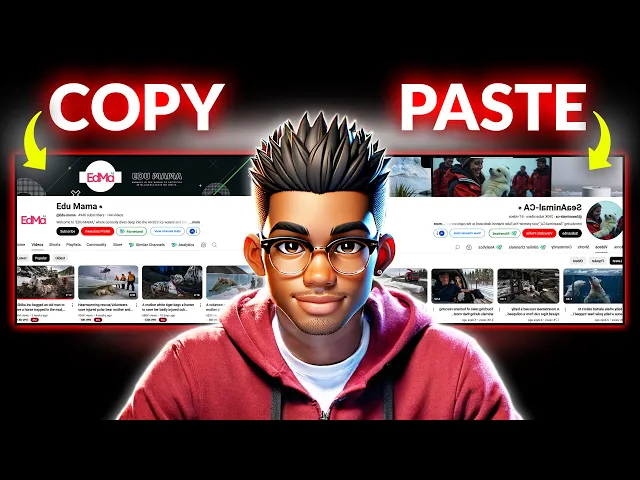
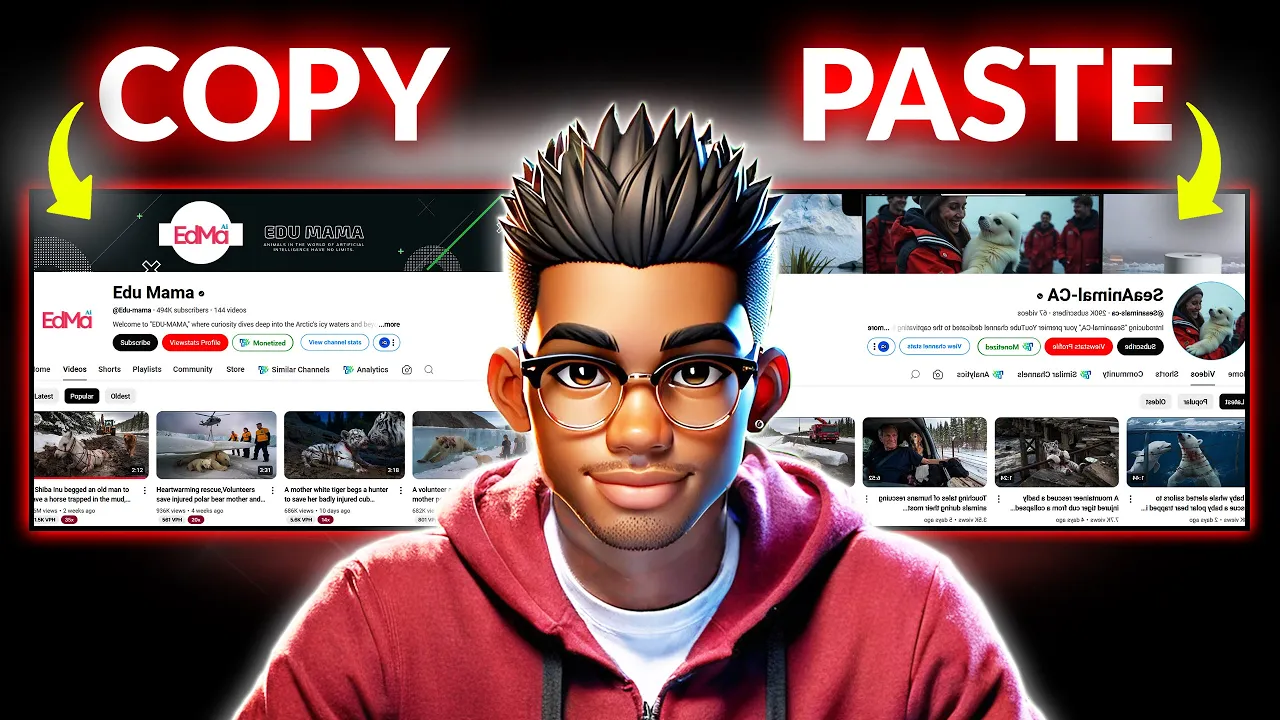
these YouTube channels are pulling in some of the craziest numbers I've ever seen and when I say numbers I'm not only referring to their view counts just take a look for yourself the first one was started this past September but has already pulled in almost 100 million views with over 250,000 subscribers that's not all the second channel on this list which was also started in September has also Rak in over 250,000 views with close to half a million subscriber count what's even more insane is this third Channel which started just this past November that has
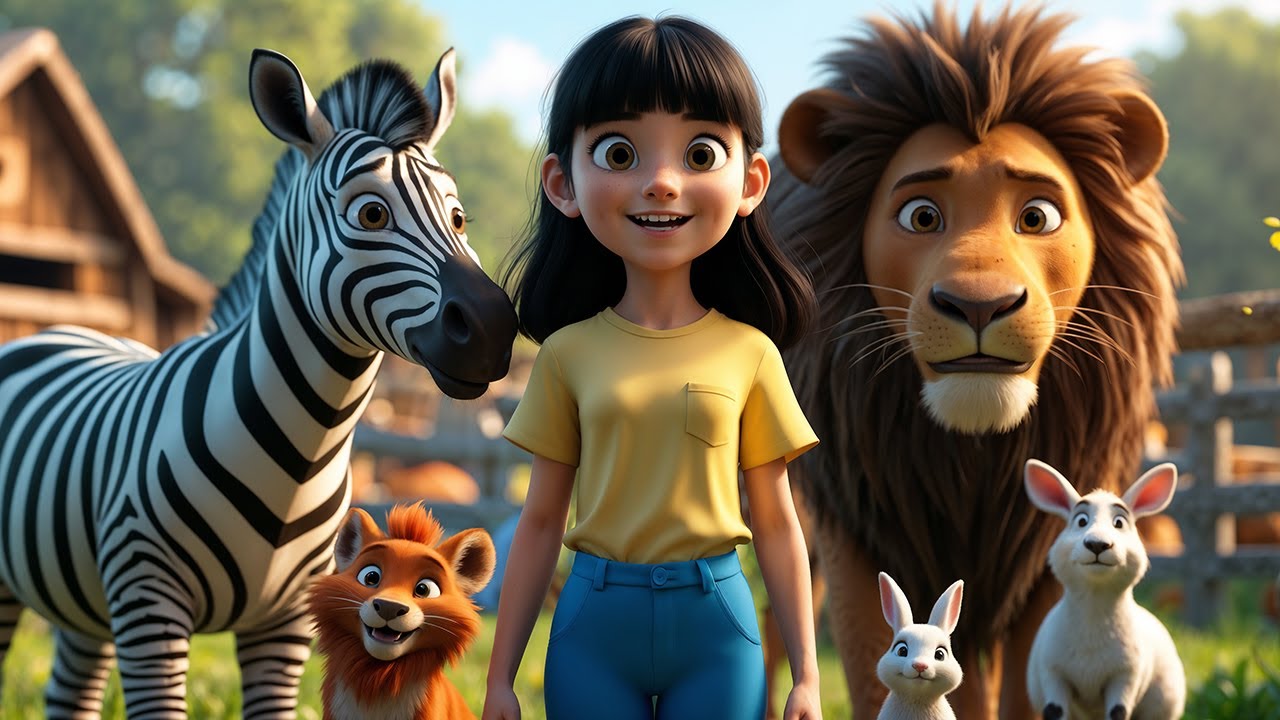
also pulled in over 150,000 views with this jaw-dropping subscriber count so assuming an RPM of 5 cents per th000 views for this channel they could be raking in close to $4,000 a month on their shorts alone that's from a channel that literally posted its first video less than 2 months ago if you're wondering how these channels are pulling in such outstanding numbers well the answer is quite simple they're posting animal rescue videos like these using Ai and the best part is that people absolutely love these kinds of videos I'm not even joking just take a
look at one of their videos and you'll understand what I mean it's almost impossible to skip the moment you see any of these injured animals and the result is That these channels end up with millions of views on their videos now the best part about this is that the niche isn't saturated at the moment so there's no better time to jump in oh and if you aren't interested in shorts this Niche works for long form content as well Additionally you can also post these videos on other social media platforms like Tik Tok and Instagram guys
if this doesn't motivate you to start your YouTube channel today then I'm not sure what will you don't need to show your face use any voiceover or even go through the trouble of finding real life footage of these animals the best part is that you can do this with almost entirely free AI tools and I'll be showing exactly how I only ask that you stick with me to the end and maybe hit these awesome buttons and even say something nice in the comment section if you find this video helpful so here's what we're going to
do first I'm going to carry you through the complete process of creating a well optimized Channel for this Niche then we'll move on to how you can generate the story ideas for the videos next we'll generate prompts for the images we'll be using for the videos and proceed with generating the images once that's done we'll use an image to video generator to animate the images and move on to compiling the video with cap cut finally I'll show you the best way to grab the tags and the description for the video guys this is going to
be detailed so I'll be leaving every prompt and all the resource files from this tutorial in a Google doc inside my Discord server the link will be in the description and on my channel page so let's get started the first thing you need is to create your channel if you've ever created a channel before you probably already know how to do this so feel free to use the Tim stamp to skip to the next chapter however if you haven't created a channel before do this head over to YouTube and click on your profile picture then
you want to select switch account and view all channels click create new channel and you'll be able to pick a username if you have one in mind go with that if you don't simply head over to chat GPT type this command prompt ing chat GPT to create a few Channel names taking inspiration from the three channels that are featured in this video chat GPT will spit out some creative ideas for you to choose from and hey if you're not feeling the first set of names just regenerate them until you find the perfect fit once you've
got your channel name locked in paste it into YouTube and create your Channel Next you need to create a description feel free to write that yourself but chat GPT can be useful here too ask it to create a fitting description for a channel in the animal rescue Niche something in engaging but not too long because let's face it no one's sticking around to read an essay on your channel page now that your channel is set up the next step is to add tags to improve your Channel's SEO that stands for search engine optimization this is
what helps your Channel show up when people search for certain keywords go ahead and add tags like animal rescue and any other phrases that fit your Niche or the theme of your new channel just a quick tip avoid using keywords that have nothing to do with your channel not only is that unhelpful but it could also hurt your SEO while you're at it make sure to specify the category your Niche falls under this style of video falls under pets and animals Niche so choose that next up you'll need a logo and Banner for your channel
don't overthink this something simple will work just fine you can ask chat GPT to create a prompt for generating a logo for your channel if you're on chat gpt's plus plan you can even generate the logo directly but I prefer using idiogram for my Logos just paste in the prompt set the aspect ratio to square and hit generate it only takes a minute or two for the logo to be generated and check out the results any one of these would be great but I'll go with this one the last step here is to create a
simple Banner so simply grab a prompt for something simple from chat GPT and head over to ideogram now paste the prompt and set the aspect ratio to landscape since we're generating a banner go ahead and hit generate an ideogram will create some badass images that can be used for the banner download one and head over to your preferred image editor Photoshop works perfectly but if you don't have it canva or photo works just fine now create a new project using this aspect ratio and upload the banner image make sure you scale it to fit the
project Dimensions by simply dragging the corners next select the rectangle tool and draw a rectangle in the center finally grab the text tool and add the channel name feel free to make any changes but once everything looks good export the banner as a JPEG file and upload it to your channel just like that your channel branding and SEO are complete time to move on to the fun part creating content the first thing you're going to do is to come up with an idea for the video I'm going to show you how you can use AI
to do this but nothing beats the human touch so try coming up with some interesting scenarios yourself but if you prefer using AI chat GPT can get the job done for you to make things simpler I've even created a few prompts that you can use to generate some pretty cool ideas you'll find everything on my Discord server once you've opened the file simply copy this entire prompt and head back to chat GPT paste the prompt and hit generate chat GPT will create some pretty cool ideas and even structure them perfectly feel free to look through
them and choose your preferred ones if you don't like any of these ideas simply regenerate as many times as necessary but once you've decided on a topic The Next Step would be to create the prompts you'll be using to generate the images you can do this manually as well but chat GPT can make the job a little easier simply head over to the Google Doc and copy this second prompt now paste it into chat GPT and replace this part with the details of the idea you want to use you can even replace it with your
own idea and then hit enter to generate the image prompts as you can see chat GPT has generated 16 prompts that can be used to generate images for each stage of the story The prompts look good but you may need to make a few changes to better reflect what you have in mind for your story next step is to generate your images feel free to use chat GPT or mid Journey if you're on any of their paid plans but if you want a free option pick Lumen is a great alternative head over to their website
and hit this launch button their interface is quite similar to most image generators simply post your prompt here and expand the advanced settings pck Lumen provides some amazing models that you can choose from including flux one feel free to test out all of these models but for this style of video the pick luminart version one works perfectly next you can choose your aspect ratio depending on the style of video you want to create for YouTube shorts 9x6 works perfectly for portrait Style videos but for this demonstration I'll go ahead and choose 16x9 since I'm creating
a landscape Style video choose the number of images you want per generation and then proceed with the image creation this image generation tool is lightning fast compared to most others out there in just a few seconds you get a fully created image and the quality is incredible seriously take a good look at these images they're so realistic they could easily pass for the real thing plus you can tweak The Prompt and regenerate as many times as you need until it's just right the best part is how you can effortlessly maintain consistency across different scenes which
is a total game changer I'm going to show you how using this next prompt where a dog is interacting with the horse go ahead and paste the second image prompt here to maintain the scene for the second image you need to paste the seed number from the original image you can easily find it by selecting that image the seed number is right here so copy it and close this popup now you simply need to paste it and hit generate it only takes a few seconds and the images are ready check out these images pck Lumen
has done a great job maintaining consistency in both the environment and the character you'll need to repeat this process for the rest of your prompts keep in mind that the AI isn't perfect so you may need to make changes to some of the prompts to ensure that you get the results you're looking for now that the images are ready the next step is to animate them feel free to use any image to video generator but for this demonstration I'll be using Minimax video generation will take a while for free users so I recommend using it
alongside other generators like these ones that also provide free credits so go to Minimax and choose their imageo video generation feature upload your image and paste the prompt you use to generate the image you can find that from the image generated from pck Lumen just hit this button to copy the full prompt now head back to Minimax and paste the prompt before you proceed with the generation free users can run three concurrent Generations at a time so upload your other images and don't forget to include the prompts once your Clips are ready the next step
is to move on to editing these videos are pretty simple so you can use any video editor but cap cut is free so let's go with that the first thing you need to do is to import the video clips into cap cut now go ahead and add the first clip to the timeline keep in mind that the AI video generators aren't perfect so even with a decent clip like this one you'll find a few flaws simply trim that part and check out the result the clip looks almost realistic now so go ahead and bring in
your second clip as well make sure there are no issues with that clip and then bring in the others trim where necessary and continue arranging until you reach the end of the video the length of this style of video depends on your personal preference so make it as long or as short as you want next you need to add some transitions to the video head over to Transitions and grab your favorite I recommend something simple for this style of video mix works perfectly so drag it between your Clips feel free to add other transitions but
you can simply select this one and apply it to the rest of your Clips what makes these videos intriguing is the sound effects so head over to pixabay and search for sounds that fit various scenes in your video the background sound is also very important so let's tackle that first instead of some random background music for this very video a soft wind blowing sound will be appropriate I'll also find some sounds for the horse the dog and even the footsteps of the rescue team once everything is ready simply import them into cap cut now go
through the video and identify the right places to add each sound effect as well as the appropriate duration I'll even duplicate the dog sound a few times here and split this walking sound to match up with the footage keep adding any necessary sound effects till you're satisfied with the audio oh and don't forget to add the blowing wind sound effect in the background you don't want the wind to be too loud so decrease the volume a bit and trim it at the end now as you can see Minx has added their logo at the bottom
right corner of the video paid users won't face this issue but if you're on the free plan you can simply cover it up with your own Watermark select text and add a new layer now expand the layer to cover the full length of your video next you can change the text to your brand name in this case I'll be using the channel name you can even change the font to your personal preference and add a background use the sliders here to change the size of the background and once you're happy with the result you simply
need to drag the text over the watermark and resize it so it doesn't take too much space while also covering the watermark perfectly the final step before you export the video is to add a filter feel free to choose your favorite but this clear filter looks all right to me so I'll go ahead and expand it to cover the rest of the video now you simply need to export the video at 1080P or 2K resolution before we take a look at the final result let me show you how you can get a good description for
the video simp simply head over to chat GPT and paste this prompt make sure you include the detailed story that you generated earlier as you can see chat GPT has created a solid description for the video the last step here is to ask chat GPT to generate tags for the video m w w w now if this Niche didn't convince you to start your YouTube Journey today check out this two-month old Channel that's already making more than $10,000 monthly