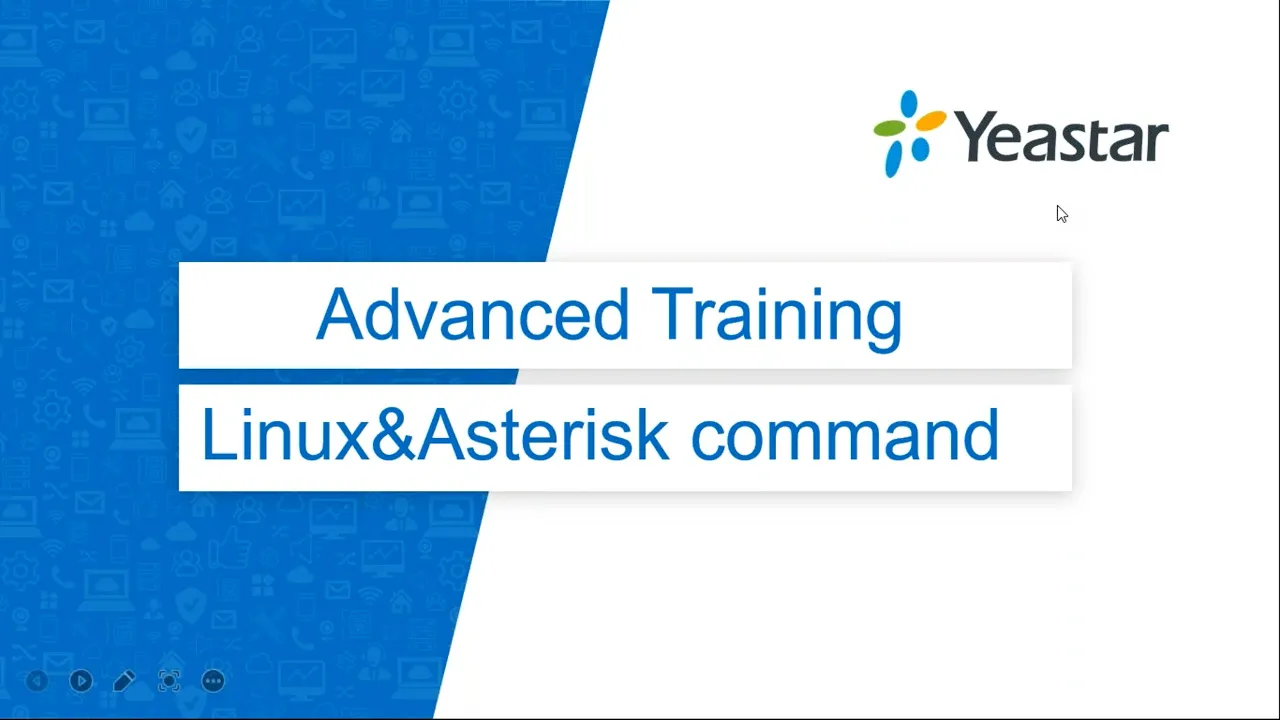
hello guys okay you hear my voice i think we have six attendees in total and i'm not sure the other guys should we should we wait for for them or just start the training hello guys you can just chat from the question window okay i think let's just let's just begin our training okay we have three guys over here and nice to meet you guys welcome to the eurostar technical training this is gaba nice to meet you all and today i'm going to introduce how to access the back end of the pbx with ssh and how to use commands to control the pbx and to do some troubleshooting with commands and if you have any questions you can just ask me from the question window and i will check in and give your answer and you can find the document from the handouts okay so all uh the ppt's um and the commands you can find from the canal let's be let's begin our training okay and the course includes three parts today and the first part the first part is about the linux command and the second part is about the asterisk commands to do some troubleshootings okay and then lastly is how to capture a ci log and analyze a system log and what is the difference between a cri lock and a system lock okay so in terms of the commands as you can see we we have two kinds of commands here the first is linux okay another is asterisk and the linux actually is um operation system as our pbx is based on linux so if you have experience with other linux devices even though the commands are almost the same and about the astor risk commands uh mainly used to capture a cri log and to to learn or how is a die plan script going through during arena core and that is the important things about the aster risk the diet plan and i will tell you uh later about the diet plan okay so what we will learn after this training you will know how to use a command to check the system informations to check the configuration parameters and to check the states of the extensions and chunks and to do uh first the range of shootings for some incidents like a registration users okay in addition you will know how to capture a ci log and you will see what kind of informations or messages uh we where we get from the ci lock and how to use their log to do a troubleshooting and um or to do the troubleshooting on the track and the extensions something like that okay let's just start our training from the very beginning um what is a way to access pbx from the backend normally we the user just log in the web the pbx web to check the informations like this okay we have a website and you can just log in and to check the extension chunks and to do some configurations securities and to do some troubleshooting capture uh pcap syslogs over here from the web okay but for some and certification so we also need to use um ssh to log in the pbx from the back end to to do some troubleshooting to check on some parameters and and do [Music] to realize some new features with die plan so also for some configuration so you can only use the root permission to change the parameter from the back end so that is why we also need to access from the back end okay and back to a point we have two ways to access the pbx the first is a console cable it is um a physical connection with a specific cable named rs2 32 one side connect to the the pbx and um you will see there is a console council port on the on the bank or the front of the pbx and other sites connect to your pc and also you need a usb converter to connect to your pc okay so normally we use ssh because it is um [Music] it is uh easy way and we can just uh [Music] access the pbx with the ssh securely and more easily okay so in what kind of situations do we need to use the console cable because when sometimes the customer cannot cannot log in the web and the customer doesn't enable the ssh so the last things and that's the one that's the reason for for us to log in or access the pbx is to use our console keyboard so that is uh last week if you do not enable ssh and you cannot log in the web so most in most cases we just use ssh okay and the first thing to enable to make us to to log in the message you have to go to the web and check the security city you can see here we have a console and ssh access okay you you should enable it and here is a d4 port 1822 and here is the password okay it is a random but for the training i just changed it to like a year start to zero to that for me to remember the the password okay so um we know the the tools to access the pbx the next is how to just log in the ssh okay we usually use the putty here you can see um it is a free and we can just download easily before login you have to make sure the snc ssh has enabled from the web web you can enable it first save it and apply it okay so we just highly recommend you to enable ssh access because for some troubleshooting so we we can enable it and we can access it otherwise we have to use a console cable okay but in most cases the customer or do not have this console cable okay i think you guys must be familiar with the the ways to log in but i will tell you something about the login okay the uh it's quite simple from the hostname you just input the ppx ip over here and change the port to 1822 okay but another thing i want to tell you is to increase increase the buffer size in case of the logs will be overwritten you know there will be a lot of logs running over the window so just increase uh increase the buffer size and you can check check more informations okay and then just open it and the username username is always a support and the password is you can copy from the web and right click to paste it okay here you can see support at ippx that means we have uh access to the backend from the backend pdx and for some cases um if the customer do not have a putty you can download it okay but for and some cases the customer do not want to download it you can also use the cmd window or the if the pc is a mac you can also use a terminal to log in and i will show you the command it's like this ssh username the ip address of the pbx and don't forget about the oh sorry the port okay ssh support add the ip address and the port and input the password okay that is to the same you can use cmd or the terminal to lock in the ssh okay so um now i know if you guys have a putty in your pc and you if you can just log in one of your tester pbx you can just open your puti and you can just follow me step by step to test these different commands okay and if you do not have it you can just check follow me and check me how to do that or you can download download the the video and practice update training okay so the first let's go to the first part linux command okay the first command i would like to introduce to you guys is sorry okay i make it the window bigger okay the first one is is ifconfig okay with this command you can check the the network interfaces into the informations such as the the ip address here this is the ip of the of your pbx and also you can check the mac address here and something like the mtu size and [Music] you can check this it's a eth0 and because i just enable a mode network here network single all right if i use a do modes network we will have a one port okay so if you enable the dual mode you will see another one is eth1 so eth0 means the line port and eth1 means the one port okay this is a quite easy and common in the news command to check the ip things and let's move on and the next is um pain this is quite easy and simple and it will help us to check the network reachability okay so if you uh if your ppx have a connection to a ta or tg gateway or you want to check the connection between the pbx and the same phones you can just use this ping like if i ping one of my c phone like this 29. 2 here you can see we get a response and get the latencies of the other side that means the connection between the bbx and the c phone is is a reachable okay that's quite simple and next is about an s lookout okay an s lookup it can help us to check a domain if a domain can be reserved by the dns server you have a set for the pbx okay so when you set up new pbx you have to config the network informations and the dns server okay for this pbx the dns server is 8. 8.
8. 8 okay so with this command ns lookup we can just check for example let me check this domain here you can see the result here the dns server and you can see the ip of this domain so that means the domain can be reserved by our dna server this is quite useful because for some for some case i will show you from here the trunk um most of time the itsb the service provider will give you a re register trunk creating shoes and the username password over here and the host name and domain the in most of time the servers provider will provide you an ip like this okay but sometimes they also give you a domain domain name so once you found the chunk is failed to reject and also you check the domain and you check the host name and the domain is not the ip it's a domain name so in this case you can just log in the ssh and use this command nslookup and with the domain name to check if our dns server can reserve this domain to a correct ip that is a way to do the troubleshooting for some chunk insults okay so this is a useful command an sd card and let's go move on next i will show you some commands to check system informations okay so the first is how to check the firmware version of your pbx you can use the cad etc version okay you can see we get the version this is a latest one and with this new firmware we have a lot of new features you guys can have a try okay for example we have um a c f q d and c i think this is a quite important and quite helpful okay i i'm not sure if you guys have tried or tested these features okay for the fqdn yeah this is our new features about the latest firmware we have uh save access okay you can see what is a this means save access fqdn and before we can just uh remotely register our lincast app okay but for the c phone the handheld cell phone we have to do the port forwarding to if you if the customer want to have a reboot reboot the registry reject to the pbx for example uh two c phones one is in the office another is in the the home we have to do the port forwarding but now we can use the fqdn save access that means we can use the fqdn to readjust the same phone remotely to our pbx okay this is one of our new features and other features you may just check the check the release note okay that's back to our trainee and the next command is the message dnesg okay this is a command to help you check the hardware issues if you have a hardware related insurance like uh the module detection is failed the lan port or one port cannot work the indicator lights are off or you something like a hardware institute okay you can just input dmesg you can remember it as the device message okay after and press enter you can see lots of running here okay it will automatically generate a hardware boot lock you can just copy the log and send to us we will cover if it is a hardware insult okay dmesj for the hardware insults and you can just right click here copy log and paste it paste it to the path and send it to us okay this is a quite simple dmesg okay let's move on the next command is um [Music] ps this is a a very common units command right with this command ps you can check the current running processes and we can filter a specific process like here if we want to check the process of asterisk okay we can import the ps graph and the name of the process okay we can see the process as the risk is running okay if the extra risk is down that means you cannot receive or make any calls okay and next is quite easy it is talk okay with this command and we can just check the memory usages you can hit check from here the memories use the free and we also can check the cpu usages okay with this command if something wrong with one of the process like the database or asterisk you will find the insult easily with the command here you can see it will choose which process consumes a lot of a lot of cpu okay so if you receive a complaint from the customer the cpu cpu is overload okay you can do the first round troubleshooting log in the ssh okay and check the cpu usage with the command tool for example if you can see the first one is the database like my circuit or asterisk and the cpu is like 18 or 19 so that means something wrong with the process then you just send send us the screen screenshot screenshot to us and we will know how to handle it so it is a more efficient way to solve your problem okay because you have hairballs to do the first round troubleshootings okay okay i think the linux command is quite easy so i will not take a lot of time to talk about these commands okay and let's just have a quick review of the commands and um here we see we have our other a lot of other linux commands here but i just tell you some useful or you can you may use for daily live daily work so if you interesting about other that you can have a try after this training okay here you can see we have um ifconfig to check the network informations okay and we have routes to check the static routes and to check the gateways okay and how to add a default gateway delay to the default way something like that you can just have a child of this training okay so next is uh how to check the pbx firmware version okay this is a very quick way to check the firmware version okay and with wise 2 you can just have a try with this command you can check the sn number and hardware version and the mes3 is important okay it can help us to check some hardware related issues and also you can reboot the pbx by the reboot command and ip tables to check the firewall rules and i introduced today is about the ps check the current running process and the top check the cpu and memory usages and also you can use df to check the disk usages okay the important is a nice lookout to check a domain if a domain can be reserved by the dns server okay i think that's a first apart and it is um command things you just practice you will remember it right so no worries you can find this document from the handout you can download it and the practice of this training okay and let's go move on to the next part is about the as the risk commands next i i'd like to introduce how to login as the risk to check the check the channels to check the states of extensions and the chunks and how to do a troubleshooting of regeneration in suit okay to log in the asterisk the command is like this asterisk dash v r okay um just make sure you you have input five five the is okay so five six seven that is the same okay asterisk that's the vvpr and press n enter you will see the difference here it shows ippx cli and you will see there are a lot of logs are running here and this is what we mentioned the cri lock it quite simple to capture a ci log okay that is a very easy way you just input the asterisk does vr press enter then the log will run it automatically you just wait for a while and reproducer in c and then stop it by press ctrl and c and then copy the log and send to us or you can just have a check copy to the loophead notepad notepad browser we we use the this app it is um i think it is a good one or you can use others like you yes okay and um i will introduce more about the ci log later okay about uh what what is um what we can get from a ci log you can see we have some uh debug messages we can also have some c cyclones and later i will tell you that part but the first part i will tell you how to use some asterisk commands to check some informations okay and to make it clear to see i will disable the logs i have disable them first okay say call step default back off and you just save save over okay i just uh disable [Music] locks and i'll show you the first commands to check the channels is call shoe call show if you press a tab you can see other commands or other keywords over here you can have a try but today i will show you about the cautious channels so what what is about the channel every core has its own channel one extension or the core to extension or the call to ivr or to regroup it will has its own channel and if i press enter you can you can check here you can check here cultural channel cultural channels there's channel name location states okay there's no course if across the ppx now so there is zero active channels and you can with this command you can check the current active course and the maximum maximum concurrent cost for this pbx it is 25 25 max active course if if i make a call and you will see here we have a channel name and the state states of the channel okay so let me just make a call and i will show you different uh before you pick up a call or you pick up a call answer call how the channel how it will choose in the channel okay so if i caution channels there's no course and then if i make a call like if i make a call to [Music] this pbx internet course [Music] okay this time i check the states and then we answer it say hello and check the states and then then and up the core again we check channels okay let's stop it by control-c and right-click copy to the loop pad pause paste it and press ctrl f to filter the caution [Music] channels and all okay okay this is a if there's a new course you can see there's no channels zero active channels in the course of capability okay and if there is a core you can see the channel we have a channel name channel name this is the channel name and this is uh [Music] locations about the thai plant and this is state rainy rain or rainy okay so the ring means the corner longer okay so the core is from the three thousand two here this guy is thirty seven two okay so the ring the ring means the color chord number and ringing means the quality number so the chord from the 372 to the 301 and you can see there are two channels for the 371 that because two extensions reaches to two endpoints okay we can just check from the web here you can see uh a safe phone and web here you can see this is a web so there are two channels for the extension okay and then you will say it will cause the one concurrent call okay and if i pick up the core you can see the state becomes two up for the caller or calling that means the core is in stem list okay and if i hand up the call then the channel will be there's no channels here so i will tell you this because um for some common issues we have that is um and it seems like if the customer complains the extension 3001 it is available right that's i don't know what is going on these guys cannot receive any calls i don't know if you guys have i have met this issue before but i have made this insist uh a lot of customers have this institute because for some customers they have a lot of large extensions a large cost so the channel will be like stocked will be stopped so if you you receive a complaint that's one of the attention and just cannot receive course okay but the state is available okay then you have to check if the channel has been started the way is log in the ssh and go to the cri the asterisk okay with this command and then use the command call show channels okay so for example you can see if there's no course okay but there is a channel name named 3001 okay and the state is up that means the core is just uh the channel has been stuck you have to release it melody then the extension can receive calls okay i will show you how to release the channel if you okay if you if you use the command cause your channel fan one extension has been stocked over here and then you use this command channel request hana and with the name the channel name like for example the channel name is um like this pg save okay the extension name and with a redden number okay channel request hand up and the channel name after after you press enter the channel will be released because there's a new channel so it shows um it it is not a knowing channel okay not just an example so this is a quite important for you guys to do the troubleshooting and to receive the problem okay and let's move on and next is about the pjc feature safe shoe okay the previous is call shoe now this pg save shoe also you can press tab to check the other parameters you can check but today i will show you the pgc shoe stagers and another one is peachy sip shoe end points i will show you what is a difference stop it this is uh pg saves you endpoints and with this command you can check the extension states and the chunk states chunksters okay not in use unavailable not in use okay but for for myself i prefer to use uh this this one pgc show status this is um yes the building command okay this is a more brief you can check the all the extensions here and [Music] regested or on available okay and if it is rejected you can check the eyepiece and latency and for the chunk that is the same you can check the states of the chunk the eyepiece okay and next i will show you how to check insulin about the regeneration a chunk of regeneration issues okay so um next i will tell you about the ci lock and how to use a cr log to do some troubleshooting okay and let's look in the cri first then you can see there are logs running over here and the first thing you have to enable lock because uh this the c block as a safety park is disabled by default so it is like this this way like from the web maintenance system log log level okay if you if you guys have submitted to take it to us for some insurance we always we always ask you guys to enable the debug and the save debug right for the system log because only you just enable then we can get the logs in the cr log or the system lock okay so that is the same you just enable the save debug and debug this is it for the further system log okay but for the ci log you have to use the command command to enable it okay the command is like the pj pgc stat logger oh okay here you can see we got some steep signals over here right so remember this command put your save save logon and if you do not want to check the page the same signal needs you can use the pgc cell log off then the the save signal is missing and only have the debug messages over here so for the pgciv cello we have another useful which is like a pgcm cello host and then with an ip or a domain okay pgc said log on or off is to enable or disable the save debug and future save cell log host and with ip or domain this is a way to do some troubleshooting about registration issues okay so now i will tell you if you all have a issue with the chunk registration it is a fail to register to the server like this one this is a reject register track it is a chunk reaches to all my to my club and it is fair so how to do the troubleshooting with ssh i will show you how to do that okay so and the first way the first step is login to the cri okay and you have to confirm the state of the chunk okay with the command pg save show status okay so the first step is check the states of the check status of the check okay you can see here the given sql oh it is a shield reject it from the back end okay but from the web it is it is down so what is going on let's do the troubleshooting okay this is a domain right let's just copy this domain then we go to the ci log and with the command you remember the agency set logger host with the domain name okay so this with this command the pbx will you you will ask the pbx to to send a new request to register this chunk to the other side okay so it will trigger the pbx to send a new request you press enter then let's wait for a while wait for the signaling running [Music] okay i think the pbx already sent a lot of requests to to the s card okay then let's just stop it i think it's enough press control c stop it okay then copy it to a loop notepad plus right i think you guys have this vacation right it's quite useful so for a registration instead we have to filter with the keywords it is we reject and seek [Music] [Applause] and here you can see there are so many requests here let's just check this one this is a reject to the s card and you will fan here is a transmission save request that means this message this request is sent from our pbx to this ip okay this is um i think the it is spcip of the cloud pbx so that means transmission means the pbx and the requester to the s-curve reject okay from here is account it is account check so it is account number and next you just mark this call id with um [Music] color you like because um for uh for a live pbx there are so many registrations or or cores over here so you you will lost you will can find what is uh related to your your registration or your call you have to use this call id to identify a what is the the what is the session you are looking for okay and then you just fend next here is four zero for their one all the on order priced this is received okay it is a means how people actually receive this response from the this ip folder one means it asks you for the authentication okay so we should send new new request with authentication okay that that is what we did but uh let's see what is going on next then oh we also we still we still receive the four zero one okay you can see for the one we just four zero one we just four zero well this is a quite obviously that means authentication something wrong with authentication okay for the registration flow it is uh requested a requested to the server a server reply 401 and then you reque you send another register to the server with the authentication parameters and then the server will require you at 200 okay okay but we didn't get to handle okay but a lot of 401 that is a problem because you have to check and if the the username or the password is correct okay so this is a way how we do a troubleshooting with commands okay i updated it i just changed the password to show you how to do a troubleshooting so if i import the correct password it will be retested successfully so i just show you a whole way of completed way to to do the troubleshooting as we okay you can see it is suggested okay and next up next i will show you the uh what is die plan and how to use ci log or system log to do troubleshooting okay that is actually the last part of our today's training and all right we we log into the cri okay and uh maybe you guys may have a question that we can just get um capture a pcap from the web to check the save signal needs so why do we have to capture from the ssh and the cri to caps locks okay that because uh beside the save signalings we have other other informations and messages in the cri so and except the safe signal is [Music] we will get debug messages okay you can see here and what is the most important we will get our die plan i will show you if i make a call from another pbx this is another ppx all right to 3001 [Music] say hello and bye [Music] then you will see the diaphragms over here to make it clear i will just also disable other locks just show you the die plan part okay okay make a corky pick up it say hello and bye [Music] then let's back to the cri here the words with the purple color you can see there are the die plane what i mentioned the die plane here you can see with a die plan you will know how a core go through the pbx like it is the incoming core because it it is go to the calling check that means it is an incoming call right let me stop it and it is go to the calling chunk first that means it is a incoming call then it goes to the chunk the chunk name 29. 120 okay you can check here we have this chunk 29.