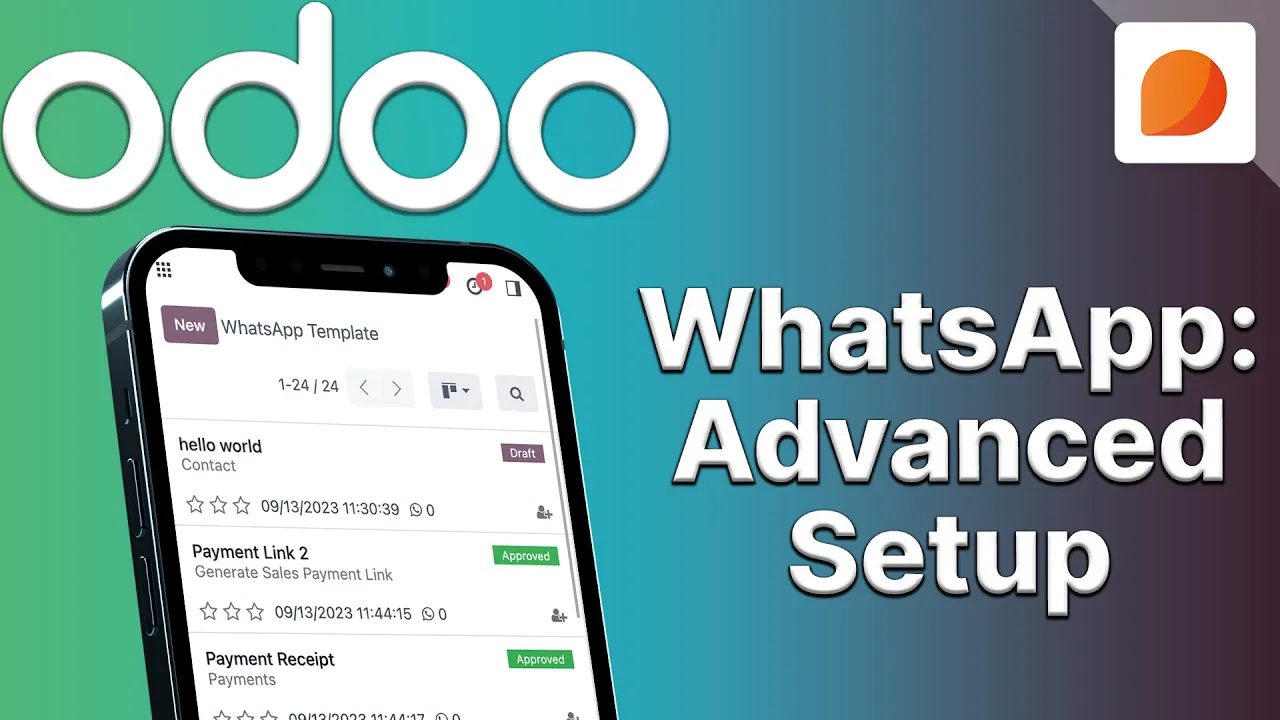
hey oders it's time to look at the nuts and bolts of the WhatsApp configuration and how to customize templates odu's WhatsApp documentation details the step-by-step process that needs to be completed in order to integrate the popular messaging service with ODU we'll go over the basics so you'll know if you're on the right track to sending messages and finally we'll cover customizing templates for use in WhatsApp throughout many of the Odo apps so you'll be up and running with WhatsApp in no time remember reference odu's WhatsApp documentation in the link below to configure WhatsApp and ODU
first an app with a WhatsApp API needs to be created in The Meta developer console I won't cover that process in this tutorial but for a complete step-by-step guide check out our comprehensive documentation Linked In the description of this video however I will cover the ODU side of configuration right now I'm inside of the WhatsApp configuration panel for the business account we'd like to integrate in ODU now there are five Fields under the sending messages section over here that need to be input into ODU from The Meta met application these include phone number ID access
token app ID account ID and app Secrets which is a secret after copying these fields from The Meta console to ODU the test connection button is ready to be pressed no Odo Seas today you know why because we received the green confirmation notification acknowledging that our ODU what apppp configuration is correct now if we scroll down because these values sync correctly with meta a couple other values populated in ODU these are the Callback URL and the web hook verify token now what are the they're basically keys that will be entered into the metad developer console
to set up web hooks or Pathways for return messages into the ODU database but for more information on that and for setting up the API for use with ODU visit developers. face.com or odu.com documentation and lastly we see a section towards the bottom of the WhatsApp business accounts configuration page and this is called control over here here we can specify which users will be notified of responses automatically whoever created the the configuration will show up here but we can also add users such as me adding myself over there now it should be noted that if
a message using a template hasn't been sent within 15 days then all of the users that are listed here will be notified when the customer sends a message otherwise just the user who sent the most recent template will be notified and that's it for the WhatsApp configuration page remember to check out odu.com documentation for specific configuration procedures for meta one last thing to note is that in some cases companies may have multiple accounts configured in ODU for example help this team sales team or hiring Team all right let's move on to configuring templates for what'sapp
messages WhatsApp templates are an important part of the WhatsApp platform and Odoms preconfigured with many useful templates to send messages out of box however there may be a time when a company may want to configure their own templates for use throughout the database in these cases an administrator would actually navigate to the templates menu over here and select new or we're going to open up one that we've already set up so we're going to open up invoice so here we have the invoice template form which is used when an invoice is sent to the customer
for a confirmed sales order now the template contains dynamic placeholders as well as variables Dynamic templates allow messages to reference specific data that is unique to customers and clients within the database for example payment link or a customer name can be inserted into the final message all right enough chitchat let's get started on the template breakdown to start out we have the name at the top of the template now every single template will need a WhatsApp business account associate with it for example this template has the test account associated with it now this allows for
that particular account to send messages using this template following this are two very important Fields applies to and the phone field that we have right there now the applies to field refers to the model that this template will be used on this is important because the dynamic fields in this template will reference model data that is available only within this model now the applies to field needs to be set in order for the template to link that model now models inside of ODU are predefined in the backend code but the database administrator can locate them
in ODU prior to setting them in this template now models can be located in Odo by entering developer mode and then hovering a field where the unique data lives for example hovering over the customer name on a contact form once you do that an info display box will appear where the model will be listed the chatter in this model will load the template when sending a message to the customer all right moving forward I'm talking about the phone field now this should always be set to either phone or mobile this field refers to the phone
number listed in the model I want to make a quick note that this number must be a WhatsApp number up next we have category which we can be set to marketing authentication or in our case we're going to select utility and I'm going to explain why right now and this pertains to the subject or category of the template since this template is referencing a specific customer transaction we are going to use the utility category now finally we can also specify which users can utilize this template if it's left blank all users on ODU can basically
use this template so on the right side now that we're moving forward is the technical name of the template as well as the language that it's in now these can be set during the initial creation of the template and up next we have the header type and in our case it can actually include a static header attachment and even a footer message onto the template so let's start with the header type we have the options to set it to text we also have the options for images let have the options for video I'm just going
through these for you documents location spooky now I'm going to set it back to image now this is basically what will appear above the message so here is an example of an image header the footer is set in text format this is a great way to remind customers how to stop receiving messages or maybe share a last minute announcement from the company so this completes the basic settings for the template now we're going to jump on over to the body of the actual message which which includes Dynamic placeholders variables and even buttons all right so
inside of the body tab over here the text of the message should be written you'll notice some interesting characters set within the message body now these numbers surrounded by brackets are called dynamic placeholders dynamic placeholders Mark where in the text the dynamic placeholder will insert Dynamic variable data from the Odo database for example this first placeholder one with all the brackets right there will populate with a customer's name in the journal entry model as specified by the applies to field that we have up here now moving on actually because I want to talk about this
inside of the variables tab we have the dynamic placeholder references over here underneath the name column as well as sample values next to it finally a type of placeholder is reference for the variable along with a specific field that's populating the final Ms to the right but we're going to go back over here to the type now there are a few different values of the type of variable that they can be which include in our case I'm going to start from the top we're going to talk about username user mobile free pretext portal link and
finally field of model now the first four are exactly what they State they are while the last option field of model is it basically allows the user to reference a specific field within the applies to model so we're going to move over to that field column now now we can see underneath this last column there are basically various Fields referenced and that's so that the finished product specifies unique values for the partner's name the specific invoice number what company the invoice belongs to a total invoice amount with currency and lastly even a portal link is
possible now the portal link is a different type of dynamic placeholder and it is listed as portal link because it doesn't reference an existing field now you might ask what does this template look like when I send it from the accounting application or the sales app with all of these Dynamic placeholders filled in well so here the dynamic information is highlighted and will be unique for each and every transaction and customer talk about intuitive do this and more with the WhatsApp integration for ODU so moving back over here to the buttons Tab and then we
click add align we have a few options that we can choose from we can select quick reply call number and visit website over there now the configurations for each type can be set to the right of the type column now make your messages attractive and clickable by adding in quick reaction buttons in your template buttons simply appear below the message for a on tap quick reply back over to the database and here is how they appear inside of the WhatsApp message now after all the necessary information is input into this template it needs to be
submitted to meta for approval but first we got to preview it everything looks good on our end so we're going to close this out and I'd like to talk about one more button and that's the allow multi button over here this basically removes or adds the template from the action menu to send in bulk now that we're done we just hit submit for approval and we're on our way it's sent to Zuckerberg basically so that he could send us back an email letting us know it's ready to go and it's approved the time it takes
can vary based on the complexity and changes to the template today we went over a lotto doers and I hope this WhatsApp integration video was very useful have a great night