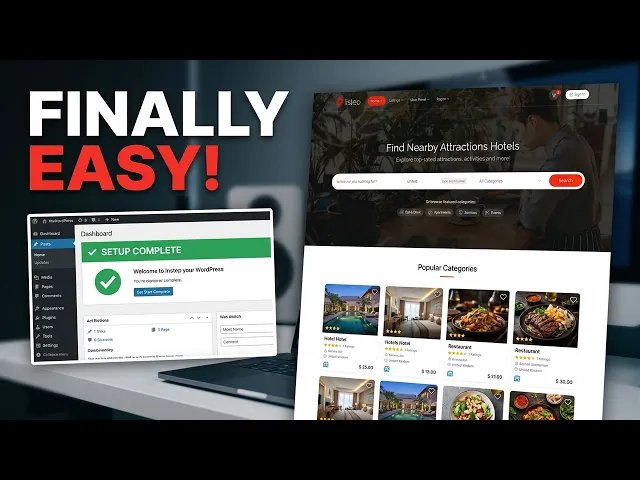
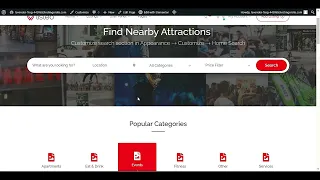
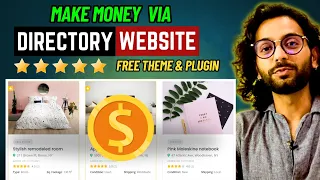
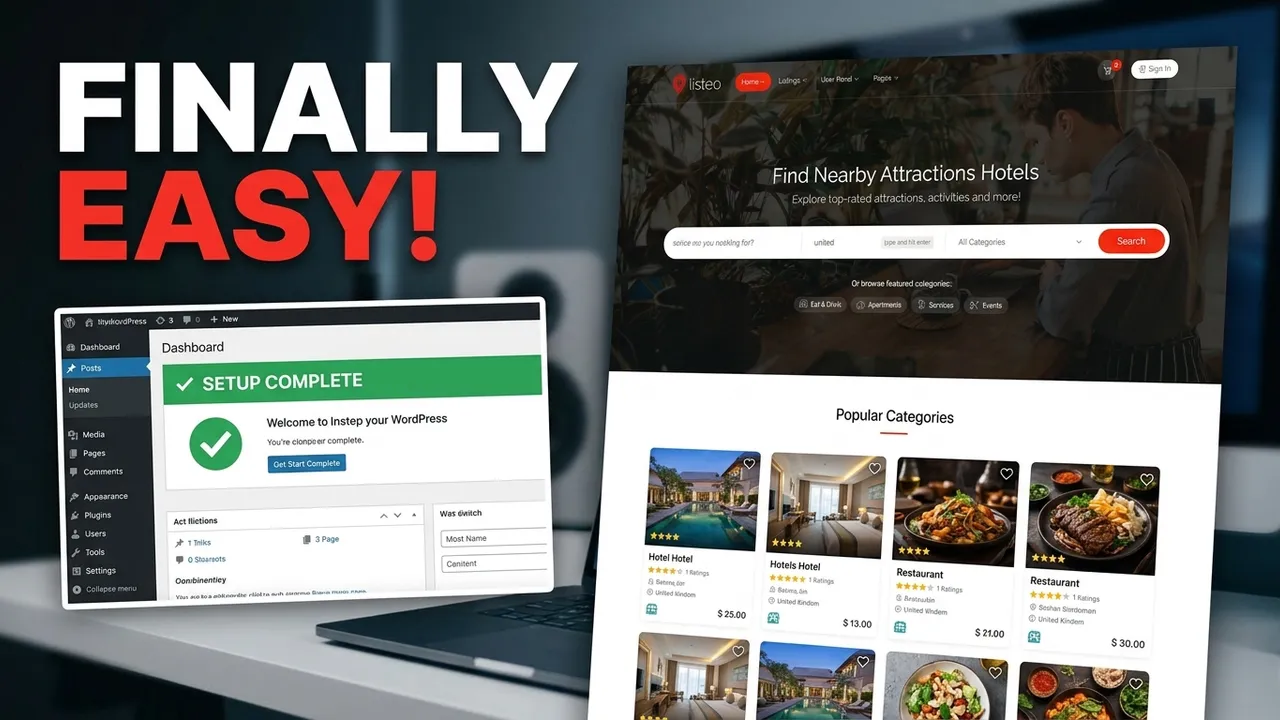
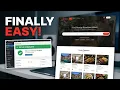
hey guys welcome back to our another video this is your preet guys in this video we will customize import the demo data of listeo WordPress theme this is directory and listing theme let me show you the demo of this uh theme so you have to search if you are looking for any location if you're looking for apartment classified coaching drink or restaurant Fitness Gym other services in your area so this is the theme where people uh mention or display their their services or their restaurants so this is work like a directory you have a complete
directory and you just have to search for any service you have to choose the location United States or you have to choose New York or anything and you have to click search it will find all the services in that particular area so this is night's theme so uh let's get start with install the theme on our WordPress and I will go through step by step how to how to install how to customize the front page how to customize the blog page how to customize the every section of this theme okay so here you can see
when we search the services in New York New York area and you have to choose the category and apartment services you can display any customize any Services provide on this website okay so it will automatic show you the location and area this is work like a directory what business available in that area so let's get start first of all we have to install listeo theme let's go to appearance and we have to click add new we will add our new theme here so we will click on upload theme we have to upload our theme file
here let me show you my theme file here and click install now as you can see we have successfully uploaded our theme file now we have to activate our theme file click on activate after click on activate our theme will be successfully uploaded now we have to go through some basic steps if you're a beginner I have explained very beginner be very friendly way how to how to make your directory listing website more professional look okay let's click on let's go let's go we have to click on let's go and this is the some list
of the plugin that they are said that we required in order to run this theme so what we will do we can either skip this later on we can install this Plugin or you can install right way by click on continue it will start installing all the required plugin on your WordPress so as you can see we have successfully start success all the plugin we required you have to wait it's depend on your internet connection how fast your internet connection is all the themes are all the plugins will be installed and activate right way after
you click on continue so later on we don't need to do any customization for the plugins for any other demo demo content because this is the way uh setup way we will include all the demo content it's include everything so we have to go through step by step this process and later on I will also show you if you want to customize some options some category how to do it what category you want to provide into your directory listing what option like example you want to provide some information about restaurant car dealers or Services all
the services all the option how you can provide in the listing in the directory so people will visit your website they will able to customize they will able to uh able to find or specific Services here they are looking for okay so I will go through step by step so stay with me let's finish all the plugin we have to install this older plugin in order to run our theme more professionally more more strongly do not skip any of these plugins because maybe later on uh if we skip this and we install some only required
some theme plugins but other plugins we leave it it might cause some widgets on your website well not shown or any other layout issue it's possible because some of the themes comes with the plugin they required in to import the demo content all the plugin they help to bring all the content right in the structure so we have almost completed installing all our plugins here after successful installing our plugins we have to click on next section and we will look for what is our next process Next Step we will go through so we have successfully
installed all the plugins here and activated now it's time to click on go to the next step do not refresh this page if you refresh this page your plugin will not be installed or activate successfully so we have complete this section and let's go to our next step so next step we have the pages it will it will create some pages on your website which we required later on okay so we will definitely include all these pages click on continue it will take some time again it will install all the media all the contact form
post Pages these all are demo content it will install the demo content but if you are looking to run professionalytics directory business directory website you have to upload your own content later on this is just for example we import demos so we have idea about or what pages we required but plugin we require it help us a lot but we will not keep the media or a post or pages to avoid copyrights things okay so we have to wait until we finish this process as well as we have completed this step as well now let's
go to our next theme customization here we will upload our logo and other stuff let's customize our theme okay let's go to click on next here if you have planned to sell a product or you want to provide if you have planned to enable multi-vendor Marketplace example if you want to allow to people list uh sell their product on your website then you have to install this dokan plugin what this will do this will allow people allow service provider to upload their services on your platform but if you provide all the service if you want
to provide your own listing on Services manually then you don't need this plugin so we will for now we will skip this option now our theme is ready now let's click on view my website let's view the website as you can see guys our website ready and we have some menus we have we will set all these menus later on okay as you can see we have all the options apartment restaurant eat drink event Fitness every option we have installed this is the listing we will upload later on if someone want to buy any Services
they will able to purchase that services and we have a testimonial about us all the section A Blog as well everything we have on our website okay so now important thing is here people can add listing people can provide they can add their own listing they have to choose the packages and this is the call and dokan you need dokan um plugin in order to enable these Services okay so I will explain you later on all these sections let's click on the customize button first we will set our logo and our other stuff click on
customize you can click on customize from the front page or you can go to your WordPress panel and click on appearance from the appearance you can click on customize appearance and you can click here customize option this option customize okay so we have opened our customize section where we will upload our logo other stuff and we will set our main menu as well so click on header so click on header okay so let's go back to our WordPress panel and when you scroll down you will see the option listio editor in listview editor we have
to click on listview editor again where we will upload our logo other stuff I will go through step by step so stay with me so in order to customize our front page we have to go to open our front page into another Tab and we have to click on this edit with Elementor let's click on ADD with Elementor we will customize this theme with Elementor which is very beginner friendly and very simple process you can even customize anything you want so let's check out if we have option to upload our logo included in the Elementor
so we have open and let's scroll down and look for the sections we are able to customize and we can enable we can customize our category here by clicking the pencil icon you can provide category even you can include what listing you want to include in the category by clicking here you can choose what what option what services you want to display in your front page in the popular categories action you can choose the category from here okay or if you want to exclude some category you can exclude as well for example this eat and
drink I don't want to be here I will exclude it this will gone as you can see there is no eat and drink category here no this is how you can exclude and include the categories into your front page next section we have most visit places the listings main listings okay you can I will show you how to change a URL how to customize how to upload your own listing here okay so for example for uh first of all we will go to the option listing packages manager where you will set your own packages for
example if someone want to list the product list the services into airport you can change package Burger House fitness center you can customize all this section you want to include in the listing okay so now let's go to add add listing form where we will able to list new services example the categories here the events here Services category you want to example you want to customize this category option click on this pencil icon here you have to choose that taximonial tax money and you have to so first of all let's go to customize our listio
core we have to go to list your course section click on list your core where we will customize our theme in list your core we are here in the general option you have to provide some basic settings here for example map setting when someone search any directory in in specific area you have to choose some settings here you can leave it default okay what uh some here is some options like map provider what map provider you want to include like Google Maps you have two required API key later I will show you how to get
that Google Map API key you will enter it here okay in order to enable map section submit listing let's go to submit listing section in sub submit listing sport listing type Services rental event or even classified you can enable it even you can and upload the own icons service icon rental type icon you can upload any car image event type icon you can choose your own image here so if someone upload any listing on your platform so you want to review the listing manually you have to click this okay let's go to next option listing
duration so how many days those listing will be active on your website 30 days okay how many images they can upload on your system this is very nice because you will have limit to people upload the images on your platform you can provide them limit you can provide them 15 MB space and click save setting next option we have packages these are the important setting in order to successfully run classified website we have to do this all setting let's go to packages option in packages option we have to choose different packages for example let me
go back let me open my front page okay here is option add listing people will able to add their own services they will click add listing when they will click add listing they will see some packages like basic package there is no cost extended professional they can choose their own packages okay they have their dashboard section Okay so what option you want to allow okay you have to choose all the options here check a module to disable it in submit listing if you want to make them available only in package for example these options you
have to provide what option only available in these packages you have to X clude them from here okay so let's go to single listing if someone want to submit single listing so you are you can leave all these services default let's go to booking if someone want to book any Services through your platform they can book any services like they want to hire they want to look for any car rental they can they can book booking on their specific date and time okay so allow owners to make booking you can enable this option okay and
if you want to disable payment in Booking you can disable it so and we have instant booking option required payment first yeah because so if someone want to book any Services they have to pay first they have to pay by a PayPal you have to enable this option okay so expired booking dashboard we will not enable it how long booking will be waiting for payment if payment not successful up to 48 hour you their account package will not be approved and click save changes you can customize it how you want okay next option we will
go to browse and search option so people will go to your website let me show you they will have option this to search customize the search the search the area or Services they want to search on your platform this is the sir here make listing type related to category or if you want to restrict any search address for example you are not available in New York you have to enable restricted location people um for example you don't want to allow New York you can exclude that service that that location later on okay and click save
changes if someone want to purchase any services or if for if service provider for example if someone has car rental business they want to upload their listing or they want to they want to pay for the services how they will able to pay they will able to pay via Paypal you can enable these people services and you have to provide PayPal client ID for more you can go to PayPal website options you will get your client IDs in setting people okay and Pages we have Pages option like if this is the dashboard for example if
someone click on my account and they have to firstly create the account with your website and when they log in they will see some options here my booking my listings reviews bookmark this is the dashboard we are allowing them let me show you this is the dashboard for them how many listing they have uploaded how many view they got so we have to choose every Pages very wisely when you remember when we import the demo data we have complete all the import all the pages so you don't need to do anything here okay so let
me go to some other options here listing we will go to listing option and all listing let's check out what listing we are providing right now for example iPhone Burger House Sunny apartment these all are listing in specific location like Los Angeles Sunny apartment published in Los Angeles someone will search any apartment in Los Angeles they will get this listing how to do it first of all you have to choose your listing category click on categories first first thing you have to think about but what type of services you want to provide like apartment restaurant
events Fitness or gym other services you have to choose all the services and if you want to add more services you have to choose from here like air conditioning service free parking instant book personal training pet friendly and you have to select these all um all the for example you want to assign this all into service category you have to only choose service category here and add new category you have to wait you will see some of the option will be added to the services okay because we have choose service category if you want to
um if you want to assign any new category if you want to create new category which is not available here but some of the assign feature for this category for example let me choose local Services I will enter local Services here in the category local Services okay and you have to scroll down in local Services what option available like in local Services I have rooms and I have a weight machine wireless Internet available we have select three options for this local service so if we keep scroll down and all these options are belong to service
category yeah or classified category you have to choose it and keep scroll down add category you will see we have ADD local yeah local services in local Services we just add this category local Services features you can see features what features available in your local services this is how you can upload your own listing now some of the options here like a Services category you want to customize something in Services category you have to click a service category in the listing section in the service category there is nothing right now you have to make the
category into Services category for example uh roof repairing service you have to make the category related to uh related to home or you can you can provide the name related to your home like uh fixing home repairing something like that the category service category you have to provide so this is similar rental category let's go to rental category in rental category there is no any category inside it you have to create a category here example in the rental what we rent car rental car rental we will make current category we will make bike rental or
depend on you guys what service you want to provide what category you want to provide in rental service click add new rental category so this is our car rental category later on we will provide we will add the services to this category okay so in the features let's check out feature section in feature section we have different all the detail of the services free parking friendly work you can edit all these sections here if you want to make some changes for example air conditioning not available you can remove it this is just a demo content
to explain you okay you can upload your own like Pet Service home roof repair you can add it from here add new feature okay let's go to next reasons uh is your website only available in Los Angeles or New York you have to add it and you have to add new reason like you want you you are a server business also available in other areas like Miami or other USA cities you have to provide the name of the city and add new reason you have to provide add reason so if your service is not available
in your New York or other cities you have to delete those or you can even edit the city here this is how very simple it is so now let's go to our front page we will make some changes here we will click on edit page in the front page section okay this is our front page we will scroll down you will see keep scroll down let me let me check okay we will edit it with Elementor when you click on edit with Elementor you will able to edit your front page let me check first what
option you will able to add it with Elementor let me check this out yeah some of the um front page you are not able to edit the front end header and footer okay so let's check out first this how we can edit this how we can add our logo so let's go to customize try to go to customize section in customize there should be options to upload the logo me knows other services as well we have to wait yes we got all the options here okay keep scroll down let's go to side site identity okay
here we will add our logo here let's choose your logo choose logo our logo will start displaying in the front page this is how we will customize our front page so it will look more professional we have to remove other logos okay every time you make changes click on publish you will see our logo will be there if you don't want to upload your logo you can even provide site title you can enable site title you can see ask up Tech is now showing here this is how I told you you can even provide the
letters here in the site title it will start displaying in your website you can enter your website name if you do not have logo you don't need to worry about it okay every time you have to enter once you enter your site name click publish it will start displaying instead of logo here okay next option we have some we have a lot of menus here how do we fix it we go back we scroll down we will go to menu section in the menu section here main menu we will click main menu in the main
menu we have a lot a lot options example we want to display in the menu some features like e-commerce category if you are selling e-commerce product as well then you need this category like e-commerce Finance investing technology Lifestyle download section okay these are the my default setting okay we don't need this okay so let's make our own log our own menu here let's check out other menu primary menu so let's uh start creating our menu here in the primary menu so let's add item what we want to display in our logo we want to display
uh first landing pages or we you can click categories yeah like categories or like that you want to display category like Services apartment event other and after you select your category when you scroll down you have to check this main menu it will start displaying here and it will look more professional very nice I will show you when you choose new menu you have to click this main menu option let me show you you can see guys how professional it look like now okay all the options available here service apartment event other okay this is
also as I told you earlier you can choose the category but category you want to display here for that you have to add it with Elementor edit with Elementor we will edit these categories in popular category what category you want to display you have to add it with Elementor this option will be editable with Elementor you have to wait once we open our Elementor or let's go to First photo section let's customize our footer now again click on customize click on customize yeah we have click on customize now we will go scroll down to the
footer section you will see if you see this header you see nothing down you have to scroll down you will find all the options here we will find footer yeah here is footer section footer options let's expand it okay this is our footer now so first of all let's change our footer name you have to change into copyright text you have to provide your own website name Theme by or you can provide your website name like ask uptech my website name okay and every time you make changes in the footer you have to click publish
which section you want to customize in the footer you have to click that pencil icon let me show you how this is a very easy way guys let's okay now you will see the changes in the footer in the copyright we will get our website name you have to wait for it yeah you can see ask uptech or write reserved okay we have changed it now let's add it our logo here we want to display our logo here as well in the footer so we will click this pencil blue icon you don't need to do
anything just simple click the option you want to add it okay click on the text section in the text section you can see they have displayed the logo if you want if you don't want to display the logo you can remove it or and in the downside there is a about website above section you can provide some nice lines here about your website okay let me show you if you want to change this logo you have to click edit option you have to you have to provide your logo here you have to remove it and
you have to again provide your insert a link by insert link or add media you have to upload your logo here if you not have logo that's okay you can provide your about us about something uh nice lines about your website directory website like people more attract like they are they able to sell their own services in our platform you can write some nice lines here okay so you can add it so I have upload the logo here let me you can upload the logo by clicking add media so as I have already upload and
it will start displaying here until let's edit our website section okay I will start I will uh I will select it the complete and I will enter some nice lines here you can promote your services with us you can promote your services with us every time you make changes click publish it will start displaying the about as the the lines on your foot resection if you see uh your logo looking little bigger you can even fix it you have to align Center or you can align it so you can make it smaller like that you
can make it smaller how small you want your logo you can do it you can expand it you can you can scratch it you can make it smaller like that this is very easy okay so every time you make changes click publish now let's go to next section so we have next section the aminos here helpful links we will click this pencil icon and you will see navigation menu section and navigation menu section they have display some review bookmarks booking section booking categories I'm here okay so I will teach you how to display some other
links here click on navigation link and you can see they have choose helpful links okay you can make the special footer menu for weight okay as they have selected helpful links menu here you can even choose the food Termino if you not have any footer menu you can make photo menu by clicking by go to let me show you let me open my WordPress action into other tab you will uh you will only see some uh some like header some primary menus but if you want to make specific menu for the footer you can make
it from here you have to go to appearance appearance and you have to click on menu appearance click on menu where we will make our own footer menu I will show you step by step how to make customized menu okay so now let's create new menu click on create new menu click on create me new menu here after click on create new menu you have to provide the name of the menu what name you want to provide or you can uh let me show you or you can do a one thing here you can name
it like a footer or own footer you can name it just you have to remember the name of that menu on footer okay and create menu in the own footer when we create this menu and it will start showing after we click create menu it will be empty we have to add the menu section add the links later on after this okay so we have create the menu so you can see here add menu items from the column from the left column okay what option you want to provide I want to provide some first my
account okay let me go add listing blog section booking bookmark card check out contact us you have to choose what option you want to provide here okay I want to provide some page links here so I will choose from the pages once you have select all the some pages you want to add into footer click add menu add to menu it will add here in the column you have to wait you can see it already display here you can you want to show the blog in the upper section you can make it upper you want
to booking in the next number two you can display book contact us you can set in the down okay this is how okay let's now click on Save menu we will save our own footer menu and later on we will choose this menu into our customize area let me save this first okay now we will choose that menu here navigation menu section okay if you just create your menu you will not see that menu here in the navigation menu you have to click with the mouse it will expand the menu here okay let me select
menu if our own footer menu yeah you can see here own footer I choose on footer and the minus the pages we choose it will start showing here okay like that blog booking add listing we all choose here here we choose all the right so okay how this is how you can choose your own menu in contact us you have to again click on pencil icon and pencil icon you have to click right click of the mouse in the attack section here again you can provide contact us information in the in this wizard area in
the address area you have to delete old one you have to provide your phone number your email address after you edit this click publish this is how you can edit the footer okay so this is the block section in the downside blog how to change you have to write your own blog you will see in the post section all the blocks you will see all the blocks there you have to re you will you will create your own post own article all will be start showing here from the blog section okay here are some popular
category I teach you just you can choose what category you want to display here when you add it with Elementor you will able to edit all these sections even you can write your own words here you have to click on edit with element let me show you just quickly [Music] okay let's refresh the page after refresh appear you have to click edit with Elementor and wait for open Elementor so we have already open our Elementor I will teach you how to edit those sections very quickly that that is pretty easy guys you don't need to
do anything for that you have to edit is very simple editing with Elementor is very very easy beginner friendly once Elementor open every time you want to edit any section you have to click that pencil icon the edit edit icon I will show you for example you want to edit this popular category you have to click this added button added pencil icon for example you want to change sum in the paragraph here you want to write your own on words here you have to click dispenser icon and you can enter anything here in the subtitle
it was subtitle will start showing here in the downside what our users say here is in title keep scroll down every section you want to edit click on edit pencil icon what post you want to display here you can show your own post and the blog same in the blog how many blog you want to you have to click this pencil icon how many blog posts you want to display you can choose three or even you can choose four five six let me choose four five six and it will show 6 Post in the front
page yeah you can see one two three four five six six Post in the front page every time you make changes click on update okay so this is how it is easy I really appreciate please please like subscribe and Share my video with your friends don't forget to subscribe I will bring more nice videos for you okay so thank you so much for this watching this video thank you thank you thank you