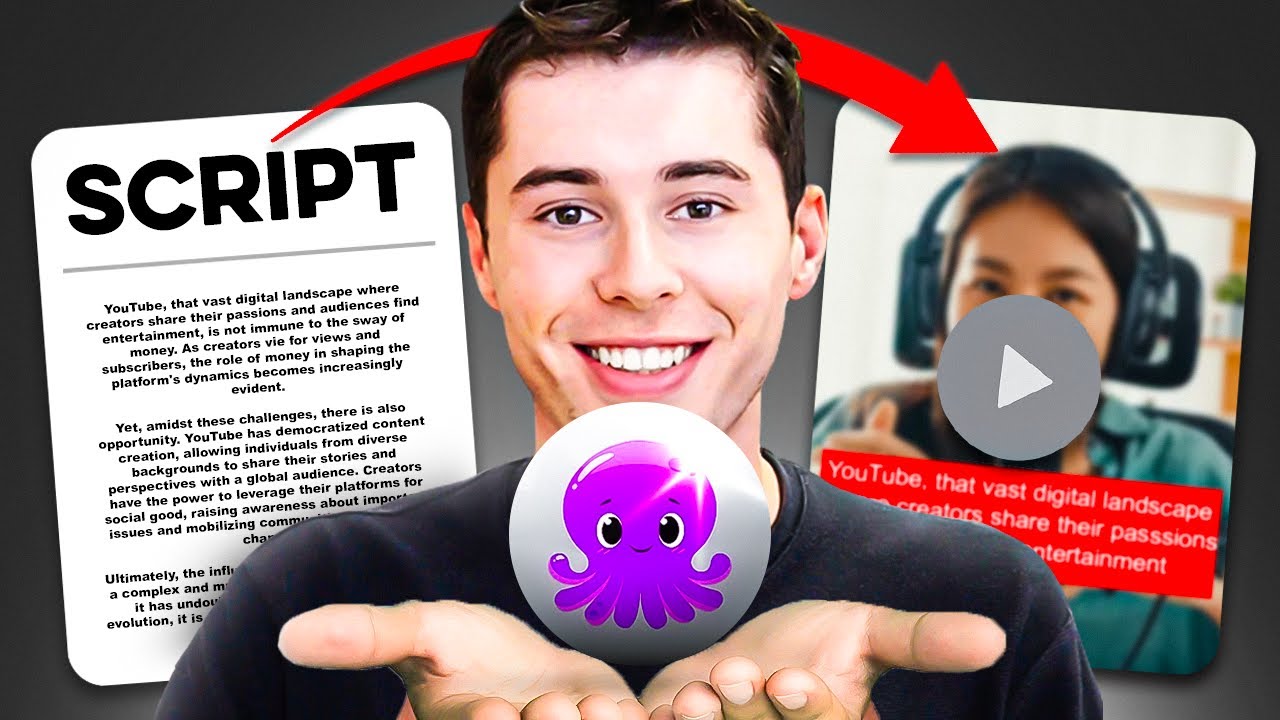
Victory AI is the best taxi video platform this means you can paste in a script and have a full video generated by using AI technology within just a few minutes and just a few clicks here's how that works you simply paste in the script in your script editor you click proceed you then choose a template Pick 3 AI is going to generate the storyboard within just one minute your full video will now be done you can then choose to Add a voiceover background music change the text change the clips you're done your full YouTube video
is now completed that's the short version but in this full Pick 3 AI course I'm going to show you step by step how you can use the entire software to make the best videos possible with that being said here's what I'm going to show you in today's video I'll leave timestamps in the description down below as well first of all I'm going to walk you through every Feature on Pick 3 AI so that you understand how it works and what you can potentially do with this then I'm going to show you an amazing strategy to
create the best possible script for Pick 3 AI specifically I'll then show you how you can actually turn the script into the video then I'll show you how you can change the clips if you you want to change the text change the layout or anything you might want to change I'll then show you how you can add a Voiceover within the Pick 3 software or your own voiceover in case you want to then we'll finish up the video adding background music adding a custom logo and changing the style according to your brand colors and last
but not least I'll show you all the other features inside Pick 3 such as the article of video editing videos using text and visuals to video features so if you follow along that entire process at the end of this video you'll be a Pick 3 AI professional This video costs a lot of time to make so please leave a like on the video that would help me out a lot and I appreciate it to get started we need to create an account in the description down below I'll leave a link that allows you to get
a free trial in case you want to follow along the process after creating an account you will end up on the dashboard which looks like this you've got the scripted video feature you've got article to video edit videos using text And visuals to video I'm going to start off with scripted video because that is the most important feature in order to get that going you want to click on proceed which is then going to load up the script editor now in here you can then load in your script I've prepared this little script right here
about Amsterdam I'm going to paste this in and I can now generate my video later in the video I'm going to show you how you can create a full script using chat GPT so Stay tuned for that but right now I want to show you how this works so right now what you want to do and what you want to avoid to do mainly is make sure that your sentences are not too long in the script so what I'm going to do is put an enter and a space between every part of my script this
makes sure that my subtitles are not going to be too long because Pick 3 AI will automatically add subtitles to my video and then just to Showcase that to you I will leave the Last sentence way too long so that you can see what that results in this one also needs to be shorter just like that then what you want to do next as soon as you've structured your script properly is click on proceed and then next up you need to choose a template now a lot of these templates are kind of fancy or they
try to be fancy but not that useful so what I recommend doing is scrolling down and choosing the subtle yellow or subtitles thin one there are quite a few Other templates on here like this one this one this one and basically every other one here but most of them don't really fit well if you want to make professional style kind of YouTube videos so what I recommend doing and what I'm gonna do for this demo is choose subtitle yellow so you want to choose a template that you like then click this one right here if
you want to do YouTube you can also do Instagram reels or normal Instagram posts for Example and then what is happening right now is that they're creating the storyboard now the storyboard which you'll see in a minute is basically the Pick 3 AI video editor so they're currently busy first of all reading the script then adding subtitles to the video as well as choosing Clips in the background so that your entire video is now done so I welcome you to pick 3 AI this is what the layout looks like this is where we'll be creating
our Video what I'm going to do first is show you all the basics and show you the possibilities and how it works and then after that I'll create another full video for you step by step so that you can follow along the process after understanding how it works so this is Pick 3 AI this is called the storyboard right here you'll see your entire script that you just loaded in so we've got c number one scene number two three four and that goes on and on starting off With scene number one I want to explain
the basics so on the left you'll see your script on the right you'll see the video that is automatically generated the way to generate this is that they read the script and then I put a clip in the background that matches what is being talked about at that specific part so here I'm talking about Venice so they'll put a clip Venice in the background however sometimes they might be wrong wrong because my video is about Amsterdam what do you do you simply go to visuals and then you type in whatever it is that you want
to find a clip about so if I want Amsterdam or more specific the Amsterdam canals I type in Amsterdam canals and all the clips then show up what I can undo is click on one of them for example this one and it's going to be selected and automatically be put into the background of that specific scene and that's how you can change your entire video this makes it really fast To go through your entire video and edit everything for example this clip right there is horrible so I go to visuals I type in whatever I
want to add in this case just clips of Amsterdam I scroll down I click on this one and there we go and that's how you can start building out your entire video allowing you to get a video done at insane Pace then next up what you can do is for example if there's too much text is split up the text which you do by simply selecting The part where you want to split this up click split scene and there we go as you can see I just split up the text once again if I don't
like that background clip what I'll do I'll type in Amsterdam cycling and there we go we'll find people cycling in Amsterdam now the reason these clips are so great is because they've partnered up with storyblocks storyblocks.com is a stock footage website that normally already cost thirty dollars a month which I'm Actually paying for for my other faceless YouTube channels but with Pick 3 AI it's embedded into the software which is a huge Pro because this allows you to get clips from basically anywhere and basically from anything so the way you would go about this is
you click on every scene you change the clip and your entire video is then done you can of course change the text the font the sizes everything but I'll show you how to do that later on in the video what You can undo is make sure you add background music or use the build-in voice over now this is huge as well because all you need to do is simply click apply like I just did and my entire voiceover is now done as well as synced to these subtitles and the entire video which means I am
now ready to download my video and have an amazing full video done and here's what that video might look like Amsterdam the capital city of the Netherlands is Located in the western Netherlands within the province of North Holland I just generated that video within just five minutes isn't that amazing thing what I'm going to do right now is show you from A to Z step by step how you can start building out an entire video if you want to skip parts or find something back once again I'll leave timestamps in the description down below now
that you get the basics off Pick 3 AI I want to make a video from start to finish the Video that I want to make in this full course is a similar one like this the 10 cheapest countries in Europe 2023. the reason I chose a video like this is because it fits the Pick 3 AI style perfectly as you can see this video is about the 10 cheapest countries it has 130 000 views on a small Channel with just 1K subscribers and it is indeed monetized making this a perfect video to make with Pick
3 AI what I'm going to do is click on proceed to load up the Script editor and now it's time to make our video for that we need a script what do we need in order to get that script done first of all we need the 10 cheapest countries in Europe and then we need information and things to do in each of these countries so that we can make an interesting script and generate an interesting video just like this one another reason why I chose to make a video like this is because I think we
can make a very similar or even better Video in terms of the quality than this video so if this video is already getting 130 000 views and on this channel alone you can see it doesn't need monetized with just four videos it's the most popular one I think we can make a very similar and even better video like this one so getting that started we need a script we've got multiple ways to do that so that we can load it into the script editor and have our full video generated option number One we can write
it ourselves option number two we can hire a freelancer to do this for us or number three we can use chat GPT I'm going to use the latter if you want to skip the script creation part skip to this part of the video I still recommend you watch it because I'm going to show you very in detail how to make a full script using chat gbt that you can then paste into Pick 3 AI and your full video will be done at a crazy high quality level so the first thing I Ask tragedy BT is
what are the 10 cheapest countries in Europe This gave us the list of the 10 cheapest countries then next up I asked it to write an intro for my YouTube video about the 10 cheapest countries in Europe and I asked it to include a funny fact about one of these countries and this is where we're gonna pick it up from now so this is the result that it generated now what I recommend you do is Analyze This yourself so it starts off by saying Welcome to my channel where we explore travel tips and blah blah
blah I want to cut out all the fluff so what I'm going to do instead instead of copying it from here I'm going to copy it where the storyline starts which is right here if you're dreaming of a European Adventure but don't want to break the bank you're in the right place and that is exactly where I'm going to start the script this is a perfect introduction for our video copy now what I'm going to do is paste It right here don't worry about the background color or the structure just yet we're going to adjust
that later on into the video so that it fits for Pick 3 AI first I want to build out my entire video so we have the introduction what I'm going to say now here are the 10 cheapest countries 10 cheapest countries in Europe that you must visit starting off with number 10 which was out of our list that we generated using chat gbt Hungary so I'm gonna say Hungary and now We're gonna let Chad gbt do the work so what I'm gonna say is I'm making a YouTube video I'm making a YouTube video about the
10 cheapest countries can you give me more information about Hungary including the best free things to do for tourists and the most beautiful places in Hungary include restaurants as well as good hotels stay out and there we go hit enter as you can see I gave it a very detailed prompt so I asked it and told it that We're making a video about the 10 cheapest countries then if it can give me more information about number 10 which in this case is Hungary I asked it to include the best free things to do for tourists
beautiful places as well as restaurants to eat in and hotels to stay at as you can see it's then going to give us a very detailed answer if you just say can you give me information about Hungary it's just going to go at random whereas right now it's going to Give us a very structured very detailed sum up of things to do in Hungary and the best part is we can copy that prompt and use it for all the countries up in our list so I can copy it and change Hungary for Poland Poland for
Bulgaria and so forth and so on so what I can do now is simply scroll down it's still not done yet which is pretty cool and I can analyze the information of course we can adjust it we can copy it directly that is up to you so what I'm going to do Right now first of all is analyze it so I'm going to start off by reading this as you can see it says top three things to do in Hungary for tourists and then the list goes on so as you can see it's currently very
structured but it's not in a storyline so what I'm gonna do is can you sum up this answer and change it to a story line instead of a very structured answer let's see if it Can do that Hungary is a country located in Central Europe famous for its stunning art detector Rich history delicious Cuisine and blah blah blah as you can see for tourists visiting Hungary the top three things to do include exploring Budapest visiting and as you can see right now it's a story instead of a very detailed structured one two three do this
one two three do this do that so this one is much better because we have to line up clips from Pick 3 with the story that is being told and the same goes for the YouTube channels here they're not just gonna say number one do this this and this number two do this this and this they're gonna tell a story because people appreciate stories more and they'll keep watching so what we can now do is pick it up from here Hungary is a country located in and then we can go down copy all of this
and there we go we can copy this go to our script and then paste it and then We'll say number nine and then we're gonna go back to chat gbt scroll up number nine was Poland so what I'm going to say is that that is Poland and then what I can do next is go back to the prom that I gave it here I'm making a video about I can copy this I can paste it in here and then instead of saying Hungary I'm gonna say Poland then I'm going to give it the same prompt
just like that it's then going to generate it and then once again I'll ask it to do it More in a storytelling way now you can also do that right away I'll show you how to do that in the next prompt that I'm going to give it for the eighth country but you get the point this is how we can start building out an entire video now as you can see what I like here if you keep it within one chat in chat GPT right now it already does this in a storytelling way whereas the
first time it did this it now learned that I don't like that and I want it in a Storyline and right now in Poland as you can see is doing this once again like this because it says I'm sorry in my previous response I provided information about Hungary instead of Poland here's the correct information for Poland now what I like here is that it did this based on the prompts that I gave it about Hungary like I just said so it still includes hotels Spas things to do all of that stuff within just one prompt
so I can now copy this go back to our Script paste it and there we go then I can go to number eight number eight on the list and you can do this in multiple ways you can say number eight on the list is number seven on the list is blah blah blah I'm just gonna say number eight on the list is and then we're gonna go back up I believe it was Bulgaria and yes it is Bulgaria so we're gonna go through the script type in Bulgaria and then we're gonna change Poland for Bulgaria
and then hopefully Bulgaria is a stunning country located in southeast Europe known for its Scenic Landscapes Rich history and affordability for tourists visiting and you can see it generates the entire script right away now I'm not gonna Bore You by doing the same thing for number seven six five four all up until one so what I'm going to do instead is just do this myself and then I'll get back to you once the entire thing is done and there we go my script is now fully done I've made some adjustment I kept it at five
countries as well as change the intro up a little bit and then I also want to show you an alternative way of creating that script so what you can do is go to current YouTube videos click on the free dots right there click on show transcript click on these dots toggle timestamps and you can take the entire script from an existing video and then rewrite it using chat gbt now do I recommend this one over the first method That I show you I'm not sure is it easier yes does it create a quality video kind
of is it better than creating it originally I don't think so but what you can do is say please rewrite this script using the same structure then you simply paste the script you hit enter and as you can see it's then going to generate a brand new script for you which you can then take and then that's your script that's an alternative way but anyway right now I am done with my Script what I'm gonna do is copy the entire script and by the way if you want to know how you can remove that gray
background I'll leave a link to a simple tutorial video about how to do that in the description down below copy go to pick 3 paste it and there we go we're ready as you can see the structure is now correct it takes some time to do that but it's going to pay off massively it's going to save you a lot of time then you want to click on scene settings And make sure that it says has create new scenes on and then line breaks because every single time there's a new line that's going to create
a new scene click on proceed and then choose a template the one I'm going to choose for this video is going to be subtitle yellow I don't recommend any of these weird other kind of templates like I said in the intro as well so we're gonna go with subtitle yellow 16x9 aspect ratio continue and there we go it's now Going to generate our video this might take a minute a few minutes depending on the length of your script for mine it should take about one of the two minutes so I'll get back to you once
that is done and there we go this is the video that it has now generated automatically by using the script that we put in this is the default version which ended up being close to seven minutes as well as having over 76 scenes what I'm gonna do right now is show you how you can Customize the scenes change the text and basically customize the entire video so that it fits your needs starting off with the Clips in the background so the clips are automatically selected by your script so as you can see I'm talking about
traveling to Europe and then it's going to put out a clip of the world map that is focused on Europe now whether I'd like that clip or not don't worry I can change it but I'm just trying to explain how these clips are selected in The second scene I talk about Paris and they're gonna put up a clip of Paris and the Eiffel Tower see number three I'm talking about traveling on a budget and then as you can see are you saving money which is a bad clip so I'll show you how to change that
and that goes on and on so all these scenes and eclipse in the background are automatically chosen based on our script but don't worry you can change it here's how you do so you simply want to select the scene and then Go to visuals and then search for a clip that you want to replace it with so what I'm going to do is search for Madrid is that an iconic City within Europe and then choose a clip that sums up Madrid quite nicely as well as show you that this is indeed Europe that we're talking
about so this clip right there is actually pretty iconic so I'm going to choose on this one and there we go this can now be our intro clip then I'm gonna go to scene number two and I'm gonna do The same for scene number two now this one is not bad but I bet it can be much better when we're talking about Paris so I'm going to search for Paris in Pick 3 AI and then I'm gonna choose a clip that fits up Paris quite nicely this one obviously with the Eiffel Tower at night is
pretty good I can keep scrolling and I'll probably find many more this one is pretty cool as well we've got the light going so I'm going to choose this one then I'm going to go to see number three And I'll do the same now here's what I recommend doing instead of choosing something specifically based on that exact moment for example here I can add a clip of a wallet or traveling on a budget or anything like that but it's much better to stick to our actual main topic of the video which in this case can
be Europe so for example I can search for London and then choose an iconic clip of London which this one with the Big Ben and the wheel is is Quite nice I can add that in right now and there we go so instead of choosing literal Clips based on what is being said I recommend sticking to your main topic as it's going to get a more classy vibe to the video so this is how you would go about changing all of the scenes which I'm actually going to do in a bit but before that I
do want to show you how you can change the duration of a scene so this one as of right now is five seconds which you can see right Here if I want to adjust that I can simply click right here and make it 10 seconds for example or maybe a little bit less I can make it four seconds now what you want to keep in mind is that there's a voiceover going to be added later on as well so if you use this for just two seconds it's gonna have a hard time doing the entire
voiceover on that specific part of the script so make sure that you usually stick to the default if you want to make custom adjustments you Can do so but I always stick to the default myself as I let Pick 3 decide how long the scene should go on for reason for that and you'll see this one is probably going to be longer is because of the text so if someone needs to read this obviously it's going to be hard to do this within just two seconds they estimate it it's going to take about 6.5 so
simply keep it at that but do know that if you want to change it you can indeed do so by clicking on Scene duration you can even apply it to all scenes so if you want every scene to be 6.5 seconds click right there and then you can do so what is cool as well is that if you are a content creator yourself or you want to upload any clips that you have on your PC you can also do that for that go to visuals go to my uploads and then click right here to upload
any video or picture from your local computer this also means that you can go to Google and then download any Clip from Paris for example and then take these clips or images and then import them to pick 3 AI which is pretty cool for that simply click on the picture save image or video of course go to pick 3 click right there upload that picture click save and there we go we're now going to upload this into the Pick 3 software when that's done we can put it in the background just like this you don't
want to click on it and there we go that looks stunning if you ask me I'm Then going to go to settings and then click on visual zoom and Pen to make a nice effect as well as hide the text so that the picture shows up perfectly so that is how you can change all of the visuals which I'm actually going to do for the entire video but before that I do want to show you how we can change the text this is really important as well so by default this is what it looks like
now remember I said your sentences shouldn't be too long here's why people Are used to reading on TV shows Netflix movies YouTube videos in two line and that's why you don't want to make your text too long so instead I recommend sticking just two lines of text now sometimes that means you have to adjust it to 24 and if you want to do that for your entire video you can simply click on apply to all or you can manually customize it one by one so what I'm going to do right now is I'm going to
stick 224 or maybe 26 if that fits there We go and I'm going to click on apply to all this now means that my text throughout the entire video is set to size 26 and I can do the same for the placement I can put it in the left top Corner the right top corner but I recommend sticking to the bottom center as once again that is what people are used to I can then change the font as well so it is set to Quick send by default but for example if I want a cooler
one this one which is pretty cool Or for example I want to go with this one I can do that and then you can once again click on apply to all if you want that throughout your entire video so since this is a travel video I'm going to stick to an easy to read one so that people can take in the information which is going to be this one right here I'm going to click apply to all and there we go then what I'm going to do as well is make it bold so it stands
out much more this looks pretty cool and then do know That you can change everything as well you can change the background color you can add shadow colors you can change the text with so as you can see you can make it much bigger and wider that just depends on what you want to use it for so I'm going to basically stick to about 60 just like that that looks pretty nice but you can change all of it using this editor tool right here you can also add animations on the entry as well as the
exit of the text so you Can do a fade in and then you can choose the speed I recommend setting this to the default as it's pretty nice to read along the script once done make sure you click apply to all if you want to apply this to all scenes so that you don't have to do this manually over and over again now that we've made sure that our text up on the screen is good I want to show you other elements such as stickers gives and emojis now honestly depending on the style video you
want to create This is either going to become very useful or not useful at all for example a travel video that I want to make look professional is not going to benefit by any of these stickers but do know that you do have the option to add them in order to do so simply click on the sticker that you like to add there you go you can swipe it in and then you can make it big bigger just like this as well and then once you've put that in you can duplicate it you can copy
this To all scenes or delete it I'm going to delete this since this doesn't add to my video but do know that you can add gifs emojis or anything else in case you want to then before I show you how we can change the background music as well as add a voice over or even a custom voiceover I'm gonna build out my entire video if you don't want to see me build out the entire video and see which kind of Clips I choose and what for skip to this part of the video where I show
you How you can get going by adding audio and voice overs to the video so I already did scene number one to as well scene number three which currently looked like that let's pick it up from scene number four which by default currently looks like this pretty dull not good at all so I'm gonna go to visuals what I want to do is type in Europe City then I want to choose a classic clip that can sum up Europe quite nicely and Also make sure that it gets them excited for what's about to come because
as you can see this scene is about there being other options for your next european vacation so this right there looks like a classic spot in Europe This is Venice which is indeed more expensive but still it looks very Scenic beautiful clip for this part of the video what I want to do next is change the text a little bit I'm going to try and make this 28 that looks a bit better you can of Course also decide to hide it and then it's going to look like this which is also pretty cool if I
show you right now there you go I might actually keep it at this for this specific scene then we're going to go to scene number five which currently looks like this this is the default clip so this is about finding places that are as affordable as Thailand now I have multiple angles here I can go with a clip from Thailand I can go with a clip that sums up the Affordable part or I can stick to the main theme which is Europe what I'm gonna do here is go with Thailand so I can get the
contrast across for that I'm going to search for Thailand and then I want to choose a more iconic clip so we've got the islands that we can go from we've got the temples of course but I want something in the streets so what I'm gonna do is type Thailand streets just like that be very specific with what you search for as You'll get back exactly what you need as you can see now I've got the classic streets with all the motorbikes as well as the street food so what I'm gonna do is try and find
a clip like this let's see if that kind of fits what I'm looking for it kind of does but it's not as good as it can be I think it can be much better I don't know exactly how you pronounce it there you go kawasan Road This is very classic about Thailand so I can choose this clip we've got many tourists we've got the little stores we've got street food this sums it up quite nicely and it's a time lapse which looks pretty cool in the video that is perfect what I'm gonna do as well
is change this to 28 maybe there we go looks good let's go to the next scene just see number six while still being as picturesque as Spain Greece or Italy what I'm gonna do First is change the clip I want to go with grease as I feel like there will be great and beautiful clips for Greece I might just choose the first one let's see how this looks yeah that's that's beautiful that directly tells you that this is grease which is perfect what I'm going to do once again is make this 28 so even after
you set the default to 24 sometimes I still like to adjust it to make it look a little bit better and easier to read Just like this this as of right now looks perfect I can change the text width to 50 Maybe just like that and there we go yeah that looks quite nice scene number seven let's reveal the five most affordable countries in Europe which currently has this clip by default I don't like the way this looks I'm actually going to remove the text for this one and then I'm going to go to visuals
and once again type in a European city just like that and then choose a classic clip as that once again for this one I want to stick with the main theme of the video let me go with Amsterdam actually there we go perfect just like that that looked quite nice what you can do as well is insert text yourself so what I can do now as we're talking about the five cities is Type in Five cheapest countries my bad just like that and then I can change the position of this of course and slide it
into the middle and there we go looks quite nice let's see if this still looks good with the clip which is where I which is why I'm going to preview this and there we go yeah that looks quite cool which means we're now ready for scene number eight are you ready to Travel for about 30 bucks a day first of all I'm gonna make this a little bit bigger I'm gonna set it 28 as well as change the width to 50. perfect then what I'm gonna do is go the travel aspect for this one as
I want to amplify the travel part I'm going to search for travel obviously you can also search for airplane you can search for airport or a specific location what I'm going to do instead is choose this clip right here that looks pretty cool Everyone knows what this is all about you see the airplane wing uh the clouds the sun that's a nice clip what I'm going to do instead though is make this a bit bigger I want to yeah to cover two lines perfectly so this is great then we're going to go to scene number
nine and this is where our actual script is going to get started so this part was just the introduction we now have all the clips selected for that we can now go to scene number nine which is about Croatia now the current clip selected is horrible for our video so what I'm going to do type in Croatia and choose a classic clip from Croatia which this one looks like it might be perfect we've got the Croatian Coast we've got some mountains and we've got these beautiful houses which look quite Scenic so this looks beautiful Great
Clip to you then we're gonna go to scene number 10 with its stunning medieval cities now this is really important you don't want to stick To the medieval cities part you just want to go to visuals and search for Croatia I'm going to search for Croatia City and then I will find clips that are more about the cities rather than the coastline part let's see if we can find something this could be a great clip we could also keep scrolling to see if we can find some better stock footage this looks quite nice but honestly
this looks very Scenic already so we're gonna stick to this one Beautiful beaches and wonderful Landscapes so then I'm gonna search for Croatia Beach just like that or Croatia Landscapes let's see if we can find both in one clip that'll be perfect this one could be great let's test that one yeah this looks good we can also change it to an actual beach only but I quite like this we've got the beach as well as once again the houses that you will see in scene number nine as well so people know in fact it's still
Croatia that looks Great scene number 12 you can easily spend hours swimming and relaxing obviously it has selected a clip based on swimming which is not nice so we're gonna stick to Croatia Beach and then use this one right here where we can actually see people swimming in Croatia isn't that great guys storyblocks.com honestly one of the best stock footage platforms you can find pretty much anything don't forget to visit the breathtaking and Then we've got a national park now what I'm going to do now is first of all check whether that national park has
Clips on storyblocks and it actually has if it wouldn't have I would simply go to Google search for this myself and then take Clips or images from here so that I can use actual resources in the video you want to avoid naming specific locations and then not showing the clips or pictures from that specific location that's gonna make for a bad video so Right here I assume that this is actually that National Park so because of that what I'm going to do is simply add these clips right here and if I don't like the clips
honestly this one is not perfect it's not exactly what I'm looking for I might still go to Google go to images and then look right here for example this looks much cooler or this one look quite nice so I'm going to take this then I'll do a custom upload so Sometimes you want to do that as well just to make sure that the footage that you're using is actually good as well as accurate then make sure you choose visual zoom and pan so that it fits the entire image now this is a great example of
what I just said so we're talking about waterfalls but this is just a clip of a random waterfall so instead what you want to do is make sure you find an actual clip of that waterfall which you could potentially do on YouTube as well If I search for it and then type in waterfalls just like that we get to see these clips right here so this one 1.5 K views waterfalls off the national park what you could potentially do is download this video and then use that in your video make sure to give credit in
the description down below and name the source in your video that way you will be safe what I'm going to do for now is take this picture which sums it up perfectly as well I'm then Going to go to visuals and upload this picture and there we go then it's going to talk about the city of Dubrovnik now this I guess is automatically selected and this is probably very accurate but what I'll do just to make sure is search for it Dubrovnik Croatia just like that and see if the clip actually matches up seems like
it which is pretty cool I can check if I can find better clips for example this one there's a little bit more action going on because there are People walking which might be a better fitting clip there we go I can keep Scouting For more but it seems like this is actually pretty good make sure that the vibe comes across perfectly because you see all the people chilling walking you've got the countryside you've got the city looks awesome and then once again see number 16 is a classic example something you should not do we're talking
about it being quite pricey and then you're going to put a clip like That simply go back to visuals and choose a clip from Dubrovnik much much better this one right there there is pretty cool and now we're going to talk about split now split obviously is one of the biggest cities in Croatia it's beautiful make sure that you type in Split Croatia to get the right footage and there we go I've just selected this clip right here see number 18 this is automatically selected which is a pretty cool clip however it doesn't really sum
It up quite nicely so I'll go with this clip instead reason for that is you can still see the water since it's talking about that as well I've chosen to hide the text on this one just to switch it up and make it a nice clip I've done the same for c19 as well as scene number 20 21 as well as 22. for all of these I've selected basic clips about split since there's nothing exact to be talking about and I want the clips to be about the main topic which at this moment is Split
that's our first 22 scenes done the first one Croatia is now done let's move on to Country number two Lithuania Now by default this scene is put in however I don't like this I simply want to get going with this one with a population of only 2.8 million Lithuania is one of the so I'm gonna delete this right here click delete and there you go with a population of only 2.8 million and they pulled this clip that's not nice so what I'm going to do instead is Simply get going with Lithuania and then I can
choose people because the people aspect is quite nice however I don't know if this is in Lithuania it doesn't seem like it judging by the street sign right there so instead what we'll do is simply choose a clip right here of Lithuania which will actually go here right there and then we can choose this clip right there which sums it up quite nicely and this is what that then looks like then we've got Scene 24 I once Again stick to the main Lithuania part instead of focusing on it being a small nation within Europe instead
of choosing something with the flag I want a more Scenic Vibe this video right there seems like it can get that done for me and that looks beautiful you have to keep in mind in order to get the viewer engaged and keep them engaged you want to choose beautiful videos because that is what people like to look at so now we're talking about Vilnius which is the main Tourist attraction in the capital city so for that I'm going to change the text I'm going to make it a little bit bigger just like that that looks
good and then I'm going to search for that specific town which we do like this Vilnius there we go and then choose one of the clips this one right there seems beautiful however some of the text isn't he blocking that building so what I'm going to do instead is change the width to 80 and there we go Now it's not blocking it anymore see number 26 we're talking about the nearest river so what I'm gonna do is simply search for that nearest river no I actually just changed the clip however I realized that this one
is not better than the previous one so I'm gonna click on undo right here and we're gonna stick with the one that it automatically selected which is this one right there we've got the beautiful sunset as well as those buildings that we're talking About as well as the river so this one is much better then we're talking about food in Lithuania I have two options I can go with any of these kind of Clips which is based on farming or I can simply choose to stick within the main theme which is Lithuania so I actually
do that right there since I'm not sure if this clip is indeed in Lithuania I can check whether they're talking about farming right here which they're not really doing because of that I'm not Going to choose this clip so instead I'm looking for a Scenic video which could be this one and we'll stick with this next up we're talking about a full meal with drinks now I can stick with Lithuania but the thing is right here this looks more like French stuff as I believe is wine and some cheese so instead we'll choose this one
right here yeah this looks much better see number 29 we're talking about accommodations so I got the visuals I'll simply search for Lithuania hotels and there we go we find this clip right here do keep in mind though that this probably doesn't cost 10 euros per night so if you want to choose something more accurate choose a less quality Hotel so we've ended up at Sea number 31. by now I do think you get my thought process and why I choose certain clips and why I don't so what I'm going to do right now is
privately choose all the clips and then you'll see the end result For all of these clips at the end of this video but this video wouldn't be a great YouTube video if we wouldn't add a voice over so for that I now want to show you how you can add a voiceover to your video it's actually pretty simple so you've got the audio tab right here on the left first of all what you'll see is that there's a lot of background music involved automatically by default they'll already add one background music to your video I
wouldn't recommend you Use that one choose one that actually fits your video in order to get rid of this simply click right here on the cross and there you go there's now no background music on your video now what they've done great is that you can choose by Mood by Purpose By genre the duration and all of these filters right here if you want to clear them click clear all and you can start from zero again what you can then do is find a song that fits your video so we can just Test a few
right now that doesn't really fit maybe that could be a good one let's say this is a good one you then click on apply right there and the background song is now automatically applied you want to go to volume and then set this at around five or six percent roughly in that range so that the background music is not too loud and the voice over volume needs to be at 100 however we've not applied one yet now When it comes to the voiceover you've got multiple options you can either choose the voiceover that's built-in in
Pick 3 which they have quite a few if I scroll down you'll see all of these I'll reveal the one that I always use in a bit you can also upload your own so what you can do is do the voiceover yourself hire someone on a freelancer platform or use another TDS software for example one that I use a few times is murph.ai so merv.i is another tool if I just sign in Real quick and go to the studio that you can use to generate a voice over now this is an actual voice over tool
that is focused on text to voice meaning this is actually pretty decent so if I click right here you'll see that they've got tons and tons of voices as well for example you've got Terrell which sounds like this it only takes one voice at the right pitch to start an avalanche or for example Rachel recordings can be tough I remember the time I was waiting for weeks and there are many many good ones on here if you scroll down the list goes on and on so this is actually pretty decent I've actually made a full
platform tutorial about this as well I'll leave a link to that in the description Down Below in case you want to check that out but do know you've got a lot of options when it comes to adding the voice over on Pick 3 what I'll do at the end of this video I'll show you one Result by the voiceover that I'm going to use right here which is ayanda which is a female voiceover which in my opinion kinda has this like BBC documentary Vibe making it perfect for a travel video then also do one myself
to show you what it can sound like if you do it yourself or you for example hire a freelancer to do so but what is great is that once you click apply on the voiceover this is now done you don't need to go and sync everything or try And see if it matches up because Pick 3 AI does this automatically for you so we have all of these scenes right here with text and subtitles but simply clicking one button which is apply it is now in sync and perfect and your entire video has audio which
is perfect so right now we can go to the volume and you'll see that we can set this at 100 by default it's set to 50 so that is pretty good otherwise it wouldn't set that as a default but do know that you can play Around with this for example 60 or 62 and 6 is a good combination in terms of background music and voice over volume but you can always play around with this so do know that that is indeed a possibility so right now I've added background music I've added a voiceover by using
Pick 3 AI does that mean we're now ready to download our video well not yet so what you can do as the final touch is change up the style so for example you've got templates you've got My style which you can then create after you've done this once and you've got Styles Library so in here you can play around and you can find many different styles in terms of text as well as color palettes so for example template Styles I can go right here click outro and then there you go you can add stuff like
this you can see this is a default one but do know that there are many other ones around as well as a library which you can choose from which is pretty cool now If you want to add one yourself you can duplicate it and you can also change the template by going here you go to the library and as you can see you can choose one and it automatically change it to that one so if you've chosen one before you were generating your video you don't like it you can actually change the template while keeping
the same clips that you've already edited so do know that you do not need to start all over if you want To change a template then we've got branding so with branding you can add intro scenes so for example if you got an intro for your YouTube video you can then click right there you can enable this and you can upload it so before your video starts you've got your intro now do I recommend that for watch time purposes on YouTube not really but do know you can do it and then you can also do
your intro scene and outro so in terms of intro you can import a logo you Can customize this you can add a text so you can kind of make one in here as you can see if I now upload my logo and I put in my text this is going to be the intro it's not really great but it's not really necessary anyway and you can do the same for the outro so this is just a little feature that you can use I like that they've added it for my YouTube video right here it's not
really useful and then we're almost done because we ended up at format now format is the Size that you want to render the video at so we've got a 16x9 19 by 16 which is basically Tick Tock format as well as a square which is for Instagram for example now with this you can swipe and then you can change the placement of the scene for example if I want to be like this I can do so if I want to keep the middle or the right part I can slide it to that specific part of
the scene which is pretty cool but if you're here for YouTube you want to click 16x9 you want To optimize it click 1080p which you can have if you have the Premium plan in case you want to use this I've got a discount code which is Creator 20 that allows you get 20 off at any Pick 3 AI plan I'll leave a link for that in the description down below but basically we've now created our full video our entire video is done which is fantastic what I can now do is first of all preview the
video so if I'm not sure what I like it I can click on preview This might take a minute depending on your video length but it's basically going to prepare your video so that you can check on any mistakes that you made which you can then change before you render the video so let this load and then I'll show you what the preview looks like and then I'll show you where you can download your video in the best quality possible and here we go we now have our preview done I'll quickly play it so that
you can get an idea Installations like London or Paris however if you have a tight travel budget and there you go so let's say that I like my video which I do I can now go back click on download and then download my video before I do that I can see my video duration in the top right corner so my video is gonna end up being about five minutes I'll click download I'll click video right here and here we go it's now preparing our video for download so as soon as this is done I'm Then
done as well and my video is complete so here's the first minute of my video by using the Pick 3 AI voice after this I'll share one with my own voice traveling to Europe can be quite costly especially when it comes to visiting popular destinations like London or Paris however if you have a Thai travel budget there are other options for your next European Vacation We found some places that are as affordable as Thailand while still being as picturesque as Spain Greece or Italy let's reveal the five most affordable countries in Europe are you ready
to travel for about thirty dollars a day Croatia is a dream destination for many people with that stunning medieval cities beautiful beaches and wonderful Landscapes you can easily spend hours swimming and relaxing don't forget to visit the breathtaking Cliff at say Lakes National Park which is home to 16 interconnected lakes and numerous waterfalls you can also explore the ancient city of Dubrovnik traveling to Europe can be quite costly especially when it comes to visiting popular destinations like London or Paris however if you have a Tight travel module there are other options for your next European
Vacation we found the best places that are as affordable as Thailand while still being as picturesque as Spain Greece or Italy and those are the results now if you want to watch the full video that is generated I'll leave a link in the description down below to the YouTube video where I've uploaded it in full now it is time to check out the article the video feature which you can find right Here on your dashboard now if you want to for example convert this blog or any other blog on the internet into a video what
you need to do is simply copy this then you go over the Pick 3 AI and you paste in the link right there you then click on proceed and then what it's going to do is extract the key messages in the article I've already done that before and this is what it's going to generate so on the left hand side you'll see the entire script this is basically The entire blog and on the right hand side you'll find the AI power summary so it doesn't take the full block it takes a summary so that you
can convert that into a video now let's say that I want to include this part as well and pick 3 didn't automatically choose that can you still do that yes of course all you need to do is simply click you're then going to highlight it and as you can see that just became scene number two if I want this to be c number three I click here As you can see it will then be added right in so this is basically how you can do that and then you can also change the order just like
that for example since we moved to Europe blah blah blah this then comes in here but this should be there for example you can change the order so what you can do is go through the blog and then choose which part you want to highlight to add into the summary so that you can include it in Your video so this is now a process that you can do step by step word by word sentence by sentence and then as soon as you're done with that you can click on next and from here on it will
be a pretty similar process so you've got all the templates as usual let's go with subtitle yellow now you're then going to create the storyboard and then from here on it's going to be the exact same process as the scripted video which I just Explained in full for you and here we go this is what that video currently looks like the 35 best cities to visit in Europe and as you can see we've got the entire part done for you and what you'll notice with blogs is that sometimes there's a lot of text so once
again what you can do is simply click on any part of that sentence and then split the scene if you click split scene right there you'll see that the text becomes much smaller then of course you can Customize the size to make it two lines which I always recommend you do drag it down in the middle and then you're done then it is time to look at edit videos using text as usual you want to click on proceed and you've got a few options you can try this with demo video you can insert a YouTube
video link or you can upload a custom file from your computer once you've done that you can also choose the language that is being spoken in the video for example you can choose English with all the accents such as Us RC UK list goes on or we can go with friends German Spanish Portuguese Dutch Japanese you got the point they've got most languages in there then once you're done with that depending on whether you upload a file or a YouTube video link it might take a minute to convert I'm gonna try a demo so it's
going to be quick and then as you can see this is what will happen so on the right hand side you'll then see your video on the left hand Side you'll see the transcription of your video so this right there is basically what is being said in your video is the script which they've automatically transcribed by you uploading the file what you can then do is first of all you can edit the script so for example if you want to remove one part here you can select this remove it and then it will also be
removed in the video now you can also do that automatically for example they've got The option to remove filler words such as um um that kind of stuff which you can see right here which automatically highlights in red as well so if I simply do that right here you'll see that these words are now done which makes it look much cleaner especially if you say oh a lot your video is going to be better you can then also remove silences so if you click here more than two seconds silence for example or free or whatever
you click OK And there you go you just remove the silence so for example for short form content removing silences is very good or even long form because then the video just flows much smoother rather than you having to cut out everything manually you can just simply click on the button right there which is pretty fantastic then next up you've got the template so you've got the template Library which you can choose from right here so this is kind of similar as to what we've Already seen before if I want the yellow subtitles and click
right there if I want this one I click right here simply click on the one that you like I'll go with subtitle yellow once again you can also choose to disable the subtitles and you can also choose the maximum amount of lines so for example if you want five or whatever you can do so I recommend setting it at one or maybe two I would say one for this one and then you can play it so you can always do a preview Which I'll do for you right now and then as you can see once
you're playing that on the left hand side in the transcription part you'll see where the video is currently at so my video is currently at the five second Mark as well as if I click click play once again you'll see that it shows you which word is being set at that moment take a look at the left hand side productive meeting grits inform you that you have not okay So as you can see that works but right there we have just noticed a silence as you can see so if I do this right now click
ok there you go they have just removed that so if I start this from the beginning again I want you to notice that there's going to be no silence in the part where there was just a silent you see so the silent part is now gone which is pretty fantastic so this video is currently 3 minutes and 23 seconds Which you can see on that side and the basic editing would now be done right we've just added subtitles we've removed all the filler Awards we've removed all the silences what I can now do to make
it even better is go to customize video is then going to prepare and is then going to load up the storyboard once again and this is basically where you're now back into the part that you already know which is with the scenes so we now have c number one Two three four five six seven Etc what you can now do is edit this as a normal scripted video which we already just did so for example if I want to change this scene I can type in anything and there you go I now find all of
these clips which I can then add so if I'm on this clip to be the first one you simply click on that and there you go so you now have the audio from the actual video but you can change the clips you can put Clips over it Which also allows you to Simply upload a video that has the audio you want but not the actual video which you can simply change by importing it and then just changing it scene by scene in terms of the eclipse now remember because this is already a video that's been
done some of the scenes will be linked so for example see number one and two are now linked if you want to unlink them you click right there if you want to link them together for some reason you click Link scene so if you want for example every clip would be the same which you now roughly have because all of these are linked you can add a clip and all of them will be the same and they will have subtitles but that only works for a certain range of videos for most of them that doesn't
really do the job but then from here on it's basically the simple process of video editing that you've already seen before on the video I made about countries to visit in Europe so From now on all the features are the same it's only this part that is really different you can also undo stuff by doing this as you can see so you can always get it back to your actual original script and then right here as well what you can do is download the text format which is pretty good you can search specific phrases for
example billion dollars I know it is being set in the script and then as you can see it's going to show Up right here you can then click and it will then go to that part of the video which is pretty cool then all that's left is the auto highlight part if you want to get a certain part of your script but not everything I can for example click right there on 50 what it's now going to do is summarize my video and take the best part from this and turn it into a new video
so as you can see it has now automatically highlighted the green parts of my script And this is now the video so on the right hand side I don't get to see the entire video anymore it's just the parts that are highlighted in green I can also do that for 75 for example then it's going to generate a new video highlighted so if you want to download a video and then shrink it quite a bit you can do so by using the auto highlight feature which is pretty cool to then download your video you'd basically
do the same thing so you click right here Download click 1080p download and then as you can see it's not going to prepare as well as download my video what is even cooler is that you can take any video from YouTube you can copy the link put it into Pick 3 then it's going to transcribe the video as well as download it and you can create a summary of that video within just two clicks so this is one of my videos right here how to use Merv AI text to speech If instead of my 50
minute video I want to turn this into A seven and a half minute video what I can now do is copy the link put it in here which I'm currently doing I can then click right there on Auto highlight and then choose the percentage of the video that I want to have so I can click on 50 and it's then going to turn my current video which is found on YouTube into a 8 minute video if that's not good or if I want to change specific parts of that I can even do that by simply
highlighting it and adding it to the Video so it now says how to generate AI voice overs with Murph AI in today's video blah blah blah so that's currently not that great so what I can undo for example is remove specific parts just like that remove from highlights and there you go how to generate AI voice if you click on a new project you can now choose whether you want to blah blah blah if I also want to include this part I can then highlight this there you go what you can also do is go
To Highlights and then download specific scenes or unhighlight them for example if I want to do all of them I can click download video clips and then you would have each individual clip downloaded which is pretty cool as well it's not that useful but depending on what you do it might come in handy but what I would do instead is go to transcription choose for example 75 so that my video is still going to be over 8 minutes and there you go my video is not 75 meaning I can Download the script for this part
I can download the video for this part I can remove filler words remove silences I can basically do all the stuff that I just showed you with a current video that's already on YouTube now this is my own video which also means you can do other videos on YouTube for example I could take any of these videos right here load it into Pick 3 AI set it to for example 50 then put it into chat gbt tell it to rewrite it and add a little Bit of text so that my video is going to be
eight minutes then you already have everything built which is the foundation and then you can go to the customize highlight video and then you can start adding scenes which is pretty overpowered let's do that with this video right here so I'm going to copy the link I'm gonna go to pick three I'm gonna paste it in here it's then going to proceed click one it's simply going to extract it and there you go we now The video right here I can then go to auto highlight I can do 75 for example what you'll notice as
well is that there's quite a lot of silences so if I want to remove that I'll simply click here more than one second okay perfect then I'll do 75 percent it's now going to create the video highlights and then what we'll do next is go to the editing feature and then we can change the clips so I'm now going to click on customize highlight video it's now going to add The subtitles and prepare it for the customization it's now loading all of the scenes and building the storyboard and here we go what I can now
do is automatically add my own subtitles from pick3 AI to the currently existing video that as you can see right here doesn't have any subtitles so I can add to it which I can then do by going to branding and styles actually then what I can do here is click this one or this one whichever one you like so I can go here Styles Library caption yellow I can do this one or this one whatever one you like right I already went over this in the other video we'll go with this one right here for
example then we'll go to visuals we'll choose the scene this one I don't like that it's talking about Europe so I'll type in Europe it's going to find clips let's choose one from the Eiffel Tower and there we go if you select the text you can do the exact same video editing that I've Already shown you in the previous part which is pretty cool because you can now take videos from YouTube you can make them even better change the clips Auto highlight them so that you can create a summary you can also extract that file
put that in the chat jpt there's so many things that you could do with Pick 3 you're not limited in any shape or form so that's it when it comes to edit videos using text finally we'll have visuals to video which works like this You can click on proceed then you can choose clips that you'd like to import so this is by using your own Clips you then click on upload what it's now going to do is going to process your videos as soon as that is done you can click on proceed in the top
right corner which there we go just happened click proceed then choose the template as you normally would and then I'll show you how you can use this to create Instagram reels YouTube shorts or even Tick Tock videos Click 19 by 16 or 9x16 and right there it's not going to create the storyboard like it normally would you then end up at the normal video editor that you already know exists what you can now do is start changing the scenes as well as adding text so what I recommend is not using the text feature right here
but simply go to story type it in the scene and it will then appear because this is going to make it easier later on to add the voice over to it so that we can Complete our faceless YouTube short or Instagram reel or Tick Tock video so I'm gonna say Habibi come to Dubai I'll then say with these stunning Burj Khalifa and then as you can see the attacks won't show up on the scenes now right now you might be confused because I only have three scenes and I didn't load in any more clip how
do you fix that well simply click on the plus icon right there click blank and then go to library and choose A clip for example Dubai Marina which is one part of Dubai I couldn't choose any of these clips which this one right there seems pretty cool or maybe I'll go with this one then click away go to story and as you can see scene number four has now been added and then once again you can type in anything you'd like to add now of course the alternative is doing script video that I've showed you
in the first part of the video but if you want to load in Your own clips and add the text manually this is the way to go don't forget that you can change the scene duration as well as all the other stuff that is available in this editor with this feature as well so I'm right now gonna change the scene duration to four seconds per scene I'm gonna click apply to all and there we go I'm now going to go to audio go to voiceover and then I'm going to choose my voice over right here
I'll then click preview just to show you What you can do with this come to Dubai with the stunning Burj Khalifa Dubai is a fantastic place for tourists from there on you'd go the normal way by adding text Styles branding and the format after which you can download your video in the top right corner alright so that video took quite a while to make just a reminder please leave a like on the video I really appreciate that as well if you want to use Pick 3 AI I'll leave a link in the description down Below
which allows you to get started with a free trial as well as you can use a Creator 20 code to get 20 off any Pick 3 AI plan when you use that at the checkout for now I'll see you next time
![Upbeat Lofi - Deep Focus & Energy for Work [R&B, Neo Soul, Lofi Hiphop]](https://img.youtube.com/vi/THh4fT0O7IY/maxresdefault.jpg)


![How To Make Original AI Videos [FACELESS YOUTUBE CHANNELS]](https://img.youtube.com/vi/9q8A6clStwE/maxresdefault.jpg)